


 Video Converter Ultimate
 Skærmoptager
 Video reparation
Sådan tilføjes et filter til GIF'en på Windows/Mac/iPhone/Android med trin
Vil du vide, hvordan du kan pifte din GIF op ved at tilføje et filter? Du behøver ikke at bekymre dig, for denne artikel præsenterer de mest populære GIF‑redigeringsværktøjer, du kan bruge på både computer og mobil til at få filtre. De oplysninger, vi giver her, fungerer som troværdig dokumentation for tilføjelse af filtre til en GIF. Lad os uden videre undersøge, hvilket GIF‑filterprogram du kan bruge på dit operativsystem.

Del 1. Hvorfor skal jeg tilføje filter til GIF
Hvis du deler GIF'en på nettet, skal du først tilføje et filter til GIF'en for at forbedre farven, afhængigt af din tilpasning. Ifølge forskning tiltrækker filtreret GIF publikum mere end GIF'er, der ikke har. Så hvis du vil tiltrække et stort publikum, skal du begynde at tilføje et filter på hver GIF, du har lavet med den GIF-editor, du har. Nu, hvis du ikke har nogen idé om, hvordan du tilføjer et filter til din GIF, foreslår vi stærkt, at du læser hele artiklen.
Del 2. Tilføj filtre til GIF'en med den fænomenale GIF Editor på Windows og Mac [Nemste måde]
Video Converter Ultimate er den bedste GIF‑editor, vi har set og udvalgt på markedet. Den er kendt som din alt‑i‑én GIF‑editor, da den tilbyder flere redigeringsfunktioner som f.eks. at tilføje filtre til en video eller GIF. Med dette værktøj behøver du ikke være professionel for at bruge det, men ved du, hvad det bedste er? Du får et professionelt resultat med blot få tryk. Så hvis du nu vil tilføje et filter til en GIF, kan du følge vejledningen uden at få sved på panden.
Trin 1. For at bruge GIF‑editoren skal du klikke på download‑knappen nedenfor og vælge, hvilket operativsystem du bruger. Når programmet er downloadet, installerer du det ved at følge installationsprocessen og åbner det derefter for at begynde at tilføje et filter til GIF’en.
Gratis download til Windows 7 eller nyere Sikker download
Gratis download til MacOS 10.7 eller nyere Sikker download
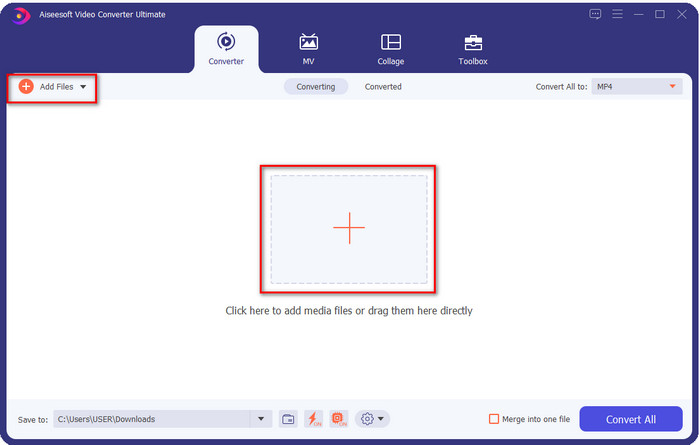
Trin 2. Upload den GIF, du vil bruge, ved at klikke på +-ikonet midt på hovedgrænsefladen, men du kan også klikke på Add Files, hvis du foretrækker det; uanset hvilken af de to du vælger, fungerer de på samme måde. Find .gif-filen i den mappe på computeren, der vises på skærmen, og klik på Open for at uploade den.
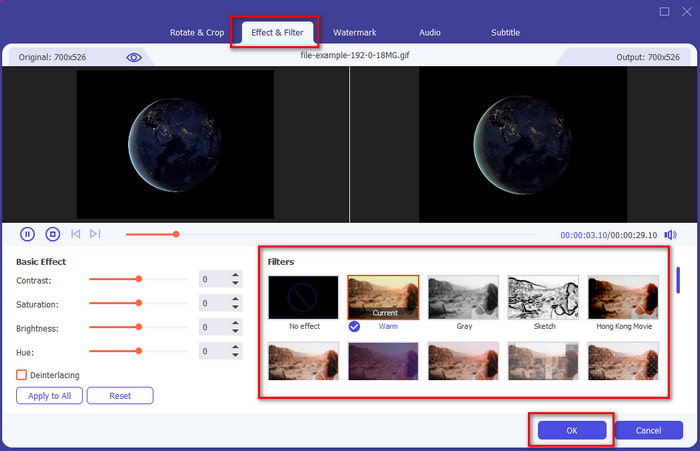
Trin 3. Klik på tryllestav-knappen for at åbne et nyt vindue, hvor du kan tilføje et filter til GIF’en. Gå til Effect & Filters under den, og du vil se et udvalg af forskellige filtre, du kan bruge til at få din GIF til at se bedre ud end andre GIF’er på nettet. Du kan prøve alle filtrene ved at klikke på dem enkeltvis; hvis du er tilfreds med filteret, skal du klikke på OK for at anvende filteret på GIF’en.
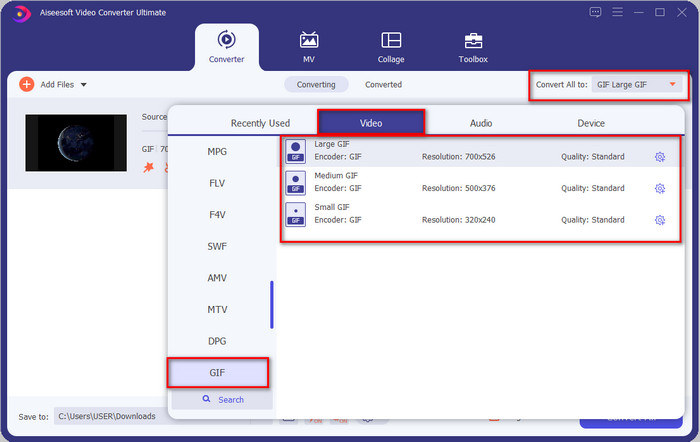
Hvis du vil beholde GIF’ens format, skal du klikke på Convert All to og finde GIF‑formatet. Vælg det GIF‑format, du vil bruge, og klik på det.
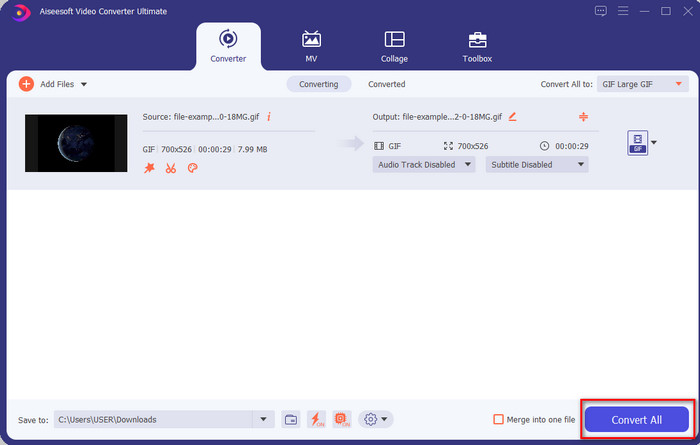
Trin 4. For at downloade GIF’en med det valgte filter skal du klikke på knappen Convert All. Nemt, ikke? Med Video Converter Ultimate kan du næsten gøre alt, hvad der har med GIF’er at gøre, uden overhovedet at anstrenge dig.
Del 3. Sådan tilføjes filter på GIF med GIF Maker- Editor tilgængelig på Android-enheder
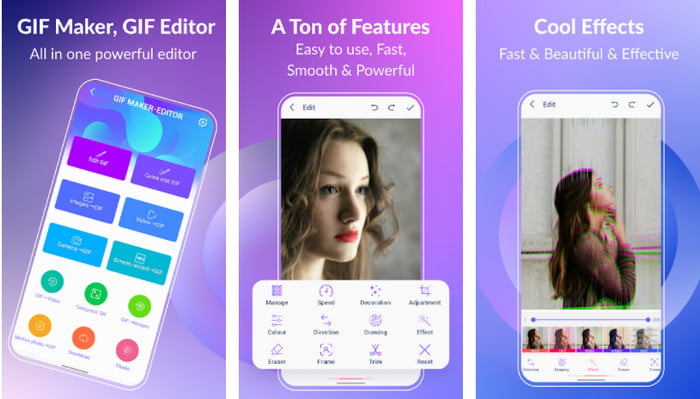
GIF Maker-Editor er et alt‑i‑én værktøj, du kan downloade på din Android. Dette værktøj understøtter forskellige filtre, der hjælper dig med at skabe en flot GIF. Selvom værktøjet er godt, dukker der reklamer op ud af det blå; du skal være opmærksom på ikke at klikke på dem. Her er nu trinnene til, hvordan du tilføjer et GIF‑farvefilter til dine GIF’er.
Trin 1. Download værktøjet i Play Butik, og åbn det.
Trin 2. Klik på Edit GIF, og vælg den GIF, der ligger i dit billedbibliotek.
Trin 3. Find effekterne ved at skubbe mellem mulighederne, og klik derefter på den ønskede. Vælg det filter, du vil bruge, klik på check-ikonet og derefter på OK for at gemme GIF’en.
Del 4. Sådan anvender du filter på GIF med GIF Maker tilgængelig på iPhone-enheder
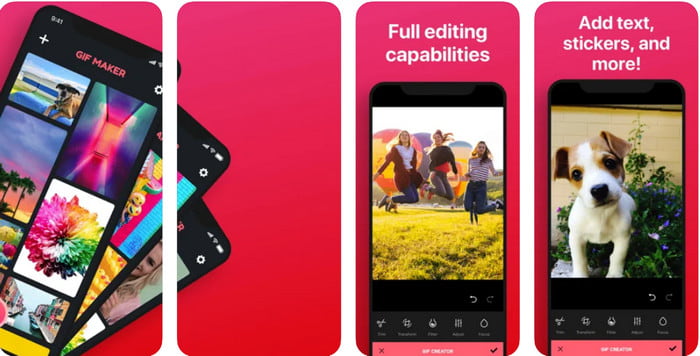
GIF Maker er den alt‑i‑én GIF‑editor, du kan downloade på din iPhone. Med dette værktøj kan du lave dine egne GIF’er med blot få klik. Du kan dog ikke bruge en GIF direkte, fordi formatet ikke understøttes, men du kan klikke på dette link og lære hvordan du konverterer GIF’er til live wallpapers. Når du har konverteret GIF’en til et live wallpaper, kan du følge de næste trin for at tilføje et filter til GIF’erne.
den gratis version af dette værktøj vil efterlade et vandmærke til GIF, du eksporterer.
Trin 1. Du kan downloade appen gratis i App Store.
Trin 2. Åbn værktøjet, klik på +-ikonet, klik på Choose Live Photo From Library, og vælg livefotoet for at uploade det.
Trin 3. Når du har uploadet livefotoet, skal du klikke på Filter og vælge, hvilket filter du vil tilføje til din GIF. Klik på check for at anvende det på videoen, og klik på check igen for at eksportere filen.
Del 5. Ofte stillede spørgsmål om tilføjelse af filtre til GIF
Påvirker filtre farven på GIF'en?
Farvekombinationen vil påvirke GIF'en eller ethvert medie, hvis du tilføjer filteret. Disse filtre bruger til at rette den farvekombination, du ønsker at have, så bliv ikke overrasket, hvis farven vil være meget mere dybtgående eller lysere end den rå visuelle GIF.
Hvilke effekter er tilgængelige på Instagram?
Der er adskillige videofiltre, du kan bruge på Instagram, og hvis du spekulerer på, hvilke de er, kan du klikke på dette link og se de 10 bedste udvalgte filtre på Instagram.
Kan jeg lave en video i høj kvalitet gennem filtre?
Du kan fremhæve farverne i videoen for at få den til at se mere højopløst ud. Filtre kan dog kun forbedre videoens farver og ikke den overordnede kvalitet. Hvis du vil forbedre videokvaliteten yderligere, kan du læse dette og lære hvordan du forbedrer videokvaliteten.
Konklusion
Og nu hvor vi har en idé om, hvordan man tilføjer et filter til GIF'en, skal du prøve de værktøjer, vi leverer ovenfor. Selvom værktøjerne præsenterer forskellige styrker ved filtrering af din GIF, tror vi stadig, at Video Converter Ultimate vil tilbyde dig de bedste filtre, du kan bruge til at lave en fantastisk filtreret GIF. Ikke kun det, med dette værktøj kan du klippe, flette, trimme, oprette personlige GIF'er og gøre mere. Er du ikke overbevist om de oplysninger, vi giver? Vi tror, der er én måde at bevise for dig på, at dette værktøj er det bedste valg med hensyn til redigering af GIF, og det er ved at klikke på download-knappen ovenfor og følge den vejledning, vi præsenterer og nyder!
-
 Sådan tilføjes lyd og musik til video gratis på din computer / telefon
 Denne artikel viser 4 nemme måder at tilføje lyd til video gratis på. Uanset hvilket lydspor du vil tilføje til din video, kan du få tilfredsstillende resultater her.
-
 Vend GIF til videoformat: Konverter GIF-memes til video [2021]
 Bestem, hvordan du omdanner GIF til videoformat ved hjælp af værktøjerne nedenfor. Vælg hvilken, og lær hvordan du gør det, da vi samler nok bevis på dem.
-
 Fantastisk GIF til videoapps til Android og iOS -enheder
 Vidste du, at du kan konvertere GIF'er til ethvert videoformat, du kan lide ved hjælp af din telefon? Vælg de bedste apps på din Android eller iOS.
