


 Video Converter Ultimate
 Bildschirm recorder
 Videoreparatur
Hervorragende Tools, die Fragen zum Konvertieren von MPEG in MOV lösen
As a video and audio file compression standard, it also handles the transmission of these files in a more efficient manner. The Moving Picture Experts Group (MPEG) is given to experts who set the MPEG standards. These adaptations all have their specifications and use cases in the industry, making it difficult to know which. This will be a sneak peek at what this article talks about. Most of the topics talk about how to convert MPEG to MOV and some of its details and information provided. Continue reading as we discuss the differences and comparisons between the two video formats.

Teil 1. MPEG VS. MOV – Eine Einführung
MPEG is an outdated video file type that compresses video data using MPEG-1 or MPEG-2 compression. Internet video and DVD distribution are two common uses for this technology. The fact that it does not provide lossless compression and some of the flexibility offered by other formats makes t a poor format for video editing. Due to the fact that MPEG has been a standard for a long time, it is well supported by major browsers and video players and allows for streaming. It is an excellent choice for end-product video distribution over the Internet and DVD.
However, video in the MOV format is usually connected with the QuickTime multimedia player. Apple is the company that created this video extension. It compresses video and audio by utilizing an algorithm. Even though it is an Apple product, it is compatible with both MAC and Windows operating systems. Now that you know all about these two video formats, the next part will discuss all the best software and online tools you can use to convert MPEG to MOV and vice-versa.
Teil 2. So konvertieren Sie MPEG in MOV auf dem Mac
If you're looking for the right software you can use on Mac to convert MPEG to MOV, this article recommends Video Converter Ultimate. This software is free to download and available on both Windows and Mac. It is software that a wide range of users can use since it has a very accessible tool and user-friendly interface.
Anders als andere Software und Online-Tools, die konvertieren können, verfügt diese Software über einen Konverter, der zahlreiche Videoformate unterstützt und Dateien in weniger als einer Minute konvertieren kann. Abgesehen von seiner außergewöhnlichen Konverterfunktion bietet diese Software verschiedene Tools, mit denen Sie Ihr Video noch weiter verbessern können. Genug mit den beschreibenden Details über die Software, lassen Sie uns in die Verfahren eintauchen, die Sie befolgen müssen:
Step 1: Right-click on the Free Download icon that is provided below to begin the download process. Windows and Mac operating system computers are both supported with this software. After completing the download, you can install it and start using the software by clicking the Start Now button.
Gratis DownloadFür Windows 7 oder neuerSicherer Download
Gratis DownloadFür MacOS 10.7 oder neuerSicherer Download
Step 2: When you have downloaded the software, open it. It will appear in a window when the software is launched for the first time. Begin the conversion process by entering your video file here.
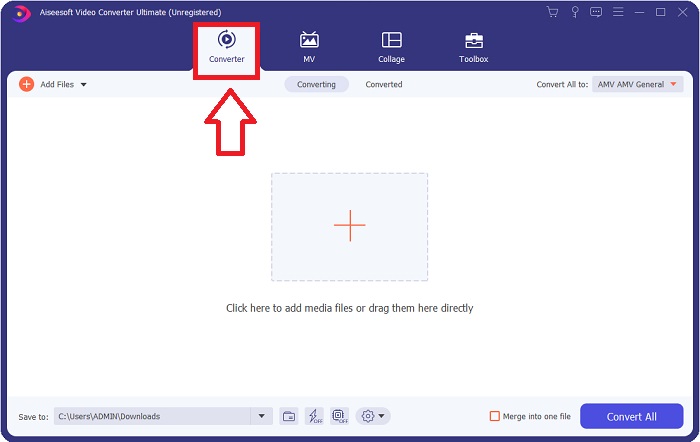
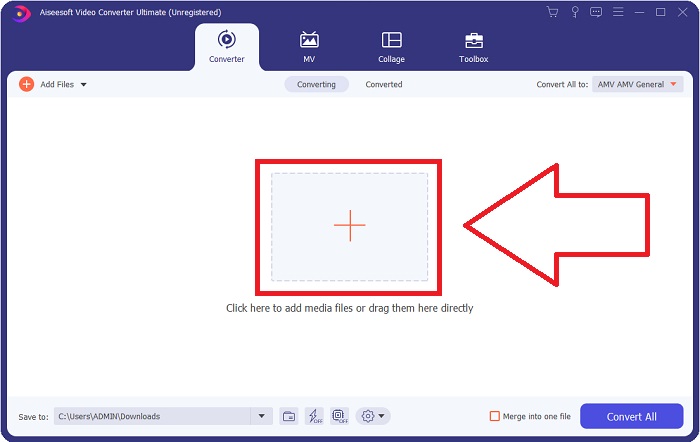
Step 3: Start the conversion process by uploading the files you want to convert into the converter. By doing this drag the video or you can click the + symbol.
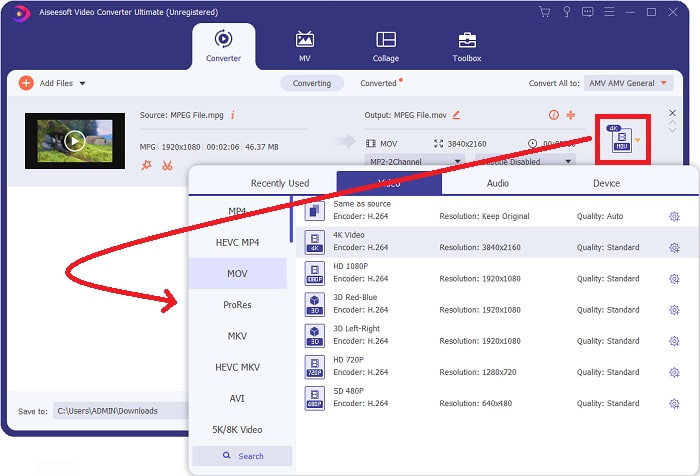
Step 4: The screen's upper-right corner displays an options menu, from which you can select a video format. On the drop-down menu of Convert All you can now select MOV as the video format. Depending on the MOV file you've chosen, you can choose from a range of video quality settings. You can also, however, change the quality settings if your preferred video output isn't provided. It is possible to alter the display's frame rate and audio quality by clicking on the gear icon. To save your changes, use the Create New button.
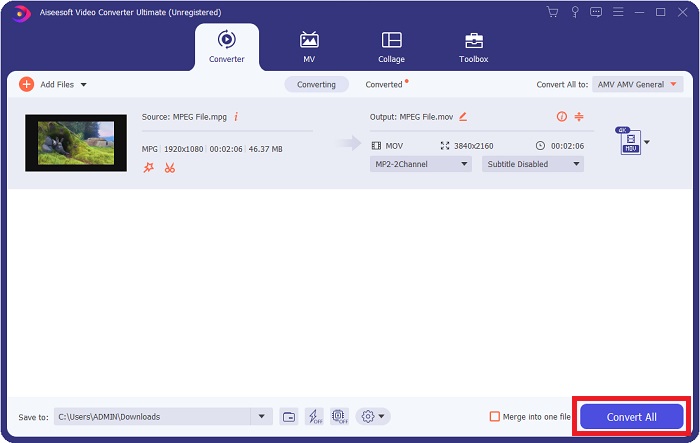
Step 5: When you've completed editing the video, and it's ready to be converted, click Convert All to begin the transfer.
Teil 3. Hervorragende Online-Konverter, die bei der Konvertierung von MPEG in MOV helfen
Methode 1. Verwenden Sie den kostenlosen Online-Videokonverter
FVC Free Video Converter Online is a multimedia converter that is free to use and supports wide range of. If you have high-definition video, you can easily convert it to formats like MP4, FLV, and WMV without losing quality. If you have a lot of videos or audio that you want to convert, you can do it without losing quality. This free video converting application is popular for converting and editing, giving users a wide range of options to fine-tune their videos. Let's buckle up and learn all the steps needed:
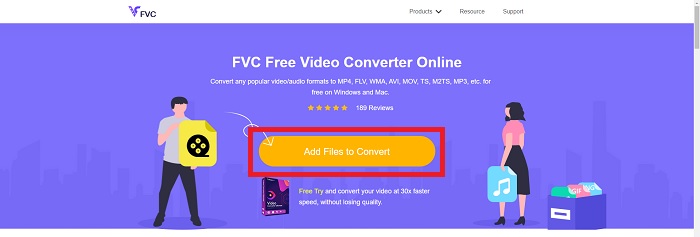
Step 1: This link will take you to the main page of the FVC converter's website.
Step 2: For the first time, click on Add Files to convert to your right to acquire the launcher for your machine. Upon a second download, it will automatically begin. In your folder, locate the file and click Open to begin the download process again.
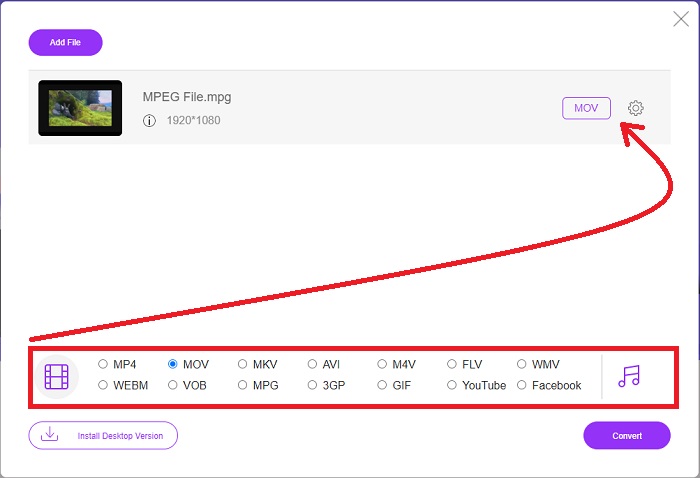
Step 3: To begin the conversion process before it ever begins, select a format from the drop-down option below and click on it.
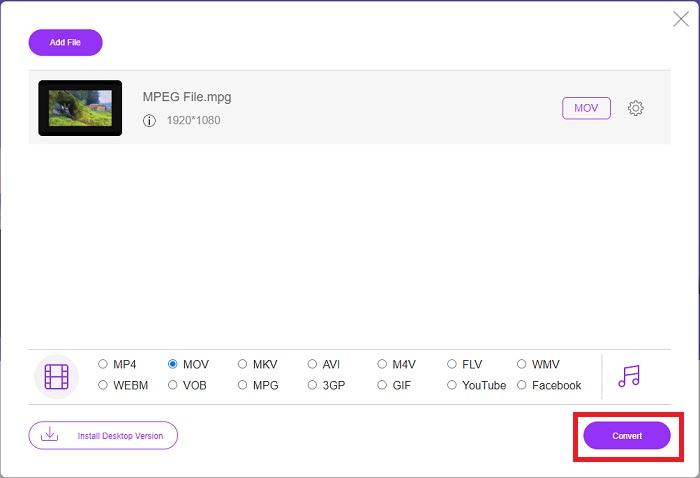
Step 4: After you've picked the MOV format to convert, click Convert to begin the conversion process.
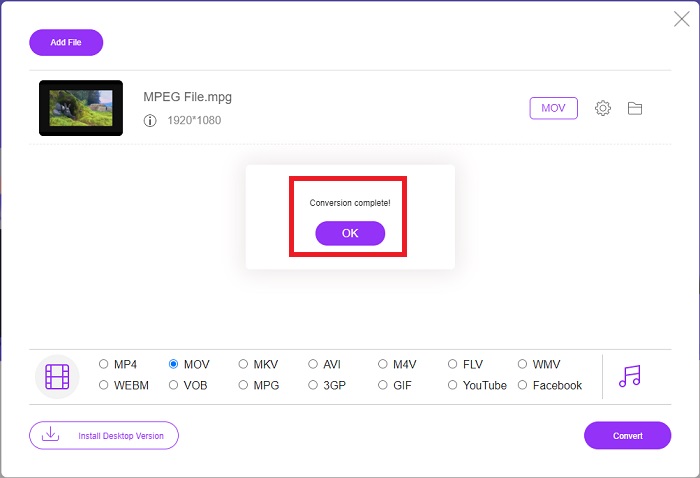
Step 5: A few minutes later, you'll see a folder with the converted file, which you may then open and begin viewing.
Methoden 2. Verwenden Sie CloudConvert
CloudConvert is a file converter that works online. It is possible to play almost any kind of music or video file on our system. Converting files has never been easier with CloudConvert. It is possible to play almost any kind of music or video file on our system. You can also use our web tool without the need to install any software on your computer. With all being said, here are the steps you need to know:
Step 1: At its main interface, you can already set the video format of your video file and the video format your video you want to convert to. Click Select File to upload a file from your computer.
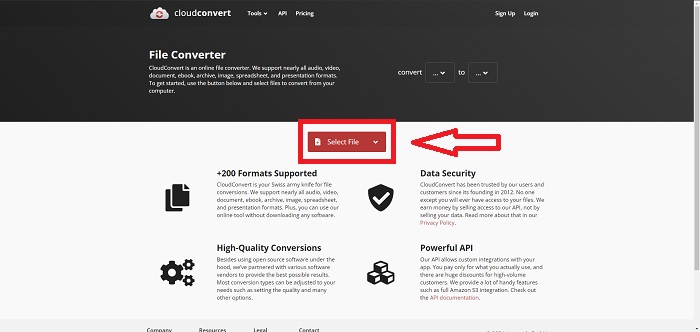
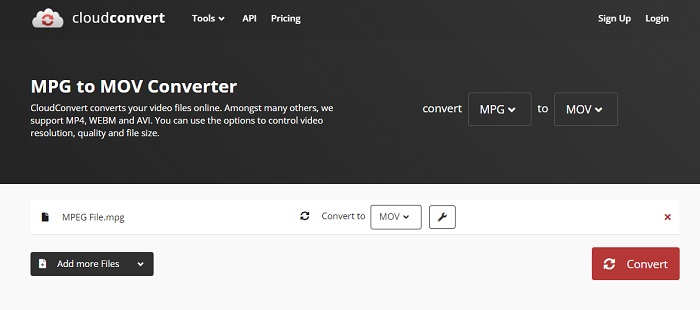
Step 2: You can choose what kind of video format you want to convert by clicking the ellipses beside the Convert button.
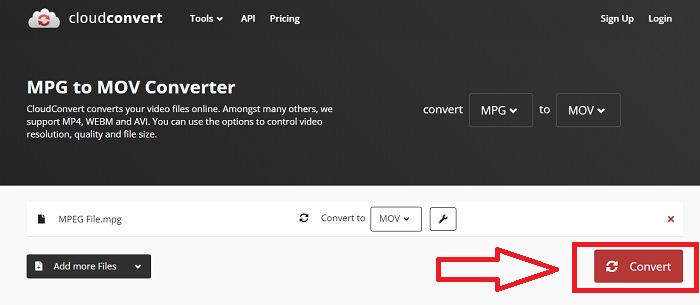
Step 3: After all the adjustments have been made, to start the conversion process, click the Convert button.
Teil 4. Vergleichstabelle: MPEG und MOV
| Dateierweiterung | MOV | MPEG |
| Dateityp | Apple QuickTime-Film | MPEG-Film |
| Entwickelt von | Apfel | N / A |
| Vorteile | Hochwertige Filme u | Eines der wenigen Formate |
| Multimedia lässt sich mit Hilfe mehrerer Codecs effektiver komprimieren. | Wird von praktisch allen DVD-Playern erkannt; ermöglicht eine bessere Kompression. | |
| Nachteile | Trotz der Tatsache, dass viele kostenlose Videoplayer es abspielen können, gibt es immer noch Probleme, da es sich um ein Containerformat handelt, das verschiedene Codecs enthält. | Im Allgemeinen hat das MPEG-Format eine geringere Anzahl von Anwendungen und Entwicklern, da es ein strengerer Standard ist. |
Teil 5. Häufig gestellte Fragen zum Konvertieren von MPEG in MOV
Wie verkleinere ich eine MOV-Datei?
Wenn Sie VideoConverter verwenden, müssen Sie nur die MOV-Datei suchen, die Sie bearbeiten möchten, und mit der rechten Maustaste darauf klicken, um Eigenschaften aus dem Kontextmenü auszuwählen. Wählen Sie dann Allgemein und fahren Sie dann mit Erweitert aus dem Dropdown-Menü fort. Um Speicherplatz zu sparen, aktivieren Sie im Dropdown-Menü das Kontrollkästchen neben Inhalte komprimieren. Wenn Sie auf OK klicken, wird die Datei in einer kleineren Größe als ursprünglich gespeichert.
Wie komprimiert man MOV-Dateien?
A MOV file can be compressed and archived on Windows by choosing it and pressing and holding the right mouse button until a popup window appears, then selecting Send to from the menu that appears. The compressed (zipped) folder should be chosen as the destination from the drop-down menu. Or you can use a video compressor to compress your MOV files.
Ist MPG und MPEG dasselbe?
Die Dateierweiterungen MPEG-1 und MPEG-2 werden auch verwendet, um auf MPG-Dateien zu verweisen. Um Audio- und Videodaten synchron zu halten, fungieren MPG-Dateien beider Arten als Containerdateien für diese Daten. Aufgrund seiner Kompatibilität mit verschiedenen Anwendungen ist MPEG-2 zu einer beliebten Wahl zum Komprimieren von Dateien geworden.
Fazit
Zusammenfassend lässt sich sagen, dass es schwierig ist, ein unbekanntes Videoformat für die Wiedergabe auf einigen Mediaplayern zu verwenden. Deshalb brauchen Sie eine hervorragende Software, auf die Sie sich verlassen können. Video Converter Ultimate ist das, was dieser Artikel am meisten empfiehlt, insbesondere beim Konvertierungsprozess und mehr mit seinen verschiedenen und hilfreichen Tools, die Sie zu einem professionellen Editor machen können.
-
 So konvertieren Sie MPEG kostenlos in MP4-Dateien unter Windows, Mac, Online
 Lesen und erhalten Sie 3 kostenlose Möglichkeiten zum Konvertieren von MPEG- in MP4-Dateien auf Ihrem Computer. Sie können Online- und Desktop-Videokonverter verwenden, um MPEG problemlos in das MP4-Format umzuwandeln.
-
 [2021] Beste Tools und einfache Möglichkeiten zum Konvertieren von MPEG in MP3
 In diesem Artikel geht es hauptsächlich darum, wie Sie Ihre MPEG-Videos mit den zuverlässigsten Tools auf der Liste in MP3 konvertieren können.
-
 So konvertieren Sie AVI in MOV mit einfachen Schritten und Tools
 Möchten Sie wissen, wie Sie AVI in ein abspielbares MOV umwandeln? Sie müssen diesem Artikel folgen, um zu wissen, wie es geht und Tipps für eine erfolgreiche Konvertierung.
