


 Video Converter Ultimate
 Bildschirm recorder
 Videoreparatur
So entfernen Sie online Wasserzeichen aus GIF [Schritt für Schritt]
Das Hinzufügen eines Wasserzeichens zu einem GIF ist zu einer der Möglichkeiten geworden, ein GIF zu schützen. Aber was ist, wenn Sie das Wasserzeichen, das Sie Ihrem GIF hinzugefügt haben, wieder entfernen müssen? Was sollten Sie tun? Verfügt Ihr GIF‑Maker über diese Funktion? Hat er keinen Wasserzeichen-Entferner? Wir wissen, dass dieses Problem lästig ist, oder? Aber Sie müssen sich keine Sorgen machen, denn auf all diese Fragen werden Sie gleich eine Antwort bekommen: Wir haben vier Wasserzeichen-Entferner gefunden, die Sie sowohl offline als auch online verwenden können. Diese Tools sind sorgfältig aus dem Markt ausgewählt, um Ihnen die besten Möglichkeiten zu bieten, mit denen Sie das Wasserzeichen auf einem GIF entfernen können.

Ein Blick auf diese Apps
| Video Converter Ultimate | Online-GIF-Tools | WatermarkRemover.io | Pixlr | Photoshop | |
| Auflösung | 8 TAUSEND | 1080P | 5K | 8 TAUSEND | 300.000 |
| Prozessgeschwindigkeit | Schnell | Mittel | Mittel | Schnell | Hängt von Ihrer Hardware ab |
| Hardwareanforderungen | Niedrig | N / A | Mittel | Hoch | Sehr hoch |
Teil 1. Der einfachste Weg, Wasserzeichen schnell aus GIF unter Windows und Mac zu entfernen
Video Converter Ultimate kann Ihnen effektiv helfen, ein Wasserzeichen aus einem GIF zu entfernen – ganz gleich, ob Sie es entfernen möchten oder nicht. Mit diesem Tool können Sie ein Wasserzeichen hinzufügen und auch wieder entfernen; im Grunde ist es ein All‑in‑One‑Tool, das Sie unter Windows oder Mac benötigen. Außerdem können Sie mit diesem Tool Ihr eigenes GIF erstellen und das gewünschte Wasserzeichen hinzufügen, um Ihr erstelltes GIF zu schützen. Um es auszuprobieren, können Sie den einfachen Schritten folgen, die wir bereitstellen – das war’s. So können Sie Ihr GIF in weniger als einer Minute ohne Wasserzeichen verwenden.
Vorteile von Video Converter Ultimate:
◆ Es ist die beste Wahl, ein Wasserzeichen auf Ihrem GIF zu entfernen und hinzuzufügen.
◆ Eine benutzerfreundliche GUI kann Ihnen helfen, schnell zu verstehen, was mit der Benutzeroberfläche des Tools passiert.
◆ Der integrierte ultraschnelle Konvertierungsprozess und die Hardwarebeschleunigung können Ihnen beim blitzschnellen Importieren und Exportieren helfen.
◆ Auf allen Plattformen wie Windows und Mac zum Download verfügbar.
◆ Es verfügt über die besten erweiterten GIF-Maker-Funktionen, die Sie auf Ihrem Desktop verwenden können, um ein personalisiertes GIF zu erstellen.
Schritte zum Entfernen des Wasserzeichens aus einem GIF mit dem Ultimate Watermark Remover
Schritt 1. Laden Sie die Software über die Schaltfläche unten auf Ihr Laufwerk herunter. Starten Sie sie anschließend und laden Sie ein GIF oder Video hoch.
Gratis DownloadFür Windows 7 oder neuerSicherer Download
Gratis DownloadFür MacOS 10.7 oder neuerSicherer Download
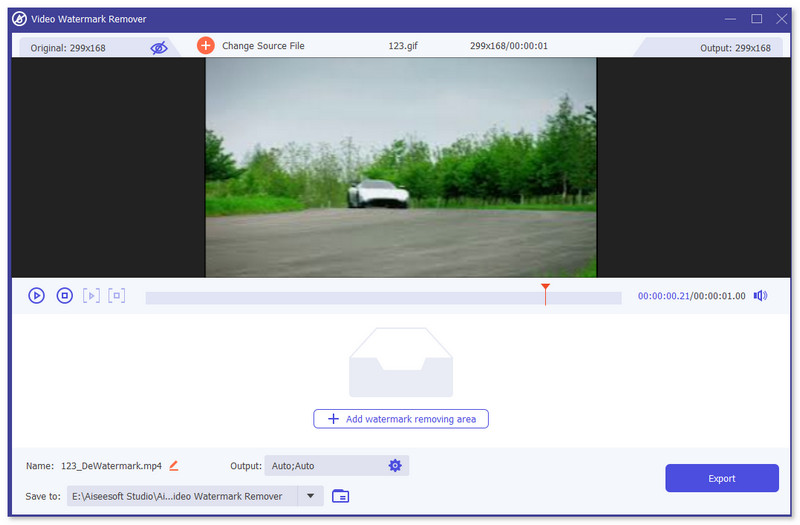
Schritt 2. Öffnen Sie den Wasserzeichen-Entferner, gehen Sie zu „Toolbox“ und suchen Sie nach Video Watermark Remover.

Schritt 3. Laden Sie ein GIF oder Video hoch und klicken Sie auf Exportieren.
Verwandt:
Wasserzeichen zum Video hinzufügen
TikTok-Wasserzeichen entfernen
Wasserzeichen aus GIF mit Adobe Photoshop entfernen
Wenn Sie Adobe Photoshop auf Ihrem Computer installiert haben, können Sie damit auch Wasserzeichen oder Schatten aus Bildern entfernen. Photoshop gilt als eines der beliebtesten und leistungsstärksten Fotobearbeitungstools und ermöglicht Ihnen das Hinzufügen von Effekten, Filtern, Löschen von Objekten usw. Obwohl es kein kostenloses Fotobearbeitungsprogramm ist, können Sie es 30 Tage lang kostenlos testen. Folgen Sie nun der Anleitung unten, um unerwünschte Objekte aus Fotos zu entfernen.
Schritt 1. Starten Sie PhotoShop auf Ihrem Computer. Sie können die offizielle Adobe‑Website besuchen, um PhotoShop kostenlos herunterzuladen und eine kostenlose Testversion zu erhalten.
Schritt 2. Sie können die Bilddatei, die Sie bearbeiten möchten, direkt per Drag & Drop importieren. Alternativ klicken Sie in der Menüleiste auf „Datei“ und dann auf Öffnen, um ein lokales Foto auf Ihrem Computer auszuwählen.
Schritt 3. Sie können das Werkzeug Auswählen und Maskieren verwenden, um die unerwünschten Objekte zu markieren. In diesem Schritt können Sie frei ein geeignetes Werkzeug auswählen, um den Bereich zu markieren, den Sie entfernen möchten.
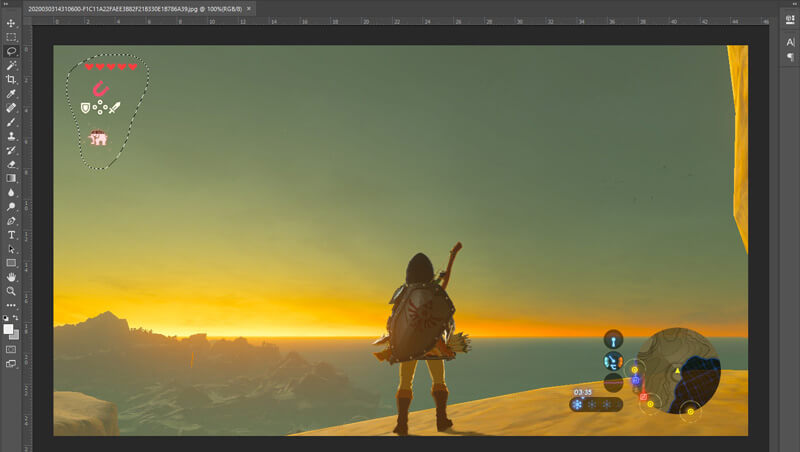
Schritt 4. Nun können Sie sich auf das Photoshop‑Werkzeug Inhaltsbasiertes Füllen (Content-Aware Fill) verlassen, um Objekte aus dem Foto zu entfernen und diesen Teil durch passenden Inhalt zu ersetzen. Vergleichsweise kann Ihnen die Funktion „Inhaltsbasiertes Füllen“ ein besseres Ergebnis liefern, wenn Sie Objekte nicht einfach nur aus einem Foto löschen möchten.
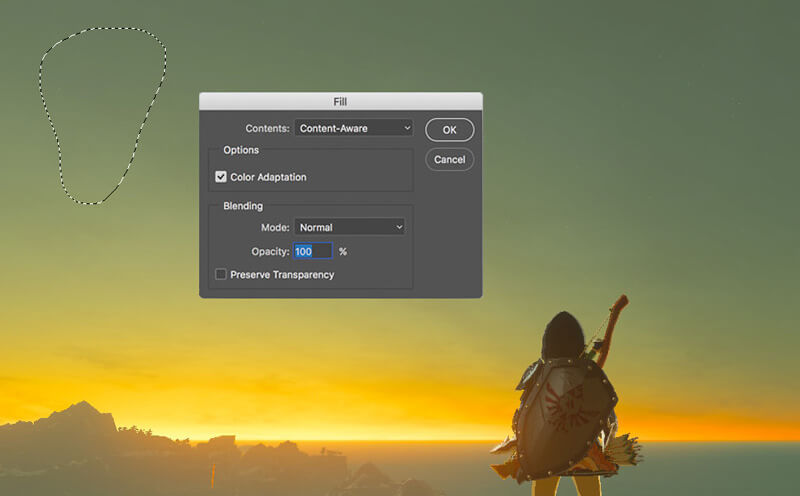
Schritt 5. Nachdem PhotoShop das Objekt entfernt hat, können Sie auf Datei und dann auf „Speichern“ klicken, um das bearbeitete Bild auf Ihrem Computer zu sichern. Sie können jedes gängige Bildformat wie JPG, PNG, GIF und andere als Ausgabeformat wählen. Hier können Sie auch Strg + S drücken, um Ihre Bilddatei aus PhotoShop zu speichern und zu exportieren.
Teil 2. So entfernen Sie online Wasserzeichen aus GIFs
Mit diesen kostenlosen Online-Tools können Sie Wasserzeichen auf GIFs entfernen. Sie müssen jedoch bedenken, dass diese Tools nicht funktionieren, wenn Sie keine Internetverbindung haben, da alle Tools netzwerkabhängig sind. Außerdem kann ihre Verwendung einige Zeit in Anspruch nehmen, da sie bei der Verwendung dieser Web-Tools puffert. Wenn Sie also den kostenlosen GIF-Entferner online kennenlernen möchten, lesen Sie die Details unten.
Wasserzeichen aus GIF mit Online-GIF-Tools entfernen
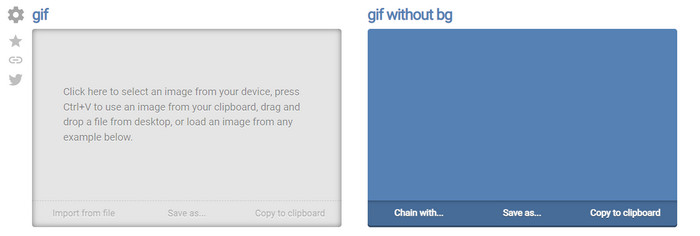
Online GIF Tools ist ein kostenloses Tool, mit dem Sie Wasserzeichen aus GIFs entfernen können. Dieses Tool bietet den Nutzern erweiterte Entfernungsmöglichkeiten, etwa das Entfernen eines Hintergrund‑Wasserzeichens aus einem GIF. Auch wenn das Tool beeindruckend ist, kann das Entfernen des Wasserzeichens kompliziert sein, da es die farbigen Pixel in jedem Frame einzeln eliminiert.
Schritt 1. Öffnen Sie Online GIF Tools in Ihrem Webbrowser.
Schritt 2. Klicken Sie auf Datei importieren, um das GIF hochzuladen. Klicken Sie unter Hintergrundfarbe auf den Optionsfarbencoder, um die Farbe des Wasserzeichens zu bestimmen.
Schritt 3. Klicken Sie auf Speichern unter und anschließend auf Herunterladen, um das GIF auf Ihrem Laufwerk zu sichern.
Wasserzeichen aus GIF entfernen mit Watermark Remover Online
Mit WatermarkRemover.io wird Ihr Wasserzeichen im GIF automatisch entfernt. Dieses Tool eignet sich hervorragend, um Wasserzeichen kostenlos zu entfernen. Es ermöglicht den Nutzern, das Wasserzeichen mit weniger Aufwand zu entfernen, da Sie nichts manuell tun müssen – das Tool übernimmt alles für Sie. Allerdings sind manche Regionen für dieses Tool nicht verfügbar; im Grunde können Sie das GIF mit entferntem Wasserzeichen dort nicht herunterladen.
Schritt 1. Starten Sie WatermarkRemover.io und fügen Sie die GIF‑Datei hinzu, indem Sie auf den unteren Bereich des Logos klicken.
Schritt 2. Nachdem Sie die Datei hinzugefügt haben, beginnt der Vorgang automatisch; warten Sie einfach ab.
Schritt 3. Klicken Sie auf die Download‑Schaltfläche, um die Datei auf Ihrem Computer zu speichern.
Wasserzeichen aus GIF mit Pixlr entfernen

Wenn Sie das beste Online‑Tool verwenden möchten, um das Wasserzeichen auf Ihrem GIF zu entfernen, dann nutzen Sie Pixlr. Im Gegensatz zu den zwei zuvor erwähnten Webtools ist dieses Tool ganz anders, weil es viele Funktionen bietet, die Sie zum Entfernen des Wasserzeichens verwenden können. Auch wenn das Tool Photoshop ähnlich ist, sind einige Funktionen hier nicht so leistungsfähig wie in Photoshop, insbesondere beim Entfernen von Wasserzeichen aus GIFs, und es fügt am Ende des Exports selbst ein Wasserzeichen hinzu.
Schritt 1. Suchen Sie nach Pixlr und öffnen Sie es.
Schritt 2. Klicken Sie auf Advanced Editor, fügen Sie das GIF hinzu und klicken Sie auf Bild öffnen (Open Image). Nachdem Sie das GIF hinzugefügt haben, klicken Sie auf das Tropfen-Symbol, um das Wasserzeichen zu verwischen, klicken Sie wiederholt auf das Wasserzeichen und achten Sie darauf, es zu entfernen.
Schritt 3. Klicken Sie auf Datei, dann Speichern.
Teil 3. Häufig gestellte Fragen zum Entfernen von Wasserzeichen aus GIF
Verringert das Entfernen des Wasserzeichens die Dateigröße?
Die Dateigröße wird sich ändern, aber es wird keine wesentlichen Auswirkungen haben, da Sie nur einen Teil des Wasserzeichens auf Ihrem Video entfernen. Wenn also die ursprüngliche Dateigröße und das extrahierte Wasserzeichen nicht annähernd gleich sind, liegt das Problem in dem, was Sie verwendet haben.
Warum ist mein Video nach dem Entfernen des Wasserzeichens verschwommen?
Nachdem Sie das Wasserzeichen entfernt haben, ist Ihr Video unscharf, da das Tool das Wasserzeichen auf diese Weise entfernt. Es ist eine der Methoden, die Tools bieten, um das Wasserzeichen auf jedem Video oder Bild zu entfernen, indem es unkenntlich gemacht wird.
Ändert sich die Qualität des GIFs nach dem Entfernen des Wasserzeichens?
Sie werden keine Qualitätsänderung bemerken, nachdem Sie das Wasserzeichen auf Ihrem GIF entfernt haben. Einige Tools verringern jedoch die Qualität Ihres GIFs, da sie keine hochwertigen GIFs unterstützen. Denken Sie also daran, das richtige Tool auszuwählen, das den Export hochwertiger Ausgaben unterstützt, auch wenn Sie das Wasserzeichen daraus entfernt haben.
Fazit
Letztendlich gibt uns dieser Blog die Möglichkeit, das Wasserzeichen auf dem GIF oder Video, das wir verwenden, effektiv zu entfernen. Die vorgestellten Tools sind also wirksam und hervorragend geeignet, um das Wasserzeichen aus unserem GIF zu löschen. Dennoch bietet Video Converter Ultimate weiterhin die größten Stärken, wenn es darum geht, ein Wasserzeichen auf Ihrem GIF zu entfernen oder hinzuzufügen. Wenn Sie unserer Einschätzung zu diesem Tool zustimmen, sollten Sie es verwenden; und wenn nicht, sollten Sie es zumindest ausprobieren, herunterladen und das Wasserzeichen auf Ihrem GIF entfernen. Danach wird Ihnen das Tool schnell helfen, und Ihre Meinung über die Leistungsfähigkeit dieses Programms wird sich ändern.
-
 Beste Methode zum Hinzufügen eines Wasserzeichens zu einem Video in Photoshop unter Windows und Mac
 Möchten Sie wissen, wie Sie einem Video in Photoshop ein Wasserzeichen hinzufügen? In diesem Fall liefert Ihnen dieser Artikel das eine oder andere, was Sie wissen müssen.
-
 Die 3 besten Lösungen zum einfachen Entfernen von Wasserzeichen aus Videos
 Möchten Sie das lästige Wasserzeichen auf dem Video entfernen? In diesem Blog können Sie die verschiedenen Ideen zum Entfernen des Wasserzeichens in einem Video kennenlernen.
-
 Die 5 besten Möglichkeiten, Bilder in animierte GIFs umzuwandeln [Aktualisiert 2022]
 Benötigen Sie ein Konverterbild in GIF? Dieser Artikel stellt die fünf besten Konverter vor, die wir auf dem Markt finden können. Lassen Sie uns also diese Tools herausfinden, indem Sie diesen Artikel lesen.
