


 Video Converter Ultimate
 Bildschirm recorder
 Videoreparatur
 Sicherer Download
Top Offline- und Online-GIF-Kombinatoren | Wie man GIFs nahtlos zusammenführt
Haben Sie schon einmal Lust gehabt, ein witziges und einprägsames Bild zu erstellen, indem Sie mehrere GIFs aneinanderfügen? Gute Nachrichten! Das Zusammenführen von GIFs war noch nie so einfach und bequem wie mit den bestbewerteten Online- und Offline-Tools zum Kombinieren von GIFs. Mit diesen leistungsstarken Apps können Sie Ihre bevorzugten GIFs ganz leicht zu etwas völlig Neuem und Einzigartigem verbinden, das garantiert die Aufmerksamkeit der Leute auf sich zieht. In dieser Anleitung zeigen wir Ihnen sowohl Online- als auch Offline-Methoden zum Kombinieren von GIFs und geben Tipps, wie Sie jede Methode optimal nutzen. Jetzt ist der richtige Zeitpunkt, um das faszinierende Feld der GIF-Mashups zu entdecken.

Teil 1. Bester GIF-Combiner offline
Die Verwendung eines Offline-Programms zum Kombinieren von GIFs bietet den Nutzern mehrere Vorteile: Es ist keine Internetverbindung erforderlich, Sie haben eine bessere Kontrolle über den Prozess, mehr Privatsphäre und Sicherheit sind gewährleistet, und die Verarbeitung geht schneller. Mit einem Offline-Programm können Sie GIFs in Ihrem eigenen Tempo erstellen und kombinieren und das Ergebnis nach Ihren Wünschen anpassen. Daher möchten wir Ihnen FVC Video Converter Ultimate empfehlen.
Mit diesem Tool können Benutzer mehrere GIFs zusammenführen und die Größe, Geschwindigkeit und Wiedergabeeinstellungen des resultierenden GIF anpassen. Was es von seiner Konkurrenz unterscheidet, ist, dass es sich um eine multifunktionale Videobearbeitungssoftware handelt, die eine GIF Maker-Funktion enthält, mit der Benutzer neben dem Zusammenführen von GIFs auch andere Videobearbeitungsaufgaben ausführen können. Darüber hinaus verfügt es über eine benutzerfreundliche Oberfläche, die Schritt-für-Schritt-Anleitungen bietet und so für fortgeschrittene und unerfahrene Benutzer zugänglich ist. Erfahren Sie, wie Sie mehrere GIFs in MP4 auf dem PC oder in anderen Formaten zusammenführen, indem Sie der vereinfachten Anleitung folgen.
Kompatibilität: Windows 11/10/8/7 & Mac OS X 10.12 oder höher
Bewertung: 9,8 / 10
Preis: $49,96 für die lebenslange Nutzung
Hauptfunktionen:
◆ Videokonvertierung: FVC Video Converter Ultimate kann Videos in eine Vielzahl von Formaten umwandeln, darunter MP4, AVI, WMV, MKV und mehr.
◆ Audioextraktion: Benutzer können Audiospuren aus Videodateien extrahieren.
◆ GIFs zusammenführen: FVC Video Converter Ultimate enthält ein integriertes GIF Maker-Tool, mit dem Benutzer mehrere GIFs zusammenführen, die Wiedergabegeschwindigkeit anpassen und andere Einstellungen anpassen können.
◆ Ausgabe in hoher Qualität: FVC Video Converter Ultimate behauptet, die ursprüngliche Qualität der Quelldateien während des Konvertierungsprozesses beizubehalten und so eine Ausgabe in hoher Qualität zu gewährleisten.
◆ Stapelverarbeitung: Benutzer können viele Dateien gleichzeitig konvertieren und zusammenführen, was Zeit spart und die Effizienz erhöht.
Schritte zum Kombinieren von GIFs mit diesem GIF-Merger:
Schritt 1. Laden Sie das Programm zunächst herunter, indem Sie auf eine der Schaltflächen „Free Download“ unten klicken, die zu dem Betriebssystem Ihres Computers passt. Öffnen Sie anschließend das Installationsprogramm und folgen Sie dem Einrichtungsassistenten, um den GIF-Merger korrekt auf Ihrem Computer zu installieren. Starten Sie das Programm danach.
Kostenloser DownloadFür Windows 7 oder höherSicherer Download
Kostenloser DownloadFür macOS 10.7 oder höherSicherer Download
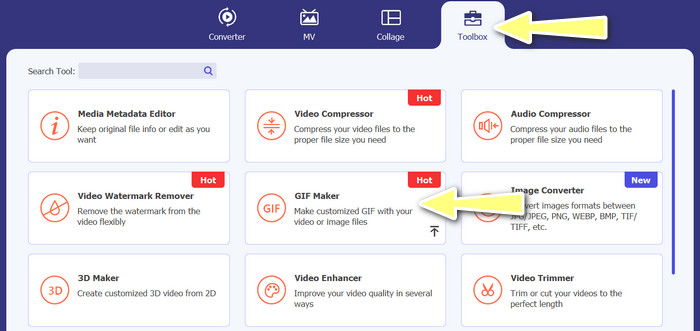
Schritt 2. Gehen Sie als Nächstes zum Reiter Toolbox im oberen Bereich der Programmoberfläche. Dann werden Sie zu einer Sammlung von Funktionen weitergeleitet, die das Programm bietet. Wählen Sie hier GIF Maker und fügen Sie GIF-Dateien hinzu, indem Sie auf die Schaltfläche Photos to GIF klicken. Wählen Sie anschließend alle GIF-Dateien aus, die Sie zu einem einzigen GIF zusammenführen möchten.
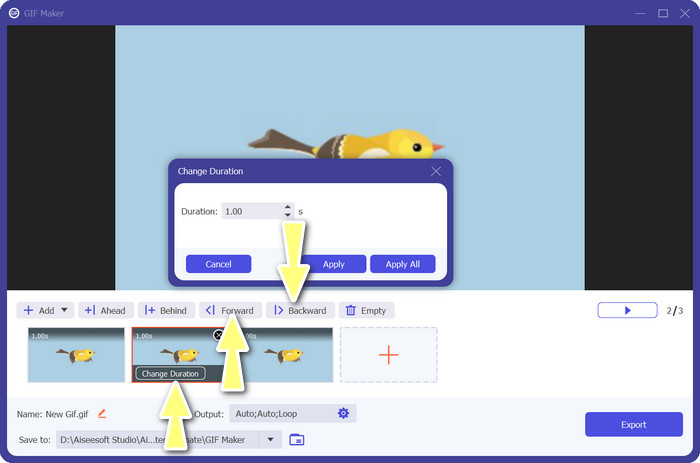
Schritt 3. Fahren Sie im Bearbeitungspanel mit der Maus über jedes GIF, um die Option Change Duration zu sehen, und passen Sie die Länge jedes GIFs an. Außerdem können Sie die Reihenfolge ändern, indem Sie im Hauptmenü zwischen den Schaltflächen Backward und Forward wählen.
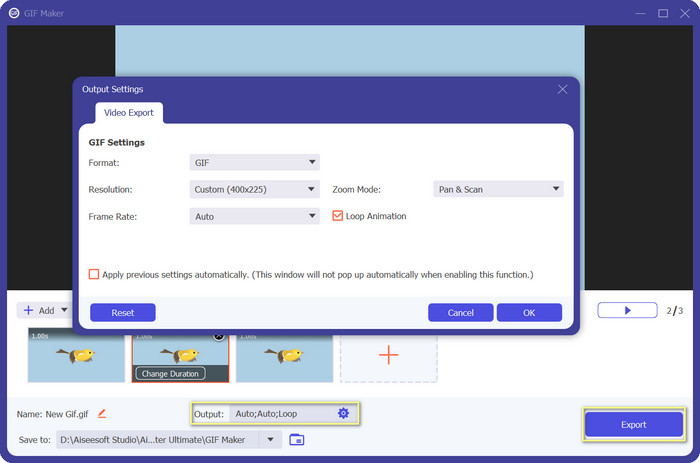
Schritt 4. Anschließend können Sie weitere Einstellungen wie Format, Auflösung, Bildrate und Zoommodus in den Output-Einstellungen anpassen. Klicken Sie zum Schluss auf die Schaltfläche Export, um das endgültige Ergebnis zu erzeugen.
Teil 2. Top 4 GIF Combiner Online
Es gibt auch einige Online-Alternativen, um GIFs zu einem zu kombinieren. Daher können Sie Ihren GIFs ganz einfach beitreten, ohne ein Programm auf Ihren Computer herunterzuladen. Probieren Sie sie aus, indem Sie die unten vorgestellten Programme überprüfen.
1. EZGIF
EZGIF ist ein weit verbreiteter Webdienst zum Erstellen und Ändern von GIFs. Mit der GIF Joiner-Funktion können Sie viele GIFs zu einem einzigen kombinieren, mit der Option, die Wiedergabegeschwindigkeit und andere Parameter zu ändern. Nachfolgend finden Sie eine einfache Anleitung zur Verwendung von EZGIF zum Kombinieren von GIFs zu einem.
Schritt 1. Starten Sie Ihren bevorzugten Webbrowser und besuchen Sie die offizielle Website des Programms. Gehen Sie dort zur Option GIF Maker.
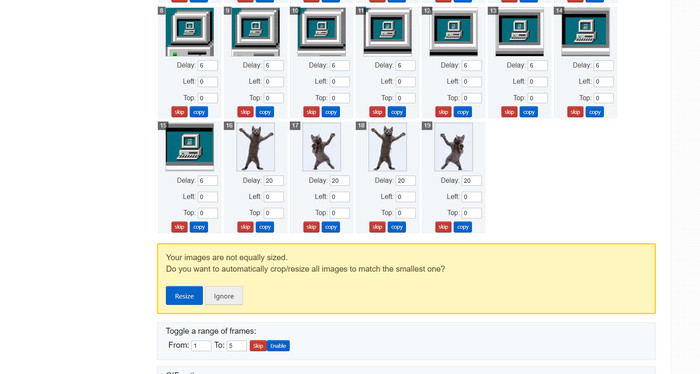
Schritt 2. Laden Sie anschließend die GIF-Dateien hoch, die Sie kombinieren möchten; das Tool lädt auf der nächsten Seite jedes einzelne Bild Ihres GIFs.
Schritt 3. Nun können Sie festlegen, welche Frames eines GIFs Sie ein- oder ausschließen möchten.
Schritt 4. Auf der folgenden Seite stehen weitere Optionen zur Verfügung. Wenn Sie mit den Einstellungen zufrieden sind, klicken Sie auf die Schaltfläche Make a GIF.
2. GIPHY
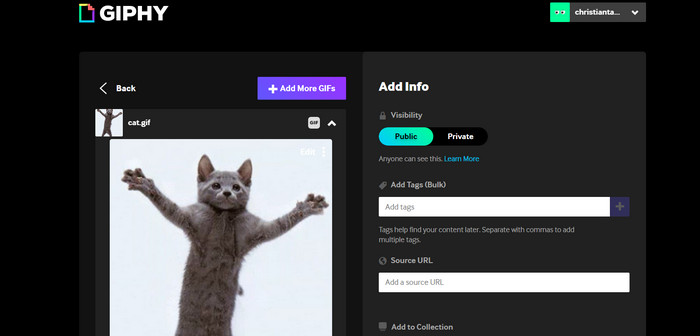
Während die meisten Leute GIPHY als einen Ort zum Suchen und Teilen von GIFs kennen, wissen sie möglicherweise nicht, dass die Website auch einen GIF-Ersteller enthält, mit dem Benutzer GIFs kombinieren und Text oder Aufkleber hinzufügen können. Auf der anderen Seite ist hier ein Schritt-für-Schritt-Prozess, um GIFs mit GIPHY zu verbinden.
Schritt 1. Um mit der Erstellung von GIFs zu beginnen, rufen Sie die GIPHY-Website auf und nutzen Sie den Reiter Create. Wählen Sie im erscheinenden Menü GIF Creator aus.
Schritt 2. Wählen Sie die GIFs, die Sie kombinieren möchten, von Ihrem Computer aus, indem Sie auf die Schaltfläche Choose Files klicken.
Schritt 3. Die ausgewählten GIFs können Sie auf die Zeitleiste am unteren Rand des Bildschirms ziehen. Indem Sie die GIFs per Drag & Drop neu anordnen, können Sie ihre Abspielreihenfolge ändern.
Schritt 4. Um die Länge jedes GIFs zu ändern, verwenden Sie den bereitgestellten Schieberegler. Mit den Bearbeitungswerkzeugen von GIPHY können Sie Ihr GIF mit Text, Stickern und mehr personalisieren. Wenn Sie mit dem Ergebnis zufrieden sind, wählen Sie Create GIF, um das kombinierte GIF auf Ihrem Computer zu speichern.
3. Kapwing
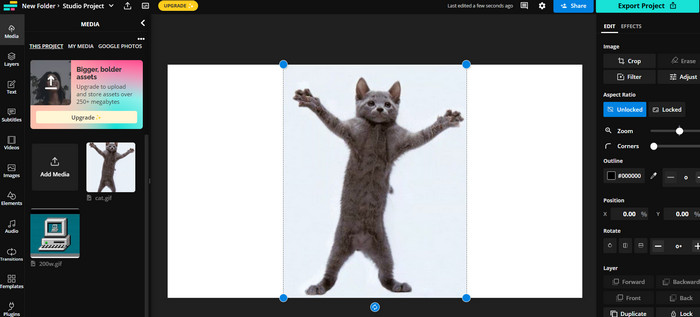
Kapwing ist ein kostenloser, webbasierten Dienst, mit dem Nutzer Videos bearbeiten und GIFs aus Bildern erstellen können. Er ermöglicht es, mehrere GIFs hochzuladen, sie zu einem einzigen GIF zusammenzufügen, die Wiedergabegeschwindigkeit auszuwählen und weitere Parameter zu ändern. Um zu erfahren, wie Sie mit Kapwing zwei GIFs zusammenfügen, sehen Sie sich die nachstehenden Anweisungen an.
Schritt 1. Gehen Sie auf die Website von Kapwing und klicken Sie auf Get Started, um zu beginnen. Klicken Sie auf Click to Upload und wählen Sie die GIFs auf Ihrem Computer aus, die Sie zusammenführen möchten.
Schritt 2. Ziehen Sie die ausgewählten GIFs auf die Zeitleiste am unteren Rand des Bildschirms. Sie können die Reihenfolge der GIFs ändern, indem Sie sie an die gewünschte Position ziehen.
Schritt 3. Passen Sie die Wiedergabegeschwindigkeit und Dauer jedes GIFs mithilfe der von Kapwing bereitgestellten Bearbeitungstools an. Sie können Ihrem GIF außerdem mit den Kapwing-Bearbeitungstools Text, Sticker und andere Elemente hinzufügen.
Schritt 4. Wenn Sie zufrieden sind, klicken Sie auf Publish, um Ihr zusammengeführtes GIF auf Ihrem Computer zu speichern.
4. Imgflip
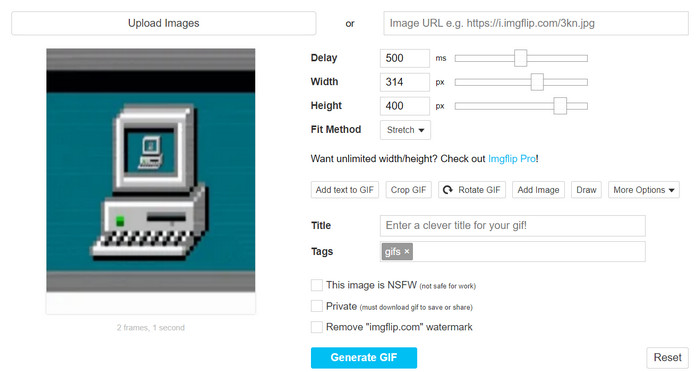
Der beliebte Online-Meme- und GIF-Ersteller Imgflip bietet auch einen GIF-Generator. Benutzer können Textüberlagerungen hinzufügen, die Wiedergabegeschwindigkeit ändern und zahlreiche GIFs gleichzeitig posten. Schauen Sie sich die Schritte an und informieren Sie sich, wie Sie GIFs zu einem kombinieren.
Schritt 1. Gehen Sie auf die Website von Imgflip und klicken Sie oben auf der Seite auf Create. Wählen Sie im Dropdown-Menü Video to GIF aus.
Schritt 2. Klicken Sie auf Upload Video und wählen Sie die GIFs von Ihrem Computer aus, die Sie zusammenführen möchten. Nachdem Ihre GIFs hochgeladen wurden, klicken Sie oben auf der Seite auf Join GIFs.
Schritt 3. Ordnen Sie die GIFs in der gewünschten Reihenfolge an, indem Sie sie per Drag & Drop verschieben. Passen Sie die Wiedergabegeschwindigkeit und andere Einstellungen nach Bedarf an.
Schritt 4. Wenn Sie mit dem Endergebnis zufrieden sind, klicken Sie auf Create GIF, um Ihr zusammengefügtes GIF auf Ihrem Computer zu speichern.
Teil 3. FAQs zu GIF Combinern
Kann ich GIFs unterschiedlicher Größe kombinieren?
Ja, die meisten GIF-Zusammenführungen ermöglichen es Ihnen, GIFs mit unterschiedlichen Größen und Seitenverhältnissen zu kombinieren. Es ist jedoch wichtig zu beachten, dass die endgültige Ausgabe je nach den Abmessungen der einzelnen GIFs beschnitten oder in der Größe geändert werden kann.
Ist es legal, GIFs zusammenzuführen, die nicht mir gehören?
Es ist wichtig, Urheberrechtsgesetze zu respektieren und nur GIFs zusammenzuführen, zu deren Verwendung Sie berechtigt sind. Dazu können GIFs gehören, die gemeinfrei sind oder die Sie selbst erstellt haben.
Kann ich meinem zusammengeführten GIF Text oder Sticker hinzufügen?
Ja, die meisten GIF-Merger bieten Bearbeitungsfunktionen, mit denen Sie Ihrem GIF Text, Sticker und Wasserzeichen hinzufügen können. Dies kann die visuelle Wirkung und die Aussage Ihres GIFs verbessern.
Fazit
In einer Welt, in der visuelle Inhalte immer wichtiger werden, ist das Zusammenführen von GIFs eine wertvolle Fähigkeit. Mit der Möglichkeit, GIFs zu einer Datei zu kombinieren, können Sie etwas wirklich Einzigartiges erstellen, das die Aufmerksamkeit des Publikums auf sich zieht und es dazu anregt, mit Ihren Inhalten zu interagieren.
-
 5 der besten GIF-Resizer, die auf allen Plattformen verfügbar sind [2023]
 Möchten Sie wissen, welche GIF-Resizer Sie verwenden können? In diesem Fall beziehen sich die unten bereitgestellten Informationen auf die Resizer, die Sie für Ihre GIFs auf allen Plattformen verwenden können.
-
 Schleifen Sie GIF mit dem besten animierten GIF-Looper für Windows und Mac
 Möchten Sie das Geheimnis für das beste Loop-GIF erfahren? Willst du einen machen? Dann sind Sie hier genau richtig. Lernen Sie also, wie Sie mit dem besten verfügbaren Looper einen Loop erstellen.
-
 Top 6 Möglichkeiten zum Kombinieren von MP4-Dateien unter Windows / Mac / Online
 Möchten Sie Ihre MP4-Rohdateien für Ihr Projekt zusammenführen? In diesem Beitrag werden die sechs wichtigsten Möglichkeiten zusammengefasst, mit denen Sie MP4-Videos unter Windows, Mac und online problemlos kombinieren können.
