


 Video Converter Ultimate
 Bildschirm recorder
 Videoreparatur
So ändern Sie die Größe von Bildern in Photoshop mit 3 schnellen und einfachen Methoden
Resizing images in Photoshop is a fundamental skill for anyone involved in digital media, photography, or design. Adobe Photoshop, a powerhouse in image editing, provides various methods to alter image dimensions without compromising quality. In this comprehensive guide, we'll explore three efficient methods on how to resize images in Photoshop and offer tips on batch resizing. Additionally, for those seeking alternatives, we'll introduce two user-friendly tools, highlighting their features and step-by-step guide.
Optimieren Sie jetzt Ihre visuelle Reise und erkunden Sie die Möglichkeiten in der digitalen Landschaft.

Teil 1. Wie ändere ich die Größe von Bildern in Photoshop?
Es gibt viele Methoden, wie Sie die Größe eines Bildes in Photoshop ändern können. Sie können die Größe ändern, indem Sie die Bildgröße in Pixel, Zoll und Prozentsätzen ändern. Diese drei Methoden können tatsächlich die Größe des Bildes ändern. Allerdings sollte jede Methode der von uns konkret benötigten Qualität entsprechen. Aber hier sind die drei Methoden, um die Größe von Bildern in Photoshop zu ändern:
Methode 1: Ändern der Bildgröße in Pixeln
Step 1. Open your image in Photoshop by clicking Open or go to File and select your image.
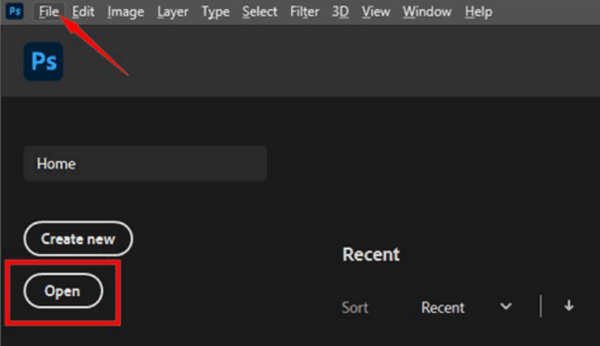
Step 2. Now, head to the Image tab and select Image Size.
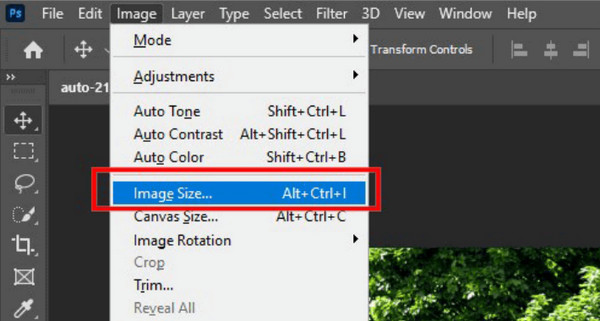
Step 3. In the Image Size dialog box, choose Pixels from the drop-down menu. To set specific dimensions, enter values in width and height text boxes and click OK to resize the image.
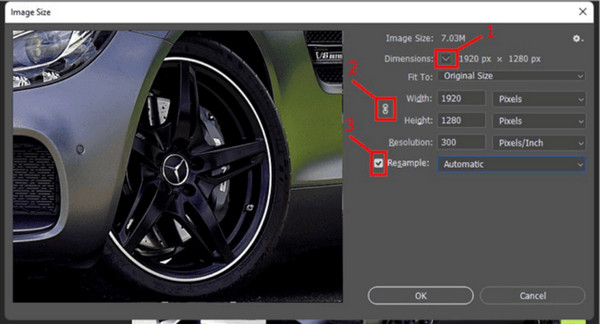
Step 4. Lastly, save the final image via File by clicking the Save As button.
When you want to sharpen your images in Photoshop, you can adjust the percentage to a higher.
Vergessen Sie nicht, die PSD-Datei beim Speichern als JPEG zu speichern.
Methode 2: Ändern der Bildgröße in Zoll
Diese zweite Methode ist genau die gleiche wie Methode 1, das einzige, was Sie tun müssen, ist, die Größe in Zoll und nicht in Pixeln zu ändern. Aber hier ist die Schritt-für-Schritt-Anleitung, wie Sie die Bildgröße in Zoll ändern:
Step 1. Open your image in Photoshop by clicking Open or go to File and select your image.
Step 2. Now, head to the Image tab and select Image Size.
Step 3. In the Image Size dialog box, choose Inches from the drop-down menu. To set specific dimensions, enter values in width and height text boxes and click OK to resize the image.
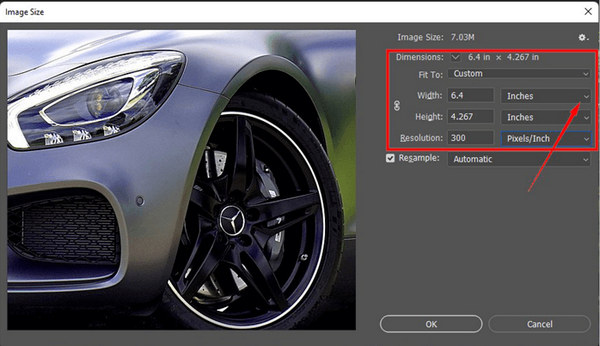
Step 4. Lastly, save the final image via File by clicking the Save As button.
Ändern Sie die Größe von Bildern in Photoshop um Zoll (folgt dem gleichen Ansatz wie Methode 1). Denken Sie daran, die Konsistenz Ihrer gewählten Methode beizubehalten, sei es Pixel oder Zoll, um Klarheit und hohe Auflösung in Ihren Bildern sicherzustellen. Diese Einheitlichkeit ist der Schlüssel zu einem professionellen und zusammenhängenden Ergebnis Ergebnis.
Methode 3: Ändern der Bildgröße prozentual
This method is rarely used. However, changing an image size by percentage is the same with methods 1 and 2, the only thing you need to change in the Image Size dialogue box is the Percentage instead of pixels or inches.
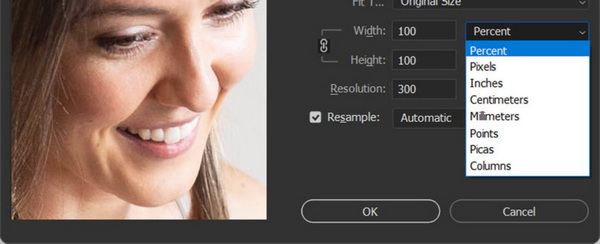
Die Methode, mit der Sie die Größe Ihres Bildes ändern, sollte der von Ihnen benötigten Methode entsprechen, da eine Änderung zu einer Verringerung der Bildauflösung führen kann.
Tipps zum Ändern der Größe von Stapelbildern in Photoshop?
Sie können die Größe von Massenbildern in Photoshop tatsächlich ändern, indem Sie die Methoden 1–3 befolgen. Es gibt jedoch bestimmte Dinge, die Sie tun müssen, um dies zu erreichen.
Tip 1. You need first to consolidate the images. Place them in one folder for easy navigation.
Tip 2. When saving and changing their sizes, ensure that the Don’t Enlarge is checked.
Tip 3. Save your resized images to a new and different folder to avoid mixing them from the originals.
Da bist du ja! Sie können nun der Schritt-für-Schritt-Anleitung zum Ändern der Bildgröße in Photoshop mit einer der in diesem Beitrag beschriebenen Methoden folgen. Befolgen Sie dabei unbedingt die Tipps.
Teil 2. Wie kann ich die Größe von Bildern in Photoshop [Alternativen] ohne Qualitätsverlust ändern?
Es gibt alternative Tools, die Sie verwenden können, wenn Sie nicht wissen, wie Sie die Größe eines Bildes in Photoshop ändern, oder wenn Sie keinen Zugriff darauf haben. Diese Tools bieten benutzerfreundliche Oberflächen und vielfältige Funktionen, sodass Sie qualitativ hochwertige Ergebnisse erzielen können, ohne dass Sie eine fortschrittliche Fotobearbeitungssoftware benötigen.
FVC Free Image Compressor
FVC Free Image Compressor is a speedy and user-friendly tool specifically designed to reduce the size of your photos without compromising quality. It excels at compressing various photo formats like JPEG, PNG, SVG, and GIFs, offering superior compression compared to alternative software options.
Funktionen:
◆ Komprimiert mehrere Bildformate.
◆ Batch-Bildkomprimierung.
◆ Dateien per Drag-and-Drop verschieben.
Quick Guide:
Step 1. Go to their official website.
Step 2. Click Upload Images to import the photos you want to compress.
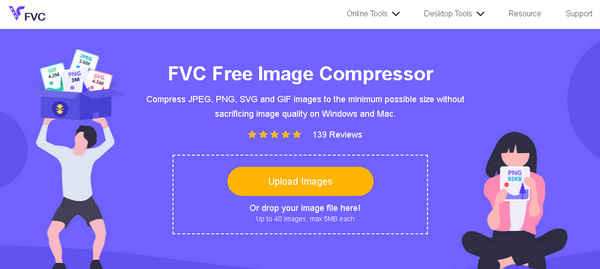
Step 3. Wait for the compression process. When done, you’ll see a bar status stating it’s finished and information on the before and after size of the compressed image. Click Download to save your image.
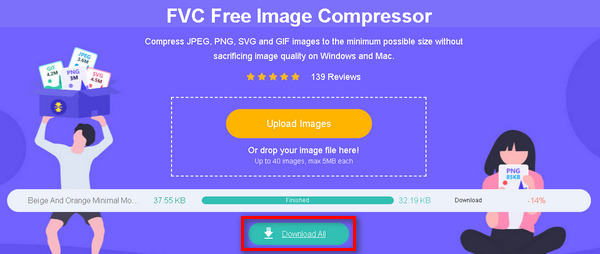
Die Verwendung von FVC Free Image Compressor ist in der Tat eine der besten Alternativen für Photoshop, wenn Sie die Größe Ihres Bildes reduzieren möchten. Abgesehen davon, dass es einfach zu bedienen ist, garantiert es die beste Qualität, die Ihren Anforderungen entspricht.
FVC Free Image Upscaler
FVC Free Image Upscaler is a robust image enhancement tool leveraging AI Super Resolution technology. This image upscaler tool excels at automatic recognition of blurred elements, making precise adjustments to enhance lost pixels, colors, textures, and intricate details effectively. Notably, it easily identifies and naturally restores portrait features, showcasing its advanced capabilities in image upscaling and refinement.
Funktionen:
◆ Vergrößern Sie Bilder bis zu 8-fach mit hoher Qualität.
◆ Vorschaueffekt.
◆ Kompatibel mit mehreren Formaten.
◆ KI-Integration zur automatischen Verbesserung von Bildern.
Quick Guide:
Step 1. Visit their official website.
Step 2. Click on the Upload Photo. Select the image you want to upscale
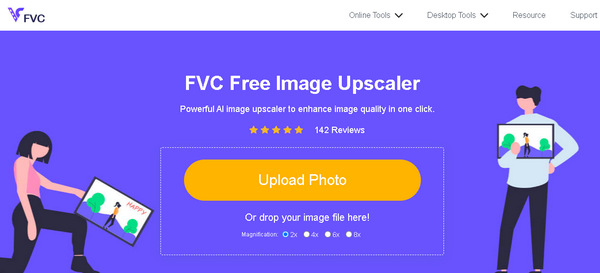
Step 3. The tool will preview your image. You can utilize the Magnifier option to check the quality of the image.
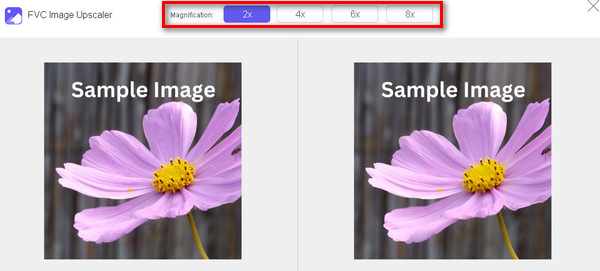
Step 4. Click Save to download your image.
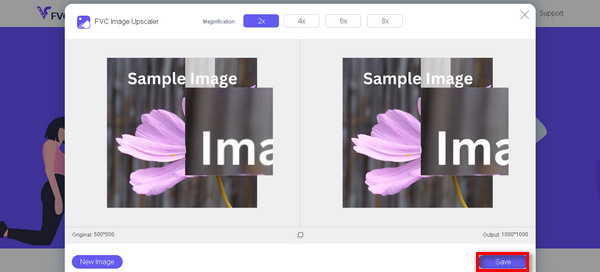
FVC Free Image Upscaler ist ein Spitzenprodukt, wenn es um die Hochskalierung von Bildern geht. Außerdem erleichterte dieses Tool den Benutzern die Verbesserung ihrer Bilder. Keine komplizierte Benutzeroberfläche, nur schnelle und qualitativ hochwertige Ergebnisse.
Teil 3. FAQs zum Ändern der Bildgröße in Photoshop
Wie ändere ich die Größe eines Bildes in Photoshop und behalte die Proportionen bei?
Um die Proportionen bei der Größenänderung in Photoshop beizubehalten, stellen Sie sicher, dass die Option „Eingeschränktes Seitenverhältnis“ aktiviert ist. Dies wird normalerweise durch ein Kettensymbol dargestellt, das Breite und Höhe verknüpft. Dadurch wird durch die Anpassung einer Dimension die andere automatisch proportional skaliert.
Ändert Photoshop die Größe von Bildern?
Ja. Mit Photoshop können Sie die Größe von Bildern einfach ändern. Sie können im Menü „Bild“ auf die Option „Bildgröße“ zugreifen und so die Abmessungen nach Ihren Wünschen anpassen.
Welche Tastenkombinationen gibt es, um die Größe eines Bildes in Photoshop zu ändern?
Two common shortcuts for resizing in Photoshop are Alt + Ctrl + I (PC) or Option + Command + I (Mac) to open the Image Size dialog and Ctrl + T (PC) or Command + T (Mac) to activate Free Transform, allowing you to resize manually.
Beeinträchtigt das erneute Sampling des Bildes in Photoshop die Qualität?
Resampling in Photoshop doesn't necessarily ruin quality if done carefully. When resizing, if the Resample option is selected and set appropriately, it adjusts the pixel count to maintain image quality. However, excessive enlargement may result in some loss of detail. Also, you can upscale the image quality with the photo pixel enhancer software.
Kann ich in Photoshop die Größe mehrerer Bilder auf einmal ändern?
Ja, Photoshop bietet eine Stapelverarbeitungsfunktion. Nutzen Sie den Bildprozessor oder erstellen Sie eine Aktion, um die Größe mehrerer Bilder gleichzeitig zu ändern. Dies rationalisiert den Prozess und gewährleistet die Konsistenz über einen Stapel von Bildern hinweg.
Fazit
You can really do a lot with online AI tools nowadays. Hence, learning how to resize images using Photoshop is one necessary thing for those seeking an image resizer, especially those who are actually using this tool but haven’t really got into its full capabilities. If you are not using it and you find it complicated to use, you can use the two alternatives by changing the size of an image or by upscaling it. As technology evolves, harness its potential and navigate the digital landscape with confidence and efficiency. It's time to make the most of the tools at your fingertips!
-
 So ändern Sie die Bildgröße in Illustrator auf zwei verschiedene Arten
 Erfahren Sie, wie Sie die Größe eines Bildes in Illustrator am besten ändern. Laden Sie zunächst die Adobe Illustrator-App herunter, öffnen Sie sie auf Ihrem PC und befolgen Sie diese einfachen Schritte.
-
 FastStone Photo Resizer – Eine leistungsstarke App zum Ändern der Bildgröße
 FastStone Photo Resizer ist eine großartige App zum Ändern der Größe von Bildern. Klicken Sie auf diesen Beitrag, um mehr über FastStone Photo Resizer und die beste Alternative für das Tool zu erfahren.
-
 Schritt-für-Schritt-Anleitung zum Ausschneiden eines Bildes in Photoshop
 Benutzen Sie Photoshop? Dieser Artikel könnte für Sie sein. Erfahren Sie, wie Sie in Photoshop schnell und einfach ein Bild ausschneiden. Jetzt lesen und etwas entdecken.
