


 Video Converter Ultimate
 Bildschirm recorder
 Videoreparatur
 Sicherer Download
5 Lösungen für den nicht funktionierenden QuickTime Player: So wenden Sie sie an
Für Mac-Benutzer sollte QuickTime Player eine der vertrautesten Anwendungen sein. Es ist im System vorinstalliert und wird in der Regel verwendet, um Videos auf dem Gerät abzuspielen sowie einige einfache Aufgaben zur Bearbeitung von Multimedia-Dateien und zur Formatkonvertierung durchzuführen. Allerdings ist es kein Alleskönner: Es unterstützt nicht allzu viele Formate und kann bei der Arbeit einige Fehler verursachen. In diesem Artikel fassen wir einige der häufigsten Probleme zusammen, die auftreten können, und erklären Schritt für Schritt, wie man QuickTime Player funktioniert nicht behebt. Wenn Sie ebenfalls Probleme damit haben, können Sie in diesem Artikel nachsehen, ob es eine Lösung gibt, die auf Ihre Situation passt. Für alle, die QuickTime Player schätzen, seine Funktionen aber als recht grundlegend empfinden, empfehlen wir außerdem eine der besten Alternativen dazu.

Teil 1. Beheben Sie, dass QuickTime auf dem Mac immer wieder den Verlauf anzeigt
QuickTime Player zeichnet Ihre Wiedergabe auf und zeigt den Verlauf in den Menüs „Datei“ und „Zuletzt geöffnet“ an. Nutzer finden die geöffneten Videos auch in der Liste unter dem Dock-Symbol. Wenn Sie den Verlauf nicht mehr sehen möchten oder nicht möchten, dass der nächste Nutzer des Geräts sieht, was Sie geöffnet haben, können Sie die zuletzt geöffneten Dateien im QuickTime Player löschen.
So lösen Sie das Problem: QuickTime zeigt auf dem Mac immer wieder den Verlauf an.
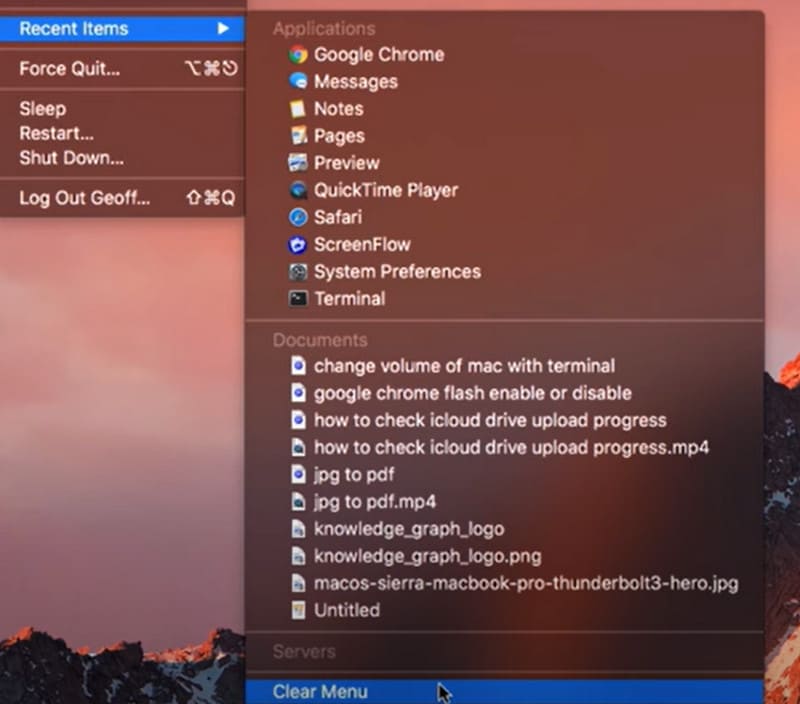
Schritt 1. Öffnen Sie QuickTime Player auf dem Mac. Gehen Sie in die obere linke Ecke und klicken Sie auf das QuickTime-Logo. Klappen Sie die Liste auf und wählen Sie Zuletzt benutzt > Menü löschen.
Schritt 2. Gehen Sie anschließend zum Tab Ablage und wählen Sie Zuletzt geöffnet > Menü löschen.
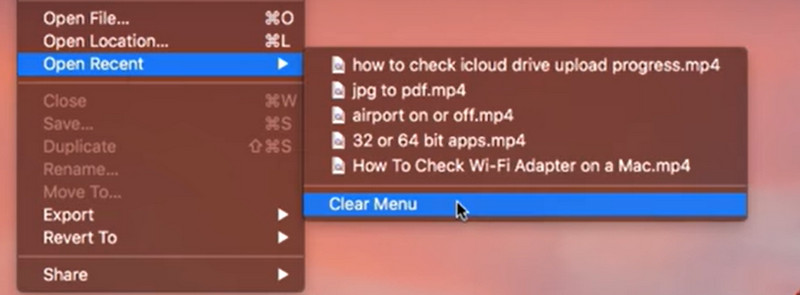
Schritt 3. Beenden Sie QuickTime Player und starten Sie ihn erneut. Danach werden Ihnen auf dieser Plattform keine zuletzt verwendeten Dateien mehr angezeigt.
Teil 2. Problem „Video lässt sich im QuickTime Player nicht trimmen“ beheben
In den letzten Jahren haben Nutzer berichtet, dass beim Zuschneiden eines Videos mit dem QuickTime Player alle Optionsfelder plötzlich grau wurden und nicht mehr angeklickt werden konnten. Offenbar können wir die Bearbeitungsfunktionen des QuickTime Players nicht mehr nutzen. Glücklicherweise wurde für diesen Fehler eine Lösung gefunden.
So beheben Sie das Problem, dass das Zuschneiden von Videos im QuickTime Player nicht funktioniert.
Schritt 1. Starten Sie QuickTime Player und öffnen Sie das Video, das Sie trimmen möchten. Wenn alle Schaltflächen unter Bearbeiten grau sind, schließen Sie Ihre Datei und kehren Sie zur Hauptoberfläche zurück. Klicken Sie mit der rechten Maustaste darauf und wählen Sie Schnellaktionen > Trimmen.

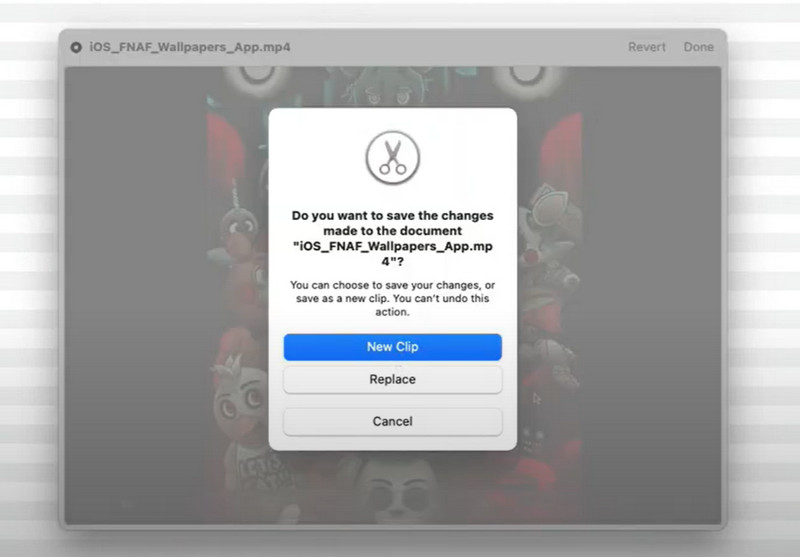
Schritt 2. Nehmen Sie einen kleinen Schnitt am aktuellen Clip vor und klicken Sie auf Fertig > Neuer Clip. Speichern Sie Ihre bearbeitete Datei als neue Datei und geben Sie ihr einen anderen Namen.
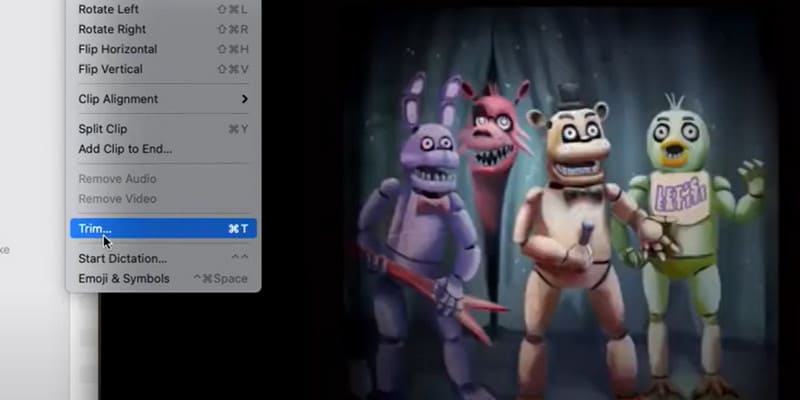
Schritt 3. Gehen Sie zurück zur Hauptoberfläche und öffnen Sie die neue Datei. Jetzt können Sie Bearbeiten wählen und erneut Trimmen auswählen.
Teil 3. Beheben Sie den Fehler „QuickTime kann MP4/MOV-Dateien nicht öffnen“
Warum kann mein QuickTime Player keine MP4- oder MOV-Dateien mehr öffnen? Ist er nicht mit beiden Formaten kompatibel? Wir bieten Lösungen für zwei Szenarien.
Laden Sie das QuickTime-kompatible Codec-Paket herunter
Zunächst einmal ist es wichtig zu verstehen, dass nicht alle MP4- und MOV-Dateien gleich sind. Nehmen wir beispielsweise MP4-Dateien: Eine Videodatei kann viele Video-, Audio-, Untertitel- und Metadatenelemente enthalten, die alle mit unterschiedlichen Codecs versehen sein können. QuickTime Player ist jedoch nur mit einer begrenzten Anzahl von Codecs kompatibel. Wenn also Codecs für einen der Datentypen in Ihrer Datei nicht vom Player unterstützt werden, kann sich QuickTime Player nicht öffnen. Laden Sie daher zunächst das QuickTime-kompatible Video-Codec-Paket herunter. Stellen Sie sicher, dass die heruntergeladenen Inhalte sicher sind und keine Viren oder Schadsoftware enthalten.
Beispiele: DIVX-Codec, XVID-Codec, ZyGo usw.
Konvertieren Sie das Video mit FVC Video Converter Ultimate in ein QuickTime-kompatibles Format
Eine endgültige Lösung für diese Art von Problem besteht darin, einen Videoformatkonverter zu verwenden, um Ihre Dateien in ein von QuickTime Player unterstütztes Format zu konvertieren. Wir empfehlen FVC Video Converter Ultimate, der Ihnen helfen kann, jedes gängige Videoformat in das von QuickTime Player unterstützte MP4- oder MOV-Format mit dem Codec H.264 zu konvertieren. Außerdem bietet er Ausgabeformat-Voreinstellungen für iTunes, die praktischerweise mit den von QuickTime Player unterstützten Formaten kompatibel sind. Sie können das Video vor der Konvertierung auch nach Belieben bearbeiten.
Gratis DownloadFür Windows 7 oder neuerSicherer Download
Gratis DownloadFür MacOS 10.7 oder neuerSicherer Download
So konvertieren Sie die Datei, die nicht mit QuickTime Player kompatibel ist.
Schritt 1. Installieren Sie FVC Video Converter Ultimate auf Ihrem Computer. Öffnen Sie das Programm und klicken Sie auf „Dateien hinzufügen“, um Ihr Video zu laden.

Schritt 2. Klicken Sie auf „Alles konvertieren in“ und wählen Sie MP4/MOV H.264 als Ausgabeformat. Sie können auch nach unten scrollen, den iTunes-Tab suchen und dort ein Format auswählen.
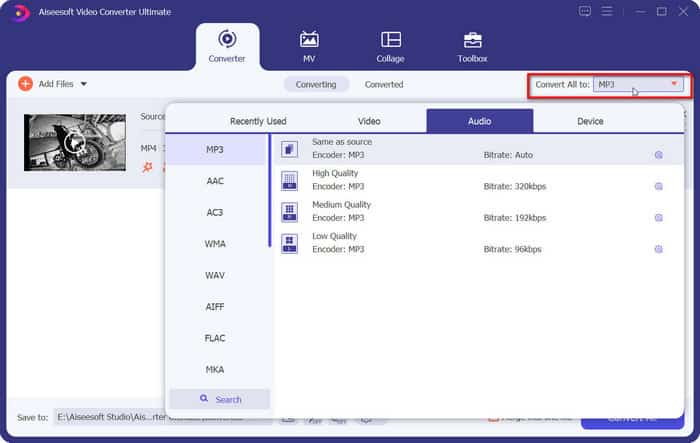
Schritt 3. Klicken Sie abschließend auf „Alle konvertieren“.

Teil 4. Beheben Sie den Fehler „Bei der Bildschirmaufnahme ist im QuickTime Player ein Fehler aufgetreten“
QuickTime Player verfügt außerdem über einen guten integrierten Bildschirmrekorder. Einige Nutzer haben jedoch berichtet, dass bei der Verwendung dieser Funktion der Fehler „QuickTime Player ist beim Aufzeichnen Ihres Bildschirms auf einen Fehler gestoßen“ auftrat oder ein Pop-up „Aufnahme nicht möglich“ erschien.
Es gibt mehrere Gründe, warum QuickTime Player nicht funktioniert. Zunächst sollten Sie prüfen, ob der Arbeitsspeicher Ihres Computers nicht ausreicht, um das aufgenommene Video zu speichern. Überprüfen Sie zunächst den verbleibenden Speicherplatz. Eine andere Möglichkeit ist ein plötzlich aufgetretener Fehler unbekannter Ursache, der dazu führt, dass QuickTime Player nicht mehr funktioniert. Starten Sie das Programm anschließend neu und prüfen Sie, ob das Problem behoben ist.
• Das Popup „Aufnahme nicht möglich“ erscheint häufig, wenn Sie externe Audioquelle verwenden. Sie können versuchen, ein neues externes Mikrofon zu verwenden oder die Audioquelle auf internes Audio umzustellen. Wenn das Problem weiterhin besteht, prüfen Sie, ob Ihr QuickTime Player aktualisiert werden muss. Überprüfen Sie außerdem, ob macOS auf dem neuesten Stand ist. Falls nicht, aktualisieren Sie es.
• Überlegen Sie auch, ob das Problem am aufgenommenen Video liegt. Manche Plattformen bieten DRM-geschützte Videos an, die Nutzer nicht aufnehmen können. Wenn die von Ihnen genutzte Plattform diesem Profil entspricht, beenden Sie die Aufnahme und prüfen Sie, ob es eine andere Möglichkeit gibt, das Video herunterzuladen.
Teil 5. Beheben Sie, dass der Ton im QuickTime Player nicht funktioniert
Das letzte häufige Problem ist, dass der Sound des QuickTime Players nicht funktioniert. Dies kann daran liegen, dass Sie nicht die neueste Version der Software verwenden. Versuchen Sie zunächst, auf die neueste Version zu aktualisieren.
So beheben Sie, dass der Ton im QuickTime Player nicht funktioniert, indem Sie die Einstellungen anpassen.
Schritt 1. Öffnen Sie QuickTime Player auf Ihrem Gerät. Wählen Sie Bearbeiten > Einstellungen.
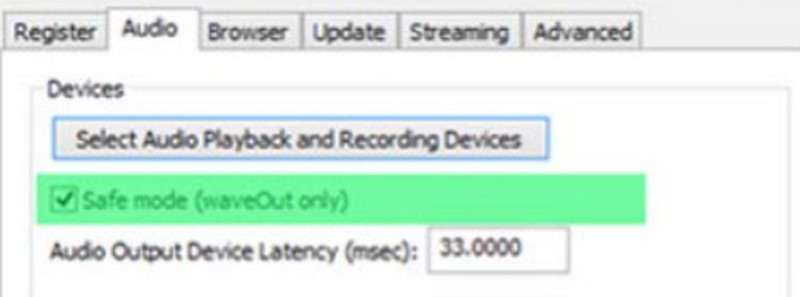
Schritt 2. Wählen Sie im Fenster „QuickTime-Einstellungen“ den Bereich Audio und aktivieren Sie die Option Speichermodus. Klicken Sie dann auf Übernehmen.
Schritt 3. Starten Sie QuickTime Player neu. Überprüfen Sie, ob das Problem behoben wurde.
Teil 6. Beste Alternative zum QuickTime Player
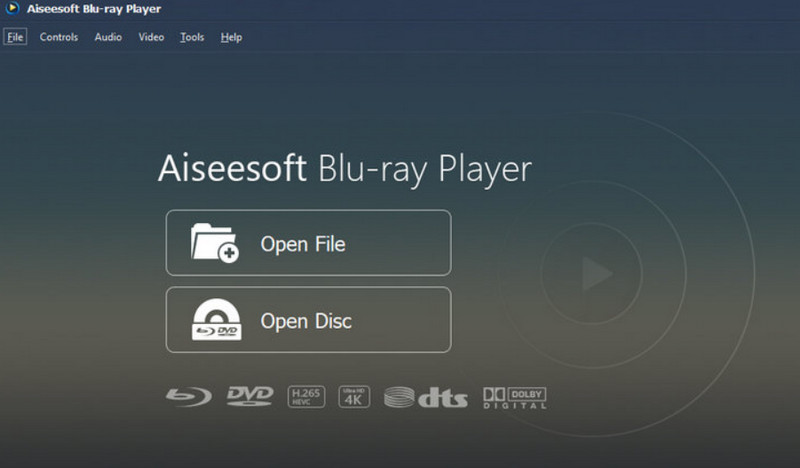
QuickTime Player unterstützt nicht sehr viele Videoformate, und seine Bearbeitungsfunktionen sind eher einfach. Wenn Sie also nach etwas Ähnlichem mit umfangreicheren Funktionen suchen, empfehlen wir Aiseesoft Blu-ray Player. Er kann Videos in nahezu allen digitalen Formaten abspielen und unterstützt außerdem DVDs, Blu-ray-Discs und ISO-Images. Die Audio- und Bildqualität des Programms ist absolut erstklassig, und Sie können damit eigene Wiedergabelisten erstellen. Aiseesoft Blu-ray Player bietet zudem zahlreiche personalisierte Wiedergabeeinstellungen, sodass Sie beispielsweise schnell einen Screenshot machen können, wenn Sie etwas Interessantes sehen.
Kostenloser DownloadFür Windows 7 oder höherSicherer Download
Kostenloser DownloadFür macOS 10.7 oder höherSicherer Download
Teil 7. FAQs zum Problem „QuickTime Player funktioniert nicht“
Warum spielt QuickTime keine Videos ab?
Überprüfen Sie zunächst, ob das Format Ihres Videos mit dem QuickTime Player kompatibel ist. Wenn ja, prüfen Sie, ob die Plattform den Codec des Videos nicht unterstützt. Möglicherweise ist Ihre Player-Version auch veraltet. Aktualisieren Sie sie.
Was ersetzt den QuickTime Player?
Die besten Alternativen zum QuickTime Player sind Aiseesoft Blu-ray Player, VLC Media Player, KMPlayer, Windows Media Player und viele mehr.
Warum spielt QuickTime meine MOV-Datei nicht ab?
MOV ist das Standardformat für QuickTime Player. Wenn Sie feststellen, dass QuickTime Player MOV nicht öffnen kann, können Sie prüfen, ob Ihre Videodatei beschädigt ist. Falls nicht, versuchen Sie, die aktuelle Datei ins MP4-Format mit H.264-Codec zu konvertieren.
Fazit
Dies ist eine ausführliche Anleitung, die Ihnen hilft, Probleme mit QuickTime Player funktioniert nicht zu beheben. Wir haben Ihr Feedback ausgewertet, 5 häufige Szenarien aufgezeigt, in denen das Problem auftritt, und erklärt, wie man jedes davon löst. Wenn Sie feststellen, dass dieser Player trotzdem nicht gut funktioniert, empfehlen wir Ihnen, seine beste Alternative auszuprobieren: den Aiseesoft Blu-ray Player, der eine deutlich breitere Kompatibilität und mehr personalisierte Einstellungen bietet.
-
 QuickTime-Bildschirmaufnahme - Nehmen Sie Videos mit Audio auf Mac und PC auf
 Der Aufnahmebildschirm mit Audio auf dem Mac ist praktisch. Der eingebaute Player QuickTime Player kann dies tun. Lesen Sie seinen Beitrag und erfahren Sie, wie Sie einen Bildschirm mit Ton auf Mac und PC aufnehmen.
-
 Bester QuickTime Player-Ersatz online und offline [2025]
 Dies hilft Ihnen dabei, die beste Ersatzoption für den QuickTime Player auszuwählen, wenn der QuickTime Player auf Ihrer Plattform nicht verfügbar ist oder Sie einen neuen benötigen.
-
 Die wichtigsten Fakten, die Sie über QuickTime Slow Motion wissen sollten
 Haben Sie versucht, Videos mit dem QuickTime Media Player in Zeitlupe abzuspielen? Lesen Sie diesen Artikel, um mehr über den hervorragenden Service dieses Mediaplayers zu erfahren.
