


 Video Converter Ultimate
 Bildschirm recorder
 Videoreparatur
 Sicherer Download
GIF-Splitter: Top-Tools zum Teilen und Anpassen von animierten Bildern
Wenn Sie schon immer einen bestimmten Teil eines GIF verwenden wollten, aber bei der gesamten Animation hängen geblieben sind, sind Sie nicht allein. GIFs sind beliebt für ihre Fähigkeit, Emotionen und Reaktionen in kurzer Zeit zu vermitteln, aber manchmal brauchen wir nur einen Teil davon, um unsere Botschaft zu vermitteln. Hier kommt die Bedeutung des Teilens von GIF-Dateien ins Spiel.
Mit Hilfe von GIF-Splittern können Sie ganz einfach genau den Teil eines GIFs herauslösen, den Sie benötigen, und ihn für Ihr Projekt oder Ihren Social-Media-Beitrag verwenden. In diesem Beitrag stellen wir Ihnen einige der derzeit besten GIF-Splitter auf dem Markt vor.

Teil 1. Einfache Möglichkeit, GIFs zu teilen
1. FVC Video Converter Ultimate
Wenn Sie nur einen kleinen Teil eines GIFs zuschneiden müssen, können Sie den FVC Video Converter Ultimate verwenden. Es handelt sich um ein vielseitiges Softwaretool, das eine Reihe von Funktionen für Videokonvertierung und -bearbeitung bietet. Außerdem unterstützt das Tool eine breite Palette von Videoformaten und ermöglicht es den Nutzern, Videoeinstellungen wie Auflösung, Bitrate und Bildrate anzupassen. Zwar verfügt es nicht über eine spezielle Funktion zum Aufteilen von GIF-Dateien, aber die Video-Trimmer-Funktion kann diese Aufgabe erfüllen.
FVC Video Converter Ultimate kann ein wertvolles Werkzeug für diejenigen sein, die nach einer einfachen und unkomplizierten Möglichkeit suchen, GIF-Dateien zu teilen. Mit seiner intuitiven Benutzeroberfläche und der benutzerfreundlichen Funktion zum Zuschneiden von Videos bietet es eine praktische Lösung für Benutzer, die nur geringfügige Änderungen an ihren GIFs vornehmen müssen. Darüber hinaus verfügt es über eine Reihe weiterer Funktionen wie Stapelverarbeitung und GPU-Beschleunigung, die es zu einem umfassenden Videokonvertierungs- und -bearbeitungstool machen. Wenn Sie lernen möchten, wie man GIFs offline aufteilt, können Sie die folgenden Schritte befolgen:
Schritt 1. Software besorgen
Wählen Sie zunächst einfach einen Link aus der Liste der kostenlosen Download-Schaltflächen unten aus. Folgen Sie anschließend den Bildschirmanweisungen, um die Installation des Programms auf Ihrem Gerät abzuschließen. Nach der Einrichtung können Sie die App starten und in das Hauptmenü wechseln.
Kostenloser DownloadFür Windows 7 oder höherSicherer Download
Kostenloser DownloadFür macOS 10.7 oder höherSicherer Download
Schritt 2. Eine GIF-Datei hinzufügen
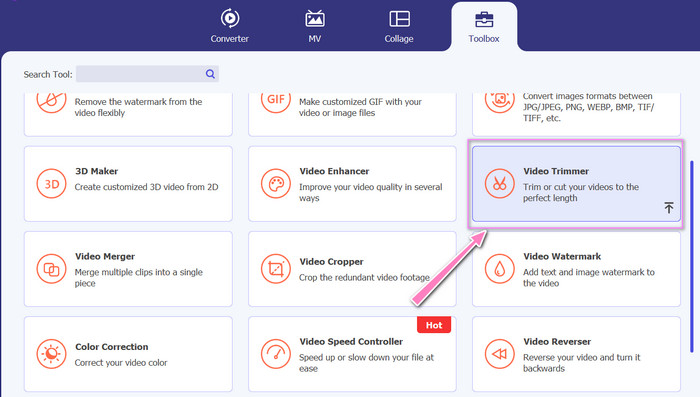
Wählen Sie das Werkzeug Video Trimmer aus dem Menü Toolbox. Klicken Sie anschließend auf die +-Schaltfläche, um ein GIF hochzuladen.
Schritt 3. Die GIF-Datei aufteilen
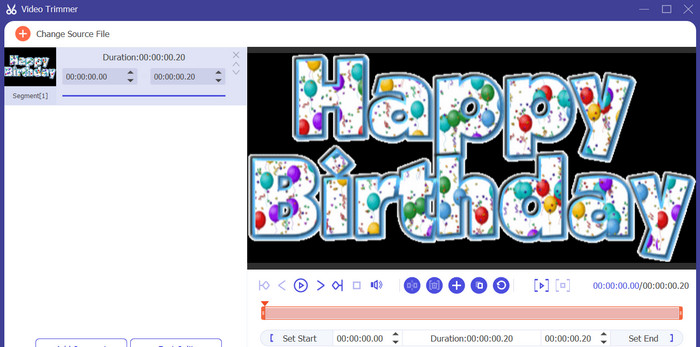
Sobald das GIF hochgeladen wurde, wird es auf der Benutzeroberfläche des Programms angezeigt, um Änderungen vorzunehmen. Wählen Sie den Anfangs- und Endpunkt des GIFs, das Sie löschen möchten, mit dem Schieberegler aus.
Schritt 4. Das erstellte GIF speichern
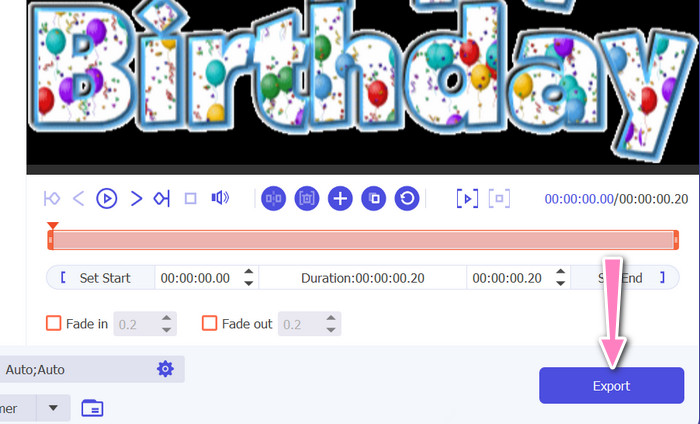
Wenn Sie mit der Anpassung des GIFs fertig sind, klicken Sie unten rechts im Tool auf die Schaltfläche Export, um den Render-Vorgang zu starten.
2. EZGIF
EZGIF ist ein Online-Tool, das eine Reihe von Funktionen für die Arbeit mit GIF-Dateien bietet. Die Website stellt verschiedene Werkzeuge zum Erstellen, Bearbeiten und Optimieren von GIFs zur Verfügung, darunter GIF-Größenänderung, Zuschneiden und Aufteilen. Außerdem können Sie Text und Spezialeffekte zu Ihren GIFs hinzufügen und sogar Videos und Bilder in das GIF-Format umwandeln. Wenn Sie GIFs online in Einzelbilder aufteilen möchten, ist dies daher eine perfekte Wahl. Darüber hinaus ist EZGIF eine benutzerfreundliche Plattform, die weder Download noch Installation erfordert und somit von jedem Webbrowser aus leicht zugänglich ist. Sehen Sie sich an, wie dieses Tool funktioniert, und teilen Sie GIFs in Bilder auf.
Schritt 1. Um ein GIF mit Ezgif zu teilen, öffnen Sie die EZGIF-Website in Ihrem Webbrowser.
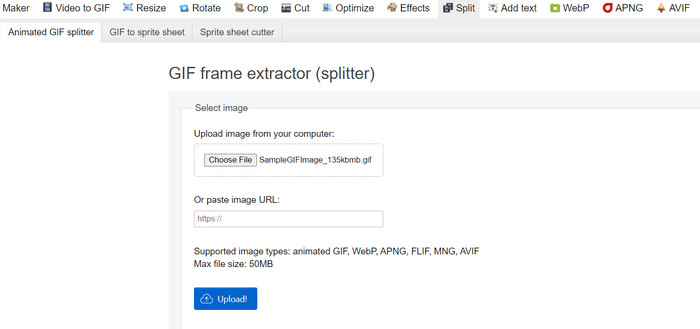
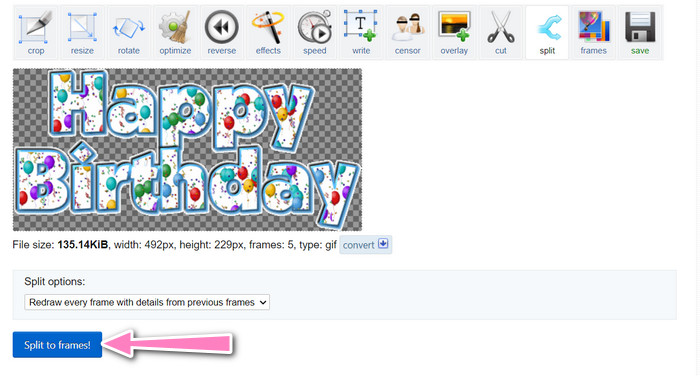
Schritt 2. Wählen Sie in der oberen Menüleiste die Option Split und passen Sie anschließend die Einstellungen nach Bedarf an.
Schritt 3. Klicken Sie auf die Schaltfläche Choose File, um die GIF-Datei hochzuladen, die Sie aufteilen möchten. Alternativ können Sie die Datei auch per Drag & Drop auf die EZGIF-Oberfläche ziehen.
Schritt 4. Wählen Sie als Nächstes die Aufteilungsmethode aus, die Sie verwenden möchten. Sie können das GIF nach einer bestimmten Anzahl von Frames, nach bestimmten Zeitintervallen oder durch Auswählen bestimmter zu erhaltender Frames aufteilen.
Schritt 5. Passen Sie die Einstellungen für die von Ihnen gewählte Aufteilungsmethode an. Klicken Sie auf die Schaltfläche Split to frames!, um den Aufteilungsprozess zu starten. Es gibt zudem Optionen, um das GIF je nach Bedarf in PNG oder JPG zu zerlegen.
Teil 2. Professionelle Methode zum Teilen von GIF-Dateien
Das Aufteilen eines GIFs in Einzelbilder ist auch in Photoshop möglich. Es bietet beim Arbeiten mit animierten GIFs viel Flexibilität und Kontrolle. Mit Photoshop können Sie eine GIF-Datei öffnen und jedes einzelne Bild der Animation bearbeiten, sodass Sie Anpassungen vornehmen und jedem Frame separat einen Filter hinzufügen können. Das bedeutet, Sie können komplexe Animationen erstellen, Text oder Grafiken einfügen und das Timing jedes Frames anpassen, um eine flüssige und professionelle Animation zu erhalten. Um mehr über die in Photoshop für GIFs verfügbaren Bearbeitungsoptionen zu erfahren, folgen Sie den untenstehenden Schritten:
Schritt 1. Öffnen Sie die GIF-Datei in Photoshop, indem Sie zu File > Open gehen und die Datei auswählen.
Schritt 2. Sobald die Datei geöffnet ist, gehen Sie zu Window > Timeline, um das Timeline-Bedienfeld zu öffnen.
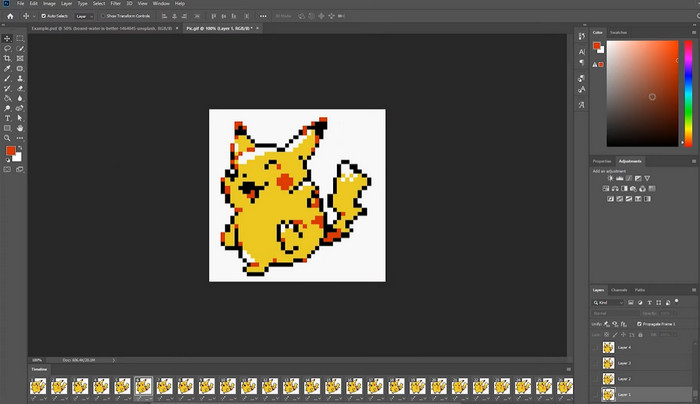
Schritt 3. Im Timeline-Bedienfeld sollten Sie jeden Frame der Animation als eigene Ebene sehen. Wenn Sie das Timeline-Fenster nicht sehen, klicken Sie auf die Menütaste in der oberen rechten Ecke des Bedienfelds und wählen Sie Create Frame Animation.
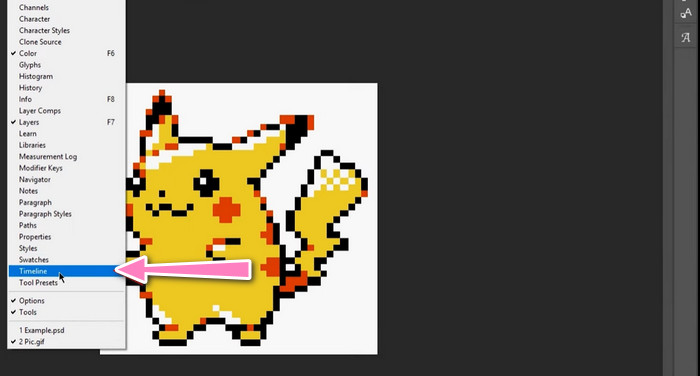
Schritt 4. Um das GIF zu splitten, klicken Sie auf die Menütaste im Timeline-Bedienfeld und wählen Sie Make Frames From Layers. Dadurch wird für jede Ebene in der Animation ein eigener Frame erstellt.
Schritt 5. Nun können Sie jeden Frame einzeln bearbeiten, indem Sie ihn im Timeline-Bedienfeld auswählen und die gewünschten Änderungen vornehmen.
Schritt 6. Gehen Sie zu File > Export > Layers to Files, um jeden Frame als separate Datei zu exportieren. Wählen Sie im Export-Dialogfeld das gewünschte Dateiformat und den Zielordner aus und klicken Sie dann auf Run, um die Dateien zu exportieren.
Teil 3. Häufig gestellte Fragen zum Teilen von GIFs
Kann ich ein GIF in bestimmte Abschnitte oder Zeitintervalle aufteilen?
Ja, Sie können ein GIF mit Online-Tools oder Bildbearbeitungssoftware in bestimmte Abschnitte oder Zeitintervalle aufteilen.
Kann ich eine Videobearbeitungssoftware verwenden, um GIFs zu teilen?
Ja, viele Videobearbeitungssoftwareanwendungen können zum Aufteilen von GIFs verwendet werden. Beispielsweise sind FVC Video Converter Ultimate, Adobe Premiere Pro und Final Cut Pro X beliebte Optionen.
Wie passe ich das Timing einzelner Frames in einem GIF an?
Sie können das Timing einzelner Frames in einem GIF mit einem Online-Tool oder einer Bildbearbeitungssoftware wie Photoshop anpassen.
Fazit
Das Aufteilen einer GIF-Datei kann eine hilfreiche Technik sein, um neue Animationen zu erstellen, bestehende zu bearbeiten oder bestimmte Frames bzw. Abschnitte zu teilen. Ganz gleich, ob Sie lieber Online-Tools oder Bildbearbeitungssoftware wie Photoshop verwenden – es stehen Ihnen mehrere Möglichkeiten zur Verfügung, um GIFs zu splitten. Wenn Sie die in diesem Artikel beschriebenen Schritte befolgen und die verschiedenen verfügbaren Tools ausprobieren, können Sie Ihre GIFs problemlos aufteilen und neue Animationen erstellen.
-
 Hervorragende Methoden zum effektiven Teilen von Videos
 In diesem Artikel wird erklärt, wie Sie ein Video in Teile aufteilen. Wenn Sie also interessiert sind, klicken Sie auf diesen Beitrag, da wir Ihnen die einfachsten Möglichkeiten zum Ausprobieren anbieten.
-
 Erfahren Sie 4 Möglichkeiten zum Erstellen von GIFs aus Bildern [Online & Offline]
 Möchten Sie wissen, wie Sie GIFs aus der Zusammenstellung Ihrer Bilder erstellen? Klicken Sie dann auf diesen Link und lesen Sie die folgenden Beispiele.
-
 3 einfachste Möglichkeiten, einem GIF online und offline Wasserzeichen hinzuzufügen
 Das Hinzufügen eines Wasserzeichens zu einem GIF kann so einfach sein wie 1-2-3, wenn Sie das richtige Werkzeug richtig verwenden. Die Tools auf dem Markt sind zu breit gefächert, aber wir stellen die drei Tools vor, auf die Sie sich verlassen können.
