


 Video Converter Ultimate
 Bildschirm recorder
 Videoreparatur
Schnelle und effektive Möglichkeiten, JPG in GIF umzuwandeln
Bilder werden im Text eingefügt, um die Leser zu aktivem Mitmachen anzuregen und ihr Textverständnis zu verbessern. Die meisten gängigen Bilder liegen im .jpg‑Format vor, weil es eine qualitativ hochwertige Bilddarstellung unterstützt. Allerdings unterstützt JPG – anders als GIF – keine Animationen im Bild. Wenn Sie also mehr über JPG und GIF erfahren und lernen möchten, wie Sie JPG in GIF umwandeln, dann lesen Sie einfach weiter.

Teil 1. JPG vs. GIF
Obwohl JPG und GIF zu den am häufigsten verwendeten Formaten zur Speicherung von Bildern zählen, gibt es viele Unterschiede zwischen diesen beiden Formaten, wie im folgenden Beispiel zu sehen ist. Bevor Sie also JPG in GIF konvertieren, sollten Sie zunächst die wichtigsten Unterschiede zwischen den beiden kennen.
| Wichtige Hauptunterschiede | Gemeinsame fotografische Expertengruppe (JPG und JPEG) | Grafikaustauschformat (GIF) |
| Dateinamenerweiterung | .jpg, .jpeg, .jpe .jif , .jfif , .jfi | .gif |
| Komprimierungstyp | Es unterstützt verlustbehaftete Komprimierung. | Es unterstützt verlustfreie Komprimierung. |
| Farbe unterstützt | Es unterstützt über 16 Millionen Farben. | Es unterstützt nur 256 Farben. |
| Unterstützt Transparenz | JPEG unterstützt keine Transparenz. | GIF unterstützt 1-farbige Transparenz. |
| Unterstützt Animationen | Alle Dateierweiterungen von JPEG unterstützen keine Animation. | GIF ist die beste Wahl, wenn Sie eine Reihe von Bildanimationen haben möchten. |
| Perfekt verwendet für | JPEG ist das beste Format für detailliertere Fotos. | GIFs eignen sich hervorragend, wenn Sie Logos oder Animationen erstellen möchten. |
Außerdem, wenn Sie Ihr JPG oder JPEG in dieses animierte Bildformat konvertieren. Erwarten Sie eine drastische Änderung Ihres Bildes, da es komprimiert wurde. Außerdem ist die unterstützte GIF-Farbe viel geringer als die von JPG. Wenn Sie also weniger Qualitätsverlust haben möchten, versuchen Sie es mit dem folgenden Tool. Halten Sie das Tempo beim Lesen des folgenden Teils aufrecht.
Teil 2. Wie man JPG mit dem Phenomenal Editor in GIF umwandelt
Anders als viele andere Konverter wurde der Video Converter Ultimate als herausragender Editor, Konverter, Optimierer, Creator und mehr für Sie entwickelt. Selbst wenn Sie nicht viel Erfahrung haben, können Sie dieses Tool nutzen, um das Format von JPG in GIF zu ändern, und zwar mit leicht verständlichen Schritten. Außerdem haben Nutzer, die diese Software bereits verwendet haben, beeindruckende Endergebnisse erzielt. Schauen wir uns also an, wie Sie Ihre JPG‑Bilder mithilfe der beiden Funktionen des Video Converter Ultimate, nämlich GIF Maker und MV, in das GIF‑Format umwandeln. Bevor Sie jedoch das Format ändern können, müssen Sie das Tool zunächst auf Ihrem Desktop installieren.
Gratis DownloadFür Windows 7 oder neuerSicherer Download
Gratis DownloadFür MacOS 10.7 oder neuerSicherer Download
Methode 1: 3 einfache Schritte zur Verwendung von MV des Video Converter Ultimate
Schritt 1. JPG‑Bilder hinzufügen
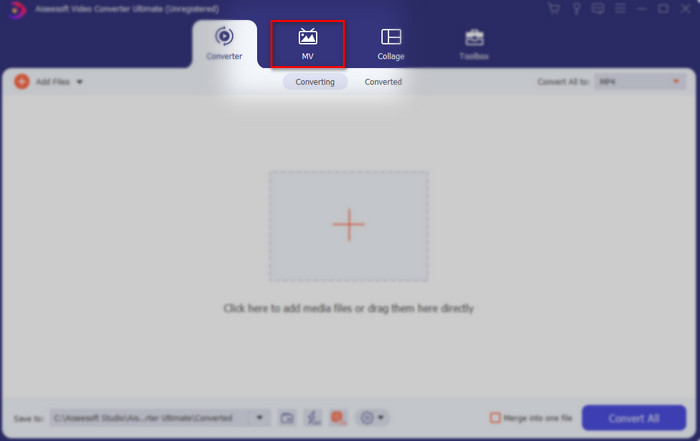
Nachdem Sie das Tool heruntergeladen haben, klicken Sie auf MV, rechts neben Converter und vor Collage.
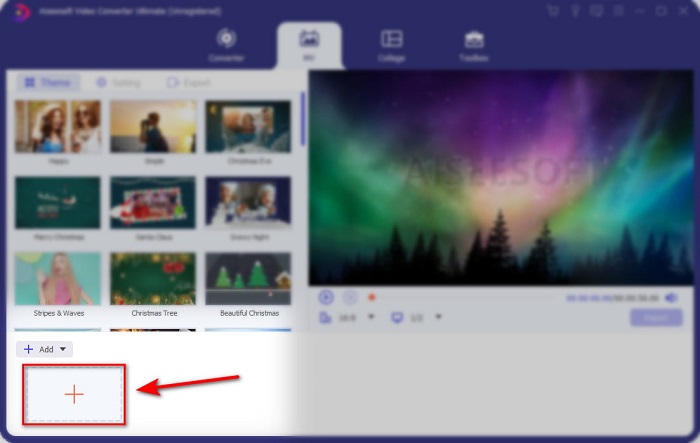
Klicken Sie dann unten auf die Schaltfläche +, um die Bilder hinzuzufügen, bevor Sie JPG/JPEG in GIF umwandeln können. Außerdem können Sie hier mehrere Bilder hinzufügen, um daraus eine Reihe von Bildern zu machen.
Schritt 2. JPG‑Bilder bearbeiten
Wählen Sie auf der Benutzeroberfläche aus, welche Bildanimation Sie möchten, um Ihre Bilder auf dem Thema erstaunlich zu machen. Unter dem Thema gibt es viele verschiedene Varianten von Optionen, aus denen Sie wählen können.
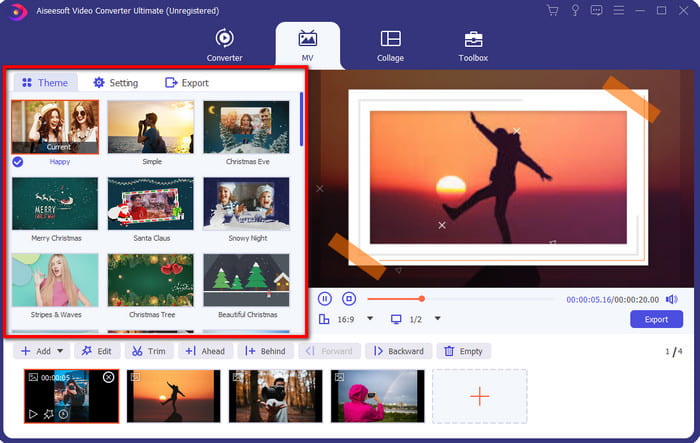
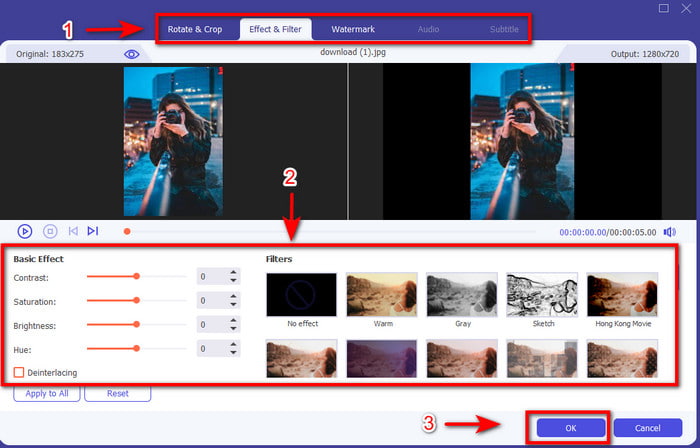
Wenn Sie Ihrem Bild detailliertere Effekte hinzufügen möchten, klicken Sie auf die Schaltfläche mit dem Zauberstab, um das Bild zu drehen und zu zuschneiden, Effekte und Filter oder bei Bedarf ein Wasserzeichen hinzuzufügen. Wenn Sie mit der Detailbearbeitung fertig sind, klicken Sie auf OK, um die Änderungen zu speichern.
Schritt 3. JPG in GIF konvertieren
Um das von Ihnen erstellte Bild zu exportieren, ist jetzt der richtige Zeitpunkt, oben oder unten rechts in der Benutzeroberfläche auf Export zu klicken. Verwandeln Sie Ihr langweiliges JPG in eine animierte, transparente GIF‑Serie. Klicken Sie anschließend auf die Schaltfläche Start Export, um die Datei direkt auf Ihrem Laufwerk zu speichern.
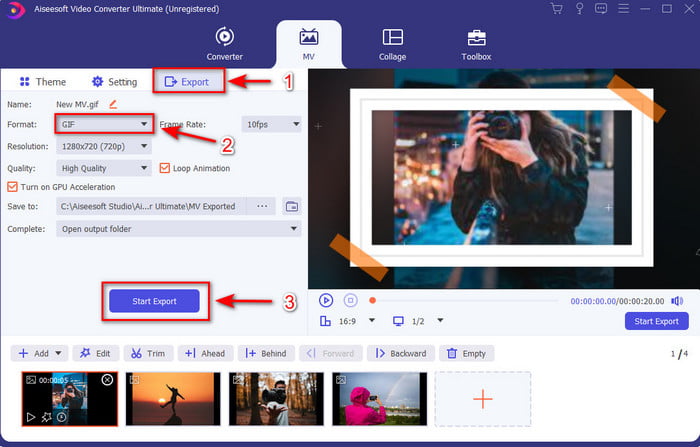
Methode 2: 3 einfache Schritte zur Verwendung von GIF Maker auf dem Video Converter Ultimate
Schritt 1. JPG‑Bilder hinzufügen
Nachdem Sie das Tool gestartet haben, gehen Sie weiter zur Toolbox, suchen dort den GIF Maker und klicken Sie darauf.
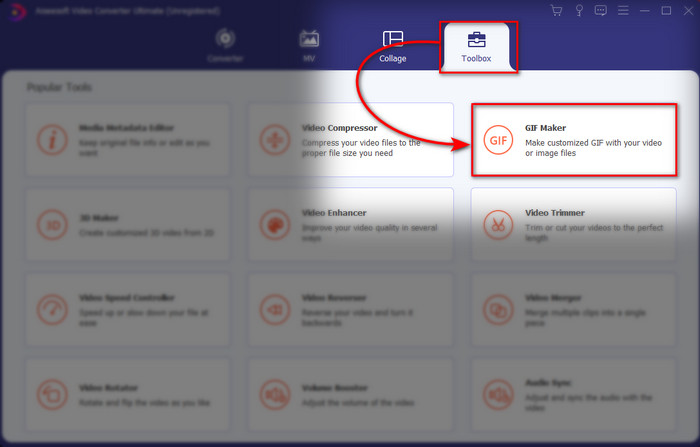
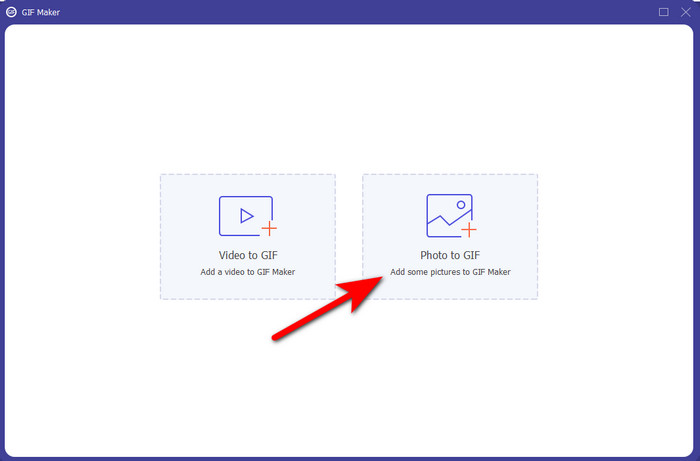
Wählen Sie dann Photo to GIF und wählen Sie das gewünschte Bild aus. Um weitere Bilder hinzuzufügen, klicken Sie auf die Schaltfläche + und wählen Sie zusätzliche Bilder aus dem Ordner.
Schritt 2. JPG‑Bilder bearbeiten
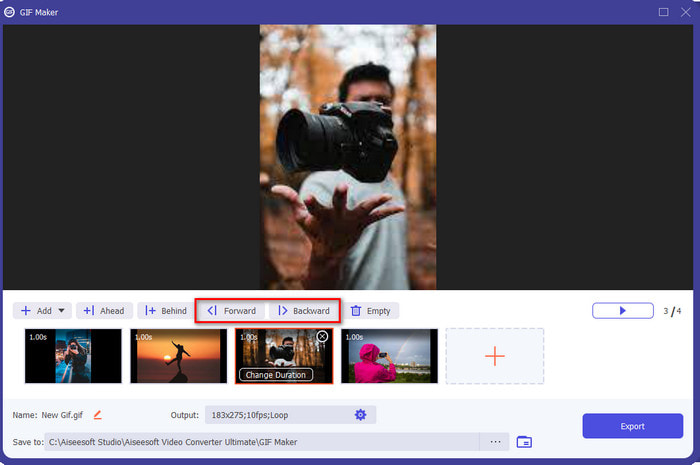
In MV können Sie umfangreich bearbeiten, im GIF Maker hingegen können Sie nur die Dauer anpassen und die Position der Bilder innerhalb des GIF vor- oder zurücksetzen. Um die Dauer festzulegen, klicken Sie auf das Bild, dessen Dauer Sie ändern möchten, und klicken Sie auf Change Duration. Um die eingestellte Dauer zu speichern, klicken Sie auf Apply.
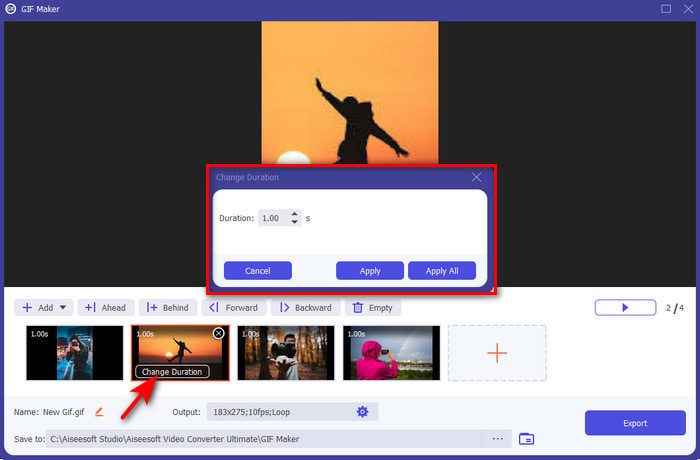
Wenn Sie die Reihenfolge der Bilder ändern möchten, klicken Sie auf das Bild und anschließend entweder auf Forward oder Backwards.
Schritt 3. JPG in GIF konvertieren
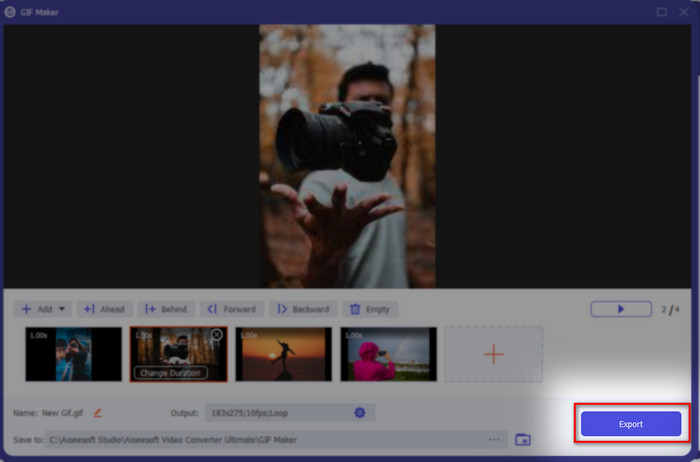
Nun sind wir beim letzten Schritt angekommen, wie man ein JPG in ein GIF verwandelt: Klicken Sie auf Export. Sie müssen das Format nicht manuell ändern, da die Datei automatisch in ein GIF umgewandelt wird. Warten Sie ein paar Sekunden, dann wird ein Ordner mit Ihrer konvertierten Datei angezeigt. Klicken Sie auf die GIF‑Datei, um sie anzusehen und zu genießen.
Teil 3. Häufig gestellte Fragen zu JPG zu GIF
Kann ich das JPG in Photoshop in GIF ändern?
Es ist ein dickes, fettes Ja! Sie können Photoshop verwenden, um das Bildformat in GIF umzuwandeln. Nicht nur das, Sie können auch Photoshop verwenden, um das Bild zu verbessern, damit es für den Betrachter ansprechender wird. Sie benötigen jedoch Fachwissen und viel Geld, bevor Sie dieses Tool verwenden können. Weil Sie viel Zeit damit verbringen müssen, Adobe Photo zu studieren. Wenn Sie also eine einfache Bearbeitung zu einem günstigen Preis durchführen möchten, verwenden Sie das obige Tool.
Kann ich ein JPG auf FFmpeg in GIF umwandeln?
Ja, Sie können FFmpeg verwenden, um das Format des JPG zu ändern. Aber dieses Tool ist viel komplizierter als Adobe Photoshop, wenn wir es vergleichen würden. Wenn Sie jedoch eine einfache Erstellung von GIFs mit den JPG-Bildern durchführen möchten, lesen Sie das oben bereitgestellte Tool. Um einen Einblick zu haben, wie man es mit sehr einfachen Schritten macht.
Was ist der Nachteil von JPEG?
Da oben gezeigt wird, dass das JPEG keine Transparenz und Animation unterstützt, bleibt noch eine übrig, und das ist die Dateigröße. Aufgrund der detaillierten Farben, die JPEG unterstützt, ist die Dateigröße größer, wenn wir sie mit GIFs vergleichen wollten.
Fazit
Und jetzt kommen wir zum Schluss, wir haben jetzt aufgrund dieser Beschreibung ein tiefes Wissen über den Unterschied zwischen JPG und GIF. Außerdem können Sie dank Video Converter Ultimate jetzt ganz einfach eine animierte Serie von GIFs mit Effekten erstellen, um sie fantastisch aussehen zu lassen. Also, wenn Sie Zweifel am Video Converter Ultimate haben, versuchen Sie es zuerst herunterzuladen und probieren Sie es selbst aus, indem Sie die obigen Schritte neu erstellen.
-
 Erstellen Sie Ihr bestes animiertes GIF über den Online-GIF-Maker [2021]
 Eine informative Übersicht darüber, wie Sie ein GIF mit diesen einfachen Online-GIF-Erstellern erstellen, die Sie bereits im Internet kennen oder nicht.
-
 Wählen Sie den besten GIF-Cropper online und offline, um GIFs zuzuschneiden [2021]
 Die Wahl des besten Zuschneidewerkzeugs ist ein Muss und einige der GIF-Hersteller haben diese Funktion nicht bereitgestellt. Aber was ist das beste Werkzeug zum Zuschneiden von GIFs und wie wird es verwendet?
-
 [Aktualisiert 2021] Die 9 besten GIF-Editoren für PC, Mac, iOS und Android
 Müssen Sie Ihrem GIF eine persönliche Note verleihen, damit es ausdrucksvoller wird? Lesen Sie diesen Artikel weiter, um zu erfahren, wie Sie bearbeiten und welches Werkzeug für den Job am besten geeignet ist.
