


 Video Converter Ultimate
 Bildschirm recorder
 Videoreparatur
Die bequemsten Möglichkeiten zum Konvertieren von MP3 in M4R für Apple-Geräte
Haben Sie schon einmal darüber nachgedacht, Ihre Lieblingsmusik auf Ihrem iPhone als Klingelton zu verwenden? Ob das überhaupt möglich ist? Auf jeden Fall. Sie müssen dafür nur die Datei konvertieren. Warum müssen wir sie zuerst konvertieren? Damit wir sie als Klingelton einrichten können. Vor allem, weil eine Datei, die als Klingelton verwendet werden soll, im M4R-Format vorliegen muss. Das heißt, Sie müssen den besten MP3-zu-M4R-iTunes-Konverter finden, der zu Ihnen passt. Dieser Artikel stellt verschiedene Methoden vor, wie Sie Ihre MP3-Datei konvertieren können – einschließlich der Möglichkeit, mehrere Dateien in einem Durchgang zu MP3 in M4R zu konvertieren. Lesen Sie dazu einfach den folgenden Inhalt.

Teil 1. Der praktikabelste Weg, MP3 in M4R zu konvertieren
Video Converter Ultimate ist bei weitem das überzeugendste Tool, mit dem Sie MP3 in M4R konvertieren können. Nicht nur eine einzelne Datei, sondern auch eine Stapelkonvertierung von MP3 in MP4. Es ist ein Konverter, der HD-Videos und verlustfreies Audio erzeugen kann. Tatsächlich ist es ideal und wird empfohlen, die Datei zu konvertieren, ohne ihre ursprüngliche Qualität zu verlieren. Die Geschwindigkeit ist 30-mal schneller als der normale Konverter da draußen. Plus, wenn Sie eine Wiedergabeliste konvertieren, um sie auf Ihrem Telefon zu speichern, kann dieses Tool definitiv die Arbeit für Sie erledigen. Mühelos und ohne Schweiß. In der Zwischenzeit sind hier einige der anderen Funktionen, die Sie neben der Konvertierung von Audio genießen können. Außerdem wurde unten eine Schritt-für-Schritt-Anleitung als Referenz geschrieben, wenn Sie sich entscheiden, sie zu verwenden.
◆ Metadaten bearbeiten.
◆ Hochgeschwindigkeits-GPU-Beschleunigung.
◆ Technischer Support in Echtzeit.
◆ Das Komprimieren von Videos wird unterstützt.
Schritt 1. Um das Programm zu verwenden, laden Sie die App herunter, indem Sie auf die Download-Schaltfläche unten klicken. Sobald die App auf Ihrem Windows-PC oder Mac installiert ist, starten Sie sie.
Gratis DownloadFür Windows 7 oder neuerSicherer Download
Gratis DownloadFür MacOS 10.7 oder neuerSicherer Download
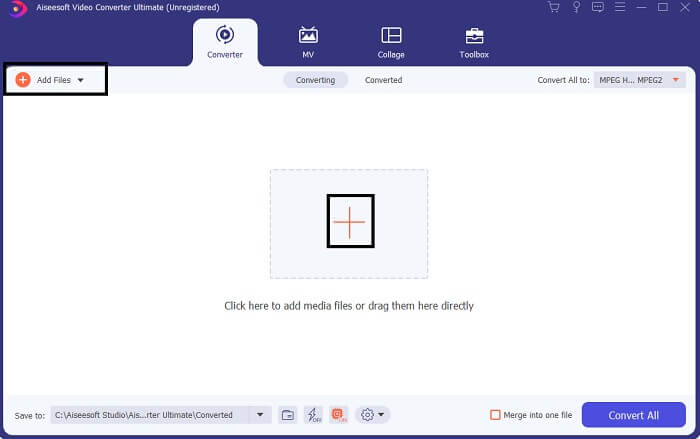
Schritt 2. In der Hauptoberfläche des Tools sehen Sie zwei Möglichkeiten, eine Datei hochzuladen. Entweder klicken Sie auf das Symbol mit dem Pluszeichen in der Mitte oder Sie klicken auf die Schaltfläche Dateien hinzufügen oben links. Wählen Sie die gewünschte Datei aus und laden Sie sie hoch.
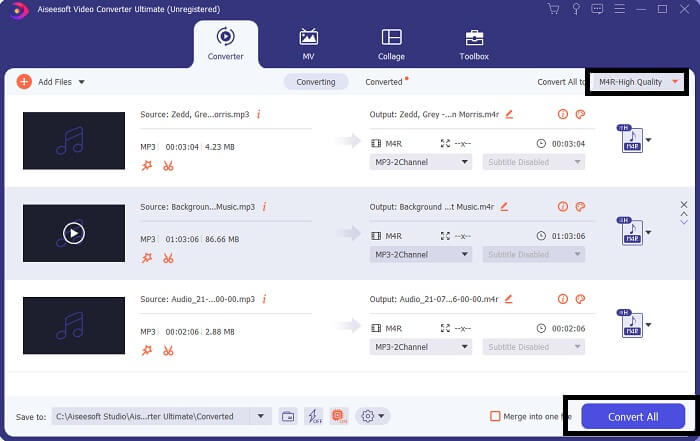
Schritt 3. Um Ihr gewünschtes Ausgabeformat zu erhalten, ändern Sie das Format, indem Sie auf das Dropdown-Menü oben rechts in der Oberfläche klicken.
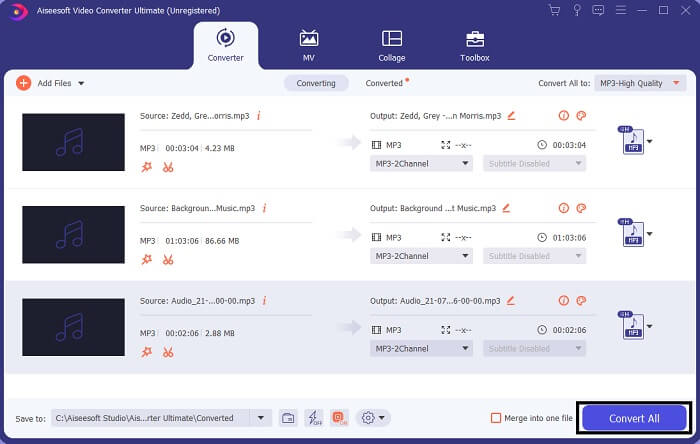
Schritt 4. Klicken Sie zum Schluss auf die Schaltfläche Alle konvertieren unten rechts in der Hauptoberfläche. Warten Sie dann, bis die Datei konvertiert ist.
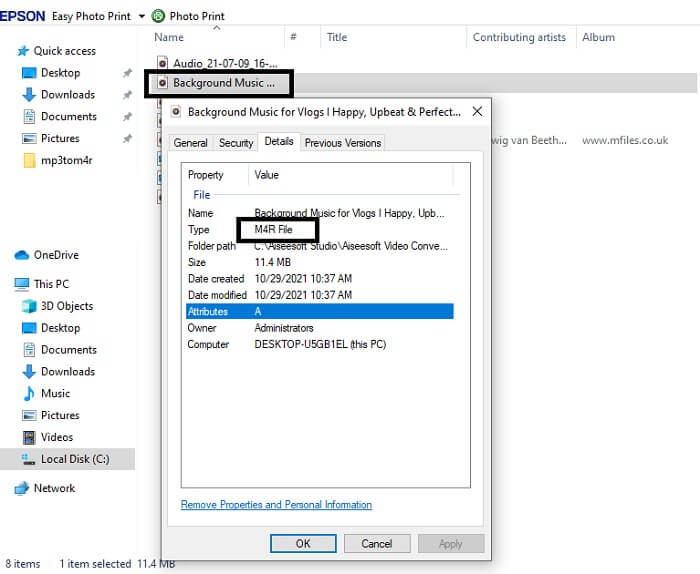
Schritt 5. Öffnen Sie nun den Ordner, in dem die Audiodatei gespeichert wurde, und übertragen Sie sie auf Ihr iPhone. Dazu können Sie ein Übertragungsprogramm oder eine App verwenden. Entsprechende Empfehlungen finden Sie im Internet – einfach danach suchen. Anschließend können Sie die Datei als iPhone-Klingelton einrichten.
Teil 2. Einige der besten Tools zum Konvertieren von MP3 in M4R Online
FVC Kostenloser Online-Audiokonverter
Ein Premium-Tool zum Konvertieren ist gut, aber nichts geht über ein praktisches Werkzeug. In Anbetracht Ihrer Bedürfnisse hat FVC eine kostenlose Version bereitgestellt. Der FVC Free Audio Converter ist Ihr kostenloses Tool, jederzeit und überall nutzbar. Alles, was Sie brauchen, ist eine funktionierende Internetverbindung und ein unterstützter Browser. Dieser MP3-zu-M4R-iPhone-Klingeltonkonverter kann hochwertige, verlustfreie Audiodateien erzeugen. Das Ergebnis ist überzeugend – und das ganz ohne Kosten. Und es kommt noch besser: Wussten Sie, dass auch Stapelkonvertierungen möglich sind? Ja, das geht! Außerdem finden Sie hier einige bemerkenswerte Funktionen, die Sie ebenfalls nutzen können. Zusätzlich wurde eine Anleitung zu Ihrer Orientierung erstellt.
◆ Die konvertierte Datei hat eine ähnliche Qualität wie das Original.
◆ 100% kostenlos und sicher zu verwenden.
◆ Keine Größenbeschränkung bei der Konvertierung.
◆ Stapelkonvertierung wird unterstützt.
Schritt 1. Um auf das Tool zuzugreifen, besuchen Sie die offizielle Website des FVC Free Audio Converter.
Schritt 2. Klicken Sie dort auf Dateien zum Konvertieren hinzufügen. Beim ersten Gebrauch müssen Sie den Zugriff erlauben, indem Sie auf FVC Launcher öffnen klicken. Anschließend erscheint ein Fenster auf Ihrem Bildschirm, über das Sie die Datei auswählen können, die Sie konvertieren möchten.
Laden Sie die Desktop‑Version herunter, um Dateien stapelweise zu konvertieren.
Schritt 3. Nachdem Sie die Datei hochgeladen haben, öffnet sich ein weiteres Fenster. Unten ändern Sie das Ausgabeformat, indem Sie M4R auswählen.
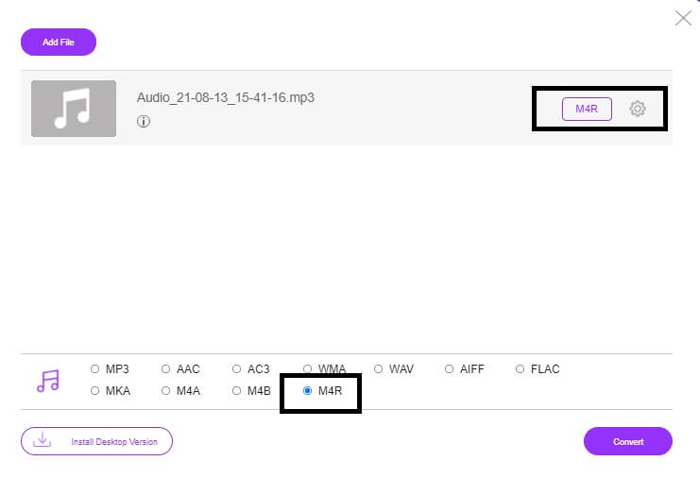
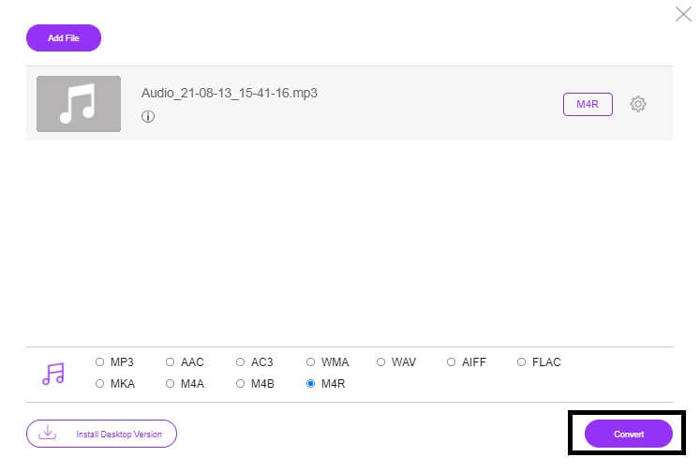
Schritt 4. Klicken Sie dann auf die Schaltfläche Konvertieren, um den Konvertierungsvorgang zu starten.
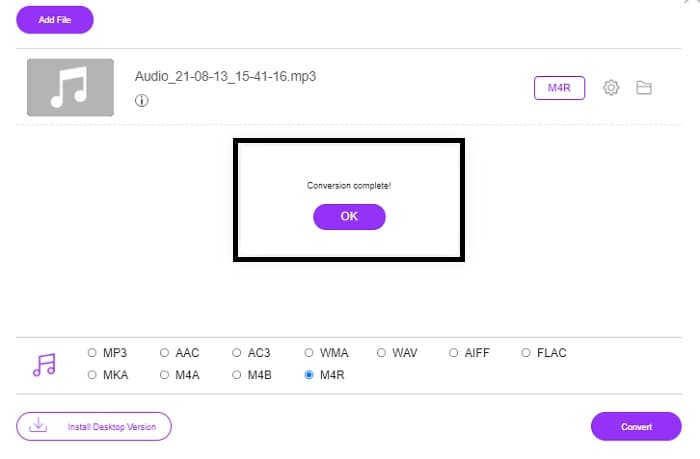
Schritt 5. Wählen Sie abschließend einen Ordner, in dem Sie die Datei speichern möchten; die Datei wird dann automatisch dort abgelegt. Übertragen Sie sie anschließend auf Ihr iPhone. Bedenken Sie, dass Sie auch eine Stapelkonvertierung durchführen können – limitieren Sie sich also nicht.
Verwandt:
M4ROnline von Dateikonverter
Einfach, aber zuverlässig – so beschreiben die Nutzer dieses Online-Tool. Standardmäßig wurde es speziell dafür entwickelt, MP3 in M4R zu konvertieren. Wie der Name schon sagt, ist genau das der Zweck dieses Tools. Es funktioniert in verschiedenen Webbrowsern, sodass Sie nichts herunterladen oder kaufen müssen. Wenn Sie die Website besuchen, werden Sie die schlichte Oberfläche bemerken. Die Bedienung ist sehr unkompliziert: Sie müssen lediglich auf die Schaltfläche Browse klicken, um den Upload- und Konvertierungsvorgang zu starten. Wenn Sie es ausprobieren möchten, empfiehlt es sich, die offizielle Website zu besuchen und es selbst zu erleben. Somit ist dieses Tool eine gute Alternative. Unten finden Sie zudem eine Schritt-für-Schritt-Anleitung zur Nutzung.
Schritt 1. Als Erstes rufen Sie die offizielle Seite von M4R Online auf und klicken dann auf Browse.
Schritt 2. Wählen Sie die Datei aus Ihrem Ordner und klicken Sie auf die Schaltfläche Datei hochladen.
Schritt 3. Sobald die Meldung „abgeschlossen“ erscheint, klicken Sie auf die Datei, um sie herunterzuladen.
Online-convert.com
Dieses Tool bietet bereits seit geraumer Zeit seine Dienste an. Es ist daher sicher zu sagen, dass viele Nutzer dieses Online-Werkzeug für ihre Konvertierungsaufgaben sehr hilfreich fanden – sonst wäre es vermutlich nicht mehr online. Wenn Sie die Startseite der Website besuchen, sehen Sie alle verfügbaren Tools auf einen Blick: Audiokonverter, Videokonverter, Bildkonverter, Dokumentenkonverter, E‑Book-Konverter – alles direkt von der Startseite aus erreichbar. Diese Bündelung macht es für den Nutzer einfacher, das benötigte Tool schnell zu finden. Daher verdient es einen Platz auf dieser Liste der MP3-zu-M4R-iTunes-Konverter. Nachfolgend finden Sie zur Orientierung eine Anleitung zur Verwendung des Tools.
Schritt 1. Besuchen Sie die offizielle Website des Tools und wählen Sie Audio Converter.
Schritt 2. Klicken Sie auf das Dropdown-Feld, wählen Sie das gewünschte Ausgabeformat und klicken Sie dann auf „GO“.
Schritt 3. Es öffnet sich ein neues Fenster. Klicken Sie dort auf die Schaltfläche Dateien auswählen und laden Sie die Datei hoch. Um die Konvertierung zu starten, klicken Sie auf Start Conversion. Sobald die Datei fertig ist, wird sie automatisch auf Ihren PC heruntergeladen.
MP3 vs. M4R
Das MP3-Format wurde 1993 von der Moving Picture Experts Group (MPEG) veröffentlicht. Es war der Standard zum Speichern von Musik, da es Audio auf eine viel kleinere Größe als andere unkomprimierte Formate komprimieren konnte. Es wird auch heute noch häufig verwendet, insbesondere für die Online-Verteilung von Audio.
Eine M4R-Datei wird zum Speichern eines benutzerdefinierten iPhone-Klingeltons verwendet, der mit Apple iTunes erstellt wurde. Normalerweise können Sie dieses Format sehen, wenn Sie einen Klingelton vom Computer auf ein iOS-Gerät übertragen. Mit iTunes erstellte M4R-Dateien enthalten normalerweise einen Urheberrechtsschutz.
Teil 3. Häufig gestellte Fragen zum Konvertieren von MP3 in M4R
Was ist M4R?
Es ist eine Dateierweiterung, die speziell von Apple erstellt wurde und ausschließlich als Klingelton für iPhone und andere Apple-Geräte verwendet wird. Dies ist in Bezug auf die Qualität so gut wie M4A und MP4.
Gibt es neben iTunes einen MP3-zu-M4R-Konverter?
Definitiv gibt es sie. Sie können aus den oben genannten Tools wählen oder die Verwendung von Windows Media Player durch Rippen in Betracht ziehen. Wenn Sie nicht alle Prozesse durchlaufen möchten, können Sie einfach die kostenlosen online verfügbaren Tools verwenden. Sie konvertieren das Audio direkt in Ihr gewünschtes Format, anstatt den langwierigen Prozess des Rippens zu durchlaufen.
Warum muss ich meine Datei von MP3 in M4R konvertieren, um sie als Klingelton zu verwenden?
Es ist ein Muss. Um eine Datei als Klingelton zu betrachten, muss die Datei standardmäßig im M4R-Format vorliegen, um als Ihr Klingelton abgespielt zu werden.
Fazit
Bei all dem können Sie sich sicherlich auf die oben aufgeführten Tools verlassen. Sie müssen nur darauf zugreifen, welches Tool je nach Bedarf für Sie hilfreich sein kann. Wenn Sie ein Student und normaler Bürger sind, der MP3 kostenlos auf einem Mac oder einem beliebigen Gerät, das Sie verwenden, konvertieren und in M4R konvertieren möchte, können Sie sich auf die kostenlosen Tools beziehen. Für den professionellen Einsatz empfiehlt es sich, den Video Converter Ultimate zu verwenden. Sie können jederzeit zu dieser Seite zurückkehren, wenn Sie mehr über weitere Konvertierungstools erfahren möchten.
-
 [Kostenlos & Online] 3 Methoden zum Konvertieren von MP3 in MP4 mit Bild
 Wie konvertiere ich MP3 in MP4 in hoher Qualität? Dieser Beitrag zeigt 3 effiziente und kostenlose Methoden zum Ändern von MP3 in MP4 mit Bildern unter Windows und Mac.
-
 Erfahren Sie, wie Sie MP3 in ein WAV-Format konvertieren
 Möchten Sie wissen, wie Sie MP3 in WAV konvertieren? Bestimmen Sie, welches der Tools die beste Konvertierungsqualität liefert, die Sie erhalten können.
-
 Richtlinien zum Konvertieren von M4A in WAV [PC und Mac]
 Erfahren Sie mehr darüber, wie Sie M4A in WAV konvertieren, mit detaillierten Schritten und verschiedenen Tools, aus denen Sie wählen können.

