


 Video Converter Ultimate
 Bildschirm recorder
 Videoreparatur
 Sicherer Download
DVD-zu-H.264-Konverter: 3 Methoden zur schnellen DVD-Konvertierung
Heutzutage verringern Online-Streaming-Plattformen langsam die Nachfrage und Nutzung von DVDs. Zwar gibt es immer noch diejenigen, die sie bevorzugen, aber die meisten Menschen bevorzugen Flexibilität und Komfort beim Ansehen von Videos oder Filmen.
Wenn Sie sich nicht abgehängt fühlen und Ihre DVD‑Sammlung bewahren möchten, ist es am besten, sie in digitale Formate umzuwandeln. DVDs werden von den meisten Geräten und Mediaplayern heute nicht mehr vollständig unterstützt, doch wenn sie in gängige digitale Formate gerippt werden, profitieren Sie von deren Flexibilität und Komfort. In diesem Artikel lernen Sie drei Methoden kennen, mit denen Sie DVDs ganz einfach in das Format H.264 konvertieren können. Außerdem erfahren Sie, warum es sinnvoll ist, Ihre DVDs in dieses Format umzuwandeln. Sind Sie bereit, Ihre DVDs zu konvertieren? Scrollen Sie nach unten, um mehr zu erfahren.

Teil 1. Warum DVD in H.264 konvertieren?
Es gibt verschiedene Gründe, warum Sie Ihre DVD in H.264 konvertieren sollten. Der offensichtlichste Grund ist, den Inhalt der Disc zu erhalten und in einem digitalisierten Format zu speichern. Es gibt jedoch noch weitere Gründe, die oft übersehen werden oder denen noch nicht bewusst ist. Im Folgenden sind die Gründe aufgeführt, warum Sie Ihre DVDs in H.264 konvertieren sollten:
Geräteübergreifende Kompatibilität
H.264 ist heutzutage einer der am weitesten verbreiteten Video-Codecs. Wenn Sie Ihre DVD in dieses Format konvertiert haben, sind Sie beim Ansehen der Medieninhalte auf Ihrer DVD möglicherweise nicht mehr auf verschiedene Geräte und Mediaplayer beschränkt.
Kleinere Dateigröße bei hoher Qualität
Im Vergleich zum ursprünglichen DVD-Format bietet H.264 eine bessere Komprimierungsrate. Dadurch reduziert es die Dateigröße von DVDs, ohne die Videoqualität wesentlich zu beeinträchtigen. So können Sie mehr Filme oder Videos speichern, ohne übermäßig viel Speicherplatz zu verbrauchen.
Streaming und Cloud-Speicher
H.264-kodierte Videos eignen sich ideal für die Cloud-Speicherung und das Streaming. So können Sie jederzeit und überall auf Ihre Mediensammlung zugreifen.
Bearbeiten und Anpassen
Sobald Ihre Videos im H.264-Format vorliegen, können Sie sie problemlos mit einer Videobearbeitungssoftware bearbeiten. So können Sie unerwünschte Abschnitte herausschneiden, Untertitel hinzufügen oder die Videoqualität verbessern. Diese Flexibilität ist mit dem ursprünglichen DVD-Format nicht möglich.
Kein DVD-Laufwerk erforderlich
Moderne Laptops und einige Desktop-PCs verfügen nicht mehr über integrierte DVD-Laufwerke. Durch die Konvertierung von DVDs in H.264 werden externe DVD-Player überflüssig, sodass Sie Ihre Lieblingsfilme oder -serien auf jedem Gerät ansehen können.
Teil 2. Beste Methode zum Konvertieren von DVDs in H.264
Die beste Methode, DVDs in H.264 zu konvertieren, ist die Verwendung des von FVC empfohlenen AnyMP4 DVD Rippers. Dieses Tool ist bekannt für seinen umfassenden Funktionsumfang, mit dem Benutzer alle DVD-Filme, einschließlich DVD-Discs, ISO-Dateien und Ordner, effektiv und einfach rippen und in ihre bevorzugten Ausgabeformate konvertieren können. Der DVD Ripper unterstützt nahezu alle Ausgabeformate, darunter H.264, MP4, MKV, MOV, AVI, FLV, WMV, WEBM, M4V, TS, MXF, MPG, 3GP, VOB und viele mehr. Darüber hinaus verfügt das Tool über eine sehr einfache und intuitive Benutzeroberfläche, die die Bedienung erleichtert. Jeder Benutzer, auch Anfänger, kann sich problemlos mit dem Tool zurechtfinden und seine DVD-Konvertierungsanforderungen erfüllen.
So konvertieren Sie eine DVD mit dem von FVC empfohlenen AnyMP4 DVD Ripper in H.264:
Schritt 1. Laden Sie zunächst das Programm herunter und installieren Sie es auf Ihrem Gerät, ganz gleich, ob Ihr Computer unter Windows oder macOS läuft.
Kostenloser DownloadFür Windows 7 oder höherSicherer Download
Kostenloser DownloadFür macOS 10.7 oder höherSicherer Download
Hinweis: Bevor Sie mit dem nächsten Schritt fortfahren, müssen Sie die DVD in das DVD-Laufwerk Ihres Computers einlegen und ein paar Minuten warten, bis sie erkannt wird.
Schritt 2. Starten Sie nun das Programm und klicken Sie auf das Symbol „Erste Schritte“ in Form eines Pluszeichens (+) in der Mitte, um die Disc zu laden.
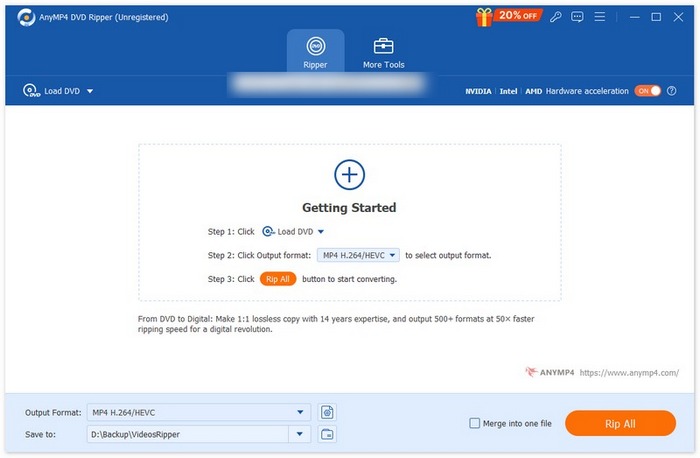
Schritt 3. Klicken Sie anschließend unten auf das Ausgabeformat und wählen Sie im Reiter „Video“ das Format H.264 aus. Wenn Sie fertig sind, klicken Sie einfach auf die Schaltfläche „Alles rippen“, um mit dem Rippen Ihrer DVD zu beginnen.
Das Beste am von FVC empfohlenen AnyMP4 DVD Ripper ist die direkte DVD-zu-H.264-Konvertierung, die keine weiteren Schritte erfordert. Auch die verwendete Kodierungstechnologie ist erstklassig und gewährleistet, dass alle DVDs in gleicher oder sogar verbesserter Qualität gerippt werden.
Teil 3. DVD in H.264 konvertieren [Kostenlos]
Wenn Sie sich fragen, ob es kostenlose DVD-Konverter für H.264 gibt, haben Sie Recht! Diese kostenlosen Konverter-Tools sind im Gegensatz zum von FVC ausgewählten Video Converter Ultimate möglicherweise keine dedizierten Videokonverter-Tools. Diese Tools können jedoch auch DVDs in H.264 konvertieren.
VLC Media Player
VLC ist als Mediaplayer bekannt und wird in erster Linie auch so verwendet. Die meisten Nutzer wissen jedoch nicht, dass dieser Player DVDs in H.264 konvertieren kann. Tatsächlich unterstützt VLC Ausgabevideoformate wie MP4, MKV, AVI und mehr und ist damit ein vielseitiges Werkzeug zum DVD-Rippen.
So konvertieren Sie eine DVD mit dem VLC Media Player in H.264:
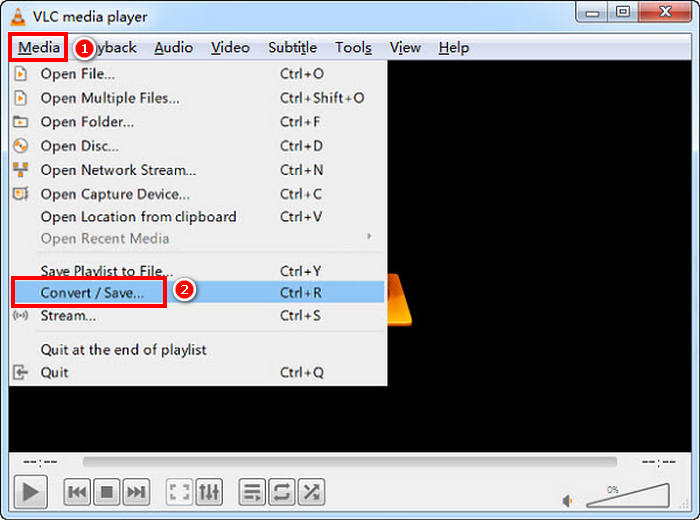
Schritt 1. Legen Sie die DVD in das Laufwerk Ihres Computers ein. Öffnen Sie anschließend VLC und wählen Sie im Menü Medien den Punkt Konvertieren/Speichern.
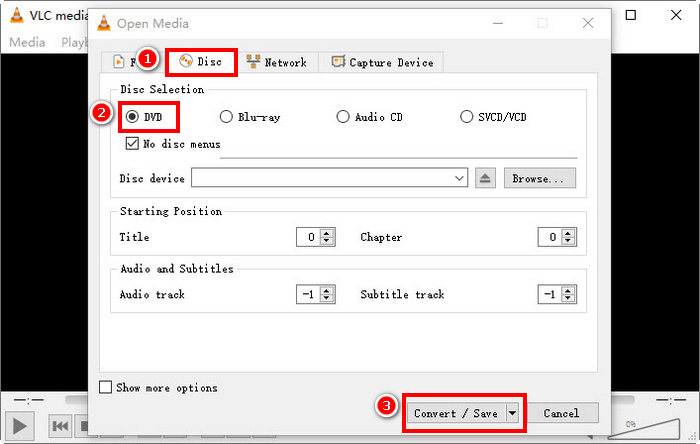
Schritt 2. Wählen Sie im Fenster Medium öffnen den Reiter Disc, klicken Sie auf DVD, um sie zu laden, und klicken Sie dann auf die Schaltfläche Konvertieren/Speichern.
Schritt 3. Wählen Sie im Fenster „Konvertieren“ im Bereich Profil das Ausgabeformat H.264 + MP4 aus.
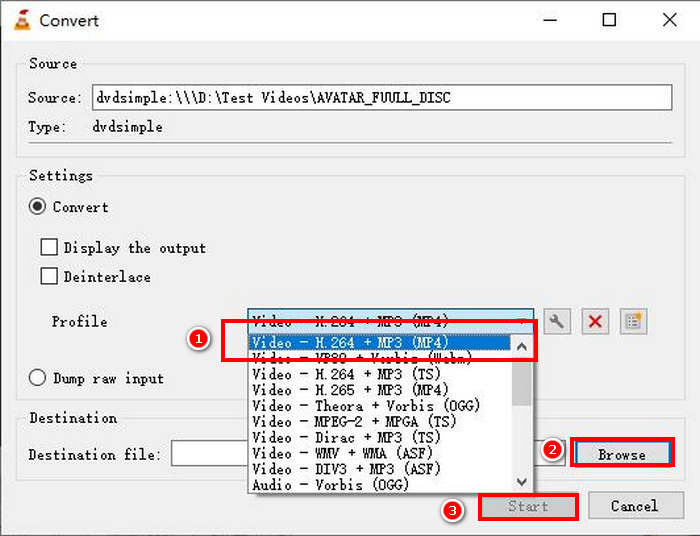
Schritt 4. Klicken Sie auf Durchsuchen, um einen Zielordner auszuwählen und Ihre Datei zu benennen.
Schritt 5. Klicken Sie abschließend auf die Schaltfläche Start, um den Rippvorgang zu beginnen.
Hinweis: VLC kann standardmäßig keine kopiergeschützten DVDs rippen. Wenn Sie Probleme mit verschlüsselten DVDs haben, müssen Sie möglicherweise libdvdcss installieren.
Handbremse
Ein weiteres Videokonverter-Tool, mit dem Sie DVDs in H.264 umwandeln können, ist HandBrake. Dieses Programm ist für seine kostenlose und quelloffene Struktur bekannt. Neben H.264 können Nutzer ihre DVDs auch in Ausgabeformate wie MP4 und MKV rippen.
So konvertieren Sie eine DVD mit HandBrake in H.264:
Schritt 1. Laden Sie zunächst HandBrake herunter und installieren Sie es auf Ihrem Computer.
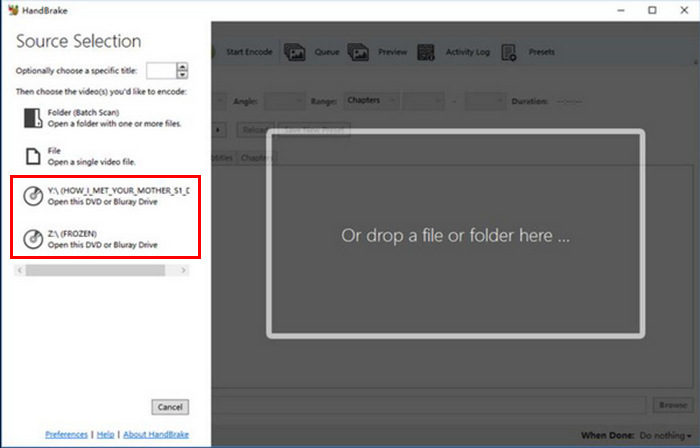
Schritt 2. Legen Sie anschließend Ihre DVD in das DVD‑Laufwerk ein und wählen Sie Ihre DVD unter Source Selection (Quellauswahl) aus. Das Programm beginnt dann, die DVD-Filmtitel zu scannen.
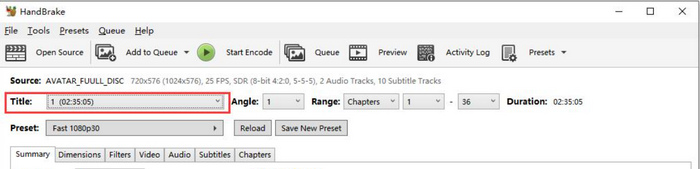
Schritt 3. Sobald die DVD geöffnet ist, wählen Sie den Titel, den Sie rippen möchten, über das Dropdown-Menü „Title“.
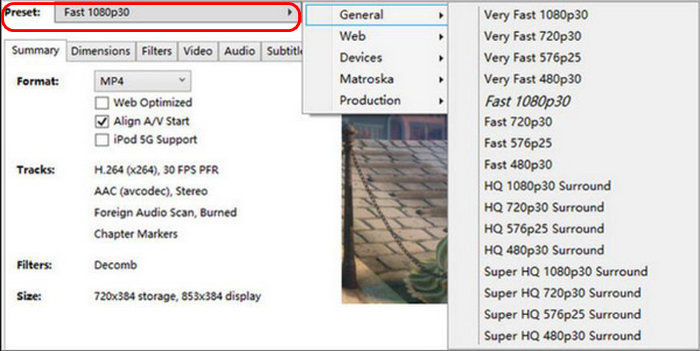
Schritt 4. Als Nächstes müssen Sie die Qualität Ihrer Ausgabedatei festlegen. Klicken Sie dazu einfach auf die Schaltfläche Preset und passen Sie Ihre Einstellungen an. Darunter sehen Sie den Punkt Format. Klicken Sie darauf und wählen Sie MP4 als Ausgabeformat.
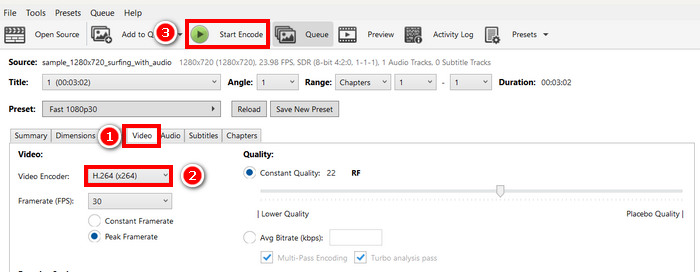
Schritt 5. Gehen Sie danach zum Video-Reiter und wählen Sie unter Video Encoder den Eintrag H.264 aus. Klicken Sie abschließend oben im Fenster auf die Schaltfläche Start Encode, um mit dem Rippen Ihrer DVD in H.264 zu beginnen.
Teil 4. FAQs zur Konvertierung von DVDs in H.264
Unterstützt DVDs das H.264-Format?
Nein. DVDs unterstützen das H.264-Format nicht. Wenn Sie jedoch Videos im H.264-Format speichern möchten, müssen Sie die DVD mit einem Videokonverter wie dem von FVC ausgewählten Video Converter Ultimate, HandBrake und VLC rippen und in H.264 konvertieren.
Warum sollte ich eine DVD in H.264 konvertieren?
H.264 bietet eine bessere Komprimierung und Qualität als MPEG-2. Es reduziert die Dateigröße bei gleichbleibender Videoqualität und ist daher ideal für die digitale Speicherung und das Streaming.
Was ist der Unterschied zwischen H.264 und H.265?
H.265 bzw. HEVC ist neuer und effizienter und bietet eine bessere Komprimierung als H.264. H.265 benötigt jedoch mehr Rechenleistung und wird möglicherweise nicht auf allen Geräten unterstützt.
Fazit
Die Konvertierung einer DVD in H.264 ist mit dem richtigen Videokonverter-Tool völlig unkompliziert. Wählen Sie einfach die Methode, die am besten zu Ihren Anforderungen und Möglichkeiten passt, und folgen Sie den Schritten sorgfältig. Wenn Sie es kaum erwarten können, Ihre DVDs zu sichern und umzuwandeln, starten Sie die Konvertierung jetzt!
-
 4 Methoden zum Kopieren von DVDs auf das MacBook [Anleitung für Anfänger]
 Wenn Sie sich fragen, wie Sie eine DVD auf ein MacBook kopieren, lesen Sie diesen Artikel weiter und lassen Sie sich von 4 einfachen Methoden anleiten, die Sie problemlos selbst ausprobieren können.
-
 DIY-DVD-Aufbewahrung: 6 Ideen zum Erstellen einer Aufbewahrung für DVDs
 Suchen Sie nach Ideen für die Einrichtung einer DIY-DVD-Aufbewahrung? Lesen Sie diesen Artikel, um sicherzustellen, dass Ihre DVDs an einem sicheren Ort aufbewahrt werden und bei Bedarf leicht zugänglich sind.
-
 Top 5 der besten VHS-zu-DVD-Konverter für Windows und macOS
 Sie haben einen Stapel VHS-Kassetten zu Hause und suchen nach Möglichkeiten, diese aufzubewahren? In diesem Artikel erfahren Sie 5 Tools, mit denen Sie VHS ganz einfach auf DVD konvertieren können.
