


 Video Converter Ultimate
 Bildschirm recorder
 Videoreparatur
So konvertieren Sie DivX mit Leichtigkeit in WMV: Offline- und Online-Methoden
DivX ist ein Videokomprimierungs‑Codec, der Videos auf die vom Benutzer gewünschte Größe komprimiert. Eine WMV‑Datei ist eine Windows Media Video‑Datei, die die Videokomprimierungsformate von Microsoft komprimieren kann. Beachten Sie, dass DivX und WMV nicht immer miteinander kompatibel sind. Obwohl die meisten Videos derzeit in DivX kodiert und im WMV‑Format gespeichert werden, ist es je nach Situation gelegentlich erforderlich, DivX in das WMV‑Format zu konvertieren. Glücklicherweise stellen wir DivX‑zu‑WMV‑Konverter zur Verfügung, mit denen Sie diese Aufgabe – online oder offline – schnell erledigen können.

Teil 1. Hervorragende Methode zum Konvertieren von DivX in WMV [Offline]
Video Converter Ultimate ist vermutlich die beste Wahl, wenn Sie nach einer Software suchen, die den gesamten Vorgang in einem Durchgang erledigt und zusätzliche Funktionen für andere Bearbeitungsaufgaben bietet. Die Software unterstützt nicht nur zahlreiche Videoformate, sondern ermöglicht es Ihnen auch, Ihre Video‑ und Audiodateien in Bezug auf Qualität weiter zu bearbeiten und Ihre Clips durch das Hinzufügen von Effekten zu personalisieren. Diese Software ist ein All‑in‑One‑Konverter. Gehen Sie wie folgt vor, um dieses Programm zu verwenden:
Schritt 1: Installieren Sie die Software auf Ihrem Desktop, indem Sie unten auf eine der Schaltflächen Kostenloser Download entsprechend Ihrem Betriebssystem klicken. Warten Sie, bis die .exe‑Datei vollständig heruntergeladen ist, und öffnen Sie sie dann, um den Installationsvorgang zu starten. Wenn Sie die Installation der Software abgeschlossen haben, klicken Sie auf Jetzt starten und führen Sie die Software aus.
Gratis DownloadFür Windows 7 oder neuerSicherer Download
Gratis DownloadFür MacOS 10.7 oder neuerSicherer Download
Schritt 2: Es öffnet sich ein Fenster mit einer Oberfläche, auf der sich in der Mitte ein +‑Button befindet. Klicken Sie darauf, um die Videodatei zu importieren, die Sie konvertieren möchten, oder ziehen Sie die Dateien einfach per Drag & Drop hinein.
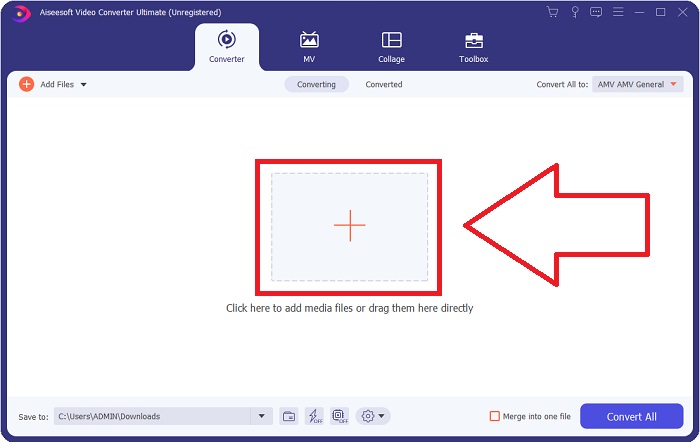
Schritt 3: Nachdem Sie die Dateien importiert haben, wird Ihnen auf der rechten Seite jeder Datei das aktuelle Format Ihrer Videodatei angezeigt. Klicken Sie darauf, und alle verfügbaren Formate werden eingeblendet. Sie können nach unten scrollen oder WMV in die Suchleiste eingeben, um es auszuwählen. Außerdem stehen Ihnen auf der rechten Seite der Registerkarte verschiedene Videoqualitäten zur Auswahl.
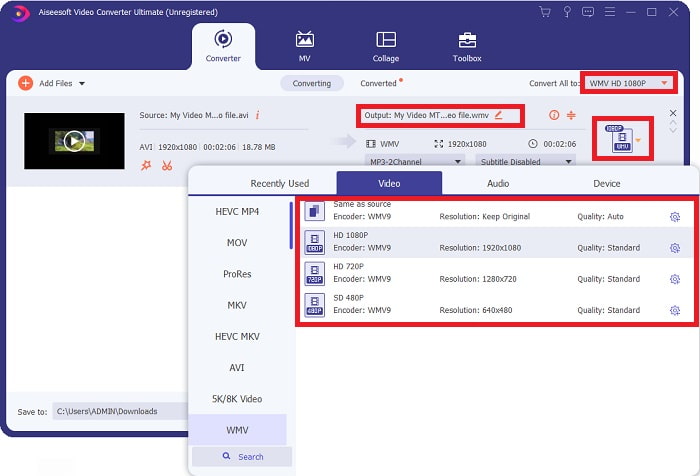
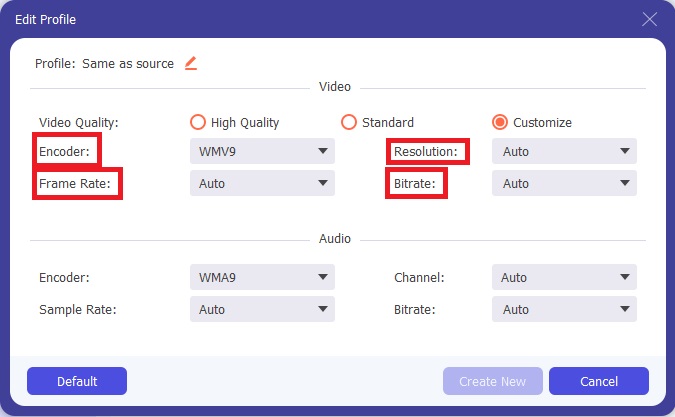
Schritt 4: Für weitere Optionen können Sie auf das Zahnrad‑Symbol neben der von Ihnen gewählten Videoqualität klicken; dann erscheint ein weiteres Fenster. Dort können Sie Auflösung, Bildrate, Bitrate und vieles mehr anpassen, sodass es Ihren Anforderungen bestmöglich entspricht. Wenn Sie mit allen Anpassungen zufrieden sind, klicken Sie unten rechts auf die Schaltfläche „Neu erstellen“, um die Änderungen zu übernehmen.
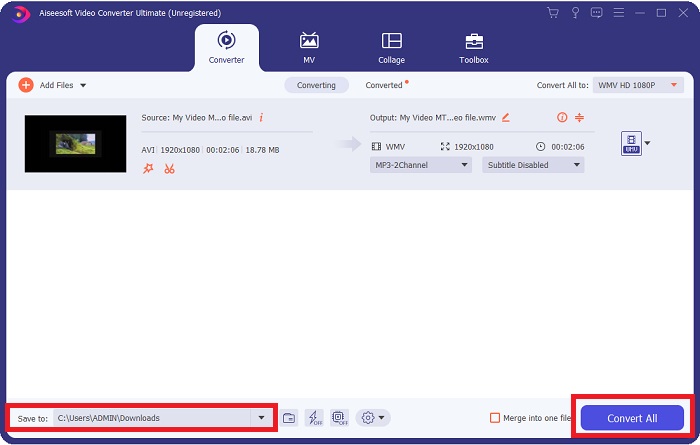
Schritt 5: Wenn Sie die Videoeinstellungen nach Ihren Wünschen bearbeitet haben, klicken Sie unten rechts auf die Schaltfläche Alle konvertieren, um den Konvertierungsvorgang zu starten, und warten Sie, bis er abgeschlossen ist.
Teil 2. Andere Methode zum Konvertieren von DivX in WMV [Online]
Es ist möglich, jederzeit einen Videokonverter zur Hand zu haben, ohne eine Software installieren zu müssen. Dennoch ist es auch möglich, ein Video schnell und einfach zu konvertieren, ohne etwas zu installieren. Video Converter Ultimate hat ein Online-Gegenstück, das Sie auf einen Schlag verwenden können. Es bietet noch zusätzliche Optionen und unterstützt viele Formate. Befolgen Sie diese einfachen Schritte, um dieses Webtool zu verwenden:
Schritt 1: Beginnen Sie, indem Sie auf diesen Link klicken; Sie werden dann zu dem Online‑Tool weitergeleitet. Dort finden Sie in der Mitte die Schaltfläche Dateien zum Konvertieren hinzufügen. Klicken Sie darauf, um das Startprogramm herunterzuladen, das Sie benötigen, um Ihre Videodateien bequem zu importieren.
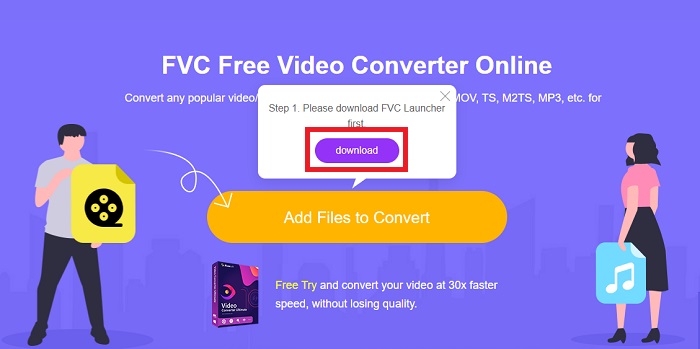
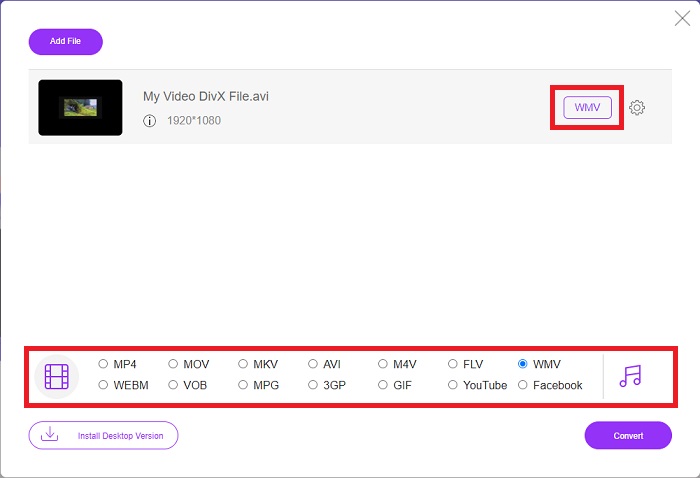
Schritt 2: Wenn das Startprogramm fertig heruntergeladen ist, klicken Sie erneut auf dieselbe Schaltfläche, um die Datei zu importieren, die Sie konvertieren möchten. Nun können Sie WMV aus der Formatliste am unteren Fensterrand auswählen.
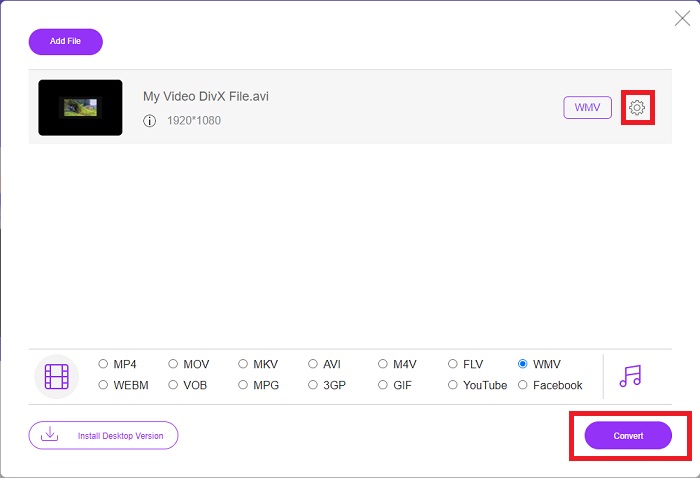
Schritt 3: Sie finden rechts ebenfalls ein Zahnrad‑Symbol, mit dem Sie wie in der Software selbst Änderungen an Auflösung, Bildrate und weiteren Parametern vornehmen können. Um die vorgenommenen Änderungen zu speichern, klicken Sie auf „OK“, und Sie können nun den Konvertierungsvorgang starten. Klicken Sie unten rechts auf die Schaltfläche Konvertieren und warten Sie, bis der Vorgang abgeschlossen ist.
Verwandt:
Teil 3. DivX vs. WMV: Informationen, die Sie kennen sollten
Für einen Vergleich zwischen den beiden genannten Formaten können Sie über diesen Teil hinaus alle wesentlichen Informationen lesen:
DivX ist eine Marke von Video-Codecs, die von DivX, LLC entwickelt wurde. Dieser Video-Codec funktioniert am besten mit Windows-Anwendungen, obwohl Benutzer ihn möglicherweise auch auf Spielekonsolen, Weckern, Fahrzeugstereoanlagen und anderen Geräten finden. MPEG-4 Part 2, HEVC Ultra HD und H.264/MPEG-4 AVC DivX Plus High Definition-Videocodecs sind die drei wichtigsten DivX-Codecs, die heute verwendet werden.
Auf der anderen Seite ist WMV (Windows Media Video) eine Reihe von Video-Codecs und Codierungsformaten, die von Microsoft als Teil ihres Windows Media-Frameworks veröffentlicht werden. Sein Zweck ist es, mit dem RM-Format bei Internet-Streaming-Anwendungen zu konkurrieren. Sein Zweck ist es, komprimierte Filme zu speichern und sogar Blu-ray/DVD bereitzustellen.
| Digital Video Express (DivX) | Windows Media-Video (WMV) | |
| Dateierweiterung | .divx | .wmv |
| Entwickler | DivX Networks Inc. | Microsoft |
| Unterstützende Programme | ◆ DVD/Blu-ray-Player ◆ Wecker ◆ Autoradio ◆ Xbox 360 | ◆ VLC-Mediaplayer ◆ MPlayer ◆ Mediaplayer-Klassiker ◆ Windows Media-Player |
Teil 4. Häufig gestellte Fragen zur Konvertierung von DivX in WMV
Wird DivX noch verwendet?
DIVX (Digital Video Express) ist ein eingestelltes digitales Videoformat, das in den Vereinigten Staaten ein gescheiterter Versuch war, eine praktikable Alternative zum Videoverleih zu entwickeln.
Was sind die Einschränkungen von WMV?
Da WMV ein Windows-Format ist, können Apple- oder Linux-Mediaplayer WMV-Filme abspielen. WMV war aus diesem Grund kein Mainstream-Streaming-Videoformat.
Welches hat eine höhere Auflösungsaufnahme?
Obwohl sowohl WMV als auch DivX mit 1280 x 720 aufzeichnen können, muss das eine von höherer Qualität sein als das andere. Diese Codecs können in mehreren Qualitätsstufen mit der genauen Auflösung aufnehmen, aber die Bitrate variiert, um kleinere Dateien zu erstellen. Obwohl das WMV-Bild besser ist, erstellt DivX eine fünfmal schnellere und 50 Prozent kleinere Datei.
Fazit
Alles in allem wird empfohlen, einen Konverter neben sich zu haben, damit Sie sich in Zeiten, in denen Sie einen benötigen, nicht die ganze Mühe machen müssen, online einen anständigen zu finden. Video Converter Ultimate und sein Online-Tool-Gegenstück werden entweder einem Videokonsumenten oder -ersteller empfohlen, da sie viel mehr bieten als andere Konverter. Außerdem ist es für Sie am bequemsten, da es über eine Benutzeroberfläche verfügt, auf der selbst Anfänger problemlos navigieren können.
-
 4 Möglichkeiten zum kostenlosen Konvertieren von DivX in MOV [Online & Offline]
 Kämpfen Sie mit den Einschränkungen von DivX oder haben Sie nicht die Mediaplayer, um auf Videos in diesem Format zuzugreifen? Wenn Sie es in das MOV-Format konvertieren möchten, lesen Sie diesen Artikel weiter, um die Lücken zu schließen.
-
 2 zertifizierte Konverter zum Konvertieren von DivX-Dateien in das FLV-Format [2022]
 Möchten Sie wissen, wie Sie Ihre DivX-Dateien in FLV konvertieren? Dann lesen Sie diesen Artikel, um eine Vorstellung davon zu bekommen, wie es geht und welche Konverter Sie verwenden können.
-
 Eine einfache Anleitung, wie Sie Ihr GIF unter Windows/Mac in WMV umwandeln
 Möchten Sie wissen, wie Sie das GIF- in das WMV-Format konvertieren? Dann folgen Sie diesem Artikel, der verschiedene Lösungen vorstellt, aus denen Sie wählen können.
