


 Video Converter Ultimate
 Bildschirm recorder
 Videoreparatur


2 einfache Möglichkeiten, M4V in WMV mühelos und verlustfrei zu konvertieren
Einige Unternehmen haben Videokomprimierungsformate. Apple und Microsoft haben Videodateien exklusiv für ihre Mediaplayer entwickelt. Wenn Sie also M4V-Dateien aus dem Apple iTunes Store heruntergeladen oder gekauft haben und diese mit Freunden oder der Familie auf PCs teilen möchten, ist die Konvertierung von M4V in WMV möglicherweise die beste Lösung, bevor Sie dies tun. Daher bieten wir Ihnen den einzigartigen Konverter, der diese Arbeit schnell, effizient und außergewöhnlich problemlos erledigt.

Teil 1. Konvertieren von M4V in WMV mit Leichtigkeit auf Mac und Windows
Free Video Converter Ultimate ist ein einfaches, aber effektives Videokonvertierungsprogramm von FVC Studio. Auf Ihrem Windows‑ oder Mac‑Computer können Sie damit Video- und Audiodateien konvertieren. Darüber hinaus unterstützt dieses Videokonvertierungstool eine Vielzahl von Videoformaten, darunter die am weitesten verbreiteten – es unterstützt gängige Formate wie MP4, FLV, M4V, WMV, TS, M2TS sowie iPhone‑/Android‑Dateien. Diese Software nutzt HEVC‑Technologie, sodass Sie sich bei hochwertigen Konvertierungen keine Sorgen um die Qualität machen müssen. Apropos Qualität: 4K‑UHD wird ebenfalls unterstützt. So verwenden Sie das Programm – folgen Sie einfach diesen Schritten:
Schritt 1: Laden Sie die .exe‑Datei herunter, indem Sie unten entsprechend Ihrem Betriebssystem (Windows oder Mac) auf die Schaltfläche Free Download klicken. Wenn der Download abgeschlossen ist, öffnen Sie die Datei und installieren Sie die Software. Starten Sie anschließend das Programm.
Gratis DownloadFür Windows 7 oder neuerSicherer Download
Gratis DownloadFür MacOS 10.7 oder neuerSicherer Download
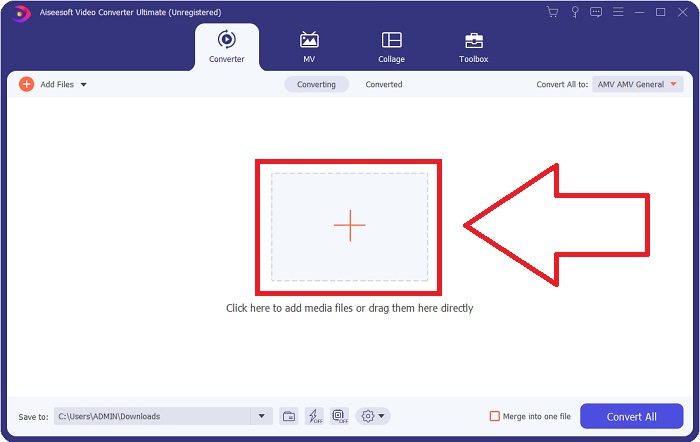
Schritt 2: Es öffnet sich ein Fenster mit einer Benutzeroberfläche, in deren Mitte sich eine Schaltfläche mit einem +‑Symbol befindet. Klicken Sie darauf, um die Videodatei zu importieren, die Sie konvertieren möchten. Alternativ können Sie die Datei auch einfach per Drag & Drop hineinziehen.
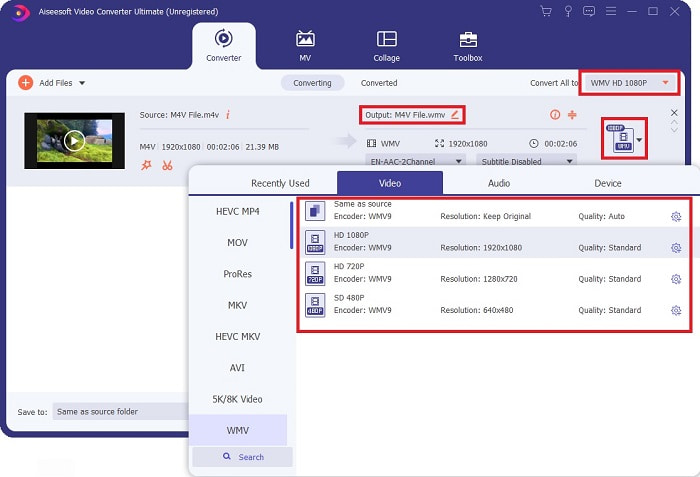
Schritt 3: Die von Ihnen importierte Datei wird nun in der Oberfläche angezeigt. Rechts daneben sehen Sie, in welchem Format das Video derzeit vorliegt. Klicken Sie darauf, und es werden alle verfügbaren Formate angezeigt, aus denen Sie wählen können. Scrollen Sie in diesem Fall nach unten und suchen Sie WMV, oder geben Sie es zur schnelleren Suche in die Suchleiste ein. Außerdem stehen Ihnen auf der rechten Seite des Tabs alle verfügbaren Videoqualitäten zur Auswahl. Sie können die gewünschte Qualität frei wählen.
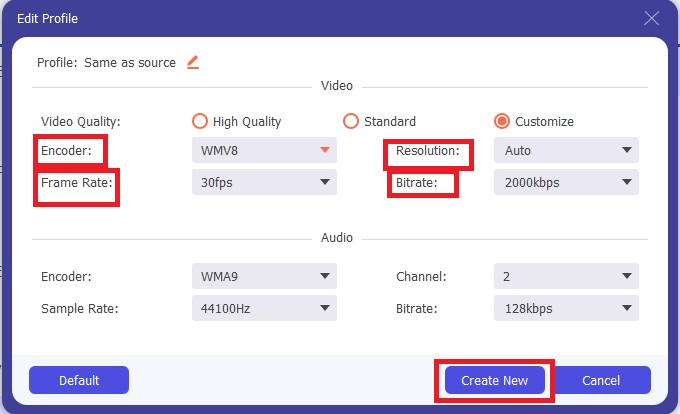
Schritt 4: Zusätzlich zu der genannten Qualitätsauswahl können Sie das Ergebnis Ihres Videos weiter bearbeiten, indem Sie auf das Zahnrad‑Symbol rechts neben der von Ihnen gewählten Videoqualität klicken. Dort werden alle möglichen Einstellungen angezeigt, darunter Bildrate, Auflösung, Bitrate, Abtastrate, Encoder und vieles mehr. Klicken Sie einfach auf die Schaltfläche Create New, um die vorgenommenen Änderungen zu speichern.
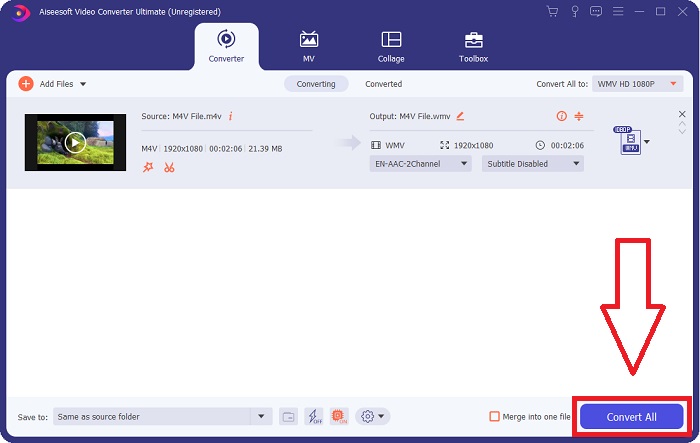
Schritt 5: Um den Konvertierungsvorgang abzuschließen, klicken Sie auf die Schaltfläche Convert All unten rechts im Tab, warten Sie, bis der Vorgang beendet ist, und Sie erhalten Ihre konvertierte Datei.
Teil 2. Konvertieren von M4V in WMV mit der Handbremse
Handbrake ist ein beliebtes kostenloses Konvertierungsprogramm, das auf Windows-, Macs- und Linux-Plattformen läuft. Benutzer können Videos in jedem Format von DVD- und Blu-ray-Quellen auf diesen Open-Source-Transcoder hochladen, um sie in WMV zu konvertieren. Der Konvertierungsvorgang ist dank einer benutzerfreundlichen Oberfläche schnell und einfach. Befolgen Sie diese einfachen Anweisungen, um M4V mit einer Handbremse in WMV zu konvertieren.
Schritt 1: Starten Sie die HandBrake‑Anwendung auf Ihrem Computer. Klicken Sie auf die Schaltfläche Open Source auf dem Hauptbildschirm, um die konvertierten WMV‑Dateien zu durchsuchen und hinzuzufügen. Sie können die Videos auch einfach per Drag & Drop in die Oberfläche ziehen.
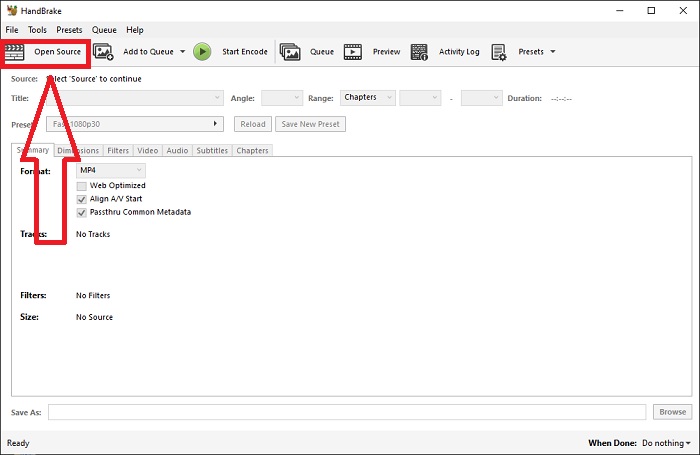
Schritt 2: Die neu eingefügte Datei wird im Bereich „Source“ angezeigt. Wählen Sie dann WMV als gewünschtes Ausgabeformat aus der Dropdown‑Option „Format“ auf der Registerkarte „Summary“. Filter, Videocodecs und andere Dateieigenschaften können bei Bedarf angepasst werden.
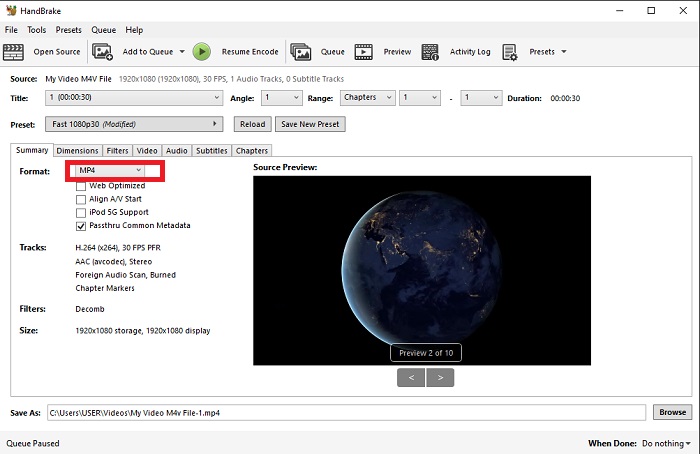
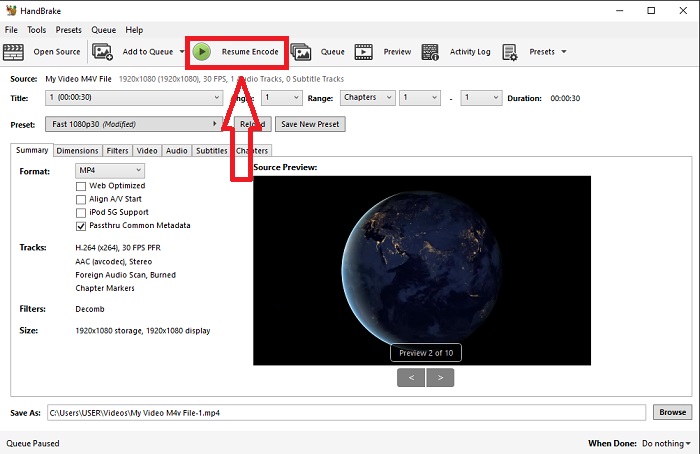
Schritt 3: Legen Sie im Abschnitt „Destination“ den Namen der Ausgabedatei und den Speicherort auf Ihrem PC fest. Klicken Sie abschließend auf die Schaltfläche Start Encode, um die M4V‑Datei in WMV zu konvertieren.
Teil 3. Ein weiteres hilfreiches Tool zum Konvertieren von M4V in WMV Online
Als kostenloses Internet-Tool ist FVC Free Video Converter praktisch. MP4, MOV, MKV, AVI, M4V, FLV, WMV, WEBM, VOB, MPG, 3GP, GIF und von YouTube und Facebook genehmigte Videoformate gehören zu den unterstützten Typen. Darüber hinaus kann dieser kostenlose Online-Videokonverter auch Audiodateien konvertieren, sodass Sie Ihr Video oder Ihre Musik in MP3, AAC, AC3, WMA, WAF, FLAC und andere Formate konvertieren können. Mit FVC Free Video Converter können Sie auch Dateien angeben, bevor Sie mit der Konvertierung beginnen. Sie können die Auflösung, Bildrate und Bitrate des Videos sowie den Audiokanal, die Abtastrate und die Bitrate ändern.
Schritt 1: Klicken Sie auf diesen Link, um direkt zum Online‑Tool zu gelangen. Zunächst müssen Sie kurz einen Launcher herunterladen. Das können Sie tun, indem Sie auf die Schaltfläche Add Files to Convert in der Mitte der Seite klicken. Dieser Schritt ermöglicht es Ihnen, Ihre Dateien zu importieren.
Schritt 2: Klicken Sie erneut auf die genannte Schaltfläche, um das Video endgültig hochzuladen. Der erfolgreiche Upload ist daran zu erkennen, dass alle verfügbaren Formate in der Oberfläche angezeigt werden. Wählen Sie dort WMV aus.
Schritt 3: Rechts finden Sie ein Zahnrad‑Symbol für weitere Optionen in der Software. Klicken Sie darauf, um Änderungen an den Video‑ und Audioeinstellungen wie Auflösung, Bildrate und Ähnlichem vorzunehmen. Wenn Sie fertig sind, klicken Sie auf OK und anschließend auf die Schaltfläche Convert, um den Konvertierungsprozess abzuschließen.
Verwandt:
Teil 4. Erweitertes Wissen über M4V und WMV
Weitere Informationen zu den beiden Formaten finden Sie im Folgenden:
M4V ist ein von Apple erstelltes Dateiformat. Es ist dem MP4-Dateiformat sehr ähnlich, mit der Ausnahme, dass M4V-Dateien möglicherweise über den Fairplay-DRM-Schutz von Apple verfügen. Das M4V-Format finden Sie in Videomaterial, das Sie im iTunes Store erworben haben. Wenn für die M4V-Datei DRM aktiviert ist, muss das zum Kauf der Datei verwendete iTunes-Konto auf dem Gerät, das sie abspielt, autorisiert werden.
Auf der anderen Seite sind WMV-Dateien von Microsoft erstellte Videodateien, die im Allgemeinen Audio enthalten. Sowohl auf Mac- als auch auf PC-Plattformen können Benutzer diese Dateien mit mehreren Videoplayern abspielen. DRM-Schutz (Digital Rights Management) kann in bestimmten WMV-Dateien enthalten sein, um Benutzer daran zu hindern, illegale Kopien von Dateien zu erstellen, die bei Online-Händlern gekauft wurden.
| M4V | WMV | |
| Dateierweiterung | .m4v | .wmv |
| Entwickler | Apple Inc. | Microsoft |
| Unterstützende Programme | ◆ Mediaplayer-Klassiker ◆ VLC-Mediaplayer ◆ KMPlayer ◆ Zoom-Player | ◆ VLC-Mediaplayer ◆ MPlayer ◆ Mediaplayer-Klassiker ◆ Windows Media-Player |
Teil 5. FAQ zum Konvertieren von M4V und WMV
Ist M4V qualitativ hochwertiger als MP4?
Wir wissen jetzt, dass es keinen grundlegenden Unterschied zwischen MP4 und M4V gibt, nachdem wir einen M4V MP4-Vergleich nebeneinander gemacht haben. Nach dem Entfernen des DRM-Schutzes aus der M4V-Videodatei sind die MP4- und M4V-Videodateien identisch.
Entfernt Handbrake DRM?
Es handelt sich um eine Bibliothek zum Anzeigen von DVDs, die mit dem Content Scramble System (CSS) verschlüsselt wurden, einer Methode, die von kostenloser Player-Software häufig zum Entschlüsseln geschützter Discs verwendet wird. Es ist mit Windows, macOS, Linux und verschiedenen Betriebssystemen kompatibel. HandBrake ist in der Lage, DRM effektiv von DVDs zu entfernen und sie zu rippen.
Was ist die beste Verwendung von WMV?
Microsoft hat das WMV-Videoformat entwickelt, das häufig in Windows Media Playern verwendet wird. WMV-Dateien sind kleiner und komprimierter als MP4-Dateien. Aus diesem Grund ist es beliebt zum Streamen von Internetvideos.
Fazit
Es gibt unbestreitbar viele Möglichkeiten, M4V in WMV zu konvertieren, aber nur wenige können dies tun, während einige Spezifikationen weiter angepasst werden. Aus diesem Grund empfehlen wir Video Converter Ultimate, da es immer an Ihrer Seite ist, wenn Sie einen Konverter benötigen. Wenn die Installation der Software die Zeit nicht zulässt, steht ihr Online-Gegenstück immer zur Verfügung. Helfen Sie uns also, Ihnen mit FVC Video Converter Ultimate das beste Videobearbeitungserlebnis zu bieten.
-
 Kostenlos | 3 beste Methoden, um MP4 in WMV zu konvertieren, ohne an Qualität zu verlieren
 In diesem Beitrag erfahren Sie, wie Sie MP4-Videos unter Mac oder Windows in das WMV-Format konvertieren. Wir bieten Ihnen auch verschiedene Optionen an, darunter Desktop-Software und webbasierte Online-Konverter. Sind Sie bereit, die besten Konvertierungswerkzeuge für MP4 in WMV zu kennen?
-
 Die drei wichtigsten Möglichkeiten zum Konvertieren von FLV in WMV unter Windows und Mac
 Suchen Sie nach dem besten Weg, um FLV in WMV zu konvertieren, ohne die Qualität auf PC oder Mac zu verlieren? Sie haben Glück, denn hier teilen wir drei Methoden, um die Arbeit einfach zu erledigen.
-
 Eine einfache Anleitung, wie Sie Ihr GIF unter Windows/Mac in WMV umwandeln
 Möchten Sie wissen, wie Sie das GIF- in das WMV-Format konvertieren? Dann folgen Sie diesem Artikel, der verschiedene Lösungen vorstellt, aus denen Sie wählen können.

