


 Video Converter Ultimate
 Bildschirm recorder
 Videoreparatur
Online- und Offline-Konvertierungsprozess: SWF zu WMV
SWF ist ein veraltetes Dateiformat, das von Adobe für den Shockwave‑Flash‑Player entwickelt wurde. Flash wird von vielen Browsern nicht mehr unterstützt, war auf iOS‑Geräten nie verfügbar, und das SWF‑Dateiformat wird heute wegen Leistungs‑ und Sicherheitsproblemen nur noch selten verwendet. WMV hingegen ist eine Sammlung von Videokompressions‑Codecs, die für frühes Internet‑Videostreaming und physische Medien wie HD‑DVD und Blu‑Ray entwickelt wurden. Videos in diesem Dateiformat können auf Windows‑Geräten standardmäßig wiedergegeben werden. Deshalb kann es sinnvoll sein, SWF‑Dateien in WMV zu konvertieren, da Flash‑Player immer weniger unterstützt werden und Sie SWF‑Dateien nicht mehr abspielen können. Daher bieten wir Ihnen zwei Möglichkeiten, um Ihre SWF‑Dateien in WMV zu konvertieren.

Teil 1. So konvertieren Sie SWF zu WMV auf Windows und Mac mit Leichtigkeit
Video Converter Ultimate ist ein Multimedia‑Konverter, der nahezu alle gängigen Video‑ und Audiodateien in das gewünschte Ausgabeformat umwandelt. Er kann Videodateien stapelweise konvertieren und ist damit leistungsstärker, als es zunächst scheint. Er belässt es nicht beim Konvertieren, sondern ermöglicht den Nutzern zudem, ihre Videos mit Hilfe praktischer Bearbeitungstools zu bearbeiten. Darüber hinaus unterstützt dieser Videokonverter zahlreiche Formate, einschließlich der derzeit am häufigsten verwendeten. Noch wichtiger ist, dass er mit höherer Geschwindigkeit konvertiert als vergleichbare Software. Gehen Sie wie folgt vor, um diese spezielle Software zu verwenden:
Schritt 1: Klicken Sie auf die Schaltfläche Kostenlos herunterladen, um die .exe‑Datei herunterzuladen, die Sie zur Installation der Software benötigen. Warten Sie, bis der Download abgeschlossen ist, öffnen Sie die Datei und folgen Sie zügig dem Installationsvorgang. Klicken Sie anschließend auf Jetzt starten und starten Sie die Software.
Gratis DownloadFür Windows 7 oder neuerSicherer Download
Gratis DownloadFür MacOS 10.7 oder neuerSicherer Download
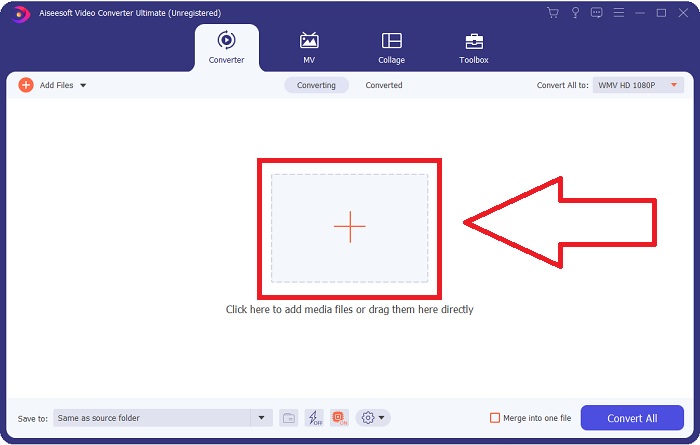
Schritt 2: Laden Sie die Videodatei hoch, die Sie konvertieren möchten, indem Sie auf die Schaltfläche + in der Mitte der Oberfläche klicken. Alternativ können Sie die Datei auch vom Desktop auf die Oberfläche ziehen und dort ablegen, dann wird sie automatisch importiert.
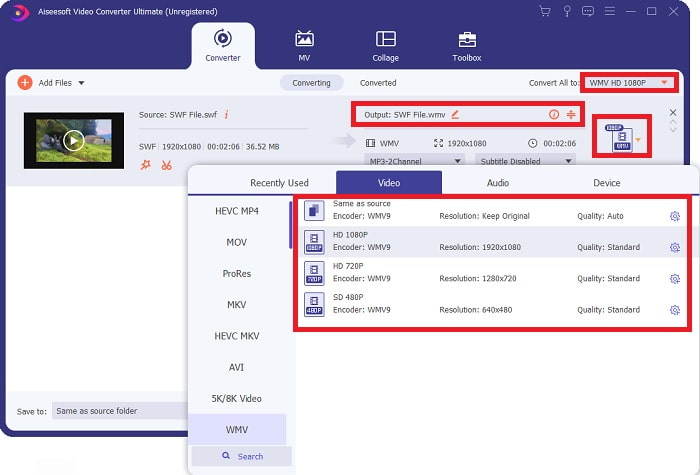
Schritt 3: Klicken Sie auf den Dropdown‑Pfeil auf der rechten Seite, wo Sie das aktuelle Format Ihres Videos sehen. Dort werden Ihnen alle verfügbaren Formate angezeigt, aus denen Sie wählen können. Scrollen Sie in diesem Fall nach unten und wählen Sie WMV aus oder geben Sie es einfach in die Suchleiste ein. Alle Videoqualitäten können Sie ebenfalls im rechten Bereich auswählen.
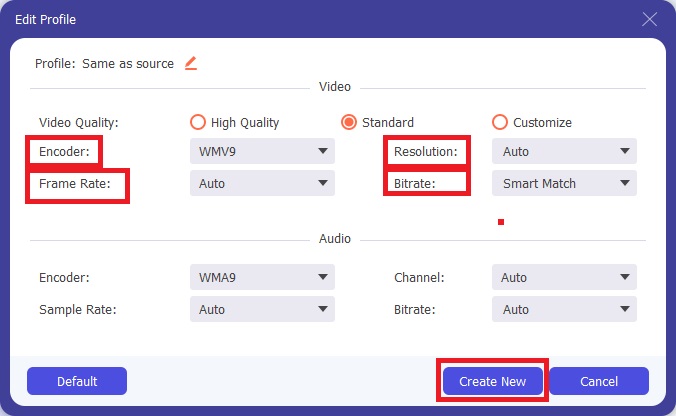
Schritt 4: Um Ihr Video weiter zu bearbeiten, klicken Sie auf das Zahnrad‑Symbol auf der rechten Seite, um alle praktischen Bearbeitungstools anzuzeigen. Dort können Sie alle notwendigen Anpassungen vornehmen, die Ihren Anforderungen am besten entsprechen. Klicken Sie einfach auf die Schaltfläche Neu erstellen, sobald Sie fertig sind.
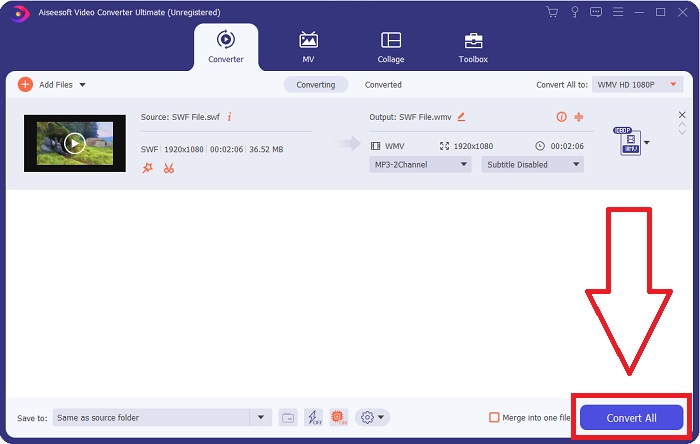
Schritt 5: Schließen Sie den Konvertierungsvorgang ab, indem Sie abschließend auf die Schaltfläche Alle konvertieren in der unteren rechten Ecke des Fensters klicken und warten, bis der Vorgang beendet ist.
Teil 2. Ein weiterer Tipp zum Konvertieren von SWF in WMV Online
FVC Free Video Converter ist immer kostenlos und erfordert keine Registrierung. Einige kostenlose Online-Videokonverter beschränken die Konvertierungszeiträume oder die Dateigröße. Wenn Sie alle Ihre kostenlosen Konvertierungszeiten aufgebraucht haben oder Ihre Datei zu groß ist, müssen Sie einen Plan kaufen, auch wenn Sie selten Videos konvertieren. Aber FVC Free Video Converter hat keine solchen Einschränkungen und kann Videos jederzeit konvertieren.
Darüber hinaus erfordert dieser Dienst keine Registrierung, um größere Dateien zu konvertieren, im Gegensatz zu den meisten Online-Videokonvertern, die eine Registrierung erfordern, um Videos mit mehr als 1 GB zu konvertieren. Hier sind die Schritte, die Sie für dieses fantastische Tool befolgen müssen:
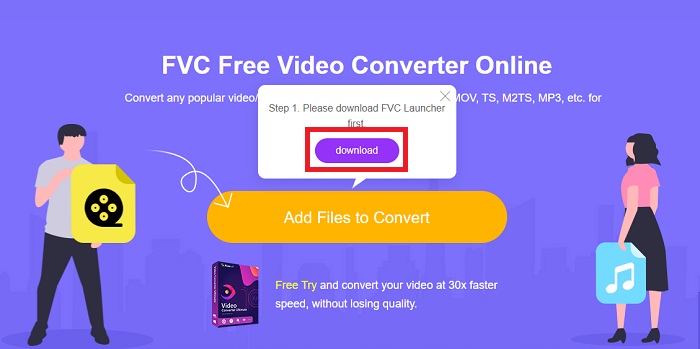
Schritt 1: Klicken Sie auf diesen Link, um zur Website zu gelangen. Laden Sie dann schnell das Startprogramm herunter, indem Sie auf die Schaltfläche Dateien zum Konvertieren hinzufügen klicken und warten, bis der Vorgang abgeschlossen ist.
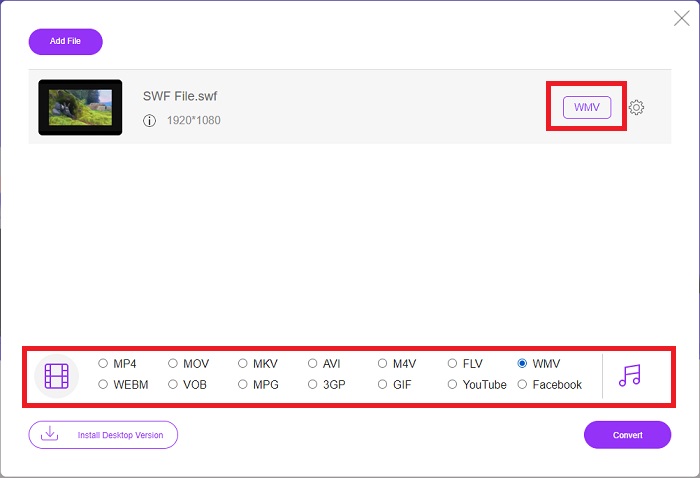
Schritt 2: Klicken Sie erneut auf die genannte Schaltfläche; dieses Mal können Sie die Videodatei hochladen, die Sie konvertieren möchten. Wählen Sie anschließend WMV unter allen verfügbaren Formaten aus.
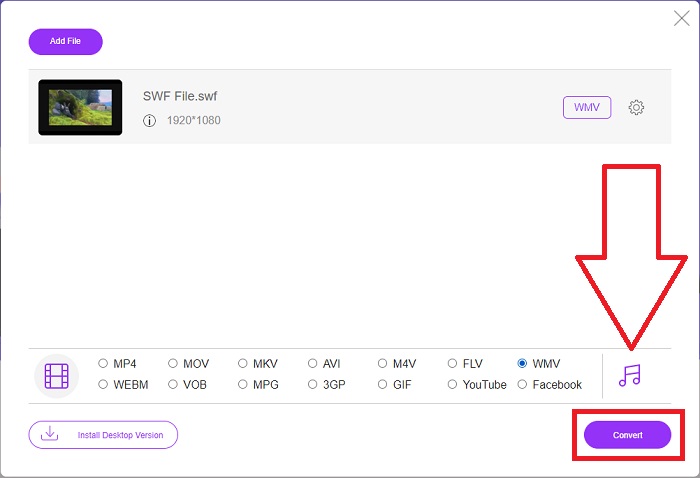
Schritt 3: Sie können weiterhin praktische Bearbeitungstools nutzen, ähnlich wie in der Software selbst. Klicken Sie einfach auf das Zahnrad‑Symbol, und es werden Ihnen alle Anpassungen angezeigt, die Sie vornehmen können. Um die vorgenommenen Änderungen zu speichern, klicken Sie auf OK, und sobald Sie mit den Anpassungen fertig sind, klicken Sie auf Konvertieren, um den Vorgang zu starten.
Verwandt:
Teil 3. Umfassendes Wissen über SWF- und WMV-Formate
Wenn Sie mehr über die beiden Formate erfahren möchten, lesen Sie diesen Artikel weiter. Wir bieten alle notwendigen und wesentlichen Informationen, die Sie als Hintergrund benötigen.
Adobe verwendet das SWF-Dateiformat zum Speichern von Filmen und vektorbasierten Animationen. Small Web Format ist die Abkürzung; es ist jedoch auch als ShockWave-Format bekannt. Es wird normalerweise verwendet, um Videos über das Internet zu übertragen, insbesondere browserbasierte Spiele. Leider hat Adobe angekündigt, das Flash-Format aufgrund von Leistungs- und Sicherheitsproblemen bis Ende 2020 nicht mehr zu unterstützen.
Andererseits ist eine WMV-Datei eine Windows Media-Videodatei, die mit einem oder mehreren der Videokomprimierungsformate von Microsoft komprimiert werden kann. Es ist ein beliebtes Videospeicherformat in Windows, weshalb es von bestimmten Drittanbieter-Apps für Dinge wie kurze Animationen verwendet wird. Es wurde entwickelt, um mit Microsoft Media Playern wie Windows Media Player und Movies & TV zu arbeiten. Für die Verwendung mit Digital Rights Management (DRM)-Systemen können WMV-Dateien verschlüsselt werden.
| Kleines Webformat | Windows Media-Video | |
| Dateierweiterung | .swf | .wmv |
| Entwickler | Adobe Systems Incorporated | Microsoft |
| Unterstützende Programme | ◆ Adobe Flash-Player ◆ Adobe Flash ◆ Professionelles CC ◆ GOM-Player ◆ Adobe Dreamweaver 2020 | ◆ VLC-Mediaplayer ◆ MPlayer ◆ Mediaplayer-Klassiker ◆ Windows Media-Player |
Teil 4. Häufig gestellte Fragen zum Konvertieren von SWF und WMV
Wozu dienen WMV-Dateien?
WMV-Videodateien sind das beste Format, um Videomaterial online oder über HD DVD und Blu-ray Discs zu verkaufen.
Wozu dient die SWF-Datei?
Flash-Dateien oder SWF-Dateien werden häufig für die effiziente Verteilung von Multimedia-Informationen über das Internet verwendet.
Können SWF-Dateien bearbeitet werden?
Adobe Flash ist ein Dateiformat, das von Adobe verwendet wird. Im Gegensatz zu anderen Multimediadateien erfordert eine SWF-Datei das Flash Player-Plug-in, um einen Webbrowser anzuzeigen. Darüber hinaus können Benutzer SWF-Dateien nicht direkt bearbeiten.
Fazit
FVC Video Converter Ultimate ist die perfekte Option für Sie, wenn Sie ein Neuling oder einfach nur ein Amateur sind, wenn es um die Videokonvertierung geht. Sie konvertieren Videoformate nicht sehr häufig. Seine Vorteile wie konstante Videoformatkonvertierung, schnelle Videodateikonvertierung im Vergleich zu vergleichbaren Programmen, einfache Bedienung, Unterstützung verschiedener Formate usw. machen es zum besten Videokonverter auf dem Markt. Wenn es um die Videokonvertierung geht, sind Video Converter Ultimate und sein Online-Äquivalent die akzeptabelsten Optionen.
-
 [2 Lösungen] So konvertieren Sie SWF-Dateien einfach und kostenlos in GIF-Dateien
 Wenn Sie das GIF-Format über die Flash-Software nicht exportieren können, können Sie zunächst versuchen, die Dateien im SWF-Format zu speichern. Dann erfahren Sie in diesem Artikel 2 einfache Möglichkeiten zum Konvertieren von SWF- in GIF-Dateien.
-
 Top of the Line 5 der besten kostenlosen SWF-zu-AVI-Konverter [Web- und Desktop-basiert]
 Möchten Sie wissen, wie Sie Ihre SWF-Datei in AVI konvertieren? Wenn nicht, dann lesen Sie diesen Artikel, da wir eine Lösung für Ihre Konvertierung des SWF-Problems bereitstellen.
-
 [Kostenlos und einfach] Außergewöhnliche Tools zum Konvertieren von SWF in MOV
 Haben Sie versucht, SWF in MOV zu konvertieren, weil Sie keine Videos bearbeiten können? Wer ist schuld an der Inkompatibilität Ihres Video-Editors? Lesen Sie weiter für Ihre Lösung.
