


 Video Converter Ultimate
 Bildschirm recorder
 Videoreparatur
 Sicherer Download
So fügen Sie einem Video ganz einfach ein Wasserzeichen hinzu | 3 der besten Methoden
Wasserzeichen spielen in unseren veröffentlichten digitalen Inhalten eine wesentliche Rolle. Sie dienen als Identität und als zusätzliche Schutzschicht gegen unbefugte Nutzung. Wenn du also ein Content-Ersteller bist, der Videos veröffentlicht und nicht möchtest, dass deine Videos ohne deine Erlaubnis oder ohne Nennung deines Namens verwendet werden, ist das Hinzufügen eines Wasserzeichens eine einfache, aber effektive Lösung. In diesem Artikel helfen wir dir daher, auf drei verschiedene Arten ein Wasserzeichen zu einem Video hinzuzufügen. Wenn du bereit bist, legen wir los.

Teil 1. Wasserzeichen zu Videos hinzufügen | Die ultimative Lösung
Die ultimative Lösung, um einem Video ein Wasserzeichen hinzuzufügen, ist die Verwendung von FVC Screen Video Converter Ultimate. Mit diesem Tool können Nutzer mithilfe des Video-Wasserzeichen-Werkzeugs mühelos ein Wasserzeichen zu ihren Videos hinzufügen. Ja, dieses Videokonverter-Tool verfügt über eine Toolbox, die verschiedene Werkzeuge enthält, die Nutzer jederzeit einsetzen können, wenn sie eine Lösung für ein beliebiges Audio- oder Videoproblem benötigen.
Haupteigenschaften
• Unterstützt über 1000 Eingabeformate und deckt damit nahezu alle Videotypen ab.
• Ermöglicht es Benutzern, einem Video ein Bildwasserzeichen hinzuzufügen.
• Ermöglicht es Benutzern, einem Video ein Textwasserzeichen hinzuzufügen.
• Ermöglicht die Anpassung und grundlegende Bearbeitung des hinzugefügten Wasserzeichens.
• Unterstützt verschiedene Videoausgabeoptionen.
Hier erfahren Sie, wie Sie mit FVC Video Converter Ultimate ein Wasserzeichen zu einem Video hinzufügen:
Schritt 1. Laden Sie zunächst den FVC Video Converter Ultimate auf Ihren Computer herunter und installieren Sie ihn. Bitte beachten Sie, dass er sowohl mit Windows als auch mit macOS kompatibel ist.
Gratis DownloadFür Windows 7 oder neuerSicherer Download
Gratis DownloadFür MacOS 10.7 oder neuerSicherer Download
Schritt 2. Starte das Tool, klicke auf den Reiter Toolbox und wähle dort Video Watermark aus.
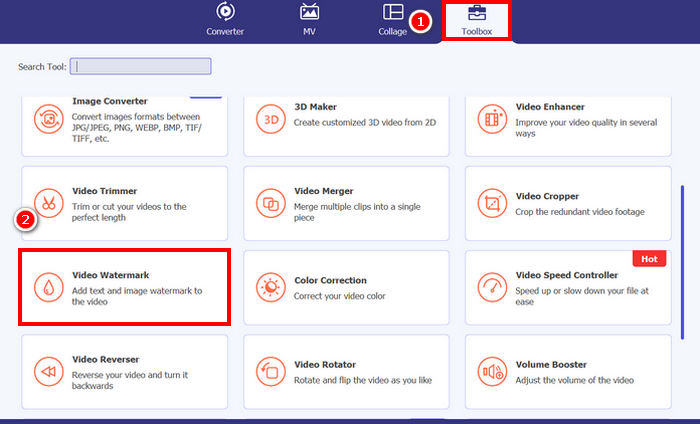
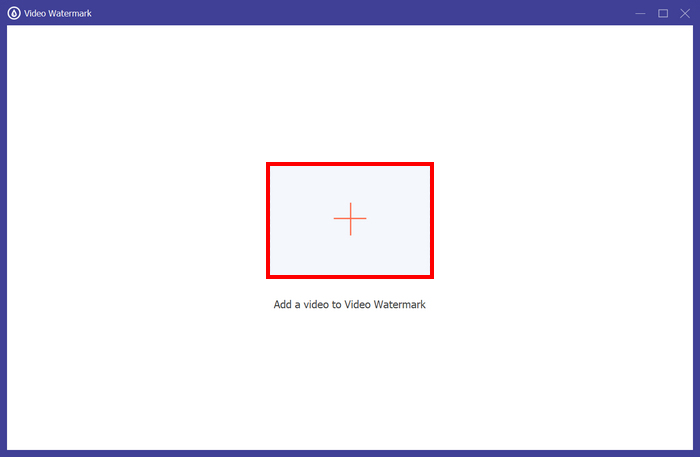
Schritt 3. Klicke anschließend auf Add a Video to Video Watermark und wähle das Video aus, zu dem du ein Bildwasserzeichen hinzufügen möchtest.
Schritt 4. Wähle nun + Image Watermark, um das Bild hinzuzufügen, das du als Wasserzeichen für dein Video verwenden möchtest. Anschließend kannst du es anpassen. Wenn du fertig bist, klicke auf die Schaltfläche Export.
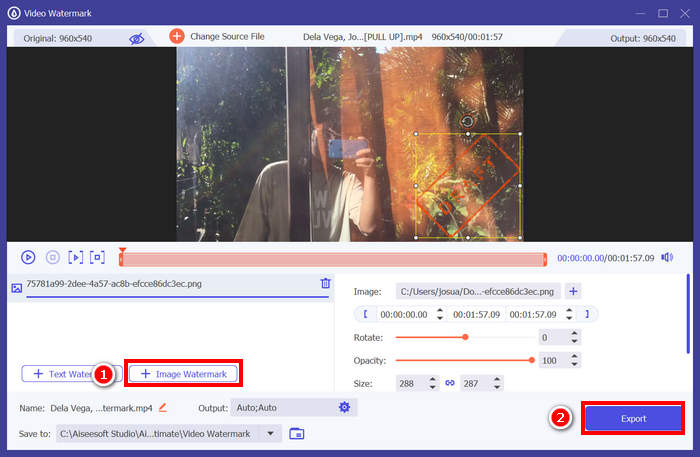
Mit FVC Video Converter Ultimate können Sie Videos ganz einfach mit einem Wasserzeichen versehen – wahlweise mit Text oder einem Bild. Zusätzlich bietet das Programm grundlegende Bearbeitungsfunktionen, mit denen Sie Deckkraft, Größe und Drehung des Wasserzeichens anpassen können. Die Benutzeroberfläche ist zudem sehr einfach und intuitiv, sodass auch Anfänger schnell damit zurechtkommen.
Teil 2. Wie füge ich einem Video in Canva ein Wasserzeichen hinzu?
Canva ist ein beliebtes Bearbeitungstool, und du hast sicherlich schon davon gehört. Aber wusstest du, dass dieses Tool auch verwendet werden kann, um einem Video ein Wasserzeichen hinzuzufügen? Ja, mit seiner benutzerfreundlichen Oberfläche und den leistungsstarken Drag-and-drop-Funktionen macht es Canva leicht, dein Logo oder ein individuelles Wasserzeichen hochzuladen und es genau dort auf deinem Video zu platzieren, wo du es haben möchtest. Unten findest du eine Schritt-für-Schritt-Anleitung, wie du mit Canva ein Wasserzeichen zu einem Video hinzufügen kannst:
Schritt 1. Zuerst benötigst du ein Canva-Konto. Du kannst dich registrieren oder dich mit deinem Google-Konto anmelden.
Schritt 2. Öffne anschließend Canva, klicke auf Create a Design und wähle die Option Upload, um die Videodatei zu importieren, die du mit einem Wasserzeichen versehen möchtest.
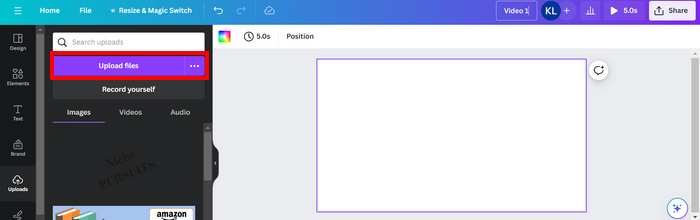
Schritt 3. Lade nun auf dieselbe Weise dein Wasserzeichen hoch und ziehe es in das Video. Sobald es positioniert ist, kannst du das Wasserzeichen vergrößern oder verkleinern sowie Farbe und Transparenz anpassen.
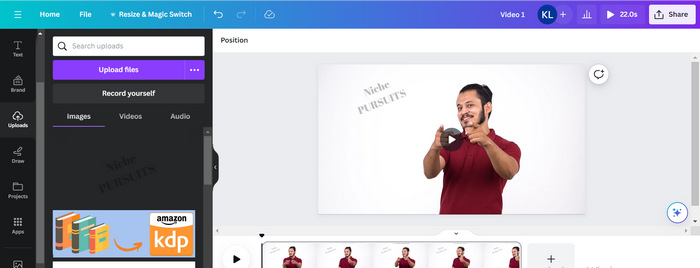
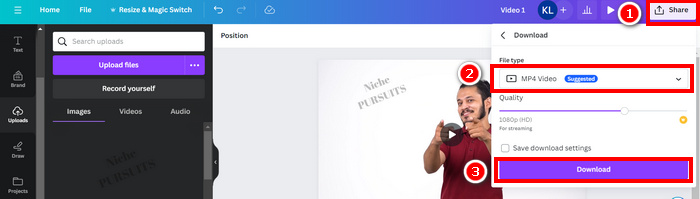
Schritt 4. Spiele dein Video ab, um in der Vorschau zu prüfen, ob das Wasserzeichen im Video angezeigt wird. Wenn alles passt, klicke auf die Schaltfläche Share und lade die Datei als MP4 video file herunter, indem du auf die Schaltfläche Download klickst.
Hinweis: Falls dein Wasserzeichenbild für dein Video zu kräftig oder zu dunkel ist, kannst du seine Transparenz anpassen, sodass es sich natürlicher in das Filmmaterial einfügt, ohne die Bildgestaltung zu überlagern oder die Zuschauer abzulenken.
Teil 3. Textwasserzeichen online zu einem Video hinzufügen [Kostenlos]
Wenn Sie eine webbasierte und kostenlose Methode zum Hinzufügen eines Wasserzeichens zu einem Video bevorzugen, ist echowave.io eine gute Wahl. Diese Online-Plattform bietet intuitive Funktionen zum Erstellen, Bearbeiten und Visualisieren von Audio- und Videoinhalten. Darüber hinaus können Nutzer mit diesem Tool auch die Bearbeitungsfunktion nutzen, um ein Textwasserzeichen hinzuzufügen. Im Folgenden finden Sie eine Schritt-für-Schritt-Anleitung zum Hinzufügen eines Textwasserzeichens zu einem Video:
Schritt 1. Suche zunächst in deinem Chrome-Browser nach echowave.io.
Schritt 2. Wenn du dich auf der Oberfläche des Tools befindest, klicke auf Create Watermarked Video.

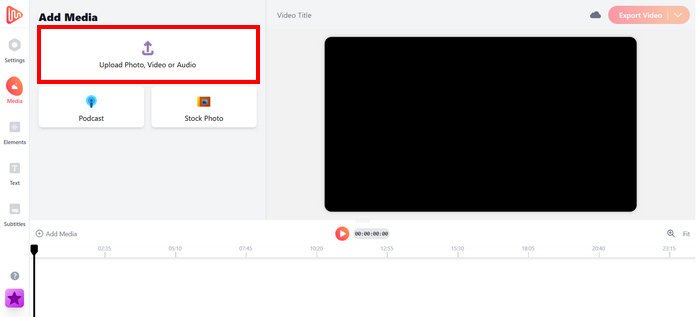
Schritt 3. Klicke danach auf Upload Photo, Video, or Audio, um das Video hochzuladen, das du mit einem Wasserzeichen versehen möchtest.
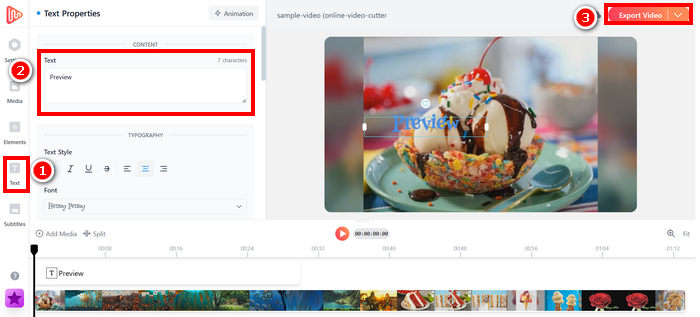
Schritt 4. Klicke abschließend im linken Bereich deines Bildschirms auf Text, um das Textwasserzeichen hinzuzufügen und zu verfassen, das du erstellen möchtest. Zuerst musst du jedoch das Format auswählen, das du verwenden willst. Gib anschließend den Text ein. Wenn du fertig bist, kannst du festlegen, wo du dein Wasserzeichen positionieren möchtest. Wenn alles passt, klicke auf die Schaltfläche Export, um die Datei zu speichern.
Das Hinzufügen eines Wasserzeichens zu einem Video mit echowave.io ist zwar unkompliziert und anfängerfreundlich, das Tool kann jedoch manchmal ruckeln, selbst bei der Verarbeitung kurzer Videos oder kleiner Dateien.
Klicke hier, um mehr über das Hinzufügen eines Wasserzeichens zu GIFs zu erfahren, falls du interessiert bist.
Teil 4. Häufig gestellte Fragen zum Hinzufügen eines Wasserzeichens zu einem Video
Ist es illegal, ein Wasserzeichen zu überdecken?
Ja, das ist illegal. Wasserzeichen dienen häufig dem Urheberrechtsschutz und kennzeichnen die Urheberschaft oder das Eigentum an Inhalten. Das absichtliche Verbergen oder Entfernen von Wasserzeichen kann gegen Urheberrechte verstoßen und rechtliche Konsequenzen nach sich ziehen, insbesondere wenn die veränderten Inhalte weiterverbreitet, anderweitig verwendet oder kommerziell genutzt werden.
Wie füge ich in DaVinci Resolve ein Wasserzeichen in ein Video ein?
Um in DaVinci Resolve ein Wasserzeichen hinzuzufügen, importieren Sie Ihr Video und Ihr Wasserzeichen (Bild oder Text). Platzieren Sie das Video auf der Timeline und ziehen Sie das Wasserzeichen anschließend auf einer separaten Spur darüber. Im Informationsfenster können Sie Größe, Position und Deckkraft anpassen. Wenn alles passt, exportieren Sie das Video mit dem Wasserzeichen.
Wie füge ich in Lightroom ein Wasserzeichen zu einem Video hinzu?
Um einem Video in Lightroom ein Wasserzeichen hinzuzufügen, öffnen Sie zunächst Lightroom und wählen Sie das gewünschte Bild aus. Klicken Sie anschließend oben im Bildschirm auf den Lightroom-Tab und wählen Sie im Dropdown-Menü „Wasserzeichen bearbeiten“. Geben Sie im daraufhin angezeigten Wasserzeichen-Editor den gewünschten Wasserzeichentext in das Feld unterhalb des Vorschaubildes ein. Dort können Sie auch Stil, Schriftart, Größe und Position Ihres Wasserzeichens anpassen.
Fazit
Ein Wasserzeichen zu einem Video hinzuzufügen, ist wirklich wichtig, und zu lernen, wie das geht, ist entscheidend, um deine Inhalte zu schützen und dein Eigentum daran zu kennzeichnen. Auch wenn es viele Tools gibt, bietet FVC Video Converter Ultimate eine einfache und effiziente Möglichkeit, ein Wasserzeichen in ein Video einzufügen. Es ist tatsächlich eine praktische Wahl für Einsteiger, die eine schnelle Lösung möchten, aber auch die Nutzung anderer Tools wie Canva oder Online-Editoren kann je nach Bedarf hilfreich sein.
-
 5 Möglichkeiten, ein Wasserzeichen professionell aus einem Video zu entfernen
 Müssen Sie ein Wasserzeichen aus einem Video entfernen, damit es professionell aussieht? Nun, lesen Sie diesen Artikel, während wir ein Tutorial hinzufügen, wie es geht!
-
 2 großartige Apps, mit denen Sie Wasserzeichen aus MP4-Videos entfernen können
 Dieser Artikel bietet Ihnen einfache und einfachste Möglichkeiten zum Entfernen des Wasserzeichens aus den MP4-Videos mit Ihren Geräten wie Windows und Mac
-
 Entfernen Sie das Animotica-Wasserzeichen auf exportierten Videos mit 3 bewährten Methoden
 Haben Sie sich jemals gefragt, ob es möglich ist, das Animotica-Wasserzeichen auf exportierten Videos zu entfernen? Dieser Artikel enthält eine Vorgehensweise.
