


 Video Converter Ultimate
 Bildschirm recorder
 Videoreparatur
 Sicherer Download
4 einfachste Möglichkeiten, die Wiedergabegeschwindigkeit von Videos auf Desktop, Web und Telefonen zu ändern
Most users find an effective way to watch an hour-long video but less than an hour. The only solution that could solve this problem is changing the playback speed of the video you are currently watching. The majority of the video editors you will find on the market can help you finish the task, but the question is, are they reliable? While researching each of them, we found out that you can change video speed on desktop, online, iOS, and Android devices. If you want to know how to do it, you must keep reading this blog as we include tools and apps that could help you.

Teil 1. Beste empfohlene Methode zum mühelosen Ändern der Videogeschwindigkeit unter Windows und Mac
To change video speed easily, you must choose the best tool that provides greatness even in a few simple clicks—introducing FVC Video Converter Ultimate. This tool effectively manipulates the speed of the video you have at any time and anywhere. Also, you can change the video speed even if the formats are MP4, MOV, AVI, FLV, TS, RMVB, and 1000+ formats; uploading your file here is quick and easy. Even if you are a Windows or Mac user, downloading the software on that OS can help you finish the task of changing the playback speed in a few clicks.
Neben seiner Video-Speed-Controller-Funktion verfügt das Tool auch über eine stolz multifunktionale Toolbox, die bei anderen Aufgaben helfen könnte. Wie das Hinzufügen von Metadaten, das Erstellen eines GIFs, das Entfernen von Wasserzeichen und vieles mehr. Obwohl das Tool herunterladbar ist, werden Sie bei der Verwendung feststellen, dass Sie nicht viel Erfahrung in der Bearbeitung benötigen, da es benutzerfreundlich ist. Es gibt Funktionen und Merkmale, die wir noch nicht geschrieben haben und die dieses Produkt hervorheben werden. Wenn Sie jedoch erfahren möchten, wie Sie die Geschwindigkeit eines Videos ändern können, lesen Sie die Details zum Know-how.
Vorteile der Verwendung der Ultimate Software als Video Speed Changer:
◆ Intuitive Benutzeroberfläche, sodass sie die Verwendung in wenigen Minuten erlernen.
◆ Laden Sie über 1000 Videos hoch, um die Wiedergabe zu beschleunigen.
◆ Benutzerfreundlich, damit die Benutzer das Beste daraus machen können.
◆ Andere Funktionen befinden sich in der Toolbox, z. B. grundlegende und erweiterte Videobearbeitung.
◆ Es ist die erste Wahl von fast einer Million Benutzern, die es herunterladen.
◆ Verfügbar für Windows und Mac, um das Tool mühelos herunterzuladen.
Schritte zum Ändern der Videogeschwindigkeit mit der Ultimate Software:
Step 1. You can have the ultimate software on both Windows and Mac systems by clicking the download button. Complete the installation process after clicking the file you download, then launch the software to proceed.
Gratis DownloadFür Windows 7 oder neuerSicherer Download
Gratis DownloadFür MacOS 10.7 oder neuerSicherer Download
Step 2. Once you've opened the software, you must proceed to the Toolbox section; under it, open the Video Speed Controller. No need to worry; you will not need to download additional resources to use the tool.
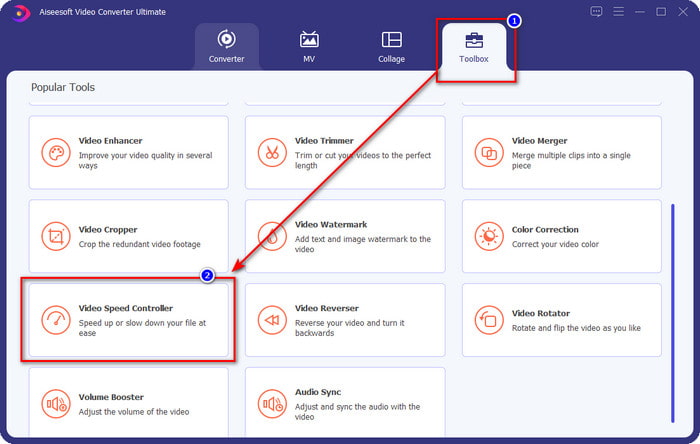
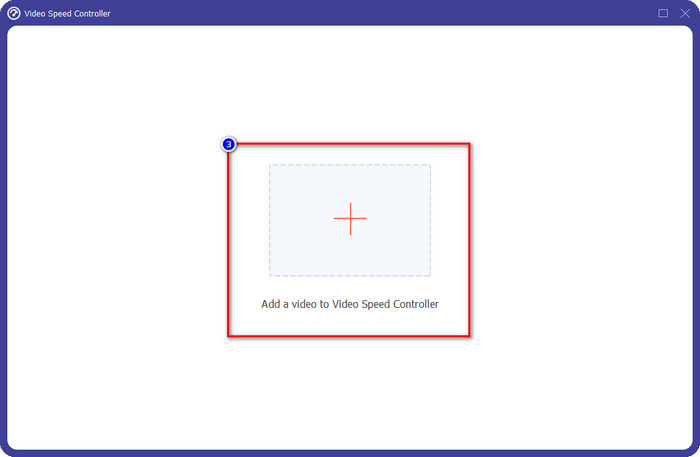
Step 3. Press the + icon, add the file that you have on the folder, click it and press Open to upload the video file you have.
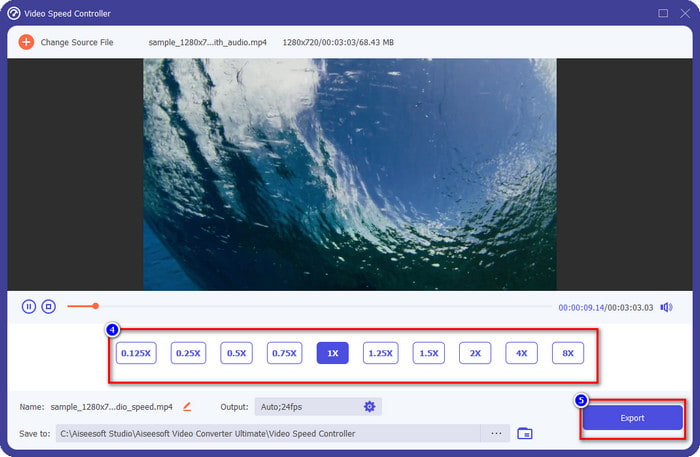
Step 4. Choose from the list the payback speed you want to achieve, and we have different playback we wish to have. Click Export to save the final output of the video you change the video speed. In less than a minute, you have already changed the rate of the video you have. You can now enjoy watching it for a lesser time.
Teil 2. Die beste kostenlose Möglichkeit, die Videogeschwindigkeit im Web zu ändern
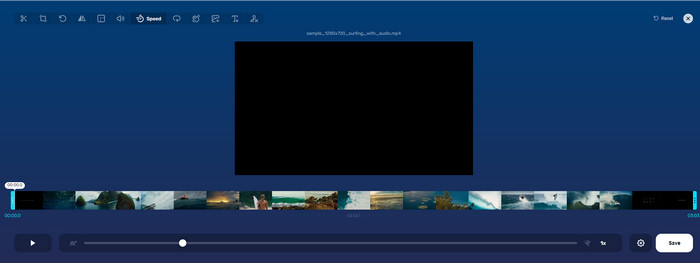
With the help of Online Video Cutter, you can change video speed online for free. Unlike the first tool, you won't need to download additional resources or installer on your desktop to use the web tool. In addition to its function in changing the speed, you can also use this tool to do some basic editing. Even though the tool is great, you can't upload all of the formats you have here because the format it supports is limited. To use this, follow the steps below.
Step 1. Open the browser you want to use and search over the web tool.
Step 2. Open the web tool, click Open File, find the video file you have and upload it.
Step 3. Drag the sliders to the left or the right and change their speed; click the Save button if you are satisfied with the rate.
Teil 3. Bester Video-Editor für iOS zum kostenlosen Ändern der Videogeschwindigkeit
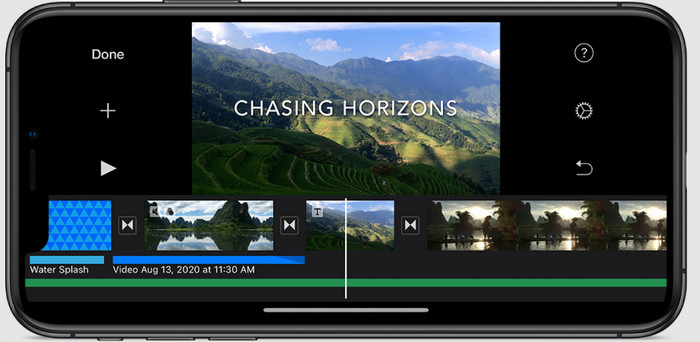
Für iOS-Benutzer können Sie mit iMovie kostenlos lernen, wie Sie die Videogeschwindigkeit auf dem iPhone ändern können. Obwohl das Tool ein nativer Video-Editor auf dem Mac ist, haben Sie immer noch die Wahl, die App auf Ihr Gerät herunterzuladen oder nicht. Diese Wahl beweist, dass iOS-Benutzer den Editor behalten können oder nicht, um Speicherplatz auf ihrem Speicher zu sparen. Aber wenn Sie die App auf Ihrem iPhone haben, können Sie die Schritte befolgen, die wir unten hinzufügen, um zu erfahren, wie dieses Tool funktioniert.
Step 1. Download then open the app on your iPhone and the Project, click the + sign, then click Movie.
Step 2. Tap the video you want to speed up, then at the bottom of your screen, tap Create Movie to upload it on the timeline.
Step 3. By tapping the footage you've uploaded, click the speed controller icon, and adjust the speed of the video by dragging the sliders on your iPhone. Click Done to save it, then export it if you want to.
Teil 4. Beste Möglichkeit, die Wiedergabegeschwindigkeit von Videos auf Android-Geräten mit dem integrierten Editor zu ändern
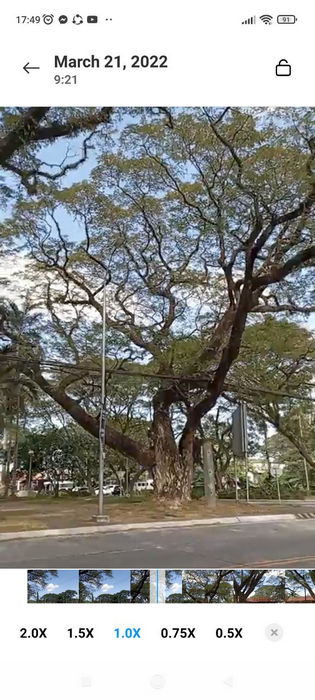
Das Herunterladen einer App ist nicht der Fall, wenn Sie ein Android-Benutzer sind; Ändern Sie die Videogeschwindigkeit auf Ihrem Telefon mit dem integrierten Video-Editor. Mit diesem Editor können Sie die grundlegende Bearbeitung Ihres Videos vornehmen, damit es besser aussieht als zuvor. Sie finden diesen Editor in der Galerie oder im Album auf Ihrem Android. Wenn Sie wissen möchten, wie Sie es verwenden, helfen Ihnen die folgenden Informationen.
Step 1. Open your Gallery or Album, then tap the video you want to change the speed.
Step 2. Click Edit to proceed.
Step 3. Tap the Playback Speed section, then change the speed according to your needs.
Teil 5. Häufig gestellte Fragen zum Ändern der Videogeschwindigkeit
Kann ich die Geschwindigkeit auf YouTube ändern?
Absolut ja, Sie können die Wiedergabe des Videos auf YouTube ändern, auch wenn Sie keine Software dafür herunterladen. Befolgen Sie die Schritte, um zu erfahren, wie Sie die Geschwindigkeit des Videos auf YouTube ändern können. Öffnen Sie zuerst YouTube, suchen Sie das Video, das Sie in einer modifizierten Bewegung ansehen möchten, klicken Sie auf das Zahnradsymbol und darunter auf die Wiedergabegeschwindigkeit, wählen Sie die gewünschte Geschwindigkeit und genießen Sie es.
Verkürzt eine Änderung der Geschwindigkeit die Dauer des Videos?
Es hängt davon ab, wie Sie die Geschwindigkeit ändern; Wenn Sie das Video verlangsamen, sollten Sie davon ausgehen, dass die Dauer länger ist, da Sie es in einem langsamen Modus abspielen. Wenn Sie die Geschwindigkeit jedoch auf hoch ändern, ist die Dauer des wiedergegebenen Videos kürzer als die des Originals. Um mehr über das Ändern der Videogeschwindigkeit zu erfahren, müssen Sie die folgenden Details lesen, die wir oben hinzufügen.
Wirkt sich die Qualität nach dem Ändern der Geschwindigkeit aus?
Je nach eingestellter Videogeschwindigkeit kann die Qualität abnehmen oder erhalten bleiben. Wenn Sie ein Video achtmal oder öfter abspielen, erwarten Sie, dass das Video abgespielt wird. Sie würden jedoch außer der Wiedergabe keinen großen Unterschied bemerken, die Qualität bleibt gleich.
Fazit
Now that we have an idea of how to change video speed on desktops, online, and phones, it is time to decide which we should use. Suppose you don't want to download software on your desktop to save space and install steps, then you need to read part two of this article. But if you are an iOS or Android user, parts three and four are for you. If you want to use the best video editor on Windows and Mac, you must download the FVC Video Converter Ultimate. It is the best video speed controller to change the video playback you have on your desktop effortlessly. What are you waiting for? Download it now and avail of our promo that is only for you!
-
 So beschleunigen Sie Video in Premiere Pro und mit seinen Alternativen
 Möchten Sie wissen, wie Sie mit Premiere Pro ein Video beschleunigen können? Dann sind Sie im richtigen Artikel, denn wir bieten Treppen und andere erschwingliche Alternativen.
-
 2 mühelose Möglichkeiten zum Beschleunigen eines Videos auf TikTok
 Möchten Sie das Geheimnis erfahren, wie Sie Videos auf TikTok beschleunigen können? Dann lesen Sie diesen Artikel, um eine Vorstellung davon zu bekommen, wie es geht und welche anderen 2 Tools Ihnen helfen werden.
-
 Ausgezeichnete Tipps für 2021: So beschleunigen Sie ein Video auf iMovie
 Ihr Freund schlägt iMovie vor, um Ihnen bei Ihrem Problem zu helfen, wie Sie ein Video mit dem iOS-Betriebssystem beschleunigen können, aber Sie wissen nicht, was Sie tun sollen? Erfahren Sie mehr darüber, wenn Sie diesen Artikel weiter lesen.
