


 Video Converter Ultimate
 Bildschirm recorder
 Videoreparatur
 Sicherer Download
So fügen Sie einem Video in Windows und Mac Zeitlupe und Zeitraffer hinzu
Wenn du bei einem Video Zeitraffer- und Zeitlupeneffekte einsetzt, kannst du ganz einfach eine Illusion erzeugen, durch die dein Video für das menschliche Auge völlig neu wirkt. Selbst wenn du nur ein Smartphone oder eine DSLR verwendest, kannst du schnell Videos in unterschiedlichen Geschwindigkeiten aufnehmen, ganz nach deinen Vorlieben – aber nicht jedes Gerät bietet einen Editor, mit dem sich die Abspielgeschwindigkeit im Nachhinein leicht ändern lässt. Aufgrund der starken Wirkung auf uns ist die Nachfrage nach einem Werkzeug zur Geschwindigkeitsänderung rasch enorm gestiegen. Doch welches solltest du wählen? Um zu erfahren, was unsere beste Empfehlung ist, lies weiter: Im Folgenden erklären wir dir die zwei Effekte, die du erreichen möchtest, genauer.

Teil 1. Welches ist das Beste | Zeitraffer vs. Zeitlupe
Sobald Sie ein Video aufgenommen haben, gibt es drei Arten von Bewegungen: normale, schnelle und langsame Bewegungen. Meistens ändern wir aus irgendeinem Grund die Geschwindigkeit auf unsere gewünschte Wiedergabe. Wir werden jedoch nicht auf die Gründe eingehen, warum wir einen schnellen Zeitlupeneffekt für ein Video verwenden. Die folgenden Informationen unten geben Ihnen einen kleinen Einblick in die Unterschiede zwischen den Effekten und ihre Verwendung.
| Schnelle Bewegung | VS. | Zeitlupe |
| Aufgrund seiner schnellen Bewegung ist die Dauer des Videos, wenn es auf diese Geschwindigkeit eingestellt ist, natürlich kurz, da es schnell abgespielt wird. | Dauer des Videos | Anders als hier ist die Dauer des Videos länger, sobald Sie die natürliche Geschwindigkeit des Videos in Zeitlupe ändern, da es sich in einem Zeitlupenzustand befindet. |
| Bei Zeitraffer ist die Projektions-FPS viel höher als die Aufnahme-FPS. Anders als bei normaler Bewegung entspricht die bereitgestellte Geschwindigkeit sowohl der Projektions- als auch der Erfassungs-FPS. | FPS des Videos | Obwohl es eine höhere Erfassungs-FPS als die Beschleunigung unterstützt, können wir sehen, dass die Projektions-FPS niedriger ist, da sie geopfert wird, nachdem Sie sie verlangsamt haben. |
| Die meisten Kinematografien verwenden eine schnellere Bewegungsgeschwindigkeit als Zeitlupe, da sie sich hervorragend für die erforderliche Aktion pro Aktion eignet. Und es spart uns Zeit, wenn wir uns ein Video oder einen Film in dieser Bewegung ansehen. | Benutzt für | Auch wenn Sie ein Video in dieser Bewegungsgeschwindigkeit detaillierter ansehen können als das erste, können wir sehen, dass die Dauer, die es bietet, zu lang ist und die Dateigröße größer als die vorherige wird. |
Jetzt, da wir die unterschiedlichen Effekte von Zeitlupe und Zeitraffer kennen, die beim Bearbeiten erzeugt werden, ist es an der Zeit zu wissen, welcher der beste Geschwindigkeitsregler ist, den wir verwenden können. Wenn Sie keinen professionellen Video-Geschwindigkeitseditor haben, müssen Sie es als Nächstes herausfinden; Lesen Sie diesen Artikel weiter, um mehr zu erfahren.
Teil 2. Bester schneller und langsamer Video-Geschwindigkeitsregler, den Sie auf dem Desktop haben müssen
Ein leistungsstarker Geschwindigkeitsregler ist unverzichtbar, vor allem wenn du die Videogeschwindigkeit effektiv und effizient steuern möchtest – so wie es der FVC Video Converter Ultimate ermöglicht. Mit seinen Optionen für die Videogeschwindigkeit kannst du mühelos das Tempo einstellen, das du möchtest – von extrem langsam mit 0,125x bis hin zu 8x schneller, was viele andere Videoeditoren nicht bieten. Außerdem kannst du hier jedes beliebige Videoformat hochladen, das du beschleunigen möchtest. Dieses Tool schränkt dich nicht darin ein, die Bewegung deines Videos zu verändern. Dieses Tool für schnelle und langsame Wiedergabe ist wirklich ein Must-have. Wenn es also dein Interesse geweckt hat, lies weiter und folge dem anschließenden Tutorial, um es zu erhalten und zu lernen, wie du es verwendest.
Schritt 1. Um die beste Software auf deinem Desktop zu haben, klicke unten auf die Download-Schaltfläche, um sie direkt auf Windows oder Mac herunterzuladen. Nach dem Download installiere die Software, folge der einfachen Einrichtung, die nur eine Minute dauert, und öffne sie anschließend.
Gratis DownloadFür Windows 7 oder neuerSicherer Download
Gratis DownloadFür MacOS 10.7 oder neuerSicherer Download
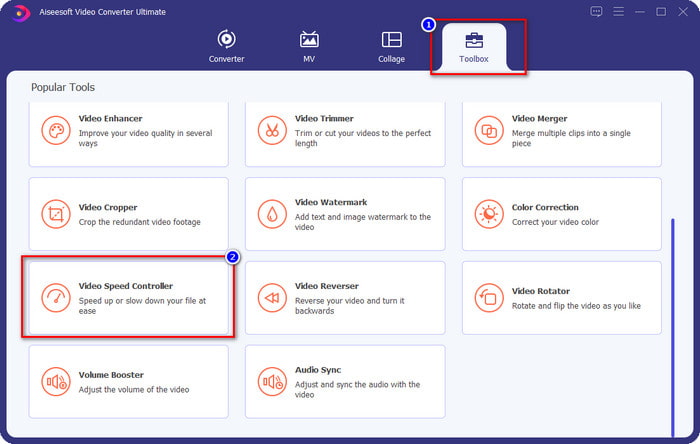
Schritt 2. Öffne die Toolbox, suche nach der Funktion Video Speed Controller und klicke darauf.
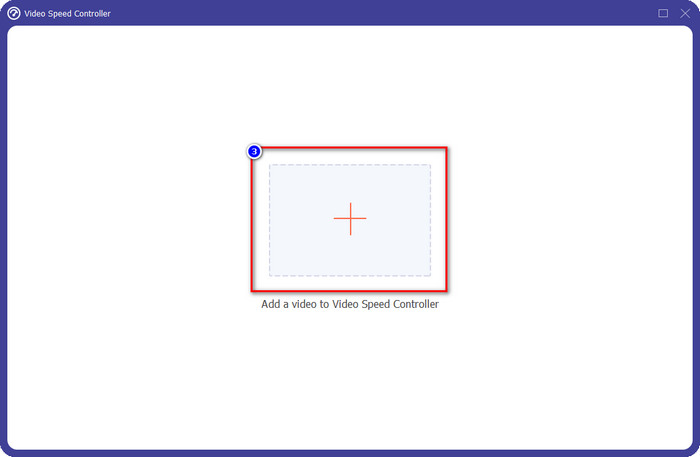
Schritt 3. Klicke auf die +-Schaltfläche, suche das Video, dessen Geschwindigkeit du ändern möchtest, und klicke auf Öffnen, um es hier hochzuladen.
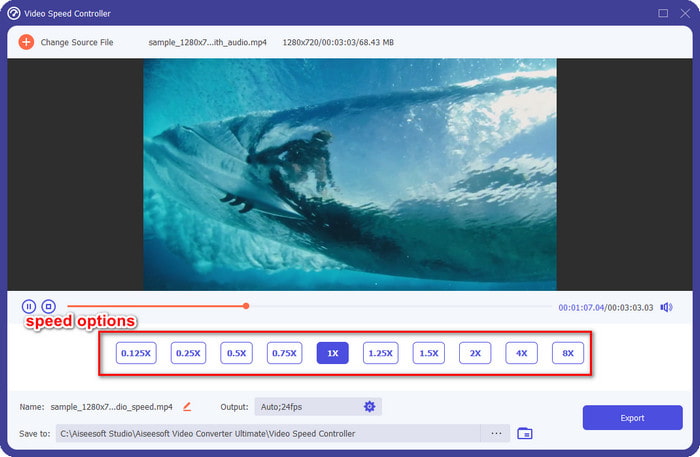
Schritt 4. Sobald du die Datei hochgeladen hast, öffnet sich ein Fenster mit dem Geschwindigkeitsregler auf deinem Bildschirm. Wähle die Geschwindigkeit, die du auf dein Video anwenden möchtest, indem du eine der verfügbaren Optionen für die Videogeschwindigkeit in dieser Software auswählst. Du kannst jede davon anklicken und dir eine Vorschau mit der jeweiligen Wiedergabegeschwindigkeit auf dem Bildschirm ansehen.
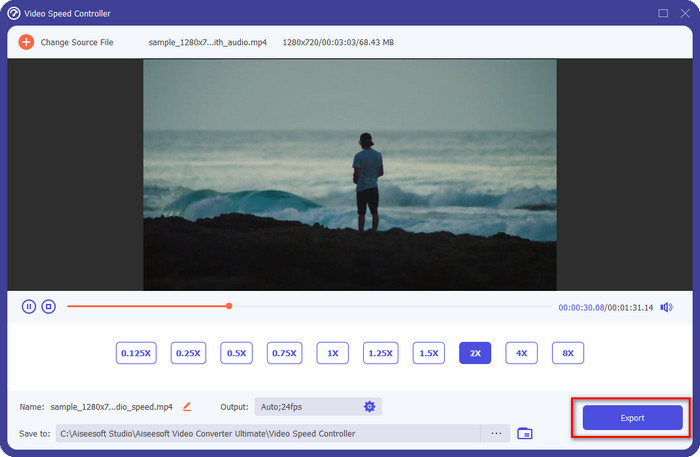
Schritt 5. Um das Video zu speichern, dessen Geschwindigkeit du geändert hast, klicke auf Exportieren. So einfach ist das – du hast die Bewegung deines Videos mit dieser ultimativen Software unter Windows oder Mac bereits verändert.
Teil 3. FAQs zu Zeitraffer und Zeitlupe
Kann ich ein Video in Zeitraffer- und Zeitlupe auf einem Desktop ansehen?
Mit verschiedenen Mediaplayern können Sie die Geschwindigkeit des Videos, das Sie sich ansehen, ganz einfach ändern, um es je nach Ihren Vorlieben langsamer oder schneller zu machen. Sie können es auf Ihrem Desktop haben, indem Sie den Geschwindigkeitsregler drücken, der in Blu-ray Player, VLC Media Player, Quicktime, Windows Media Player und dem anderen Media Player integriert ist. Denken Sie jedoch daran, dass die Geschwindigkeit des Videos dadurch nicht dauerhaft geändert wird. Wenn Sie möchten, lesen Sie also das Tool, das wir in diesem Artikel vorstellen.
Warum wurde die Verwendung eines Fast- und Slow-Motion-Effekts notwendig?
Indem Sie die Geschwindigkeit des Videos ändern, können Sie leicht auf einige Effekte zugreifen, zu denen die anderen Effekte und Filter nicht in der Lage sind. Wenn Sie also ein Editor sind und andere Effekte ausprobieren möchten, ist es ein Muss, den Geschwindigkeitsregler zu verwenden und die Geschwindigkeit des Videos zu ändern. Sie müssen kein Profi sein, denn es ist einfach und kann Ihr Video mit Sicherheit fantastisch aussehen lassen.
Gibt es Einschränkungen beim Ändern der Wiedergabegeschwindigkeit?
Es lässt sich nicht leugnen, dass es bei der Wiedergabegeschwindigkeit Grenzen gibt. Obwohl sie sich leicht auf jedes Video anwenden lässt, kann es bei zu hoher Geschwindigkeit zu Bildstörungen und Einfrieren kommen, die du nicht mehr rückgängig machen kannst. Ebenso kann bei zu starker Zeitlupe die Bildrate jedes Videos abfallen, sodass es sehr ruckelig wirkt. Um dies zu vermeiden, solltest du die Wiedergabegeschwindigkeit deines Videos mit Bedacht und Sorgfalt ändern.
Fazit
Alle Aspekte von Zeitlupe und Zeitraffer sind berücksichtigt, und die obigen Details basieren sowohl auf den Quellen, die wir recherchiert haben, als auch auf unseren eigenen Erfahrungen mit der Änderung der Videogeschwindigkeit. Obwohl es leicht ist, eine andere Geschwindigkeit hinzuzufügen, sollten wir uns zunächst damit vertraut machen, bevor wir sie anwenden. Ohne professionelle Expertise und ein ultimatives Werkzeug war es noch nie so einfach, genau die Geschwindigkeit zu verwenden, die wir möchten. Wenn du den FVC Video Converter Ultimate herunterlädst, erhältst du den besten Geschwindigkeitsregler und zugleich ein All-in-One-Tool. Ja, genau – diese Software bietet noch viel mehr. Wenn du wissen möchtest, was sie sonst noch kann, ist der Download die beste Möglichkeit herauszufinden, ob sie sogar noch mehr leistet, als wir in diesem Artikel beschrieben haben.
-
 Die wichtigsten Fakten, die Sie über QuickTime Slow Motion wissen sollten
 Haben Sie versucht, Videos mit dem QuickTime Media Player in Zeitlupe abzuspielen? Lesen Sie diesen Artikel, um mehr über den hervorragenden Service dieses Mediaplayers zu erfahren.
-
 5 professionelle Zeitlupen-Videomacher für Windows/Mac/Online
 Möchten Sie wissen, wie Sie Ihr Video in Zeitlupe abspielen können? Dann lesen Sie diesen Artikel, um herauszufinden, was die 5 professionellen Slow-Motion-Videomacher sind.
-
 Beste Möglichkeiten, iMovie zum Erstellen von Zeitlupenvideos zu verwenden [Gelöst]
 Haben Sie jemals die iMovie-App verwendet, um Ihr Video mit normaler Geschwindigkeit in Zeitlupe zu konvertieren? Dies ist die Gelegenheit, mehr über diese Anwendung zu erfahren, also lesen Sie weiter.
