


 Video Converter Ultimate
 Bildschirm recorder
 Videoreparatur
So ändern Sie die Metadaten von MOV-Dateien auf dem Mac mühelos mit Schritten
We all know that MOV is one of the top-notch formats you can ideally use on video playback on your Apple devices and for editing. But what makes MOV unique? It supports a video compression that is preferably used by pro. Although it can store multiple elements on a single file, it is still possible that the MOV can have mixed-up tags that could lead to a problem. It would help to edit them accordingly to have proper metadata to fix it immediately. With the helpful tool, this task is a piece of cake. So today, we will present the best ways to edit MOV file metadata instantly.

Teil 1. So bearbeiten Sie MOV-Metadaten mit dem Ultimate Tag Editor auf dem Mac
FVC Video Converter Ultimate is your one-stop solution regarding this metadata problem that supports more than 1000+ formats on Mac and Windows. With this tool, you can instantly remove, edit or add the metadata on your MOV file. What's more? You can do multiple edits on your MOV, such as cutting, trimming, merging, cropping, and a thousand more, even if you are not a pro on editing. Indeed, it is impressive to have this tool by your side, and there are many more things you can do with this tool within a few clicks away. But today, we present to you the detailed instruction we've added that you can follow to edit your MOV files metadata successfully.
Step 1. You can attain the ultimate converter on your Mac or Windows by tapping the download button below. Proceed to the installation process by clicking the file you've downloaded, and click Start Now to launch the tool immediately.
Gratis DownloadFür Windows 7 oder neuerSicherer Download
Gratis DownloadFür MacOS 10.7 oder neuerSicherer Download
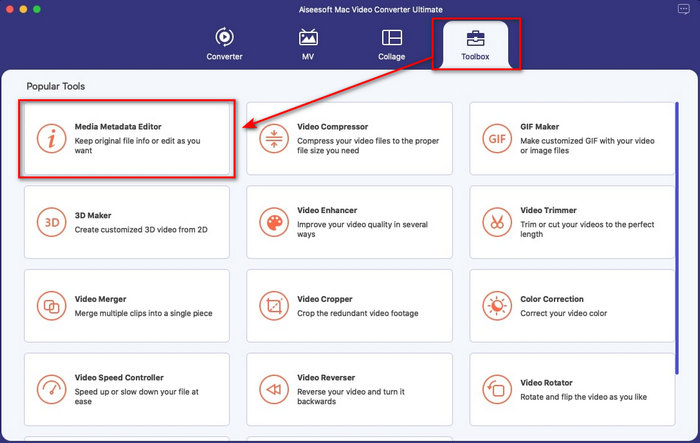
Step 2. The tool's interface will show on your display; go to the Toolbox part and open the Media Metadata Editor.
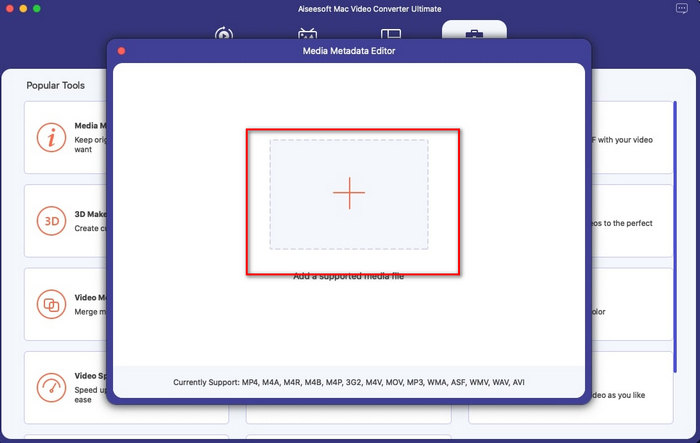
Step 3. Once you've already opened the editor, a mini window will show; tap the + button to open a folder on where you can locate the file, and to insert it click Open.
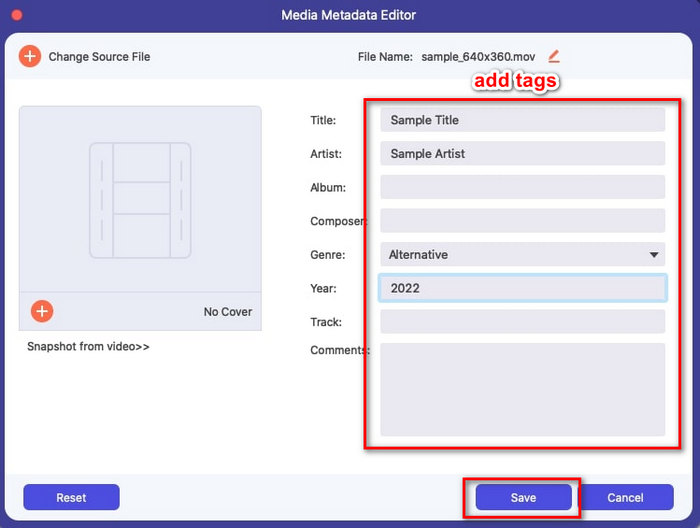
Step 4. This time you can now add, edit or remove the tags on your MOV file here in the text box. If you've finished it all, click the Save button. You have now edited the metadata on your MOV files as quickly as that.
Verwandt:
Teil 2. 3 der besten MOV-Tag-Editoren zum Ändern von MOV-Metadaten
VLC Media Player
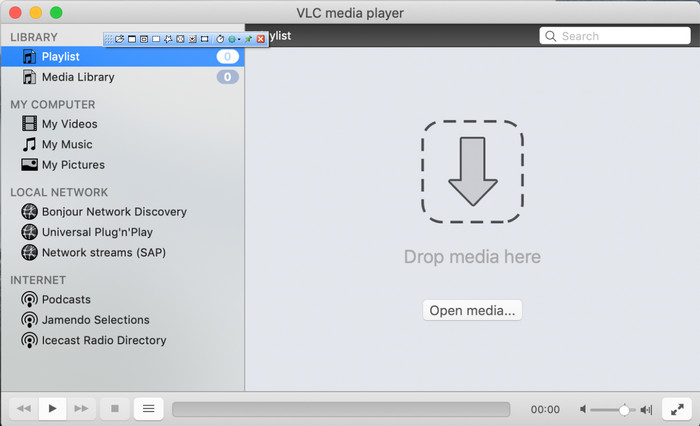
VLC Media Player is a famous media player available on Mac and Windows. Although it can play different video formats, it can change the metadata of your media file, like on MOV. Moreover, if you want to view your file's metadata, you can easily use this to view it. However, it is not as effective as the other dedicated metadata editor you can use on Mac or Windows. Yet, it is still doable with the media player to edit the MOV file metadata.
Step 1. Download the media player on the official website of the VLC, then open it.
Step 2. Press Command + I on your keyboard, and the media information will show where you can add or delete the metadata of your MOV file.
Step 3. Click Save Metadata if you've done applying the tags on your MOV.
iTunes
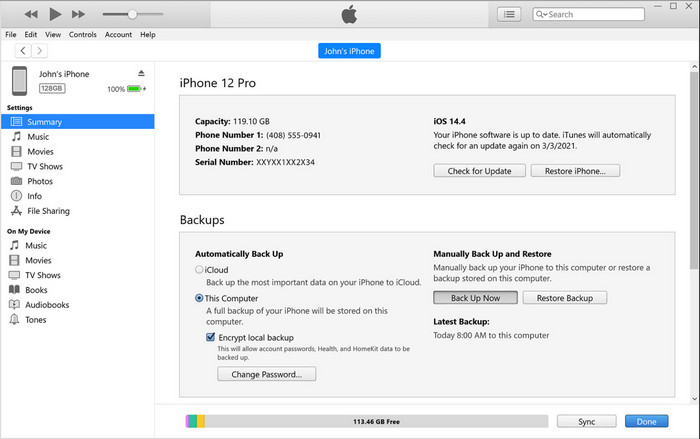
iTunes is the best built-in streaming app you can access on any Apple device. This tool is jam-packed with different features such as the music player and store for music, movies, podcast, and many more protected with DRM to avoid copy-right issues. Despite being a great built-in app, the competition for metadata editors is too stiff for iTunes to join. But we still reconsider this app because it can change the MOV metadata on Mac.
Step 1. Open then import the MOV file on iTunes library.
Step 2. Then right-click the .mov file you've added and select Get Info. After you've clicked it, there are different options you have to change the metadata, such as details, artwork, lyrics, options, sorting, and file, adjust them according to your needs.
Step 3. Press OK to save the changes.
MetaZ
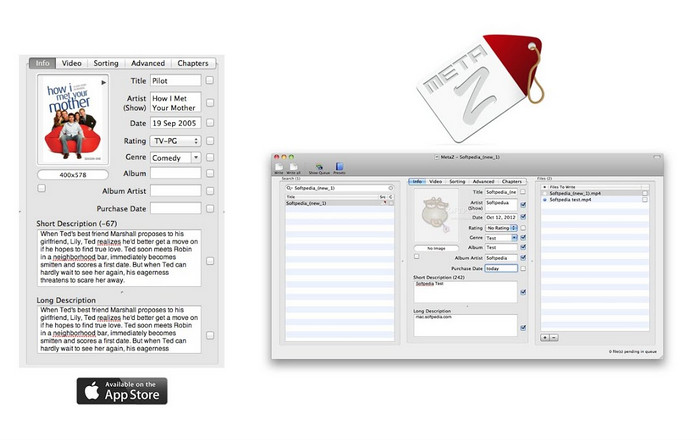
Für macOS X können Sie Metaz kostenlos herunterladen, um die Metadaten Ihrer Dateien einfach zu ändern. Dieser Metadaten-Editor kann Ihnen helfen, Ihre Video-Tags in den meisten Formaten, wie dem MOV, zu ändern. Mit dieser App können Sie den Trick ganz einfach ausführen und den MOV in Ihrer Bibliothek organisieren. Allerdings gab es in letzter Zeit viele Berichte über die App; Benutzer stoßen bei der Verwendung der App auf viele lästige Probleme. Auch wenn Probleme auftreten können, ist es immer noch einer der am häufigsten ausgewählten MOV-Metadaten-Editoren, die Sie auf Ihren Mac herunterladen können.
Step 1. Download the app on your Mac, launch it, then three sections of the tools' interface will show on your display, where you can add the file, edit the tags, and search the tags.
Step 2. Drag and drop the MOV file to the left side; on the left side of it, you will see that it will automatically go to search tags for your MOV file based on its title, but you can modify them in the middle section if you want to.
Step 3. Press Write, and the tags will add to the MOV file.
Teil 3. Häufig gestellte Fragen zum MOV-Metadaten-Editor
Kann ich den QuickTime-Metadaten-Editor verwenden, um Tags zu ändern?
Leider ist dies nicht möglich, da dieses Tool nur Medienformate abspielen, Videos bearbeiten und aufnehmen kann. Aber Sie können die Metadaten Ihrer Datei auf Quicktime frei anzeigen, indem Sie diesen einfachen Schritten folgen. Öffnen Sie zuerst die MOV-Datei in Quicktime und spielen Sie sie ab. Im oberen Teil sehen Sie verschiedene Optionen; Klicken Sie auf Fenster und darunter auf View Inspector, dann wird ein neues Fenster auf Ihrem Bildschirm angezeigt, um die kleinen Informationen über Ihre MOV-Datei zu sehen.
Beeinflusst das Ändern der MOV-Tags die Qualität?
Glücklicherweise nicht, weil Sie die Tags angepasst haben, nicht die Auflösung oder Qualität der MOV-Datei. Wenn Sie also befürchten, dass sich die Videoauflösung nach dem Ändern der Tags verringern könnte, werden wir dies wiederholen. es wird nicht.
Erhöht das Hinzufügen von Metadaten in MOV die Dateigröße?
Sobald Sie Metadaten zu dieser Datei hinzugefügt haben, sehen Sie in allen Dateien den Unterschied zwischen der Datei ohne Tag und der Datei mit Tag. Diese Tags sind jedoch nicht so groß wie der Inhalt der Datei. Wenn Sie also Metadaten zu Ihrem MOV hinzufügen, erwarten Sie, dass es etwas größer wird, weil Sie Informationen über die Videodatei hinzugefügt haben.
Fazit
Now that we've finished teaching you how to change MOV file metadata, this is now the time for you to choose which tutorial you'll go to follow. If you want to download a free tool on your Mac, you can download the VLC and Metaz to fix or edit the metadata of your MOV. But if you don't want to, you can use iTunes to edit the metadata easily. Although these tools are great to use, there is still no tool with powerful editing features on metadata that you can download on Mac, like what the FVC Video Converter Ultimate can bring to you. So, if you are still wondering what to use, we would highly recommend that you use the ultimate tool regarding this task because it is easy to use but has the ultimate package you will need on any given day.
-
 Was sind Metadaten: Lernen Sie die grundlegenden Informationen über Metadaten kennen
 Was sind Metadaten? Ist das wichtig? Was sind die Bestandteile von Metadaten? Haben Sie die gleiche Frage? In diesem Artikel erfahren Sie die grundlegenden Informationen zu Metadaten.
-
 4 der besten Metadaten-Viewer online und offline [Aktualisiert 2022]
 Kann ich die Metadaten meiner Datei überprüfen? Ja, das können Sie, mit Hilfe dieses Beitrags stellen wir Ihnen die verschiedenen Metadaten-Viewer vor, die Sie verwenden können.
-
 Die 4 meistgewählten WMV-Tag-Editoren auf dem Desktop [Update 2022]
 Benötigen Sie einen zuverlässigen WMV-Tag-Editor, um die WMV-Tags zu bearbeiten? Nun, dieser Artikel bietet genügend Wissen über das Tool, das WMV unterstützt.
