


 Video Converter Ultimate
 Bildschirm recorder
 Videoreparatur
5 Greatest MP4 Cutter: Erfahren Sie, wie Sie Videos auf PC, Mac und Mobilgeräten schneiden
Wenn Sie ein Vlogger oder ein aufstrebender Vlogger sind, ist es so üblich, ein Video von sich selbst aufzunehmen. Dies würde viel Mühe und Selbstvertrauen erfordern, sowie Sie vor einer Kamera fotografieren. Außerdem sind die häufigsten Fehler, die alle Profis und Neulinge beim Vloggen machen, die Fehler, die Sie machen. Anstatt das Video neu aufzunehmen, neigen sie dazu, es zu schneiden und mit den Originalvideos zusammenzufügen. Um ein ganz neues Video zu erstellen, das aus verschiedenen Blickwinkeln, Ansichten, Montagen und mehr besteht, schneiden sie es aus verschiedenen Videos und fügen es zu einem hinzu. Aber als Neuling in dieser Art von Arbeit oder sogar als Profi ist die Auswahl des richtigen Trimmers schwierig. Denn nicht alle Funktionen, wie es in der Werbung des Tools hieß, sind nicht in den Tools enthalten. Anstatt zu dem anderen Artikel zu gehen und die Empfehlung zu lesen, lernen Sie doch zuerst daraus. Da wir nur die wahren Beweise zu Ihrem eigenen Vorteil gesammelt haben. Hier in der Liste sind also die MP4-Cutter, mit denen Sie mit dem Vloggen beginnen können. Konzentrieren Sie sich auf die besten Trimmer, die Sie verwenden können, um Ihren Videos ein einfaches, aber professionelles Aussehen zu verleihen.

Teil 1. Laden Sie die beste MP4-Video-Cutter-Software auf PC und Mac herunter
Wenn wir über das Beste sprechen wollen, dann musst du dies zuerst lesen. Wie bereits erwähnt, ist das Erstellen von Vlogs viel schwieriger, als wir erwartet hatten – es geht nicht nur darum, genug Selbstvertrauen zu haben, um in die Kamera zu sprechen und das Video hochzuladen. Du solltest auch ein multifunktionales Tool in Betracht ziehen, das jedem Zuschauer ein ansprechenderes Video liefert. FVC Video Converter Ultimate bietet großartige Bearbeitungsfunktionen und Konvertierungsoptionen, die jeder nutzen kann, der möchte. Ob Anfänger oder Profi – wir sollten nach dem Besten vom Besten auf dem Markt Ausschau halten. Auch wenn es sich um eine kostenpflichtige Version handelt, liefert sie trotzdem das Beste, was du dir wünschen kannst. Und wenn du dich dafür als deine persönliche Wahl entscheidest, liegt eine erfolgreiche Zukunft vor dir. Möchtest du noch heute mit dem Vloggen beginnen? Dann folge diesen Schritten, um diesen MP4-Video-Cutter zu verwenden.
Schritt 1. Klicke auf die Download-Schaltfläche unten und installiere das Programm auf deinem PC oder Mac. Folge dem Einrichtungsassistenten des Tools und klicke auf „Fertig stellen“, um die Software zu starten.
Gratis DownloadFür Windows 7 oder neuerSicherer Download
Gratis DownloadFür MacOS 10.7 oder neuerSicherer Download
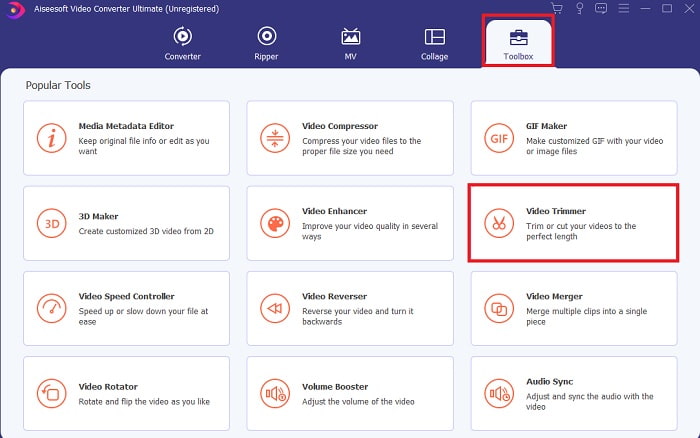
Schritt 2. Wenn dies auf deinem Bildschirm angezeigt wird, klicke auf die Symbolleiste und suche unten nach dem Video Trimmer.
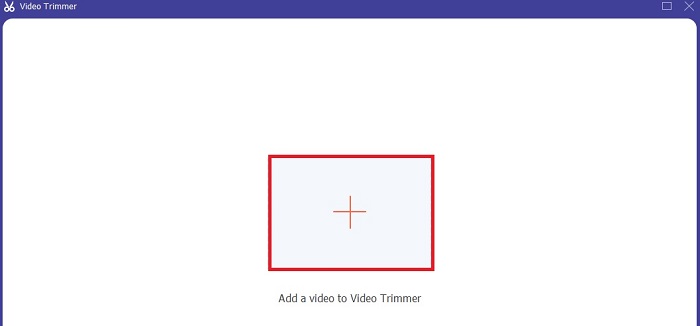
Schritt 3. Klicke auf die Plus-Schaltfläche, um die Datei hinzuzufügen. Wähle auf deinem Laufwerk die Datei aus, die du schneiden möchtest, und klicke auf Öffnen, um das Video zu importieren.
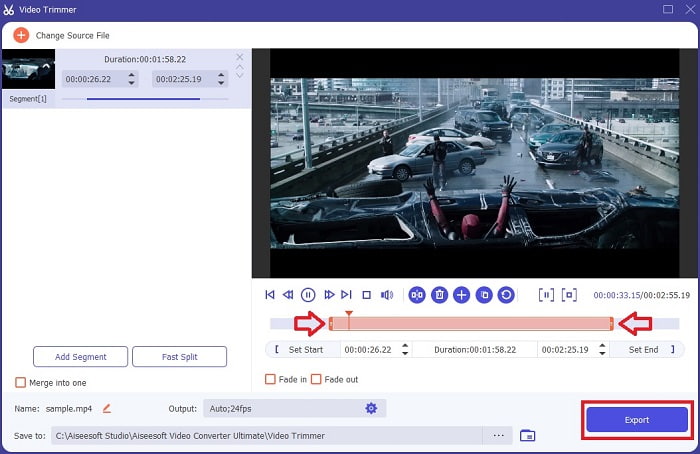
Schritt 4. Um den Start- und Endpunkt deines Videos anzupassen, verändere die Wiedergabe-Ein- und -Ausgänge, um die gewünschte Dauer festzulegen. Füge bei Bedarf ein Ein- und Ausblenden hinzu. Außerdem kannst du das Ausgabeformat ändern, wenn du auf die Zahnrad-Schaltfläche klickst. Wenn du fertig bist, klicke auf die Exportieren-Schaltfläche, um den Trimmvorgang zu starten.
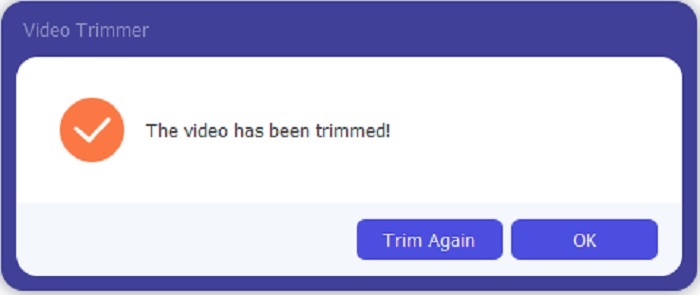
Schritt 5. Warte nur einen kurzen Moment und dein Video ist zugeschnitten. Klicke dann auf OK oder Erneut trimmen, wenn du ein weiteres Video schneiden musst. Wenn du das eben erstellte Video verbessern möchtest, klicke erneut auf die Symbolleiste und suche nach dem Video-Enhancer.
Vorteil eines Merging-Tools von FVC Video Converter Ultimate mit Schritten
Im Gegensatz zu jeder anderen App ist das Zusammenführen von Videos in FVC Video Converter Ultimate sehr einfach. Dies ist eine Bonusfunktion, wenn Sie dieses Tool erwerben. Wie gesagt, dieses Tool ist vielseitig einsetzbar, also lassen Sie uns ohne weiteres damit beginnen, verschiedene Videos zu einem zusammenzuführen.
Schritt 1. Öffne die Software, gehe zur Symbolleiste und suche den Video Merger, dann klicke darauf.
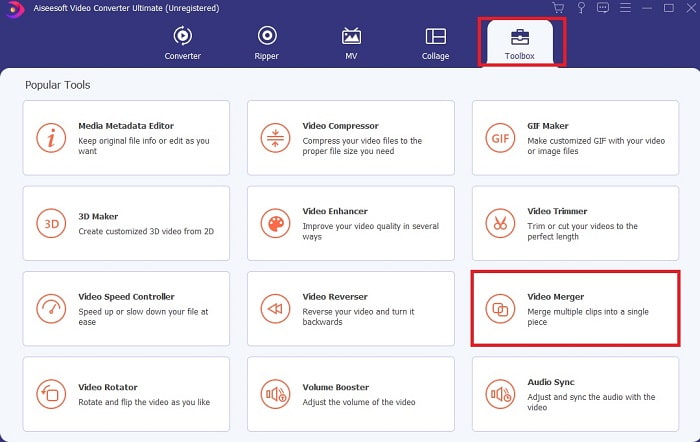
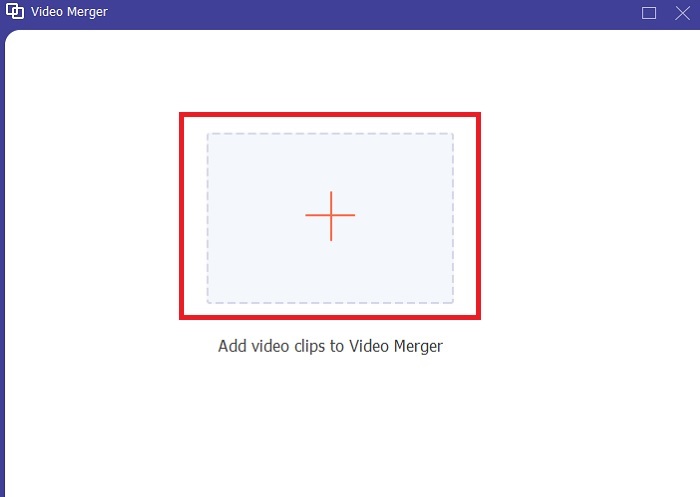
Schritt 2. Klicke auf die Hinzufügen-Schaltfläche, wähle das Video aus, das du zusammenführen möchtest, und klicke auf Öffnen, um fortzufahren. Nachdem du die erste Datei ausgewählt hast, klicke auf das Pluszeichen, um die andere Datei hinzuzufügen, die du zusammenführen willst.
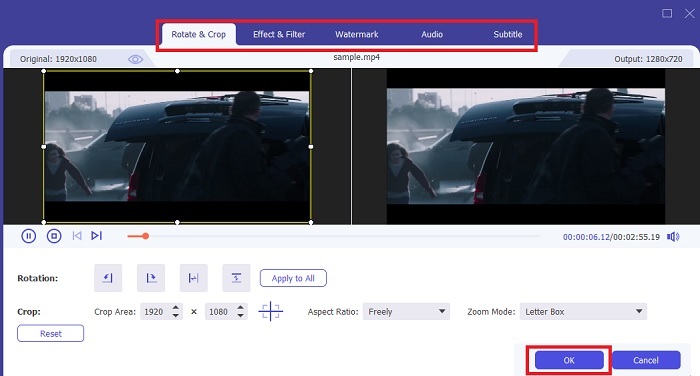
Schritt 3. Klicke in der Oberfläche auf die Zauberstab-Schaltfläche, um Effekte hinzuzufügen, den Ton zu verbessern, zu drehen oder zuzuschneiden und Untertitel hinzuzufügen. Um die vorgenommenen Bearbeitungen zu speichern, klicke auf OK. Führe bei Bedarf denselben Vorgang auch mit den anderen Videos durch.
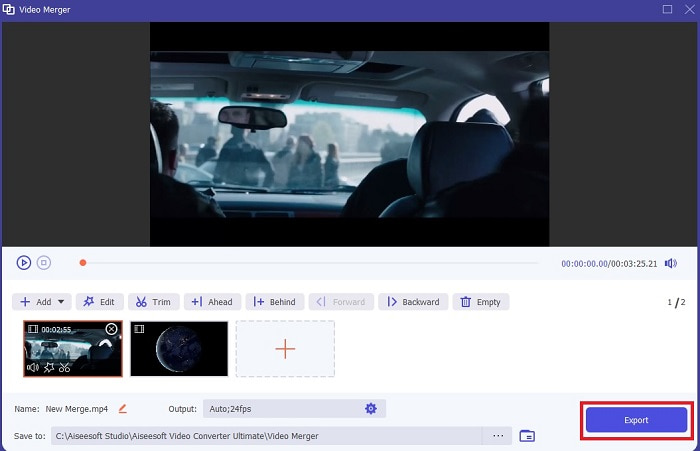
Schritt 4. Wenn du bereit bist, den Vorgang zu starten, klicke auf Exportieren. Nachdem der Export abgeschlossen ist, öffnet sich ein Dateimanager-Fenster auf deinem Bildschirm. Um das exportierte Video anzusehen, klicke einfach darauf und genieße es.
Teil 2. Die besten MP4-Cutter online
Dies mag ein guter Trimmer sein, aber er ist nicht so gut wie der FVC Video Converter Ultimate. Dennoch lohnt es sich zumindest, diese Online-MP4-Cutter auszuprobieren.
1. 123Apps Online-Videoschneider
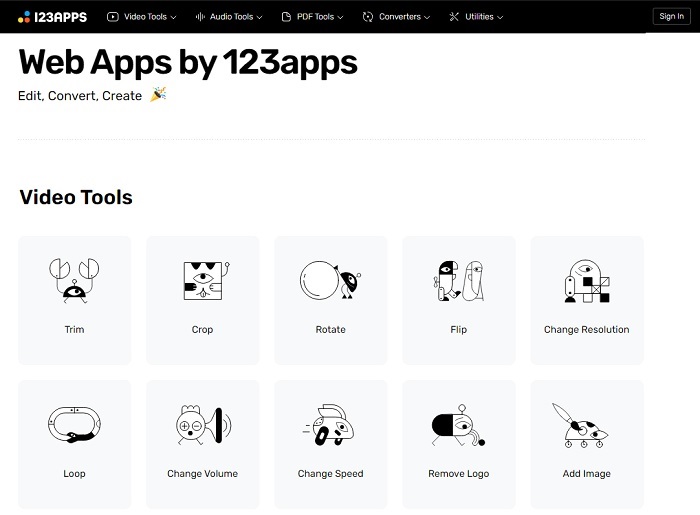
Dieses erste Online-Tool soll Ihre Videos verbessern. Es kann die Dauer des Videos anpassen, zuschneiden, Text hinzufügen und mehr. Der Export dieses Tools nimmt jedoch viel Zeit in Anspruch. Nach dem Export müssen Sie es herunterladen. Dieser Vorgang hängt von Ihrer Internetgeschwindigkeit ab. Außerdem können Sie die Qualität Ihrer Videos nicht anpassen. Wenn Ihr Video also etwas verschwommen ist und die FPS angepasst werden muss, können Sie dies hier nicht tun. Aber trotzdem ist es einen Versuch wert.
2. Klideo
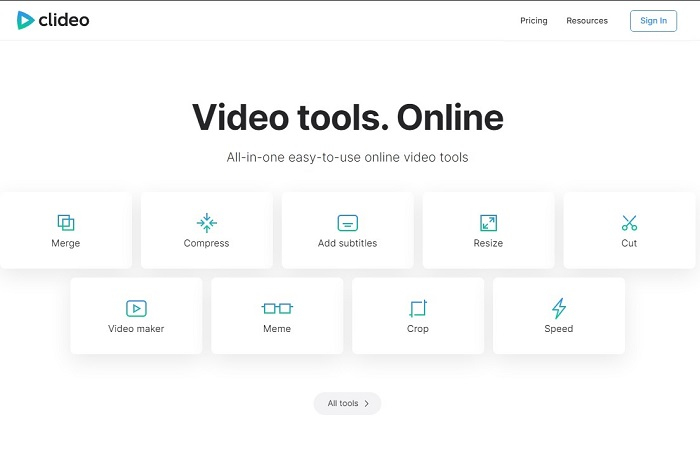
Wenn wir über das Schneiden sprechen, ist dies ebenfalls eine gute Wahl. Clideo ist eines der besten MP4-Online-Schneidetools, die du finden kannst. Genau wie das erste oben erwähnte Online-Tool bietet auch dieses grundlegende Bearbeitungsfunktionen. Obwohl es die grundlegende Bearbeitung unterstützt, reicht das dennoch nicht aus, wenn du ein wirklich auffälliges Video erstellen willst. Aber du kannst es online testen, ohne dir Sorgen zu machen – es ist kostenlos und auch sicher.
Teil 3. Die 3 besten MP4-Cutter-Apps für Android und iOS
Was ist, wenn Sie keinen Desktop haben, um die oben genannten Tools zu verwenden, und ein Vlogger werden möchten, ist dies dennoch möglich? Wenn Sie ein Telefon wie Android oder iOS haben, können Sie diese Apps verwenden, um Ihre Telefone zu bearbeiten. Es gibt jedoch einige Funktionen, die oben verfügbar sind und die nicht hier sind. Lesen Sie also weiter unten, um zu erfahren, was diese Tools sind, und wählen Sie aus ihnen aus.
1. iMovie für iOS
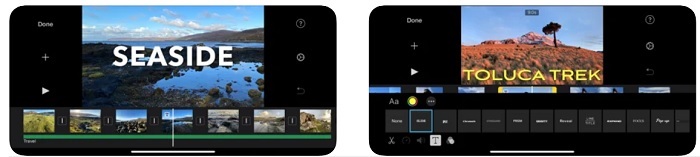
Wenn du deinem Video eine Hollywood-artige Atmosphäre verleihen möchtest, ist iMovie die richtige Software. Diese MP4-Cutter-App wurde ausschließlich für iOS-Nutzer entwickelt. Doch obwohl das Tool hochwertige Bearbeitungsfunktionen bietet, sind einige Fehler darin noch nicht behoben. In manchen Fällen stürzt die App bei jedem Bearbeitungsversuch ab und der Bildschirm wird schwarz. Manchmal sind Bild und Ton aufgrund von Glitches nicht synchron. Dies sind einige Beispiel-Bugs – man könnte sie als klein ansehen, aber sie sind meistens sehr störend. Wenn du iMovie ausprobieren möchtest, kannst du es dennoch im App Store herunterladen.
2. Video Editor & Maker – Viva Video für Android
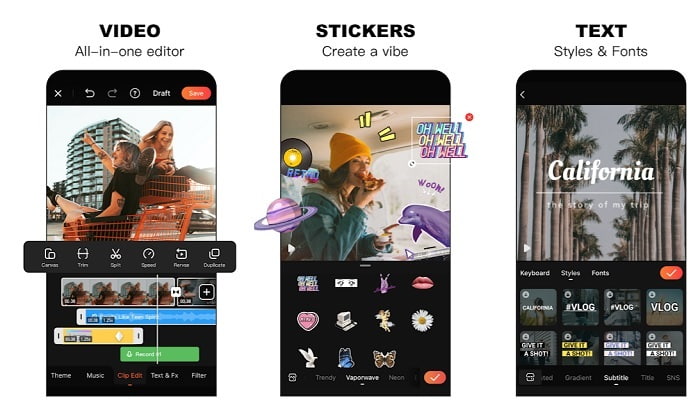
Einer der besten kostenlosen MP4-Cutter auf Android ist Video Editor & Maker – Viva Video. Genau wie das oben genannte Tool bieten beide hervorragende Bearbeitungsfunktionen auf dem Handy, etwa Übergänge, Glitch-Effekte und mehr – allerdings ist dies ein kostenpflichtiges Tool. In manchen Fällen ist es nicht optimal, weil es keine Schaltfläche zum Kündigen des Abos gibt. Vielleicht denkst du, die beste Lösung sei, die App zu löschen, um das Abonnement zu beenden, aber das funktioniert nicht. Es werden weiterhin Gebühren von deiner Kreditkarte abgebucht, wenn du diese Zahlungsmethode gewählt hast. Insgesamt ist das Tool jedoch erstklassig – nicht mehr und nicht weniger.
Teil 4. Häufig gestellte Fragen zum MP4-Cutter
Was ist ein MP4?
MP4 ist auch als Mehrzweckmedienformat bekannt. Anstatt einen Code zu speichern, speichert es Daten der Videos, Standbilder, Untertitel oder Texte. Außerdem ist es das weltweit am häufigsten verwendete Videoformat.
Ist MP4 verlustbehaftet oder verlustfrei?
Als Mehrzweckformat ist MP4 eine verlustbehaftete Komprimierung.
Was ist das beste Format außer MP4?
Einige Formate liefern eine bessere Medienqualität als MP4, sind jedoch nicht so flexibel wie dieses Format. Ein Beispiel ist WMV: Dieses Format ermöglicht kleinere Dateigrößen als MP4, ist aber nicht mit Apple-Geräten kompatibel, da es als natives Format für den Windows Media Player gedacht ist. Du kannst dich entscheiden, deine MP4-Dateien in WMV zu konvertieren, um eine bessere Wiedergabe zu erhalten.
Fazit
Abschließend ist es jetzt leichter, die Unterschiede zwischen den einzelnen Tools zu verstehen, die du verwenden kannst. Wie bereits gesagt, bieten nicht alle so leistungsstarke Schnittfunktionen wie der FVC Video Converter Ultimate. Vor allem dann, wenn du ein ansprechenderes Video erstellen möchtest, um mehr Aufrufe und somit auch mehr Gewinn zu erzielen. Anstatt dich also mit einer Übergangslösung zufriedenzugeben, warum nimmst du nicht den FVC Video Converter Ultimate, um deiner Zukunft gelassen entgegenzusehen und die beste Version für dich selbst zu bekommen?.
-
 Anleitung zum Konvertieren von RMVB in MP4 unter Windows / Mac (3 kostenlose Möglichkeiten)
 Möchten Sie RMVB in MP4 konvertieren, um die Wiedergabe auf Ihrem Computer oder Mobiltelefon zu vereinfachen? In diesem Handbuch finden Sie einfache Möglichkeiten, Ihre RMVB-Dateien in MP4 zu konvertieren.
-
 4 Die besten MP4-zu-M4V-Konverter, um MP4-Videos mühelos in M4V umzuwandeln
 Wenn Sie MP4- in M4V-Dateien ändern müssen, sollten Sie weitere Informationen zu den Unterschieden zwischen den beiden Formaten sowie zu den besten MP4- zu M4V-Konvertern aus dem Artikel erhalten.
-
 AMV Converter - 3 beste Methoden zum Konvertieren von MP4 in AMV unter Win / Mac
 Was sind die besten MP4-zu-AMV-Konverter, um die Videos in Amine Music Video umzuwandeln? Weitere Informationen zu den drei effizientesten Methoden, um die gewünschten Videos mühelos zu erhalten, finden Sie im Artikel.
