


 Video Converter Ultimate
 Bildschirm recorder
 Videoreparatur
 Sicherer Download
Anleitung zum einfachen Beschleunigen eines Videos auf Instagram
Mit Instagram können wir ganz einfach ein Video hochladen oder posten, ohne Begrenzungen, solange wir möchten. Auch wenn du deine Momente auf Instagram teilen kannst, verlangt die App, dass du eine Vorgabe für die Videolänge einhältst oder es kürzt. Wenn du das Video jedoch in voller Länge ohne Schnitt teilen möchtest, empfehlen wir dir, es zu beschleunigen. Indem du die normale Wiedergabegeschwindigkeit auf eine höhere Geschwindigkeit änderst, kannst du das gesamte Video teilen, ohne es zu kürzen, weil die Dauer des Videos dann kürzer ist als zuvor. Hier erklären wir dir, wie man ein Video auf Instagram beschleunigt wie ein Profi. Bleib am Ball und lies diesen Artikel, um zu erfahren, wie du die Videodauer verkürzt.

Teil 1. So beschleunigen Sie ein Video auf Instagram mit Reel
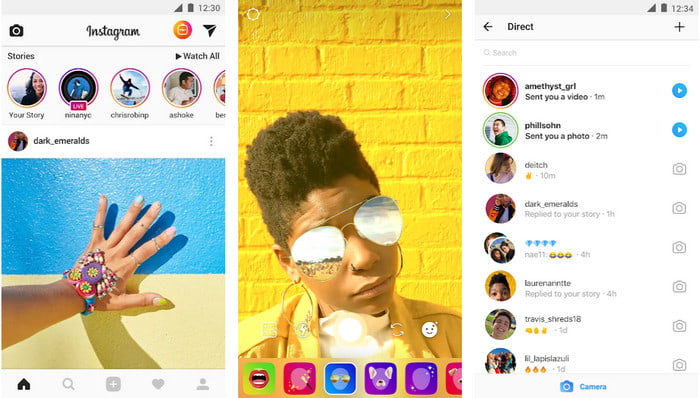
Die Reel-Funktion kann Videos für Instagram kostenlos beschleunigen. Diese Funktion ist auf iOS- und Android-Geräten verfügbar, um ein High-Speed-Motion-Video bis zu 3x aufzunehmen. Obwohl es ein Beschleunigungsvideo aufnehmen kann, hat es auch andere Funktionen wie das Hinzufügen von Musik, das Einstellen der Videodauer, des Timers usw. Um zu wissen, wie Sie diese Funktion verwenden, müssen Sie die Schritte befolgen, die wir unten hinzufügen, um das Video zu beschleunigen Sie wie ein Profi auf Instagram fotografieren möchten.
Schritt 1. Nachdem du Instagram auf dein Gerät heruntergeladen hast, öffne die App.
Schritt 2. Wische nach links und suche nach dem Namen REEL.
Schritt 3. Du kannst nun auf die Geschwindigkeitsoption in diesem Bereich tippen und sie auf die gewünschte Geschwindigkeit ändern. So einfach ist das – du kannst jetzt in hoher Geschwindigkeit filmen.
Teil 2. Top 3 Software zur Beschleunigung von Videos für Instagram online und offline
FVC Video Converter Ultimate
FVC Video Converter Ultimate ist die herausragendste Desktop‑Software, die du verwenden kannst, um Videos für Instagram sofort zu beschleunigen. Sie bietet den Nutzern viele erstaunliche Funktionen, um das Video noch besser zu machen, wenn es in eine schnellere Bewegung umgewandelt wird. Mit nur wenigen Klicks kannst du ganz einfach die Geschwindigkeit eines normalen Videos ändern, ohne dir Sorgen um die Qualität und die Bildflüssigkeit des Videos machen zu müssen. Erstaunlich, oder? Mit diesem Tool kannst du ein Video auch schnell verlangsamen – in beiden Fällen arbeitet das Programm hervorragend.
Mehr wollen? Diese Software unterstützt mehr als 1000 Videoformate, sodass Sie sich keine Sorgen machen müssen, wenn Sie der Meinung sind, dass das Videoformat nicht unterstützt wird, weil es hier ist. Außerdem gibt es zusätzliche Bearbeitungsfunktionen, die Sie möglicherweise verwenden möchten, insbesondere wenn Sie die Personen beeindrucken möchten, die sie sehen werden. Indem Sie die angegebenen Schritte in weniger als einer Minute befolgen, können Sie die Geschwindigkeit des Videos erfolgreich ändern.
Schritt 1. Lade den Ultimate Converter herunter und installiere ihn auf deinem Laufwerk und wähle das Betriebssystem, das du derzeit verwendest. Öffne das Programm anschließend und mach dich mit der Benutzeroberfläche vertraut. So kannst du den nächsten Schritten leichter folgen.
Gratis DownloadFür Windows 7 oder neuerSicherer Download
Gratis DownloadFür MacOS 10.7 oder neuerSicherer Download
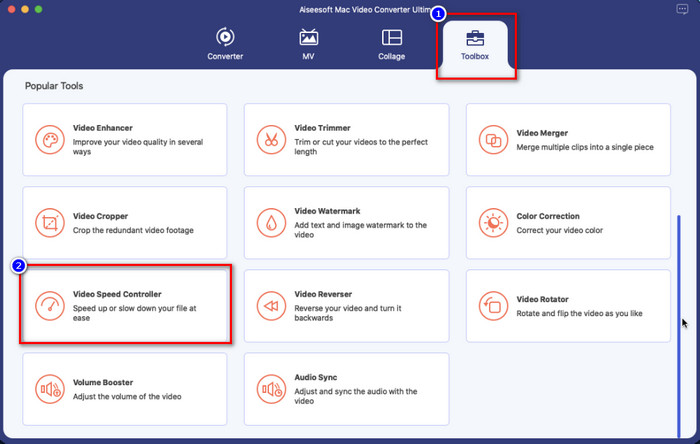
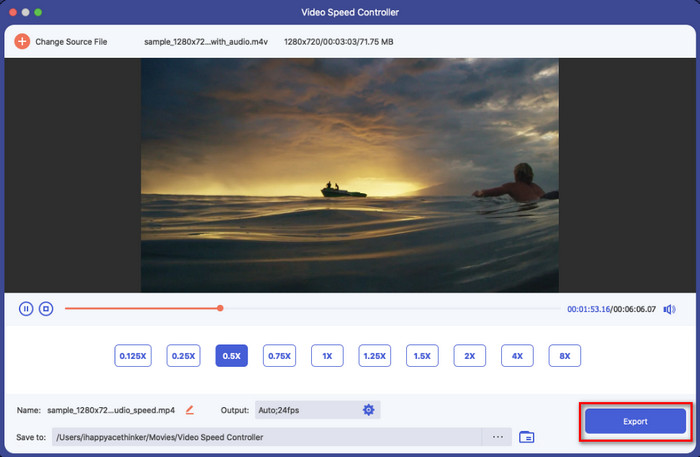
Schritt 2. Klicke auf den Bereich Toolbox, um ihn zu öffnen; dort findest du eine Liste von Funktionen, die du nutzen kannst. Klicke auf Video Speed Controller, um die Geschwindigkeit des gewünschten Videos zu ändern.
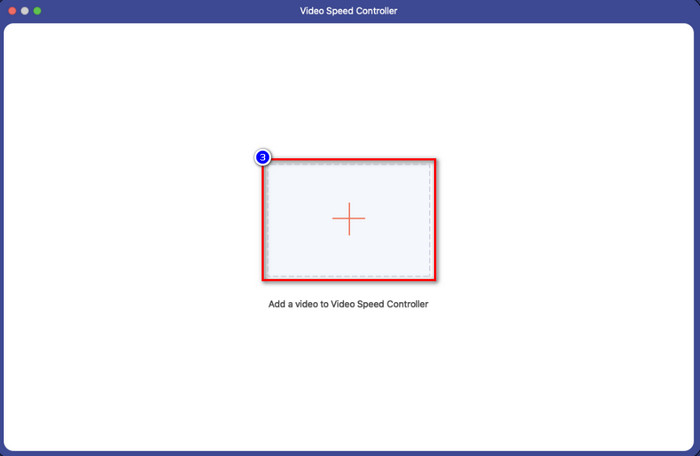
Schritt 3. Klicke auf das +-Symbol, und der Ordner deines Computers wird angezeigt. Suche das Video, das du beschleunigen möchtest, und klicke auf Öffnen, um es einzufügen.
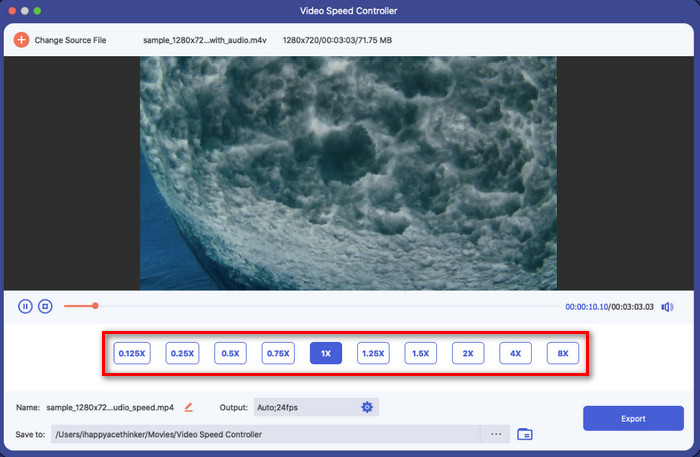
Schritt 4. Nachdem du das Video hochgeladen hast, wähle in diesem Bereich die Videogeschwindigkeit aus, die du anwenden möchtest. Klicke die Optionen einzeln an und überprüfe sie in der Vorschau, um zu sehen, ob dies die Geschwindigkeit ist, die du für das Video erreichen willst, das du auf Instagram posten möchtest.
Schritt 5. Um das Video mit der geänderten Geschwindigkeit zu speichern, klicke abschließend auf Export, und die Umwandlung der Bewegung des Videos beginnt in Kürze. Wenn die Konvertierung abgeschlossen ist, wird ein Ordner auf deinem Bildschirm angezeigt – das bedeutet, dass sich in diesem Ordner das Video befindet, dessen Geschwindigkeit du geändert hast.
iMovie
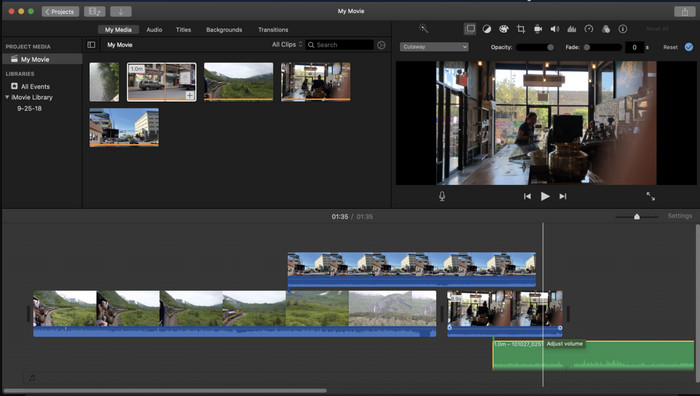
Für Mac‑Geräte ist ein Download nicht notwendig, insbesondere wenn du iMovie hast. Dieser integrierte Videoeditor kann dir helfen, die Geschwindigkeit des Videos zu ändern, das du auf Instagram hochladen oder teilen möchtest. Wenn du also ein Video beschleunigen willst und Mac‑Nutzer bist, empfehlen wir dir, diesen Videoeditor auszuprobieren, da er kostenlos ist. Obwohl die Software kostenlos genutzt werden kann, finden manche Nutzer sie etwas schwerfällig, weil man Erfahrung im Umgang mit dieser Art von Editor benötigt. Wenn du also suchst, wie man ein Video auf Instagram beschleunigt, bevor man es postet, dann folge den Schritten unten.
Schritt 1. Öffne iMovie auf deinem Mac und füge das gewünschte Video zur Timeline hinzu.
Schritt 2. Klicke auf den Clip, den du hochgeladen hast, und ein Tachometer-Symbol (Geschwindigkeitssymbol) wird auf deinem Bildschirm angezeigt.
Schritt 3. Wähle im Geschwindigkeitsmenü die Geschwindigkeit aus, die du dem Video hinzufügen möchtest. Exportiere es anschließend, indem du auf Export klickst, um das beschleunigte Video auf deinem Mac zu speichern.
Clideo
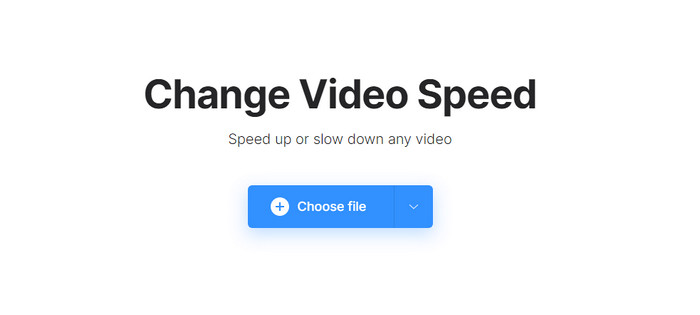
Einer der besten Videoeditoren, auf die du zugreifen kannst, ist Clideo. Dieses Web‑Tool ist deine All‑in‑one‑Lösung, wenn du keinen Videoeditor auf deinen Desktop herunterladen möchtest, um Speicherplatz zu sparen. Auch wenn du das Web‑Tool nicht herunterladen musst, benötigst du dennoch eine stabile Internetverbindung, um dieses Online‑Tool zu nutzen und das gewünschte Video zu beschleunigen. Wenn du dieses Tool verwendest, um die Geschwindigkeit eines Videos zu ändern, kannst du damit rechnen, dass du die Aufgabe in einer Minute erledigt hast. Dieses Web‑Tool ist tatsächlich großartig, um Videos online zu beschleunigen, aber es ist nicht ganz so leistungsstark wie die beiden anderen Editor‑Programme. Um zu erfahren, wie du das Tool verwendest, um ein Video für Instagram zu beschleunigen, kannst du die folgenden Schritte lesen und befolgen.
Schritt 1. Öffne deinen Webbrowser und suche nach Clideo; öffne dessen Speed Controller, um zu beginnen. Klicke auf Choose File, um das Video hinzuzufügen, das du hier beschleunigen möchtest.
Schritt 2. In diesem Bereich kannst du entweder den Schieberegler nach links ziehen, um das Video zu beschleunigen, oder eine Geschwindigkeit aus den Optionen wählen. Auf beide Arten erreichst du dasselbe.
Schritt 3. Nachdem du die gewünschte Geschwindigkeit gewählt hast, klicke auf Export.
Teil 3. Häufig gestellte Fragen zum Beschleunigen von Videos für Instagram
Was ist die Standarddauer von Videos auf Instagram?
Sie können ein Video ab 3 Sekunden bis 10 Minuten hochladen. Es ist nicht viel, aber es ist immer noch gut. Wenn das Video, das Sie aufnehmen möchten, lang ist, versuchen Sie, es etwas zu beschleunigen, um etwas Zeit bei der Videodauer zu sparen und das gesamte Video in weniger als 10 Minuten auf Instagram zu posten.
Wie stark kann Hyperlapse mein Video auf Instagram beschleunigen?
Sie können den Hyperlapse verwenden, um ein Zeitraffervideo auf Instagram mit 1- bis 12-facher Geschwindigkeit aufzunehmen. Zusätzlich zur Geschwindigkeitssteuerung unterstützt es auch die Stabilisierung, um Ihr Video stabiler zu machen und das Wackeln des aufgenommenen Videos zu reduzieren.
Kann ich das Video exportieren, das ich auf Instagram beschleunigt habe?
Ja, Sie können das Video, das Sie auf Instagram beschleunigen, auf Ihrem Telefon speichern. Nach der Aufnahme können Sie auf dem Gerät auf „Speichern“ tippen, um das Video in der von Ihnen gewählten beschleunigten Version zu speichern. Suchen Sie das Video, das Sie beschleunigen, auf den Fotos, Ihrer Bibliothek für alle Bilder, Live-Bilder und Videodateien.
Fazit
Dieser Artikel enthält eine solide Erklärung und Schritte für Sie, wie Sie mit Beschleunigungsvideos für Instagram umgehen können. Da wir Ihr Problem mit der Änderung der Geschwindigkeit auf Instagram gelöst haben, können Sie es jetzt unabhängig handhaben. Befolgen Sie die oben hinzugefügten Schritte, um eine Beschleunigung aufzunehmen oder das Video mit normaler Geschwindigkeit mit dem ultimativen Tool in eine Beschleunigung umzuwandeln. Welchen Weg würden Sie wählen? Was auch immer Ihre Entscheidung ist, Sie erhalten die gewünschte Geschwindigkeit, bevor Sie sie posten oder auf Ihrem Instagram teilen.
-
 So beschleunigen Sie ein Video mit der Top-5-Software [Windows/Mac/Linux]
 Möchten Sie wissen, wie Sie Videos einfach beschleunigen können? Dann lesen Sie dieses Schreiben, während wir erklären, wie Sie unter Windows, Mac und Linux effektiv beschleunigen können.
-
 Einfachste Möglichkeiten, ein Video auf Ihren Android-Geräten zu beschleunigen [2021]
 Wussten Sie, dass Sie ein Video auf Ihrem Android beschleunigen können? Wenn Sie also wissen möchten, wie Sie ein Video auf Ihrem Android-Telefon beschleunigen können, lesen Sie diese Beschreibung.
-
 So beschleunigen Sie Video in Premiere Pro und mit seinen Alternativen
 Möchten Sie wissen, wie Sie mit Premiere Pro ein Video beschleunigen können? Dann sind Sie im richtigen Artikel, denn wir bieten Treppen und andere erschwingliche Alternativen.
