


 Video Converter Ultimate
 Εγγραφή οθόνης
 Επισκευή βίντεο
Κατακτήστε την τέχνη της προσθήκης υδατογραφήματος στο iMovie με λεπτομερή βήματα
Ένας από τους καλύτερους επεξεργαστές που μπορείτε να χρησιμοποιήσετε σε Mac είναι το iMovie. Αυτό το εργαλείο προσφέρει μια πολύ διαισθητική διεπαφή για τους χρήστες Mac. Παρόλο που το εργαλείο είναι εξαιρετικό και εύκολο στη διαχείριση, κάποιοι χρήστες εξακολουθούν να αναζητούν έναν οδηγό για το πώς να το χρησιμοποιούν. Έτσι, αν είστε χρήστης Mac και θέλετε να μάθετε πώς να προσθέσετε υδατογράφημα σε βίντεο στο iMovie, μπορείτε να ακολουθήσετε τον οδηγό που παρουσιάζουμε παρακάτω ώστε να αξιοποιήσετε στο έπακρο το εργαλείο.

Μέρος 1. Εκμάθηση σχετικά με τον τρόπο προσθήκης υδατογραφήματος σε βίντεο στο iMovie στο macOS
Έχουμε ήδη παρουσιάσει το iMovie, επομένως οι επόμενες λεπτομέρειες θα σας διδάξουν πώς να βάζετε ένα υδατογράφημα σε ένα βίντεο στο iMovie. Για να μάθετε πώς να προσθέτετε, μπορείτε να ακολουθήσετε τον αναλυτικό οδηγό παρακάτω και παρακαλούμε διαβάστε τον προσεκτικά για να κατανοήσετε ολόκληρη την ιδέα.
Βήμα 1. Εκκινήστε το iMovie στο Mac σας και, αν δεν μπορείτε να το βρείτε, μπορείτε γρήγορα να πάτε στο Finder και να το αναζητήσετε.
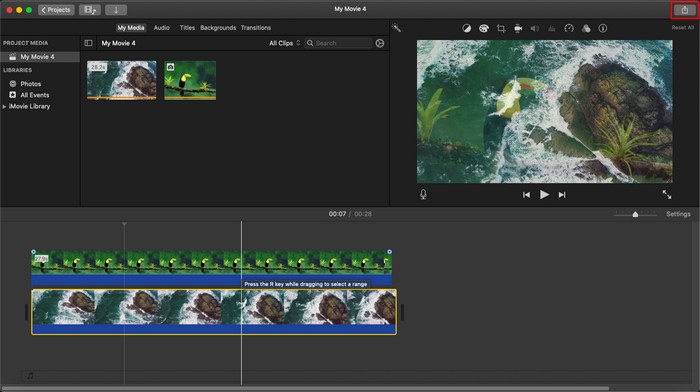
Βήμα 2. Κάντε κλικ στο κουμπί Import για να ανεβάσετε το βίντεο και την εικόνα που θέλετε να χρησιμοποιήσετε ως υδατογράφημα. Σύρετε το αρχείο βίντεο και της εικόνας στη Timeline από κάτω, όπως και τις εικόνες. Βεβαιωθείτε ότι το βίντεο βρίσκεται πάνω από τη γραμμή χρόνου του βίντεο. Κάντε μερικές ρυθμίσεις στην εικόνα, σύροντάς την, αλλάζοντας μέγεθος κ.λπ.
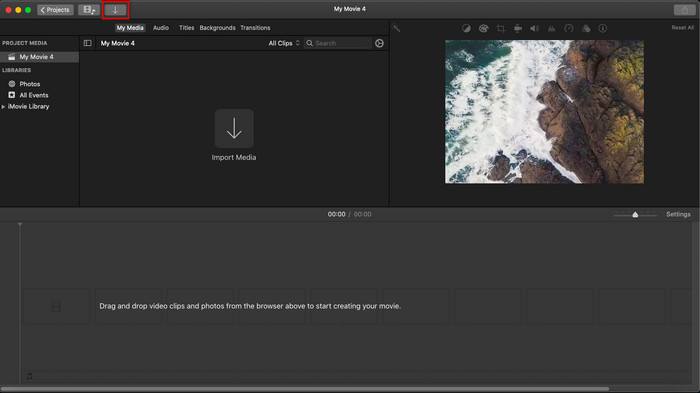
Βήμα 3. Αν είστε ήδη ικανοποιημένοι με τις ρυθμίσεις, κάντε κλικ στο Export στο επάνω δεξί μέρος του εργαλείου και μετά στο Export File.
Πλεονεκτήματα
- Είναι δωρεάν για χρήση σε οποιαδήποτε συσκευή Apple, όπως συσκευές macOS και iOS.
- Κάντε γρήγορες επεξεργασίες στα ακατέργαστα βίντεο για να τα κάνετε να φαίνονται όμορφα.
- Διατίθενται βασικές έως μέσες λειτουργίες επεξεργασίας.
Μειονεκτήματα
- Υποστηρίζει λιγότερη μορφή, επομένως εάν θέλετε να επεξεργαστείτε το βίντεο εδώ, πρέπει να το μετατρέψετε σε MOV ή σε οποιαδήποτε μορφή συμβατή με συσκευές Apple.
- Λιγότερη υποστήριξη για επαγγελματική επεξεργασία.
Μέρος 2. Το καλύτερο εργαλείο για χρήση και τοποθέτηση υδατογραφήματος σε βίντεο σε υπολογιστές Mac με λιγότερη ταλαιπωρία
Αν θεωρείτε ότι η προσθήκη υδατογραφήματος στο iMovie είναι δύσκολη, μπορείτε να χρησιμοποιήσετε την καλύτερη εναλλακτική, το Video Converter Ultimate. Αυτό το εργαλείο προσφέρει έναν πολύ πιο εύκολο τρόπο για να προσθέσετε υδατογράφημα στο βίντεό σας. Φανταστείτε το εξής: το απόλυτο αυτό εργαλείο είναι ακόμη πιο προσιτό, παρότι το iMovie είναι ήδη εύκολο στη χρήση. Αν και είναι απλό στη χρήση, το τελικό αποτέλεσμα που παρέχει είναι κορυφαίας ποιότητας και ένα από τα πλεονεκτήματά του σε σχέση με το iMovie είναι ότι υποστηρίζει περισσότερες μορφές εικόνας που μπορείτε να ανεβάσετε. Θέλετε να μάθετε περισσότερα; Μπορείτε να διαβάσετε τα χαρακτηριστικά που παρουσιάζουμε παρακάτω για εσάς.

FVC Video Converter Ultimate
5.689.200+ λήψεις- Παρέχει ολοκληρωμένες λειτουργίες επεξεργασίας που μπορείτε να χρησιμοποιήσετε για να κάνετε το βίντεό σας πιο εξαιρετικό από το άλλο.
- Υποστηρίζει εξαιρετικά γρήγορες διαδικασίες και επιτάχυνση υλικού για γρήγορη εισαγωγή και εξαγωγή του βίντεο.
- Υποστηρίζει μορφές βίντεο όπως MOV, MKV, AVI, MP4, FLV, RMVB και άλλα.
- Έχει μια πολύ διαδραστική διεπαφή για να έχετε την καλύτερη εμπειρία.
- Διατίθεται σε όλες τις πλατφόρμες επιτραπέζιων υπολογιστών όπως Windows και Mac.
Δωρεάν ΛήψηΓια Windows 7 ή νεότεραΑσφαλής λήψη
Δωρεάν ΛήψηΓια MacOS 10.7 ή νεότεροΑσφαλής λήψη
Δεν είναι εκπληκτικό να υπάρχουν όλες αυτές οι δυνατότητες σε ένα εργαλείο; Αν βρισκόμαστε στην ίδια σελίδα, ας σκάψουμε στις λεπτομέρειες για το πώς να υδατογραφήσετε ένα βίντεο στο iMovie αλλά με έναν πιο εύκολο τρόπο με το απόλυτο εργαλείο.
Βήματα σχετικά με τον τρόπο εισαγωγής υδατογραφήματος σε βίντεο με το Ultimate Tool
Βήμα 1. Κατεβάστε το λογισμικό στο Mac σας, ακολουθήστε τη διαδικασία εγκατάστασης και πατήστε Start Now για να εκκινήσετε το εργαλείο.
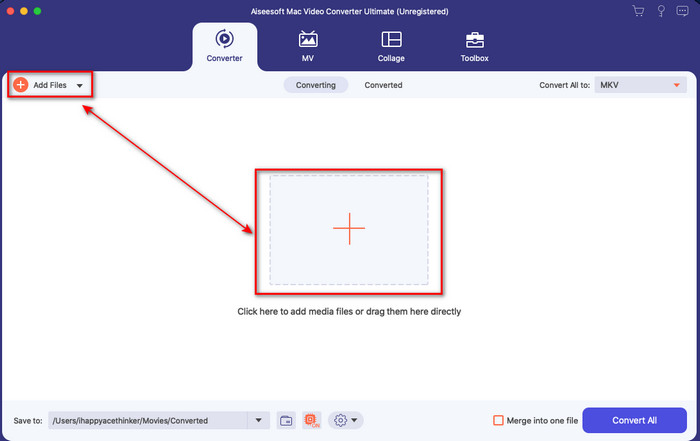
Βήμα 2. Ανεβάστε το αρχείο βίντεο που θέλετε, κάνοντας κλικ στο κουμπί + ή στο Add Files. Βρείτε το βίντεο στο φάκελο που θα εμφανιστεί στην οθόνη σας και πατήστε Open για να το ανεβάσετε.
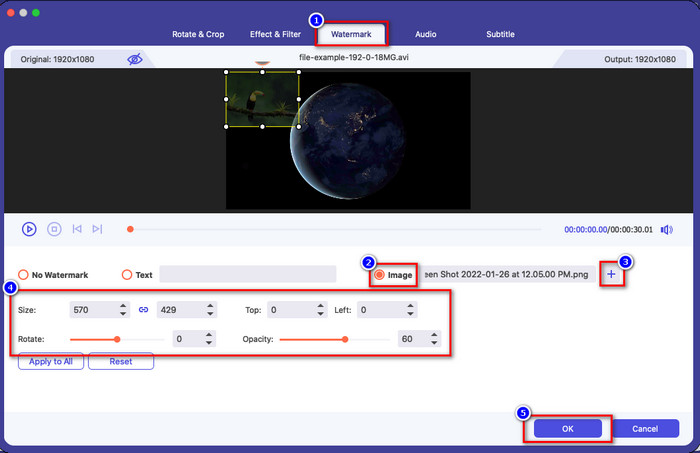
Βήμα 3. Κάντε κλικ στο κουμπί με το ραβδί για να ανοίξετε το παράθυρο επεξεργασίας στη διεπαφή του εργαλείου. Έπειτα, κάντε κλικ στην ενότητα Watermark, επιλέξτε Image, πατήστε το κουμπί + για να προσθέσετε την εικόνα που θέλετε. Μετά από αυτό, προσαρμόστε την αδιαφάνεια (opacity) της εικόνας ή περιστρέψτε την και κάντε κλικ στο OK για να αποθηκεύσετε την αλλαγή που κάνατε.
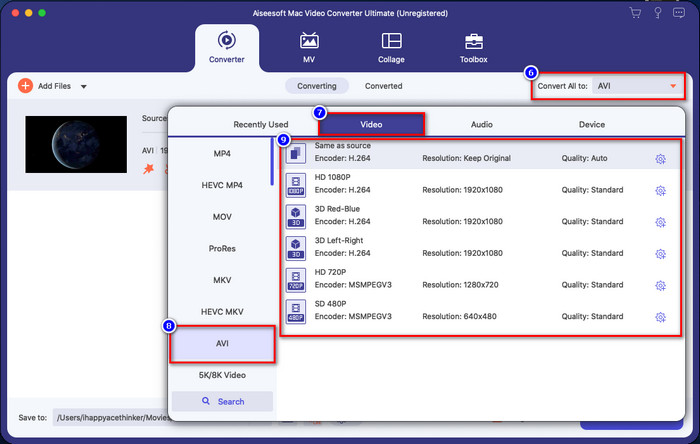
Προαιρετικό. Αν θέλετε να αλλάξετε τη μορφή, κάντε κλικ στο Convert All to, επιλέξτε τη μορφή που είναι διαθέσιμη στη λίστα και κάντε κλικ σε αυτή. Αν δεν θέλετε να αλλάξετε τη μορφή, μπορείτε να προχωρήσετε στο τελικό βήμα.
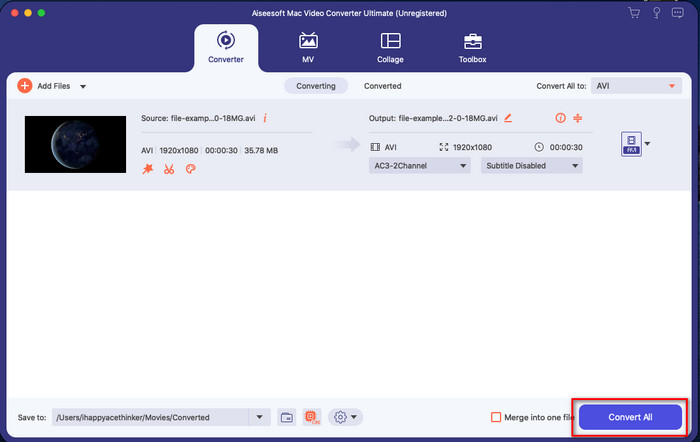
Βήμα 4. Για να εξαχθεί το βίντεο με υδατογράφημα, κάντε κλικ στο Convert All. Δεν χρειάζεται να περιμένετε πολύ λόγω της εξαιρετικά γρήγορης διαδικασίας μετατροπής που προσφέρει. Με αυτόν τον τρόπο, έχετε ήδη προσθέσει το υδατογράφημα εικόνας στο βίντεο σας σε λιγότερο από ένα λεπτό.
Πλεονεκτήματα
- Είναι η καλύτερη επιλογή για κάθε χρήστη που έχει ελάχιστη ή καθόλου ιδέα για το πώς να επεξεργαστεί.
- Υποστηρίζει περισσότερες μορφές βίντεο που μπορείτε να ανεβάσετε για να εξοικονομήσετε χρόνο και να αποφύγετε τη μετατροπή του.
- Διατίθεται σε όλες τις πλατφόρμες όπως Windows ή Mac για λήψη.
Μειονεκτήματα
- Δεν είναι δωρεάν για λήψη, αλλά δεν είναι πολύ ακριβό.
- Απαιτείται λήψη του στη μονάδα δίσκου σας.
Μέρος 3. Συχνές ερωτήσεις σχετικά με την προσθήκη υδατογραφήματος στο iMovie
Είναι το iMovie δωρεάν για χρήση;
Ναι, το iMovie είναι δωρεάν για χρήση αν έχετε προϊόν της Apple, αλλά δεν μπορείτε να το κατεβάσετε αν χρησιμοποιείτε Android ή Windows. Σημειώστε ότι δεν υπάρχει διαθέσιμο iMovie σε άλλες πλατφόρμες. Άρα, αν κατεβάσετε κάποιο 'iMovie' στον υπολογιστή ή το τηλέφωνό σας που δεν είναι Apple, να περιμένετε ότι δεν θα λειτουργεί το ίδιο αποδοτικά με το αυθεντικό iMovie ή, ακόμα χειρότερα, ότι μπορεί να έχει ιό. Για να το αποφύγετε αυτό, μπορείτε να κάνετε κλικ και να διαβάσετε αυτό το άρθρο για να μάθετε τις εναλλακτικές λύσεις για το iMovie.
Είναι το iMovie ο καλύτερος επεξεργαστής στο Mac;
Μπορούμε να πούμε ότι είναι ένα από τα καλύτερα, αλλά όχι το καλύτερο, επειδή διαφορετικοί επεξεργαστές παρέχουν πολλαπλές δυνατότητες επεξεργασίας που δεν μπορείτε να βρείτε στο iMovie. Αν και στερείται κατά κάποιο τρόπο, εξακολουθεί να είναι ένα κορυφαίο πρόγραμμα επεξεργασίας που μπορείτε να χρησιμοποιήσετε στο Mac σας δωρεάν για να κάνετε επεξεργασία βίντεο για vlogging, επιχειρήσεις, προώθηση και πολλά άλλα.
Μετά την εξαγωγή του βίντεο στο iMovie, έχει υδατογράφημα;
Από σήμερα, το υδατογράφημα του βίντεο δεν υπάρχει στα εξαγόμενα βίντεο. Έτσι, μπορείτε να απολαύσετε ελεύθερα τα ληφθέντα βίντεο που επεξεργάζεστε στο iMovie χωρίς το ενοχλητικό υδατογράφημα.
Μπορώ να χρησιμοποιήσω το βίντεο .avi στο iMovie;
Το iMovie δεν υποστηρίζει μια ευρεία γκάμα μορφών, αλλά μπορείτε να κάνετε κλικ και να διαβάσετε αυτό το άρθρο και να μάθετε τι μπορείτε να κάνετε ώστε να κάνετε το αρχείο AVI συμβατό με το iMovie.
συμπέρασμα
Αυτό το άρθρο ήδη αποδεικνύει ότι μπορείτε να χρησιμοποιήσετε τον ενσωματωμένο επεξεργαστή που σας παρέχει η Apple και να προσθέσετε υδατογραφήματα σε βίντεο με τα βήματα που παραθέτουμε και μπορείτε να ακολουθήσετε εύκολα. Αν και μπορείτε να χρησιμοποιείτε ελεύθερα το iMovie, εξακολουθούμε να πιστεύουμε ότι το Video Converter Ultimate είναι το καλύτερο εργαλείο για αυτήν την εργασία οποιαδήποτε μέρα. Έτσι, αν θέλετε βοήθεια, μπορείτε να το κατεβάσετε στο Mac ή στα Windows σας, πατώντας το κουμπί λήψης που παρουσιάζεται παραπάνω.
-
 3 Μέθοδοι για να μετατρέψετε MPEG σε WMV χωρίς απώλεια ποιότητας
 Θέλετε να παρακολουθήσετε τα βίντεό σας στο πρόγραμμα αναπαραγωγής που προτιμάτε, αλλά δεν υποστηρίζει τη μορφή του βίντεο; Διαβάστε αυτό το άρθρο καθώς σας παρέχουμε τους πιο αποτελεσματικούς τρόπους μετατροπής MPEG σε WMV.
-
 2 από τις αγαπημένες επιλογές μετατροπέα για μετατροπή F4V σε WMV [2022]
 Είστε ένας από τους χρήστες που αναζητούν τον καλύτερο τρόπο μετατροπής F4V σε WMV; Εάν ναι, προσπαθήστε να διαβάσετε αυτήν την εγγραφή για να μάθετε καλύτερα πώς να το κάνετε και ποια είναι τα διαθέσιμα εργαλεία.
-
 Οι καλύτεροι μετατροπείς MXF σε WMV για δωρεάν μετατροπή MXF σε WMV
 Θέλετε να μάθετε τον ευκολότερο τρόπο αλλαγής του αρχείου MXF σε μορφή WMV; Εάν είστε έτοιμοι να εξερευνήσετε πώς να το κάνετε, πρέπει να διαβάσετε αυτό το άρθρο προσεκτικά.
