


 Video Converter Ultimate
 Εγγραφή οθόνης
 Επισκευή βίντεο
 Ασφαλές κατέβασμα
Πώς να αφαιρέσετε το υδατογράφημα από το γράφημα προέλευσης αποτελεσματικά στο γράφημα
Ίσως χρειαστεί να χρησιμοποιήσετε το Origin Graph για να δημιουργήσετε ένα πρότυπο με μαθηματικά ή επιστημονικά δεδομένα που είναι υπερβολικά περίπλοκα για να περιγραφούν με λόγια. Αυτό το λογισμικό έχει ήδη βοηθήσει φοιτητές, ερευνητές, καθηγητές, επαγγελματίες του επιχειρηματικού χώρου και άλλους που χρειάζονται να δημιουργήσουν το δικό τους γράφημα. Με το σύνολο από πρότυπα που προσφέρει, μπορείτε να δημιουργήσετε ένα ελκυστικό γράφημα που τραβά την προσοχή των θεατών. Το πρόβλημα που είναι πιθανό να αντιμετωπίσετε αν χρησιμοποιήσετε τη δωρεάν έκδοσή του είναι ότι προσθέτει ένα υδατογράφημα κειμένου στο τελικό αποτέλεσμα. Αντιμετωπίζετε δυσκολία με το υδατογράφημα; Δεν χρειάζεται να ανησυχείτε άλλο! Γιατί σας καλύπτουμε. Εδώ θα παρουσιάσουμε χρήσιμες συμβουλές για το πώς να αφαιρέσετε το υδατογράφημα από το Origin Graph και στη συνέχεια να το χρησιμοποιήσετε στην παρουσίασή σας σε Word ή PowerPoint.

Μέρος 1. Πώς να αφαιρέσετε το υδατογράφημα από το Γράφημα προέλευσης με το Online Image Watermark Remover
Το FVC Free Watermark Remover Online είναι ένα κορυφαίο εργαλείο αφαίρεσης υδατογραφημάτων κειμένου που μπορείτε να χρησιμοποιήσετε για να εξαλείψετε το υδατογράφημα του Origin Graph. Αυτό το εργαλείο είναι από τα πιο αποδοτικά στην αφαίρεση κάθε αντικειμένου από τις εικόνες σας, ώστε να δείχνουν ακόμη πιο επαγγελματικές μόλις αφαιρέσετε το υδατογράφημα. Με αυτό, μπορούμε να σας διαβεβαιώσουμε ότι πρόκειται για ένα εξειδικευμένο εργαλείο αφαίρεσης υδατογραφημάτων στο οποίο μπορείτε να βασιστείτε όποτε προκύπτει αυτό το πρόβλημα. Αναρωτιέστε αν το εργαλείο είναι εύκολο στη χρήση; Δεν χρειάζεται να ανησυχείτε άλλο! Γιατί τα βήματα που παραθέτουμε παρακάτω είναι ακριβώς αυτά που μπορείτε να ακολουθήσετε για να απαλλαγείτε από το υδατογράφημα κειμένου στην εικόνα που προσθέτει το Origin Graph.
Βήμα 1. Μπορείτε να κάνετε κλικ σε αυτόν τον σύνδεσμο για να ανοίξετε το online εργαλείο αφαίρεσης υδατογραφημάτων εικόνας· θα ανοίξει απευθείας σε νέα καρτέλα όπου μπορείτε να έχετε πρόσβαση στο εργαλείο.
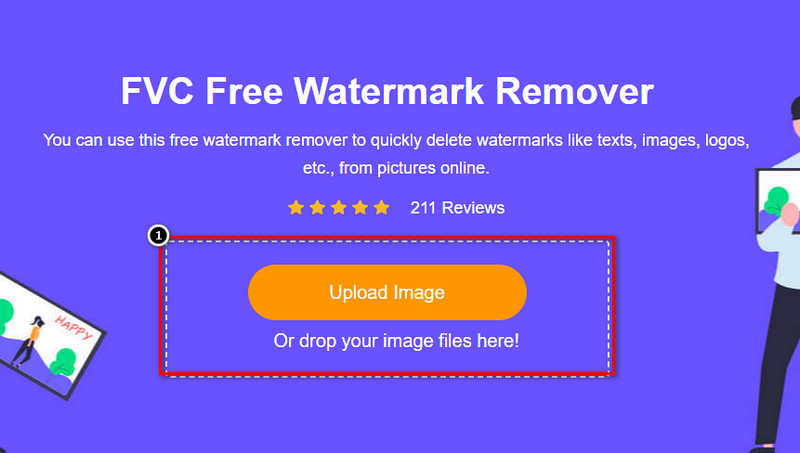
Βήμα 2. Πατήστε Upload Image για να προσθέσετε εδώ τη φωτογραφία με το υδατογράφημα, εντοπίστε το αρχείο της φωτογραφίας στον φάκελο και κάντε κλικ στο Open για να την ανεβάσετε με επιτυχία.
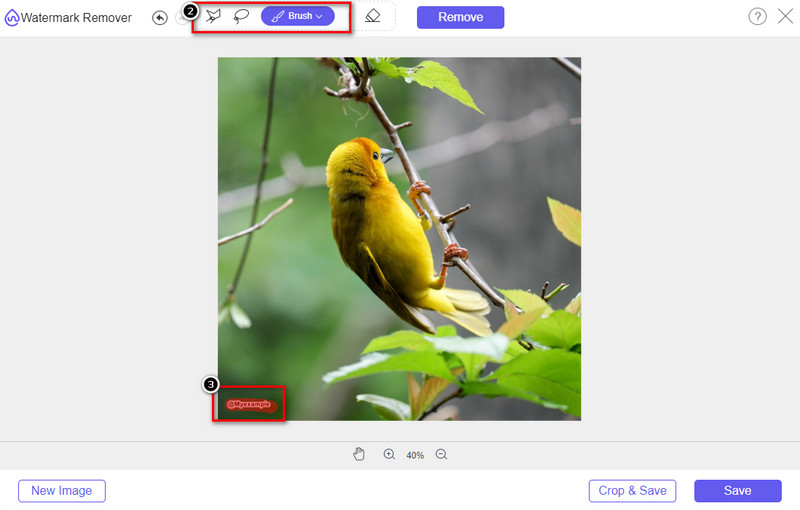
Βήμα 3. Μπορείτε να χρησιμοποιήσετε τρία εργαλεία για να επισημάνετε το υδατογράφημα· παρότι λειτουργούν διαφορετικά, είναι εξίσου αποτελεσματικά. Επιλέξτε ένα εργαλείο και στη συνέχεια επισημάνετε την περιοχή της εικόνας που έχει το υδατογράφημα.
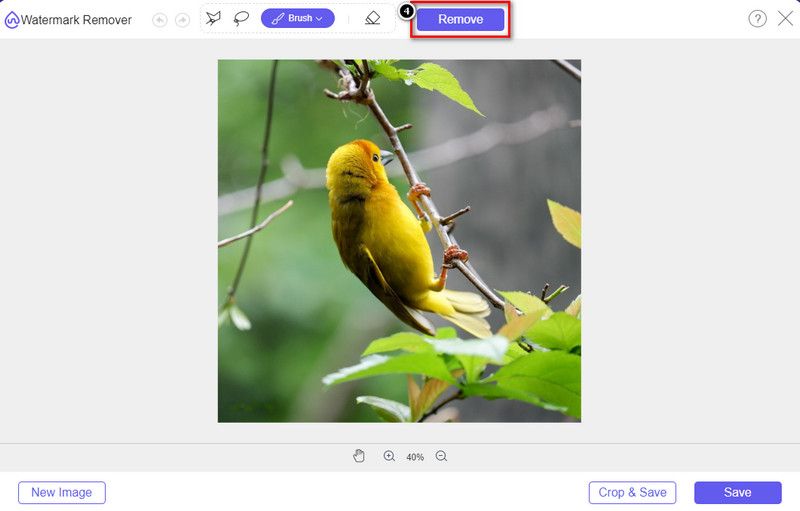
Βήμα 4. Βεβαιωθείτε ότι κάνετε κλικ στο εικονίδιο Remove μετά την επισήμανση του υδατογραφήματος με το εργαλείο. Αυτό το βήμα είναι απαραίτητο ώστε, όταν εξαγάγετε την εικόνα, να την έχετε χωρίς το υδατογράφημα.
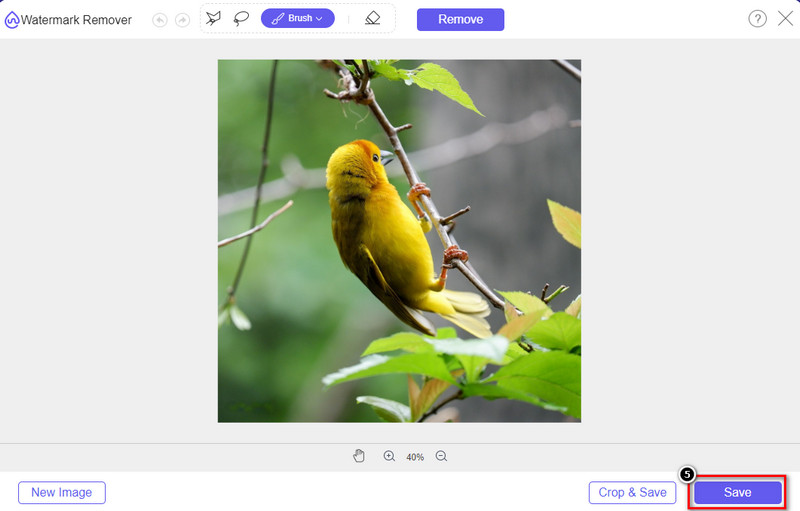
Βήμα 5. Για να ξεκινήσετε τη διαδικασία εξαγωγής, μπορείτε τώρα να κάνετε κλικ στο κουμπί Save. Περιμένετε να ολοκληρωθεί η διαδικασία και στη συνέχεια μπορείτε να ελέγξετε την εικόνα, όπου πλέον δεν θα είναι ορατό το υδατογράφημα του Origin Graph στην περιοχή.
Πλεονεκτήματα
- Ένα δωρεάν εργαλείο αφαίρεσης υδατογραφήματος εικόνων που βασίζεται στον ιστό στο οποίο μπορείτε να έχετε πρόσβαση.
- Λειτουργεί αποτελεσματικά στην αφαίρεση του υδατογραφήματος με την υποστήριξη AI-Technology.
- Υποστηρίζει μια μεγάλη ποικιλία μορφών εικόνας που μπορεί να έχετε στην τοπική μονάδα δίσκου σας.
- Δεν προστίθεται υδατογράφημα στις εξαγόμενες εικόνες.
Μειονεκτήματα
- Απαιτείται σύνδεση στο διαδίκτυο για να λειτουργήσει.
- Η εστίασή του είναι στην αφαίρεση του υδατογραφήματος και τίποτα άλλο.
Μέρος 2. Πώς να αντιγράψετε γραφήματα από το Origin στο Word ή το PowerPoint χωρίς το υδατογράφημα
Σε αυτό το μέρος του άρθρου, θα σας δώσουμε τη διαδικασία που πρέπει να γνωρίζετε για να προσθέσετε το γράφημα που δημιουργήσατε στο Γράφημα προέλευσης χωρίς το υδατογράφημα. Ακολουθήστε το ανάλογα για να προσθέσετε το γράφημα που κάνετε με επιτυχία στο Microsoft Word και το PowerPoint χωρίς υδατογράφημα.
Θα χρειαστεί να ελευθερώσετε τουλάχιστον 1,9 GB λόγω του τεράστιου μεγέθους του αρχείου. Στο αρχείο 1,9 GB, μπορείτε να έχετε τη βοήθεια που χρειάζεστε, αλλά αν δεν θέλετε βοήθεια, μπορείτε να κάνετε λήψη της έκδοσης 652 MB μέσω .zip ή .exe.
Βήματα για το πώς να δημιουργήσετε ένα γράφημα για το γράφημα προέλευσης χωρίς το υδατογράφημα:
Βήμα 1. Αρχικά, κατεβάστε το Origin Graph στο λειτουργικό σας σύστημα πηγαίνοντας στην επίσημη ιστοσελίδα του. Ανοίξτε το εργαλείο για να ξεκινήσετε τη δημιουργία του γραφήματος που θέλετε.
Βήμα 2. Αφού εκκινήσετε το λογισμικό, προσθέστε τις τιμές του πίνακα που χρειάζεστε. Μπορείτε να προσθέσετε περισσότερες μεταβλητές και αντίστοιχο αριθμό γραφημάτων εδώ.
Επιπλέον: Μπορείτε να κάνετε κλικ στο Plot για να δείτε άλλα γραφήματα που μπορείτε να χρησιμοποιήσετε, όπως Basic 2D, Bar, Statistical και άλλα.
Βήμα 3. Κάντε κλικ στο File και στη συνέχεια πατήστε Save για να εξαγάγετε το γράφημα που δημιουργήσατε εδώ.
Βήμα 4. Μπορείτε να ακολουθήσετε τα βήματα που παραθέτουμε στο Μέρος 1 και να ακολουθήσετε τον οδηγό για την αφαίρεση του υδατογραφήματος από το Origin Graph με τη βοήθεια του FVC Free Watermark Remover Online.
Πώς να χρησιμοποιήσετε το γράφημα στο Word χωρίς υδατογράφημα:
Βήμα 1. Ανοίξτε την εφαρμογή Word στον υπολογιστή σας και κάντε κλικ στο Κενή Σελίδα. Αν έχετε ήδη δημιουργήσει έγγραφα Word, τότε ανοίξτε αυτό το αρχείο.
Βήμα 2. Πηγαίνετε στην καρτέλα Insert και στη συνέχεια κάντε κλικ στο Pictures. Αναζητήστε το αρχείο του γραφήματος στον τοπικό σας δίσκο, κάντε κλικ μία φορά πάνω του και μετά πατήστε Open για να το ανεβάσετε στο Word.
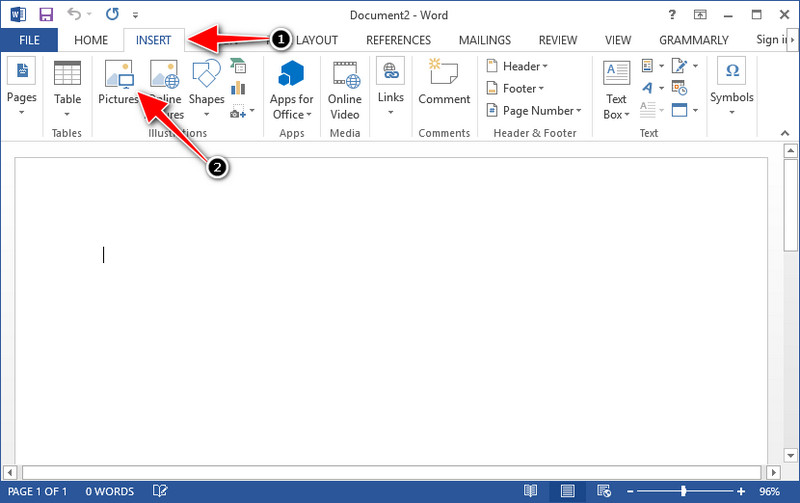
Βήμα 3. Θα φορτωθεί αυτόματα στο έγγραφο Word που ανοίξατε ή δημιουργήσατε· μπορείτε τώρα να τοποθετήσετε το γράφημα κρατώντας το και σύροντάς το μέσα στο Word.
Πώς να χρησιμοποιήσετε το γράφημα στο Powerpoint χωρίς υδατογράφημα:
Βήμα 1. Εκκινήστε το PowerPoint στον υπολογιστή σας και κάντε κλικ στο Κενή Παρουσίαση. Μπορείτε επίσης να δείτε τις πρόσφατες παρουσιάσεις που έχετε δημιουργήσει στην αριστερή πλευρά. Αν υπάρχει το αρχείο στο οποίο χρειάζεται να προσθέσετε το γράφημα, κάντε κλικ για να το ανοίξετε.
Βήμα 2. Πατήστε Insert και κάντε κλικ στο Picture για να εισαγάγετε το γράφημα-εικόνα που δημιουργήσατε στο Origin Graph.
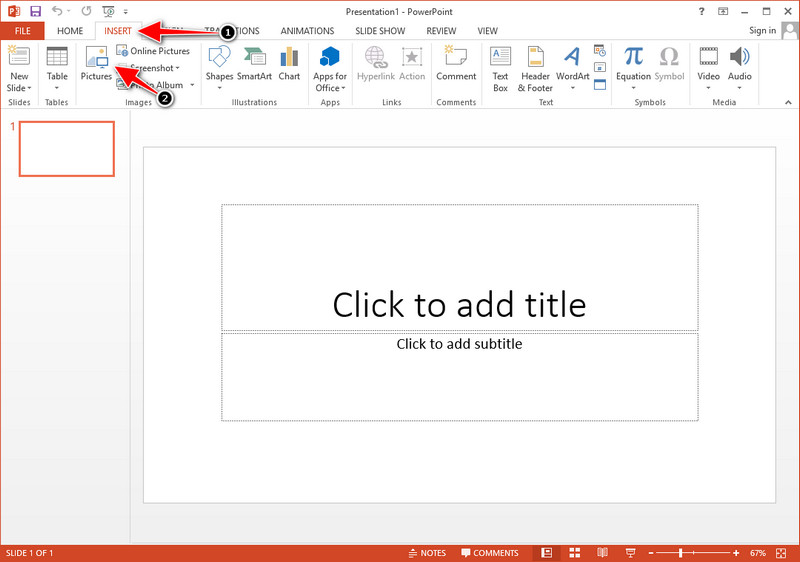
Βήμα 3. Προσαρμόστε την εικόνα του γραφήματος και τοποθετήστε τη στη διαφάνεια.
Περαιτέρω ανάγνωση:
Πώς να αφαιρέσετε το υδατογράφημα B612 από τις εικόνες σας
Πώς να αφαιρέσετε δωρεάν το υδατογράφημα του WOW Slider
Μέρος 3. Συχνές ερωτήσεις σχετικά με τον τρόπο κατάργησης του υδατογραφήματος από το γράφημα προέλευσης
Πόσο είναι το Origin Pro;
Για τους μεμονωμένους χρήστες, μπορείτε να λάβετε την έκδοση premium του Origin Graph για $435 εκκίνησης. Μπορείτε να επισκεφτείτε το επίσημο κατάστημά της στο Origin Lab.
Πού μπορώ να κατεβάσω επίσημα το Γράφημα Προέλευσης;
Επισκεφτείτε το Origin Lab για να κατεβάσετε το Γράφημα Προέλευσης. Προτού μπορέσετε να κατεβάσετε το λογισμικό στην επιφάνεια εργασίας σας, θα κάνει ερωτήσεις. Μετά από αυτό, θα υπάρχουν δύο επιλογές για λήψη του αρχείου, αν θέλετε να το κατεβάσετε με βοήθεια ή όχι, σε μορφή .exe ή zip.
Είναι το Excel και το Origin το ίδιο;
Το Excel και το Origin διαθέτουν ένα γραφικό περιβάλλον εργασίας που μοιάζει με υπολογιστικό φύλλο για την τακτοποίηση των δεδομένων, τον υπολογισμό και τον καθορισμό των ετικετών. Ωστόσο, το Excel εστιάζει στο να περιέχει πολλές στήλες και σειρές που μπορείτε να χρησιμοποιήσετε. Αλλά με το Origin, είναι για τη διάταξη χαρακτηριστικών που χρησιμοποιούν έναν τύπο στήλης αντί για έναν τύπο κελιού όπως αυτό που υποστηρίζει το Excel.
συμπέρασμα
Τώρα που μάθατε πώς να αφαιρείτε το υδατογράφημα από το Origin Graph, είναι καιρός να χρησιμοποιήσετε το γράφημα που δημιουργήσατε και να το παρουσιάσετε επαγγελματικά. Εάν ο σκοπός σας είναι να το χρησιμοποιήσετε στο Word ή στο Powerpoint, μπορείτε να διαβάσετε το Μέρος 2 για να μάθετε πώς να το κάνετε. Η αφαίρεση του υδατογραφήματος με αυτό το εργαλείο είναι μακράν η πιο επιθυμητή από οποιονδήποτε θέλει να αφαιρέσει το υδατογράφημα στις εικόνες. Το πρόβλημα λύνεται με αυτό το εργαλείο. Εάν αυτό το άρθρο σας βοήθησε, αφήστε ένα 5 αστέρια παρακάτω.
-
 Πώς να αφαιρέσετε το υδατογράφημα με το Pixlr με λεπτομερή βήματα [Αποτελεσματική]
 Θέλετε να μάθετε πώς να αφαιρέσετε ένα υδατογράφημα με το Pixlr; Αν ναι, συνεχίστε να διαβάζετε παρακάτω για να μάθετε πώς να το κάνετε και τις εναλλακτικές που μπορείτε να χρησιμοποιήσετε.
-
 Καταργήστε το υδατογράφημα Animotica σε εξαγόμενα βίντεο με 3 αποδεδειγμένους τρόπους
 Αναρωτηθήκατε ποτέ εάν είναι δυνατό να αφαιρέσετε το υδατογράφημα Animotica στα βίντεο που έχετε εξαγάγει; Αυτό το άρθρο παρέχει έναν τρόπο με τον οποίο πρέπει να κάνετε.
-
 Δωρεάν τρόποι για να αφαιρέσετε το υδατογράφημα του VideoShop στα βίντεο [χωρίς κόπο]
 Για να αφαιρέσετε το υδατογράφημα του VideoShop, η συσκευή σας θα χρειαστεί ένα εργαλείο αφαίρεσης υδατογραφήματος. Για να μάθετε τι είναι αυτά, διαβάστε αυτό το άρθρο.
