


 Video Converter Ultimate
 Εγγραφή οθόνης
 Επισκευή βίντεο
 Ασφαλές κατέβασμα
Πώς να μετατρέψετε αρχεία FLV σε βίντεο iPhone χωρίς απώλεια ποιότητας
Είναι ευρέως γνωστό ότι το iPhone και το iPad είναι εξοπλισμένα με οθόνες τελευταίας γενιάς. Είναι λογικό, λοιπόν, η παρακολούθηση ταινιών σε iDevices να είναι μια δημοφιλής δραστηριότητα. Ωστόσο, οι χρήστες iOS έρχονται πάντα αντιμέτωποι με ένα εμπόδιο μορφοποίησης κατά την αναπαραγωγή ταινιών. Για παράδειγμα, τα πολύ συνηθισμένα αρχεία FLV δεν υποστηρίζονται από το εγγενές λογισμικό της Apple. Γι’ αυτό μοιραζόμαστε αυτόν τον οδηγό, ώστε να σας βοηθήσουμε να μετατρέψετε αρχεία FLV σε βίντεο για iPhone σε υπολογιστή ή online με ευκολία.

Μέρος 1: Καλύτερο δωρεάν λογισμικό για μετατροπή FLV σε iPhone βίντεο
Το iPhone υποστηρίζει εγγενώς M4V, ένα μέρος του MP4, MOV και ορισμένα αρχεία AVI. Αυτό καθιστά δύσκολη τη μετατροπή FLV σε μορφή συμβατή με iPhone. Το FVC Free FLV Converter είναι ένα ισχυρό εργαλείο. Παρέχει έτοιμες ρυθμίσεις (presets) για να μετατρέπετε αρχεία πολυμέσων απευθείας σε μορφή iPhone. Το πιο σημαντικό είναι ότι είναι απολύτως δωρεάν.
Βασικά χαρακτηριστικά του καλύτερου δωρεάν μετατροπέα FLV σε βίντεο iPhone
- 1. Μετατρέψτε τα αρχεία FLV σε μορφή βίντεο iPhone εύκολα.
- 2. Συμπεριλάβετε πολλά προκαθορισμένα για iPhone, iPad και άλλα.
- 3. Προσφέρετε εκτεταμένες δυνατότητες μπόνους, όπως βελτίωση βίντεο.
Δωρεάν λήψηΓια Windows 7 ή νεότεραΑσφαλές κατέβασμα
Δωρεάν λήψηΓια MacOS 10.7 ή νεότεροΑσφαλές κατέβασμα
Πώς να μετατρέψετε FLV σε iPhone βίντεο σε παρτίδα
Βήμα 1: Προσθέστε αρχεία FLV
Εκτελέστε τον καλύτερο δωρεάν μετατροπέα FLV σε βίντεο iPhone αφού τον εγκαταστήσετε στον υπολογιστή σας. Έπειτα, κάντε κλικ στο κουμπί Add File(s) για να ανοίξετε το παράθυρο επιλογής αρχείων. Βρείτε και επιλέξτε όλα τα αρχεία FLV που θέλετε να αναπαράγετε στο iPhone και πατήστε Open. Ο μετατροπέας υποστηρίζει μαζική μετατροπή (batch converting).

Βήμα 2: Ορίστε τη μορφή εξόδου
Αφού φορτωθούν τα αρχεία FLV, θα τα δείτε όλα στην περιοχή βιβλιοθήκης. Μεταβείτε στο κάτω μέρος, κάντε κλικ και αναπτύξτε την επιλογή Output format. Επιλέξτε Apple iPhone από τη λίστα και διαλέξτε το μοντέλο της συσκευής σας. Στη συνέχεια, το λογισμικό θα βελτιστοποιήσει αυτόματα τις παραμέτρους. Θα ορίσει τη μορφή εξόδου για όλα τα αρχεία FLV. Αν θέλετε να αλλάξετε κάποια συγκεκριμένη παράμετρο, κάντε κλικ στο εικονίδιο Gear για να ανοίξετε το παράθυρο προφίλ.

Βήμα 3: Μετατροπή βίντεο FLV σε iPhone
Στη συνέχεια, κάντε κλικ στο κουμπί Open Folder, επιλέξτε τον φάκελο προορισμού και επιβεβαιώστε. Από προεπιλογή, το λογισμικό θα αποθηκεύσει τα βίντεο για iPhone στη βιβλιοθήκη βίντεο, αλλά μπορείτε να το αλλάξετε ανάλογα με τις προτιμήσεις σας. Τέλος, κάντε κλικ στο κουμπί Convert για να ξεκινήσει η μετατροπή των FLV σε βίντεο για iPhone.

Επιπλέον, το πρόγραμμα υποστηρίζει επίσης μετατροπή βίντεο FLV για Xbox, PS4, Samsung, Apple TV ή άλλες δημοφιλείς συσκευές.
Μέρος 2: Πώς να μετατρέψετε FLV σε μορφή iPhone online
Μερικοί άνθρωποι δεν θέλουν να εγκαθιστούν λογισμικό στον σκληρό τους δίσκο. Κάποιες φορές, μπορεί να χρειαστείτε να μετατρέψετε αρχεία FLV σε βίντεο για iPhone μόνο περιστασιακά. Σε τέτοιες περιπτώσεις, μια διαδικτυακή εφαρμογή μετατροπής βίντεο, όπως το FVC Free Online Video Converter, είναι μια φορητή λύση. Μπορεί να καλύψει τις ανάγκες σας χωρίς εγκατάσταση οποιουδήποτε λογισμικού. Επιπλέον, δεν απαιτεί καμία πληρωμή ή εγγραφή. Σε αντίθεση με άλλες web εφαρμογές, δεν έχει επίσης όριο μεγέθους αρχείου, οπότε μπορείτε να ανεβάσετε απεριόριστα αρχεία FLV για μετατροπή.
Βήμα 1: Ανοίξτε τη διεύθυνση https://www.free-videoconverter.net/free-online-video-converter/ σε έναν περιηγητή για να εμφανιστεί η αρχική σελίδα. Πατήστε το κουμπί Add Files to Convert και κατεβάστε το launcher.

Βήμα 2: Όταν ολοκληρωθεί η λήψη, ο launcher θα εμφανιστεί αυτόματα. Έπειτα, κάντε κλικ στο κουμπί Add File στην επάνω αριστερή γωνία και ανεβάστε τα αρχεία FLV που σκοπεύετε να παρακολουθήσετε στο iPhone.
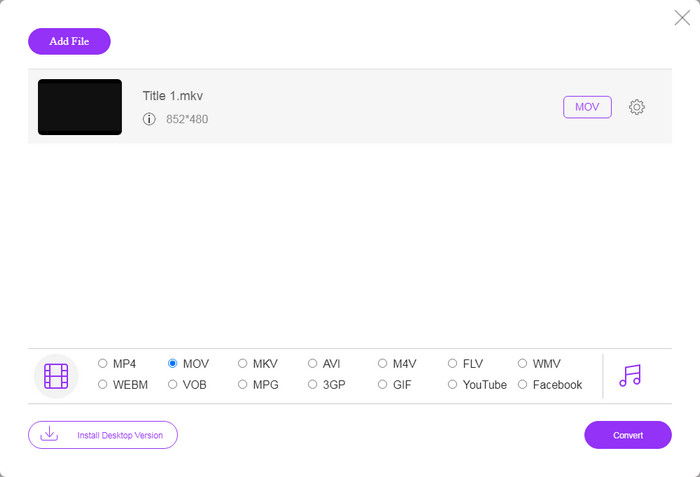
Βήμα 3: Εντοπίστε την περιοχή μορφής στο κάτω μέρος και επιλέξτε MOV, που είναι η πιο αποδεκτή μορφή βίντεο για συσκευές iOS. Κάντε κλικ στο κουμπί Convert και η web εφαρμογή θα πραγματοποιήσει τη μετατροπή FLV σε μορφή συμβατή με iPhone online. Περιμένετε να ολοκληρωθεί η διαδικασία και κατεβάστε το αποτέλεσμα στον σκληρό σας δίσκο.
Εάν θέλετε να επαναφέρετε τις επιλογές, κάντε κλικ στο εικονίδιο Ρυθμίσεις και θα τις βρείτε στο παράθυρο διαλόγου Ρυθμίσεις, όπως ανάλυση, κωδικοποιητής κ.λπ.
Μέρος 3: Συχνές ερωτήσεις σχετικά με τη μετατροπή FLV σε iPhone βίντεο
Μπορείτε να αναπαράγετε αρχεία FLV στο iPhone χωρίς μετατροπή;
Ο μόνος τρόπος να αναπαράγετε αρχεία FLV σε iPhone χωρίς μετατροπή είναι να εγκαταστήσετε έναν τρίτο FLV player, όπως το VLC για iOS. Έτσι μπορείτε να παρακολουθείτε εύκολα τις αγαπημένες σας ταινίες.
Πού αποθηκεύονται τα βίντεο στο iPhone;
Τα βίντεο που εγγράφετε και μεταφέρετε στο iPhone θα αποθηκευτούν στην εφαρμογή Φωτογραφίες. Εάν κατεβάσετε ένα βίντεο χρησιμοποιώντας μια εφαρμογή, θα αποθηκευτεί στην εφαρμογή. Τέλος πάντων, δεν μπορείτε να αποκτήσετε πρόσβαση στο σύστημα αρχείων σε iPhone ή iPad.
Ποιοι τύποι αρχείων χρησιμοποιούνται για το iPhone για βίντεο;
Στο iPhone, το H.264 είναι το μόνο υποστηριζόμενο κωδικοποιητή βίντεο. Όσον αφορά τις μορφές βίντεο, τα MOV και MP4 σχετίζονται στενά. Για εγγραφή βίντεο σε iOS, η Apple χρησιμοποιεί τον νεότερο κωδικοποιητή βίντεο H.265 ή HEVC.
συμπέρασμα
Τώρα, θα πρέπει να καταλάβετε πώς να ανοίξετε και να παίξετε αρχεία FLV στο iPhone. Προφανώς, δεν μπορείτε να ανοίξετε άμεσα βίντεο FLV στο iPhone. Ο καλύτερος τρόπος είναι να μετατρέψετε τα αρχεία σας σε μορφή που υποστηρίζεται από iPhone, όπως MOV. Στη συνέχεια, μπορείτε να αναπαραγάγετε τα βίντεο ομαλά. Το FVC Free FLV Converter είναι ένας από τους καλύτερους δωρεάν μετατροπείς βίντεο FLV σε iPhone. Δεν είναι μόνο εύκολο στη χρήση, αλλά και ικανό να παράγει εξαιρετική ποιότητα παραγωγής. Περισσότερες ερωτήσεις? Παρακαλώ γράψτε παρακάτω.
-
 3 εύκολες μέθοδοι για τη μετατροπή FLV σε AVI σε επιτραπέζιο υπολογιστή και σε απευθείας σύνδεση
 1. Μετατρέψτε τα βίντεο FLV σε άλλες μορφές πολυμέσων εύκολα. 2. Υποστήριξη σχεδόν όλων των μορφών βίντεο, όπως AVI, MP4, MKV, κ.λπ. 3. Διαδικασία δέσμης εκατοντάδων αρχείων FLV ανά μετατροπή.
-
 Κορυφαίοι 3 τρόποι μετατροπής FLV σε WMV σε Windows και Mac
 Ψάχνετε τον καλύτερο τρόπο για να μετατρέψετε FLV σε WMV χωρίς να χάσετε την ποιότητα σε υπολογιστή ή Mac; Είστε τυχεροί, καθώς εδώ μοιραζόμαστε τρεις μεθόδους για να κάνετε τη δουλειά εύκολα.
-
 Συγκεκριμένος οδηγός για τη μεταφόρτωση των βίντεο FLV στο YouTube
 Μεταφόρτωση FLV στο YouTube, αλλά απέτυχε; Μπορείτε να επιλύσετε αυτό το πρόβλημα μόνοι σας και να μετατρέψετε FLV σε κωδικοποιητές που υποστηρίζονται από το YouTube, ακολουθώντας τον αναλυτικό οδηγό μας.
