


 Video Converter Ultimate
 Εγγραφή οθόνης
 Επισκευή βίντεο
5 Resider GIF που μπορείτε να χρησιμοποιήσετε για να αλλάξετε το μέγεθος του κινούμενου GIF σας σε απευθείας σύνδεση και εκτός σύνδεσης
Η αλλαγή μεγέθους ενός GIF είναι μια εύκολη εργασία με οποιονδήποτε επεξεργαστή, αλλά δεν υποστηρίζουν όλοι οι επεξεργαστές αυτόν τον τύπο μορφής. Αντί να δοκιμάζετε διαφορετικά εργαλεία και να σπαταλάτε πολύ χρόνο, γιατί δεν συμμετέχετε στην ανάγνωση αυτού του άρθρου; Γιατί; Επειδή παρουσιάζουμε προγράμματα αλλαγής μεγέθους που μπορείτε να χρησιμοποιήσετε και θα αναφέρουμε μόνο αντικειμενικά στοιχεία για αυτά τα πέντε εργαλεία. Λοιπόν, είστε έτοιμοι να μάθετε τα προγράμματα αλλαγής μεγέθους για κινούμενα GIF που είναι διαθέσιμα στις πλατφόρμες σας; Αν ισχύει αυτό, τότε πρέπει τώρα να προχωρήσουμε σε μια λεπτομερή παρουσίαση αυτών των πέντε εργαλείων αλλαγής μεγέθους GIF παρακάτω και να μάθουμε τις διαφορές του καθενός.

Μέρος 1. Top 5 Online & Offline Resizer GIF
1. FVC Video Converter Ultimate [Συνιστάται]
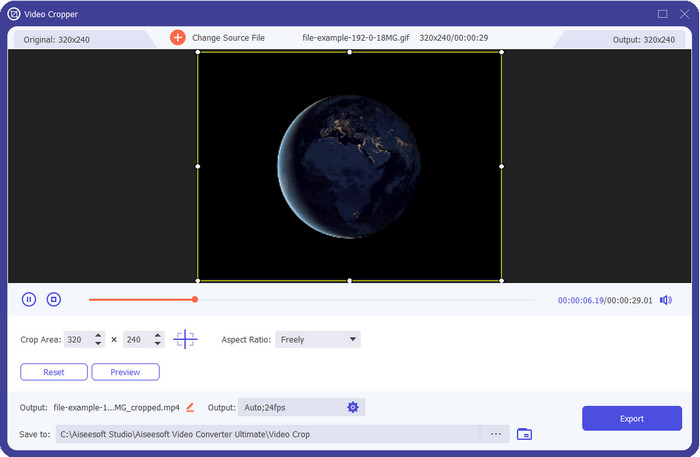
Κανένα από τα εργαλεία εδώ δεν διαθέτει όσα μπορεί να προσφέρει το FVC Video Converter Ultimate στα GIF σας. Ίσως αναρωτιέστε τι είναι αυτό που κάνει αυτό το εργαλείο ξεχωριστό; Αυτό το 'ultimate' εργαλείο προσφέρει μια ολοκληρωμένη και οικονομική λύση για την αλλαγή μεγέθους GIF, που θα λατρέψετε να χρησιμοποιείτε. Είναι εξαιρετικό για να έχετε επαγγελματικό αποτέλεσμα, παρόμοιο με αυτό που μπορεί να σας προσφέρει το Photoshop, αλλά πολύ πιο γρήγορα, τόσο για αρχάριους όσο και για προχωρημένους. Επιπλέον, αυτό το εργαλείο μπορεί να αλλάξει το μέγεθος του GIF σας, αλλά μπορείτε επίσης να μετατρέψετε τα GIF σας σε MP4, MOV, AVI, MKV και άλλα 200+ φορμά, ώστε να είναι συμβατά με άλλες συσκευές. Αν χρειάζεται να δημιουργήσετε ένα GIF και θέλετε να το ορίσετε ως ταπετσαρία, τότε είστε τυχεροί που έχετε αυτό το “ultimate” εργαλείο, γιατί διαθέτει δημιουργό GIF που θα σας βοηθήσει. Αν θέλετε να μάθετε πώς να δημιουργείτε GIF και να τα ορίζετε ως ταπετσαρία, κάντε κλικ σε αυτόν τον σύνδεσμο. Παρ’ όλα αυτά, αυτό το εργαλείο συνιστάται σε όλους τους χρήστες για να μάθουν πώς να αλλάζουν το μέγεθος GIF με άνεση, χωρίς να διαβάζουν εγχειρίδιο χρήσης.
Δωρεάν ΛήψηΓια Windows 7 ή νεότεραΑσφαλής λήψη
Δωρεάν ΛήψηΓια MacOS 10.7 ή νεότεροΑσφαλής λήψη
Πλεονεκτήματα
- Αλλάξτε το μέγεθος του GIF σας σύμφωνα με το μέγεθος που θέλετε ελεύθερα σύροντας τις τελείες ελεύθερα.
- Έχει μια προεπισκόπηση που μπορείτε να δείτε για να βεβαιωθείτε ότι είναι το ακριβές μέγεθος που χρειάζεστε στα GIF σας.
- Διαθέτει ενσωματωμένη εξαιρετικά γρήγορη απόδοση για μια διαδικασία εξαγωγής κεραυνών.
- Διατίθεται σε οποιοδήποτε επιτραπέζιο λειτουργικό σύστημα όπως Windows και Mac.
Μειονεκτήματα
- Πρέπει να αγοραστεί.
2. Adobe Photoshop
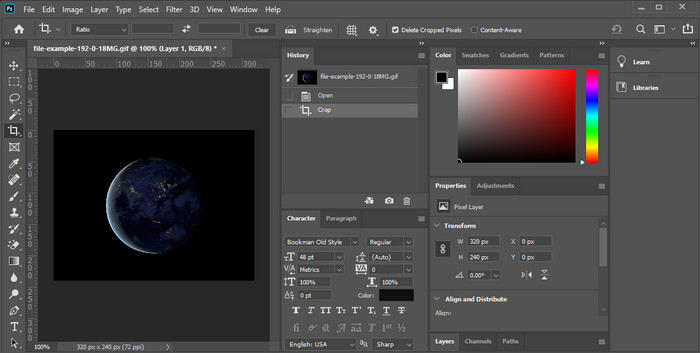
Κι αν θέλετε ένα επαγγελματικό εργαλείο αλλαγής μεγέθους; Τότε το Adobe Photoshop είναι μια επιλογή. Αυτό το πρόγραμμα που κατεβαίνει στον υπολογιστή σάς βοηθά να αλλάζετε το μέγεθος οποιουδήποτε GIF εύκολα, μέσα σε λίγα λεπτά. Πιο αναλυτικά, αυτό το εργαλείο είναι η επιλογή κάθε επαγγελματία χρήστη που θέλει να επεξεργαστεί τις εικόνες του, όπως τα GIF, ώστε να δείχνουν καλύτερα και πιο ελκυστικά. Αν και το εργαλείο είναι επαγγελματικό, εξακολουθεί να είναι δύσχρηστο για όσους δεν είναι εξοικειωμένοι με την τεχνολογία. Επίσης, αν θέλετε να αλλάξετε το μέγεθος του GIF σας, είναι ένα ακριβό εργαλείο για αυτή τη δουλειά. Όμως, αν θέλετε να χρησιμοποιήσετε το PhotoShop για αλλαγή μεγέθους GIF και να προσθέσετε κάποιες μικρές λεπτομέρειες, τότε αυτό το εργαλείο θα σας βοηθήσει· ωστόσο, η εκμάθησή του θα πάρει περισσότερο χρόνο από τα άλλα εργαλεία.
Πλεονεκτήματα
- Είναι η καλύτερη επιλογή για επαγγελματική επεξεργασία εικόνας.
- Επαγγελματικό εργαλείο για επαγγελματική χρήση.
- Προηγμένες δυνατότητες επεξεργασίας για GIF.
Μειονεκτήματα
- Δαπανηρός.
- Δύσκολο στη χρήση αν είστε νέος στον τομέα της επεξεργασίας.
3. GIFGIF
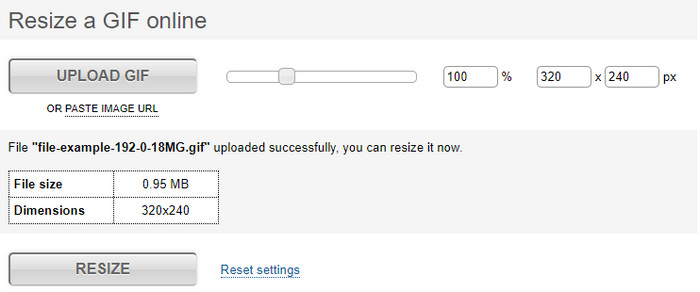
Το GIFGIFs διαθέτει μία από τις πιο εκτενείς βιβλιοθήκες GIF που μπορείτε να χρησιμοποιήσετε για να αποθηκεύετε έτοιμα GIF στον δίσκο σας και έχει έναν απλό επεξεργαστή για την αλλαγή μεγέθους μεγάλων GIF. Αυτό το εργαλείο υπάρχει για να βοηθά τους χρήστες να προσαρμόζουν τα GIF τους, εφόσον χρειάζεται, μέσω online υπηρεσιών. Αν και αυτό το διαδικτυακό εργαλείο αλλαγής μεγέθους είναι δωρεάν και online, δεν έχει διαφημίσεις στην επιφάνεια εργασίας που να σας ενοχλούν, γεγονός εξαιρετικό. Όμως το κύριο πρόβλημα με το εργαλείο αλλαγής μεγέθους είναι ότι θα χρειαστεί να δηλώσετε ακριβώς το μέγεθος της αναλογίας της εικόνας που θέλετε. Αυτό το πρόβλημα είναι πιο αγχωτικό από τις διαφημίσεις, γιατί θα χρειαστεί να δοκιμάζετε ξανά και ξανά για να βεβαιωθείτε ότι πετύχατε ακριβώς το μέγεθος που θέλετε. Ωστόσο, αν έχετε μια ιδέα για την αναλογία διαστάσεων που χρειάζεστε, αυτό είναι μια επιλογή για να αλλάξετε το μέγεθος των GIF σας.
Πλεονεκτήματα
- Ενσωματωμένη βιβλιοθήκη για GIF.
- Δεν έχει διαφημίσεις στον ιστό που μπορεί να σας ενοχλήσουν ή να σας ενοχλήσουν κατά την αλλαγή μεγέθους του GIF.
- Εύκολο και δωρεάν στη χρήση.
Μειονεκτήματα
- Απαιτείται το Διαδίκτυο για να ολοκληρωθεί η εργασία αλλαγής μεγέθους GIF.
- Είναι δύσκολο να γνωρίζεις αν αυτό είναι το ακριβές μέγεθος που χρειάζεσαι.
4.RedKetchup.io
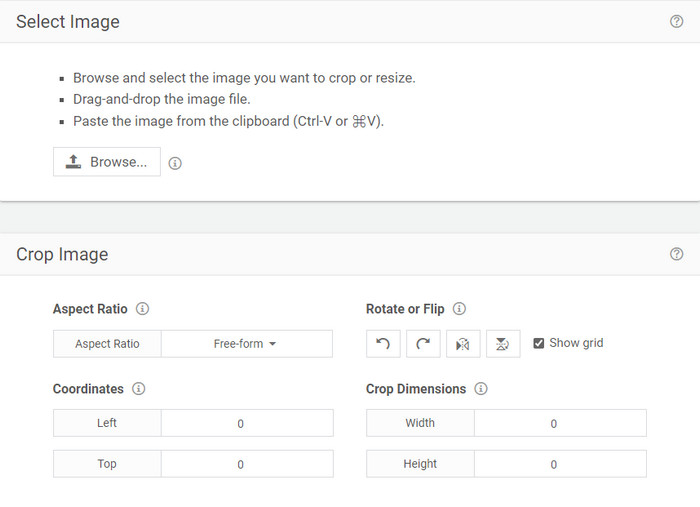
Το RedKetchup.io προσφέρει έναν απλό και διαδραστικό τρόπο για να αλλάξετε το μέγεθος κινούμενων GIF μέσα στα συγκεκριμένα όρια που θέλετε. Αυτό το διαδικτυακό εργαλείο επιτρέπει στους χρήστες του διαδικτύου να βελτιώνουν την εμφάνιση των GIF τους με τις λειτουργίες επεξεργασίας που προσφέρει. Επιπλέον, μπορείτε να κάνετε εδώ πολύ πιο λεπτομερή αλλαγή μεγέθους από ό,τι σας προσφέρει το Ezgif. Αν και αυτό το εργαλείο είναι πολύ πιο εύχρηστο από το πρώτο, η επιφάνεια εργασίας του υστερεί σε χρώματα για να φαίνεται επαγγελματική. Το μόνο χρώμα που θα δείτε όταν αποκτήσετε πρόσβαση σε αυτό το εργαλείο είναι το όνομα του, και είναι κόκκινο. Επιπλέον, το εργαλείο είναι δωρεάν για πρόσβαση· παρ’ όλα αυτά, ορισμένες διαφημίσεις στην επιφάνεια εργασίας μπορεί να είναι κάπως κουραστικές στο μάτι.
Πλεονεκτήματα
- Διαθέσιμο για πρόσβαση σε οποιονδήποτε έχει σύνδεση στο διαδίκτυο.
- Πολύ λεπτομερής αλλαγή μεγέθους GIF.
- Δωρεάν, ωστόσο, είναι απλό στη χρήση.
Μειονεκτήματα
- Έχει ενοχλητικές διαφημίσεις στη διεπαφή.
- Εξαρτάται από το Διαδίκτυο.
5. Εζγκίφ
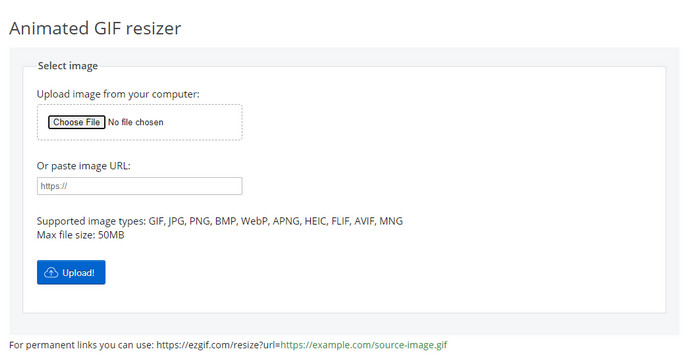
Είναι γνωστό ως ένας από τους κορυφαίους δημιουργούς GIF και μπορεί επίσης να αλλάξει το μέγεθος των GIF online, αν το χρειάζεστε. Το Ezgif προσφέρει μια διαισθητική επιφάνεια εργασίας για να βελτιώσετε το GIF σας χωρίς να καταβάλετε μεγάλη προσπάθεια. Επιπλέον, αν δεν είστε εξοικειωμένοι με την τεχνολογία, αυτό το εργαλείο είναι μια εξαιρετική επιλογή για αυτόν τον τύπο χρήστη. Ωστόσο, αν δεν έχετε σύνδεση στο διαδίκτυο, αυτό το εργαλείο δεν είναι επιλογή για αλλαγή μεγέθους του GIF σας, επειδή εξαρτάται από το διαδίκτυο, όπως και το άλλο web εργαλείο παρακάτω. Επίσης, οι διαφημίσεις στην επιφάνεια εργασίας μπορεί να σας ενοχλούν ενώ αλλάζετε το μέγεθος των GIF. Αν χρησιμοποιήσετε αυτόν τον επεξεργαστή, φροντίστε να ξέρετε τον αριθμό πλάτους και ύψους που θέλετε να ορίσετε, επειδή δεν υπάρχει προεπισκόπηση για να ελέγξετε αν το GIF με αλλαγμένο μέγεθος καλύπτει τις ανάγκες σας, και δεν μπορείτε να σύρετε την αναλογία για να τη ρυθμίσετε όπως θέλετε.
Πλεονεκτήματα
- Ο καλύτερος κατασκευαστής GIF στο διαδίκτυο.
- Διαθέτει απλές λειτουργίες επεξεργασίας GIF που θα χρειαστείτε.
- Πρόσβαση σε αυτό δωρεάν.
Μειονεκτήματα
- Δεν έχει προεπισκόπηση για να ελέγξετε αν το μέγεθος του GIF είναι σωστό.
- Οι διαφημίσεις βρίσκονται στη διεπαφή που μπορεί να σας εκνευρίσουν.
Μέρος 2. Γράφημα σύγκρισης σχετικά με τα 5 GIF Resizer
| Χαρακτηριστικά | Video Converter Ultimate [Συνιστάται] | Photoshop | GIFGIFs | RedKetchup.io | Εζγκίφ |
| Λειτουργίες επεξεργασίας |  | | | | |
| Χωρίς διαφημίσεις | | |  | | |
| Φιλικό προς το χρήστη | | | | | |
| Εξαρτάται από το Διαδίκτυο | | | | | |
| Φθηνό ή χωρίς κόστος | | | | | |
| Παράθυρο προεπισκόπησης | | | | | |
Μέρος 3. Συχνές ερωτήσεις σχετικά με το GIF Resizer
Μετά την αλλαγή μεγέθους, αλλάζει η ποιότητα του GIF;
Όσον αφορά την ποιότητα, το GIF δεν θα πρέπει να αλλάξει δραστικά σε θολό, αλλά η ποιότητα θα αλλάξει αφού αλλάξετε το μέγεθος του GIF, αλλά δεν θα πρέπει να απέχει πολύ από το αρχικό GIF. Επομένως, εάν αντιμετωπίσετε αυτό το πρόβλημα, σημαίνει ότι η ποιότητα έχει αλλάξει κατά την εξαγωγή και όχι κατά την αλλαγή μεγέθους του GIF.
Το μέγεθος του αρχείου του GIF γίνεται μικρό;
Μετά τη σύγκριση των δύο GIF, του αρχικού και του αλλαγμένου μεγέθους, είδαμε μια σημαντική αλλαγή στο μέγεθος του αρχείου. Αν και είναι μια μικρή αλλαγή, μπορούμε να πούμε ότι το μέγεθός του έγινε μικρότερο από το αρχικό.
Μπορώ να το επιστρέψω στο αρχικό GIF μετά την αλλαγή μεγέθους;
Αφού αλλάξετε το μέγεθος του GIF, μπορείτε να το μετατρέψετε στην αρχική κατάσταση, εάν δεν το έχετε εξαγάγει ακόμα. Ωστόσο, εάν εξάγετε το GIF και δεν είστε ικανοποιημένοι με το αποτέλεσμα, δεν μπορείτε να το επαναφέρετε στο αρχικό μέγεθος GIF. Για να αποφύγετε αυτό το πρόβλημα, πρέπει να χρησιμοποιήσετε ένα πρόγραμμα αλλαγής μεγέθους GIF που διαθέτει προεπισκόπηση για να ελέγξετε την έξοδο πριν την εξαγάγετε.
Μετά τη μετατροπή JPG σε GIF θα μετακινηθεί;
Όχι, δεν θα συμβεί, επειδή τα JPEG δεν είναι κινούμενες εικόνες όπως τα κινούμενα GIF. Μπορείτε όμως να μετατρέψετε πολλές JPEG σε ένα GIF αν τις μετατρέψετε σε ένα 'photo GIF'. Θέλετε να μάθετε πώς να το κάνετε; Σε αυτή την περίπτωση, αυτό το άρθρο θα σας βοηθήσει πολύ να μετατρέψετε τη συλλογή JPEG σας σε GIF.
συμπέρασμα
Τώρα που γνωρίζουμε ποιο πρόγραμμα αλλαγής μεγέθους GIF μπορείτε να χρησιμοποιήσετε, ήρθε η ώρα να επιλέξετε. Όλα τα online και offline εργαλεία δοκιμάστηκαν ξεχωριστά για να προσφέρουμε ακριβείς πληροφορίες σχετικά με τα εργαλεία και τις δυνατότητές τους. Ωστόσο, διαπιστώσαμε ότι το Video Converter Ultimate προσφέρει το καλύτερο αποτέλεσμα όσον αφορά την αλλαγή μεγέθους GIF. Αν και το εργαλείο πρέπει να αγοραστεί, μπορούμε με σιγουριά να πούμε ότι τα χρήματά σας δεν θα πάνε χαμένα μετά την απόκτηση αυτού του “ultimate” εργαλείου. Έτσι λοιπόν, αν εξακολουθείτε να αμφιβάλλετε για όσα λέμε, τότε πρέπει να δοκιμάσετε και να κατεβάσετε το “ultimate” εργαλείο κάνοντας κλικ στο κουμπί λήψης.
Δωρεάν ΛήψηΓια Windows 7 ή νεότεραΑσφαλής λήψη
Δωρεάν ΛήψηΓια MacOS 10.7 ή νεότεροΑσφαλής λήψη
-
 Πώς να φτιάξετε ένα GIF στο iPhone από πολλές φωτογραφίες που τραβήξατε και αποθηκεύσατε
 Θέλετε να μάθετε πώς να δημιουργείτε GIF στο iPhone από τις Φωτογραφίες σας; Αυτή η ανάρτηση κοινοποιεί 3 λογισμικό που μπορείτε να χρησιμοποιήσετε για να δημιουργήσετε GIF στο iPhone σας.
-
 Οι 3 κορυφαίοι μετατροπείς που δεν πρέπει να χάσετε για να μετατρέψετε PNG σε κινούμενο GIF
 Θέλετε να ζωντανέψετε το PNG σας; Στη συνέχεια, προσπαθήστε να μετατρέψετε την κινούμενη μορφή PNG σε GIF με τα χρήσιμα διαθέσιμα εργαλεία και τα βήματα για το πώς να το κάνετε.
-
 Κορυφαίοι 4 τρόποι για να μετατρέψετε το κινούμενο GIF σε FLV σε PC/Mac/Online/Android/iOS
 Θέλετε να μετατρέψετε το GIF σας σε FLV και να τα μοιραστείτε online; Αν ναι, ας δούμε τους καλύτερους μετατροπείς GIF σε FLV που μπορείτε να χρησιμοποιήσετε σε PC, Mac, Online, Android και iOS.
