


 Video Converter Ultimate
 Εγγραφή οθόνης
 Επισκευή βίντεο
Πώς να προσθέσετε ένα φίλτρο στο GIF σε Windows/Mac/iPhone/Android με βήματα
Θέλετε να μάθετε πώς να «απογειώσετε» το GIF σας προσθέτοντας ένα φίλτρο; Δεν χρειάζεται να ανησυχείτε, γιατί σε αυτό το άρθρο θα βρείτε τους πιο δημοφιλείς επεξεργαστές GIF που μπορείτε να χρησιμοποιήσετε σε υπολογιστή και κινητό για να προσθέσετε φίλτρα. Οι πληροφορίες που παραθέτουμε εδώ θα σας δώσουν αξιόπιστα στοιχεία σχετικά με το πώς να προσθέσετε φίλτρα σε ένα GIF. Ας δούμε λοιπόν ποια προγράμματα φίλτρων για GIF μπορείτε να χρησιμοποιήσετε στο λειτουργικό σας σύστημα, χωρίς άλλη καθυστέρηση.

Μέρος 1. Γιατί πρέπει να προσθέσω φίλτρο στο GIF
Εάν μοιράζεστε το GIF στον ιστό, πρέπει πρώτα να προσθέσετε ένα φίλτρο στο GIF για να βελτιώσετε το χρώμα, ανάλογα με την προσαρμογή σας. Σύμφωνα με έρευνα, το φιλτραρισμένο GIF προσελκύει το κοινό περισσότερο από τα GIF που δεν έχουν. Επομένως, εάν θέλετε να προσελκύσετε ένα μεγάλο κοινό, πρέπει να αρχίσετε να προσθέτετε ένα φίλτρο σε κάθε GIF που έχετε φτιάξει με τον επεξεργαστή GIF που έχετε. Τώρα, αν δεν έχετε ιδέα πώς να προσθέσετε ένα φίλτρο στο GIF σας, σας προτείνουμε ανεπιφύλακτα να διαβάσετε ολόκληρο το άρθρο.
Μέρος 2. Προσθέστε φίλτρα στο GIF με το Phenomenal GIF Editor σε Windows & Mac [Εύκολος τρόπος]
Το Video Converter Ultimate είναι ο καλύτερος επεξεργαστής GIF που έχουμε δει και επιλέξει στην αγορά. Είναι γνωστό ως μια ολοκληρωμένη λύση επεξεργασίας GIF, καθώς προσφέρει πολλές δυνατότητες επεξεργασίας, όπως η προσθήκη φίλτρων σε βίντεο ή GIF. Με αυτό το εργαλείο δεν χρειάζεται να είστε επαγγελματίας για να το χρησιμοποιήσετε, αλλά ξέρετε ποιο είναι το καλύτερο; Θα έχετε επαγγελματικό αποτέλεσμα μέσα σε λίγα μόνο βήματα. Αν λοιπόν θέλετε να προσθέσετε φίλτρο σε ένα GIF, μπορείτε να ακολουθήσετε τον οδηγό χωρίς καμία δυσκολία.
Βήμα 1. Για να χρησιμοποιήσετε τον επεξεργαστή GIF, πρέπει να πατήσετε το κουμπί λήψης παρακάτω και να επιλέξετε ποιο λειτουργικό σύστημα χρησιμοποιείτε. Αφού το κατεβάσετε, εγκαταστήστε το λογισμικό ακολουθώντας τη διαδικασία εγκατάστασης και έπειτα ανοίξτε το για να ξεκινήσετε να προσθέτετε φίλτρο στο GIF.
Δωρεάν ΛήψηΓια Windows 7 ή νεότεραΑσφαλής λήψη
Δωρεάν ΛήψηΓια MacOS 10.7 ή νεότεροΑσφαλής λήψη
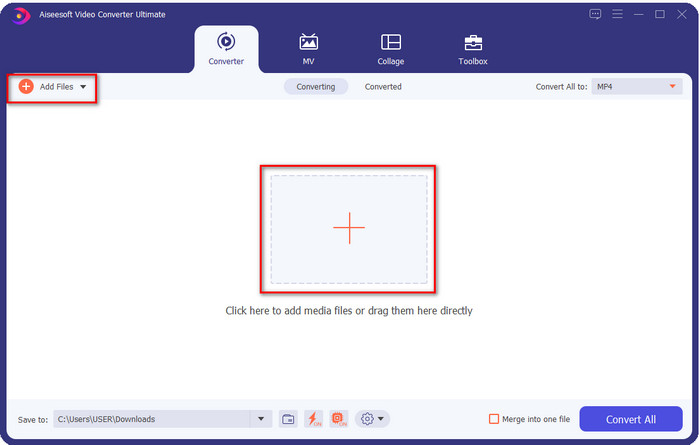
Βήμα 2. Ανεβάστε το GIF που θέλετε κάνοντας κλικ στο εικονίδιο + στο κέντρο της κύριας διεπαφής· μπορείτε επίσης να κάνετε κλικ στο Add Files αν προτιμάτε· όποια από τις δύο επιλογές και αν χρησιμοποιήσετε, λειτουργούν το ίδιο. Βρείτε το αρχείο .gif στον φάκελο του υπολογιστή που θα εμφανιστεί στην οθόνη σας και κάντε κλικ στο Open για να το ανεβάσετε.
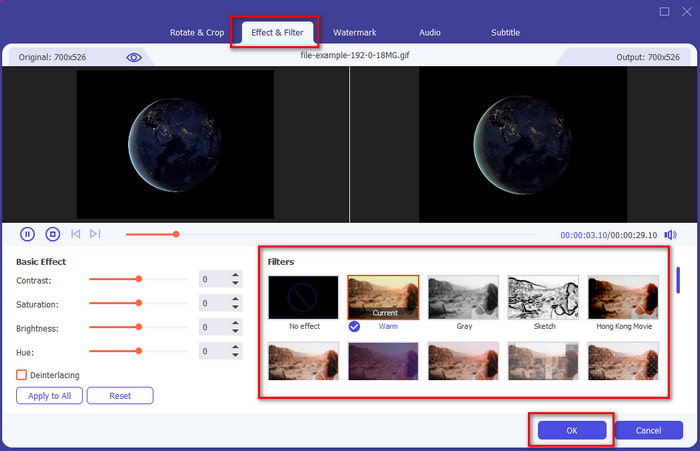
Βήμα 3. Κάντε κλικ στο κουμπί με το ραβδί για να ανοίξει ένα νέο παράθυρο, όπου θα προσθέσετε φίλτρο στο GIF. Πηγαίνετε στην καρτέλα Effect & Filters από κάτω και θα δείτε μια διαφορετική σειρά φίλτρων που μπορείτε να χρησιμοποιήσετε για να κάνετε το GIF σας να δείχνει καλύτερο από άλλα GIF στο διαδίκτυο. Μπορείτε να δοκιμάσετε όλα τα φίλτρα κάνοντας κλικ σε καθένα ξεχωριστά· αν είστε ικανοποιημένοι με το φίλτρο, πρέπει να κάνετε κλικ στο OK για να εφαρμοστεί το φίλτρο με επιτυχία στο GIF.
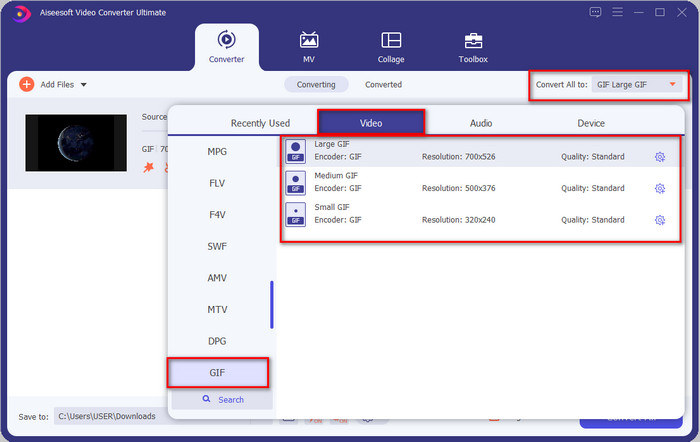
Αν θέλετε να διατηρήσετε τη μορφή του GIF σας, κάντε κλικ στο Convert All to και βρείτε τη μορφή GIF. Επιλέξτε τη μορφή GIF που θέλετε να έχετε και κάντε κλικ πάνω της.
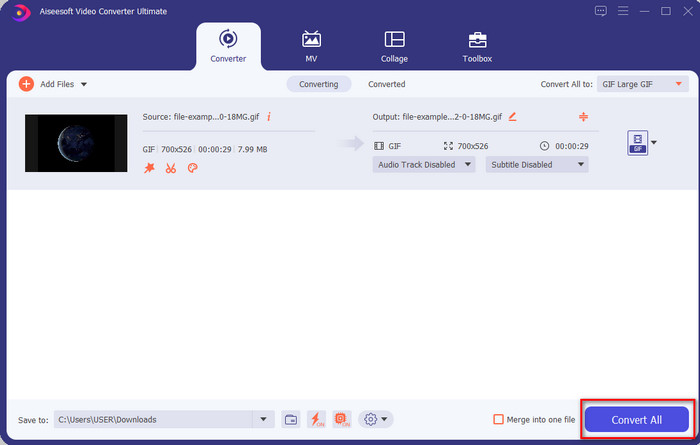
Βήμα 4. Και για να κατεβάσετε το GIF με το φίλτρο, κάντε κλικ στο κουμπί Convert All. Εύκολο, έτσι δεν είναι; Με το Video Converter Ultimate μπορείτε να κάνετε σχεδόν τα πάντα που αφορούν τα GIF, χωρίς καμία δυσκολία.
Μέρος 3. Πώς να προσθέσετε φίλτρο σε GIF με το GIF Maker- Διαθέσιμο πρόγραμμα επεξεργασίας σε συσκευές Android
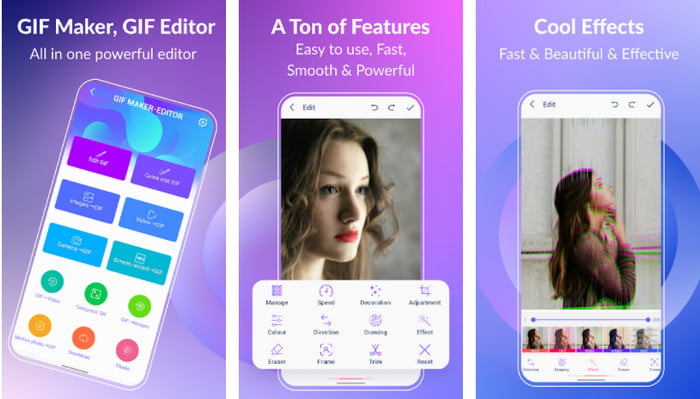
Το GIF Maker-Editor είναι ένα ολοκληρωμένο εργαλείο που μπορείτε να κατεβάσετε στο Android σας. Υποστηρίζει διάφορα φίλτρα για να σας βοηθήσει να δημιουργήσετε ένα όμορφο GIF. Αν και το εργαλείο είναι εξαιρετικό, οι διαφημίσεις εμφανίζονται απροειδοποίητα· πρέπει να είστε προσεκτικοί για να μην πατάτε πάνω τους. Δείτε λοιπόν τα βήματα για το πώς να προσθέσετε ένα χρωματικό φίλτρο GIF στα GIF σας.
Βήμα 1. Κατεβάστε το εργαλείο από το Play Store και ανοίξτε το.
Βήμα 2. Πατήστε Edit GIF και επιλέξτε το GIF που βρίσκεται στη βιβλιοθήκη εικόνων σας.
Βήμα 3. Βρείτε τα εφέ κάνοντας κύλιση στις επιλογές και πατήστε πάνω τους. Επιλέξτε το φίλτρο που θέλετε, πατήστε το εικονίδιο τικ και έπειτα OK για να αποθηκεύσετε το GIF.
Μέρος 4. Πώς να εφαρμόσετε το φίλτρο σε GIF με το GIF Maker Διαθέσιμο σε συσκευές iPhone
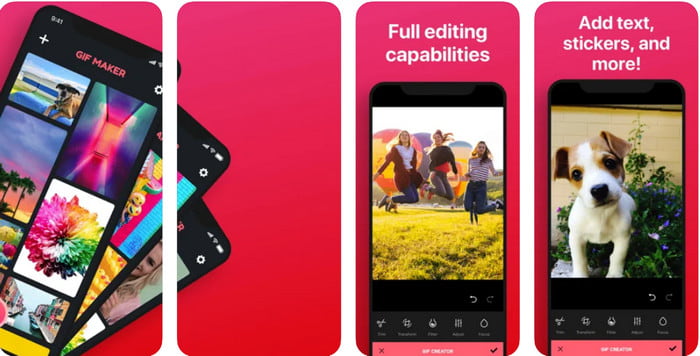
Το GIF Maker είναι ο ολοκληρωμένος επεξεργαστής GIF που μπορείτε να κατεβάσετε στο iPhone σας. Με αυτό το εργαλείο μπορείτε να δημιουργήσετε τα δικά σας προσαρμοσμένα GIF μέσα σε λίγα κλικ. Ωστόσο, δεν μπορείτε να χρησιμοποιήσετε απευθείας ένα GIF, επειδή η μορφή δεν υποστηρίζεται, αλλά μπορείτε να πατήσετε αυτόν τον σύνδεσμο και να μάθετε πώς να μετατρέψετε GIF σε ζωντανή ταπετσαρία. Αφού μετατρέψετε το GIF σε ζωντανή ταπετσαρία, μπορείτε να ακολουθήσετε τα επόμενα βήματα για να προσθέσετε φίλτρο στα GIF.
η δωρεάν έκδοση αυτού του εργαλείου θα αφήσει ένα υδατογράφημα στο GIF που εξάγετε.
Βήμα 1. Μπορείτε να κατεβάσετε την εφαρμογή δωρεάν από το App Store.
Βήμα 2. Ανοίξτε το εργαλείο, πατήστε το εικονίδιο +, πατήστε Choose Live Photo From Library και επιλέξτε τη ζωντανή φωτογραφία για να την ανεβάσετε.
Βήμα 3. Αφού ανεβάσετε τη ζωντανή φωτογραφία, πατήστε Filter και διαλέξτε ποιο φίλτρο θέλετε να προσθέσετε στο GIF σας. Πατήστε το τικ για να εφαρμοστεί στο βίντεο και πατήστε ξανά το τικ για να εξαχθεί το αρχείο.
Μέρος 5. Συχνές ερωτήσεις σχετικά με την προσθήκη φίλτρων σε GIF
Τα φίλτρα επηρεάζουν το χρώμα του GIF;
Ο συνδυασμός χρωμάτων θα επηρεάσει το GIF ή οποιοδήποτε μέσο εάν προσθέσετε το φίλτρο. Αυτά τα φίλτρα χρησιμοποιούνται για τη διόρθωση του χρωματικού συνδυασμού που θέλετε να έχετε, επομένως μην εκπλαγείτε αν το χρώμα θα είναι πολύ πιο βαθύ ή πιο ανοιχτό από την ακατέργαστη εικόνα του GIF.
Ποια είναι τα διαθέσιμα εφέ στο Instagram;
Υπάρχουν αναρίθμητα φίλτρα βίντεο που μπορείτε να χρησιμοποιήσετε στο Instagram και, αν αναρωτιέστε ποια είναι αυτά, μπορείτε να πατήσετε αυτόν τον σύνδεσμο και να δείτε τα 10 κορυφαία επιλεγμένα φίλτρα στο Instagram.
Μπορώ να κάνω βίντεο υψηλής ποιότητας μέσω φίλτρων;
Μπορείτε να τονίσετε τα χρώματα του βίντεο ώστε να δείχνει υψηλής ποιότητας. Ωστόσο, τα φίλτρα μπορούν μόνο να βελτιώσουν τα χρώματα του βίντεο και όχι τη συνολική ποιότητα. Αν όμως θέλετε να αναβαθμίσετε πραγματικά την ποιότητα του βίντεο, μπορείτε να διαβάσετε αυτό το άρθρο και να μάθετε πώς να βελτιώσετε την ποιότητα βίντεο.
συμπέρασμα
Και τώρα που έχουμε μια ιδέα για το πώς να προσθέσετε ένα φίλτρο στο GIF, πρέπει να δοκιμάσετε τα εργαλεία που παρέχουμε παραπάνω. Αν και τα εργαλεία παρουσιάζουν διαφορετικά πλεονεκτήματα στο φιλτράρισμα του GIF σας, εξακολουθούμε να πιστεύουμε ότι το Video Converter Ultimate θα σας προσφέρει τα καλύτερα φίλτρα που μπορείτε να χρησιμοποιήσετε για να δημιουργήσετε ένα υπέροχο φιλτραρισμένο GIF. Όχι μόνο αυτό, με αυτό το εργαλείο, μπορείτε να κόψετε, να συγχωνεύσετε, να περικόψετε, να δημιουργήσετε προσωπικά GIF και να κάνετε περισσότερα. Δεν είστε πεπεισμένοι με τις πληροφορίες που παρέχουμε; Πιστεύουμε ότι υπάρχει ένας τρόπος να σας αποδείξουμε ότι αυτό το εργαλείο είναι η καλύτερη επιλογή για την επεξεργασία του GIF, και αυτός είναι κάνοντας κλικ στο κουμπί λήψης παραπάνω και ακολουθώντας το σεμινάριο που παρουσιάζουμε και απολαμβάνουμε!
-
 Πώς να προσθέσετε δωρεάν ήχο και μουσική στο βίντεο στον υπολογιστή / το τηλέφωνό σας
 Αυτό το άρθρο παρουσιάζει 4 εύκολους τρόπους για να προσθέσετε ήχο στο βίντεο δωρεάν. Ανεξάρτητα από το ποιο κομμάτι ήχου θέλετε να προσθέσετε στο βίντεό σας, μπορείτε να έχετε ικανοποιητικά αποτελέσματα εδώ.
-
 Μετατρέψτε το GIF σε μορφή βίντεο: Μετατρέψτε τα Memes GIF σε βίντεο [2021]
 Καθορίστε πώς να μετατρέψετε το GIF σε μορφή βίντεο με τη βοήθεια των εργαλείων που αναφέρονται παρακάτω. Επιλέξτε ποιο και μάθετε πώς να το κάνετε, καθώς συγκεντρώνουμε αρκετά στοιχεία για αυτά.
-
 Θαυμάσιο GIF σε εφαρμογές βίντεο για συσκευές Android και iOS
 Γνωρίζατε ότι μπορείτε να μετατρέψετε GIF σε οποιαδήποτε μορφή βίντεο θέλετε χρησιμοποιώντας το τηλέφωνό σας; Επιλέξτε τις καλύτερες εφαρμογές στο Android ή το iOS σας.
