


 Video Converter Ultimate
 Εγγραφή οθόνης
 Επισκευή βίντεο
 Ασφαλές κατέβασμα
Εύκολη διαδικασία για την αφαίρεση υδατογραφημάτων από βίντεο MP4
Αν αντιμετωπίζετε προβλήματα, όπως το να μην έχετε ιδέα πώς να αφαιρέσετε υδατογραφήματα από τα MP4 βίντεό σας χρησιμοποιώντας συσκευές όπως Mac και Windows, τότε αυτό το άρθρο έχει την καλύτερη λύση για εσάς. Αν ανήκετε σε εκείνους που αγαπούν να βλέπουν ταινίες, κλιπ και άλλα, τότε ίσως να καταλαβαίνετε πόσο ενοχλητικό και εκνευριστικό είναι να βλέπετε τα αγαπημένα σας βίντεο με υδατογραφήματα ή άλλα περιττά αντικείμενα που εμφανίζονται στα MP4 βίντεό σας. Επιπλέον, δεν μπορείτε καν να δείτε ολόκληρο το μέρος της οθόνης σας, επειδή αυτά τα υδατογραφήματα την καλύπτουν. Και το πιο απογοητευτικό είναι ότι μερικά βίντεο έχουν τεράστια υδατογραφήματα, με αποτέλεσμα να μην μπορείτε καν να απολαύσετε την προβολή των αγαπημένων σας βίντεο.
Ευτυχώς, υπάρχει ήδη μια τεράστια και αξιοσημείωτη εφαρμογή λογισμικού με εργαλείο αφαίρεσης υδατογραφήματος βίντεο που μπορείτε να χρησιμοποιήσετε για να εξαλείψετε αυτά τα περιττά αντικείμενα στα βίντεό σας, όπως υδατογραφήματα, λογότυπα, κείμενα, εικόνες και πολλά άλλα. Μπορείτε να σβήσετε ή να αφαιρέσετε γρήγορα αυτά τα αντικείμενα και να απολαύσετε την παρακολούθηση ή την αναπαραγωγή των βίντεό σας με αυτές τις εφαρμογές. Με αυτές τις εφαρμογές, δεν θα απογοητευτείτε ή θα εκνευριστείτε πια. Στη συνέχεια, εάν σας συνεπάρει αυτό το θέμα, πρέπει να διαβάσετε αυτό το άρθρο για να σας δώσει αρκετές πληροφορίες, ειδικά για να αφαιρέσετε εύκολα τα υδατογραφήματα στα βίντεό σας MP4.

Μέρος 1: Ο καλύτερος τρόπος για να αφαιρέσετε το υδατογράφημα από το βίντεο MP4
Αν αναζητάτε την πιο εξαιρετική και εντυπωσιακή εφαρμογή για την αφαίρεση υδατογραφημάτων από MP4 βίντεο, το Video Converter Ultimate είναι το καλύτερο εργαλείο. Αυτή η εφαρμογή είναι ικανή να εξαλείφει ενοχλητικά αντικείμενα στα βίντεό σας, όπως υδατογραφήματα, λογότυπα, κείμενα ή εικόνες. Επιπλέον, δεν χρειάζεται να περιμένετε πολλή ώρα κατά τη διαδικασία αποθήκευσης, επειδή μπορείτε να αποθηκεύσετε τα βίντεό σας γρήγορα αφού αφαιρέσετε τα υδατογραφήματα.
Επιπλέον, το Video Converter Ultimate διαθέτει πολλά εργαλεία επεξεργασίας που μπορείτε να χρησιμοποιήσετε, όπως ενισχυτή βίντεο, αφαίρεση υδατογραφημάτων, προσθήκη υδατογραφημάτων, ελεγκτή ταχύτητας βίντεο, συσκευή δημιουργίας GIF, κολάζ, συσκευή εγγραφής βίντεο και ήχου, συμπιεστή βίντεο/ήχου, μετατροπή διαφόρων αρχείων μορφές, όπως MP4, FLV, MOV, TRP, MTS, M2TS, MKV, AAC, MP3 και άλλα. Επιπλέον, το καλύτερο μέρος είναι ότι δεν χρειάζεται πλέον να αγοράσετε ή να αγοράσετε αυτήν την εφαρμογή. Μπορείτε να το χειριστείτε δωρεάν. Επίσης, αυτή η εφαρμογή είναι πολύ απλή και εύκολη στη χρήση. Εάν θέλετε να αφαιρέσετε τα υδατογραφήματα στα βίντεό σας MP4, το Video Converter Ultimate μπορεί να σας προσφέρει δύο τρόπους. Διαβάστε συνεχώς για να μάθετε αυτούς τους δύο τρόπους εξάλειψης των υδατογραφημάτων στα βίντεό σας.
1. Χρήση του Video Watermark Remover
Βήμα 1: Επισκεφτείτε την ιστοσελίδα του Video Converter Ultimate. Κατεβάστε την εφαρμογή δωρεάν. Στη συνέχεια, προχωρήστε στη διαδικασία εγκατάστασης.
Δωρεάν ΛήψηΓια Windows 7 ή νεότεραΑσφαλής λήψη
Δωρεάν ΛήψηΓια MacOS 10.7 ή νεότεροΑσφαλής λήψη
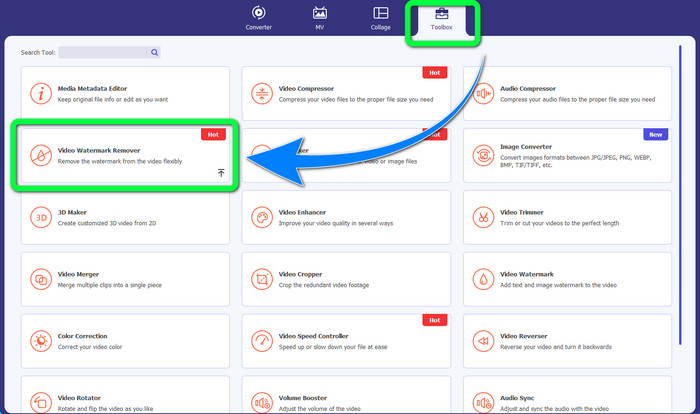
Βήμα 2: Εκκινήστε την εφαρμογή. Επιλέξτε Toolbox > Video Watermark Remover.
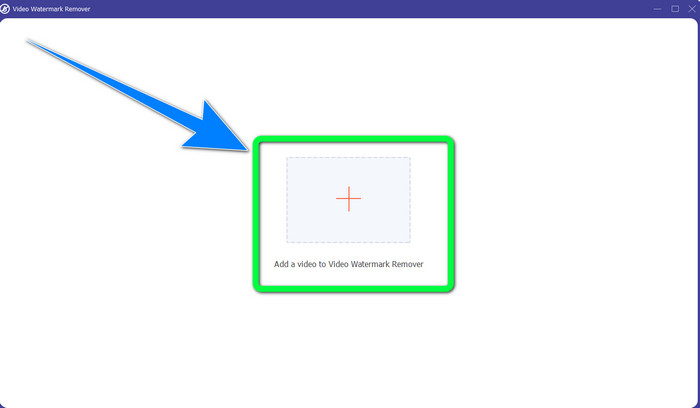
Βήμα 3: Θα εμφανιστεί μια άλλη διεπαφή. Επιλέξτε το κουμπί με το σύμβολο Plus και προσθέστε το MP4 βίντεό σας με το υδατογράφημα.
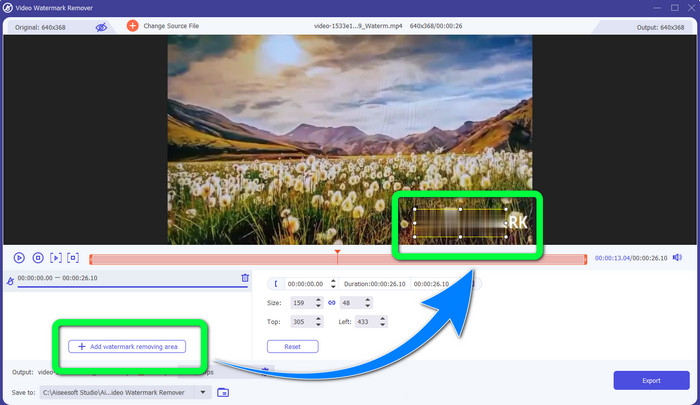
Βήμα 4: Κάντε κλικ στο κουμπί Add Watermark Removing Area. Στη συνέχεια, θα εμφανιστεί ένα μικρό πλαίσιο στο βίντεό σας· σύρετε αυτό το πλαίσιο και χρησιμοποιήστε το για να καλύψετε τα υδατογραφήματα στο βίντεό σας.
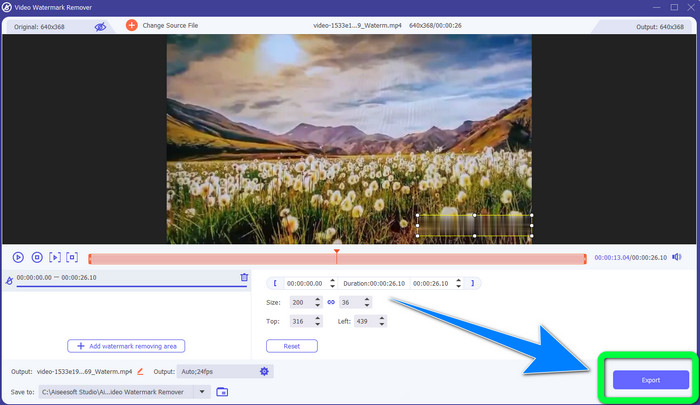
Βήμα 5: Όταν τελειώσετε με την αφαίρεση του υδατογραφήματος, κάντε κλικ στο κουμπί Export για να αποθηκεύσετε τα βίντεό σας. Τώρα μπορείτε να απολαύσετε τις στιγμές βλέποντας τις αγαπημένες σας ταινίες χωρίς υδατογραφήματα.
2. Χρήση Video Cropper
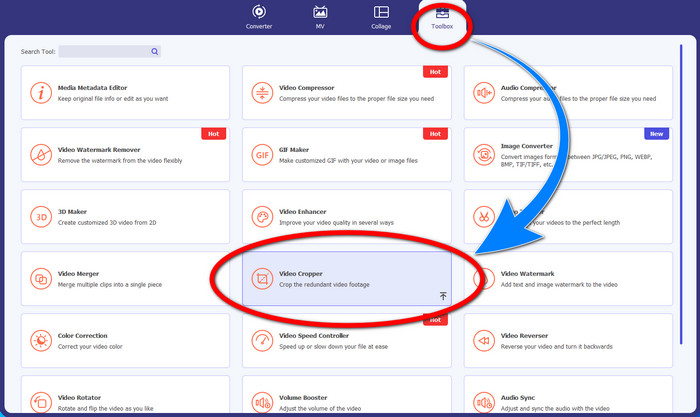
Βήμα 1: Εκκινήστε το Video Converter Ultimate. Έπειτα, κάντε κλικ στο Toolbox > Video Cropper.
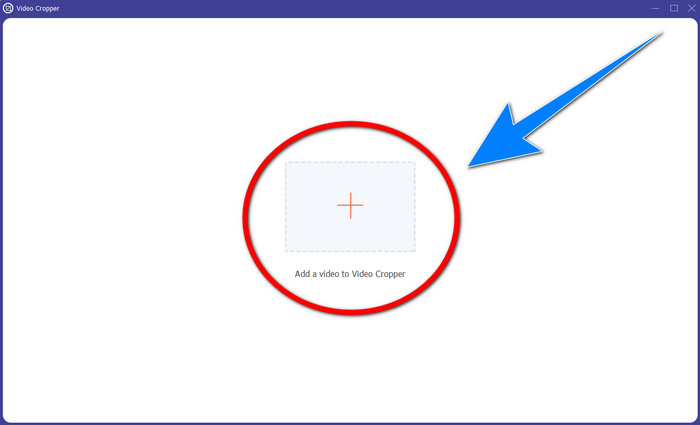
Βήμα 2: Μια άλλη διεπαφή θα εμφανιστεί αφού κάνετε κλικ στο Video Cropper. Κάντε κλικ στο σύμβολο Plus για να προσθέσετε το MP4 βίντεό σας με υδατογράφημα.
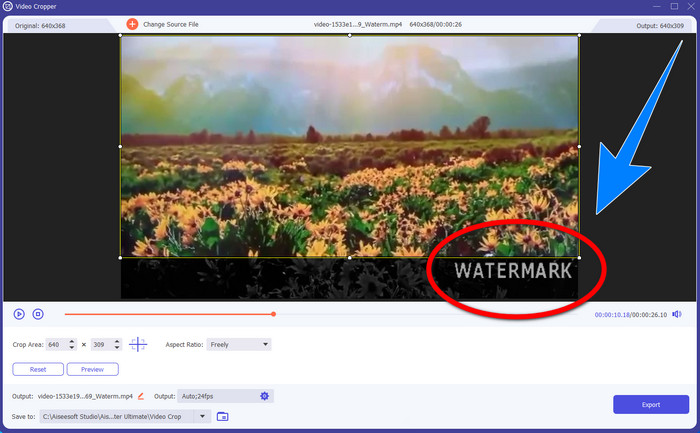
Βήμα 3: Αφού έχετε ήδη επισυνάψει το βίντεό σας, μπορείτε να κάνετε περικοπή στο MP4 βίντεό σας και να εξαλείψετε το υδατογράφημα.
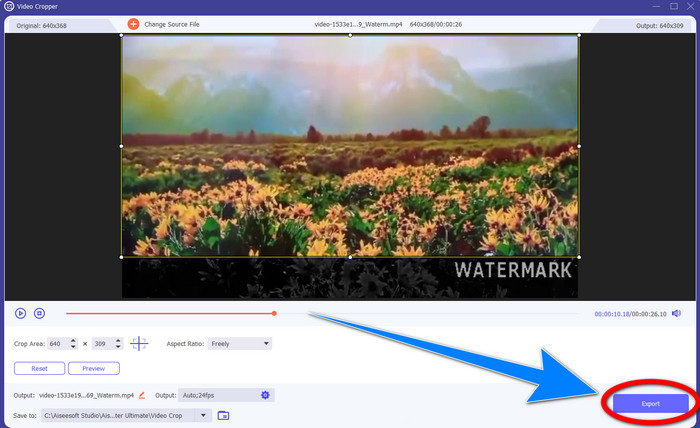
Βήμα 4: Αν έχετε ολοκληρώσει την περικοπή του βίντεο για να αφαιρέσετε το υδατογράφημα, τότε κάντε κλικ στο κουμπί Export για να αποθηκεύσετε το βίντεο. Με αυτόν τον τρόπο, μπορείτε να παρακολουθήσετε το βίντεό σας χωρίς υδατογράφημα.
Μέρος 2: Κατάργηση υδατογραφήματος από το MP4 Video Online
Ψάχνετε μια εξαιρετική εφαρμογή που μπορείτε να χρησιμοποιήσετε για να αφαιρέσετε υδατογραφήματα από το MP4 βίντεό σας δωρεάν, διαδικτυακά; Τότε το HitPaw Online Watermark Remover είναι η εφαρμογή στην οποία μπορείτε να βασιστείτε. Επιπλέον, μπορείτε να χρησιμοποιήσετε αυτή την εφαρμογή χωρίς να αγοράσετε οτιδήποτε, επειδή είναι 100% δωρεάν. Επίσης, μπορείτε να αφαιρέσετε υδατογραφήματα, λογότυπα και υπογραφές χωρίς κανέναν περιορισμό και δεν έχει διαφημίσεις. Είναι, επίσης, εύχρηστο και απλό. Μπορείτε να αφαιρέσετε τα υδατογραφήματα από τα βίντεό σας μόνο σε τρία βήματα, κάτι που είναι ιδανικό για αρχάριους.
Το HitPaw Online Watermark Remover είναι προσβάσιμο σε οποιαδήποτε συσκευή, όπως Windows, Mac, iPhone και Android. Αυτή η εφαρμογή είναι επίσης ασφαλής και διασφαλίζει ότι είστε ο μόνος που μπορείτε να δείτε και να επεξεργαστείτε τα βίντεό σας. Ωστόσο, εάν αφαιρέσετε τα υδατογραφήματα στα βίντεό σας, η περιοχή θα γίνει θολή και ενοχλητική μερικές φορές. Επίσης, η διαδικασία αποθήκευσης είναι αργή. Εάν θέλετε να αφαιρέσετε τα υδατογραφήματα στα βίντεό σας MP4 στο διαδίκτυο, ακολουθήστε τα παρακάτω εύκολα βήματα.
Βήμα 1: Μεταβείτε στην ιστοσελίδα HitPaw Online Watermark Remover. Κάντε κλικ στο Remove Watermark Now και στη συνέχεια επιλέξτε Choose File για να προσθέσετε το MP4 βίντεό σας με υδατογραφήματα.
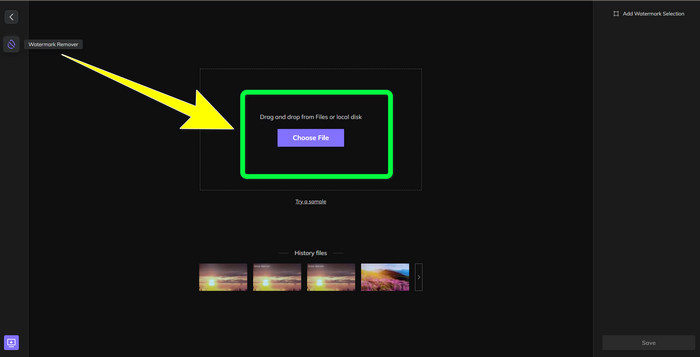
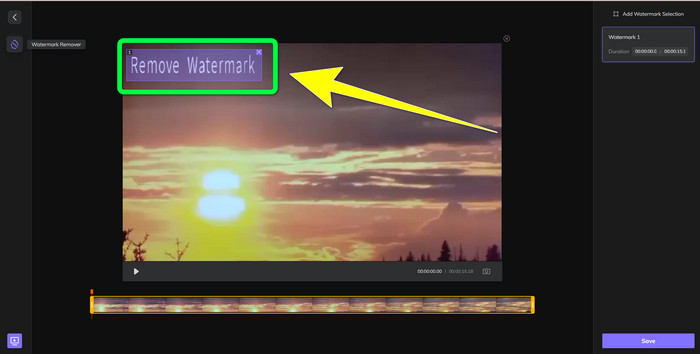
Βήμα 2: Αφού προσθέσετε το βίντεό σας, θα εμφανιστεί ένα ορθογώνιο σχήμα πάνω στο βίντεο. Σύρετέ το για να καλύψετε και να αφαιρέσετε τα υδατογραφήματά σας.
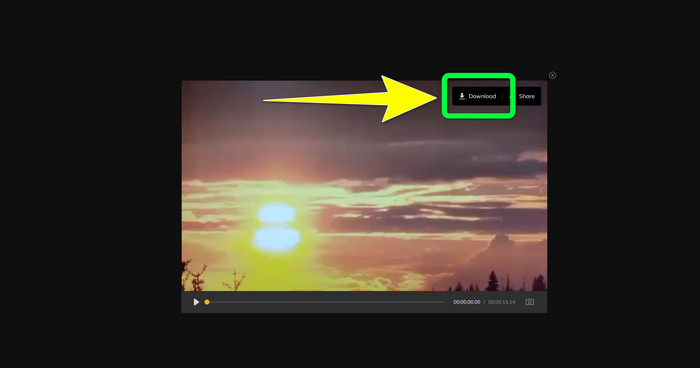
Βήμα 3: Αφού αφαιρέσετε τα υδατογραφήματα από το βίντεό σας, κάντε κλικ στο κουμπί Save. Περιμένετε τη διαδικασία αποθήκευσης και στη συνέχεια κάντε κλικ στο κουμπί Download για να το κρατήσετε στη συσκευή σας.
Μέρος 3: Συχνές ερωτήσεις σχετικά με την κατάργηση του υδατογραφήματος από το MP4
Είναι επίσης δυνατό να εξαλειφθούν οι υπογραφές στα βίντεό μου;
Ναι, είναι δυνατόν. Το Video Converter Ultimate είναι επίσης ικανό να αφαιρεί υπογραφές από τα βίντεό σας. Οποιαδήποτε περιττά αντικείμενα που ενοχλούν τα βίντεό σας μπορούν να αφαιρεθούν εύκολα χρησιμοποιώντας αυτή την εφαρμογή.
Είναι χρονοβόρο η αφαίρεση υδατογραφημάτων από βίντεο MP4;
Εξαρτάται από τις εφαρμογές που χρησιμοποιείτε. Εάν θέλετε να αφαιρέσετε τα υδατογραφήματα στα βίντεό σας MP4, χρησιμοποιήστε το Video Converter Ultimate. Μπορεί να αφαιρέσει τα υδατογραφήματα αμέσως.
Ποιο είναι το καλύτερο εργαλείο αφαίρεσης υδατογραφήματος βίντεο που μπορώ να χρησιμοποιήσω;
Αν αναζητάτε μια αξιόπιστη εφαρμογή που μπορεί να αφαιρέσει υδατογραφήματα από το βίντεό σας, το Video Converter Ultimate είναι ένα εξαιρετικό λογισμικό που μπορείτε να αξιοποιήσετε. Μπορείτε να αφαιρέσετε υδατογραφήματα και να αποθηκεύσετε τα βίντεό σας χωρίς να χάσουν την ποιότητά τους.
Μπορώ να χρησιμοποιήσω το εργαλείο περικοπής στο HitPaw Online Watermark Remover για να εξαλείψω τα υδατογραφήματα;
Απολύτως ναι! Μπορείτε επίσης να χρησιμοποιήσετε το εργαλείο περικοπής αυτής της εφαρμογής εάν θέλετε να αφαιρέσετε τα υδατογραφήματα στα βίντεό σας, ειδικά εάν τα υδατογραφήματα ήταν στη γωνία ή στην άκρη των βίντεό σας.
Εκτός από την κατάργηση υδατογραφημάτων, είναι δυνατόν να προσθέσω υδατογραφήματα χρησιμοποιώντας το Video Converter Ultimate στα βίντεό μου;
Σίγουρα Ναι! Το Video Converter Ultimate δεν περιορίζεται μόνο στην αφαίρεση υδατογραφημάτων στα βίντεό σας. Αυτή η εφαρμογή μπορεί επίσης να προσθέσει υδατογραφήματα στα βίντεό σας, ειδικά αν θέλετε να βάλετε κάποιο κείμενο, λογότυπα, υπογραφές κ.λπ.
συμπέρασμα
Όπως αναφέρθηκε παραπάνω, μπορείτε εύκολα να αφαιρέσετε τα υδατογραφήματα από τα MP4 βίντεό σας χρησιμοποιώντας το Video Converter Ultimate. Επιπλέον, αυτό το άρθρο σάς παρουσιάζει ορισμένα λογισμικά που μπορείτε να χρησιμοποιήσετε για να αφαιρέσετε περιττά αντικείμενα από MP4 βίντεο διαδικτυακά.
-
 Πώς να αφαιρέσετε το υδατογράφημα Filmora από τα βίντεο ή τα έργα σας δωρεάν
 Πώς να αφαιρέσετε το υδατογράφημα Filmora; Αυτή η ερώτηση κάνει τον γύρο του ιστού και εδώ παραθέτουμε διαφορετικές προσεγγίσεις που μπορείτε να χρησιμοποιήσετε!
-
 Το πιο γρήγορο κόλπο για να αφαιρέσετε το υδατογράφημα της Adobe Stock από ένα βίντεο [Εκμάθηση]
 Αντιμετωπίζετε πρόβλημα με το υδατογράφημα της Adobe Stock; Διαβάστε αυτό και μάθετε πώς μπορείτε να αφαιρέσετε το υδατογράφημα Adobe Stock από το βίντεο.
-
 5 τρόποι για να αφαιρέσετε ένα υδατογράφημα από ένα βίντεο με επαγγελματικό τρόπο
 Θέλετε να αφαιρέσετε ένα υδατογράφημα από ένα βίντεο για να φαίνεται επαγγελματικό; Λοιπόν, διαβάστε αυτό το άρθρο καθώς προσθέτουμε ένα σεμινάριο για το πώς να το κάνετε!
