


 Video Converter Ultimate
 ضبط صفحه
 تعمیر ویدیو
دسترسی آسان به مبدل XviD: نحوه تبدیل فایل های XviD به فرمت MOV
فایل XviD شناختهشدهترین کُدِکی است که برای رقابت با DivX استفاده میشود. همچنین این کُدِک از MPEG-4 ASP استفاده میکند که شامل قابلیتهایی مانند b-frames، ماسکینگ نوری (lumi masking)، جبران حرکت سراسری و چهارپیکسلی (global و quarter pixel motion compensation)، کوانتیزاسیون ترلیس (trellis quantization)، ماتریسهای کوانتیزاسیون سفارشی و H.263 است. همین باعث شد که XviD به یک رمزگذار محبوبتر از DivX تبدیل شود. حالا فرض کنید فایلی که از کُدِک XviD استفاده میکند را به iOS منتقل میکنید. اگر فایل پخش نشد، تعجب نکنید چون این کُدِک از دستگاههای همراه مانند iOS و برخی دستگاههای دیگر پشتیبانی نمیکند. هرچند ممکن است حلنشدنی به نظر برسد، اما برای هر مشکلی راهحلی هست؛ ما راهحل را با تبدیل فایل XviD به فرمت AVI ارائه میدهیم. اگر میخواهید بدانید چگونه فایلهای XviD را به MOV تبدیل کنیم، این مقاله را دنبال کنید.

قسمت 1. معرفی XviD و MOV
همانطور که قبلاً گفتیم، اگر از XviD برای فشردهسازی استفاده کنید، فایل شما میتواند کوچکتر شود، بدون اینکه کیفیت آن آسیب ببیند، و همچنین بهسرعت از حالت فشرده خارج شود. هرچند XviD یک فشردهساز غیرانحصاری است، اما سازگاری این کُدِک با دستگاههای قابل حمل و بهویژه برای ویرایش محدود است. پس اگر میخواهید ویدیوی دارای کُدِک XviD را تماشا یا ویرایش کنید، لازم است آن را به MOV تبدیل کنید. چرا MOV؟ چون این فرمت میتواند فراداده (metadata)، فایلهای رسانهای مثل صدا، ویدیو و متن یا زیرنویس را در خود جای دهد. علاوه بر این، این فرمت میتواند روی دستگاههای iOS و سایر دستگاهها ویدیو را پخش کند. حالا برای حل مشکل شما با فایل XviD، بیایید ببینیم چگونه XviD را به MOV تبدیل کنیم با کمک ابزاری که در ادامه معرفی شده است.
قسمت 2. بهترین مبدل برای تبدیل XviD به MOV در ویندوز و مک
FVC Video Converter Ultimate
بهدنبال بهترین مبدل XviD به MOV هستید که بتواند فایل را در یک چشم بر هم زدن تبدیل کند؟ پس FVC Video Converter Ultimate تنها ابزاری است که دنبالش هستید. علاوه بر تبدیل ۳۰ برابر سریعتر که در اختیار کاربران قرار میدهد، میتوانید ویدیوی خود را ویرایش، ادغام، برش و کارهای دیگر روی آن انجام دهید تا ویدئوی شما از بقیه جذابتر و حرفهایتر به نظر برسد. هرچند این ابزار امکانات پیشرفتهای ارائه میدهد، اما برای دانلود و استفاده از آن نیازی به ساختن یک اَبَرکامپیوتر ندارید.
علاوه بر آن، این نرم افزار شامل شتاب سخت افزاری و تبدیل سریع نیز می شود تا تجربه تبدیل شما را سریعتر و بهتر کند. و حالا اگر می خواهید با کمک این ابزار نحوه تبدیل فایل های Xvid به MOV را یاد بگیرید، به آموزش زیر می رویم.
مراحل تبدیل XviD به MOV با FVC Video Converter Ultimate؛
مرحله ۱. این نرمافزار روی هر نوع رایانه شخصی (PC) یا سیستمعامل مک (Mac OS) قابل دانلود است، بنابراین باید دکمه دانلود زیر را فشار دهید. بعد از دانلود نرمافزار، روی فایل کلیک کنید تا نصب شود، تنظیمات را سریع انجام دهید و روی Start Now کلیک کنید تا ابزار فوراً باز شود.
دانلود رایگانبرای ویندوز 7 یا بالاتردانلود امن
دانلود رایگانبرای MacOS 10.7 یا بالاتردانلود امن
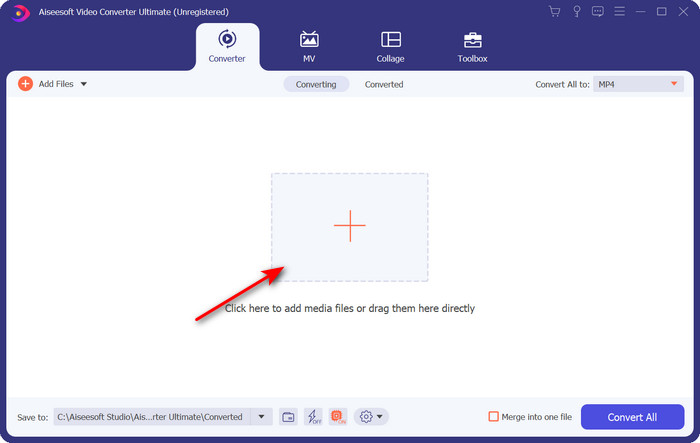
مرحله ۲. برای وارد کردن فایل .xvid باید دکمه + را بزنید، آن را در پوشه پیدا کنید و روی Open کلیک کنید. اما اگر فایلهای .xvid بیشتر از دو عدد هستند، پیشنهاد میکنیم آنها را بکشید و روی رابط کاربری رها کنید (Drag & Drop).
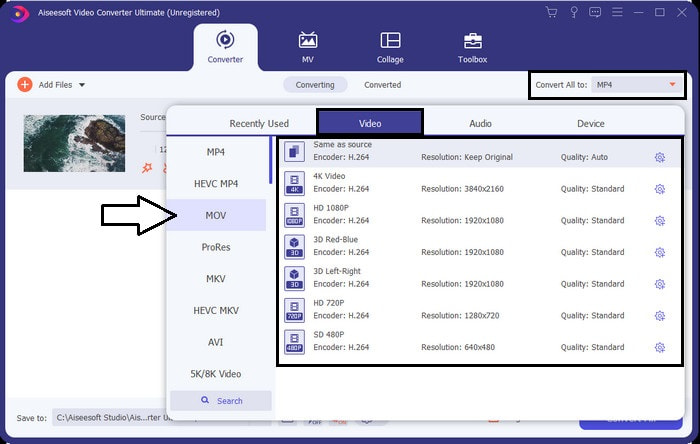
مرحله ۳. روی دکمه drop-down در بالا و سمت راست رابط کلیک کنید و فرمت MOV را در فهرست پیدا کنید.
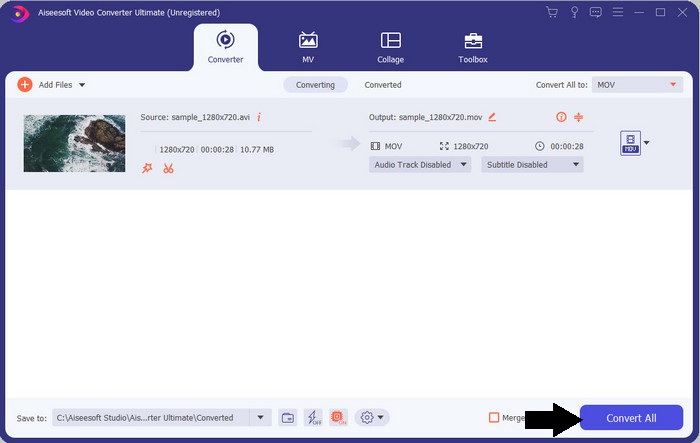
مرحله ۴. حالا برای شروع تبدیل فایلهای XviD به MOV روی Convert All کلیک کنید.
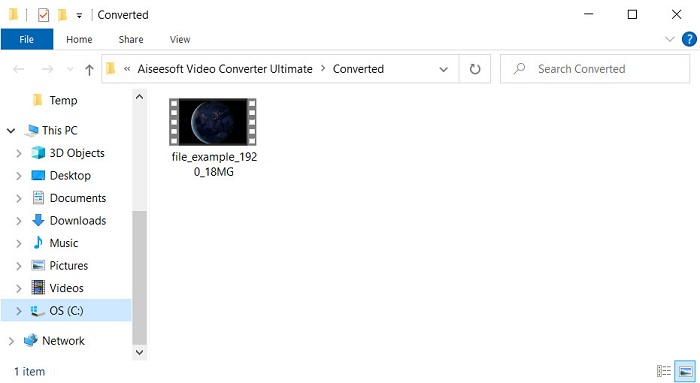
مرحله ۵. چند ثانیه صبر کنید تا فرایند تمام شود. پوشهای روی صفحهنمایش شما ظاهر میشود که فایل .mov داخل آن است؛ روی فایل کلیک کنید تا آن را در پخشکننده محلی خود اجرا کنید و از تماشای آن لذت ببرید.
قسمت 3. بهترین مبدل آنلاین برای تبدیل Xvid به MOV
مبدل ویدیوی رایگان FVC آنلاین
نمیخواهید درگیر دانلود نرمافزار روی حافظه سیستم شوید چون فضای ذخیرهسازیتان پر است و فقط میخواهید یک فایل را آنلاین تبدیل کنید؟ FVC Free Video Converter Online در تمام مرورگرهای وب در دسترس است. تبدیل فایل XviD با کمک این ابزار ظرف یک دقیقه انجام میشود. همچنین این ابزار نیازی به ساخت حساب کاربری برای دسترسی ندارد و حتی هیچ تبلیغی در رابط آن نمایش داده نمیشود. این ابزار تمیزترین مبدل آنلاین است که در وب میتوانید به آن دسترسی داشته باشید. با این حال، اگر اتصال اینترنت نداشته باشید، نمیتوانید از آن استفاده کنید، چون این ابزار کاملاً به شبکه وابسته است. همچنین این ابزار از طیفی متوسط از فرمتها پشتیبانی میکند که میتوانید از میان آنها انتخاب و استفاده کنید. علاوه بر این، اگر نمیخواهید مبدل دانلود کنید، حتماً از این مبدل آنلاین XviD به MOV استفاده کنید.
مراحل تبدیل آنلاین فایلهای XviD به فرمت MOV با کمک FVC Free Video Converter Online؛
مرحله ۱. برای رفتن به صفحه اصلی این مبدل آنلاین، باید روی این لینک کلیک کنید.
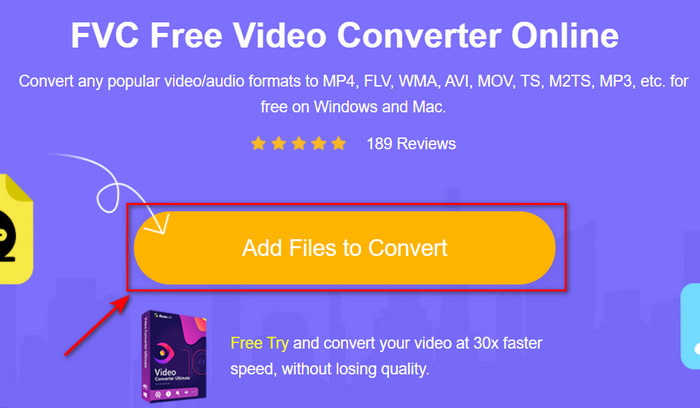
مرحله ۲. روی Add Files to Convert کلیک کنید تا ابزار راهاندازی شود، سپس پوشهای باز میشود که میتوانید فایل XviD موردنظر برای تبدیل را در آن پیدا کنید و برای ادامه روی Open کلیک کنید.
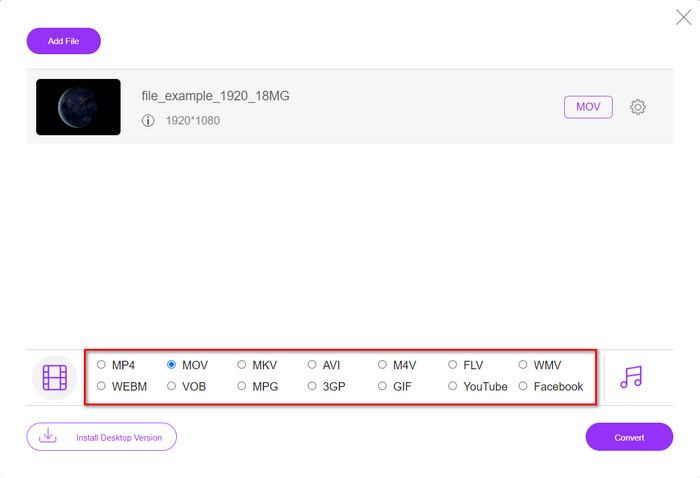
مرحله ۳. بعد از وارد کردن فایل XviD رابط جدیدی ظاهر میشود؛ در پایین، فرمت MOV یا هر فرمت دیگری که میخواهید را انتخاب کنید.
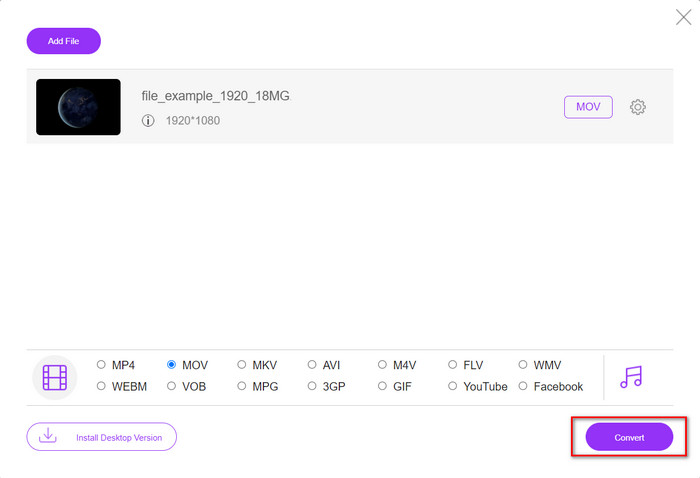
مرحله ۴. برای شروع تغییر فرمت، روی Convert کلیک کنید.
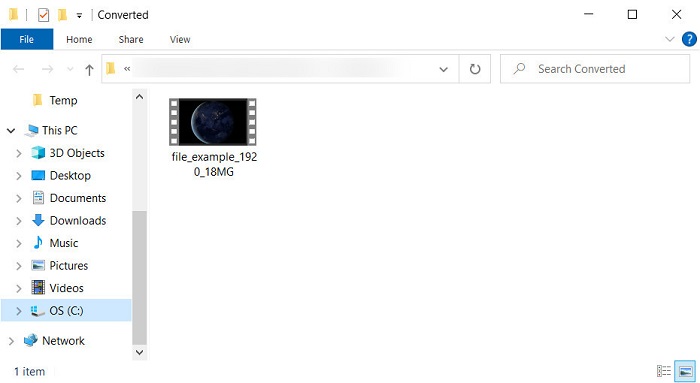
مرحله ۵. تبدیل فایل نسبت به دیگر مبدلهای آنلاین، زمان بسیار کمتری از شما میگیرد؛ بعد از آن پوشهای ظاهر میشود که فایل تبدیلشده شما داخل آن قرار دارد.
بخش 4. سوالات متداول در مورد تبدیل XviD به MOV
کجا می توانم ویدیوهای XviD را تماشا کنم؟
میتوانید از پخشکننده رسانه VLC برای پخش فایلهای XviD استفاده کنید. اگر نمیخواهید چیزی دانلود کنید، از Windows Media Player که روی همه نسخههای ویندوز موجود است استفاده کنید. برای کاربران مک، از QuickTime استفاده کنید. اما اگر میخواهید ویدیوی XviD را با کیفیت بالا تماشا کنید، این مقاله را بخوانید چون ما همه پخشکنندههای ممکن XviD را که میتوانید با آنها فایلهای XviD را تماشا کنید، جمعآوری کردهایم.
XviD رایگان است یا خیر؟
XviD رایگان است و برای هر کسی که مایل به استفاده و فشرده سازی فایل خود برای انتقال سریع از طریق وب یا صرفه جویی در فضا است، در دسترس است. همه اینها به لطف مجوز نرم افزار رایگان GPL است، بنابراین رایگان ساخته شده است.
چرا نمی توانم ویدیوهای XviD را ویرایش کنم؟
یکی از دلایل اصلی که نمی توانید ویدیوها را تحت این نوع کدک ویرایش کنید، پشتیبانی نشدن آن است. در این صورت، حداقل ویرایشگرهای ویدئویی به دلیل پیچیدگی، تنها از این نوع کدک پشتیبانی می کنند. بنابراین، فرض کنید میخواهید ویدیویی را با این فرمت ویرایش کنید، ابتدا باید آن را تبدیل کنید. در این صورت، داشتن یک مبدل چند منظوره که می تواند فایل های XviD را به MP4، AVI، MOV یا موارد مشابه تبدیل کند، ضروری است. سپس پس از تبدیل فایل، آن را در ویرایشگر آپلود کنید تا ویرایشی که دوست دارید انجام شود.
نتیجه
بعد از خواندن این مقاله، دانش ما درباره XviD گسترش پیدا میکند و حالا میتوانیم دیدگاههای مختلف درباره XviD را ببینیم. پس اگر میخواهید یک ویدیو را روی دستگاه iOS ذخیره یا پخش کنید، باید ابتدا فایل را به MOV تبدیل کنید. همانطور که پیشتر توضیح دادیم، این دو مبدل ذکرشده عملکرد بسیار خوبی در تبدیل فایل به فرمت MOV دارند. هرچند هر دو ابزار عالی به نظر میرسند، اما سرعت و عملکرد FVC Video Converter Ultimate بیرقیب است و از هر ابزار دسکتاپ یا وب دیگری بهتر عمل میکند. ولی اگر میخواهید بهصورت آنلاین، رایگان و ایمن تبدیل انجام دهید، از FVC Free Video Converter Online استفاده کنید.
-
 نحوه تبدیل AVI به MOV با مراحل آسان و ابزارها
 آیا می خواهید بدانید چگونه AVI را به یک MOV قابل پخش تبدیل کنید؟ شما باید این مقاله را دنبال کنید تا بدانید چگونه این کار را انجام دهید و نکاتی برای داشتن یک تبدیل موفق داشته باشید.
-
 وارد کردن و تبدیل AVI به فرمت پشتیبانی شده iMovie [2021]
 آیا مشکلی دارید زیرا نمی توانید فایل AVI خود را در iMovie وارد کنید؟ اگر این مقاله را خوانده اید، قبلاً راه حل مناسبی برای این مشکل انتخاب کرده اید.
-
 نحوه تبدیل TS به AVI / MKV / MOV / WMV آنلاین و رایگان در Win / Mac
 آیا می خواهید پرونده های TS را به سرعت به AVI / MKV / MOV / WMV تبدیل کنید؟ این مقاله مبدل های ویدیویی آنلاین و آفلاین را با راهنمای کامل نشان می دهد. شاید بتوانید بهترین مبدل TS رایگان را از اینجا دریافت کنید.
