


 Video Converter Ultimate
 ضبط صفحه
 تعمیر ویدیو
6 موثرترین راه برای تغییر اندازه تصویر در وب و دسکتاپ
با میلیاردها عکس معتبری که میتوانیم دانلود کنیم، اکثر ما تصاویر زیبایی میگیریم، با این حال مواردی وجود دارد که اندازه آنها چیزی نیست که ما بیشتر ترجیح میدهیم. کاربران سعی کردند با تنظیم ارتفاع، عرض و نسبت ابعاد تصویر با استفاده از ویرایشگر، اندازه تصویر را تغییر دهند که PPI تصویر را تغییر داد. نتیجه آن چیزی نیست که همه انتظار داشتند. تصاویر با وضوح بالا پیکسلی می شوند.
Why? Because the editor they used to resize can’t create or fill in the gap of pixels on the resized version. Thus, the queries about this topic became popular, and we are here to help you solve the problem. In this blog post, we will let you have hands-on experience on how to resize an image without any distortion left on the final output.

بخش 1. بهترین تغییر اندازهدهنده عکس که میتوانید در وب برای تغییر اندازه تصویر آنلاین به آن دسترسی داشته باشید [3 ابزار رایگان]
این ابزارهای آنلاینی که در اینجا اضافه می کنیم در مرورگرهای وب مختلفی که در دستگاه خود دارید در دسترس هستند. همچنین، اینها رایگان هستند، اما ابزاری وجود دارد که برای استفاده بدون هیچ محدودیتی باید خریداری کنید. با این وجود، اینها ابزارهای آنلاین توانمندی هستند که می توانید برای شروع تغییر اندازه تصویری که دارید به آنها دسترسی داشته باشید. مراحل را بخوانید تا بدانید چگونه از آنها استفاده کنید.
1. ارتقا دهنده تصویر رایگان FVC - بهترین تغییر اندازه تصویر در وب [گزینه مطلوب]
With FVC Free Image Upscaler Online is an artificial intelligence web tool that can quickly resize images without losing quality. Indeed, the web tool will automatically resize every image file you upload here. Despite being an online tool, its performance in resizing is fast and effective. Every image you upload here is automatically deleted on the server once you resize it. Also, it has the cleanest and most versatile resizer you will ever need; even though you are using different devices, you can access this web tool as long as you have internet connectivity. Want to see how this software performs in this task? If so, read the steps below and copy them to change the image size quickly and effectively.
How to Resize Image Using FVC Free Image Upscaler:
Step 1. To access the web tool, you can click this link, which will automatically lead you to the official website of the resizer.
Step 2. Click the Add Image so that a folder will show on your screen, select the image file you want to upload, and press Open.
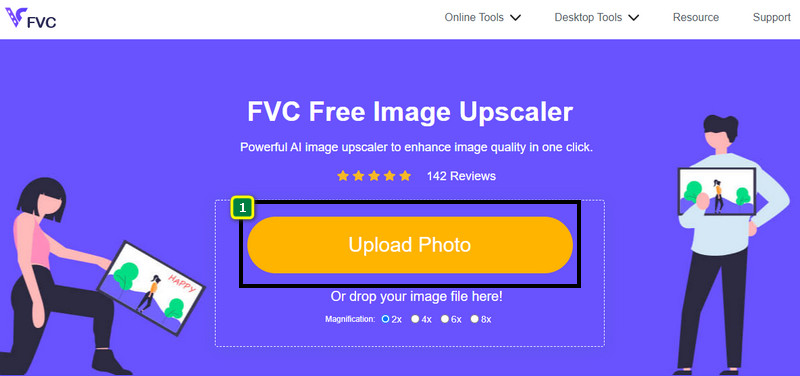
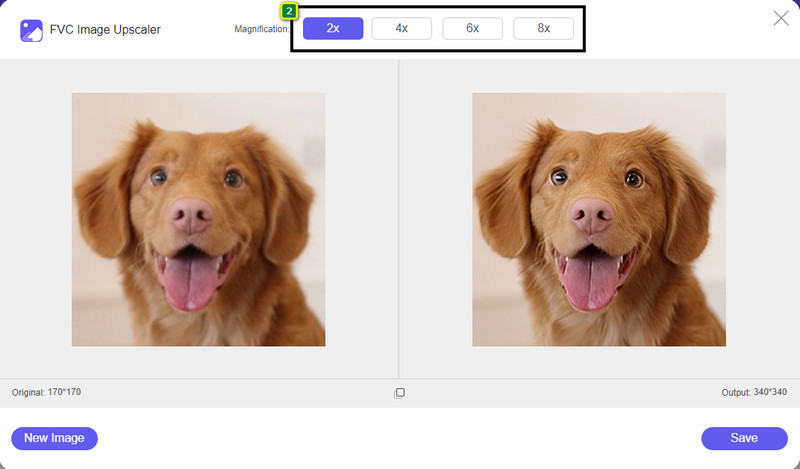
Step 3. To change the picture size, you must select what type of magnification to apply to your image. You can see that the overall dimension of the image is changed once you try and click the 2x, 4x, 6x, and 8x
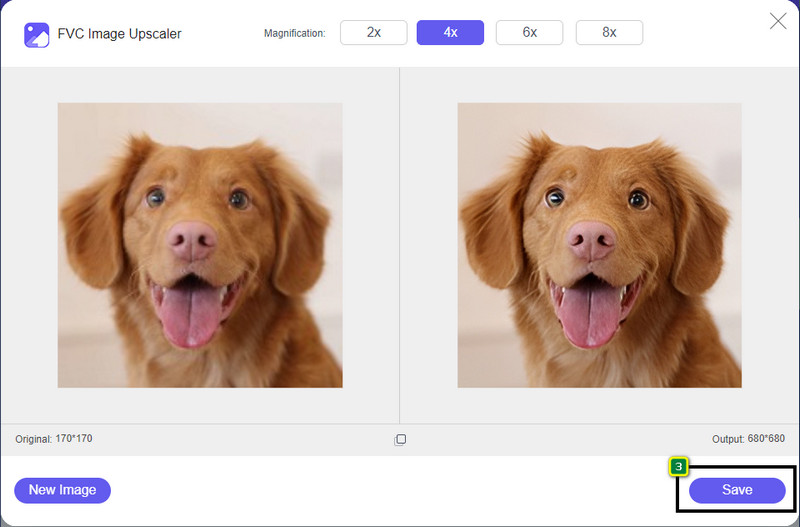
Step 4. After you have selected the magnification you want to apply, voila, you can now press Save to download the resized version of it on your desktop drive.
2. بد بو باشید - ویرایشگر عکس [رایگان و پولی]
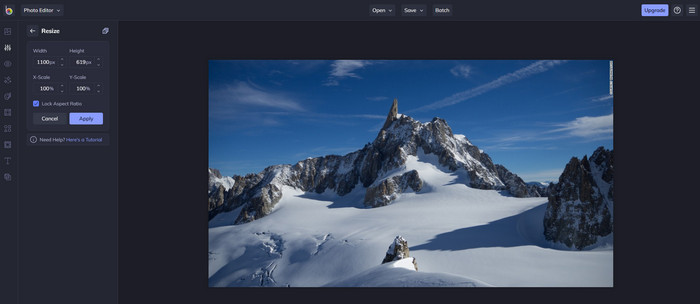
Be Funky - Photo Editor is a creative platform you can use to make extraordinary things on your images. It can resize BMP without losing quality. This tool is considered one of the finest image editors you can access online. Though it has a similar GUI to Photoshop, the features it brings are simplistic and easy to understand, so we can say that it is also user-friendly. So, if you want to try using this online tool to resize your image easily, follow the steps we include here.
How to Resize Image Using Be Funky:
Step 1. Search the name of it on your web browser, then click Get Started and Edit Photo.
Step 2. Press Open to upload the BMP or any images you have that you want to resize here.
Step 3. Go to Edit and press the Resize option.
Step 4. Here, you can freely change the width and height or the x and y scale of the image. Then press Apply to see what the resized version looks like.
3. تغییر اندازه تصویر ساده [رایگان]
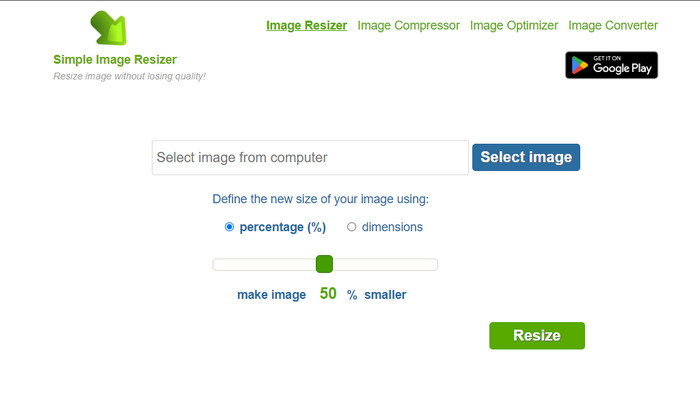
Simple Image Resizer allows you to resize an image by defining the new size of the image by changing the percentage or measurement. It is the last image resizer we added to this article. Its simple GUI and ease of use became the major factor in why we added this. In addition to its resizing feature, you can optimize, compress, and convert your image here for free but with annoying ads on the web. So, if you want to try using this resizer online, follow the steps below.
How to Resize Image Using Simple Image Resizer:
Step 1. Using your web browser, search the name of it to start using this web resizer.
Step 2. Press Select Image to add the photo you want to resize here.
Step 3. Choose which you prefer to use on resizing, and change the percentage or measurement. Either way, they do the same.
Step 4. Click Resize to save the final output on your desktop.
قسمت 2. نحوه تغییر اندازه یک تصویر در ویندوز و مک [آفلاین پولی و رایگان]
بر خلاف اولین ابزار آنلاین 3 مورد اشاره، ابزارهای بعدی که معرفی کردیم وابسته به اینترنت نیستند، یعنی حتی اگر اینترنت ندارید، می توانید بدون هیچ مشکلی از آنها استفاده کنید. زیرا آنها قابل دانلود هستند یا از قبل روی دسکتاپ شما از قبل نصب شده اند. امروزه با خواندن اطلاعاتی که به هر یک از آنها اضافه می کنیم، نحوه استفاده از آنها را بیاموزید.
1. Adobe Photoshop [ویندوز و مک]
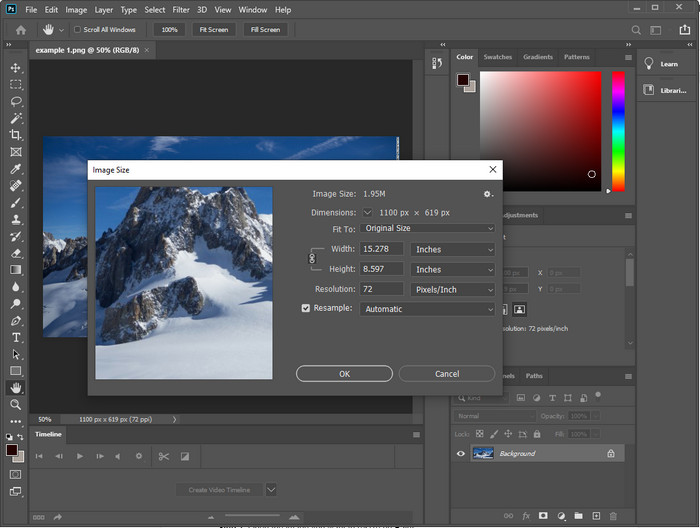
Our first choice offline image resizer you can download on your device is Adobe Photoshop. Why? Because it creates another pixel data once you resize it and avoid having a low-quality output at the end of the process. Plus, this software is known for being a professional image editor that could easily process any raster and vector images. Though the software is a professional tool, it is still a bit too much to purchase if you are about to use it only on resizing. But if you are interested in how to resize an image in Photoshop.
How to Resize Image Using Adobe Photoshop:
Step 1. Download and install the software on your desktop by visiting its official website.
Step 2. Hit the File, and locate the image on the folder after you click Open.
Step 3. Press the Image menu at the top, then select the Image Size.
Step 4. Change the measurement of Width and Height according to your preferences, then click OK to apply the changes.
Step 5. Go back to File and save the image on your desktop.
2. رنگ کردن [برنامه پیش فرض در ویندوز]
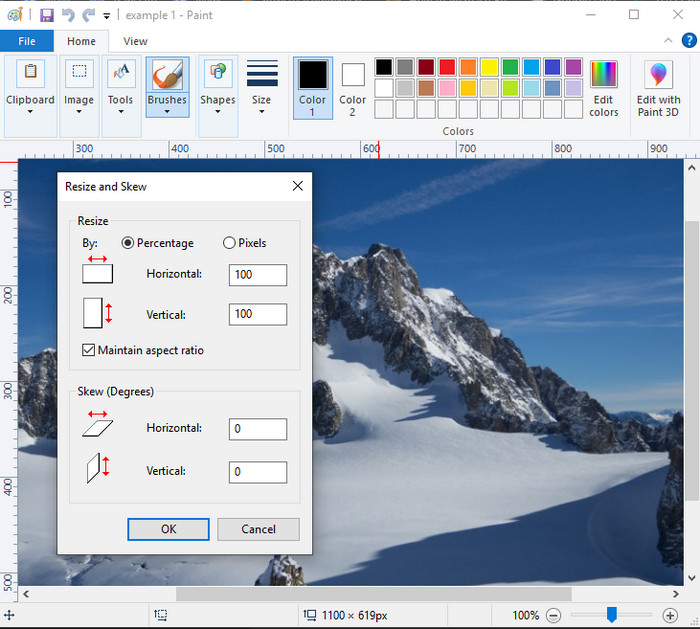
Paint is known for being an application that you can draw on a blank canvas. Different users of Windows normally use it to create something into a blank page, add details on images, and resize them accordingly. Though it isn’t a dedicated editor, it can still resize any raster image you have on your local drive. The advantage of using this is that you wouldn’t need to download the software on your Windows because it is pre-installed. So, if you want to know how to resize low-resolution pictures with this app, read the tutorial, we add below.
How to Resize Image Using Paint:
Step 1. Open the image you want to resize on Paint.
Step 2. After opening the image, click the two-squares icon to start resizing the image you open here.
Step 3. To resize the image, you can change it by percentage or pixel. After you’ve changed the number, press OK to apply the changes.
Step 4. Hit the save icon to export the image you resized here.
3. پیش نمایش [برنامه پیش فرض در مک]
Preview is a dedicated app you can depend on and lead you to how to resize an image on a Mac. If you don’t like downloading an application on your macOS, then you better use this app. It is an underrated solution, but it can resize your photo on your desktop. Learning how to use it can be a huge advantage to you to maximize the full potential of this software. If you are interested in how this tool works, proceed to the info we add next.
How to Resize Image Using Preview:
Step 1. Right-click the image on your Mac, click Open with, and press Preview.
Step 2. On the upper part, click Tools, then select Adjust Size.
Step 3. Change the image measurements based on your needs, then press OK to save the changes you made.
قسمت 3. موارد اضافی: Top Image Resizer که می توانید در اندروید و آیفون دانلود کنید
1. تغییر اندازه عکس و تصویر [Android]
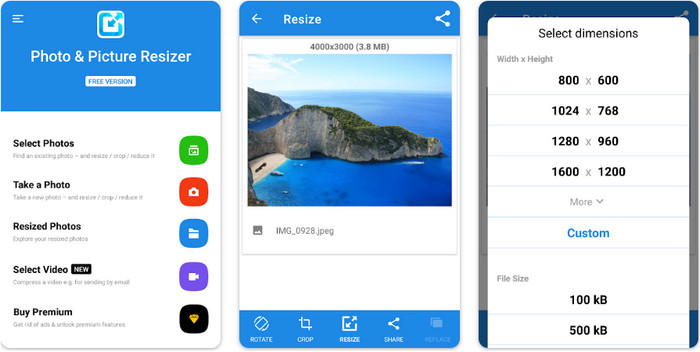
Photo & Picture Resizer is one of the fastest and easiest ways to resize the image you have on your Android device. Even inexperienced users who want to resize can download and use this as their image resizer. This app is free, so if you want to use its additional features, you will need to purchase it. Overall, its resizing features are great, and you can master it on the first try.
2. Image Resizer Free [iPhone]
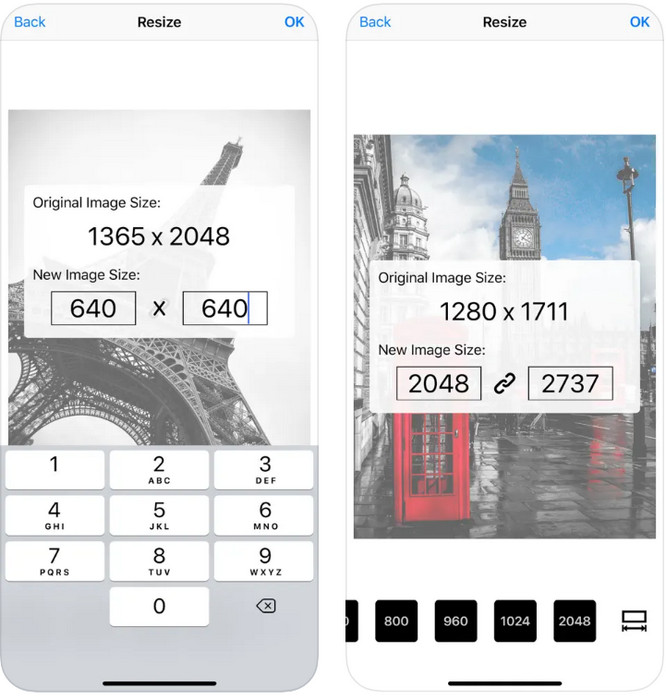
Image Resizer Free is an iOS-based application you can download on iOS 7.0 or higher. This application is an on-point image resizer that many iOS users use. It doesn’t have additional features other than its main function, resizing. Though the tool is user-friendly, many users complain that it can’t overwrite the original image into the resized version.
بخش 4. سوالات متداول در مورد نحوه تغییر اندازه تصویر
کدام فرمت برای تغییر اندازه بهتر است، شطرنجی یا برداری؟
فرمتهای شطرنجی از پیکسلهای ریز تشکیل شدهاند تا ظاهر تصویر را ایجاد کنند، و وقتی اندازه یا ابعاد آن را تغییر میدهید، این پیکسلها کشیده شده و قابل مشاهده میشوند. بر خلاف اگر اندازه تصویر برداری را تغییر دهید، به طور خاص برای تغییر اندازه و افزایش مقیاس تصویر بدون ایجاد آشفتگی در آن ساخته شده است.
آیا می توانم اندازه BMP را به صورت آنلاین تغییر دهم؟
بله، می توانید اندازه BMP را با استفاده از راه حل آنلاینی که در اینجا اضافه می کنیم، تغییر دهید. با این حال، هنگامی که تصویر را بزرگ می کنید، BMP تمایل به پیکسلی شدن دارد زیرا آنها تصاویر شطرنجی هستند. بنابراین، اگر میخواهید از مشکل تغییر اندازه فایل BMP جلوگیری کنید، بهتر است FVC Free Image Upscaler Online را انتخاب کنید، زیرا پیکسلسازی را روی خروجی نهایی BMP تغییر اندازه نمیدهد.
آیا حجم فایل پس از تغییر اندازه تصویر افزایش می یابد؟
بله، این کار را می کند. عمدتاً به این دلیل که تصویری که اندازه آن را تغییر دادهاید، دادههای پیکسلی بیشتری را به خروجی واقعی اضافه میکند. با این حال، اندازه فایل آن تفاوت زیادی با اندازه فایل اصلی خود ندارد.
نتیجه
Which resizing image technique do you think fits you well? Choose amongst the resizer we add here. If you are having trouble choosing an internet connection, we highly recommend using the FVC Free Image Upscaler Online because of its performance on resizing. There is no difficulty resizing if you use this resizer on the web.
-
 تصویر 1440p – اطلاعات جامعی که به آن نیاز دارید [به روز رسانی 2022]
 آیا می خواهید در مورد تصاویر 1440p بدانید؟ یا از کجا می توانید آن را تهیه کنید؟ تصویر خود را به 1440p تبدیل کنید؟ این را بخوانید تا همه آنها را بشناسید.
-
 آموزش Unpixel کردن یک تصویر با استفاده از 3 بهترین عکس Unpixelator
 آیا در مدیریت تصاویر پیکسلی مشکل دارید؟ امروز مشکل را حل کرده ایم و می توانید از ابزارهایی که در اینجا اضافه می کنیم استفاده کنید.
-
 نحوه تیز کردن تصویر در عکس با استفاده از 3 روش [آموزش سریع]
 مشکل با تصویر واضح نشده است؟ در اینجا نحوه شارپ کردن تصاویر در فتوشاپ با سه روشی که اضافه می کنیم را معرفی می کنیم.
