


 Video Converter Ultimate
 ضبط صفحه
 تعمیر ویدیو
نحوه تبدیل FLAC به MP3: راهنمای فشرده سازی صدا با کیفیت بالا
Do you want to avoid your high-quality FLAC audio files taking up too much space on your device? Converting them to the widely compatible MP3 format can solve this problem without sacrificing much sound quality. In this guide post, we'll walk you through the process of converting FLAC to MP3, step by step. We'll cover everything from the best tools and tips for an efficient conversion to how to preserve as much quality as possible during the process. Enjoy your favorite tunes on any device without worrying about storage space.

1. FVC Video Converter Ultimate
FVC Video Converter Ultimate is a comprehensive video conversion software that converts not only various video formats but also supports audio conversion. It is an all-in-one solution for converting, downloading, editing, and burning videos and audio files. In addition to its video conversion capabilities, FVC Video Converter Ultimate can convert audio files between various formats, including FLAC to MP3 conversion. It offers support to a wide range of audio formats, such as WAV, AAC, M4A, WMA, and many others. To learn how to use this FLAC to MP3 converter, follow the steps below.
Step 1. Get the program installed
First, you have to have the program installed on your computer. To do so, tick one of the Free Download buttons to download the tool. After that, follow the setup wizard to have it installed. Then, launch it on your computer to see its actual interface.
دانلود رایگانبرای ویندوز 7 یا بالاتردانلود امن
دانلود رایگانبرای MacOS 10.7 یا بالاتردانلود امن
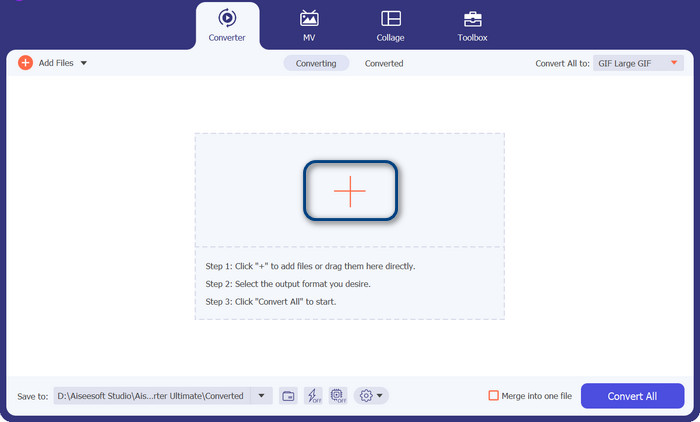
Step 2. Add a FLAC or MP3 file
اگر می خواهید MP3 را به FLAC یا برعکس تبدیل کنید، لطفاً با زدن دکمه علامت مثبت از رابط اصلی، یک فایل صوتی اضافه کنید. شما می توانید یک یا چند فایل صوتی را به دلخواه انتخاب کنید. پس از آن، شما باید تصویر کوچک آنها را از رابط اصلی ببینید.
Step 3. Specify the output format
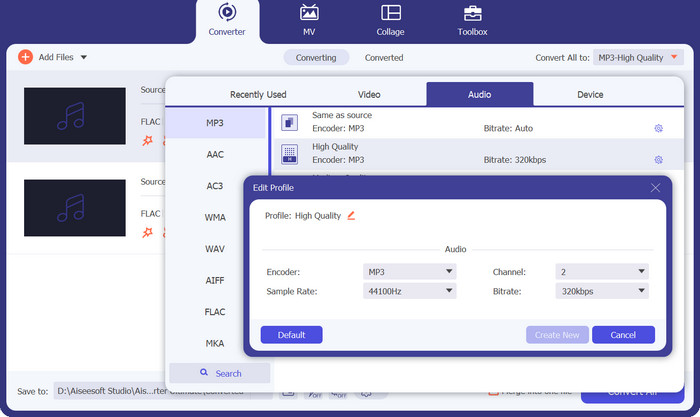
Now, tick on the Profile menu in the upper right side menu of the tool. Once revealed, select the Audio tab and look for MP3. To convert from MP3 to FLAC, choose the FLAC format as the output file. Optionally, you may edit the output settings according to your preference.
Step 4. Convert to FLAC
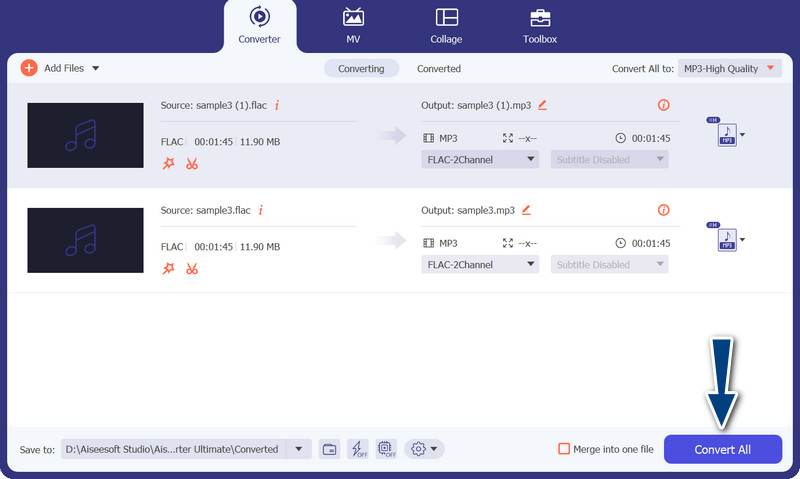
This time, set the output folder where you wish to store the output files. It is located at the bottom-most part of the interface. Tick on it and specify the output folder. Now that everything is set, hit the Convert All button to begin converting. That is how you use this MP3 converter to FLAC or FLAC to MP3 converter.
طرفداران
- این یک رابط کاربر پسند و ابزارهای آسان برای تبدیل را فراهم می کند.
- این نرم افزار دارای ویژگی هایی برای ویرایش فیلم می باشد.
- سرعت تبدیل سریع بدون افت کیفیت.
منفی ها
- این یک مبدل پولی FLAC به MP3 است.
- کیفیت تبدیل ممکن است بسته به منبع متفاوت باشد.
2. تبدیل رایگان ویدیو آنلاین
If you are looking for a free program and learn how to convert FLAC to MP3 online, you should consider using Free Video Converter Online. From the title itself, it helps the users to convert their video or audio files without any cost at all. Also, it gives you the freedom to edit the output according to one's preference. On top of that, the conversion speed does not lack behind. As long as you have internet access, you can expect to get your desired output. Find out how this FLAC to MP3 converter free tool works by checking out the step-by-step guide below:
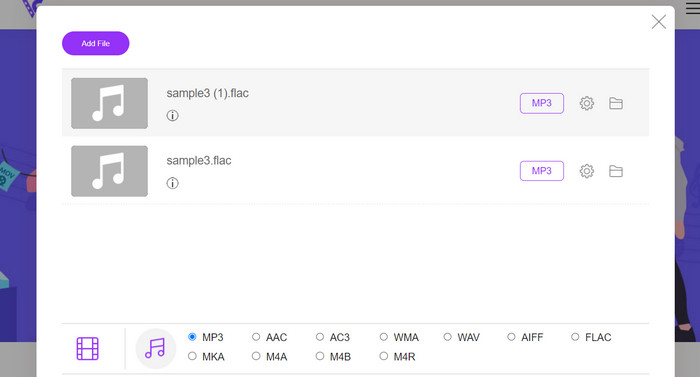
Step 1. Open a web browser and go to the preferred online video converter.
Step 2. By clicking the Add Files to Convert you can upload the FLAC file you wish to convert from FLAC to MP3.
Step 3. From the list of possible formats, select MP3 as the output format under the Audio format menu. Then, choose the MP3 file's desired bitrate or output quality.
Step 4. To start the converting process, click the Convert button. A few minutes may pass while you wait for the conversion to finish, depending on the file size and the speed of your internet connection.
طرفداران
- در هر زمان به بهترین مبدل رایگان FLAC به MP3 دسترسی داشته باشید.
- به حداقل تخصص فنی نیاز دارد.
- می تواند در زمان و فضای ذخیره سازی کامپیوتر صرفه جویی کند.
منفی ها
- سطح سفارشی سازی مشابه نرم افزار دسکتاپ را ارائه نمی دهد.
- این نیاز به اتصال به اینترنت پایدار و سریع دارد.
قسمت 2. تبدیل FLAC به MP3 یا MP3 به FLAC در موبایل
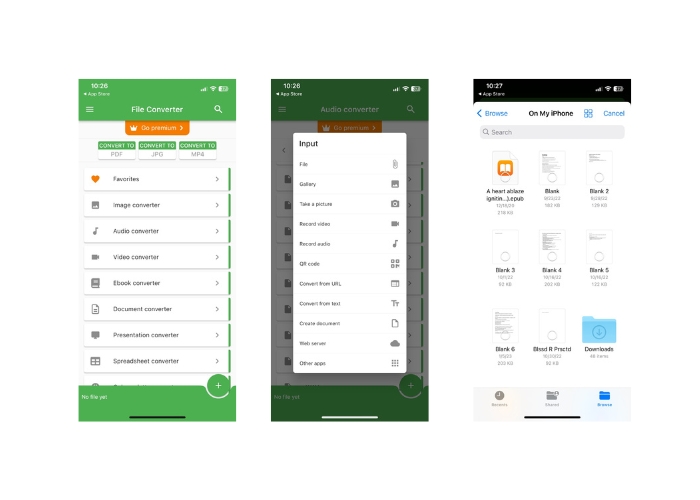
File Converter یک برنامه تلفن همراه رایگان است که برای دستگاه های iOS در دسترس است که به شما امکان تبدیل فرمت های مختلف فایل از جمله فایل های صوتی و تصویری را می دهد. این برنامه یک رابط کاربری ساده و آسان ارائه می دهد که به شما امکان می دهد بدون نیاز به نرم افزار اضافی فایل ها را تبدیل کنید. این برنامه از طیف گسترده ای از فرمت های صوتی و تصویری از جمله FLAC، MP3، WAV، M4A و غیره پشتیبانی می کند.
این بدان معناست که شما به راحتی می توانید فایل های صوتی و تصویری خود را از یک فرمت بدون هیچ زحمتی تبدیل کنید. یکی از ویژگی های برجسته File Converter توانایی آن در انجام تبدیل دسته ای FLAC به MP3 است. این بدان معنی است که می توانید چندین فایل را به طور همزمان تبدیل کنید و در وقت و تلاش شما صرفه جویی می کند.
Step 1. From the App Store, download and install the File Converter application. Open the app, then select the Audio option.
Step 2. From the list of available audio conversion choices, pick FLAC to MP3.
Step 3. To add the FLAC files you want to convert, use the + button. You can change the conversion settings after adding the files if you so choose. The output quality, bitrate, and other options are all programmable.
Step 4. To begin the conversion process, tap the Convert button one last time. The converted MP3 files will be stored locally on your device.
طرفداران
- این می تواند چندین فایل را در یک زمان تبدیل کند.
- فرآیند تبدیل نسبتا سریع است.
منفی ها
- محدودیت حجم فایل 250 مگابایت است.
- گزینه های پیشرفته ای را ارائه نمی دهد.
مطالعه بیشتر:
WAV to MP3 – Top 5 Free Converters to Convert WAV to MP3
Top 3 FLAC Metadata Editors on Mac and Windows [Updated 2023]
بخش 3. سوالات متداول در مورد تبدیل FLAC و MP3
آیا می توانم FLAC را به MP3 در مک تبدیل کنم؟
بله، تو میتونی. اگر iTunes را روی مک خود نصب کرده اید، می توانید از آن برای تبدیل فایل های FLAC به MP3 استفاده کنید. به سادگی فایل های FLAC را به iTunes وارد کنید، فایل هایی را که می خواهید تبدیل کنید انتخاب کنید و سپس به مسیر File > Convert > Create MP3 Version بروید. فایل های MP3 تبدیل شده در کتابخانه iTunes شما ذخیره می شود.
آیا Audacity دسته ای می تواند FLAC را به MP3 تبدیل کند؟
بله، Audacity میتواند فایلهای FLAC را به صورت دستهای به MP3 در مک تبدیل کند. برای انجام این کار، ابتدا Audacity را باز کرده و یک Edit Chain ایجاد کنید که شامل دستورات Export Multiple است. در کادرهای محاوره ای Export Multiple، نوع فایل را روی MP3 Files تنظیم کنید و گزینه های صادرات MP3 را به دلخواه خود پیکربندی کنید.
آیا تبدیل FLAC به MP3 بر کیفیت صدا تأثیر می گذارد؟
بله، تبدیل FLAC به MP3 باعث کاهش کیفیت صدا می شود، زیرا MP3 یک فرمت فشرده سازی با افت است. با این حال، با یک رمزگذار خوب و تنظیمات مناسب، میتوانید از دست دادن کیفیت را به حداقل برسانید و همچنان به یک فایل MP3 با صدای مناسب برسید.
نتیجه
FLAC to MP3 conversion can be a convenient way to make large audio files more manageable while still preserving decent sound quality. With so many tools available for the job, including desktop software and mobile apps, users can easily find a suitable solution that fits their needs. However, it's essential to note that converting from a lossless to a lossy format like MP3 will inevitably result in some loss of audio quality, and users should consider the pros and cons of different conversion methods before proceeding. Overall, with proper care and attention to detail, converting FLAC to MP3 can be an effective way to manage large audio files.
-
 دانلود پخش کننده MP3 – 10 بهترین پخش کننده موسیقی MP3 رایگان در سال 2023
 بهترین پخش کننده موسیقی MP3 چیست؟ چگونه می توانم موسیقی را روی دستگاه پخش MP3 قرار دهم؟ چگونه می توان MP3 Player Player را بارگیری کرد؟ این پست به شما یک مرور دقیق از 10 بهترین پخش کننده MP3 رایگان برای Windows PC و Mac می دهد.
-
 آموزش عملی نحوه تبدیل فیلم ها به فرمت MP3
 در تبدیل ویدیوها به MP3 مشکل دارید؟ سپس، باید به این نوشتن تکیه کنید زیرا ما بررسی می کنیم که کدام مبدل بهترین تبدیل را ارائه می دهد.
-
 5 برش MP3 برای برش آسان هر صدایی [به روز رسانی 2023]
 آیا برای برش صدا به کاتر MP3 نیاز دارید؟ در این صورت، این مقاله را بخوانید زیرا ما ابزارهایی را ارائه میدهیم که میتوانید به آنها وابسته باشید که برش آسان صدا را فراهم میکنند.
