


 Video Converter Ultimate
 ضبط صفحه
 تعمیر ویدیو
نحوه برش عکس ها در آیفون برای تغییر اندازه سریع آنها
برش (Cropping) یک ابزار اساسی در ویرایش عکس است که برای حذف عناصر ناخواسته از نمای کلی عکسهایتان به کار میرود. یادگیری و تسلط کامل بر این ابزار، مزیتی مهم برای ارتقا و بهبود کادربندی در عکسهایتان است تا داستان یا پیام موجود در عکس را شفافتر منتقل کنید. از طرف دیگر، برش عکسها در آیفون موضوعی متفاوت است، زیرا iOS به خاطر امکانات تطبیقی و رابط نرمافزاری خاصش شناخته میشود؛ چیزی که گاهی انجام یک کار ساده را کمی دردسرساز میکند، چون محل قرارگیری قابلیتها و دستورها در این دستگاهها کمی متفاوت و مفصل است. به همین دلیل این مطلب تهیه شده است تا وقتی با برش، تأثیر بصری عکسهایتان را تغییر میدهید، انجام این کار برایتان دردسرساز نباشد. برای آشنایی با مراحل و ریزهکاریهای برش عکس در آیفون، خواندن ادامه این مقاله را دنبال کنید.
قسمت 1. نحوه برش عکس ها در آیفون
آیا شما جزو آن دسته از کاربران جدید iOS هستید که برای انجام کارهای ساده مشکل دارند و برای همیشه درگیر آن هستند؟ تعجب می کنم که چگونه یک عکس آیفون را برش دهیم. دیگر نگران نباشید زیرا راههای سریعی را برای برش عکسهایتان با استفاده از آیفون بدون نیاز به استرس بر روی آن فهرست کردهایم.
مراحل معمول
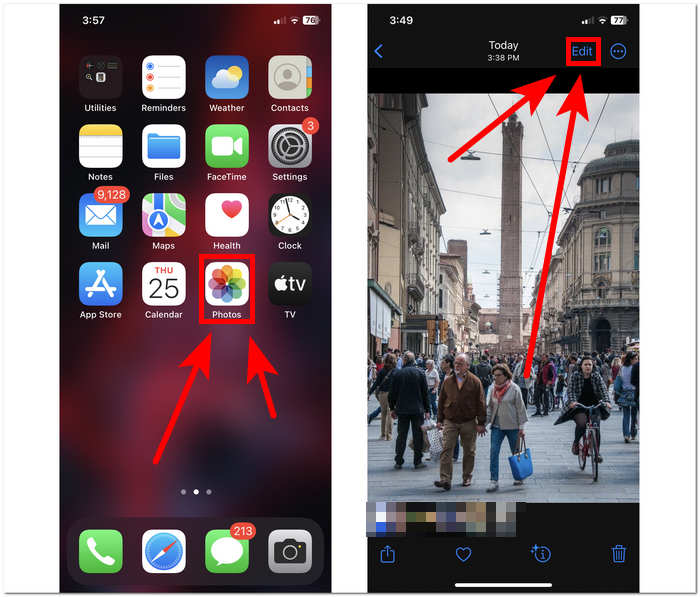
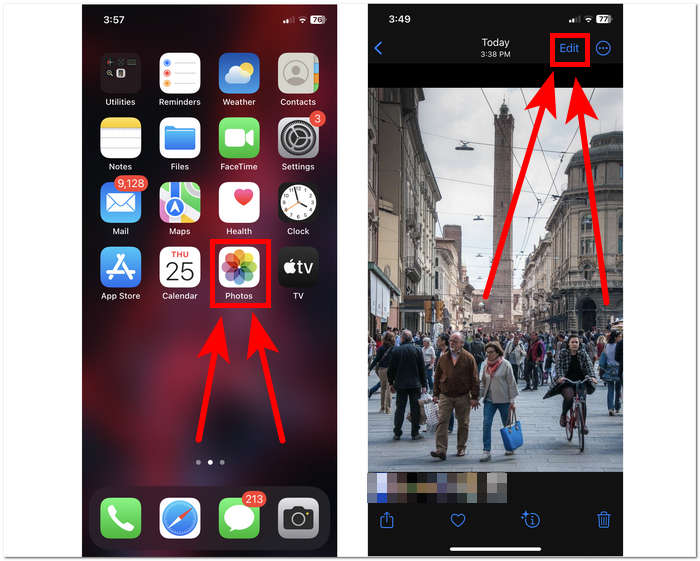
مرحله ۱. در دستگاه iOS خود، وارد بخش Photos شوید و عکسی را که میخواهید برش دهید انتخاب کنید یا به آن بروید.
مرحله ۲. دکمه Edit را در گوشه بالای سمت راست صفحه پیدا کرده و روی آن ضربه بزنید.
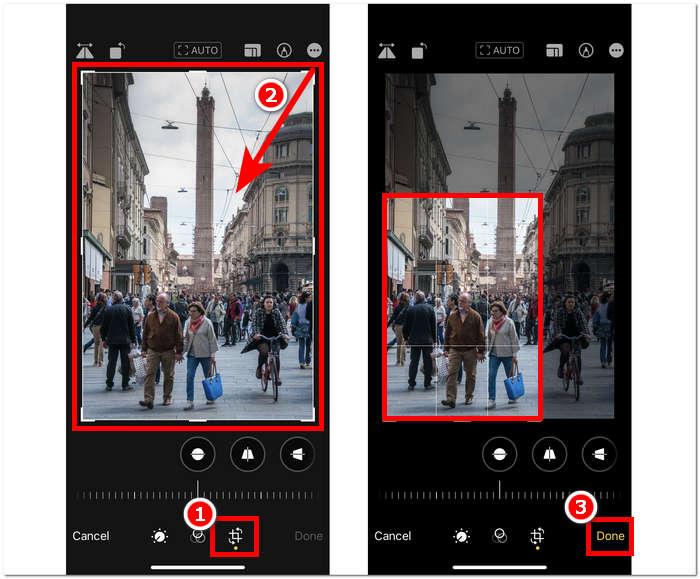
مرحله ۳. در تنظیمات ویرایش (Edit)، گزینه Size را در پایین صفحه پیدا کرده و روی آن ضربه بزنید.
مرحله ۴. وقتی گوشههای مستطیل ظاهر شدند، آنها را به صورت دستی بکشید تا ناحیهای را که میخواهید در عکس نگه دارید مشخص کنید و پس از راضی بودن، برای ذخیره تغییرات روی Done ضربه بزنید.
قابلیت برش سریع در iOS 17
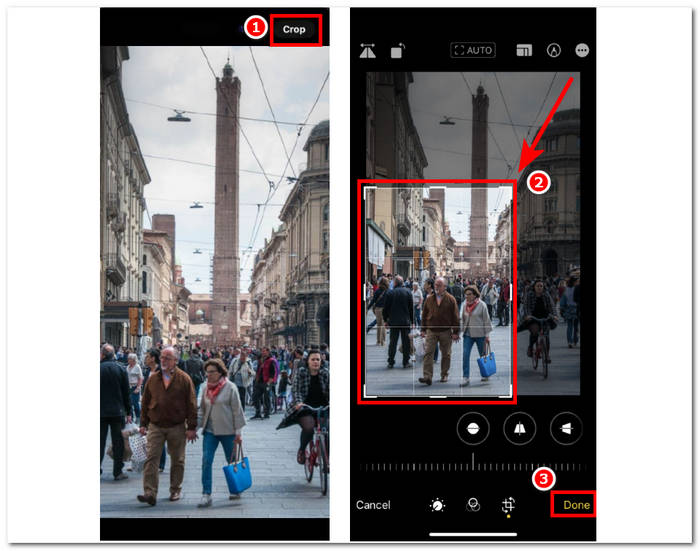
مرحله ۱. به برنامه Photos در دستگاه iOS خود بروید و عکسی را که میخواهید برش دهید انتخاب یا پیدا کنید.
مرحله ۲. با دو انگشت خود، حرکت گسترش (Zoom/Expand) را انجام دهید.
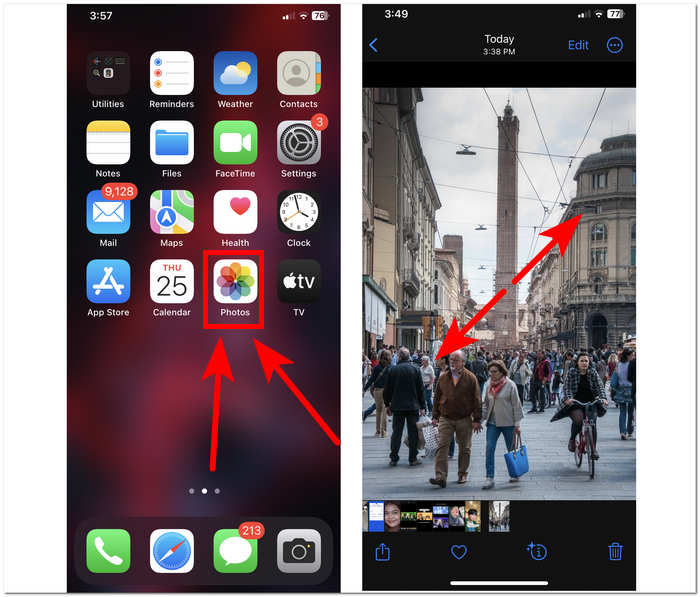
مرحله ۳. یک دکمه Crop در گوشه بالای سمت چپ صفحه ظاهر میشود. برای ادامه، فقط روی آن ضربه بزنید.
مرحله ۴. وقتی گوشههای مستطیل ظاهر شدند، میتوانید آنها را به صورت دستی بکشید تا ناحیهای را که میخواهید در عکس نگه دارید مشخص کنید. سپس برای ذخیره عکس، روی Done ضربه بزنید.
برش خودکار عکس با شورتکات آیفون
مرحله ۱. در دستگاه iOS خود به عکسی که میخواهید برش دهید بروید، وارد Photos شوید و تصویر را انتخاب کنید.
مرحله ۲. دکمه Edit را در گوشه بالای سمت راست صفحه پیدا کرده و آن را انتخاب کنید.
مرحله ۳. در تنظیمات Edit، گزینه Size را که در پایین صفحه قرار دارد پیدا کرده و انتخاب کنید.
مرحله ۴. شورتکات برش AUTO را در بالای صفحه پیدا کرده، برای برش خودکار تصویر روی آن ضربه بزنید و سپس برای ذخیره تصویر، روی Done ضربه بزنید.
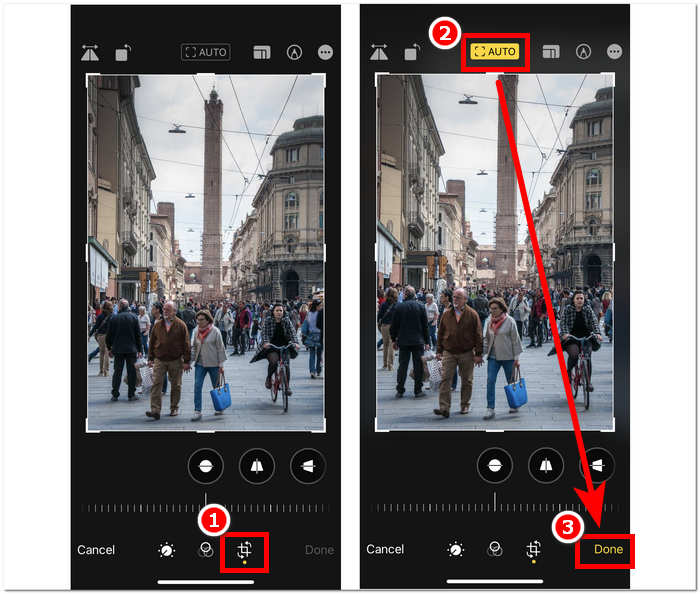
ابزار Cropping در iOS نباید آنقدر که فکر می کنید پیچیده باشد. IOS سه راه را ارائه می دهد که در بالا ذکر شده است. چه از میانبر معمولی برش، برش سریع یا برش خودکار عکس آیفون استفاده کنید، همه آنها به خوبی کار می کنند. این فقط به ترجیح و راحتی کاربر بستگی دارد که در آن از آن استفاده کنید.
قسمت 2. چگونه به سرعت کسی را از عکس آیفون برش دهیم
در هنگام برش عکسها، گاهی کاربران با سوژهها یا اشیای ناخواستهای روبهرو میشوند که حذف آنها با تنظیمات داخلی دستگاه ممکن نیست. به همین دلیل استفاده از ابزارهای جانبی بسیار کمککننده است. ابزار FVC Free Background Remover یکی از ابزارهای تحتوب قابل اعتماد امروزی در اینترنت است که به دلایل مختلفی محبوب شده است. یکی از این دلایل، امنیت و در دسترس بودن آن است؛ منظور از در دسترس بودن این است که FVC دسترسی رایگان از طریق انواع دستگاهها، از جمله دستگاههای iOS، را برای همه کاربران فراهم میکند. رابط کاربری این ابزار ساده و قابل درک است، زیرا با رویکردی سرراست طراحی شده و به همین دلیل امکانات پیشرفته و در عین حال سادهای را برای حذف سوژهها یا پسزمینههای ناخواسته از عکسها در اختیار میگذارد. برای استفاده از این ابزار حذف پسزمینه رایگان بهمنظور برش دادن فردی از عکس، مراحل زیر را دنبال کنید.
مرحله ۱. در مرورگر Safari دستگاه iOS خود به وبسایت FVC Free Background Remover بروید و تصویر مورد نظر خود را در بخش مشخصشده Upload Image بارگذاری کنید.
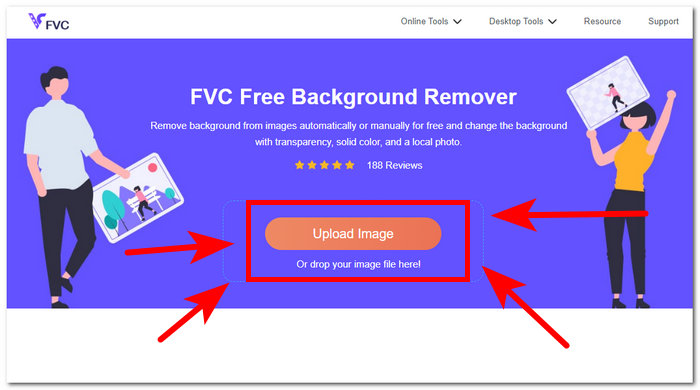
مرحله ۲. هوش مصنوعی ابزار، تصویر را به طور خودکار پردازش کرده و تشخیص میدهد چه چیزی را باید حذف کند.
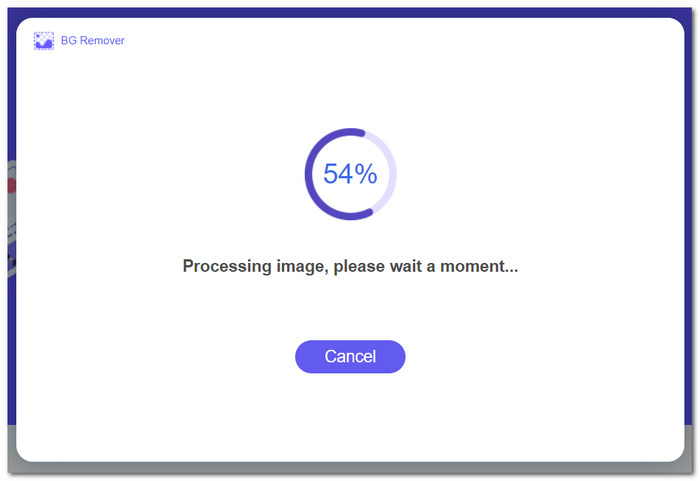
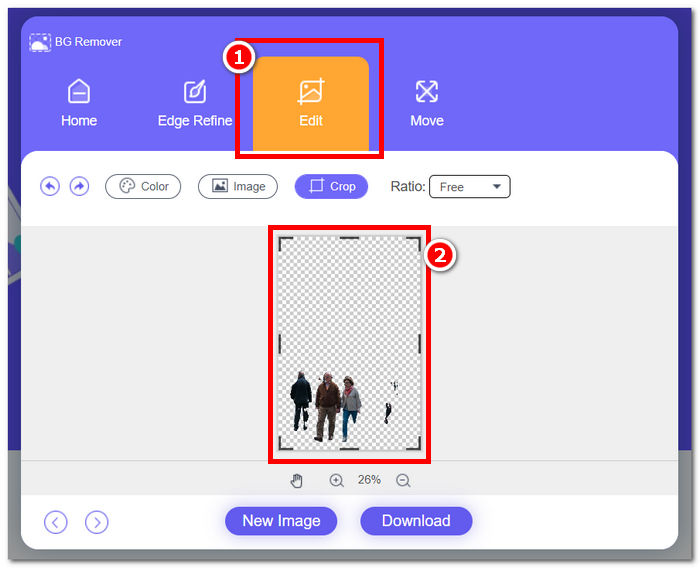
مرحله ۳. پس از آنکه FVC پردازش عکس شما را به پایان رساند، به بخش Edit در قسمت بالای ابزار بروید. با کشیدن گوشهها تا ناحیه دلخواه، به صورت دستی فرد مورد نظر را در عکس کادر کنید تا در تصویر باقی بماند.
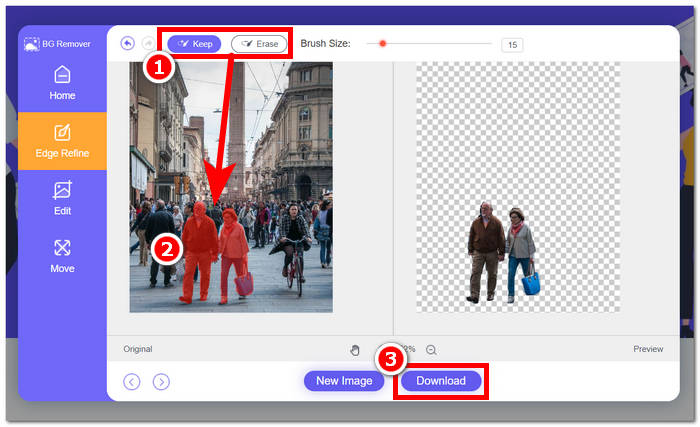
مرحله ۴. پس از رضایت از نتیجه، فرد مورد نظر را از عکس برش دهید و برای ذخیره تصویر در آیفون خود با کلیک روی دکمه Download آن را دانلود کنید.
از این پس دیگر لازم نیست مدام به این فکر کنید که چطور در آیفون فردی را از یک عکس حذف کنید؛ در عوض، شروع کنید به پیدا کردن روشهایی برای برش و حذف مؤثر افراد از عکسهای خود؛ چه با استفاده از تنظیمات برش داخلی دستگاه و چه یک اپلیکیشن تغییر اندازه عکس، زیرا هر دو در حد وعدههایشان عمل میکنند.
بخش 3. سوالات متداول درباره نحوه برش عکس ها در آیفون
دکمه برش در iPhone Photos کجاست؟
دکمه برش در iPhone Photos معمولاً در رابط ویرایش یافت می شود. پس از انتخاب یک عکس، روی گزینه Edit ضربه بزنید، دکمه برش را می بینید که شبیه مربعی است که دو مثلث قائم الزاویه در پایین صفحه روی هم قرار گرفته اند.
چگونه از برش والپیپر آیفون جلوگیری کنیم؟
برای جلوگیری از برش خودکار تصاویر پس زمینه آیفون، به Settings و سپس Wallpaper بروید و روی Choose a New Wallpaper ضربه بزنید. هنگام انتخاب یک عکس، مطمئن شوید که سطح زوم را مطابق میل خود تنظیم کنید، و مطمئن شوید که کاغذ دیواری به طور خودکار برش داده نمی شود. برای تنظیم دقیق اندازه کاغذدیواری میتوانید از ژست نزدیک کردن به زوم استفاده کنید.
آیا آیفون می تواند یک عکس دایره ای ایجاد کند؟
در حالی که برنامه Photos بومی آیفون ویژگی مستقیمی برای ایجاد عکس های دایره ای ندارد، می توانید با استفاده از برنامه های شخص ثالث با ابزارهای برش دایره ای به این جلوه دست پیدا کنید. این برنامهها به شما امکان میدهند عکسهایتان را به شکل دایرهای برش دهید و نتیجهای منحصربهفرد و زیباییشناختی را ارائه دهید.
آیا می توانم نسبت تصویر اصلی را هنگام برش حفظ کنم؟
بله، هنگام برش عکس در آیفون خود، می توانید با اطمینان از فعال بودن گزینه Constraint، نسبت تصویر اصلی را حفظ کنید. این تضمین میکند که نسبتهای تصویر برشخورده مانند اصلی باقی بماند.
آیا برش دادن کیفیت تصویر را کاهش می دهد؟
در خودِ عمل برش، لزوماً کیفیت تصویر در آیفون کاهش پیدا نمیکند. با این حال، اگر بخش بزرگی از عکس را برش دهید و سپس روی همان قسمت برشخورده زوم کنید، ممکن است متوجه افت جزئیات شوید، چون عملاً تصویر فراتر از وضوح اصلیاش بزرگنمایی میشود. لازم است بین برش برای بهبود کادربندی و حفظ سطح موردنظرِ کیفیت تصویر تعادل برقرار کنید. همچنین اگر متوجه شدید پس از فشردهسازی، کیفیت تصویرتان پایینتر آمده است، میتوانید برای افزایش وضوح از یک ابزار تقویتکننده وضوح تصویر جانبی استفاده کنید.
نتیجه
در نهایت، یادگیری برش عکسها در آیفون یک مهارت ضروری است که میتواند تأثیر بصری تصاویر شما را بهطور چشمگیری ارتقا دهد. این موضوع فقط به کاربران iOS محدود نمیشود، بلکه به استفاده کلی از ابزارهای برش در سایر دستگاهها نیز مربوط است. ممکن است روشها در دستگاههای مختلف متفاوت باشند، اما با نکات و مراحل سادهای که در این مقاله ارائه شد، میتوانید بهآسانی عکسهای معمولی را به تصاویری چشمنواز و حرفهای تبدیل کنید. فرقی نمیکند روش کلاسیک برش، قابلیت برش سریع در iOS 17 یا شورتکات برش خودکار را ترجیح دهید؛ iOS گزینههای متنوعی برای پاسخگویی به نیازها و سلیقههای مختلف ارائه میدهد. در کنار آن، ابزار FVC Free Background Tool نیز کیفیت مشابهی را نه فقط در برش، بلکه در حذف اشیای ناخواسته از عکسهایتان فراهم میکند و انجام فرایند برش عکس در آیفون را بسیار سادهتر میسازد.
-
 9 پاک کننده پس زمینه تصویر برتر برای نتایج سریع و دقیق
 سرعت و دقت پاک کن تصویر پس زمینه را با بهترین عملکرد تجربه کنید. امروز با پاک کننده پس زمینه پیچیده خداحافظی کنید و از 9 روش کارآمد استفاده کنید!
-
 نحوه حذف پس زمینه از تصویر: ابزارهای بدون دردسر
 شش ابزار را برای حذف پسزمینه از هر تصویری بدون زحمت کشف کنید. امروز با ویرایش پیچیده خداحافظی کنید و پسزمینه تصاویر را به راحتی پاک کنید!
-
 نحوه حذف پس زمینه از تصویر با استفاده از GIMP
 با GIMP و فرآیند گام به گام حذف پس زمینه از تصاویر شروع کنید. امروز روش های کارآمد برای ایجاد تصاویر شفاف با استفاده از GIMP را کشف کنید!
