


 Video Converter Ultimate
 ضبط صفحه
 تعمیر ویدیو
4 روش برای فیلمبرداری از صفحه در Windows Media Player
Windows Media Player یک پخشکننده محبوب است که به شما امکان میدهد انواع مختلف رسانه را نمایش دهید. این پخشکننده دارای قابلیتهایی مانند مشاهده عکسها، پخش موسیقی، تماشای ویدیوها و ساماندهی مجموعه موسیقی است. استفاده از Windows Media Player به کاربران کمک میکند کارهای مرتبط با رسانه را انجام دهند و در این مقاله، ما به این موضوع میپردازیم که چگونه در Windows Media Player از صفحه اسکرینشات بگیریم. پخش یک صحنه خاطرهانگیز از یک فیلم، بخشی از یک آموزش یا یک لحظه خندهدار با استفاده از این پخشکننده، این آزادی را به شما میدهد که هر زمان بخواهید از آن اسکرینشات گرفته و ذخیره کنید. با این حال، بسیاری از کاربران ممکن است از ابزارها و تکنیکهای داخلی موجود برای گرفتن اسکرینشات در این پخشکننده چندمنظوره آگاه نباشند. این مقاله را تا انتها مرور کنید تا با چهار روش ساده و مؤثر برای گرفتن اسکرینشات در Windows Media Player آشنا شوید؛ روشهایی که شامل استفاده از نرمافزار، کلیدهای میانبر، ابزار Snipping و ابزار داخلی آن است که شما را قادر میسازد بهراحتی این لحظات را ثبت کنید.
قسمت 1. نحوه گرفتن اسکرین شات در Windows Media Player
گرفتن اسکرینشات در Windows Media Player آسان است و نباید وقت زیادی برای انجام دادن یا یاد گرفتن آن صرف کنید. راههای زیادی برای انجام این کار وجود دارد و روش پیشنهادی برای گرفتن اسکرینشات از پخشکنندههای رسانه در ویندوز 11 یا نسخههای پایینتر، استفاده از ابزارهای نرمافزاری مانند Screen Recorder منتخب FVC است. این نرمافزار یک ابزار چندکاره است که برای برآورده کردن نیاز به ضبط صفحه همه انواع رسانهها، بهویژه در Windows Media Player طراحی شده است. با این نرمافزار، کاربران میتوانند کارهای روی صفحه را انجام دهند و ویدیو، صدا و بازیها را در یک محیط واحد ضبط کنند؛ برخلاف سایر ابزارها که فقط بر یک قابلیت مشخص تمرکز دارند. علاوه بر این، این نرمافزار امکانات کاربرپسند و صرفهجوی در زمان ارائه میدهد. ابزارهای ویرایشی آن باعث میشود کاربران بتوانند بلافاصله پس از گرفتن اسکرینشات، آن را ویرایش کنند.
مرحله 1. ابتدا این ابزار اسکرینشات را در رایانه خود دانلود و نصب کنید. پس از اتمام فرآیند نصب، نرمافزار را باز کنید.
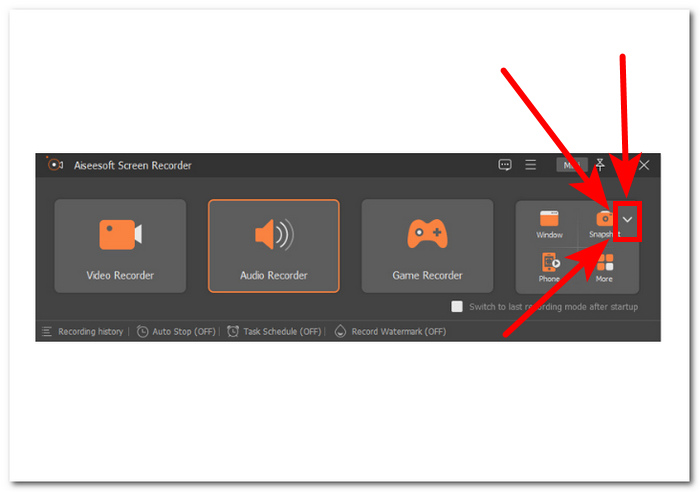
مرحله 2. پس از باز شدن نرمافزار، نمادی با دکمه Snapshot و فلش رو به پایین در سمت راست مشاهده خواهید کرد. برای ادامه روی این دکمه کلیک کنید.
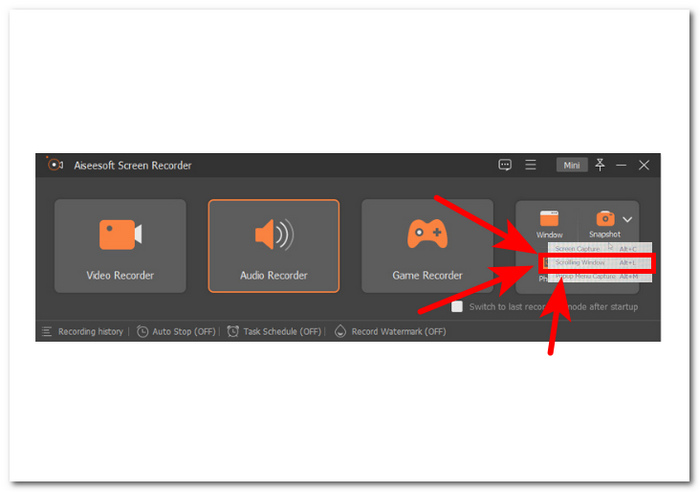
مرحله 3. گزینه Scrolling Window را از منوی کشویی انتخاب کنید. بهصورت جایگزین میتوانید از کلید میانبر Alt+L روی صفحهکلید خود استفاده کنید.
مرحله 4. با انتخاب گزینه Scrolling Window، نرمافزار بهطور خودکار اسکرینشات میگیرد. اکنون میتوانید برای ثبت تمام اطلاعات موردنیاز خود به پایین اسکرول کنید. نرمافزار تمام طول صفحه یا سند را ثبت میکند و به شما امکان میدهد آن را در صورت نیاز ذخیره یا به اشتراک بگذارید.
FVC Screen Recorder یک ابزار قابل اعتماد است که می تواند برای گرفتن اسکرین شات از یک ویدیو در Windows Media Player استفاده شود. این نرم افزار به صورت رایگان در هر دو دستگاه مک و ویندوز در دسترس است و پایگاه کاربر گسترده ای را تضمین می کند. این ابزار اسکرین شات با انواع ویژگی های ضبط و ضبط صفحه نمایش، برای هرکسی که به ابزاری قابل اعتماد و چند منظوره برای گرفتن صفحه کامپیوتر خود نیاز دارد، مناسب است.
قسمت 2. اسکرین شات در Windows Media Player با میانبرهای ویندوز
اگر از Windows Media Player استفاده می کنید و نیاز به گرفتن اسکرین شات دارید، نیازی به دانلود هیچ ابزار شخص ثالثی نیست. برای گرفتن عکس از یک ویدیوی Windows Media Player، می توانید از کلیدهای میانبر برای گرفتن سریع و آسان اسکرین شات از ویدیویی که در حال تماشای آن هستید استفاده کنید. این می تواند راهی عالی برای گرفتن یک تصویر ثابت از یک ویدیو برای مرجع یا اشتراک گذاری با دیگران باشد. به سادگی از کلیدهای میانبر مناسب استفاده کنید تا اسکرین شات شما برای انتقال آسان به نرم افزار ویرایش سند یا تصویر ذخیره شود.
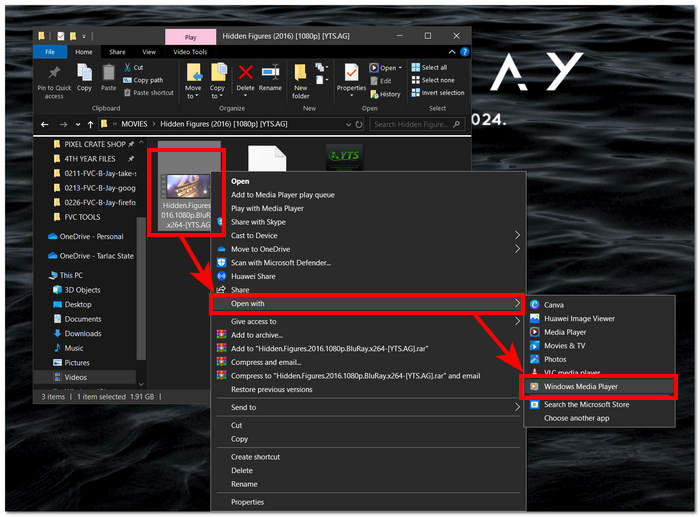
مرحله 1. برای شروع، Windows Media Player را روی رایانه خود اجرا کنید. ویدیویی را که میخواهید از آن اسکرینشات بگیرید انتخاب کنید.
مرحله 2. وقتی به همان فریمی در ویدیو رسیدید که میخواهید از آن اسکرینشات بگیرید، با کلیک روی دکمه Pause ویدیو را متوقف کنید.
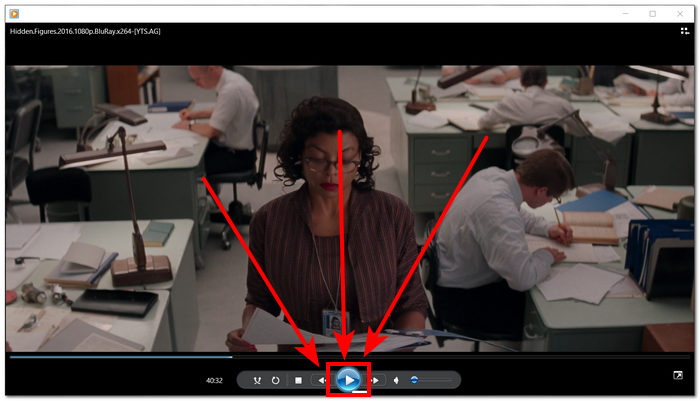
مرحله 3. دکمه PrtScn را روی صفحهکلید خود پیدا کنید و آن را فشار دهید. این کار از صفحه اسکرینشات گرفته و آن را بهصورت یک فایل تصویری ذخیره میکند. (چگونه بدون PrtSc اسکرینشات بگیریم؟)
مرحله 4. اسکرینشات بهطور خودکار در محل ذخیرهسازی پیشفرض رایانه شما ذخیره میشود. برای یافتن آن، بهدنبال پنجره پاپآپی بگردید که عبارت screenshot saved روی آن نمایش داده میشود.
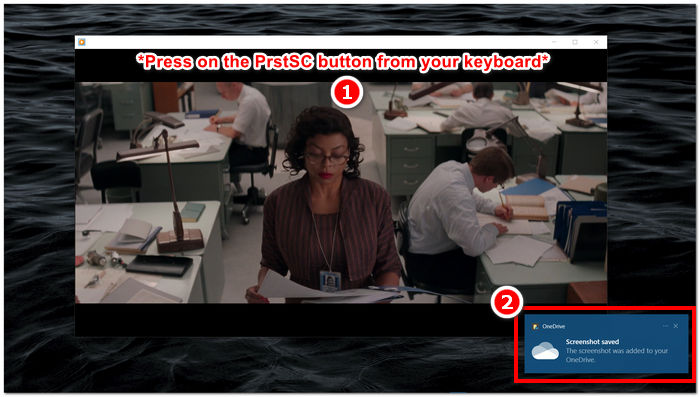
هنگام گرفتن اسکرین شات در Windows Media Player، استفاده از کلیدهای میانبر می تواند در وقت کاربران صرفه جویی کند و نیازی به استفاده از ابزار را از بین ببرد. در حالی که این روش برای کسانی که عجله دارند کارآمد و مفید است، مهم است که توجه داشته باشید که اجازه هیچ گونه ویرایش اسکرین شات را نمی دهد.
قسمت 3. نحوه گرفتن اسکرین شات در Windows Media Player با ابزار Snipping
اگر می خواهید هنگام پخش یک ویدیو در Windows Media Player یک اسکرین شات بگیرید، می توانید به راحتی بدون نیاز به نصب نرم افزار اضافی این کار را انجام دهید. ابزار Windows Snipping که از قبل برای همه دستگاه های ویندوز تعبیه شده است، می تواند برای گرفتن اسکرین شات از هر قسمت از صفحه نمایش شما، از جمله پنجره پخش ویدیو در پخش کننده رسانه استفاده شود. این ویژگی می تواند مفید باشد اگر بخواهید به سرعت از یک ویدیو برای مقاصد مرجع یا اشتراک گذاری عکس بگیرید.
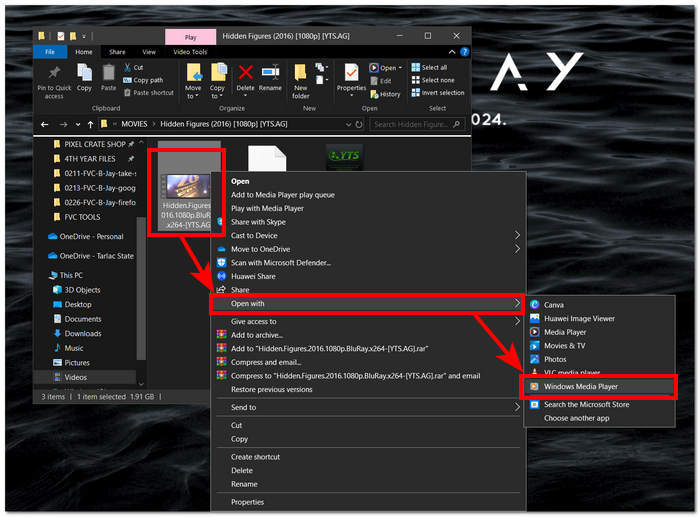
مرحله 1. ویدیویی را که میخواهید از آن اسکرینشات بگیرید با Windows Media Player باز کنید.
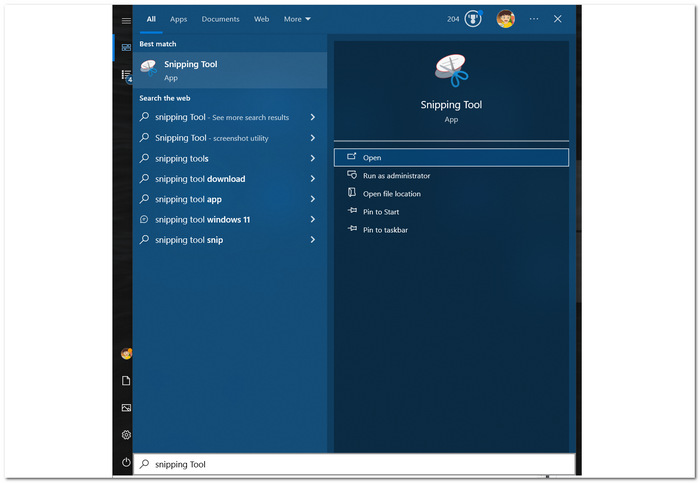
مرحله 2. ابزار Snipping Tool را در دستگاه ویندوزی خود با جستوجو در منوی Start پیدا کرده و سپس آن را باز کنید.
مرحله 3. در رابط این ابزار، روی Window Snip در بخش Mode کلیک کنید و سپس بهصورت دستی ناحیهای را که میخواهید از آن اسکرینشات بگیرید انتخاب کنید.
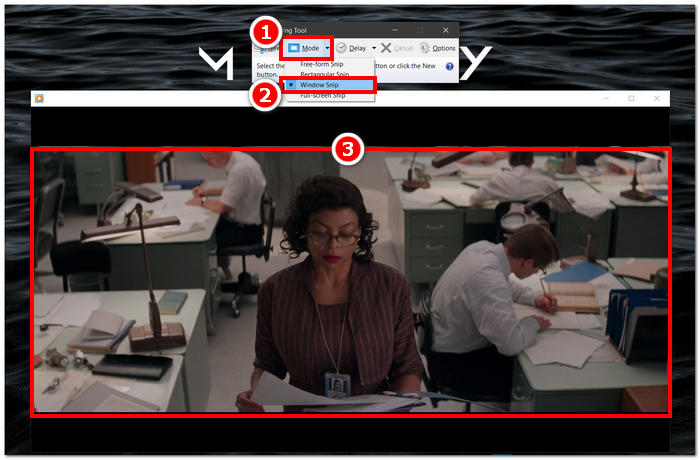
مرحله 4. پس از کلیک روی ناحیه موردنظر، یک پنجره جدید باز میشود که به شما امکان میدهد روی تصویر یادداشتگذاری کرده و آن را در رایانه خود ذخیره کنید.
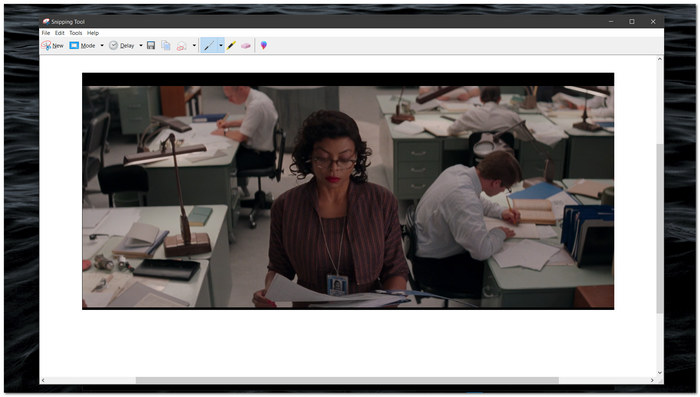
گرفتن اسکرین شات در حین تماشای ویدیو در Windows Media Player به لطف قابلیت های اصلی Windows Snipping Tool آسان شده است. با استفاده از ابزار Windows Snipping Tool، کاربران می توانند تجربه رسانه ای خود را بهبود بخشند و فرآیند ضبط و به اشتراک گذاری محتوا را به طور یکپارچه ساده کنند.
قسمت 4. نحوه گرفتن اسکرین شات در Windows Media Player با ابزار داخلی آن
Windows Media Player دارای ویژگی داخلی نیست، در نتیجه به کاربران اجازه نمیدهد از داخل پخشکننده عکس بگیرند. با این حال، هنوز یک کلید میانبر وجود دارد که می تواند علاوه بر موارد ذکر شده در بالا، برای گرفتن اسکرین شات در Windows Media Player استفاده شود.
مرحله 1. برای گرفتن اسکرینشات از ویدیویی که در Windows Media Player پخش میشود، ابتدا ویدیو را در پخشکننده باز کنید.
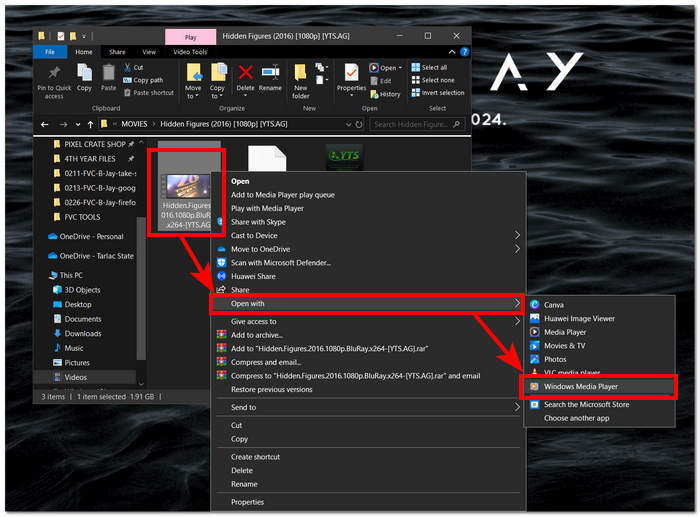
مرحله 2. لازم است ابتدا در همان لحظهای که میخواهید ثبت کنید، پخشکننده را با دکمه Pause متوقف کنید.
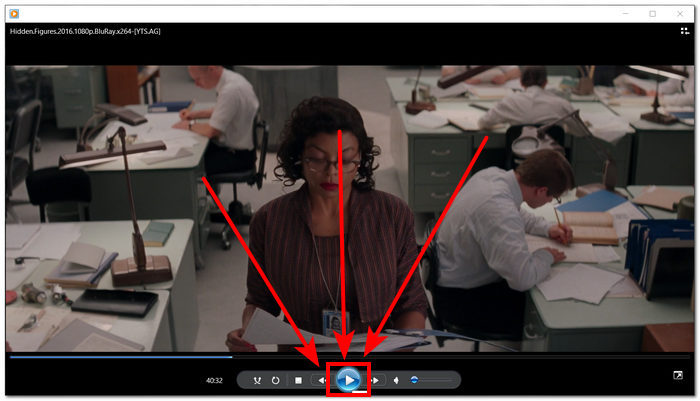
مرحله 3. برای گرفتن اسکرینشات از ویدئوی متوقفشده روی رایانه خود، میتوانید از ترکیب کلیدهای Windows Logo + Shift + S روی صفحهکلید استفاده کنید.
مرحله 4. پس از انتخاب دستی بخشی که میخواهید از آن اسکرینشات بگیرید، تصویر بهطور خودکار در کلیپبورد شما ذخیره میشود. سپس میتوانید بهسادگی آن را در ایمیل، پلتفرم پیامرسان یا برنامه یادداشتبرداری دلخواه خود پیست کنید.
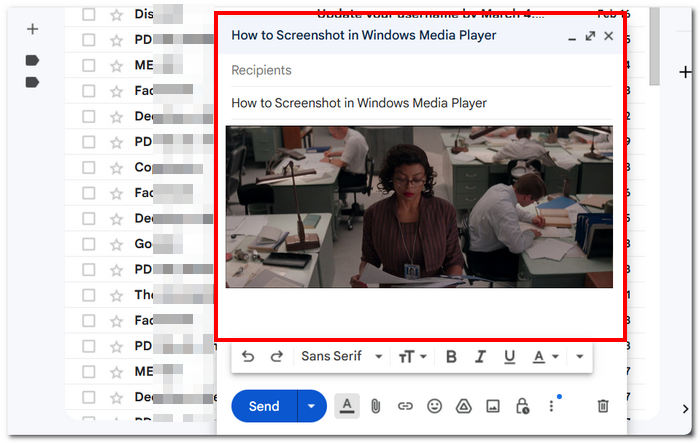
Windows Media Player ممکن است ویژگی داخلی برای گرفتن اسکرین شات نداشته باشد. با این حال، برخلاف اسکرین شات VLC، با توجه به رایگان بودن و از پیش نصب بودن آن بر روی دستگاه شما، همچنان یک پخش کننده رسانه ای قابل اعتماد و قدرتمند است.
بخش 5. سوالات متداول درباره نحوه گرفتن اسکرین شات در Windows Media Player
آیا می توانم بدون استفاده از نرم افزار اضافی در Windows Media Player اسکرین شات بگیرم؟
گرفتن اسکرین شات در Windows Media Player بدون نرم افزار اضافی امکان پذیر است. ویندوز یک ابزار داخلی به نام Snipping Tool دارد که به شما امکان می دهد از هر قسمت از صفحه نمایش خود از جمله پنجره پخش ویدیو در Windows Media Player اسکرین شات بگیرید.
آیا می توانم تنظیمات Snipping Tool را برای گرفتن اسکرین شات بهتر سفارشی کنم؟
ابزار Snipping تنظیمات قابل تنظیمی مانند حالت پیشفرض (به عنوان مثال، برش مستطیلی، تکه تکه با فرم آزاد)، تأخیر قبل از ضبط، و فرمتی که در آن عکسهای صفحه ذخیره میشوند (مانند PNG، JPEG) را ارائه میدهد.
آیا راه سریع تری برای گرفتن اسکرین شات در Windows Media Player وجود دارد؟
ابزارهای شخص ثالث اسکرین شات در دسترس هستند که ویژگی های پیشرفته تر و روش های سریع تری برای گرفتن اسکرین شات ارائه می دهند. اگر هنگام استفاده از Windows Media Player اغلب نیاز به گرفتن اسکرین شات دارید، می توانید این گزینه ها را بررسی کنید.
آیا می توانم از ویدیوهایی که در حالت تمام صفحه در حال پخش هستند اسکرین شات بگیرم؟
بله، استفاده از ابزار Snipping برای گرفتن اسکرین شات حتی زمانی که ویدیوها در حالت تمام صفحه در حال پخش هستند، امکان پذیر است. به سادگی به Snipping Tool بروید و از ناحیه مورد نظر صفحه حاوی ویدیو عکس بگیرید.
روش توصیه شده برای گرفتن اسکرین شات با کیفیت بالا در Windows Media Player چیست؟
روش پیشنهادی برای گرفتن اسکرین شات با کیفیت بالا در Windows Media Player استفاده از روش نرم افزاری است. این ابزار به کاربران این امکان را می دهد تا مناطق خاصی از صفحه نمایش از جمله پنجره پخش ویدیو را انتخاب و ضبط کنند و از وضوح و دقت در اسکرین شات اطمینان حاصل کنند. با استفاده از ویژگیهای ابزار نرمافزار، کاربران میتوانند بدون نیاز به نرمافزار شخص ثالث، اسکرینشاتهای واضح و دقیق بگیرند.
نتیجه
ما روشهای مختلف گرفتن اسکرینشات در Windows Media Player را بررسی کردیم؛ از راهحلهای مبتنی بر نرمافزار گرفته تا ابزارهای داخلی مانند Snipping Tool و کلیدهای میانبر. این تکنیکها در دسترس بوده و میتوانند کاربران را قادر سازند تا لحظات مهم تجربههای رسانهای خود را بهآسانی ثبت و به اشتراک بگذارند. با استفاده از قابلیتهایی که در اینجا بررسی شد، کاربران میتوانند گرفتن اسکرینشات را بهطور یکپارچه در استفاده خود از Windows Media Player ادغام کرده و تعامل خود با رسانه را به سطح بالاتری ارتقا دهند.
-
 چگونه بدون زحمت در فایرفاکس اسکرول اسکرین شات بگیرید
 آموزش اسکرول کردن اسکرین شات ها در فایرفاکس برای گرفتن فوری کل صفحات وب. برای یادگیری نحوه استفاده از این ویژگی، آموزش گام به گام آسان ما را دنبال کنید.
-
 نحوه گرفتن اسکرین شات در Samsung S23 در کف دست
 همه چیزهایی که باید در مورد نحوه گرفتن اسکرین شات در Samsung S23 بدانید، به حداکثر رساندن ویژگی های دستگاه پرچمدار برای یک تجربه تصویربرداری یکپارچه از صفحه.
-
 نحوه اسکرین شات گرفتن کارآمد در Windows Media Player
 ساده ترین روش ها را برای گرفتن اسکرین شات در Windows Media Player بی دردسر کشف کنید. با راهنمای جامع ما، تجربه عکسبرداری از صفحه نمایش خود را ارتقا دهید.
