


 Video Converter Ultimate
 ضبط صفحه
 تعمیر ویدیو
راهنمای دقیق نحوه معکوس کردن صدا در Audacity [2024]
معکوس کردن آهنگ های صوتی می تواند ابعاد و رنگ منحصر به فردی را به تولیدات موسیقی شما اضافه کند و جلوه های صوتی جذابی را برای داستان سرایی خلاق ایجاد کند. این سبک به طور گسترده ای مورد استفاده قرار می گیرد و زمانی که صحبت از غنی سازی پروژه های صوتی با عمق و اصالت می شود محبوبیت پیدا می کند. بنابراین، اگر در حال ویرایش صدا در Audacity هستید و به دنبال ایجاد یک پیچ و تاب با معکوس کردن آن هستید، در جای درستی هستید!
در این مقاله، شما را با مراحل دقیق نحوه معکوس کردن صدا در Audacity آشنا میکنیم و نکات ارزشمندی را برای کمک به شما در استفاده حداکثری از این ویژگی به اشتراک میگذاریم. در پایان این راهنما، شما آماده خواهید بود که آهنگ های صوتی خود را معکوس کنید و افق های خلاقانه جدید را به راحتی کشف کنید. بنابراین، آماده شوید تا پروژه های صوتی خود را متحول کنید و پتانسیل هیجان انگیز صدای معکوس را کشف کنید!

قسمت 1. نحوه معکوس کردن صدا در Audacity
Audacity برنامه ای است که برای توانمندسازی کاربران برای ویرایش فایل های صوتی بدون نیاز به ابزارهای گران قیمت طراحی شده است و از خروجی با کیفیت بالا بدون هیچ هزینه ای اطمینان حاصل می کند. به عنوان یک ابزار منبع باز، به صورت رایگان برای همه قابل دسترسی است و فهرست طولانی از ویژگی هایی را که معمولاً در نرم افزارهای پولی یافت می شوند ارائه می دهد. Audacity در میان مجموعه ای از قابلیت های خود، با توانایی معکوس کردن آهنگ های صوتی متمایز است. این ویژگی به کاربران این امکان را می دهد که فقط در مورد نحوه پخش صدای خود خلاق باشند. معمولا، ویراستاران صدای خود را معکوس می کنند زیرا جلوه منحصر به فردی را به پروژه های آنها اضافه می کند.
در اینجا روش برعکس کردن صدا در Audacity را میبینید.
مرحله 1. Audacity را روی کامپیوتر خود دانلود و نصب کنید.
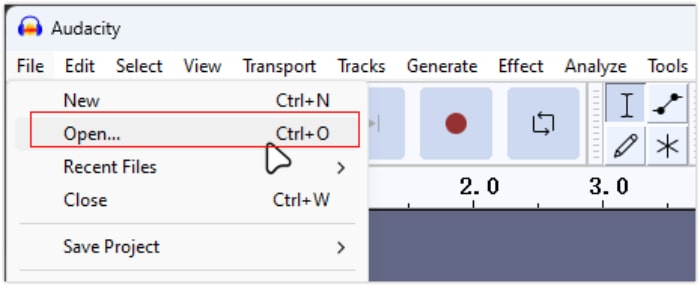
مرحله 2. ابزار را اجرا کنید، به منوی File در گوشهٔ بالا-چپ بروید و Open را انتخاب کنید. از آنجا، در کامپیوتر خود به دنبال فایل صوتی بگردید و آن را انتخاب کنید، یا فایل صوتیای را که میخواهید برعکس کنید بکشید و درون برنامه رها کنید.
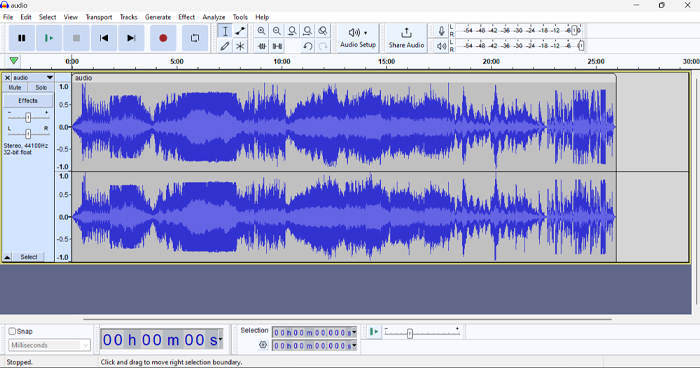
مرحله 3. حالا روی ترک صوتی کلیک کنید، به تب Select بروید و All را انتخاب کنید تا کل فایل صوتی انتخاب شود.
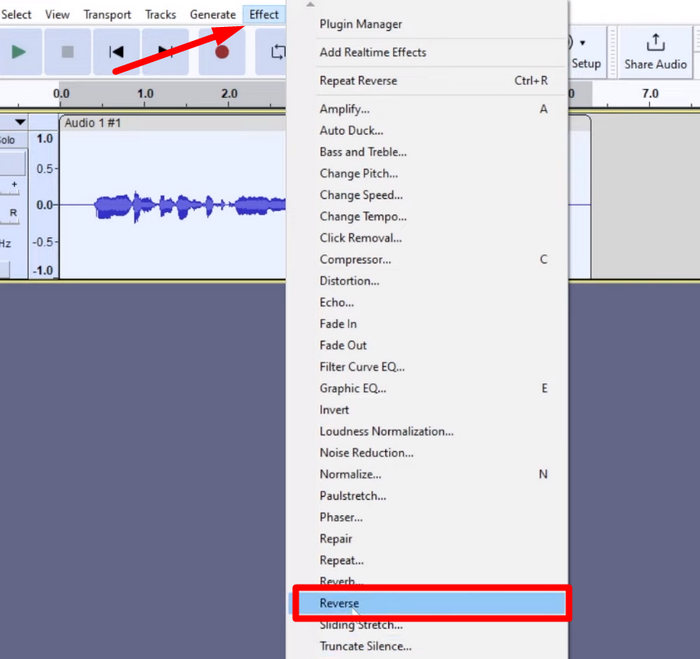
مرحله 4. برای برعکس کردن صدا، به تب Effect بروید و از منوی کشویی، گزینهٔ Reverse را انتخاب کنید. Audacity بخش صوتی انتخابشده را پردازش و برعکس خواهد کرد.
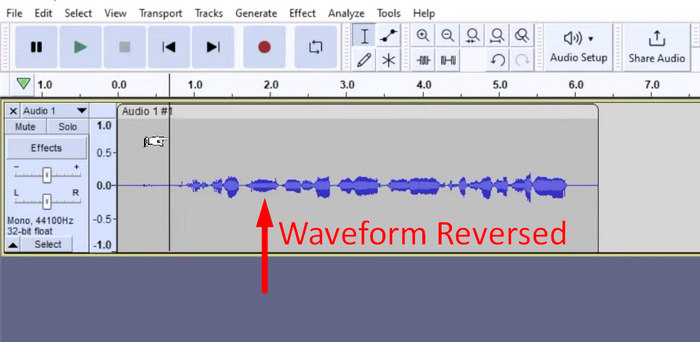
مرحله 5. میتوانید با فشردن کلید فاصله (Spacebar) روی صفحهکلید، صدای برعکسشده را پیشنمایش کنید. همچنین میتوانید از کنترلهای پخش در گوشهٔ بالا-چپ پنجرهٔ Audacity استفاده کرده و روی دکمهٔ Play کلیک کنید.
مرحله 6. در نهایت، برای خروجی گرفتن از فایل صوتی برعکسشده، دوباره به منوی File بروید و در زیر آن، گزینهٔ Export را انتخاب کنید. به این ترتیب، صدای شما بهصورت یک فایل جدید ذخیره میشود. در همین حین، فراموش نکنید که پیش از خروجی گرفتن، فرمت دلخواه خود را برای فایل صوتی انتخاب کنید.
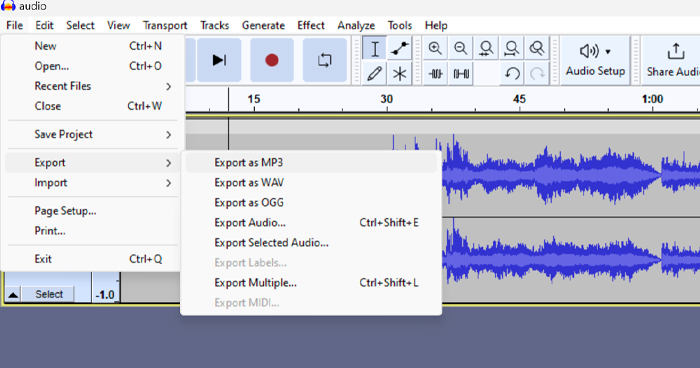
با توجه به برخی از مسائل مربوط به از دست دادن کار به طور غیرمنتظره، به طور مرتب پروژه خود را در حین ویرایش ذخیره کنید تا از افت پیشرفت جلوگیری کنید. با استفاده از Ctrl + S در ویندوز یا Cmd + S در Mac میتوانید به سرعت کار خود را ذخیره کنید. علاوه بر این، استفاده از نام فایل های توصیفی و سازماندهی فایل های خود را در یک پوشه اختصاصی در نظر بگیرید تا پروژه های خود را به خوبی سازماندهی کرده و به راحتی در دسترس قرار دهید.
قسمت 2. نحوه معکوس کردن بخشی از صدا در Audacity
مواردی وجود دارد که کاربران فقط میخواستند بخشی از صدا را در Audacity معکوس کنند، شاید به این دلیل که فقط بخشهای خاصی وجود دارد که میخواهند بر آن تأکید کنند یا جلوهای متمایز ایجاد کنند. مراحل زیر تقریباً مشابه نحوه معکوس کردن یک مسیر کامل است. با این حال، انتخاب بخشی از یک صدا کمی مشکل است و برای جلوگیری از سردرگمی، به ویژه برای مبتدیان، نیاز به تاکید در مراحل دارد.
در اینجا روش برعکس کردن بخشی از صدا در Audacity را میبینید.
مرحله 1. وقتی در رابط اصلی ابزار هستید، به منوی File در گوشهٔ بالا-چپ بروید و Open را انتخاب کنید. از آنجا، در کامپیوتر خود به دنبال فایل صوتی بگردید و آن را انتخاب کنید یا فایل صوتیای را که میخواهید در برنامه برعکس کنید بکشید و رها کنید.
مرحله 2. اکنون، برای انتخاب بخشی از صدا که میخواهید برعکس شود، از قابلیت Zoom برای زوم کردن روی موج صدا استفاده کنید و با ماوس بکشید تا ناحیه یا بخشی از صدا را که فقط میخواهید برعکس شود انتخاب کنید.
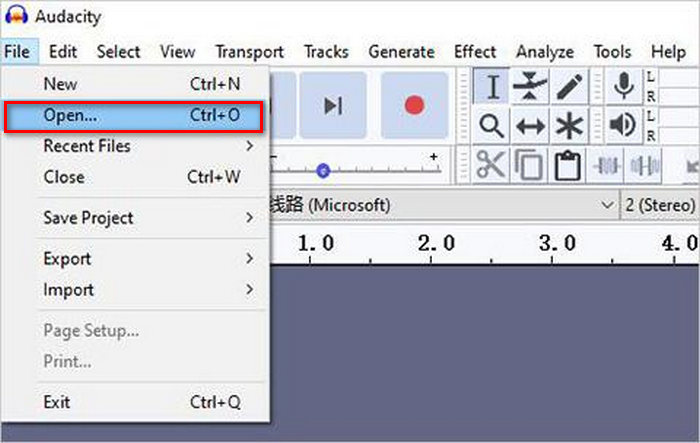
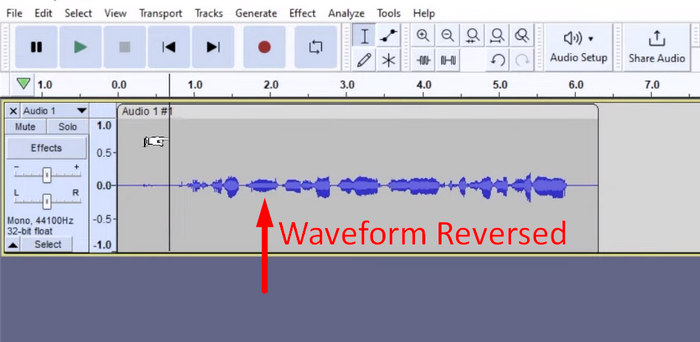
مرحله 3. برای برعکس کردن صدا، به تب Effect بروید و از منوی کشویی، گزینهٔ Reverse را انتخاب کنید. Audacity بخش صوتی انتخابشده را پردازش و برعکس خواهد کرد.
مرحله 4. میتوانید با فشردن کلید فاصله (Spacebar) روی صفحهکلید، صدای برعکسشده را پیشنمایش کنید. همچنین میتوانید از کنترلهای پخش در گوشهٔ بالا-چپ پنجرهٔ Audacity استفاده کرده و روی دکمهٔ Play کلیک کنید.
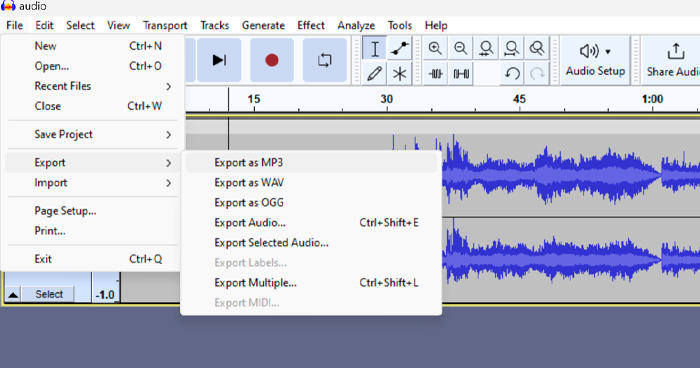
مرحله 5. در نهایت، برای خروجی گرفتن از فایل صوتی برعکسشده، در منوی File گزینهٔ Export را انتخاب کنید. سپس Export as را برگزینید و پیش از خروجی نهایی، فرمت دلخواه خود را برای فایل صوتی انتخاب کنید.
هنگام انتخاب بخش مشخصی از صدا برای برعکس کردن در Audacity، مطمئن شوید که با دقت روی شکل موج (Waveform) زوم میکنید تا شروع و پایان آن بخش را بهوضوح ببینید. این کار به انتخاب دقیق کمک میکند و از وارد شدن ناخواستهٔ بخشهای دیگر صدا جلوگیری میکند. علاوه بر این، پیش از برعکس کردن، در صورت لزوم از ابزار Clip Split برای تقسیم صدا به قطعههای مجزا استفاده کنید؛ برای مثال، بریدن یک فایل MP3، که کار دستکاری و ویرایش مستقل بخشهای خاص را آسانتر میکند. این رویکرد کنترل شما بر ویرایشها را افزایش میدهد و اطمینان میدهد که صدای برعکسشده، اثر مورد نظر را بهنرمی و بدون مشکل ایجاد میکند.
قسمت 3. صوتی/تصویری معکوس با جایگزین Audacity
در همین حال، اگر یک روش سادهتر و راحتتر برای برعکس کردن صدا یا ویدیو ترجیح میدهید، میتوانید از این جایگزین Audacity یعنی Video Converter Ultimate انتخابشده توسط FVC استفاده کنید. این ابزار جامع ویدیو و صدا شاید بیش از همه بهخاطر تواناییهای قدرتمندش در تبدیل فرمتها شناخته شود، اما فراتر از آن، برای کاربرانی که به روشی راحت برای برعکس کردن صدا یا ویدیو نیاز دارند نیز بسیار مناسب است.
مرحله 1. روی کامپیوتر خود، برنامهٔ Video Converter Ultimate انتخابشده توسط FVC را دانلود و نصب کنید.
دانلود رایگانبرای ویندوز 7 یا بالاتردانلود امن
دانلود رایگانبرای MacOS 10.7 یا بالاتردانلود امن
مرحله 2. ابزار را اجرا کنید و به تب Moretools بروید. از آنجا، Video Reverser را انتخاب کنید.
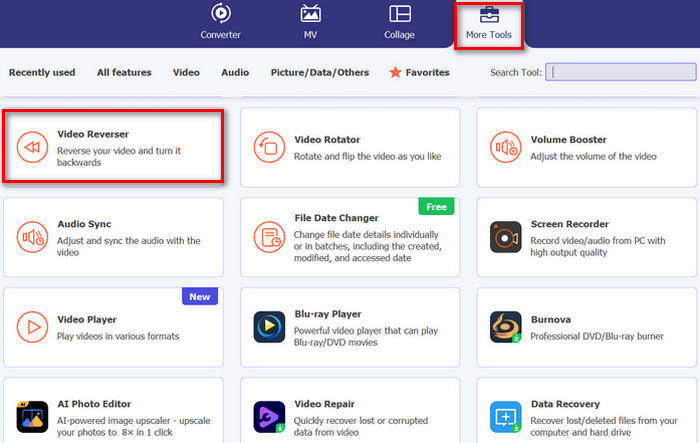
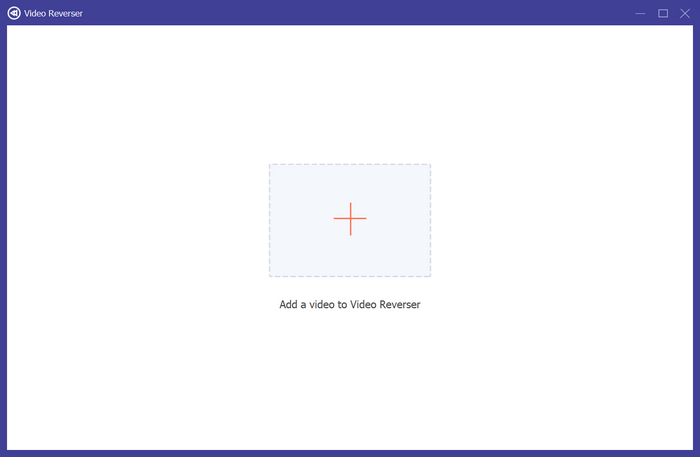
مرحله 3. اکنون، صدای یا ویدیویی را که میخواهید برعکس کنید با کلیک روی دکمهٔ Add a Video to Video Reverser وارد کنید.
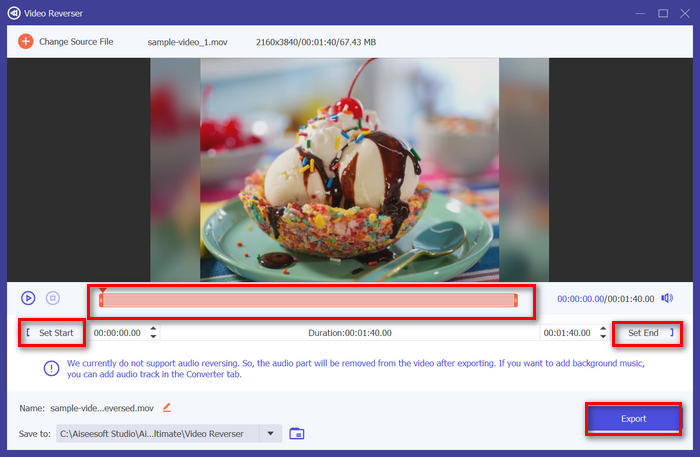
مرحله 4. وقتی در رابط Video Reverser هستید، اگر میخواهید کل ترک را برعکس کنید، کافی است مستقیماً سراغ دکمهٔ Export بروید تا فایل شما بهطور خودکار برعکس شود. اما اگر میخواهید فقط بخشی را برعکس کنید، میتوانید نوار را جابهجا کرده و بهدقت بخش دلخواه از صدا یا ویدیو را که میخواهید برعکس شود انتخاب کنید. همچنین میتوانید زمان شروع و پایان بخشی از فایل را که میخواهید برعکس شود بهصورت دستی وارد کنید. پس از پایان کار، فقط روی دکمهٔ Export کلیک کنید.
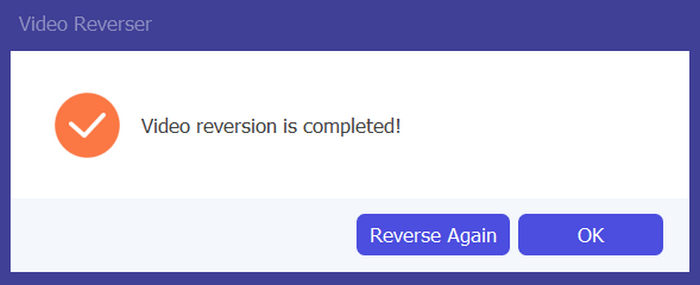
مرحله 5. وقتی فرایند خروجی گرفتن کامل شد، این پیام را دریافت میکنید و میتوانید ویدیوی برعکسشدهٔ خود را در پوشهٔ مربوطه روی کامپیوترتان پیدا کنید.
شما آن را دارید! آسان پیزی، درست است؟ نیازی نیست که با یک رابط کاربری پیچیده اشتباه بگیرید. با FVC-picked Video Converter Ultimate، هر چیزی که نیاز دارید درست در دسترس شماست.
بخش 4. سوالات متداول در مورد معکوس کردن صدا در Audacity
چگونه جلوه صوتی معکوس را در Audacity خنثی کنیم؟
اگر در Audacity معکوس کرده اید و می خواهید آن را لغو کنید، می توانید به راحتی به صدای اصلی برگردید. به سادگی به منوی Edit در گوشه سمت چپ بالای رابط Audacity بروید و Undo Reverse را انتخاب کنید. علاوه بر این، می توانید از میانبر صفحه کلید Ctrl + Z برای ویندوز یا Cmd + Z برای مک برای لغو آخرین اقدام استفاده کنید. این کار قبل از اعمال افکت معکوس، صدا را به حالت اولیه خود برمی گرداند.
Audacity از چه فرمت های صوتی برای معکوس کردن صدا پشتیبانی می کند؟
Audacity از فرمت های مختلف صوتی محبوب مانند WAV، MP3، FLAC، AIFF و OGG پشتیبانی می کند.
آیا می توانید صدا را در Audacity تحریف کنید؟
بله. می توانید صدا را در Audacity تحریف کنید. Audacity چندین افکت و ابزار ارائه می دهد که به شما امکان می دهد اعوجاج را در آهنگ های صوتی خود اعمال کنید. برای اضافه کردن این، به Effect بروید، روی Distortion and Modulation کلیک کنید و Distortion را انتخاب کنید.
آیا می توانید صدا را در Audacity تبدیل کنید؟
بله، میتوانید. Audacity از تعداد زیادی فرمت صوتی پشتیبانی میکند. اگر متوجه شدید هر یک از فایلهای صوتی شما با دستگاهتان سازگار نیست، برای مثال میتوانید بهراحتی از Audacity برای تبدیل AIFF به MP3 استفاده کنید.
نتیجه
در پایان، یادگیری نحوهٔ برعکس کردن صدا در Audacity ساده است و جلوههای منحصربهفردی به پروژههای صوتی یا ویدیویی شما اضافه میکند. با دنبال کردن مراحل دقیق، همین امروز برعکس کردن ترکهای صوتی خود را شروع کنید. برای جایگزینی سادهتر، Video Converter Ultimate انتخابشده توسط FVC را امتحان کنید. آمادهاید خلاقیت به خرج دهید؟ همین حالا هر یک از این روشها را امتحان کنید!
-
 به صورت رایگان به MOV بپیوندید - چگونه دو فایل MOV را در یک ادغام کنیم
 ممکن است برای مبتدیان دشوار باشد که به چندین کلیپ ویدیویی MOV با هم ملحق شوند. بنابراین ، آیا یک روش ساده و سریع برای ترکیب فایل های MOV وجود دارد؟ اگر وجود دارد ، پس چگونه از آن استفاده کنیم؟ این پست به شما کمک می کند تا این پاسخ ها را دریافت کنید.
-
 4 روش ادغام ویدیوها به صورت رایگان در ویندوز / مک / آنلاین
 در اینجا 4 روش سریع برای ادغام فیلم ها با هم در یک ویدیوی جدید آورده شده است. اندازه فایل ویدئو یا محدودیت قالب وجود ندارد با موفقیت می توانید به کلیپ های ویدئویی 2 ، 3 ، 4 و حتی بیشتر در قالب ها و رزولوشن های مختلف بپیوندید.
-
 راهنمای بتن برای پیوستن به پرونده های M4V در ویندوز و مک به صورت رایگان
 اگر به دنبال راه حلی برای ترکیب فایلهای ویدئویی M4V در یک مورد هستید ، هرگز این قسمت را از دست ندهید. در اینجا ما در مورد دو بهترین روش برای ترکیب فایل های ویدئویی M4V صحبت خواهیم کرد.
