


 Video Converter Ultimate
 ضبط صفحه
 تعمیر ویدیو
بهترین مبدل برای تبدیل AIFF به MP3 با راهنمای گام به گام
فایلهای AIFF بالاترین کیفیت از میان فایلهای صوتیای را که تا به حال دربارهشان شنیدهاید ذخیره میکنند. اگرچه این فرمت به دلیل فشردهنشده بودن میتواند در برنامههای دسکتاپ نگهداری شود، اما برای ذخیره یا دانلود روی گوشی چندان ایدهآل نیست. بنابراین راهی وجود دارد که بتوانید فایلهای AIFF را هم روی گوشی و هم روی دسکتاپ با اشغال فضای کمتر ذخیره کنید. بهترین راهحل برای این مشکل این است که آن را به فرمت تبدیل AIFF به MP3 تبدیل کنید. البته تبدیل کردن میتواند اثر جانبی روی فایلهای صوتی شما داشته باشد. به همین دلیل، ما مجموعهای از ابزارها را گرد آوردهایم که میتوانید برای تبدیل AIFF بدون از دست دادن کیفیت فایل از میانشان انتخاب کنید. پس ادامه دهید، بیایید ابزارهای زیر را بررسی کنیم و مستقیماً با معرفی و ارائه مراحل شروع کنیم.

قسمت 1. نحوه تبدیل AIFF به MP3 در ویندوز و مک
1. Video Converter Ultimate
تبدیل فرمتها میتواند با استفاده از Video Converter Ultimate فوقالعاده باشد. اگر در مبدل فعلیتان امکانات ویژهای دریافت نمیکنید، این ابزار را امتحان کنید. زیرا این مبدل نهایی امکانات پیشرفته فراوانی ارائه میدهد که سایر مبدلها برای AIFF به MP3 در ویندوز یا مک آنها را ندارند. همچنین این ابزار فقط به برنامههای ویندوز محدود نیست و میتوانید آن را روی مک نیز دانلود کنید. بنابراین اگر میخواهید تبدیل نهایی و قدرتمندی را تجربه کنید، حتماً مراحل زیر را دنبال کنید تا تبدیل موفقی برای فایل AIFF خود داشته باشید.
مرحله 1. برای استفاده از مبدل، ابتدا باید آن را روی درایو رایانه ویندوز یا مک خود دانلود کنید. سپس آن را نصب کنید، تنظیمات را تغییر دهید و در پایان روی Finish کلیک کنید تا ابزار اجرا شود.
دانلود رایگانبرای ویندوز 7 یا بالاتردانلود امن
دانلود رایگانبرای MacOS 10.7 یا بالاتردانلود امن
مرحله 2. بعد از نصب مبدل، روی Add Files کلیک کنید تا فایلهای AIFFی را که میخواهید تبدیل شوند اضافه کنید. اگر فایلها زیاد هستند و انتخابشان در پوشه سخت است، میتوانید آنها را بکشید و در رابط برنامه رها کنید.
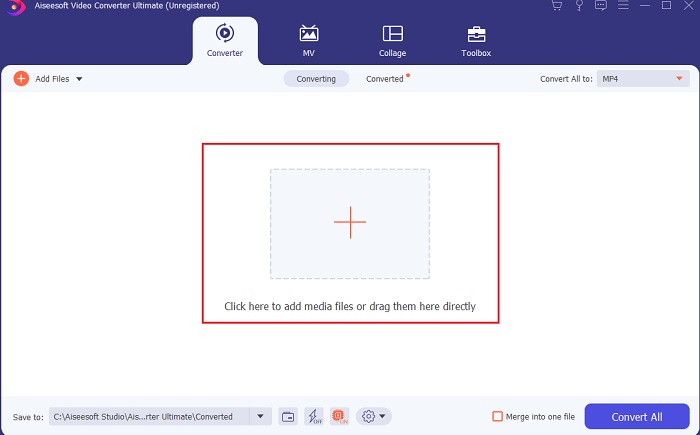
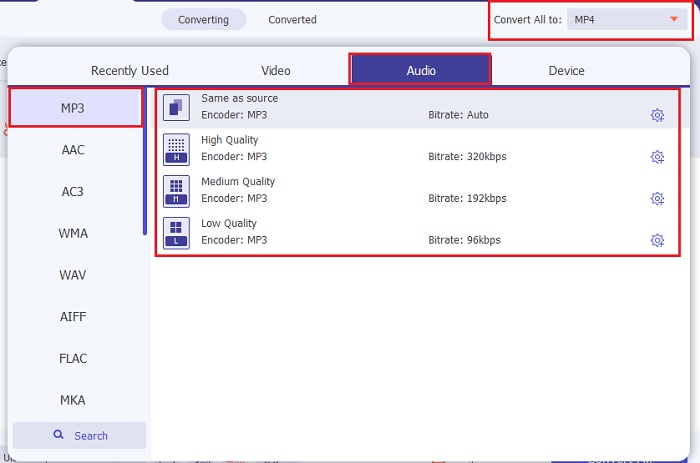
مرحله 3. با کلیک روی گزینه Convert All to به مرحله بعد بروید. سپس فرمت صوتی مورد نظر خود را انتخاب کنید. برای مثال، میتوانید MP3 را به عنوان خروجی نهایی برگزینید.
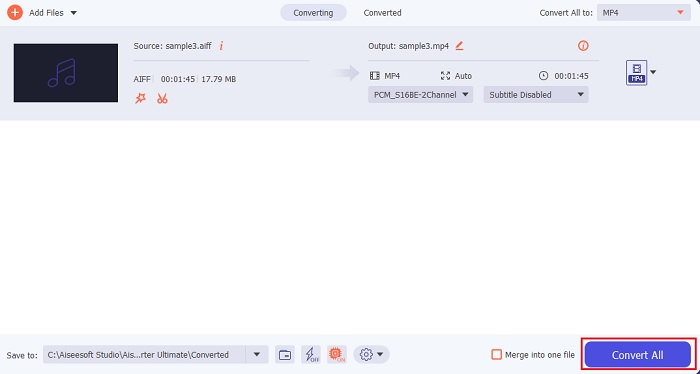
مرحله 4. روی دکمه Convert All کلیک کنید تا فرایند تبدیل فایلهای AIFF آغاز شود.
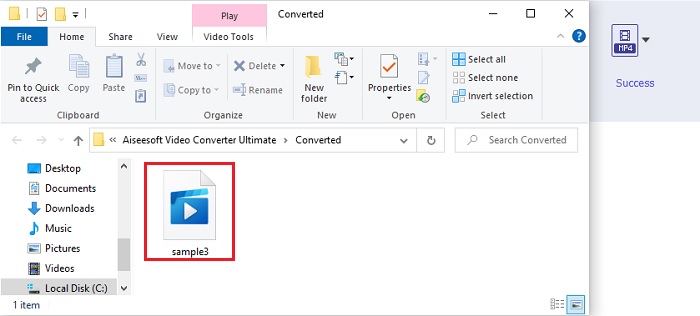
مرحله 5. چند ثانیه برای انجام تبدیل صبر کنید، سپس یک پوشه فایل روی صفحه شما نمایش داده میشود. روی فایل MP3 تازه تبدیلشده کلیک کنید و به بهترین صدایی که تا به حال شنیدهاید گوش دهید.
2. iTunes
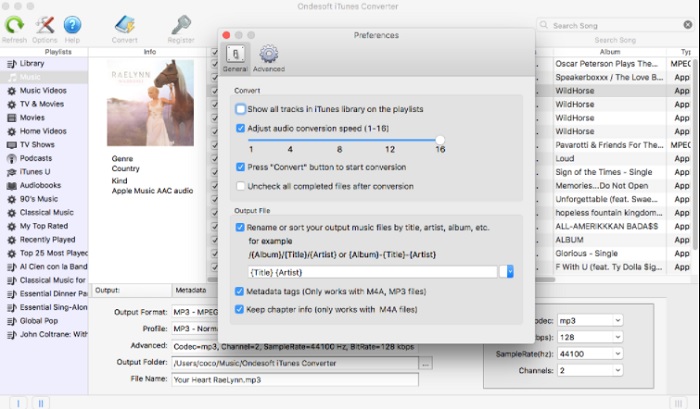
این پخشکننده محلی نیز میتواند فایلهای AIFF را در مک به MP3 تبدیل کند، یعنی iTunes. این پخشکننده رسانهای توسط اپل توسعه یافته تا کتابخانه و پخشکننده پیشفرض موسیقی در تمام برنامههای iOS و مک باشد. یکی از قابلیتهای آن، امکان تبدیل نیز هست. اگرچه قابلیت تبدیل دارد، اما فرمتهای کمتری را نسبت به ابزارهای آنلاین پشتیبانی میکند. با این حال، برای استفاده و تبدیل فایلها به فرمتی جدید برای پخش، مؤثر و ایمن است. همچنین این پخشکننده بومی روی محصولات غیر اپل مانند اندروید یا ویندوز در دسترس نیست. پس برای آشنایی بیشتر با قابلیت تبدیل در iTunes مراحل زیر را دنبال کنید.
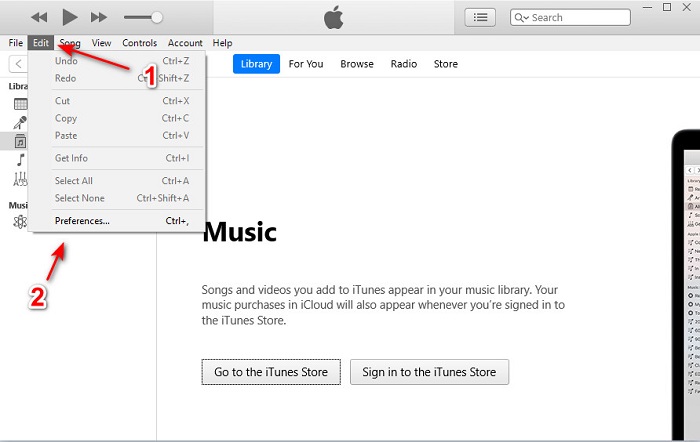
مرحله 1. iTunes را روی دسکتاپ خود باز کنید، سپس روی Edit و بعد Preferences کلیک کنید.
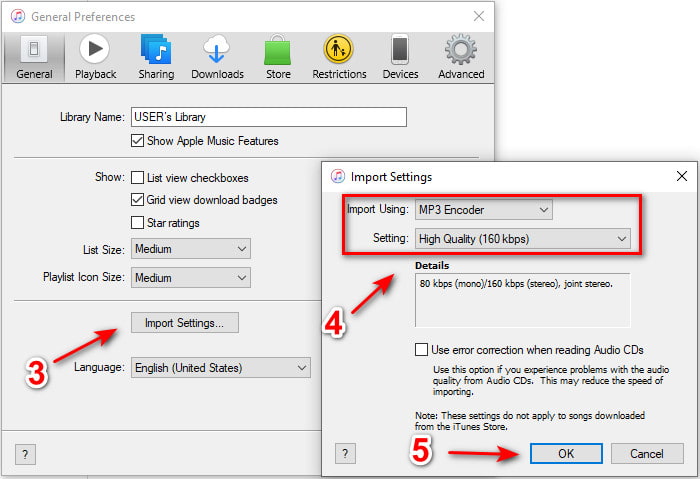
مرحله 2. در بخش General روی Import Settings کلیک کنید. منویی کوچکتر ظاهر میشود؛ در اینجا format و quality را تغییر دهید و سپس برای ذخیره روی OK کلیک کنید.
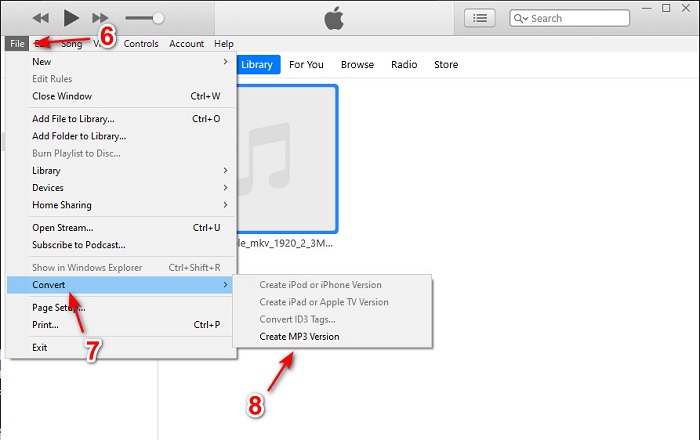
مرحله 3. فایل را به رابط برنامه بکشید و روی آن کلیک کنید. به بخش File، سپس Convert بروید و روی Create MP3 Version کلیک کنید تا تبدیل آغاز شود.
قسمت 2. 2 مبدل آنلاین رایگان برتر برای تبدیل AIFF به MP3
1. مبدل صوتی رایگان FVC
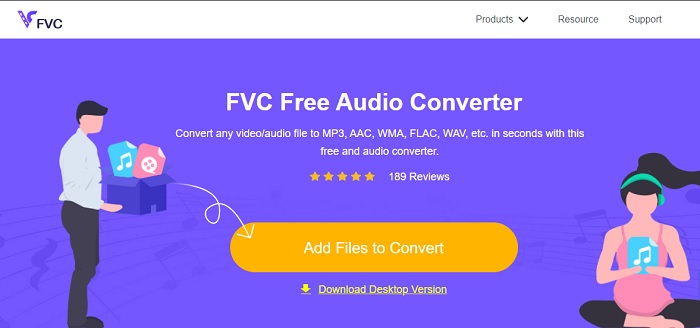
اگر AIFF را به MP3 تبدیل کنید، با استفاده از این مبدل تحت وب، یعنی FVC Free Audio Converters، حجم فایل را به کمتر از 320 kbps خواهید رساند. این راهحل توسط میلیونها کاربر در وب برای تبدیل فرمت فایلها استفاده شده است. البته این ابزار به دلیل رایگان بودن، امکانات اصلی نسخه پریمیوم یعنی FVC Video Converter Ultimate را ندارد. با این حال اگر از آن استفاده کنید، همچنان میتوانید سطح متوسطی از «تبدیل نهایی» را تجربه کنید. همچنین، این ابزار فرمتهای صوتی بیشتری نسبت به iTunes پشتیبانی میکند. برای استفاده از این ابزار تحت وب، مراحل زیر را دنبال کنید.
مرحله 1. برای رفتن به وبسایت اصلی مبدل صوتی روی این لینک کلیک کنید.
مرحله 2. سپس روی دکمه Add Files to Convert کلیک کنید و به ابزار اجازه دهید تا لانچر را اجرا کند. توضیح تکمیلی: اگر اولین بار است که از این وبابزار استفاده میکنید، باید ابتدا لانچر را دانلود و نصب کنید.
برای تبدیل دستهای فایلها، نسخهٔ دسکتاپ را دانلود کنید.
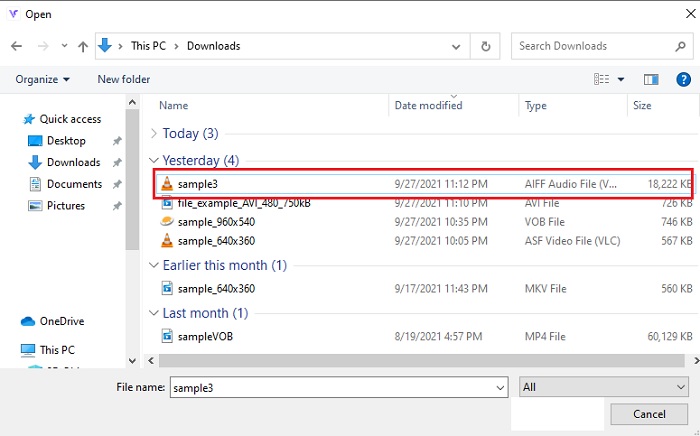
مرحله 3. بعد از اجرای وبابزار، باید فایلهای AIFF را انتخاب کرده و روی open کلیک کنید تا به رابط اصلی وبابزار هدایت شوید.
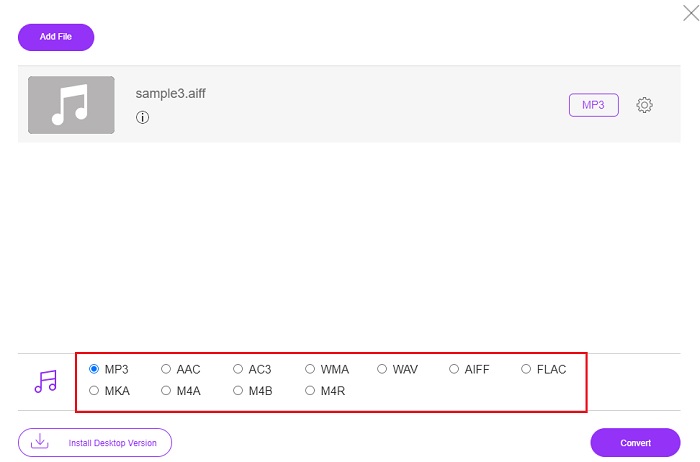
مرحله 4. فرمت صوتی مورد نظر خود را در پایین انتخاب کنید. سپس روی دکمه Convert کلیک کرده و مقصد ذخیره فایل را برگزینید تا فرایند تبدیل آغاز شود.
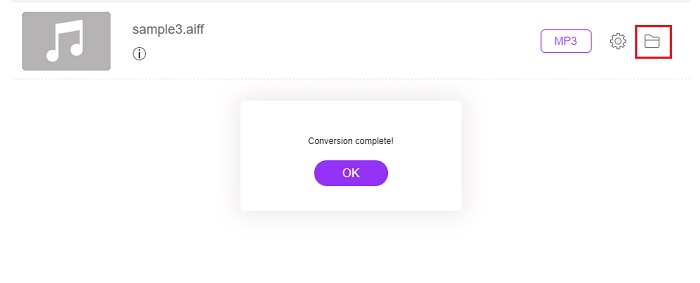
مرحله 5. برای پیدا کردن فایل تبدیلشده پس از پایان تبدیل، روی آیکون folder کلیک کنید. سپس پنجره File Explorer روی صفحه شما ظاهر میشود؛ روی فایل تبدیلشده کلیک کنید و به آن گوش دهید.
2. زامزار
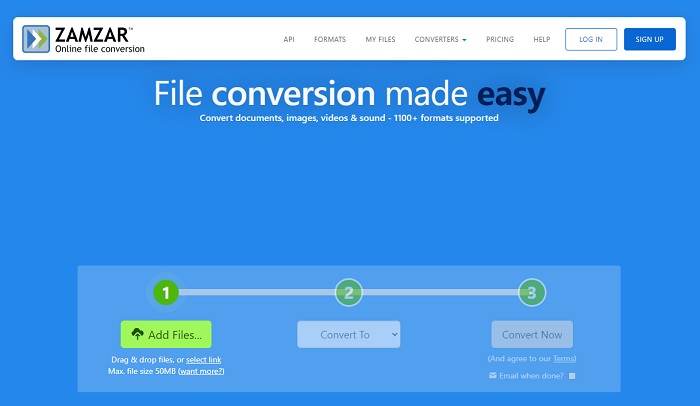
استفاده از Zamzar برای تبدیل ممکن است بهترین انتخاب شما برای تبدیل فایلها باشد. این ابزار بسیار ساده است زیرا فقط سه مرحله اصلی برای انجام تبدیل نمایش میدهد. اما این ابزار محدودیت حجم فایل و تعداد فایل برای تبدیل دارد. همچنین فرایند تبدیل در اینجا چندان خوب نیست؛ زمان زیادی از شما میگیرد و اگر تبدیل شروع شده باشد، دیگر نمیتوانید آن را لغو کنید. بنابراین قبل از انجام تبدیل بعدی باید صبر کنید تا فرایند فعلی تمام شود و سپس دوباره فایل را اضافه کنید. برای تبدیل، مراحل زیر را بخوانید و دنبال کنید.
مرحله 1. وبسایت اصلی Zamzar را در مرورگر خود جستوجو کنید.
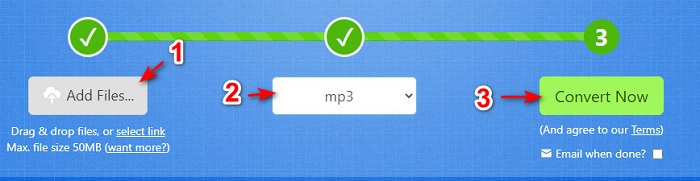
مرحله 2. سپس روی Add File کلیک کنید تا فایل صوتیای را که میخواهید تبدیل شود انتخاب کنید. با کلیک روی Convert to، فرمت را برگزینید.
مرحله 3. اگر آماده شروع تبدیل هستید، روی Convert Now کلیک کنید تا فرایند آغاز شود.
مطالعه بیشتر
چگونه WAV را به MP3 تبدیل کنیم
چگونه M4V را به MP3 تبدیل کنیم
AIFF در مقابل MP3
AIFF، فرمت فایل تبادل صوتی، توسط اپل توسعه یافته است. و نوعی از فرمت IFF است. فایل های AIFF غیر فشرده هستند، بنابراین کیفیت صدای بالاتری نسبت به فایل های MP3 مشابه دارد. همچنین ممکن است کاربران را به این موضوع سوق دهد که فضای دیسک کافی نیست.
فرمت MP3 در سال 1993 توسط Moving Picture Experts Group (MPEG) منتشر شد. این استاندارد برای ذخیره موسیقی بود زیرا می توانست صدا را به اندازه بسیار کوچکتر از سایر فرمت های غیر فشرده فشرده کند. امروزه نیز به طور گسترده ای مورد استفاده قرار می گیرد، به ویژه برای پخش آنلاین صدا.
بخش 3. سوالات متداول در مورد AIFF تا MP3
کدام یک بهتر است: AIFF یا MP3؟
اگرچه همان فرمت یک فایل صوتی با کیفیت را ذخیره می کند، اما اجازه دهید هر فرمت را با هم مقایسه کنیم. برای کوتاه کردن آن، MP3 کیفیت خوبی با فضای کمتر تولید می کند، اما AIFF یک فایل صوتی با کیفیت بالا با فضای بالاتر تولید می کند.
بهترین استفاده از فایل های AIFF چیست؟
از آنجایی که فایلهای AIFF فایل صوتی طبیعی و با کیفیت را ذخیره میکنند، اندازه فایل در این فرمت به دلیل فشرده نبودن آن بسیار زیاد است. اما این فرمت AIFF برای استفاده در ویرایش و افزودن افکتها برای بهتر کردن صدای صوتی ایدهآل است.
تفاوت بین AIF، AIFF و AIFC چیست؟
فایلهای AIF معمولاً برای ذخیره فایلهای صوتی بر روی فایلهای CD، DVD، Blu-ray و AIFF مورد استفاده قرار میگیرند که برای ذخیره دادههای شخصی و صوتی استفاده میشوند که به این معنی است که حجم فایل بسیار زیادی دارد. اما AIFC نسخه فشرده AIFF است، این فرمت بیشتر توسط پخش کننده های رسانه ای برای پخش فرمت aiff با کیفیت بالا استفاده می شود.
نتیجه
برای جمعبندی بحث، حالا درک اینکه فایل AIFF چیست برای ما سادهتر شده است. اما همانطور که گفتیم این فرمت از نظر حجم بسیار بزرگ است و راهحل آن تبدیل به فرمت صوتی جهانی یعنی MP3 است. جستوجوی ابزاری که باید استفاده کنید کمی دشوار است، زیرا برخی ابزارها میتوانند به فایلهای AIFF شما آسیب بزنند. با وجود راهحلهای مختلفی که معرفی کردیم، هنوز یک ابزار هست که در کار تبدیل فوقالعاده عمل میکند. FVC Video Converter Ultimate میتواند یاور شما برای حل این مشکل ساده باشد. پس منتظر چه هستید؟ همین حالا این ابزار را دانلود کنید و بهترین تجربه تبدیل را داشته باشید.
-
 4 روش برتر برای تبدیل OGG به MP3 و بدون افت کیفیت
 چگونه می توان فایل های OGG خود را به فرمت MP3 برای گوش دادن به رایانه یا دستگاه تلفن همراه تبدیل کرد؟ در اینجا ما 5 ساده ترین راه برای انجام آن را روی دسک تاپ یا آنلاین به اشتراک می گذاریم.
-
 نحوه تبدیل M4A به MP3 با 4 مبدل صوتی رایگان
 نمی توانید M4A را بازی کنید و باید آن را به MP3 تبدیل کنید؟ آیا راهی رایگان برای تبدیل M4A به MP3 به صورت آنلاین وجود دارد؟ در این پست 4 روش رایگان برای کمک به تبدیل M4A به MP3 با iTunes، مبدل های صوتی آنلاین و حرفه ای به اشتراک گذاشته شده است.
-
 نحوه تبدیل WMA به MP3 در Mac / Windows / Online
 آیا امکان تبدیل WMA به MP3 با Windows Media Player وجود دارد؟ چگونه WMA را به MP3 رایگان تبدیل کنیم؟ این پست 4 روش ساده را برای کمک به شما در تبدیل صدا از WMA به MP3 در مک ، ویندوز PC و آنلاین به اشتراک می گذارد.

