


 Video Converter Ultimate
 ضبط صفحه
 تعمیر ویدیو
انتخاب بهترین ضبط کننده صفحه GIF برای ضبط GIF [آنلاین و آفلاین]
این واقعیت است که GIF ها ساده و در عین حال آسان به فرمت فایل در سراسر وب دسترسی دارند. اندازه فایل GIF ها آنقدر کوچک است که به یکی از م waysثرترین روش های ارسال ویدئو یا تصاویر متحرک از طریق اینترنت تبدیل شد. هنگام تماشای یک فیلم ، صحنه ای عالی در مورد فیلمی که تماشا می کنید پیدا کردید و می خواهید آن را با دوستان ، عزیزان یا خانواده خود به اشتراک بگذارید. اما اکثر دستگاه های ضبط صفحه در قالب MP4 و MOV هستند که یکی از بزرگترین فرمت های اندازه فایل هستند. برای ما تازگی ندارد که انتقال این نوع فرمت فایل ها یک ساعت یا بیشتر طول بکشد و بیشتر اوقات به دلیل وقفه در اینترنت خراب می شوند یا در موارد دیگر این فرمت در دسترس نمی شود زیرا همه دستگاه پخش کننده رسانه محلی از همه قالب ها
هنگام جستوجو در وب و پیدا کردن راهحل، با گیفها (GIF) روبهرو میشوید. این فرمت فایل حجم بسیار کمتری دارد و بهراحتی قابل اشتراکگذاری است. بنابراین با خود فکر میکنید بهترین ضبطکننده GIF برای ضبط صحنهای از فیلمی که تماشا میکنید چیست. فهرست زیر درباره برخی ابزارهای محبوب ضبط GIF صحبت میکند که ممکن است قبلاً در وب با آنها برخورد کرده باشید یا نه. برای اینکه بدانید این ابزارها چه هستند و چگونه میتوان با آنها تصاویر متحرک در قالب GIF گرفت، به خواندن ادامه دهید.

قسمت 1. بهترین ویژگی هایی که ضبط کننده GIF باید داشته باشد
پیش از هر چیز، انتخاب بهترین ضبطکننده صفحهنمایش ضروری است. اما شاید این سؤال برایتان پیش آمده باشد که هنگام انتخاب یک ضبطکننده GIF باید چه چیزهایی را در اولویت قرار دهید؟ فهرست زیر به شما ایده میدهد که یک ضبطکننده خوب چه ویژگیهایی باید داشته باشد.
● باید کاربرپسند باشد – محصولی را انتخاب کنید که هنگام ضبط برایتان دردسر ایجاد نکند.
● مقرونبهصرفه باشد – این مورد فقط زمانی مطرح است که ابزار، پولی باشد. بهتر است هزینه زیادی نکنید وقتی یک نسخه پرمیوم ارزانتر میتواند همان قابلیت را در اختیارتان بگذارد. این واقعیت دارد که ابزارهای پرمیوم معمولاً بهترین خروجی را میدهند. این نکته فقط برای ابزارهای پولی اهمیت دارد؛ بنابراین کاربران ابزارهای رایگان آنلاین یا آفلاین لازم نیست نگران این موضوع باشند.
● در دسترس بودن برنامه – یعنی اگر روزی رایانه خود را از ویندوز به مک یا برعکس تغییر دادید، مجبور نباشید خودتان را با یک ضبطکننده جدید وفق دهید. پس باید حتماً یک ضبطکننده صفحه GIF انتخاب کنید که روی همه پلتفرمها در دسترس باشد. همچنین، برای کاهش دردسر، اگر تغییری در برنامه ایجاد شود، بهتر است این تغییرات جزئی و در حد نام و جزئیات باشد، نه اینکه کل رابط کاربری عوض شود.
● بدون بدافزار یا ویروس – این مورد هم برای ابزارهای آنلاین و هم آفلاین صدق میکند. هر برنامهای باید علاوه بر ارائه بهترین کیفیت ضبط، بالاترین سطح امنیت را نیز فراهم کند تا از دست رفتن دادهها و نشت اطلاعات جلوگیری شود.
اگرچه اینها ویژگیهای ساده ای هستند که ضبط کننده باید ارائه دهد ، اما منحصر به فرد بودن ابزاری که ممکن است انتخاب کنید در لیست زیر وجود دارد. تفاوت بین هر ابزار را بیابید و بهترین ضبط کننده GIF را از لیست برای ضبط خود انتخاب کنید.
قسمت 2. بهترین ضبط کننده های GIF از طریق وب
1. ضبط صفحه FVC رایگان
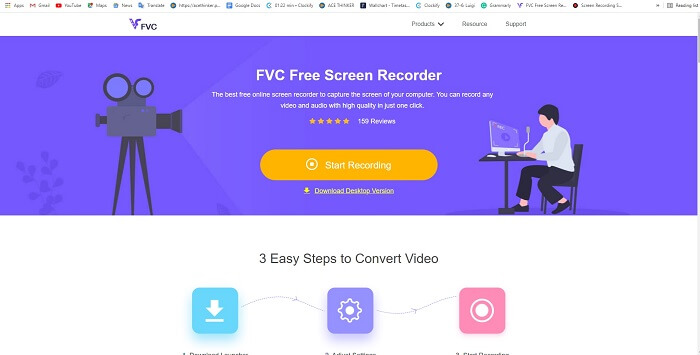
بهترین راه برای به اشتراک گذاشتن یک لحظه، ضبط کردن آن است و بهترین راه برای ضبط یک صحنه یا حرکت روی صفحهنمایش، استفاده از ضبطکننده صفحه رایگان FVC است. این ابزار متنباز به کاربر اجازه میدهد با کمک اینترنت ضبط انجام دهد. اگر اتصال اینترنت داشته باشید میتوانید از این ابزار استفاده کنید. همچنین از فرمتهای پایه فایل، کدکها و غیره پشتیبانی میکند. با اینکه یک ضبطکننده GIF آنلاین سبک برای ویندوز و مک محسوب میشود، این امکان را به شما میدهد که بدون محدودیت و بدون واترمارک، ضبطهای بیشتری انجام دهید. برای اینکه نشان دهیم چطور از این ابزار استفاده کنید، مراحل زیر را دنبال کنید.
گام 1. روی این لینک کلیک کنید تا به صفحه اصلی سایت بروید.
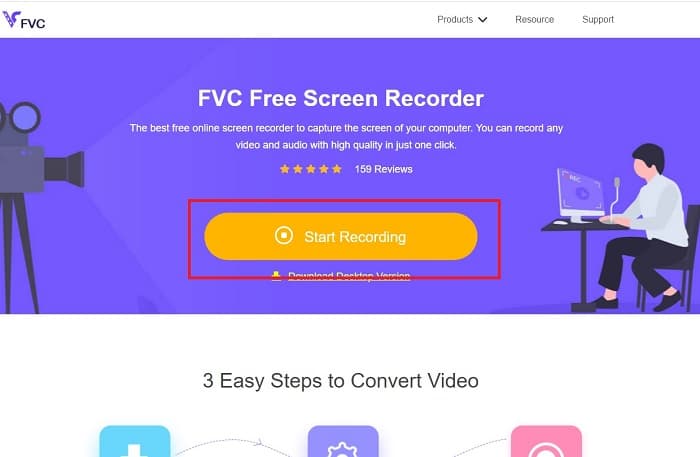
گام 2. وبسایتی مشابه تصویر روی صفحه شما ظاهر میشود. روی Start Recording کلیک کنید و سپس Allow را بزنید تا ابزار آنلاین اجرا شود.
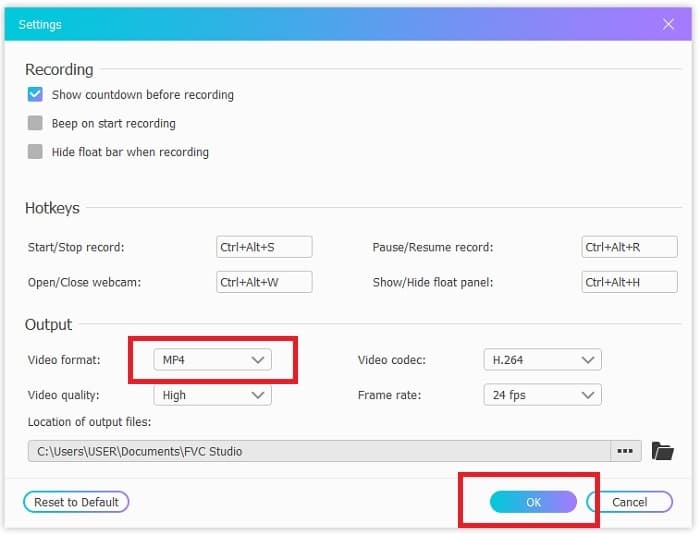
گام 3. یک نوار ابزار شناور روی صفحهنمایش ظاهر میشود. روی آیکون چرخدنده کلیک کنید تا به تنظیمات بروید، فرمت ویدئو و سایر تنظیمات لازم را تغییر دهید. برای ذخیره تغییرات روی OK کلیک کنید.
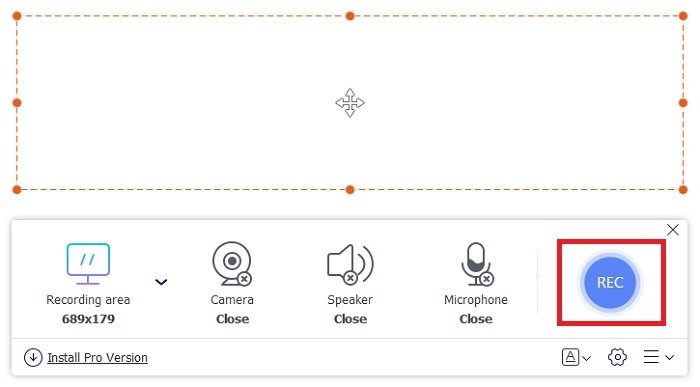
گام 4. محدوده ضبط را تنظیم کنید یا برای ضبط کل صفحه روی Full screen کلیک کنید. اسپیکر و میکروفون هنگام ساخت GIF استفاده نمیشوند چون صدا در GIF وجود ندارد. اما میتوانید با فعال کردن Webcam تصویر خودتان را اضافه کنید. وقتی آماده شروع ضبط هستید، روی دکمه REC کلیک کنید.
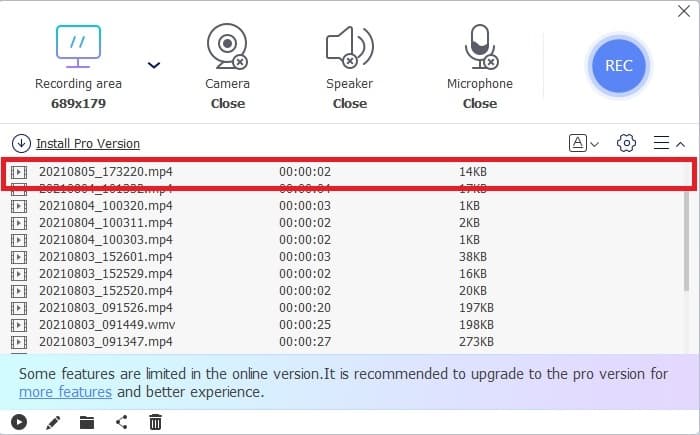
گام 5. برای پایان دادن به ضبط، روی دکمه مربع کلیک کنید. همچنین میتوانید ضبطهای انجامشده را در history list بررسی کنید.
2. ضبط صفحه FVC
اگر نسخه رایگان آنلاین FVC شما را شگفتزده کرده است، نصب این بهترین ضبطکننده GIF یعنی FVC Screen Recorder همان عامل «وای» را که همیشه دنبالش بودید به شما میدهد. این ابزار چه چیزی ارائه میدهد که چنین تأثیری دارد؟ این برنامه فقط برای ضبط GIF نیست؛ بلکه ضبط ویدئو و صدا و ضبط فوقالعاده گیمپلی را هم فراهم میکند. علاوه بر این، خروجی را در فرمتهای مختلفی مانند MP4، GIF، MOV و بسیاری فرمتهای دیگر تولید میکند.
یکی دیگر از ویژگی های آن ویژگی قفل صفحه است ، این ویژگی منحصر به فرد این ابزار است حتی یک ضبط کننده سنگین مانند Bandicam نمی تواند این ویژگی را ارائه دهد. بدون نمایش خود ابزار ، در قالب GIF ضبط و اسکرین شات کنید. FVC Screen Recorder پوند پادشاه پوند را در ضبط فراهم می کند. بنابراین ، صرف نظر از آنچه ضبط می کنید ، این دستگاه ضبط می تواند آن را ضبط کند. برای آگاهی از نحوه استفاده از این ابزار ، مراحل ساده را برای موفقیت در ضبط GIF دنبال کنید.
گام 1. در اینجا نصبکننده ابزار در اختیار شما قرار گرفته است. از میان دو سیستمعامل موجود، یکی را انتخاب کنید. برنامه را روی هارد خود نصب کنید، تنظیمات را مطابق نیاز خود تغییر دهید و برای ذخیره، روی finish کلیک کنید.
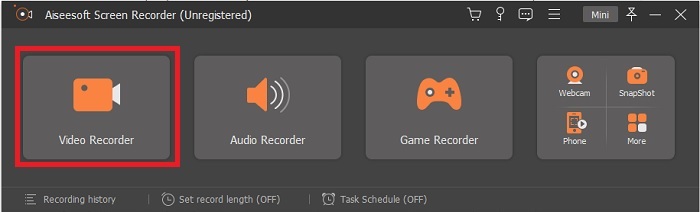
گام 2. برای ضبط آنچه روی صفحهنمایش است، گزینه Video Recorder را انتخاب کنید. گزینههای دیگری مانند ضبط صدا و ضبط گیمپلی نیز وجود دارد که بعداً میتوانید از آنها استفاده کنید.
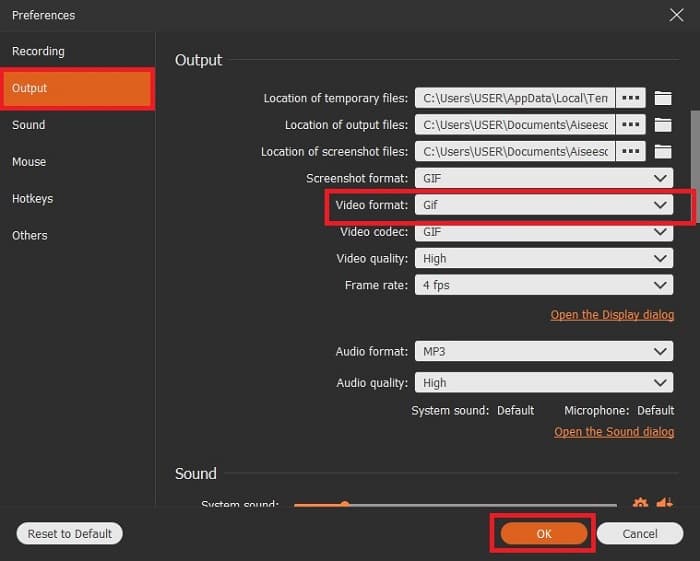
گام 3. نوار ابزار شناور روی صفحه ظاهر میشود. روی دکمه چرخدنده کلیک کنید تا به تنظیمات بروید و در بخش Output فرمت را به GIF یا هر فرمت دیگری که میخواهید تغییر دهید. برای ذخیره تنظیمات روی OK کلیک کنید.
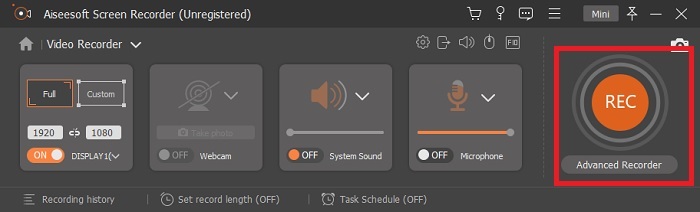
گام 4. در نوار ابزار اصلی، نسبت تصویر (ناحیه ضبط) را تنظیم کنید یا اگر میخواهید کل صفحه نمایش داده شود، روی full screen کلیک کنید. هنگام ضبط در قالب GIF، صدا و میکروفون اهمیتی ندارند، اما میتوانید برای نمایش واکنش خود، Webcam را فعال کنید. وقتی کاملاً آماده هستید، روی دکمه گرد کلیک کنید تا ضبط آغاز شود.
گام 5. وقتی ضبط تمام شد، میتوانید روی دکمه مکعب کلیک کنید تا متوقف شود. برای ذخیره پیشرفت، روی Save و سپس Next کلیک کنید. برای مرور GIFی که قبلاً ضبط کردهاید، روی آیکون سهخط کلیک کنید تا تاریخچه ضبطها روی صفحه شما نمایش داده شود.
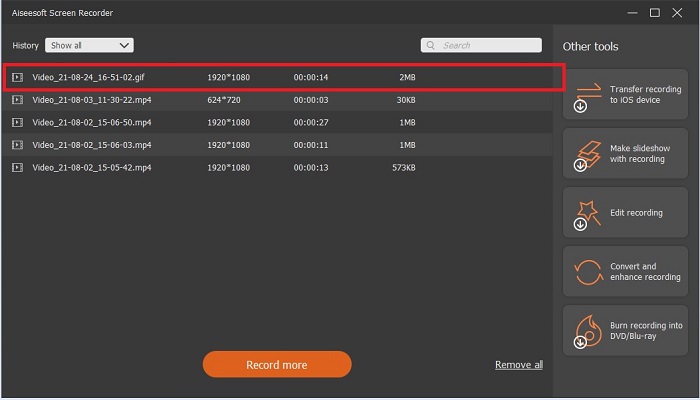
3. ScreenToGif
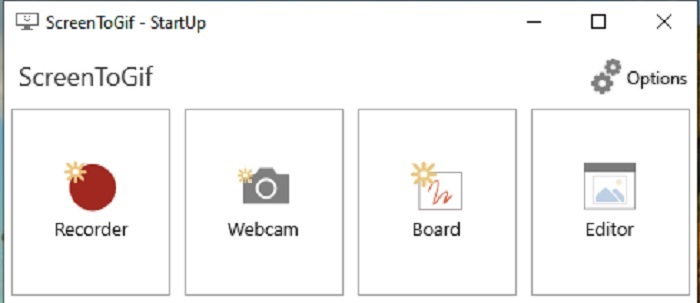
این ابزار که یک ضبطکننده GIF برای مک و ویندوز قابل دانلود است، دو نسخه دارد: نسخه Installer (نصبشونده) و نسخه Portable (قابل حمل). هر کدام را که میخواهید دانلود کنید. البته گاهی هنگام اجرای برنامه ممکن است با بعضی باگهای جزئی روبهرو شوید. همچنین تنها فرمتی که این ابزار برای خروجی نهایی ارائه میدهد، فرمت .gif است. بنابراین اگر فرمت دیگری میخواهید، این برنامه پاسخگوی نیاز شما نخواهد بود. با این حال استفاده از آن رایگان است و اگر قصد ضبط GIF دارید میتوانید از آن بهره ببرید. تنها ایرادش این است که رابط کاربری و ابزارهایش کمی ضعیف و ساده بهنظر میرسند، چون پسزمینه کاملاً سفید است؛ شاید کمی خستهکننده باشد اما کار را انجام میدهد.
4. گیازو
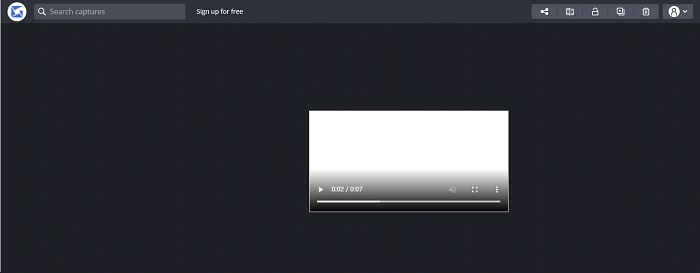
این برنامه یکی از بهترین ضبطکنندههای GIF برای ویندوز است. Gyazo نرمافزاری است که مخصوص ضبط GIF طراحی شده است. هرچند بعد از نصب، ۳ ابزار بهطور خودکار در فضای ذخیرهسازی شما دانلود میشود. این سه ابزار بخشی از بسته Gyazo هستند اما با هم تفاوت دارند و کارکرد آنها نیز متفاوت است: Gyazo، Gyazo GIF و Gyazo Replay. ضبط GIF در Gyazo GIF به ۷ ثانیه محدود است؛ بنابراین اگر ضبط شما بیش از ۷ ثانیه طول میکشد، این گزینه مناسبی نیست. همچنین ویدئوی ذخیرهشده بهطور خودکار روی حافظه سیستم شما دانلود نمیشود؛ یک تب جدید در مرورگر باز میشود و باید خودتان آن را دانلود کنید. دانلود خروجی نهایی به سرعت اینترنت شما وابسته است، پس به این نکته توجه داشته باشید.
5. RecordIt!
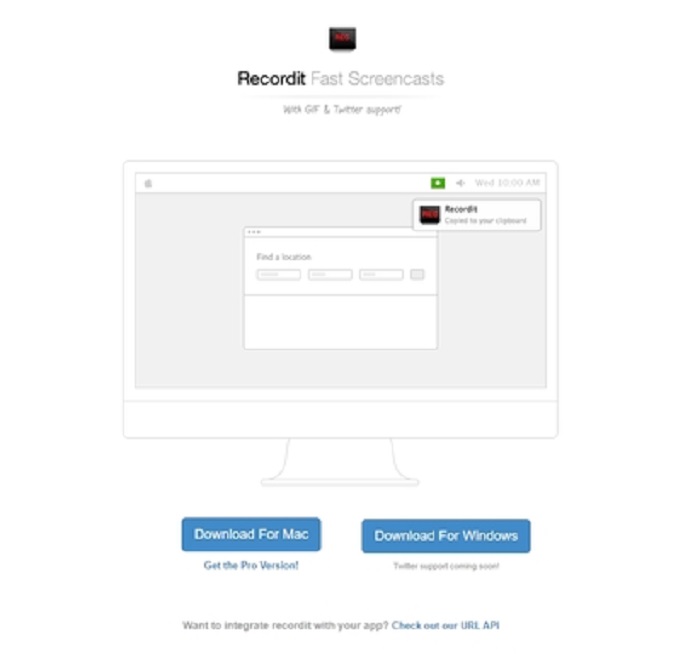
ابزار دیگری که برای ساخت GIF استفاده میشود RecordIt! است که به عنوان بهترین ضبطکننده GIF برای مک شناخته میشود. این برنامه نسخه ویندوز هم دارد. اما مشکل این ابزار، فرایند نصب آن است. بعد از انجام تمام مراحل راهاندازی، ممکن است در نصب آن روی سیستم خود با مشکل مواجه شوید. این مسئله طبیعی است، زیرا اگر برنامههای لازم را در سیستمتان بهروزرسانی نکنید، این ابزار هرگز نصب نخواهد شد. البته یک گزینه دیگر هم هست که میتواند برای رایانه شما خطرناک باشد: میتوانید روی «Ignore» کلیک کنید و همه هشدارها را نادیده بگیرید تا دانلود ادامه پیدا کند. بنابراین آن را با مسئولیت خودتان دانلود کنید. همچنین این ابزار دارای تبلیغات است؛ مراقب این تبلیغات باشید، زیرا برخی از آنها فاقد محدودیت محتوایی هستند. علاوه بر این، نسخه حرفهای (Pro) نیز ارائه میدهد که با خرید آن، تبلیغات حذف شده و امکانات بیشتری در اختیارتان قرار میگیرد.
قسمت 3. سوالات متداول درباره GIF Recorder
آیا می توانم GIF را به فرمت MOV تبدیل کنم؟
بله ، می توانید GIF را با کمک یک مبدل ویدیویی آنلاین مانند FVC Free Online Video Converter به فرمت MOV تبدیل کنید.
انواع مختلف GIF چیست؟
5 GIF وجود دارد: GIF های بازپخش ، GIF واکنش ، گراف سینما ، حلقه کامل و GIF فنی. همه این موارد می تواند بر اساس انیمیشن ، فیلم و استیکر باشد.
جایگزین های دیگر برای GIF چیست؟
با وجود ایجاد GIF ها برای بیش از 30 سال. برخی از رقبا در وب وجود دارند که تصاویر متحرک و GIF تولید می کنند. اینها بهترین جایگزین ها برای GIF های متحرک هستند: APNG ، WebP ، AVIF ، MNG و FLIF.
نتیجه
اکنون به پایان رسیدهایم؛ گفته میشود هر داستان خوبی با یک نتیجهگیری خوب تمام میشود. برای جمعبندی مطالب بالا، گیفها احساسی پر از بیان و هیجان را به گیرنده منتقل میکنند. اما همه ویدئوهایی که میخواهید، در قالب GIF نیستند. بهجای اینکه منتظر بمانید تا یک GIF ساخته شود، چرا خودتان آن را نسازید؟ با کمک بهترین ضبطکننده GIF یعنی FVC Screen Recorder. این ابزار به شما اجازه میدهد GIF ضبط کنید و امضای شخصی خودتان را به آن اضافه کنید. اگر هنوز مردد هستید که کدام ابزار را انتخاب کنید، لازم است دوباره ویژگیهای یک ضبطکننده خوب را مرور کنید و خواهید دید که تمام آن ویژگیها در ابزار منتخب، یعنی FVC Screen Recorder، جمع شده است.
-
 [2 راه حل] نحوه تبدیل فایل های SWF به GIF به راحتی و به صورت رایگان
 وقتی نمی توانید قالب GIF را از طریق نرم افزار Flash صادر کنید ، می توانید ابتدا فایل ها را در قالب SWF ذخیره کنید. سپس می توانید 2 روش آسان برای تبدیل SWF به فایل های GIF را از این مقاله بیاموزید.
-
 4 روش ادغام ویدیوها به صورت رایگان در ویندوز / مک / آنلاین
 در اینجا 4 روش سریع برای ادغام فیلم ها با یکدیگر در یک ویدیوی جدید آورده شده است. اندازه و اندازه فایل ویدئویی محدودیتی ندارد. با موفقیت می توانید به کلیپ های ویدئویی 2 ، 3 ، 4 و حتی بیشتر در قالب ها و وضوح مختلف بپیوندید.
-
 (2 راه حل) نحوه تبدیل فیلم های WMV به فایل های GIF به صورت رایگان
 اگر می خواهید قسمت های فوق العاده ویدئوهای WMV را بریده و از آنها GIF تهیه کنید ، می توانید در این مقاله با 2 روش آسان انتقال فیلم WMV به GIF آشنا شوید.
