


 Video Converter Ultimate
 ضبط صفحه
 تعمیر ویدیو
چگونه می توان به طور ماهرانه فایل های GIF را برای تقویت داستان گویی بصری خود کوتاه کرد
GIF ها یا تصاویر متحرک در ارتباطات آنلاین و تولید محتوا در همه جا حاضر شده اند. چه به دنبال افزودن استعداد بصری به پست های رسانه های اجتماعی خود، ایجاد مطالب بازاریابی چشم نواز، یا به سادگی خود را از طریق یک انیمیشن سرگرم کننده بیان کنید، نمی توان منکر جذابیت یک GIF خوش ساخت شد. با این حال، با محبوبیت این تصاویر متحرک نیاز به ویرایش و سفارشی سازی آنها برای مطابقت با نیازهای خاص شما احساس می شود.
یکی از مهمترین جنبههای کار با تصاویر GIF این است که بدانید چطور آنها را بهطور مؤثر برش دهید. خوشبختانه، ابزارهای متنوعی هم برای کاربران آنلاین و هم آفلاین در دسترس است که فرایند برش GIF را ساده و سرراست میکند. از گزینههای مبتدیپسند گرفته تا نرمافزارهای پیشرفته برای حرفهایها، برای هرکسی که میخواهد مهارت ویرایش GIF خود را به سطح بالاتری برساند، چیزی اینجا پیدا میشود. پس بیایید وارد بحث شویم و یاد بگیریم چگونه بهصورت آنلاین و آفلاین GIF را برش دهیم.

قسمت 1. برش GIF آفلاین
1. FVC Video Converter Ultimate
قابلیت برش GIF در FVC Video Converter Ultimate برای هرکسی که جدی بهدنبال ساخت GIFهای حرفهای است، یک تغییر اساسی به شمار میآید. این ابزار بهترین گزینه برای کوتاه کردن GIFها است؛ فرقی نمیکند یک تدوینگر ویدئو باشید که برای مشتری انیمیشن میسازد یا یک بازاریاب شبکههای اجتماعی که بهدنبال ایدههای تازه برای پستهاست.
با آن می توانید نقطه شروع و پایان فایل GIF خود را تنظیم کنید. این ویژگی به ویژه زمانی مفید است که فایل GIF شما بیش از حد طولانی باشد. علاوه بر این، به شما این امکان را می دهد که یک GIF را به راحتی تقسیم کنید. علاوه بر این، میتوانید افکتهایی مانند fade in و fade out اعمال کنید. اگر می خواهید یاد بگیرید که چگونه GIF ها را به صورت آفلاین یا روی رایانه شخصی خود برش دهید، مراحل داده شده را دنبال کنید:
مرحله ۱. دانلود و نصب برنامه
ابتدا روی یکی از دکمههای دانلود رایگان در زیر کلیک کنید تا شروع شود. سپس، مراحل نصب را دنبال کنید تا نرمافزار بهطور کامل روی دستگاه شما نصب شود. پس از نصب، برنامه را اجرا کنید تا به رابط اصلی آن دسترسی پیدا کنید.
دانلود رایگانبرای ویندوز 7 یا بالاتردانلود ایمن
دانلود رایگانبرای macOS 10.7 یا بالاتردانلود ایمن
مرحله ۲. بارگذاری فایل GIF
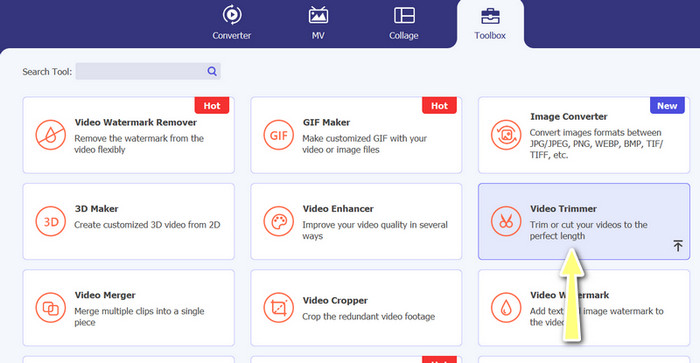
اکنون به زبانهٔ Toolbox بروید و گزینهٔ Video Trimmer را باز کنید. سپس میتوانید با زدن دکمهٔ علامت بعلاوه یک فایل GIF بارگذاری کنید.
مرحله ۳. برش فایل GIF
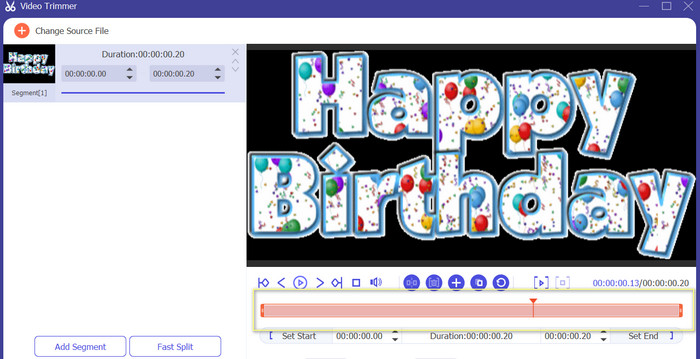
هنگامی که GIF آپلود شد، آن را از رابط ویرایش برنامه مشاهده خواهید کرد. با استفاده از نوار لغزنده، نقطه شروع و پایان فایل GIF را که می خواهید حذف کنید، شناسایی کنید.
مرحله ۴. ذخیره فایل GIF
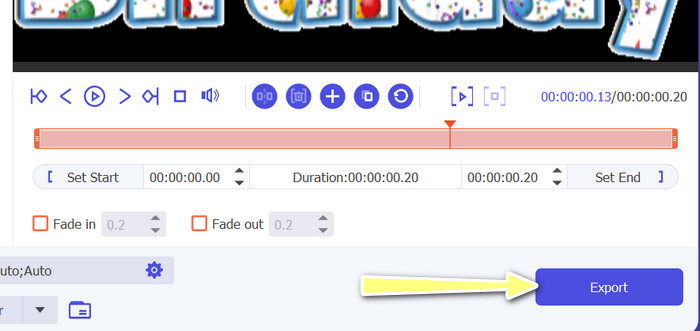
پس از اینکه بخشهای موردنظر از GIF را برش دادید، برای شروع رندر شدن فایل، دکمهٔ Export را که در پایین سمت راست رابط قرار دارد، بزنید.
2. GIF Maker
ایجاد یک GIF می تواند برای کسانی که تجربه ای در زمینه ویرایش ویدیو یا طراحی گرافیکی ندارند یک چالش باشد. اینجاست که GIF Maker وارد می شود و راهی آسان و کارآمد برای ایجاد، ویرایش، اشتراک گذاری و برش GIF های متحرک ارائه می دهد. همچنین، این برنامه به کاربران اجازه می دهد تا فایل های GIF را اصلاح کنند، سرعت پخش را تنظیم کنند و متن یا افکت های دیگر را برای ایجاد GIF مناسب برای نیازهای خود اضافه کنند. در اینجا مراحل نحوه برش GIF های متحرک به صورت آفلاین با استفاده از تلفن شما آورده شده است
مرحله ۱. پیش از هر چیز، نام برنامه را در نوار جستجوی پلیاستور وارد کرده و آن را دریافت کنید. سپس آن را روی دستگاه موبایل خود نصب کنید.
مرحله ۲. اکنون برنامهٔ موبایل را روی دستگاه خود اجرا کنید. پس از اجرا، برنامه تمام محتوای ذخیرهشده روی دستگاه شما از جمله فایلهای GIF را نمایش میدهد. سپس، GIF موردنظر خود را انتخاب کنید.
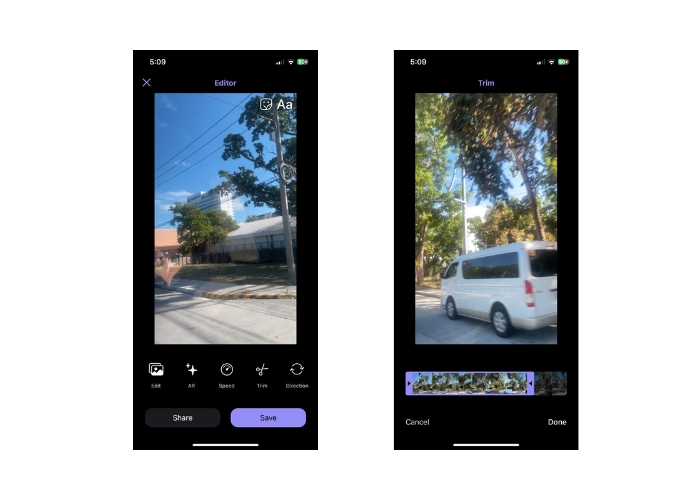
مرحله ۳. بعد از آن، فایل GIF بارگذاری میشود. سپس روی دکمهٔ Trim ضربه بزنید و نقطهٔ شروع و پایان GIF را مشخص کرده و نوار لغزنده را تنظیم کنید.
مرحله ۴. در پایان، برای اتمام فرایند برش فایل GIF، روی دکمهٔ Done ضربه بزنید.
قسمت 2. برش GIF آنلاین
1. EZGIF
اگر میخواهید به روشی ساده روی رایانه خود بهصورت آنلاین فایلهای GIF را برش و ویرایش کنید، میتوانید از EZGIF استفاده کنید. از مهمترین قابلیتهای آن میتوان به امکان برش یا تغییر اندازه GIF، تنظیم سرعت پخش، افزودن متن یا استیکر، بهینهسازی حجم فایل و حتی تبدیل GIF به فرمتهای دیگری مانند MP4 یا WebM اشاره کرد. در ادامه، مراحل سادهشدهٔ نحوهٔ برش GIF بهصورت آنلاین با استفاده از EZGIF آمده است.
مرحله ۱. مرورگر دلخواه خود را روی رایانه باز کنید و به وبسایت رسمی EZGIF بروید.
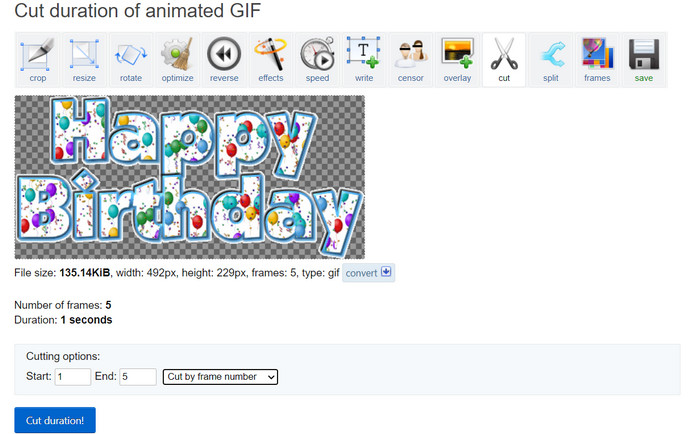
مرحله ۲. حالا به گزینهٔ Cut بروید تا طول GIF را بهصورت آنلاین برش دهید. سپس دکمهٔ Choose File و بعد از آن دکمهٔ Upload را بزنید.
مرحله ۳. در بخش گزینههای برش، نقطهٔ شروع و پایان را با استفاده از شمارهٔ فریم مشخص کنید.
مرحله ۴. پس از مشخص کردن، دکمهٔ Cut duration را بزنید تا فرایند برش فایل GIF آغاز شود.
2. GIPHY
همچنین میتوانید از برنامه تلفن همراه GIPHY برای ویرایش یا برش آنلاین GIF با استفاده از تلفن خود استفاده کنید. با استفاده از اپلیکیشن موبایل Giphy، کاربران می توانند به راحتی به GIF های مورد علاقه خود دسترسی داشته باشند و به اشتراک بگذارند، و همچنین با استفاده از دوربین گوشی هوشمند یا فایل های ویدئویی موجود، GIF های سفارشی خود را ایجاد کنند. علاوه بر این، این برنامه دارای ویژگی های ویرایش مانند برش و پیرایش است. بدون هیچ مقدمه ای، در اینجا مراحلی وجود دارد که باید برای برش GIF به صورت آنلاین در دستگاه تلفن همراه خود دنبال کنید:
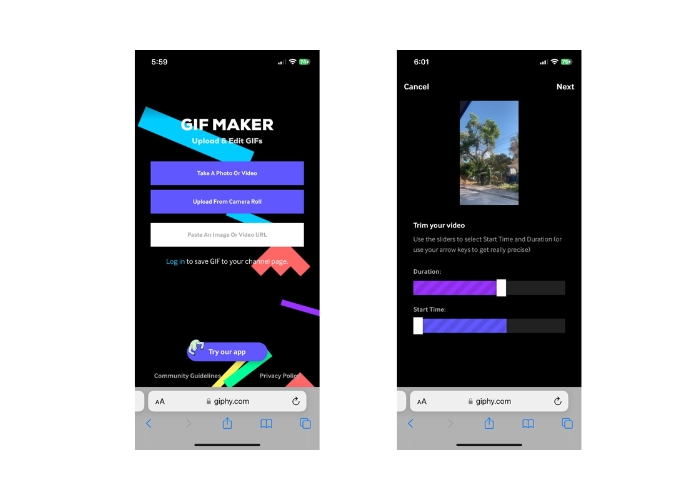
مرحله ۱. برنامهٔ Giphy را از فروشگاه برنامهٔ خود دانلود و نصب کنید. برنامه را باز کرده و فایل GIF موردنظر برای ویرایش را از گالری یا Camera Roll گوشی خود انتخاب کنید.
مرحله ۲. از نوار لغزنده استفاده کنید تا نقطهٔ شروع و پایان بخشی را که میخواهید نگه دارید، تعیین کنید. همچنین میتوانید به GIF متن یا استیکر اضافه کنید.
مرحله ۳. پس از انجام ویرایشها، روی دکمهٔ Next ضربه بزنید و تنظیمات دلخواه دیگری انجام دهید. سپس میتوانید کار خود را بهصورت آنلاین با دیگران به اشتراک بگذارید.
بخش 3. سوالات متداول در مورد برش GIF آنلاین
آیا می توانم ویرایش های انجام شده در یک GIF را با استفاده از یک برش آنلاین لغو کنم؟
این بستگی به برش GIF آنلاین خاصی دارد که استفاده می کنید، اما بسیاری از آنها دکمه یا گزینه ای را برای بازگرداندن تغییرات ایجاد شده به GIF ارائه می دهند. با این حال، شایان ذکر است که همه برشکنندههای GIF آنلاین ممکن است توانایی لغو ویرایشها را ارائه ندهند، بنابراین همیشه ایده خوبی است که قبل از ایجاد هر گونه تغییری، یک نسخه پشتیبان از فایل اصلی ذخیره کنید.
آیا می توانم با استفاده از کاتر آنلاین در پروژه ویرایش GIF با دیگران همکاری کنم؟
اکثر برشهای GIF آنلاین برای استفاده فردی طراحی شدهاند و ممکن است ویژگیهای همکاری داخلی را ارائه ندهند. با این حال، برخی از ابزارهای آنلاین به شما این امکان را می دهند که با ارائه یک پیوند یا کد جاسازی شده که می تواند در پلتفرم های رسانه های اجتماعی یا وب سایت ها به اشتراک گذاشته شود، فایل های GIF ویرایش شده خود را آپلود و با دیگران به اشتراک بگذارید. علاوه بر این، می توانید از ابزارهای همکاری شخص ثالث مانند Google Drive یا Dropbox برای به اشتراک گذاشتن فایل GIF اصلی و هر نسخه ویرایش شده با دیگران برای بازخورد یا ویرایش بیشتر استفاده کنید.
آیا می توانم یک GIF را با استفاده از یک کاتر آنلاین به فرمت فایل دیگری تبدیل کنم؟
بله، بسیاری از برشکنندههای گیف آنلاین گزینه تبدیل GIF به فرمت ویدیویی مانند MP4، AVI، WebM یا MOV را ارائه میدهند. اگر میخواهید از آن در یک پروژه ویرایش ویدیو استفاده کنید یا آن را در پلتفرمی آپلود کنید که فقط از انواع خاصی از فایل پشتیبانی میکند، تبدیل یک فایل GIF به فرمت فایل دیگر میتواند مفید باشد.
نتیجه
برش GIFها بهصورت آنلاین روشی سریع و آسان برای ویرایش و دستکاری فایلهای GIF متحرک است، بدون آنکه به نرمافزار تخصصی یا مهارت فنی نیاز داشته باشید. برشدهندههای آنلاین GIF امکانات متنوعی مانند کوتاه کردن، تغییر اندازه، تنظیم سرعت پخش، افزودن متن و استیکر، بهینهسازی حجم فایل و تبدیل به سایر فرمتها را ارائه میدهند. از سوی دیگر، ابزارهای آفلاین به توان پردازشی یک وبسایت یا سرور محدود نیستند و میتوانند بهصورت محلی روی رایانه یا دستگاه شما اجرا شوند. در نتیجه، ابزارهای آفلاین میتوانند کنترلهای ویرایشی دقیقتر، خروجی باکیفیتتر و گزینههای شخصیسازی بیشتری در اختیار شما بگذارند. خوشبختانه، ابزارهای آنلاین و آفلاین متعددی برای کمک به شما در برش GIFها وجود دارد.
-
 5 جدیدترین نرم افزاری که می توانید برای ساختن یک GIF معکوس باورنکردنی استفاده کنید
 آیا می خواهید بدانید چگونه GIF خود را بهتر کنید؟ سپس سعی کنید GIF را معکوس کنید تا با کمک این ابزارها جلوه های باورنکردنی اضافه کنید.
-
 5 تا از بهترین تغییر اندازهدهندههای GIF موجود در همه پلتفرمها [2023]
 آیا می خواهید تغییر اندازه های GIF را که می توانید استفاده کنید، بدانید؟ در این صورت، اطلاعات ارائه شده در زیر در مورد تغییر اندازهدهندههایی صحبت میکند که میتوانید روی GIFهای خود در همه پلتفرمها استفاده کنید.
-
 [رایگان] 4 روش آسان برای برش گیف های متحرک آنلاین و آفلاین
 آیا می خواهید GIF ها را به راحتی برش دهید؟ خوب، شما می توانید با کمک این برش دهنده های GIF موجود در این مقاله، آن را به خوبی بخوانید و یاد بگیرید که چگونه این کار را انجام دهید.
