


 Video Converter Ultimate
 ضبط صفحه
 تعمیر ویدیو
دستورالعمل هایی که باید در مورد تبدیل MXF به MOV با کیفیت بالا دنبال کنید
فرمت تبادل مواد همان چیزی است که MXF مخفف آن است. فرمتی فایلِ باز که امکان تبادل محتوای چندرسانهای (صوتی‑تصویری) و دادهها و فرادادههای همراه آن را فراهم میکند، OMF نام دارد. طراحی اولیه MXF بهدست گروهی از شرکتهای پیشرو در حوزه پخش و تولید دیجیتال انجام شد. هدف MXF استانداردسازی قالبهای فایل، تسهیل سازگاری میان تأمینکنندگان گوناگون سختافزار و نرمافزار و در نهایت حذف نیاز به نوار (tape) است. اگر بهدنبال یک مبدّل مناسب برای تبدیل MXF به MOV هستید، در ادامه چند گزینه برای انتخاب بهترین مورد متناسب با نیازتان معرفی شده است.
بخش 1. مروری بر: MXF & MOV
MXF هم برای ضبط (acquisition) و هم برای تحویل نهایی انتخاب بسیار مناسبی است. با این حال، استفاده از فشردهسازی بینفریمی (inter‑frame) برای فرآیند تولید فیلم ایدهآل نیست. از آنجا که بسیاری از روشها برای دستیابی به دقت فریم به فریم در After Effects به اطلاعات زیر‑پیکسلی نیاز دارند، بازگشایی (decompress) فشردهسازی بینفریمی زمان بیشتری میبرد. هنگام استفاده از فشردهسازی بینفریمی، کاربر باید در فرآیند بازگشایی، برخی فریمها را بازسازی کند و این همان جایی است که After Effects دچار مشکل میشود.
با این حال، پسوند فایل MOV نمایانگر فرمت ویدیویی QuickTime شرکت اپل است. این ظرف (container) چندرسانهای میتواند چندین ترک با دادههای مختلف (صدا، تصویر، زیرنویس) را نیز در خود جای دهد. قابلیتهایی مانند جداسازی دادههای رسانه از آفستهای رسانه، ارجاعات انتزاعی به دادهها و فهرستهای ویرایش ترک، آن را برای تدوین ویدئو ایدهآل میکند. کانتینر ویدیویی MOV همچنین بهطور گسترده برای توزیع آنلاین ویدیو استفاده میشود.
بخش 2. روش های عالی برای استفاده در تبدیل MXF به MOV
با استفاده از نرمافزار جدید و قدرتمند Video Converter Ultimate، اکنون میتوانید فایلهای MXF را به MOV بهصورت آفلاین و در طیف گستردهای از فرمتها که قابل بازیابی هستند، تبدیل کنید. با این نرمافزار، میتوانید MXF را با سرعتی بیشتر از بسیاری از مبدّلهای دیگر به MOV تبدیل کنید. همچنین میتوانید پیش از تبدیل، کیفیت ویدیو را تغییر دهید. علاوهبراین، با استفاده از قابلیتهای مختلف مبدّل میتوانید فایل ویدیویی خود را بهبود دهید. با این برنامه، دیگر لازم نیست نگران تبدیل فرمتهای ویدیویی ناسازگار با فرمت دلخواهتان باشید. حالا که با بهترین مبدّل آشنا شدید، در ادامه کارهایی را که باید انجام دهید میبینید:
مرحله 1. برای شروع دانلود، روی دکمه Free Download زیر کلیک کنید! پس از اتمام دانلود، میتوانید نرمافزار را برای Windows یا Mac دریافت کنید. ابتدا باید نرمافزار را روی دسکتاپ رایانه خود نصب کرده و سپس برای آغاز استفاده، روی Start Now کلیک کنید.
دانلود رایگانبرای ویندوز 7 یا بالاتردانلود امن
دانلود رایگانبرای MacOS 10.7 یا بالاتردانلود امن
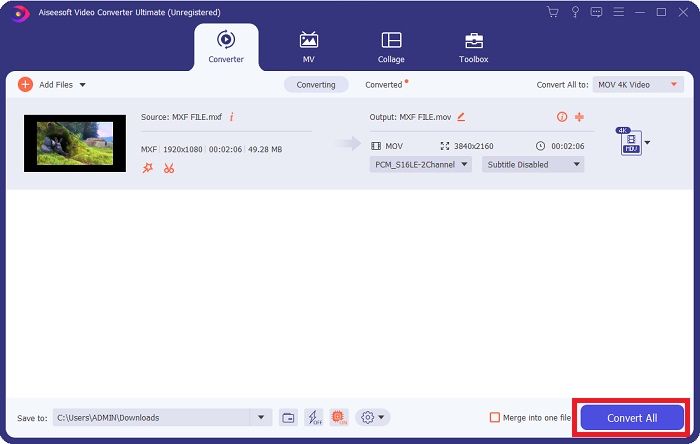
مرحله 2. با کلیک روی آیکون برنامه، نرمافزار دانلودشده را اجرا کنید. به محض اجرای نرمافزار برای اولین بار، رابط Converter نمایش داده میشود. فرایند تبدیل (transcoding) ویدیوی خود را از اینجا آغاز خواهید کرد.
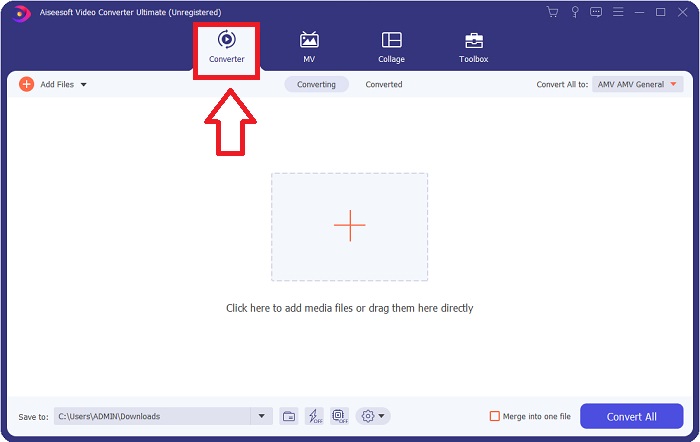
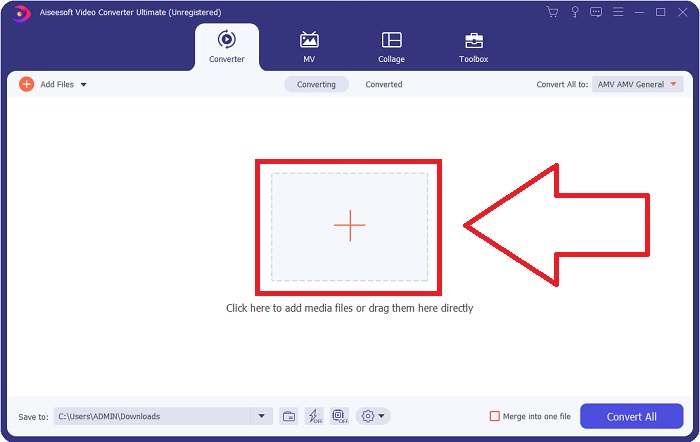
مرحله 3. با وارد کردن فایلها به مبدّل، فرآیند تبدیل را شروع کنید. میتوانید فایل ویدیویی موردنظر برای تبدیل را گرفته و روی آیکون + رها (drag & drop) کنید.
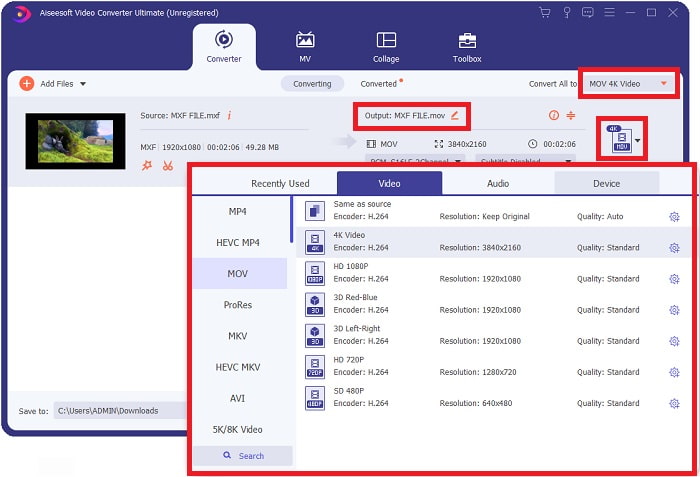
مرحله 4. سپس از منوی کشویی Convert All to، فرمت MOV را انتخاب کنید. پس از انتخاب فرمت MOV، به مجموعهای از گزینههای مختلف کیفیت ویدیو دسترسی خواهید داشت. اما اگر خروجی دلخواه شما در فهرست موجود نبود، میتوانید تنظیمات کیفیت را مطابق نیاز خود تغییر دهید. با انتخاب آیکون چرخدنده، میتوانید رزولوشن تصویر، نرخ فریم و حتی کیفیت صدا را تنظیم کنید. برای ذخیره تغییرات، روی دکمه Create New کلیک کنید.
مرحله 5. وقتی ویرایش کیفیت، رزولوشن، نرخ فریم و سایر تنظیمات به پایان رسید، با کلیک روی Convert All، تبدیل ویدیوی خود را آغاز کنید.
بخش 3. نکته دیگری در تبدیل MXF به MOV [آنلاین]
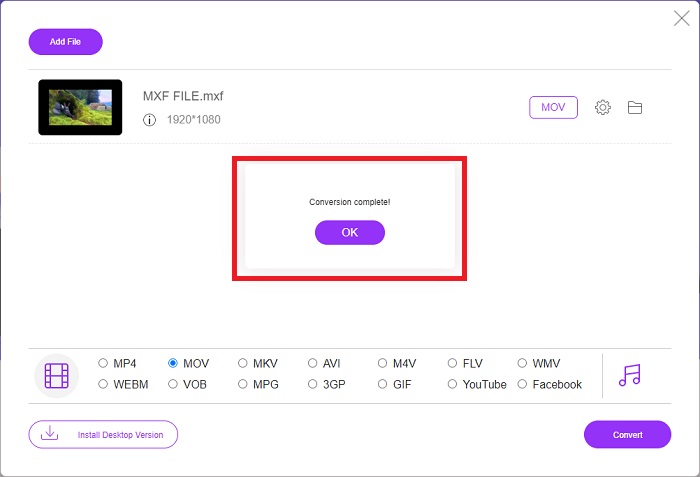
استفاده از Free Video Converter Online بهترین روش برای تبدیل طیف وسیعی از فرمتهای ویدیویی در مدتزمانی کوتاه است. این مبدّل، برخلاف برخی مبدّلهای آنلاین، هیچ محدودیتی در مورد فرمتهای قابل پشتیبانی ندارد. به همین دلیل گزینه خوبی برای کاربران تازهکار است. برای آشنایی بیشتر با این ابزار آنلاین، مراحل زیر را دنبال کنید.
مرحله 1. با کلیک روی این لینک وارد صفحه اصلی مبدّل FVC شوید.
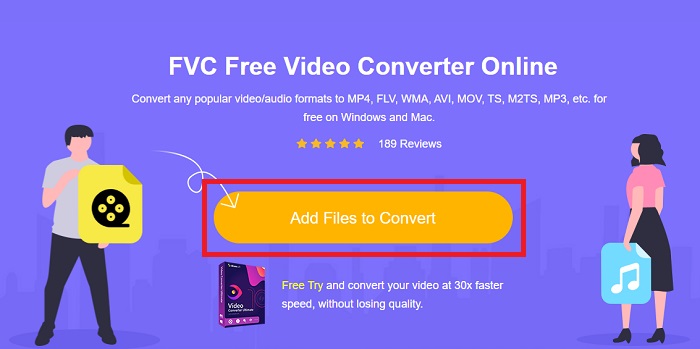
مرحله 2. اگر اولینبار است که از این ابزار استفاده میکنید، برای دریافت لانچر روی دکمه Add Files to Convert کلیک کنید. به محض آنکه بار دیگر دانلود شد، بهصورت خودکار اجرا میشود. فایل را از پوشه دانلودهای خود انتخاب کرده و با کلیک روی Open آن را باز کنید.
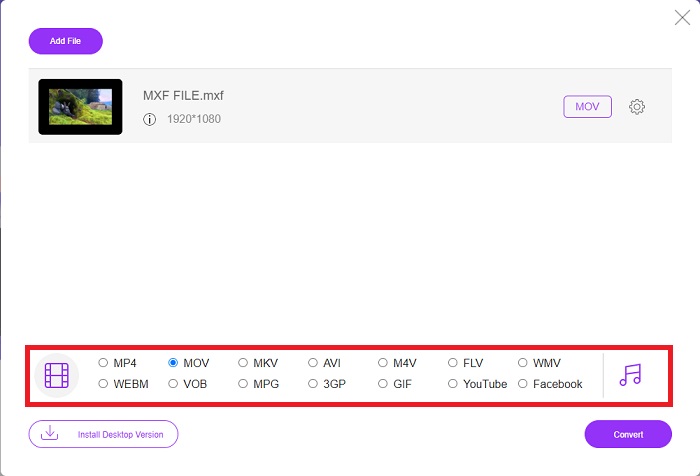
مرحله 3. پس از انتخاب فرمت MOV موردنظر، روی آن کلیک کنید تا فرآیند تبدیل آغاز شود.
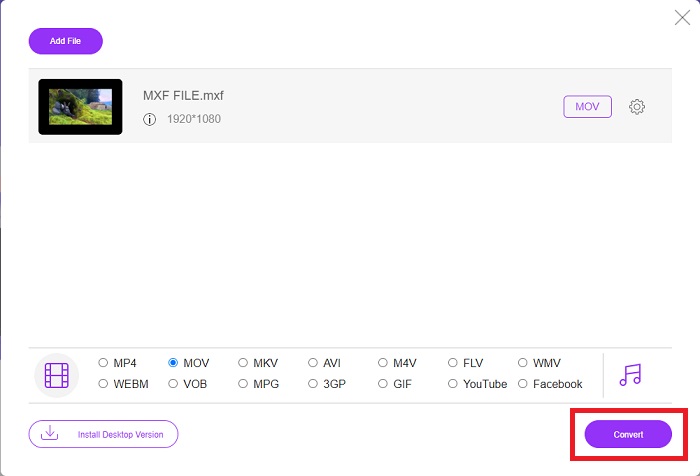
مرحله 4. وقتی فرمت MOV را انتخاب کردید، با کلیک روی دکمه Convert میتوانید فرآیند تبدیل را شروع کنید.
مرحله 5. چند دقیقه بعد، وقتی فایل تبدیلشده در پوشهای روی دسکتاپ رایانه شما ظاهر شد، میتوانید با کلیک روی آن، تماشای ویدیو را آغاز کنید.
بخش 4. سوالات متداول در مورد تبدیل MXF به MOV
آیا MXF همان MOV است؟
در دنیای دیجیتال نیز این یک مشکل است. فرمت تبادل مواد و فرمت ویدئوی QuickTime هر دو تحت عنوان چتر "فرمت های کانتینر" قرار می گیرند. هنگامی که یک برنامه ویدیویی از فرمت کانتینر معینی پشتیبانی میکند، میتواند از ابزارهای استاندارد برای دستکاری کانتینرها استفاده کند، مانند باز کردن فایل، جستجوی یک نقطه خاص در زمان، و پخش یا انتقال سریع یا عقب، با استفاده از استانداردها و کتابخانههای رایج. فرمت فایل جدید یا کتابخانه های جدید برای دستکاری رسانه ها ضروری نیست.
آیا MOV خام است؟
هنگام کار با ویدیوی RAW، رایج ترین انواع فایل های AVI (. avi) و MOV (. mov) هستند. از آنجایی که آنها ویدیوی فشرده نشده هستند، اندازه فایل آنها می تواند بسیار بزرگ باشد - بسته به طول و کیفیت ویدیو تا یک گیگابایت یا بیشتر.
MXF file Pro Tools چیست؟
با استفاده از قابلیتهای Quicktime Pro Tools، SoundCode Exchange MXF میتواند فایلهای MXF را مبادله کند. Pro Tools به لطف یک جزء Quicktime و یک ابزار کشیدن و رها کردن، می تواند فایل های MXF را به عنوان فیلم های Quicktime مجسم کند. با استفاده از قابلیت Quicktime Import Pro Tools که میتواند فایلهای MXF با کیفیت بالا یا استاندارد را پخش کند، میتوان یک آهنگ ویدیویی را در چند ثانیه ایجاد کرد. با استفاده از کارت گرافیک Blackmagic، اکنون می توانید فیلم را به عنوان یک پنجره در Pro Tools یا خروجی به یک نمایشگر خارجی ببینید. در عین حال، آهنگ های صوتی MXF را می توان به عنوان فایل های WAV برای ویرایش و میکس در Pro Tools وارد کرد.
نتیجه
در پایان، چه از یک نرمافزار و چه از یک سرویس وب استفاده کنید، گزینههای متنوعی برای تبدیل ویدیو از یک فرمت به فرمت دیگر در اختیار دارید. با این حال، از نظر امکانات و سهولتی که ارائه میدهند، این ابزارها مکمل یکدیگر هستند. برخی تنها کار تبدیل را انجام میدهند، در حالیکه برخی دیگر مجموعهای از قابلیتها را ارائه میکنند. این مقاله دقیقاً روی همین موضوع تمرکز دارد تا به شما کمک کند بسته به شرایط خود، بهترین گزینه را انتخاب کنید. از آنجا که هر لحظه ممکن است به برخی قابلیتهای اضافی مانند برعکس کردن (reversing)، بهبود (enhancement)، ادغام (merging) و غیره نیاز پیدا کنید، ما بیش از همه استفاده از Video Converter Ultimate را توصیه میکنیم. بهجای آنکه هر بار در اینترنت بهدنبال یک مبدّل بگردید، میتوانید این نرمافزار را همیشه روی رایانه خود داشته باشید.
-
 4 روش رایگان برای تبدیل دوربین فیلمبرداری MXF به MP4 برای پخش جهانی
 این پست راهنمای دقیق تبدیل MXF به MP4 در رایانه است. در مراحل ساده می توانید 4 مبدل MXF به MP4 رایگان برای تبدیل دوربین فیلمبرداری MXF به MP4 رایگان دریافت کنید.
-
 4 مبدل MXF برتر برای تبدیل MXF به AVI [رایگان و پولی]
 فایل MXF چیست؟ چگونه MXF را به AVI تبدیل کنیم؟ این چند سوالی است که ما به آنها پاسخ می دهیم. بنابراین، اگر شما هم همین سوال را دارید، این مقاله را بخوانید.
-
 نحوه تبدیل AVI به MOV با مراحل آسان و ابزارها
 آیا می خواهید بدانید چگونه AVI را به یک MOV قابل پخش تبدیل کنید؟ شما باید این مقاله را دنبال کنید تا بدانید چگونه این کار را انجام دهید و نکاتی برای داشتن یک تبدیل موفق داشته باشید.
