


 Video Converter Ultimate
 ضبط صفحه
 تعمیر ویدیو
بهترین مبدل برای تبدیل AIFF به MP3 با راهنمای گام به گام
AIFF files store the highest form of the audio files you have ever heard about. Although this format can be stored on a desktop program because it is uncompressed, it is not ideal to be stored or downloaded on your phone. So, there is a way you can store AIFF files on your phones and even on your desktop with less storage to be eaten up. The best way to aid this problem is to convert AIFF to MP3 format. Although, converting can have a side effect on your audio files. And so, we gather enough tools you can choose to convert the AIFF without losing the quality of the file. So go on, let's continue investigating the tools below and let's start straight away by introducing and providing steps.

قسمت 1. نحوه تبدیل AIFF به MP3 در ویندوز و مک
1. Video Converter Ultimate
Converting formats can be phenomenal via Video Converter Ultimate. If you don't receive a special treatment on your converter then try to use this tool. Because the ultimate converter presents a lot of advanced features that the other converters for AIFF to MP3 on Windows or Mac doesn't have. Also, this tool is not limited to Windows programs only, you can also download it on your Mac . So, if you want to experience the ultimate conversion, then it is a must to follow the steps and have a successful conversion for your AIFF file.
Step 1. To use the converter, you must download it first on your PC or Mac drive. Then install it, modify the settings, and click the finish to launch the tool after.
دانلود رایگانبرای ویندوز 7 یا بالاتردانلود امن
دانلود رایگانبرای MacOS 10.7 یا بالاتردانلود امن
Step 2. After the installation of the converter, click the Add Files to add the AIFF files you want to be converted. If the files are a lot to be selected on the folder, you can drag and drop them to the interface.
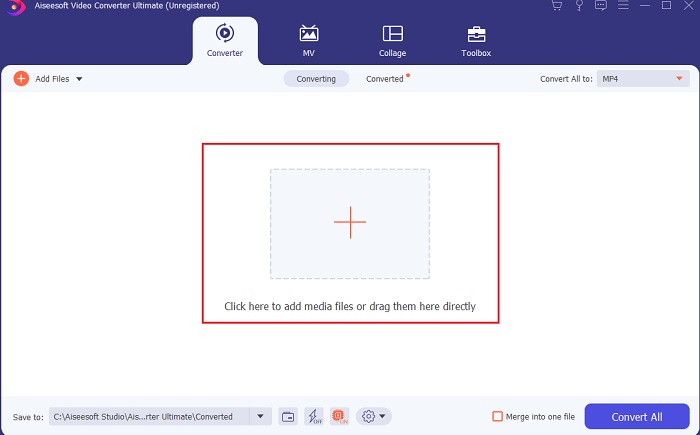
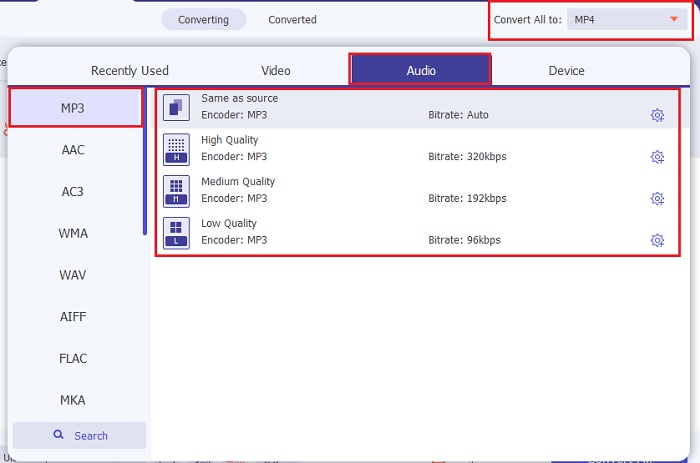
Step 3. Proceed on the next step by clicking the Convert All to option. Then choose what audio format you want it to be. For example, you can select MP3 as the final output.
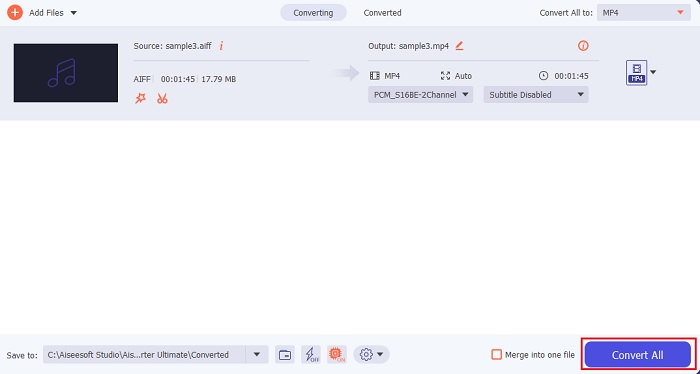
Step 4. Click the Convert All button to start the conversion of AIFF files.
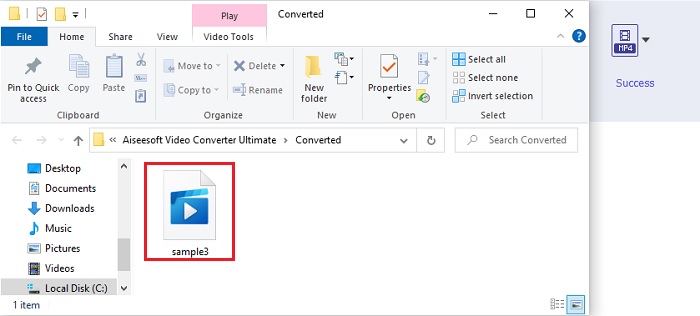
Step 5. Wait for a couple of seconds to convert, then a file folder will be shown into your screen. Click the newly converted MP3 file and listen to the finest sound you ever heard.
2. iTunes
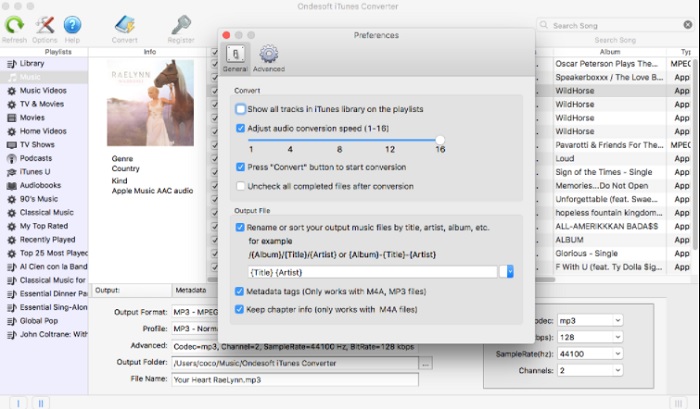
This native media player can also convert AIFF files to MP3 on Mac, iTunes. This media player developed by Apple to be their default music library and player to all iOS and Mac programs. Also, one of its features you can use here is the converter. Although it has converting features still it supports less format than online tools to convert. But it is effective and safe to use and convert files into a new format to be played. Also, this native media player can't be accessed on non-Apple's products like Android or Windows. So, follow the steps indicated below to know more about the iTunes converting feature.
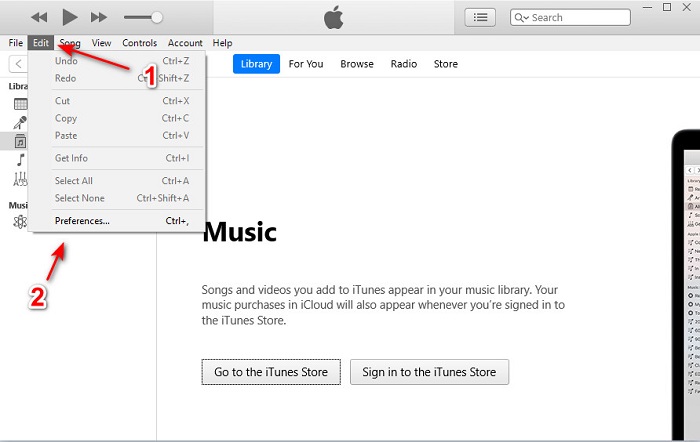
Step 1. Open iTunes on your desktop, then click Edit and Preferences.
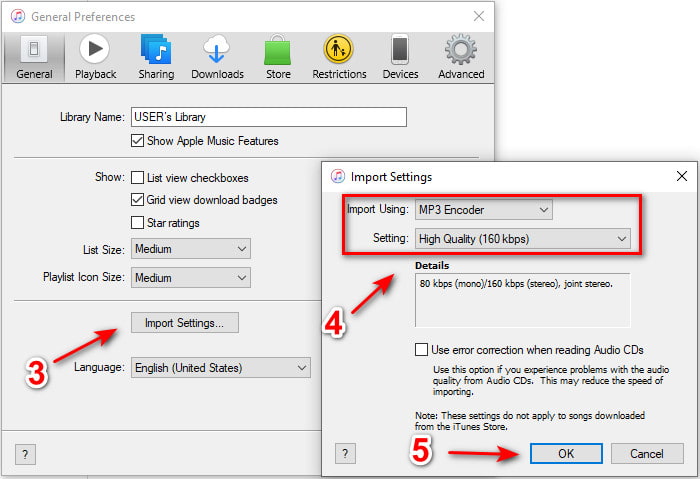
Step 2. On the General click the Import Settings. A smaller menu will show up, change the format and quality here then click OK to save.
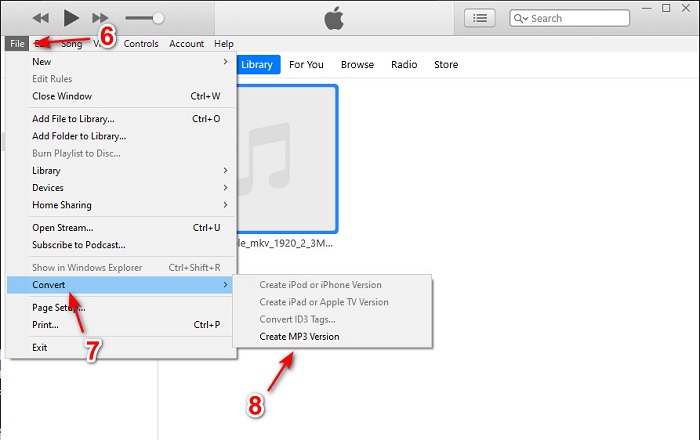
Step 3. Drag the file to the interface and click it. Go to the File, Convert and click the Create MP3 Version to start the conversion.
قسمت 2. 2 مبدل آنلاین رایگان برتر برای تبدیل AIFF به MP3
1. مبدل صوتی رایگان FVC
If you convert AIFF to MP3 you will receive less 320 kbps of the file size if you use this web converter, FVC Free Audio Converters. This solution has been used by millions of users over the web to convert file formats. Although, this tool doesn't have major features like the premium version provides FVC Video Converter Ultimate because it is free. But you can still experience a medium level of the ultimate conversion if you try to use this tool. Also, it supports a lot of audio formats than iTunes. Follow the steps indicated below on how to use this web tool.
Step 1. To be located on the main website of the audio converter click this link.
Step 2. Then click the Add Files to Convert button and allow the tool to start the launcher. Extended information, if this is your first time using this webtool, you must download and install the launcher first.
برای تبدیل دستهای فایلها، نسخهٔ دسکتاپ را دانلود کنید.
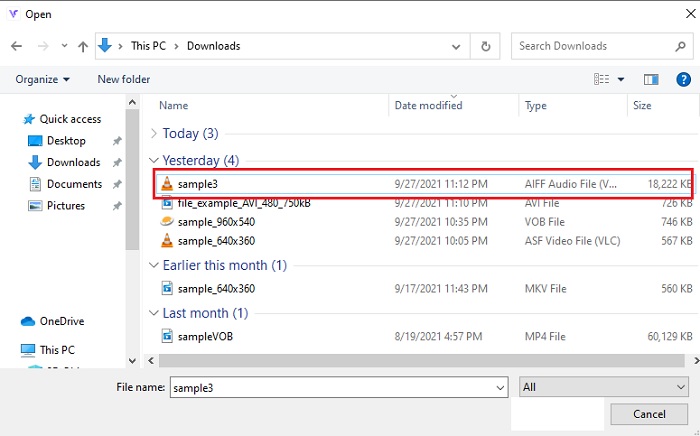
Step 3. After you launch the webtool, you must select the AIFF files and click open to be redirected to the main interface of the web tool.
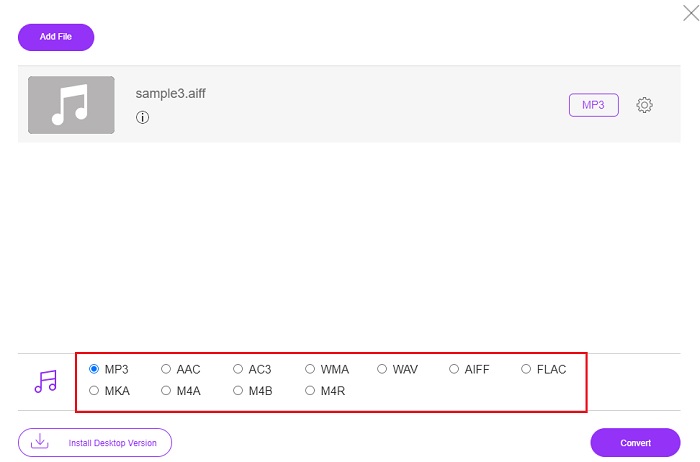
Step 4. Choose the audio format you want it to be below. Then click the Convert button and select the destination of the file to start the changing process.
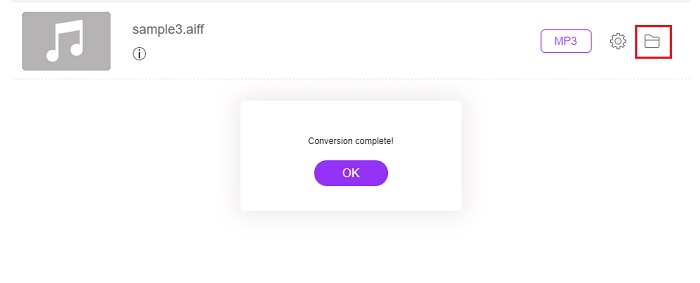
Step 5. Let's locate the converted file if the conversion is finished by clicking the folder. And a file explorer will be shown to your screen, click the converted file and listen to it.
2. زامزار
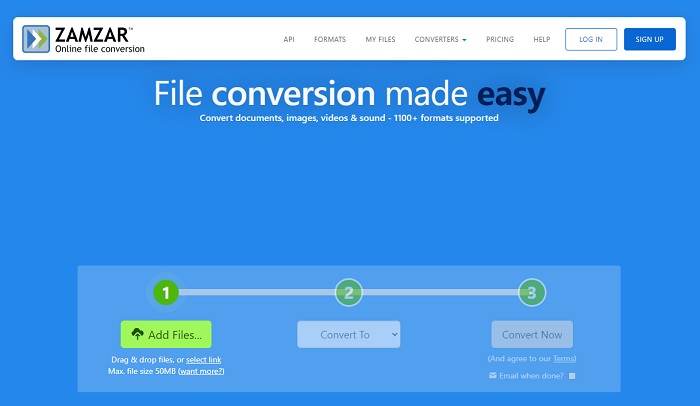
Converting using Zamzar might be the best choice you make to convert files. This tool is very easy to understand as it shows only three basic steps or processes to be converted. But this tool has its file size limit and limited files to convert. Also, the conversion process here is so bad. It will take a lot of your time and if the conversion has already started you can't cancel the conversion if you may. So, before you can do another conversion you better wait for it to be finished then add the file again. Read the steps below and follow it to convert.
Step 1. Search the main webpage of Zamzar on your browser.
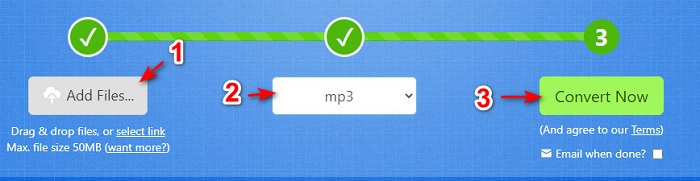
Step 2. Then click the Add File to choose the audio file you want to be converted. Choose the format by clicking the Convert to.
Step 3. If you're ready to start the conversion, click the Convert Now to start the process.
مطالعه بیشتر
AIFF در مقابل MP3
AIFF، فرمت فایل تبادل صوتی، توسط اپل توسعه یافته است. و نوعی از فرمت IFF است. فایل های AIFF غیر فشرده هستند، بنابراین کیفیت صدای بالاتری نسبت به فایل های MP3 مشابه دارد. همچنین ممکن است کاربران را به این موضوع سوق دهد که فضای دیسک کافی نیست.
فرمت MP3 در سال 1993 توسط Moving Picture Experts Group (MPEG) منتشر شد. این استاندارد برای ذخیره موسیقی بود زیرا می توانست صدا را به اندازه بسیار کوچکتر از سایر فرمت های غیر فشرده فشرده کند. امروزه نیز به طور گسترده ای مورد استفاده قرار می گیرد، به ویژه برای پخش آنلاین صدا.
بخش 3. سوالات متداول در مورد AIFF تا MP3
کدام یک بهتر است: AIFF یا MP3؟
اگرچه همان فرمت یک فایل صوتی با کیفیت را ذخیره می کند، اما اجازه دهید هر فرمت را با هم مقایسه کنیم. برای کوتاه کردن آن، MP3 کیفیت خوبی با فضای کمتر تولید می کند، اما AIFF یک فایل صوتی با کیفیت بالا با فضای بالاتر تولید می کند.
بهترین استفاده از فایل های AIFF چیست؟
از آنجایی که فایلهای AIFF فایل صوتی طبیعی و با کیفیت را ذخیره میکنند، اندازه فایل در این فرمت به دلیل فشرده نبودن آن بسیار زیاد است. اما این فرمت AIFF برای استفاده در ویرایش و افزودن افکتها برای بهتر کردن صدای صوتی ایدهآل است.
تفاوت بین AIF، AIFF و AIFC چیست؟
فایلهای AIF معمولاً برای ذخیره فایلهای صوتی بر روی فایلهای CD، DVD، Blu-ray و AIFF مورد استفاده قرار میگیرند که برای ذخیره دادههای شخصی و صوتی استفاده میشوند که به این معنی است که حجم فایل بسیار زیادی دارد. اما AIFC نسخه فشرده AIFF است، این فرمت بیشتر توسط پخش کننده های رسانه ای برای پخش فرمت aiff با کیفیت بالا استفاده می شود.
نتیجه
To end the discussion, it is now easier for us to understand what the AIFF file is. But this format is huge in size as we talk about it, and to fix this is to convert it to the universal audio format, MP3. So, searching which tool you need to use is a bit of a hassle because they can damage your AIFF files. As we present different solutions, there is still one tool that is phenomenal in the job of converting. FVC Video Converter Ultimate can be your aid to fix this simple problem. So, what are you waiting for? You must now download the tool and experience the phenomenal conversion ever.
-
 4 روش برتر برای تبدیل OGG به MP3 و بدون افت کیفیت
 چگونه می توان فایل های OGG خود را به فرمت MP3 برای گوش دادن به رایانه یا دستگاه تلفن همراه تبدیل کرد؟ در اینجا ما 5 ساده ترین راه برای انجام آن را روی دسک تاپ یا آنلاین به اشتراک می گذاریم.
-
 نحوه تبدیل M4A به MP3 با 4 مبدل صوتی رایگان
 نمی توانید M4A را بازی کنید و باید آن را به MP3 تبدیل کنید؟ آیا راهی رایگان برای تبدیل M4A به MP3 به صورت آنلاین وجود دارد؟ در این پست 4 روش رایگان برای کمک به تبدیل M4A به MP3 با iTunes، مبدل های صوتی آنلاین و حرفه ای به اشتراک گذاشته شده است.
-
 نحوه تبدیل WMA به MP3 در Mac / Windows / Online
 آیا امکان تبدیل WMA به MP3 با Windows Media Player وجود دارد؟ چگونه WMA را به MP3 رایگان تبدیل کنیم؟ این پست 4 روش ساده را برای کمک به شما در تبدیل صدا از WMA به MP3 در مک ، ویندوز PC و آنلاین به اشتراک می گذارد.

