


 Video Converter Ultimate
 ضبط صفحه
 تعمیر ویدیو
4 ضبط کننده برتر FLV مناسب برای رایانه های کروم، ویندوز و مک
آیا تا به حال به این فکر کرده اید که چه چیزی باعث می شود ویدیوهایی که می بینید در وب اجرا شوند؟ اکثر وب سایت های HTML 5 از فرمت WebM برای پخش ویدیوها استفاده می کنند. به غیر از WebM، FLV نیز استفاده می شود. به خصوص آن دسته از سایت های رایگان نمایش فیلم و تلویزیون. چگونه متوجه می شوید که یک فایل FLV است؟ معمولاً اگر ویدیو پخش نشود، یک پیغام خطایی می بینید که می گوید Adobe Flash Player را نصب کنید. این روزها ویدیوهای زیادی در فایل های FLV تعبیه شده است. اما زمانی که فیلم را با استفاده از ضبط کننده داخلی یا ضبط کننده دیگری ضبط می کنید، امکان تغییر کیفیت فیلم زیاد است.
بنابراین، بهتر است از رکوردری استفاده کنید که بتواند فایلهای FLV نیز تولید کند یا فارغ از فرمت فایل، کیفیت بهتری ارائه دهد. اگر نگران هستید که کیفیت ویدیو تغییر کند، به سراغ ضبطکنندههای FLV بروید که برای استفاده از آنها نیازی به ثبتنام ندارید.

قسمت 1. بهترین انتخاب کاربر - ضبط کننده صفحه نمایش FVC
در میان رکوردرهای FLV موجود در اینترنت، FVC Screen Recorder یکی از بهترینهاست؛ یا به زبان ساده، میتوان گفت واقعاً بیرقیب است. گاهی خواستههای کاربران فراتر از توان یک محصول است و طبیعی است که همه محصولات بهترین انتخاب نباشند. بسیاری از کاربران بهدنبال بهترین ابزاری هستند که بتوانند استفاده کنند. FVC Screen Recorder بیش از هزار رکوردر پریمیوم را پشت سر گذاشته است، بهخصوص در مقایسه با رکوردر فعلی شما. با عملکرد ضبط روان و بدون نقص، میتوانید نهایت بهره را از ویدیویی که میخواهید ضبط کنید ببرید. علاوه بر این، میتوانید نرخ بیت و نرخ فریم ویدیو را تغییر دهید که در نتیجه، کیفیت ویدیو بهتر خواهد شد. بنابراین حتماً باید این بررسی بهترین رکوردر FLV را مدنظر داشته باشید. در همین حال، برای استفاده از این ابزار، در ادامه یک راهنمای ساده برای دنبال کردن ارائه شده است.
مرحله 1. از دکمههای دانلود زیر برای دریافت برنامه استفاده کنید. آن را نصب کنید و راهنما را دنبال کنید تا برنامه اجرا شود.
دانلود رایگانبرای ویندوز 7 یا بالاتردانلود امن
دانلود رایگانبرای macOS 10.7 یا بالاتردانلود امن
مرحله 2. بین تبها یکی را انتخاب کنید. از آنجا که قصد ضبط ویدیو داریم، روی Video Recorder کلیک کنید. پس از آن، یک قاب خطچین به همراه نوار شناور روی صفحه ظاهر خواهد شد.
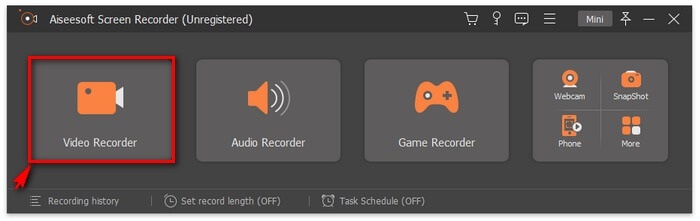
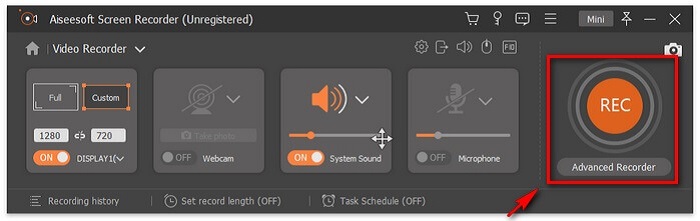
مرحله 3. قاب خطچین را تنظیم کنید تا نسبت ابعاد صفحه را مشخص کنید، سپس روی دکمه REC کلیک کنید تا ضبط شروع شود.
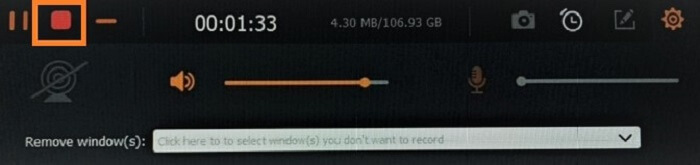
مرحله 4. برای متوقف کردن ضبط، روی دکمه قرمز Square در نوار شناور کلیک کنید. از آنجا پنجره دیگری باز میشود. در این قسمت میتوانید در صورتی که از نتیجه راضی نیستید، فایل را ذخیره کنید یا دوباره ضبط کنید.
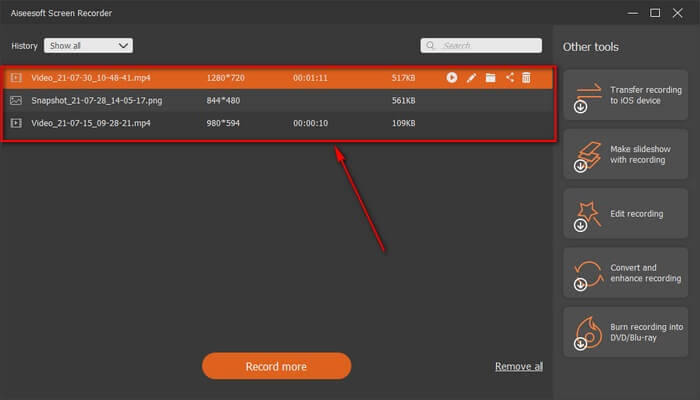
مرحله 5. فرض کنیم فایل را ذخیره کردهاید، در پنجره بعدی میتوانید محل ذخیره فایل را انتخاب کنید. پوشه مورد نظر را انتخاب کرده و روی Next کلیک کنید.
قسمت 2. سایر ضبط کننده های ویدئویی FLV رایگان
FLV Recorder برای همه مرورگرها - FVC Free Screen Recorder
همه میدانند که FVC Free Screen Recorder سبک است و در عین حال، قابلیتهای قدرتمندی هم دارد. پس اگر یک مبتدی هستید که میخواهید برای تفریح ضبط کنید، میتوانید از آن استفاده کنید، و اگر یک کاربر حرفهای هستید که میخواهید جلسه کاری ضبط کنید نیز مناسب است. در هر دو حالت کارآمد است. بهترین ویژگیای که این رکوردر ارائه میدهد این است که میتوانید هر بخش دلخواه از صفحه نمایشتان را بدون مزاحمت نوار ابزار شناور ضبط کنید؛ خودِ صفحه بهطور خودکار ضبط میشود. با کمک قابلیت Lock-in screen میتوانید هرچقدر میخواهید بدون مزاحمت، اسکرینشات بگیرید. بدون مقدمه بیشتر، بیایید سراغ نحوه استفاده از این رکوردر FLV برویم. باید مراحل زیر را دنبال کنید.
مرحله 1. به وبسایت رسمی FVC Free Screen Recorder بروید و برنامه را اجرا کنید.
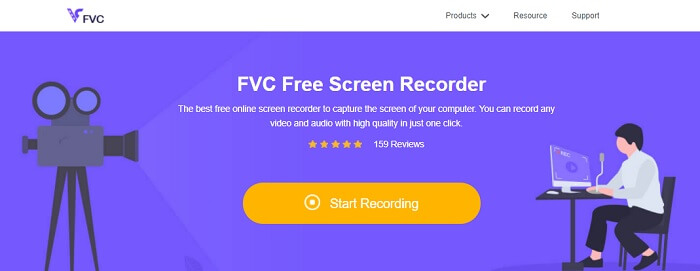
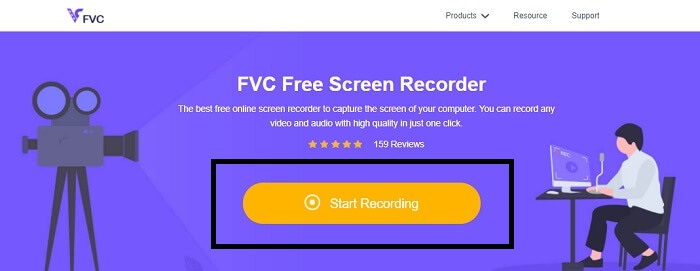
مرحله 2. با کلیک روی Start Recording ابزار را اجرا کرده و به مرحله بعد بروید.
مرحله 3. در نوار ابزار آن، روی دکمه چرخدنده (gear) کلیک کنید تا تنظیمات را مطابق نیاز خود تغییر دهید. وقتی وارد منوی تنظیمات (Preferences) شدید، بخش Output را پیدا کنید و فرمت ویدیو را مطابق سلیقه خود تغییر دهید. اگر همه چیز تنظیم شد، روی OK کلیک کنید.
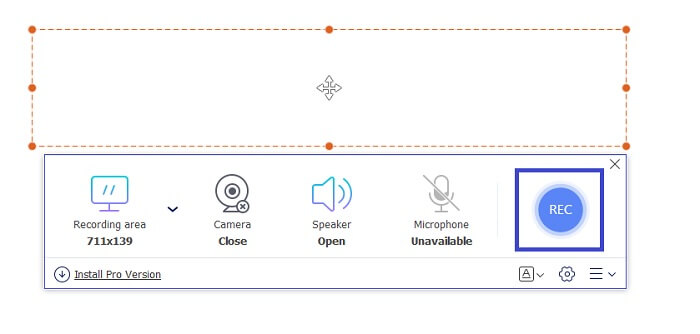
مرحله 4. در نوار ابزار شناور اکنون میتوانید نسبت فریم صفحه را تنظیم کنید. همچنین با روشن کردن Webcam واکنش چهره خود را اضافه کنید. System Sound برای افزودن صدای طبیعی برنامه استفاده میشود. و در نهایت با روشن کردن میکروفون، صدای خودتان را اضافه کنید. برای شروع ضبط FLV روی دکمه REC کلیک کنید تا ضبط آغاز شود.
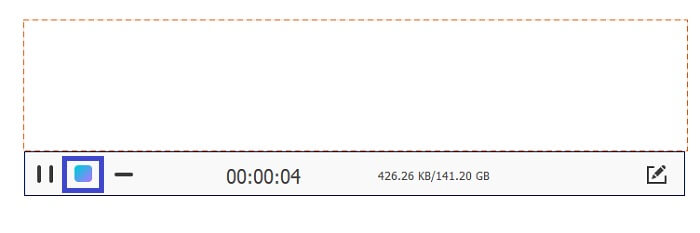
مرحله 5. برای پایان دادن به ضبط FLV، روی دکمه مکعب (cube) کلیک کنید تا متوقف شود. پس از آن، روی Save و Next کلیک کنید. تمام ضبطهایی که انجام دادهاید در History list ذخیره میشوند.
ضبط کننده FLV برای Chrome - SCREEN.IO
اگر نمی خواهید فایل های اضافی را در درایو خود دانلود کنید، می توانید از این ضبط کننده داخلی کروم استفاده کنید. این ضبط کننده FLV برای Chrome به تعداد زیادی از افراد در کل وب کمک می کند. بنابراین، اگر از طرفداران صرفه جویی در فضای ذخیره سازی خود هستید، باید این SCREEN.IO را امتحان کنید. اگرچه این ابزار ویژگی های خاصی را که مشابه ضبط کننده دیگری باشد ارائه نمی دهد. اما قابلیت ضبط آن بسیار استاندارد است. اگر ضبط کننده کروم و ضبط کننده رومیزی را با هم مقایسه کنیم، دسکتاپ راه کارآمدی برای انجام ضبط است زیرا اگر اتصال اینترنت قطع شده باشد برایتان مهم نیست.
ضبط کننده FLV برای ویندوز - VLC Media Player
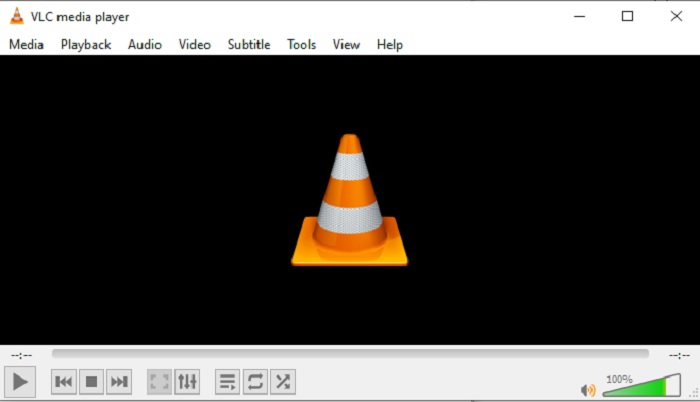
پخشکننده رسانه VLC فقط بهعنوان بهترین مدیا پلیر شناخته نمیشود. این برنامه چندین قابلیت دیگر مانند ضبط، تبدیل فرمت و موارد بیشتر نیز دارد. با وجود اینکه یکی از بهترین پخشکنندههاست، اما همه ویژگیهای ذکر شده در آن در سطح بهترینها نیستند. و در برخی موارد، برخی فرمتهای ویدیو یا صدا در آن قابل پخش نیستند، چون کدک آنها اختصاصی است. بنابراین میتوانید بهجای آن از جایگزین VLC Media Player استفاده کنید که حتی از فایلهای دارای کدک اختصاصی هم پشتیبانی میکند.
ضبط کننده FLV برای مک - OBS Studio
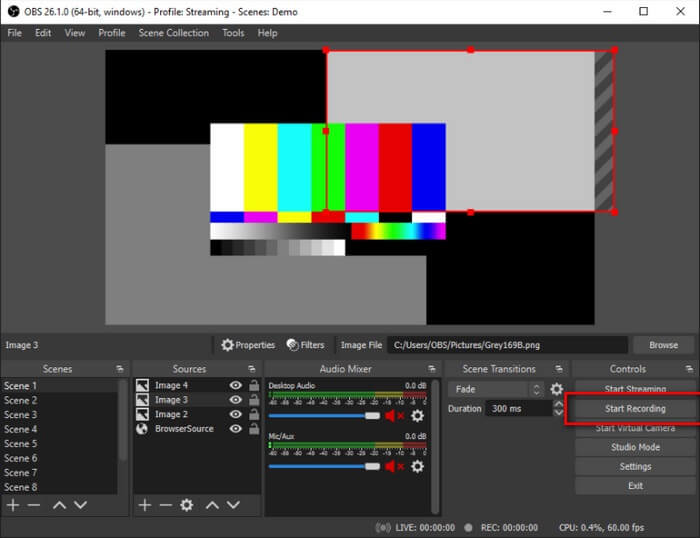
شاید فکر کنید که کاربران مک فراموش شدهاند. این ضبطکننده FLV برای مک یکی از قدرتمندترین رکوردرهای این فهرست است، زیرا میتوانید با آن استریم هم انجام دهید. با وجود ویژگیهای شگفتانگیز، خودِ ابزار کمی ترسناک یا گیجکننده به نظر میرسد، بهویژه اگر تازهکار باشید، چون هنگام باز کردن برنامه، گزینهها و بخشهای زیادی در رابط کاربری دیده میشود.
بخش 3. سوالات متداول در مورد ضبط کننده ویدئو FLV
فایل FLV، آیا دانلود آن در رایانه شخصی من بی خطر است؟
در واقعیت، این فایلی نیست که در مورد امنیت صحبت می کنیم. فایلهای FLV در سایتهای اشتراکگذاری ویدیو تعبیه شدهاند، بنابراین سوال شما باید این باشد که چگونه میتوانم تشخیص دهم ویدیویی که از یک سایت دانلود میکنم بدافزار ندارد؟ از یک محافظ برای رایانه شخصی خود استفاده کنید. هزاران مدافع نرم افزار و اسکنر وجود دارد که می توانید به صورت آنلاین پیدا کنید. اما خود فایل امن است. مگر اینکه بدافزار را در آن قرار دهند، ایمن است.
چه برنامه ای می تواند فایل های FLV را باز کند؟
پخشکنندههای رسانه زیادی وجود دارند، اما پیشنهادی که من دارم VLC Player است. این پلیر همهفنحریف است و تقریباً همه فرمتهای فایل را پخش میکند؛ فرقی نمیکند فشرده باشد یا غیر فشرده. برای دیدن پخشکنندههای محبوب دیگر برای FLV روی این لینک کلیک کنید.
مزایای فایل های FLV چیست؟
اولین مزیت اصلی FLV توانایی آن در تولید ویدیو با کیفیت بالا در اندازه کوچک است. به طور طبیعی، فایل انعطاف پذیر است. چرا؟ حتی با استفاده از مبدل های آنلاین می توانید به راحتی این فایل را به فرمت دیگری تبدیل کنید.
قسمت 4. نمودار مقایسه
| امکانات | ضبط صفحه FVC | ضبط صفحه نمایش FVC رایگان | VLC Media Player | استودیو OBS |
| ضبط صفحه |  | | | |
| ضبط کننده صدا | | | | |
| پشتیبانی از FLV | | | | |
| پخش کننده چند رسانه ای |  | | | |
| نرخ بیت و نرخ فریم قابل تنظیم | | | | |
نتیجه
همه ابزارهای ذکر شده برای ضبط ویدیوهای FLV و تولید بهترین کیفیت ویدیوی ممکن مفید هستند. همچنین اگر مطمئن نیستید از کدام ابزار استفاده کنید، می توانید به نمودار مقایسه نوشته شده مراجعه کنید. اما در میان ضبط کننده های FLV ذکر شده است. FVC Screen Recorder به دلیل ویژگی قفل کردن پنجره، دارای لبه بیشتری است.
-
 مفیدترین ضبط کننده OGG در سال 2021 [رایگان و آنلاین]
 این نوشته در مورد بهترین ابزارهای ضبط OGG صحبت می کند که به شما در انجام ضبط صدای OGG کمک می کند. برای افزودن اطلاعات دقیق تر به کاربر به خواندن آن ادامه دهید.
-
 5 بهترین نرم افزار ضبط M4B برای PC و Mac [رایگان و پولی]
 ضبط M4B برای فایل کتاب صوتی MPEG-4 فشرده شده است. در برخی جنبه ها M4A و M4B تقریباً متداول هستند اما تفاوت هایی با هم دارند. برای اینکه بدانید چه چیزی است مقاله را بخوانید.
-
 5 بهترین ابزار ضبط AMR موجود برای همه سیستم عامل ها
 می خواهید بدانید که فرمت AMR چیست و بهترین ضبط کننده AMR چیست که باید انتخاب کنید و ضبط شگفت انگیزی را ارائه می دهد.
