


 Video Converter Ultimate
 ضبط صفحه
 تعمیر ویدیو
نحوه استفاده از iMovie برای ضبط فیلم با دوربین داخلی / خارجی
iMovie ضبط کننده صفحه و ویرایشگر فیلم رایگان برای کاربران macOS ، iOS و iPadOS است. می توانید ویدیوی صفحه را با iMovie به صورت رایگان در دستگاه های Apple Mac و iOS ضبط و ویرایش کنید. علاوه بر این ، می توانید فیلم و صدا ضبط شده را مستقیماً در پرونده iMovie موجود خود جاسازی کنید. اگر می خواهید آموزش ضبط فیلم روی صفحه iMovie را دریافت کنید ، می توانید به مطالعه ادامه دهید و جزئیات بیشتر را در اینجا دریافت کنید.

قسمت 1: نحوه ضبط فیلم در iMovie
میتوانید از iMovie برای ضبط نه تنها ویدیوی صفحه، بلکه پوشش صوتی و وبکم نیز استفاده کنید. بنابراین، شما می توانید تمام فایل های ویدئویی و صوتی را در مک ضبط کنید. علاوه بر این، شما همچنین می توانید کنفرانس های آنلاین را با صدای داخلی و خارجی ضبط کنید. در اینجا آموزش دقیق ضبط ویدیو در iMovie در مک است.
مرحله 1: برنامه iMovie را در رایانه مک خود باز کنید. روی دکمه Import در نوار ابزار کلیک کنید. برای پیدا کردن دکمه Import میتوانید ابتدا روی دکمه Media در نوار ابزار بالایی کلیک کنید.
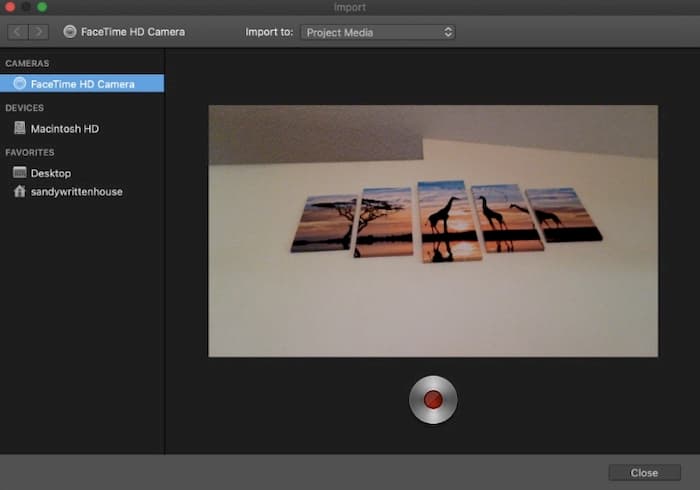
مرحله 2: اگر میخواهید خودتان را در iMovie ضبط کنید، میتوانید دوربین داخلی را در بخش Cameras انتخاب کنید. تصویر زنده ویدیویی در پنجره Import ظاهر میشود.
مرحله 3: از فهرست Import to میتوانید بر اساس نیاز خود یک رویداد (Event) موجود را انتخاب کنید، یک رویداد جدید بسازید و یا پروژهٔ باز فعلی را برگزینید.
مرحله 4: دکمه Record را زیر تصویر زنده ویدیو پیدا کرده و روی آن کلیک کنید. میتوانید با iMovie ویدیو را از ناحیه انتخابشده ضبط کنید.
مرحله 5: روی آیکون Stop در همان محل کلیک کنید تا ضبط ویدیو در iMovie پایان یابد.
مرحله 6: به رابط اصلی iMovie برگردید تا فرایند ویرایش را ادامه دهید.
قسمت 2: iMovie کار نمی کند؟ از ضبط کننده صفحه نمایش رایگان FVC استفاده کنید
نسخهای از iMovie برای ویندوز وجود ندارد. علاوه بر این، iMovie به جدیدترین سیستمعامل مک نیاز دارد. اگر نمیخواهید سیستمعامل مک خود را ارتقا دهید یا کاربر ویندوز هستید، FVC Free Screen Recorder میتواند بهترین جایگزین iMovie برای شما باشد. میتوانید هر ویدیو و صدایی را در ویندوز و مک بهطور رایگان ضبط کنید. هیچ واترمارک یا محدودیت زمانی حداکثری وجود ندارد. بنابراین میتوانید ساعتها بدون هیچ هزینهای ویدیو ضبط کنید.
- 1. ضبط ویدئو با تمام صفحه ، 720 12 1280 ، 480 × 854 ، 768 10 1024 و منطقه سفارشی.
- 2. ضبط صفحه با صدا و روایت رایانه ای.
- 3. قبل از ضبط ، قالب ویدئو ، وضوح ، کدک ، کیفیت ، نرخ فریم و سایر تنظیمات را تنظیم کنید.
- 4- هیچ علامتی به پرونده ضبط فیلم شما اضافه نمی شود.
- 5. بدون حداکثر محدودیت زمانی. بدون محدودیت می توانید فیلم روی صفحه را با صدا ضبط کنید.
- 6. سازگار با ویندوز 10/8/7 / Vista / XP و macOS 1-.7 یا بالاتر.
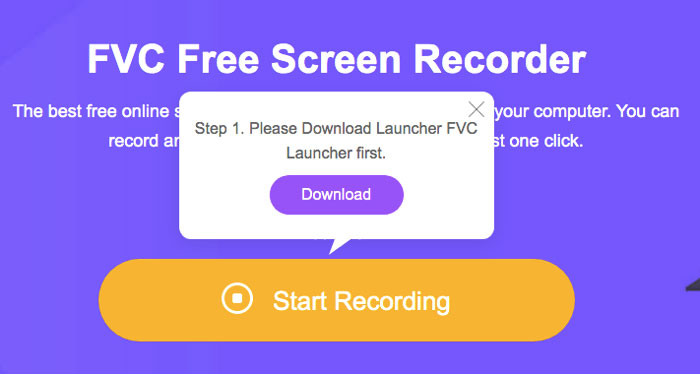
مرحله 1: وبسایت FVC Free Screen Recorder را در مرورگر خود باز کنید. روی Start Recording در رابط اصلی کلیک کنید. بار اولی که با این جایگزین iMovie برای ویندوز ضبط میکنید، باید روی Download کلیک کرده و لانچر FVC را نصب کنید.
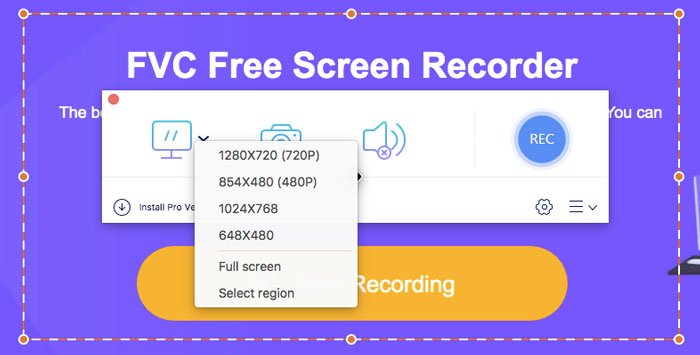
مرحله 2: آیکون Screen را باز کنید. اینجا میتوانید از پیشتنظیمهای آمادهٔ ناحیهٔ ضبط، یکی را انتخاب کنید. یا با کشیدن ماوس (کلیک چپ) اندازهٔ سفارشی صفحه را تعیین کنید. روی Audio کلیک کنید تا ضبط صدا را نیز فعال کنید.
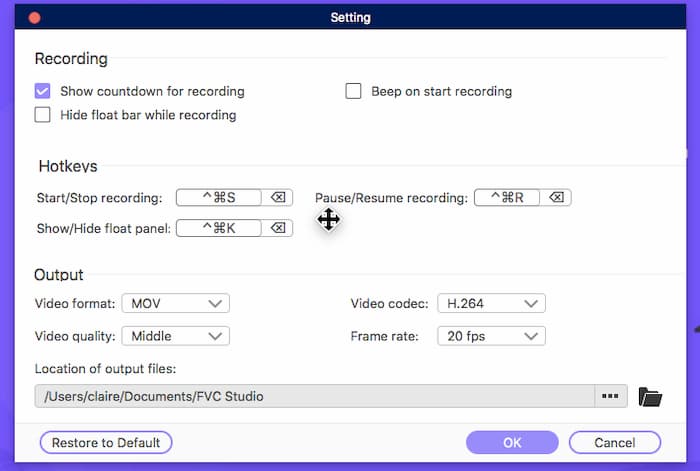
مرحله 3: روی آیکون Settings در گوشهٔ پایین-راست کلیک کنید. اینجا میتوانید تنظیمات ضبط صفحه را تغییر دهید، از جمله کلیدهای میانبر، شمارش معکوس، پنهان کردن نوار شناور، فرمت ویدیو و موارد دیگر. برای ذخیرهٔ تغییرات روی OK کلیک کنید.
مرحله 4: بعد از انجام تنظیمات، روی REC کلیک کنید تا ضبط ویدیوییِ صفحه شروع شود. میتوانید بدون محدودیت ضبط را متوقف و دوباره ادامه دهید.
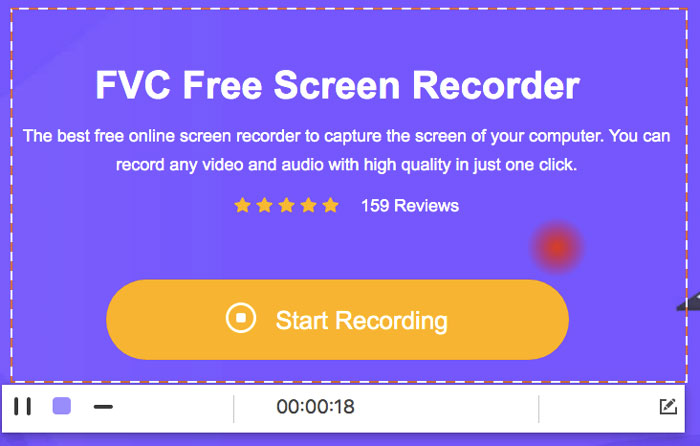
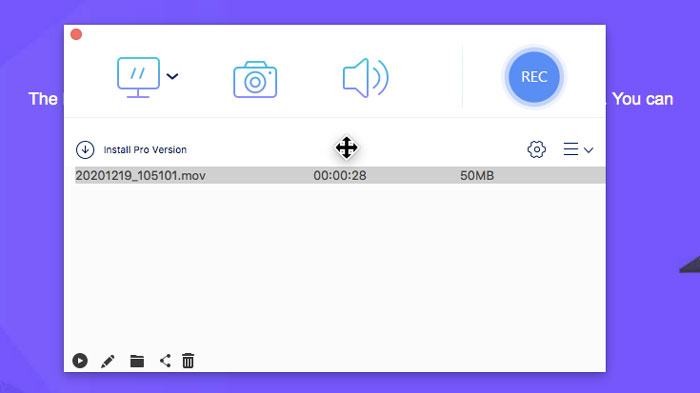
مرحله 5: روی Stop کلیک کنید تا ضبط صفحه پایان یابد. میتوانید ویدیوی ضبطشده را مستقیماً از فهرست کشویی تاریخچهٔ ضبط پیدا کنید. پس از آن میتوانید آن را تغییر نام دهید، پیشنمایش کنید، ساماندهی کنید، به اشتراک بگذارید و حذف کنید.
قسمت 3: سQالات متداول ضبط در iMovie
چگونه می توان صفحه آیفون خود را با iMovie ضبط کرد؟
در برنامه iMovie، جایی را که میخواهید کلیپ ضبطشده را در آن درج کنید انتخاب کنید. روی آیکون + در سمت چپ ضربه بزنید. Camera را انتخاب کنید و سپس Video یا Photo را برگزینید. اکنون میتوانید با برنامه iMovie در آیفون خود اسکرینکست یا اسکرینشات بگیرید. علاوه بر این، میتوانید با QuickTime Player یا با استفاده از قابلیت ضبط صفحه در iOS 11، از صفحه فیلم بگیرید. فقط با یک کابل USB آیفون را به رایانه مک خود وصل کنید.
چگونه می توان ضبط صفحه را با فیلم در iMovie قرار داد؟
از فهرست کشویی File در iMovie گزینه New Movie را انتخاب کنید. No Theme را برگزینید و یک نام فایل تنظیم کنید. گزینه Import Media را انتخاب کنید. یک ویدیو را مرور کرده و در iMovie وارد (Import) کنید.
چه مدت می توانید روی iMovie صفحه ضبط کنید؟
برای ضبط iMovie محدودیت زمانی خاصی وجود ندارد. به طور کلی ، می توانید فیلم های iMovie را تا حداکثر 60 دقیقه ضبط کنید.
در کل ، شما می توانید از iMovie برای ضبط ویدئو و صدا در دستگاه های Mac و iOS خود به صورت رایگان استفاده کنید. اگر می خواهید ویدیوی صفحه را بیش از 1 ساعت ضبط کنید ، می توانید نگاهی به FVC Free Screen Recorder بیندازید. این یک گزینه ضبط کننده صفحه نمایش رایگان برای iMovie برای کاربران ویندوز و مک است. می توانید محدودیت طول ضبط iMovie و محدودیت سیستم عامل را دور بزنید.
علاوه بر این ، ضبط صفحه نمایش رایگان FVC کاملا رایگان ، ایمن و استفاده از آن آسان است. متفاوت از iMovie ، شما با فیلترها و گزینه های بیش از حد اشتباه اشتباه نخواهید کرد. به سرعت می توانید تمام ابزارهای ضبط صفحه را از رابط کاربری سبک آن پیدا کنید. نیازی به بارگیری یک بسته نرم افزاری بزرگ نیست. می توانید یک پرتاب FVC کمتر از 1 مگابایت برای کل ضبط صدا و فیلم روی صفحه نصب کنید.
-
 بررسی ضبط صفحه نمایش ShareX و نحوه ضبط صفحه با ShareX
 ضبط صفحه نمایش ShareX برای چه استفاده می شود؟ چگونه می توانم صفحه خود را در ShareX ضبط کنم؟ این پست به بررسی ShareX می پردازد و نحوه ضبط صفحه با ShareX را نشان می دهد.
-
 بررسی Movavi Screen Recorder - جوانب مثبت / منفی / قیمت / آموزش / جایگزین
 این یک بررسی کامل Movavi Screen Recorder است. می توانید بدانید که آیا Movavi Screen Recorder در ضبط صفحه عملکرد خوبی دارد؟ علاوه بر این ، می توانید بدون علامت گذاری علامت ، یک گزینه رایگان برای ضبط صفحه بگیرید.
-
 بررسی Snagit 2021 - جوانب مثبت ، منفی و بهترین گزینه
 بهترین جایگزین برای Snagit چیست؟ آیا ابزاری برای ضبط صفحه مانند Snagit وجود دارد؟ این پست Snagit را مرور می کند و بهترین گزینه را برای Snagit برای گرفتن صفحه به اشتراک می گذارد.
