


 Video Converter Ultimate
 ضبط صفحه
 تعمیر ویدیو
نحوه گرفتن اسکرین شات از نقشه های گوگل: برنامه ریزی، اسکرین شات و کاوش
گوگل مپس بهعنوان چراغی درخشان در دنیای مسیریابی شناخته میشود. فرقی نمیکند در حال برنامهریزی برای سفر جادهای بعدی خود باشید، مسیر یک مسیر پیادهروی تازه را جستوجو کنید یا فقط در جنگل بتنی شهرها راهتان را پیدا کنید؛ گوگل مپس به ابزاری ضروری برای مسافران و ماجراجویان تبدیل شده است. اما وقتی به یک مسیر ایدهآل برمیخورید یا یک مکان پنهان و خاص کشف میکنید چه میشود؟ ثبت این لحظات ضروری است و دقیقاً همینجاست که دانستن روش اسکرینشات گرفتن از گوگل مپس به کار میآید. در این مقاله، شما را با ۳ روش آشنا میکنیم تا سفرتان را مؤثرتر برنامهریزی کنید، با کمک ابزارهای نرمافزاری و دستگاههای موبایل اسکرینشاتهای مهم را آماده کنید و یک ماجراجویی اکتشافی بیدردسر را آغاز کنید. منتظر چه هستید؟ همراه شوید و ادامه مطلب را بخوانید تا حداکثر تواناییهای گوگل مپس و ثبت تصویر از صفحه را در کنار هم آزاد کنید.

قسمت 1. نحوه گرفتن اسکرین شات از نقشه های گوگل در ویندوز/مک با ضبط کننده صفحه
چطور از گوگل مپس اسکرینشات بگیریم؟ برای گرفتن اسکرینشات از گوگل مپس میتوانید از نرمافزاری مانند FVC picked Screen Recorder استفاده کنید. این ابزار کاربری سادهای دارد و به شما اجازه میدهد از هر چیزی که روی صفحه نمایشتان دیده میشود تصویر ثبت کنید. این برنامه بهصورت رایگان هم برای مک و هم برای ویندوز قابل دانلود است، بنابراین گزینهای بسیار مناسب برای گرفتن اسکرینشات از گوگل مپس و سایر فعالیتها بهشمار میآید.
مرحله ۱. این ابزار اسکرینشات گوگل مپس را با مراجعه به وبسایت رسمی آن نصب کنید و اگر هنوز نرمافزار را دانلود نکردهاید، آن را دانلود کنید.
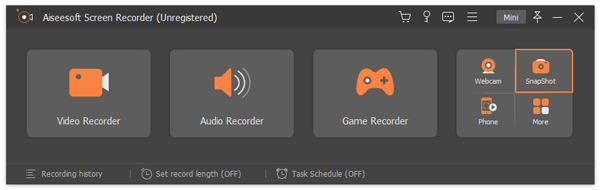
مرحله ۲. نرمافزار را روی کامپیوتر خود باز کنید، سپس در رابط اصلی، گزینه Snapshot را برای ثبت تصویر مورد نظر از گوگل مپس انتخاب کنید.
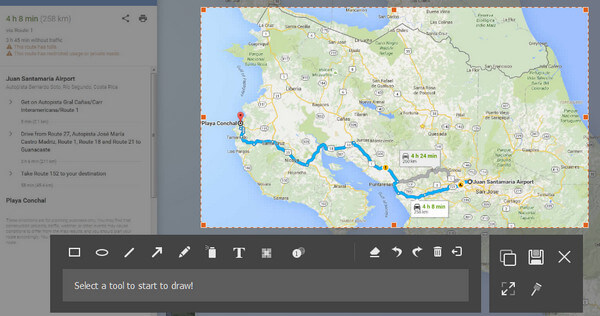
مرحله ۳. برای انتخاب ناحیهای که میخواهید از آن اسکرینشات بگیرید، نشانگر ماوس را روی بخش مورد نظر ببرید و روی آن چپکلیک کنید.
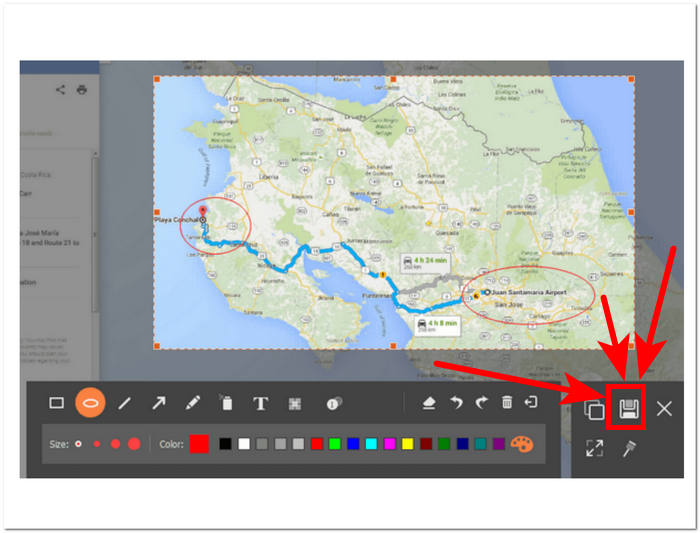
مرحله ۴. میتوانید اسکرینشات خود را با اضافه کردن یا کشیدن اشکال و متن روی آن برای برجسته کردن یا تأکید روی موقعیتها ویرایش کنید و پس از رضایت از نتیجه، روی دکمه Save در گوشه پایینِ سمت راست ابزار کلیک کنید.
این ابزار اسکرین شات یک نرم افزار بسیار همه کاره برای گرفتن اسکرین شات است. این نه تنها به کاربران اجازه می دهد تا از صفحه نمایش عکس بگیرند، بلکه صفحه نمایش، صدا و بازی را نیز ضبط می کنند. این ابزار مناسبی است که میتواند برای کارهای مختلف عکسبرداری از صفحه نمایش فراتر از گرفتن عکسهای Google Maps به حداکثر برسد.
قسمت 2. نحوه گرفتن اسکرین شات از نقشه های گوگل با ابزار Snipping و میانبرها
برای گرفتن اسکرین شات از Google Maps، میتوانید از ابزار و میانبرهای پیشفرض رایانه خود استفاده کنید. این به شما این امکان را می دهد که بدون هیچ زحمتی و بدون نیاز به استفاده از هیچ نرم افزار اضافی، محتوا را روی صفحه خود ضبط کنید. با این حال، مهم است که توجه داشته باشید که این روش هیچ ویژگی ویرایشی را ارائه نمی دهد، بنابراین نمی توانید هیچ نقطه برجسته یا حاشیه نویسی را به اسکرین شات خود و در این مورد به Google Maps خود اضافه کنید.
پنجره ها
مرحله ۱. از طریق مرورگر کامپیوتر خود Google Maps را باز کرده و موقعیت یا مسیری را که میخواهید ثبت کنید پیدا کنید.
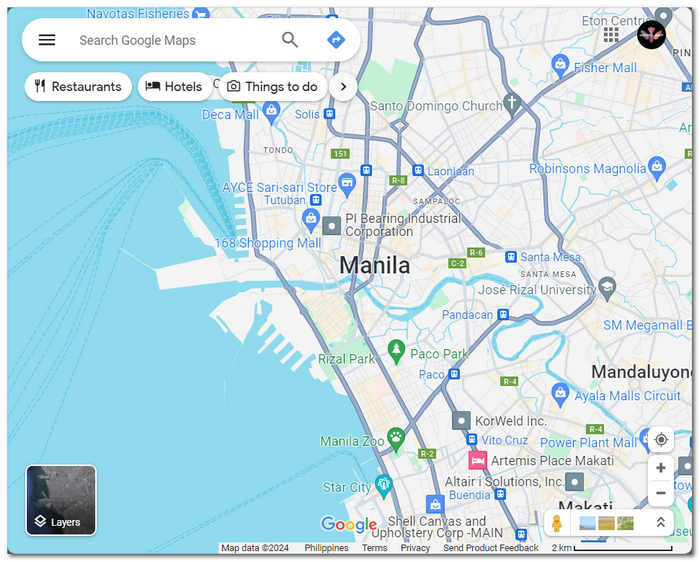
مرحله ۲. ابزار Snipping Tool را با جستوجوی آن در منوی Start یا با فشردن همزمان کلیدهای Windows Logo Key + Shift + S روی صفحهکلید باز کنید.
مرحله ۳. یکی از چهار حالت موجود را انتخاب کنید: حالت مستطیلی (Rectangular Mode)، حالت آزاد (Freedom Mode)، حالت پنجره (Window Mode) یا حالت تمامصفحه (Fullscreen Mode).
اگر میخواهید یک اسکرینشات اسکرولی در ویندوز بگیرید، اینجا را ببینید.
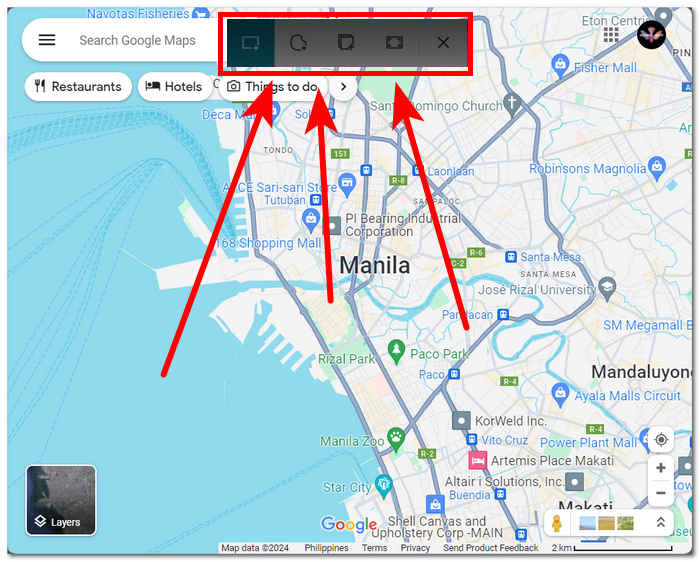
مرحله ۴. پس از گرفتن اسکرینشات، میتوانید آن را ذخیره کنید یا با فشردن Ctrl + V در هر برنامه ایمیل یا پیامرسانی جایگذاری (Paste) کنید.
مک
مرحله ۱. در مرورگر Safari، Google Maps را باز کرده و به نقشه مورد نظر بروید.
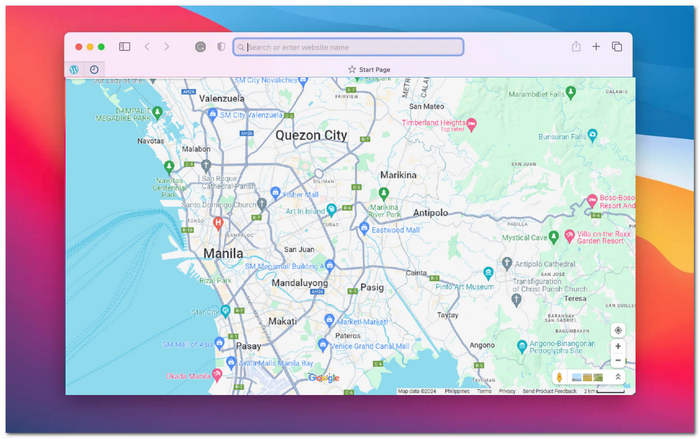
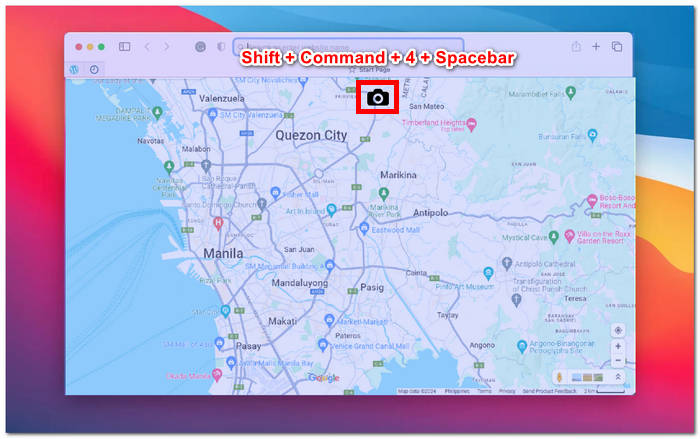
مرحله ۲. کلیدهای Shift + Command + 4 + Spacebar را همزمان نگه دارید. نشانگر ماوس شما بهطور خودکار به یک آیکون دوربین تبدیل میشود.
مرحله ۳. روی پنجره Safari کلیک کنید تا نقشه مورد نظر در گوگل مپس ثبت شود.
مرحله ۴. وقتی تصویر بندانگشتی (thumbnail) اسکرینشات روی صفحهتان ظاهر شد، روی آن کلیک کنید تا ویرایش و در حافظه داخلی خود ذخیرهاش کنید. به همین سادگی!
برای گرفتن اسکرینشات اسکرولی در مک از گوگل مپس، اینجا را ببینید.
هنگام گرفتن اسکرین شات از Google Maps، ممکن است از ابزارهای برش پیش فرض ارائه شده توسط رایانه خود استفاده کرده باشید، که می تواند در زمان صرفه جویی کند و نیازی به دانلود نرم افزار یا استفاده از ابزارهای شخص ثالث نداشته باشد. با این حال، این ابزارهای برش پیش فرض فاقد ویژگی های ویرایش هستند. اگر میخواهید اسکرینشات خود را ویرایش کنید، باید نرمافزار دیگری را برای این منظور دانلود کنید یا بهتر است، ابزارهای نرمافزاری را دانلود کنید که هم گرفتن اسکرینشات و هم ویرایش را در یک کار ارائه میدهند، مانند Screen Recorder توصیهشده FVC.
قسمت 3. نحوه گرفتن اسکرین شات از نقشه های گوگل در آیفون/اندروید
گرفتن اسکرین شات از نقشه گوگل در دستگاه اندروید یا آیفون راهی مفید برای ذخیره نمای نقشه یا مسیرها برای ارجاع بعدی است. برای انجام این کار، باید مراحل ساده ای را که در این مقاله آمده است دنبال کنید. چه از اندروید و چه آیفون استفاده می کنید، گرفتن اسکرین شات از نقشه گوگل با راهنمایی درست بسیار آسان است.
اندروید
مرحله ۱. در دستگاه اندرویدی خود، اپلیکیشن Google Map را باز کنید.
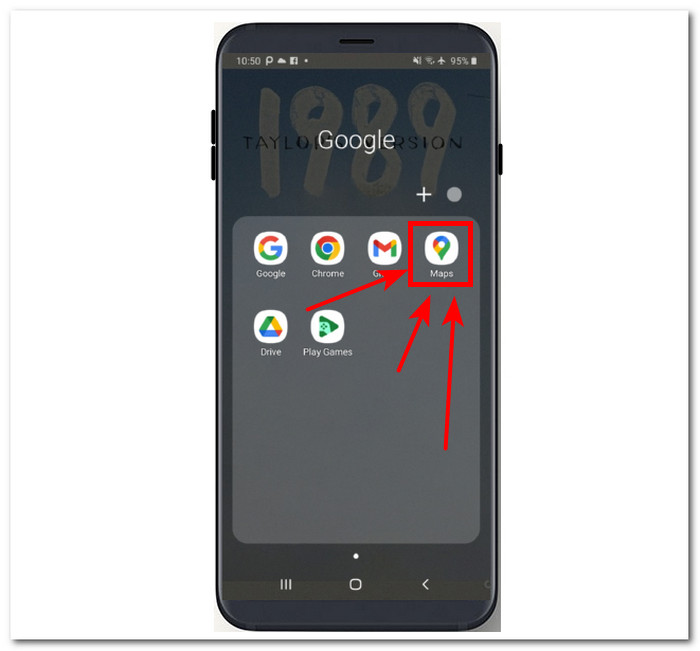
مرحله ۲. به موقعیتی در نقشه بروید که میخواهید از آن تصویر بگیرید.
مرحله ۳. برای گرفتن اسکرینشات، دکمههای Volume Down و Power را همزمان فشار دهید.
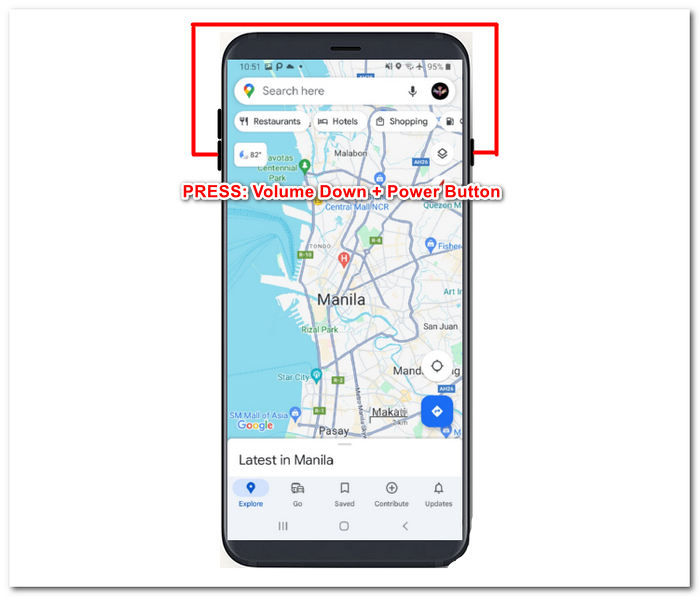
مرحله ۴. اسکرینشات گوگل مپس شما بهطور خودکار در گالری دستگاه ذخیره میشود و میتوانید هر زمان لازم بود آن را ببینید و به اشتراک بگذارید.
آیفون
مرحله ۱. در آیفون خود، اپلیکیشن Google Map را اجرا کنید.
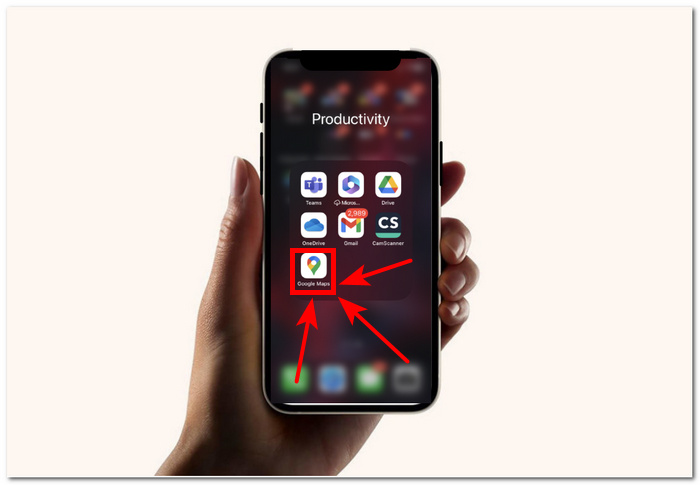
مرحله ۲. به موقعیتی بروید که میخواهید از آن اسکرینشات بگیرید.
مرحله ۳. برای گرفتن اسکرینشات، بهطور همزمان دکمههای Volume Up + Power Button را فشار دهید.
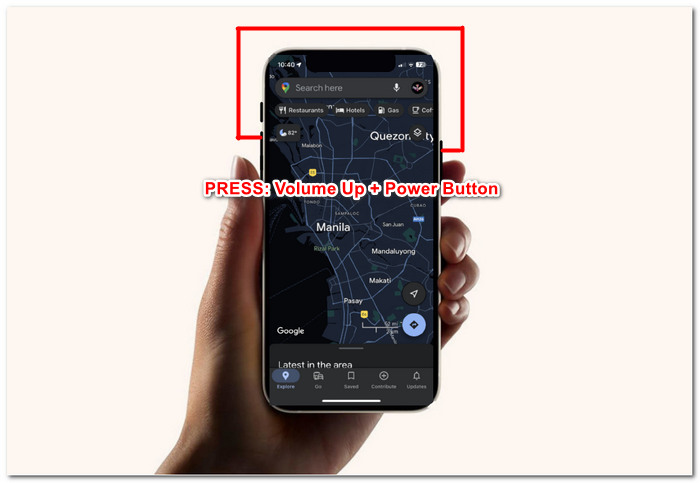
مرحله ۴. اسکرینشات بهصورت خودکار در فرمت JPG در اپلیکیشن Photos یا Gallery شما ذخیره میشود.
برای گرفتن اسکرین شات از نقشه های گوگل، سریع ترین و ساده ترین روش استفاده از دستگاه تلفن همراه است. این رویکرد شما را قادر می سازد تا به سرعت از صفحه اسکرین شات بگیرید، که به ویژه برای کاربرانی که همیشه در دستگاه های تلفن همراه خود هستند و این روش را به استفاده از رایانه ترجیح می دهند، مفید است.
بخش 4. سوالات متداول درباره نحوه گرفتن اسکرین شات از نقشه های گوگل
آیا می توانم از Google Maps در رایانه خود اسکرین شات بگیرم؟
بله، روش های مختلفی برای گرفتن اسکرین شات از نقشه های گوگل در رایانه شما وجود دارد. می توانید از ابزارهای پیش فرض اسکرین شات موجود در دستگاه خود استفاده کنید یا نرم افزار شخص ثالث را انتخاب کنید. استفاده از این روش ها آسان است و می توان برای گرفتن سریع تصویر نقشه مورد نظر در رایانه خود به آنها اعتماد کرد.
آیا گرفتن اسکرین شات از نقشه های گوگل قانونی است؟
هنگام گرفتن اسکرین شات از Google Maps برای استفاده شخصی، به طور کلی قانونی است. با این حال، توجه به این نکته مهم است که استفاده از این اسکرین شات ها برای مقاصد تجاری یا توزیع آنها بدون اجازه ممکن است شرایط خدمات Google یا قوانین حق نسخه برداری را نقض کند.
آیا می توانم یک منطقه خاص از Google Maps را بگیرم؟
بله، بسیاری از ابزارهای اسکرین شات گزینه ای را برای گرفتن یک منطقه خاص از صفحه ارائه می دهند که می تواند زمانی که نیاز به گرفتن یک منطقه خاص مانند Google Maps دارید، بسیار مفید باشد. این ویژگی به شما این امکان را میدهد تا از قسمتی از صفحه که میخواهید عکس بگیرید، نه از کل صفحه، عکس بگیرید و تمرکز روی جزئیات مهم را آسانتر میکند.
آیا هنگام گرفتن اسکرین شات از Google Maps محدودیت یا محدودیتی وجود دارد؟
در حالی که به طور کلی می توانید از نقشه های گوگل برای استفاده شخصی عکس بگیرید، به شرایط خدمات گوگل توجه داشته باشید. از استفاده از اسکرین شات ها برای مقاصد تجاری بدون مجوز مناسب خودداری کنید و به هر گونه حق چاپ یا محدودیت استفاده احترام بگذارید.
آیا می توانم تصاویر نمای خیابان را از Google Maps بگیرم؟
Google Maps گزینه مستقیمی برای گرفتن تصاویر نمای خیابان ندارد. اما برای دریافت اسکرین شات با کیفیت بالای Google Maps، میتوانید از نرمافزار ضبط صفحه برای ضبط نمای خیابان هنگام حرکت در آن استفاده کنید.
نتیجه
گرفتن اسکرینشات از گوگل مپس روشی عالی برای مسافران، ماجراجویان و کاربران عادی است تا بدون نیاز به اتصال اینترنتی، دنیا را کاوش کنند. این کار به دانشی پایهای در استفاده از ابزارهای مسیریابی و اکتشافی تبدیل شده و نقشههای دقیق، مسیرها و بهروزرسانیهای ترافیکی لحظهای را در اختیار میگذارد. روشهای متعددی برای ثبت اسکرینشاتهای باکیفیت (HD) از گوگل مپس وجود دارد؛ چه از کامپیوتر استفاده کنید و چه از دستگاه موبایل. میتوانید از نرمافزار تخصصیای مانند FVC picked Screen Recorder استفاده کنید یا از ابزارها و میانبرهای داخلی در ویندوز، مک، اندروید و آیفون بهره ببرید. این امکانات، گرفتن نمای ایدهآل از نقشه را بیش از هر زمان دیگری ساده کردهاند.
-
 چگونه بدون زحمت در فایرفاکس اسکرول اسکرین شات بگیرید
 آموزش اسکرول کردن اسکرین شات ها در فایرفاکس برای گرفتن فوری کل صفحات وب. برای یادگیری نحوه استفاده از این ویژگی، آموزش گام به گام آسان ما را دنبال کنید.
-
 راهنمای گام به گام اسکرین شات ها در VLC Media Player
 مراحل ساده گرفتن اسکرین شات های VLC را بدون دردسر بیاموزید. برای گرفتن سریع و آسان عکس فوری از طریق کلیدهای میانبر و تنظیمات منو، راهنمای ما را دنبال کنید.
-
 نحوه اسکرین شات گرفتن کارآمد در Windows Media Player
 ساده ترین روش ها را برای گرفتن اسکرین شات در Windows Media Player بی دردسر کشف کنید. با راهنمای جامع ما، تجربه عکسبرداری از صفحه نمایش خود را ارتقا دهید.
