


 Video Converter Ultimate
 ضبط صفحه
 تعمیر ویدیو
راهنمای جامع برای صادرات iMovie به MP4
iMovie یکی از پرکاربردترین و محبوبترین ابزارهای ویرایش ویدیو است که توسط اپل برای کاربران مک، آیفون و آیپد توسعه داده شده است. این ابزار مجموعه خوبی از قابلیتهای ویرایشی دارد که هر ویرایشگری دوست دارد در اختیار داشته باشد. اما از طرف دیگر، یک مورد وجود دارد که کاربران کمی با آن مشکل دارند. ویدیوهای این ابزار بهصورت پیشفرض در قالب MOV خروجی گرفته میشوند. این فرمت پیشفرض هنگام سازگاری با دستگاهها و پلتفرمهای دیگر میتواند محدودیتهایی ایجاد کند. به همین دلیل، اکثر کاربران مجبورند فایلهای MOV را به یک فرمت شناختهشده جهانی مثل MP4 تبدیل کنند تا بتوانند آن را روی سایر پخشکنندههای ویدیو اجرا کنند. پس اگر شما هم بهدنبال روشی برای خروجی گرفتن iMovie به MP4 هستید، این مقاله را تا انتها بخوانید.

بخش 1: نحوه صادرات iMovie به MP4 در مک
وقتی صحبت از صادرات ویدیو از iMovie می شود، فرمت های خروجی زیادی برای انتخاب وجود دارد. فقط ما به فرمت پیش فرض MOV آن عادت کرده ایم. با این کار، معمولاً هنگام پخش یک ویدیوی صادر شده از آن، با مشکلات سازگاری مواجه می شویم. بنابراین، یادگیری نحوه صادرات iMovie به MP4 در حال تبدیل شدن به یک چیز است زیرا این فرمت به طور گسترده مورد استفاده قرار می گیرد و بیشتر توسط تمام دستگاه های دیجیتال و پخش کننده های رسانه پشتیبانی می شود. برای صادر کردن iMovie به MP4 در مک، مراحل زیر را دنبال کنید:
مرحله 1. ابتدا iMovie را روی مک خود اجرا کنید.
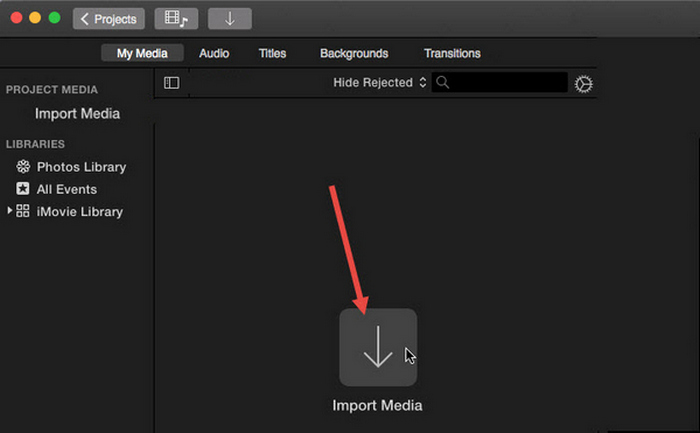
مرحله 2. سپس با کلیک روی دکمه Import Media ویدیوی خود را در نرمافزار وارد کنید.
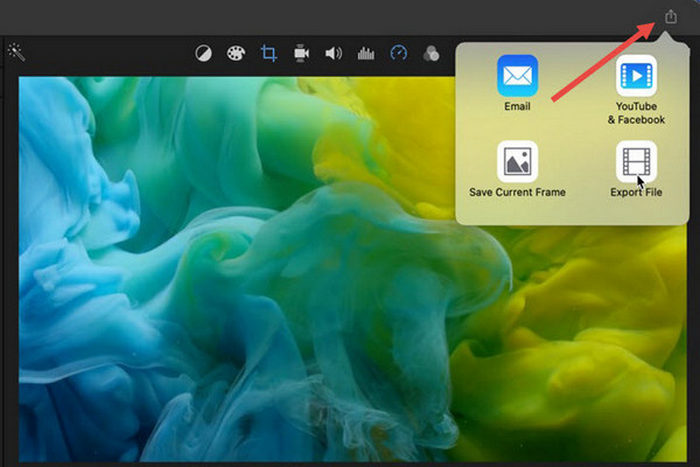
مرحله 3. حالا در نوار ابزار بالای صفحه روی دکمه File کلیک کنید، به بخش Share بروید، سپس File را انتخاب کنید، یا در پنجره پیشنمایش روی آیکون Share کلیک کرده و در پنجره بازشده، گزینه File را انتخاب کنید.
مرحله 4. در پنجره پاپآپ جدید، گزینه Video and Audio را بهعنوان فرمت خروجی انتخاب کنید و بر اساس نیاز خود، وضوح، کیفیت و سایر پارامترها را تنظیم کنید.
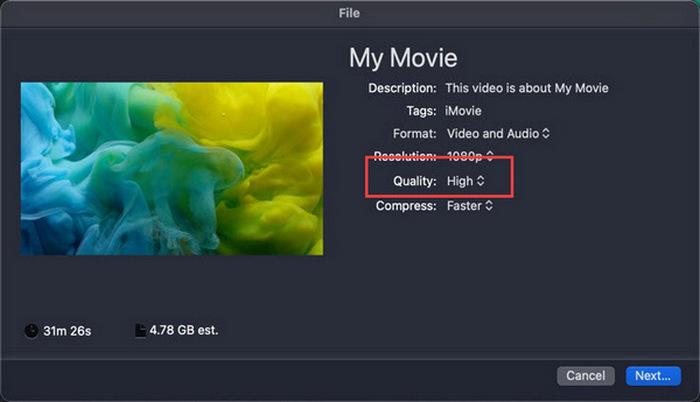
نکته: اگر میخواهید فایل ویدیویی را در فرمت MP4 خروجی بگیرید، گزینه کیفیت ProRes را انتخاب نکنید، زیرا در این صورت ویدیو با فرمت MOV ذخیره خواهد شد.
مرحله 5. در نهایت روی دکمه Next کلیک کنید و برای فایل MP4 خروجی iMovie نامی انتخاب کنید. فراموش نکنید که یک پوشه خروجی برگزینید و دوباره روی Next کلیک کنید تا ویدیو بهصورت MP4 ذخیره شود.
واقعا راهی برای صادرات iMovie به MP4 به طور مستقیم از مک وجود دارد. با این حال، این فرآیند ممکن است کمی پیچیده به نظر برسد، به خصوص زمانی که با فرمت فایل پیشفرض آن هنگام ذخیره ویدیو سروکار دارید.
اگر میخواهید روی ویندوز از iMovie استفاده کنید، این مطلب را از دست ندهید.
بخش 2: نحوه رفع مشکل صادرات iMovie [راه حل رایج]
ممکن است چندین دلیل وجود داشته باشد که صادرات iMovie به درستی کار نمی کند. در زیر چند راه حل و جایگزین برای رفع مشکل عدم کارکرد صادرات iMovie آمده است:
راه حل 1: بررسی فضای ذخیره سازی
یکی از دلایل رایج مشکلات صادرات iMovie، فضای ناکافی دیسک در مک شما است. اگر در صادرات ویدیو با مشکل مواجه شدید، با بررسی در دسترس بودن فضای ذخیرهسازی خود شروع کنید.
برای macOS Ventura یا جدیدتر: به منوی اپل بروید، گزینه System Preferences را انتخاب کنید، روی General کلیک کرده و سپس در سمت راست، Storage را انتخاب کنید.
برای نسخههای قدیمیتر macOS: به منوی اپل بروید، سپس روی About This Mac کلیک کنید و به بخش Storage بروید.
سپس، اگر فضای ذخیره سازی مک شما کم است، برای آزاد کردن فضا، فایل ها یا برنامه های غیر ضروری را حذف کنید. پس از انجام این کار، به iMovie برگردید و دوباره صادرات را انجام دهید.
راه حل 2: نام فایل را دوباره بررسی کنید
اگر iMovie پس از چند بار تلاش برای صادر کردن، ویدیویی را صادر نکند، ضروری است که نام فایل را در تنظیمات خروجی بررسی کنید تا مطمئن شوید که شامل هیچ کاراکتر خاصی مانند خط فاصله، اسلش، کاما و غیره نیست. معمولا، iMovie این کار را انجام میدهد. از کاراکترهای خاص در نامگذاری فایل پشتیبانی نمی کند.
راه حل 3: iMovie را مجددا راه اندازی کنید
اگر مشکل همچنان ادامه داشت، برنامه را یکبار ببندید و دوباره تلاش کنید ویدیو را خروجی بگیرید. اما یادتان باشد ابتدا پروژه فعلی خود را ذخیره کنید. برای بستن کامل iMovie، روی آیکون برنامه کلیک کرده و گزینه Quit را انتخاب کنید. پس از آن دوباره iMovie را اجرا کنید، یک پروژه را باز کرده و بررسی کنید آیا اکنون میتواند ویدیوها را خروجی بگیرد یا نه. همچنین، برای رفع مشکل، یکبار مک را ریستارت کنید.
راه حل 4: iMovie را به روز کنید
نسخه قدیمی iMovie معمولاً بهدلیل برخی باگها و مشکلات سیستمی که هنوز برطرف نشدهاند، باعث خطا در خروجی گرفتن میشود. برای بهروزرسانی iMovie، App Store را باز کنید، در سمت چپ روی Updates کلیک کنید و بهدنبال بهروزرسانیهای iMovie بگردید، سپس روی آن کلیک کنید.
راه حل 5: iMovie را دوباره نصب کنید
اگر هیچیک از راهحلها مشکل خروجی گرفتن را برطرف نکرد، میتوانید iMovie را مجدداً نصب کنید. برای حذف iMovie از مک، Launchpad را باز کنید و کلید Option را فشار دهید، روی آیکون iMovie کلیک کرده و نگه دارید، سپس روی دکمه X کنار برنامه کلیک کنید و برای تأیید، Delete را بزنید. بعد از آن، به App Store بروید و iMovie را دوباره دانلود و نصب کنید.
پاداش: نحوه رفع مشکل صادرات iMovie [روش جایگزین]
اگر هیچیک از راهحلها برای شما جواب نداد، وقت آن است که از یک روش جایگزین برای رفع مشکل خروجی نگرفتن iMovie استفاده کنید. FVC Video Converter Ultimate بهخاطر تواناییهای گسترده در تبدیل فرمتها شناخته میشود و به کاربران امکان میدهد ویدیوها را به هر فرمتی که میخواهند تبدیل کنند. اما فراتر از آن، این نرمافزار قابلیتهای دیگری مانند بخش MV دارد که برای کاربرانی طراحی شده که میخواهند ویدیوهای خود را ویرایش کنند. درست مثل iMovie، فقط کافی است فایلهایی را که میخواهید ویرایش کنید وارد برنامه کرده، سپس از ابزارهای ویرایشی مثل برش و چرخاندن کلیپها، افزودن افکتها و فیلترها و همچنین قرار دادن موسیقی پسزمینه برای جذابتر شدن استفاده کنید و در نهایت، فایل را بهصورت MP4 خروجی بگیرید.
علاوه بر این، این ابزار از رزولوشن های HD/4K/8K پشتیبانی می کند و کیفیت خروجی درجه یک را تضمین می کند. و بهترین بخش؟ با سرعت رعد و برق سریع عمل می کند و تبدیل ها را 120 برابر سریعتر از روش های دیگر انجام می دهد.
مرحله 1. ابتدا روی کامپیوتر ویندوز یا مک خود، FVC Video Converter Ultimate را دانلود و نصب کنید.
دانلود رایگانبرای ویندوز 7 یا بالاتردانلود امن
دانلود رایگانبرای MacOS 10.7 یا بالاتردانلود امن
مرحله 2. پس از آن، وقتی وارد رابط نرمافزار شدید، به تب MV بروید.

مرحله 3. حالا روی دکمه Add File کلیک کنید تا فایلهایی را که میخواهید به MP4 تبدیل کنید، اضافه کنید.

مرحله 4. برای افزودن، ویرایش و برش ویدیوی MP4 خود، روی دکمهای که در بالای دکمه Add File قرار دارد کلیک کنید. علاوه بر این، میتوانید با رفتن به تب Theme در بالا و انتخاب از میان تمهای آماده، برای ویدیوی خود تم اضافه کنید.

مرحله 5. برای بهبود بیشتر فایل MP4 در حال ویرایش، میتوانید با کلیک روی آیکون Edit در پایین، فیلترها و افکتهایی به آن اضافه کنید. همچنین میتوانید برای شخصیسازی، واترمارک اضافه کنید.

مرحله 6. پس از اتمام کار، روی دکمه Export کلیک کنید؛ در این بخش میتوانید فرمت را به MP4 تغییر دهید و نرخ فریم، وضوح و کیفیت را تنظیم کنید.

مرحله 7. در نهایت، برای ذخیره فایل، روی دکمه Start Export کلیک کنید.
با FVC Video Converter Ultimate، نیازی به نگرانی در مورد نحوه تبدیل iMovie خود به فایل های MP4 زمانی که در فرمت MOV صادر می شود، نباشید. همچنین، هر زمان که با مشکل صادرات با iMovie مواجه شدید، این یک جایگزین عالی است، زیرا این یک ابزار با امکانات کامل است. شما می توانید همه چیز مورد نیاز خود را داشته باشید، به خصوص در مورد تبدیل فایل ها از یک فرمت به فرمت دیگر.
قسمت 3: نحوه صادرات iMovie به MP4 در iPad/iPhone
برای کسانی که از iOS یا iPadOS استفاده می کنند و می خواهند iMovie را در iPhone یا iPad خود صادر و به MP4 تبدیل کنند، در اینجا نحوه صادرات iMovie به MP4 در iPad/iPhone آورده شده است.
مرحله 1. ابتدا روی آیفون یا آیپد خود، اپلیکیشن iMovie را باز کنید.
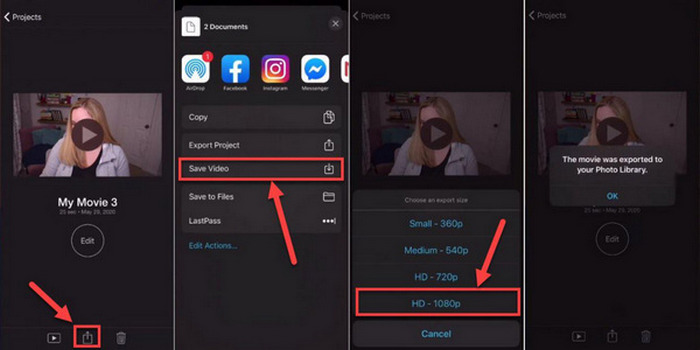
مرحله 2. سپس در تب Projects، پروژهای را که میخواهید به MP4 خروجی بگیرید انتخاب کنید.
مرحله 3. بعد، روی دکمه Share بزنید و گزینه Export Project را انتخاب کنید.
مرحله 4. در پایان، گزینه Save Video را انتخاب کنید، سپس اندازه خروجی را برگزینید تا iMovie روی آیفون یا آیپد شما به MP4 تبدیل و ذخیره شود.
هنگام صادرات و تبدیل iMovie به MP4 به طور مستقیم در iPhone یا iPad خود، به یاد داشته باشید که فضای ذخیرهسازی کافی در دستگاه خود برای قرار دادن فایل MP4 صادر شده در دسترس دارید، زیرا این امر منجر به مشکلات و مشکلات صادرات میشود.
بخش 4: سوالات متداول در مورد صادرات iMovie به MP4
چرا فایل ویدیویی iMovie من با QuickTime سازگار نیست؟
فایلهای iMovie ممکن است به دلیل تفاوت در کدکها یا فرمتهای فایل، با QuickTime سازگار نباشند. QuickTime از طیف محدودی از کدکهای ویدیویی و انواع فایل پشتیبانی میکند، بنابراین اگر فایل iMovie شما از کدک یا قالبی استفاده میکند که توسط QuickTime پشتیبانی نمیشود، ممکن است مشکلات سازگاری ایجاد شود. برای حل این مشکل، سعی کنید پروژه iMovie خود را در قالب یا کدک دیگری که با QuickTime سازگار است صادر کنید.
صادرات iMovie چقدر طول می کشد؟
معمولاً 1.5 تا 2 برابر زمان پخش پروژه برای رندر و رمزگذاری در طول فرآیند صادرات طول می کشد. عواملی مانند پیچیدگی پروژه، وضوح ویدئو، و قدرت پردازش دستگاه شما می توانند بر زمان صادرات تاثیر بگذارند. علاوه بر این، صادرات پروژه های بزرگتر یا پیچیده تر ممکن است بیشتر از پروژه های کوچکتر یا ساده تر طول بکشد.
صادرات iMovie به MP4 بر کیفیت ویدیوهای من تأثیر می گذارد؟
تا زمانی که تنظیمات صادرات مناسب را انتخاب کنید، صادرات iMovie به MP4 نباید به طور قابل توجهی بر کیفیت ویدیوهای شما تأثیر بگذارد. با این حال، اطمینان از اینکه وضوح، میزان بیت و تنظیمات فشرده سازی مورد نظر را برای حفظ کیفیت ویدیوهایی که می خواهید صادر کنید، انتخاب کنید، ضروری است.
نتیجه
یادگیری نحوه خروجی گرفتن iMovie به MP4 برای تضمین سازگاری و انعطافپذیری در اشتراکگذاری پروژههای ویدیویی شما روی دستگاهها و پلتفرمهای مختلف اهمیت دارد. بنابراین، اگر هنگام فرآیند خروجی گرفتن در iMovie با مشکلی روبهرو شدید، حتماً راهحلهای متداولی را که در اینجا بیان شد، بررسی کنید. با کمک این راهنما از امروز شروع به خروجی گرفتن پروژههای iMovie خود بهصورت MP4 کنید.
-
 بهترین راهها برای استفاده از iMovie در ساخت فیلمهای آهسته [حلشده]
 آیا تا به حال از iMovie برای تبدیل ویدیو با سرعت معمولی خود به حرکت آهسته استفاده کرده اید؟ این فرصتی است که در مورد آن بیشتر بدانید.
-
 نحوه همگام سازی صدا و تصویر در iMovie در iPhone و Mac
 مشکلی دارید زیرا صدا و تصویر در آیفون و مک همگام سازی نمی شود؟ بنابراین اکنون، بیایید با خواندن این مقاله به نحوه استفاده از iMovie ادامه دهیم.
-
 نحوه اضافه کردن واترمارک به ویدیو در iMovie در مک [All Embracing]
 آیا می خواهید اسرار افزودن واترمارک به ویدیو در iMovie را بدانید؟ چای را روی کسی نریزید و با خواندن این مقاله آن را یاد بگیرید.
