


 Video Converter Ultimate
 ضبط صفحه
 تعمیر ویدیو
در هنر افزودن واترمارک در iMovie با مراحل دقیق تسلط پیدا کنید
یکی از بهترین ویرایشگرهایی که میتوانید روی مک استفاده کنید iMovie است. این ابزار یک رابط کاربری بسیار直فهم برای کاربران مک فراهم میکند. هرچند این ابزار عالی و کار کردن با آن ساده است، اما بعضی کاربران همچنان به دنبال یک آموزش برای استفاده از آن هستند. پس اگر کاربر مک هستید و میخواهید یاد بگیرید چگونه در iMovie به ویدیو واترمارک اضافه کنید، میتوانید راهنمایی را که در ادامه ارائه کردهایم دنبال کنید تا بهترین نتیجه را با این ابزار بگیرید.

بخش 1. آموزش نحوه افزودن واترمارک به ویدیو در iMovie در macOS
ما قبلا iMovie را معرفی کردهایم، بنابراین جزئیات بعدی به شما آموزش میدهد که چگونه یک واترمارک روی یک ویدیو در iMovie قرار دهید. برای یادگیری نحوه افزودن، می توانید راهنمای دقیق زیر را دنبال کنید و لطفاً آن را به طور کامل بخوانید تا کل ایده را درک کنید.
گام ۱. iMovie را در مک خود اجرا کنید، و اگر آن را پیدا نمیکنید، میتوانید بهسرعت به Finder بروید و آن را جستوجو کنید.
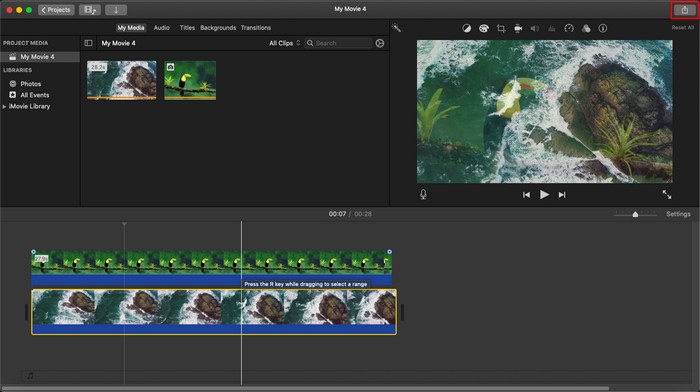
گام ۲. روی دکمه Import کلیک کنید تا ویدیو و تصویری را که میخواهید بهعنوان واترمارک استفاده کنید، بارگذاری کنید. ویدیو و فایل تصویر را مانند تصاویر به پایین، در Timeline بکشید و رها کنید. مطمئن شوید ویدیو در لایه بالاییِ خط زمانی قرار گرفته است. با کشیدن، تغییر اندازه و تنظیمات دیگر، تصویر را مطابق نیاز تنظیم کنید.
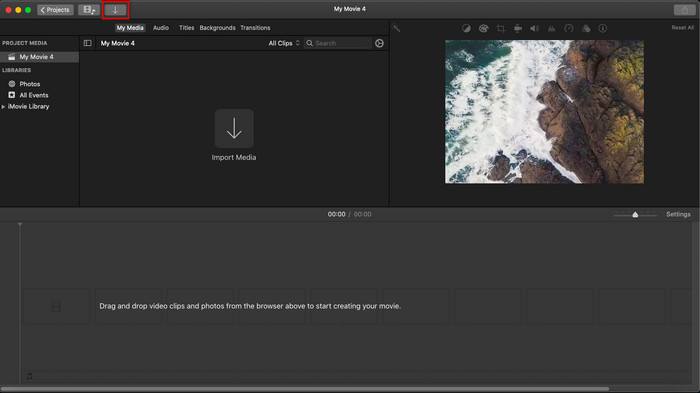
گام ۳. اگر از تنظیماتی که انجام دادهاید راضی هستید، روی Export در بالای سمت راست ابزار کلیک کنید و سپس Export File را انتخاب کنید.
طرفداران
- استفاده از آن در هر دستگاه اپل مانند دستگاههای macOS و iOS رایگان است.
- ویرایش های سریع روی ویدیوهای خام انجام دهید تا خوب به نظر برسند.
- توابع ویرایش ضروری تا متوسط در دسترس هستند.
منفی ها
- این فرمت کمتری را پشتیبانی می کند، بنابراین اگر می خواهید ویدیو را در اینجا ویرایش کنید، باید آن را به MOV یا هر فرمتی که با دستگاه های اپل سازگار است تبدیل کنید.
- پشتیبانی کمتر برای ویرایش حرفه ای
بخش 2. بهترین ابزار برای استفاده و قرار دادن واترمارک روی ویدیو در رایانههای مک با روشی کمتر دردسرساز
اگر احساس میکنید اضافه کردن واترمارک در iMovie برایتان سخت است، میتوانید بهجای آن از بهترین جایگزین، یعنی Video Converter Ultimate استفاده کنید. این ابزار راه بسیار سادهتری برای افزودن واترمارک به ویدیو در اختیارتان میگذارد. تصور کنید: اگر iMovie ابزار سادهای برای استفاده باشد، این ابزار نهایی حتی از آن هم دسترسپذیرتر است. با وجود سادگی کار با آن، خروجی نهایی که ارائه میدهد بسیار باکیفیت است، و یکی از مزیتهای آن نسبت به iMovie این است که از فرمتهای تصویری بیشتری برای بارگذاری پشتیبانی میکند. میخواهید بیشتر بدانید؟ میتوانید ویژگیهایی را که در ادامه برایتان فهرست کردهایم بخوانید.

FVC Video Converter Ultimate
5,689,200+ دانلود- ویژگی های ویرایش همه جانبه ای را ارائه می دهد که می توانید از آنها برای برجسته تر کردن ویدیوی خود نسبت به دیگری استفاده کنید.
- از فرآیندهای فوق سریع و شتاب سخت افزاری برای وارد کردن و صادرات سریع ویدیو پشتیبانی می کند.
- از فرمت های ویدئویی مانند MOV، MKV، AVI، MP4، FLV، RMVB و غیره پشتیبانی می کند.
- این یک رابط بسیار تعاملی برای داشتن بهترین تجربه دارد.
- در تمامی پلتفرم های دسکتاپ مانند ویندوز و مک موجود است.
دانلود رایگانبرای ویندوز 7 یا بالاتردانلود امن
دانلود رایگانبرای MacOS 10.7 یا بالاتردانلود امن
آیا داشتن همه این ویژگی ها در یک ابزار شگفت انگیز نیست؟ اگر در همان صفحه هستیم، بیایید به جزئیات نحوه واترمارک کردن یک ویدیو در iMovie بپردازیم، اما به روشی ساده تر با ابزار نهایی.
مراحل نحوه درج واترمارک در ویدیو با ابزار Ultimate
گام ۱. نرمافزار را روی مک خود دانلود کنید، مراحل نصب را دنبال کنید و برای اجرای ابزار، روی Start Now بزنید.
گام ۲. برای بارگذاری ویدیوی مورد نظر، روی دکمه + یا Add Files کلیک کنید. ویدیو را در پوشهای که روی صفحه نمایش داده میشود پیدا کنید و برای بارگذاری آن روی Open بزنید.
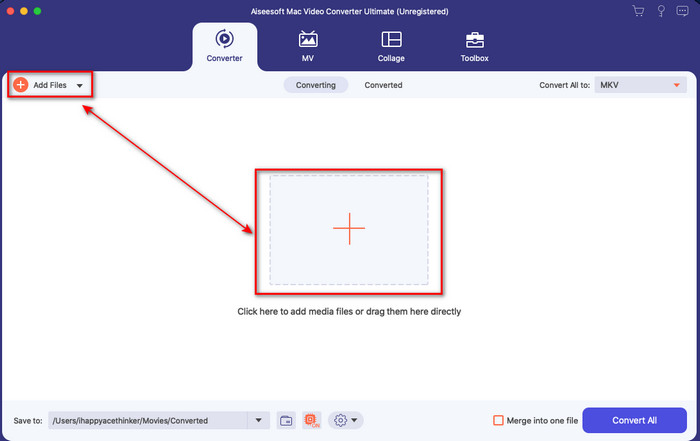
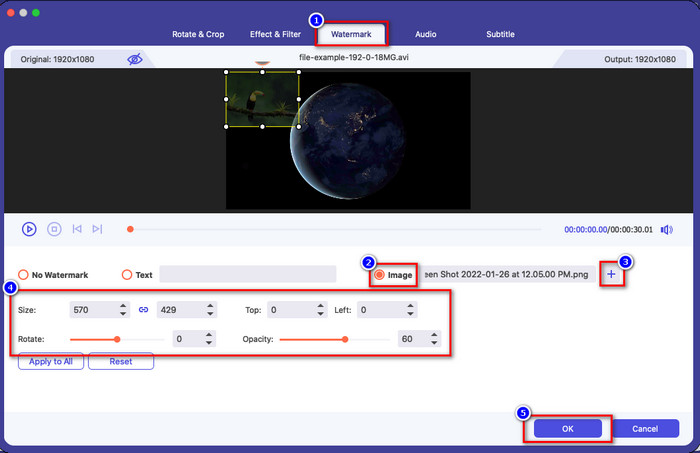
گام ۳. برای باز کردن پنجره ویرایش در رابط ابزار، روی دکمه wand کلیک کنید. سپس بخش Watermark را انتخاب کرده، گزینه Image را تیک بزنید و برای افزودن تصویر دلخواه، روی دکمه + بزنید. بعد از آن، opacity (شفافیت) تصویر را تنظیم کنید یا آن را rotate (بچرخانید) و برای ذخیره تغییراتی که اعمال کردهاید، روی OK کلیک کنید.
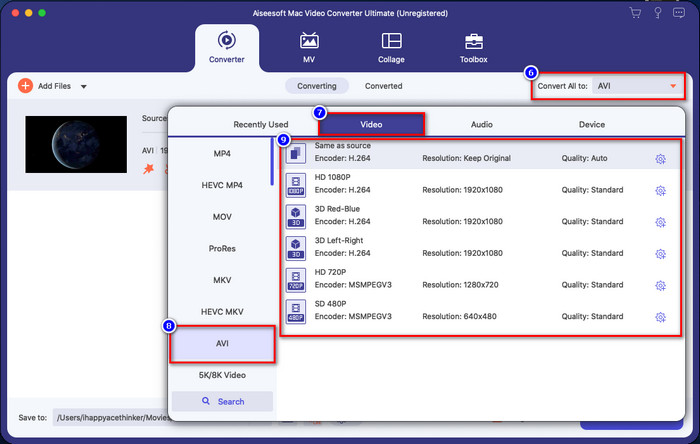
اختیاری. اگر میخواهید فرمت ویدیو را تغییر دهید، روی Convert All to کلیک کنید، فرمت دلخواه را از فهرست انتخاب کرده و روی آن بزنید. اگر نمیخواهید فرمت را عوض کنید، میتوانید مستقیماً به گام نهایی بروید.
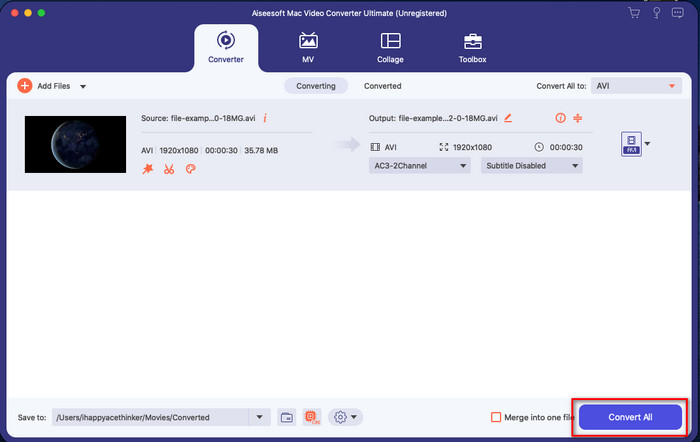
گام ۴. برای خروجی گرفتن ویدیو همراه با واترمارک، روی Convert All کلیک کنید. بهدلیل فرآیند تبدیل فوقالعاده سریع، نیازی نیست مدت زیادی منتظر بمانید. با این کار، در کمتر از یک دقیقه واترمارک تصویری را به ویدیوی خود اضافه کردهاید.
طرفداران
- این بهترین انتخاب برای هر کاربری است که ایده کمی برای ویرایش دارد یا اصلاً ایده ندارد.
- از فرمت های ویدیویی بیشتری پشتیبانی می کند که می توانید برای صرفه جویی در زمان و جلوگیری از تبدیل آن آپلود کنید.
- برای دانلود در همه پلتفرم ها مانند ویندوز یا مک موجود است.
منفی ها
- دانلود رایگان نیست، اما خیلی گران نیست.
- دانلود آن در درایو مورد نیاز است.
بخش 3. سوالات متداول در مورد افزودن واترمارک در iMovie
آیا استفاده از iMovie رایگان است؟
بله، اگر کاربر محصولات اپل باشید iMovie رایگان است، اما اگر از اندروید یا ویندوز استفاده میکنید نمیتوانید آن را دانلود کنید. دقت کنید که نسخهای از iMovie برای پلتفرمهای دیگر در دسترس نیست. بنابراین اگر نسخهای از iMovie را روی دسکتاپ یا گوشیای دانلود کنید که ساخت اپل نباشد، انتظار نداشته باشید بهخوبی iMovie اصلی کار کند، و حتی ممکن است آلوده به ویروس باشد. برای جلوگیری از این مشکل، میتوانید روی این مقاله کلیک کرده و بخوانید تا با جایگزینهای iMovie آشنا شوید.
آیا iMovie بهترین ویرایشگر در مک است؟
می توان گفت که یکی از بهترین ها است، اما بهترین نیست، زیرا ویرایشگرهای مختلف چندین ویژگی ویرایش را ارائه می دهند که نمی توانید در iMovie پیدا کنید. اگرچه از برخی جهات فاقد آن است، اما همچنان یک ویرایشگر درجه یک است که می توانید به صورت رایگان در مک خود برای ویرایش ویدیو برای وبلاگ نویسی، تجارت، تبلیغات و موارد دیگر استفاده کنید.
آیا پس از صادرات ویدیو در iMovie، واترمارک دارد؟
از این روز، واترمارک ویدیو در ویدیوهای صادر شده نیست. بنابراین، میتوانید از ویدیوهای دانلود شدهای که در iMovie ویرایش میکنید، آزادانه و بدون واترمارک مزاحم لذت ببرید.
آیا می توانم از ویدیوی avi. در iMovie استفاده کنم؟
iMovie از دامنه وسیعی از فرمتها پشتیبانی نمیکند، اما میتوانید روی این مقاله کلیک کرده و آن را بخوانید تا یاد بگیرید چگونه میتوانید فایل AVI خود را با iMovie سازگار کنید.
نتیجه
این مقاله ثابت میکند که میتوانید از ویرایشگر داخلیای که اپل در اختیارتان گذاشته استفاده کنید و طبق مراحلی که ارائه دادیم، بهسادگی به ویدیوهای خود واترمارک اضافه کنید. هرچند استفاده از iMovie برای شما آزاد و رایگان است، ما همچنان معتقدیم که Video Converter Ultimate در هر شرایطی بهترین ابزار برای انجام این کار است. پس اگر به کمک نیاز دارید، میتوانید با فشردن دکمه دانلودی که در بالا ارائه شده، آن را روی مک یا ویندوز خود دانلود کنید.
-
 3 روش برای تبدیل MPEG به WMV بدون از دست دادن کیفیت
 آیا می خواهید ویدیوهای خود را در پخش کننده دلخواه خود تماشا کنید، اما فرمت ویدیو را پشتیبانی نمی کند؟ این مقاله را بخوانید زیرا ما کارآمدترین روشهای تبدیل MPEG به WMV را در اختیار شما قرار میدهیم.
-
 2 مورد از گزینه های مبدل مورد علاقه برای تبدیل F4V به WMV [2022]
 آیا شما یکی از کاربرانی هستید که به دنبال بهترین راه برای تبدیل F4V به WMV هستید؟ اگر چنین است، سعی کنید این نوشته را بخوانید تا بهتر بدانید چگونه این کار را انجام دهید و ابزارهای موجود چیست.
-
 بهترین مبدل های MXF به WMV برای تبدیل MXF به WMV به صورت رایگان
 آیا می خواهید ساده ترین راه را برای تغییر فایل MXF به فرمت WMV بدانید؟ اگر آماده کشف نحوه انجام آن هستید، باید این مقاله را با دقت بخوانید.
