


 Video Converter Ultimate
 ضبط صفحه
 تعمیر ویدیو
4 ساده ترین روش برای تغییر وضوح ویدیو با مراحل جامع
دلایل زیادی وجود دارد که چرا لازم است رزولوشن ویدیو را تغییر دهید. یکی از دلایل میتواند صرفهجویی در فضای اشغالشده توسط ویدیو باشد. فارغ از دلیل شما، این راهنما چهار روش برای کاهش یا افزایش کیفیت ویدیو به شما آموزش میدهد. بدون اتلاف وقت، بیایید به سراغ مبدلهای رزولوشن ویدیو برویم که میتوانید برای تغییر وضوح ویدیوی خود از آنها استفاده کنید.

قسمت 1. روش اول: ابزار دسکتاپ نهایی برای تغییر وضوح ویدیو در ویندوز و macOS
Video Converter Ultimate بهترین ابزار برای انجام این کار است، زیرا تنها در چند کلیک نهتنها میتواند فرمت ویدیو بلکه کیفیت آن را نیز تبدیل کند. این ابزار از فرایند تبدیل فوقالعاده سریع پشتیبانی میکند تا بهراحتی کیفیت ویدیوی شما را به بالاترین یا یک رزولوشن استاندارد تبدیل کند. استفاده از این نرمافزار جذاب نیست؟ میخواهید بیشتر بدانید؟ اگر چنین است، باید گفت این ابزار هر دو پلتفرم دسکتاپ را پشتیبانی میکند. با اینکه روی ویندوز و مک قابل استفاده است، اما هر قابلیتی که در ویندوز میبینید در مک هم وجود دارد و برعکس. میدانیم این ابزار امکانات ویژهای دارد، به همین دلیل آن را در این فهرست قرار دادهایم. حالا اگر به دنبال راهنمای گامبهگام هستید، میتوانید آموزش مکتوب زیر را دنبال کنید تا نحوه تغییر رزولوشن ویدیو را با موفقیت یاد بگیرید.
گام 1. روی دکمه مناسب کلیک کنید تا برنامه را با موفقیت روی دستگاه خود دانلود کنید. فایل دانلودشده را باز کنید و مراحلی را که برای نصب روی صفحه نمایش داده میشود دنبال کنید. پس از نصب موفق، مبدل رزولوشن ویدیو را باز کنید و به مراحل بعد بروید.
دانلود رایگانبرای ویندوز 7 یا بالاتردانلود امن
دانلود رایگانبرای MacOS 10.7 یا بالاتردانلود امن
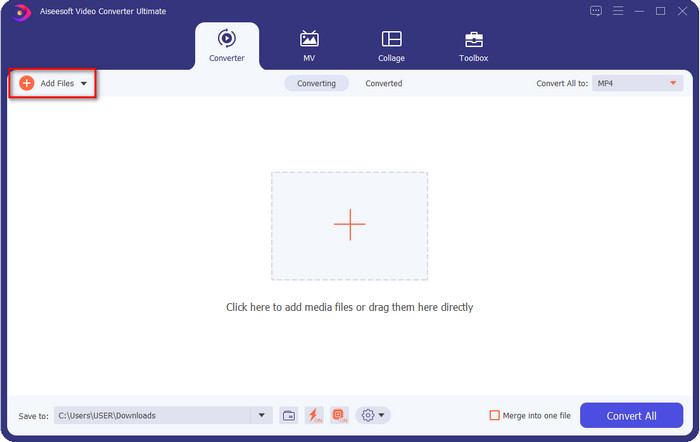
گام 2. برای وارد کردن فایل ویدیوییای که میخواهید رزولوشن آن را تغییر دهید، روی دکمه Add File کلیک کنید. در پوشهای که روی کامپیوتر باز میشود، فایل را پیدا کنید، روی آن کلیک کرده و Open را بزنید.
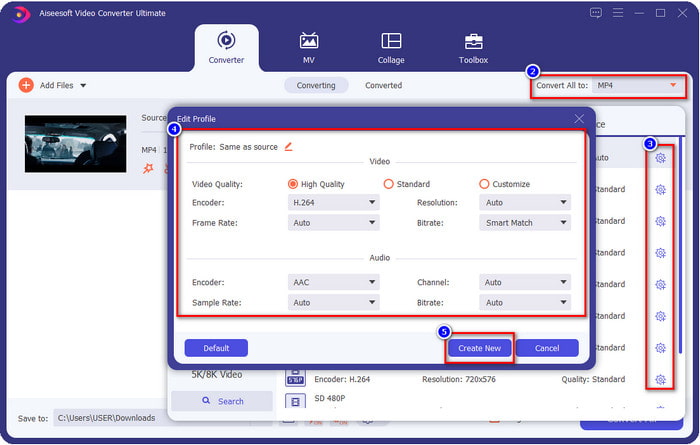
گام 3. به بخش بالا-سمت راست نگاه کنید و روی دکمه drop-down در رابط اصلی کلیک کنید. فرمت ویدیویی دلخواه خود را انتخاب کنید؛ MP4، MOV، AVI، MKV، FLV و بیش از ۲۰۰ فرمت دیگر اینجا در دسترس هستند. پس از انتخاب فرمت، روی دکمه widget کلیک کنید تا پروفایل آن فرمت را ویرایش کنید. در اینجا میتوانید رزولوشن را بالاتر یا پایینتر ببرید، انکودر، کیفیت، بیتریت و موارد دیگر را تغییر دهید تا رزولوشن ویدیو را افزایش دهید یا ندهید. برای ذخیره تغییرات، روی Create New کلیک کنید.
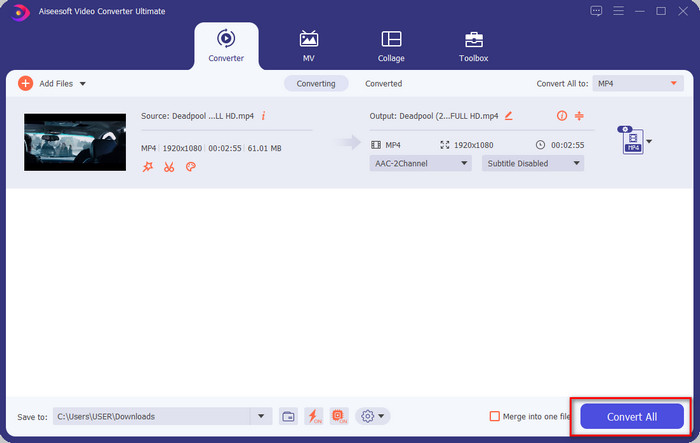
گام 4. در نهایت، با کلیک روی Convert All فرایند تبدیل رزولوشن آغاز خواهد شد. با این کار، شما با کمک Video Converter Ultimate رزولوشن ویدیوی خود را تغییر دادهاید.
قسمت 2. روش دوم: روش ساده و رایگان برای تغییر وضوح ویدیو به صورت آنلاین
میخواهید رزولوشن ویدیو را بهصورت آنلاین تغییر دهید؟ در این صورت باید از نسخه آنلاین و رایگان این ابزار، یعنی FVC Free Video Converter Online استفاده کنید. این ابزار میتواند بهطور رایگان رزولوشن ویدیوی شما را تبدیل کند. چون این یک ابزار آنلاین است، طبیعی است که برای کار کردن به اتصال اینترنت نیاز دارد. علاوه بر این، این ابزار همه فرمتهای ویدیویی را پشتیبانی نمیکند، پس در افزودن برخی فرمتهای ویدیو محدودیت وجود دارد. حالا بیایید با دنبال کردن مراحل زیر، استفاده از این ابزار برای تغییر رزولوشن را امتحان کنیم.
گام 1. برای باز کردن مبدل آنلاین رزولوشن ویدیو، روی این لینک کلیک کنید تا ابزار مستقیماً باز شود.
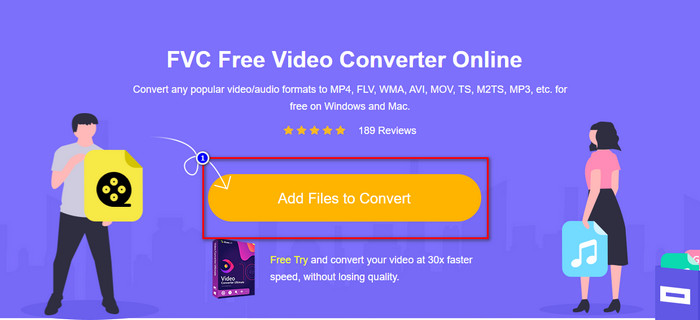
گام 2. روی Add Files to Convert فشار دهید تا برای بار اول لانچر دانلود شود، پس از دانلود نصاب، دوباره روی آن کلیک کنید. بعد از کلیک، یک پوشه باز میشود، فایل ویدیویی را در پوشه پیدا کرده و روی Open کلیک کنید.
گام 3. روی دکمه gear کلیک کنید تا پنجره جدیدی برای تغییر رزولوشن ویدیو باز شود. در بالای پنجره جدید، روی Resolution کلیک کنید، رزولوشن ویدیوی مورد نظر را انتخاب کرده و برای ذخیره، روی OK کلیک کنید.
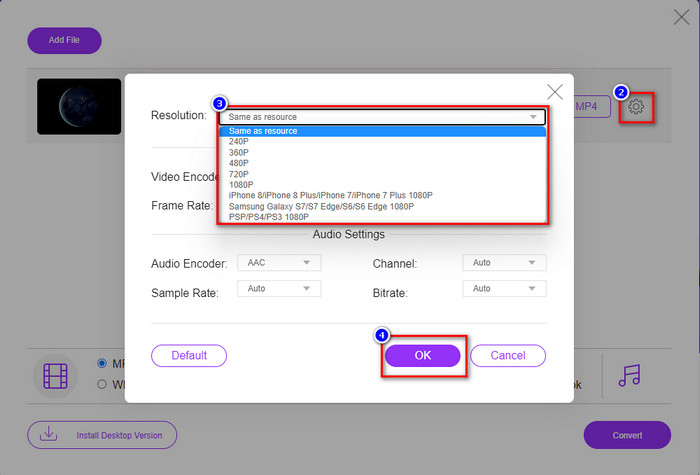
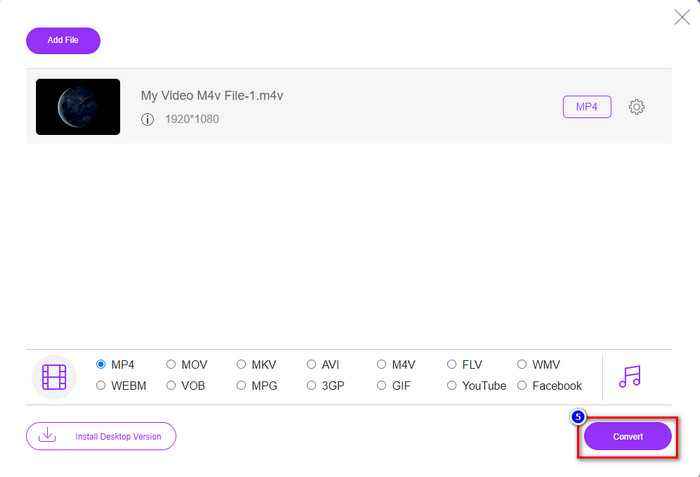
گام 4. فرمت را از فهرست تنظیمات انتخاب کرده و روی Convert کلیک کنید تا فرایند تبدیل رزولوشن آغاز شود.
مرتبط:
قسمت 3. روش سوم: روش مبتنی بر موبایل برای تغییر رزولوشن ویدیو در آیفون و اندروید
این روشها نمیتوانند وضوح ویدیوی شما را تبدیل کنند، اما میتوانید ویدیویی با وضوح کمتر یا بالاتر بگیرید. علاوه بر این، بیایید ببینیم چگونه میتوانیم رزولوشن ویدیو را در حین فیلمبرداری تغییر دهیم.
1. وضوح تصویر داخلی آیفون
اگر کاربر iOS هستید، در صورت تمایل میتوانید وضوح ویدیویی را که میگیرید تغییر دهید. با این حال، نمیتوانید آن را در دوربین پیدا کنید، بنابراین اگر نمیتوانید آن را پیدا کنید، میتوانید مراحل زیر را دنبال کنید تا بدانید که چگونه وضوح ویدیو را در آیفون قبل از فیلمبرداری ویدیو تغییر دهید.
این مراحل از مدل iPhone X برداشته شده اند، به طوری که ممکن است مراحل کمی با سایر نسخه های نام یا عملکردهای آیفون مانند متفاوت باشد.
گام 1. Settings آیفون خود را باز کنید.
گام 2. در این بخش، Camera را پیدا کرده و روی آن کلیک کنید.
گام 3. روی Record Video ضربه بزنید و رزولوشنی را که میخواهید هنگام فیلمبرداری داشته باشید انتخاب کنید. به صفحه اصلی برگردید، به Camera بروید و با رزولوشنی که در تنظیمات تعیین کردهاید فیلمبرداری کنید.
2. وضوح تصویر داخلی اندروید
برای کاربران اندروید، میتوانید مستقیماً به وضوح ویدیوی دوربین خود دسترسی داشته باشید. مراحلی که ما ارائه می کنیم به اندازه آیفون پیچیده نیست زیرا نیازی به تنظیم تنظیمات ندارید. بنابراین اکنون برای تغییر وضوح ویدیو در اندروید، دستورالعمل های زیر را دنبال کنید.
این مراحل از Redmi 10 برداشته شده است، بنابراین ممکن است مراحل با برخی دیگر از دستگاه های اندرویدی مانند نام یا عملکرد کمی متفاوت باشد.
گام 1. در گوشی خود، روی برنامه Camera کلیک کنید تا باز شود.
گام 2. پس از باز شدن، به بخش Video بروید، روی آیکون سه خط موازی کلیک کنید و رزولوشن ویدیوی مورد نظر را انتخاب کنید.
گام 3. دکمه قرمز را فشار دهید تا با رزولوشن تنظیمشده، ویدیو را ضبط کنید.
بخش 4. سوالات متداول در مورد تغییر وضوح ویدئو
وضوح ویدئو چیست؟
تعداد پیکسل های موجود در هر فریم همان چیزی است که ما وضوح تصویر می نامیم. همچنین جزئیاتی را که میتوانید در یک ویدیو ببینید، کنترل میکند، مانند اینکه چقدر تصویر واضحتر میتواند باشد. علاوه بر این، انواع مختلف وضوح ویدئو وجود دارد. رزولوشن بالاتر را از HD به بالا شروع می کنیم که از فریم های با کیفیت بیشتری در ثانیه استفاده می کند. در حالی که رزولوشن پایینتر از SD و پایینتر شروع میشود، این وضوح ویدئو پهنای باند کمتری نسبت به وضوح بالاتر دارد، اما فریم با کیفیت ریزتری در ثانیه دارد.
آیا 1080 بهترین وضوح تصویر است؟
این یکی از برگزیدهترین کاربران وضوح ویدیو را تولید میکند که معمولاً در یوتیوب و سایر برنامههای پخش ویدیو انتخاب میشوند. اما همیشه بهترین انتخاب برای تماشای یک ویدیو با کیفیت بالا نیست زیرا ممکن است زمان بیشتری برای بافر کردن ویدیو نسبت به 720 طول بکشد. بنابراین، دفعه بعد که ویدیویی را به صورت آنلاین تماشا می کنید، ترجیح می دهیم از 720 استفاده کنیم تا 1080 برای بارگذاری ویدیو بسیار سریعتر است و اگر آن را تغییر دهید، هیچ تغییر قابل توجهی در هر دو کیفیت ایجاد نمی شود.
آیا کاهش وضوح بر کیفیت تأثیر می گذارد؟
بله، وقتی کیفیت ویدیو را پایین بیاورید، تغییری ایجاد خواهد شد. به عنوان مثال، اگر ویدیوی شما HD باشد، آن را به SD تغییر دهید، کیفیت به شدت تغییر خواهد کرد. بنابراین، اگر رزولوشن ویدیو را تغییر دهید، تغییر ناگهانی را مشاهده خواهید کرد، اما حتی پس از آن همچنان قابل تماشا است.
نتیجه
در نهایت، اکنون میتوانیم رزولوشن ویدیو را مطابق میل خود تغییر دهیم. اگرچه میتوانید از ابزارهای مختلفی برای تغییر کیفیت ویدیو استفاده کنید، اما ما همچنان امنترین و بهترین ابزارهای آنلاین، آفلاین و داخلی را ارائه میکنیم. امیدواریم این مقاله به شما در تغییر وضوح کمک کند. اگر سوال بیشتری دارید، می توانید در زیر نظر دهید و در واقع ما به نظرات شما پاسخ خواهیم داد.
-
 بررسی 10 نرم افزار برتر مبدل ویدیوی HD (رایگان و تجاری)
 بخوانید و مقایسه کنید تا بهترین نرم افزار مبدل ویدیوی HD را از 10 توصیه دریافت کنید. در اینجا بررسی دقیق هر مبدل ویدیوی HD برای چند پلتفرم آورده شده است.
-
 دستورالعمل هایی در مورد نحوه تبدیل M4A به WAV [PC و Mac]
 با مراحل دقیق و ابزارهای مختلفی که می توانید انتخاب کنید، در مورد نحوه تبدیل M4A به WAV بیشتر بدانید.
-
 انتخاب عالی برای تبدیل MKV به فرمت AVI
 در نحوه تبدیل ویدیوهای MKV با مراحل آسان که به طور انحصاری برای شما ارائه شده است، آشنا شوید. آیا می خواهید بدانید چگونه؟ سپس برای کسب اطلاعات بیشتر روی این لینک کلیک کنید.
