


 Video Converter Ultimate
 ضبط صفحه
 تعمیر ویدیو
نحوه فشرده سازی ویدیوی آنلاین با استفاده از 3 ابزار قابل توجه
یکی از چالشهای ضبط یک ویدیوی طولانی با وضوح بالا روی دستگاه موبایل، زمانی ظاهر میشود که میخواهید آن را به صورت آنلاین برای دیگران ارسال کنید. دلیلش این است که حسابهای شبکههای اجتماعی برای فایلهای دریافتی محدودیت حجم دارند. به همین خاطر، بسیاری تنها یک راهحل در ذهن دارند: بریدن یا کوتاه کردن ویدیو. از امروز، کاربران دیگر لازم نیست بابت ضبط ویدیوهای طولانی نگران باشند، چون در ادامه چند فشردهساز ویدیوی آنلاین معرفی شده است.

قسمت 1. 3 راه برای فشرده سازی ویدیو آنلاین
1. FVC Video Compressor Online
فشردهساز ویدیوی آنلاین FVC بهترین انتخاب برای کاربرانی است که به دنبال یک تجربه فشردهسازی ویدیو بدون دردسر هستند. با سهولت و سادگی بینظیر این ابزار آنلاین آشنا شوید که آن را در میان دیگر فشردهسازهای ویدیوی آنلاین متمایز میکند. تنها با جابهجا کردن اسلایدر از چپ به راست، میتوانید بهآسانی میزان فشردهسازی موردنظر برای فایلهای خود را تعیین کنید. علاوه بر این، این فشردهساز ویدیوی آنلاین شگفتانگیز به شما این امکان را میدهد که قالب (فرمت) دقیقی را انتخاب کنید که کاملاً با نتیجهی ویدیوی دلخواهتان همخوانی دارد. میتوانید از تنوع و سهولت فرمتهای مختلف از جمله MP4، MOV، MKV، AVI، WMV و بسیاری دیگر بهره ببرید. با گزینههای متعدد، میتوانید رسانهی خود را در فرمتی تماشا کنید که بیشترین تناسب را با نیاز شما دارد. همچنین این فرصت عالی را دارید که وضوح (رزولوشن) و بیتریت فایل خود را ارتقا دهید.
طرفداران
- کاربران می توانند سهولت و سادگی رابط کاربری آن را تجربه کنند.
- فشرده سازی یکپارچه ویدیو را بدون هیچ واترمارک امکان پذیر می کند.
- این به کاربران امکان می دهد تا نرخ بیت و وضوح بهینه را برای فایل های ویدیویی خود انتخاب کنند.
- این بدون دردسر ویدیوهای آنها را به طیف گسترده ای از فرمت ها تبدیل می کند.
منفی ها
- فرآیند فشرده سازی به سرعت اینترنت بستگی دارد.
مرحله 1: پس از ورود به رابط اصلی FVC Free Video Compressor، روی دکمهی Add Files to Compress کلیک کنید و لانچر آن را دانلود نمایید. پس از اتمام نصب، دوباره روی دکمه کلیک کنید و ویدیویی را که میخواهید فشرده کنید، اضافه کنید.
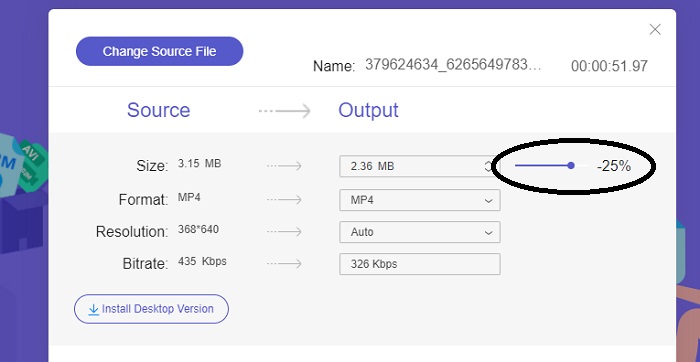
مرحله 2: برای آغاز فشردهسازی ویدیو، پس از افزودن آن، نوار اسلایدر را از راست به چپ جابهجا کنید. میتوانید با انتخاب از میان فرمتهای در دسترس، قالب ویدیوی خود را تغییر دهید.
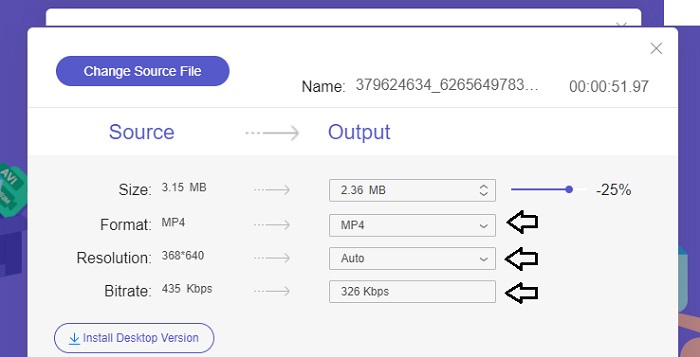
علاوه بر این، میتوانید با انتخاب از بین گزینههای موجود، Bitrate و Resolution ویدیوی خود را شخصیسازی کنید.
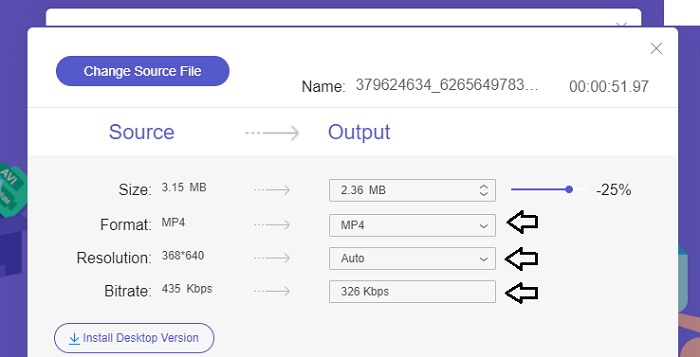
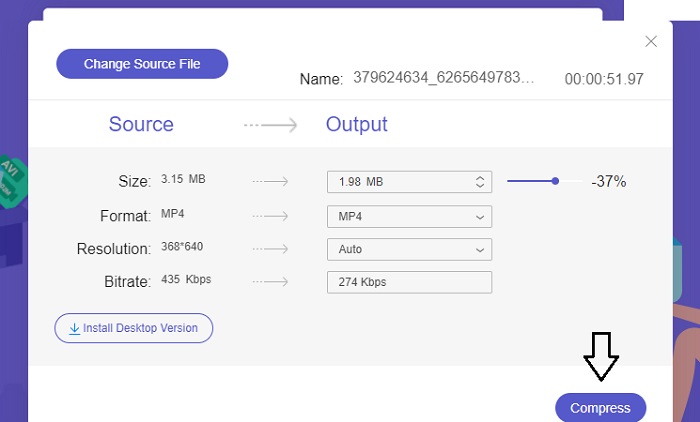
مرحله 3: پس از انجام تمام تنظیمات لازم، میتوانید با کلیک روی دکمهی Compress ویدیو را ذخیره کنید. سپس پوشهای را که میخواهید ویدیوی خروجی در آن ذخیره شود انتخاب کنید. و همهچیز همینجا به پایان میرسد!
2. FreeConvert
FreeConvert یک ابزار آنلاین با کاربری آسان برای فشرده سازی ویدیوها است. کاربران می توانند جنبه های خاصی مانند اندازه فایل، کیفیت ویدئو، وضوح یا میزان بیت را برای فشرده سازی هدف قرار دهند. فرآیند فشرده سازی سریع و آسان است و شامل چند مرحله ساده است که به راحتی قابل پیگیری است. با این حال، از آنجایی که این ابزار منحصراً به صورت آنلاین در دسترس است، کاربران به پهنای باند قابل توجهی هم برای آپلود و هم برای دانلود نیاز دارند. نسخه رایگان FreeConvert دارای محدودیتهای خاصی در اندازه فایل و تعداد فایلهایی است که میتوان ماهانه تبدیل کرد.
طرفداران
- رابط کاربری مبتدی پسند است.
- سرعت دانلود بالایی دارد.
منفی ها
- برای فشرده سازی حجم فایل های بزرگ، کاربران باید برای یک حساب پریمیوم هزینه کنند.
- نسخه رایگان دارای محدودیت روزانه برای تبدیل است.
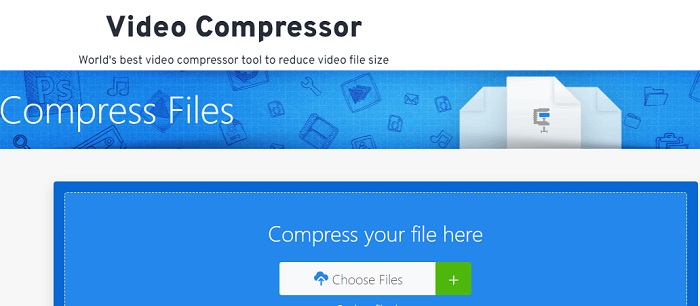
مرحله 1: در موتور جستوجوی خود عبارت FreeConvert Video Compressor را جستوجو کنید. پس از ورود به رابط اصلی، روی دکمهی Choose Files ضربه بزنید تا ویدیویی را که میخواهید فشرده کنید، بارگذاری نمایید.
مرحله 2: پس از بارگذاری ویدیو، روی دکمهی Compress کلیک کنید و با حوصله منتظر بمانید تا فرایند تکمیل شود.
مرحله 3: برای ذخیرهی ویدیوی فشردهشده، روی دکمهی Download ضربه بزنید و پوشهی دلخواهی را که میخواهید ویدیو در آن ذخیره شود انتخاب کنید.
3. زامزار
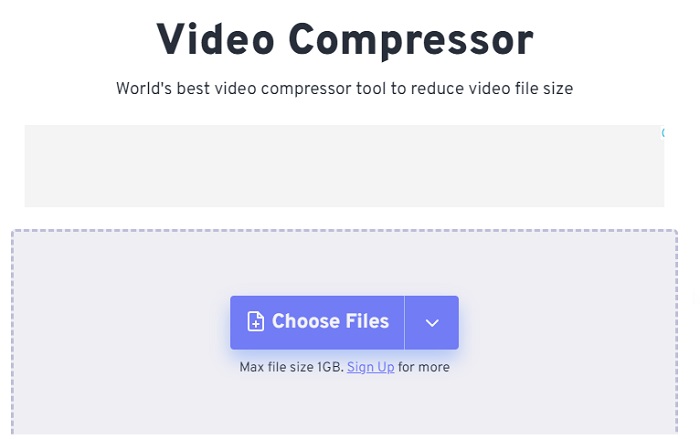
Zamzar یک ابزار آنلاین راحت است که به شما امکان تبدیل و فشرده سازی فایل ها را به صورت رایگان می دهد. در هر رایانه شخصی با اتصال به اینترنت قابل دسترسی است. این کاهشدهنده اندازه ویدیوی آنلاین به کاربران این امکان را میدهد، چه مبتدی و چه حرفهای، کلیپهای ویدیویی خود را به سرعت و بدون دردسر فشرده کنند. این نرم افزار قابلیت پشتیبانی از انواع مختلفی از انواع فایل را دارد. با این حال، مهم است که توجه داشته باشید که نسخه رایگان تنها دو فشرده سازی یا تبدیل را در یک دوره 24 ساعته محدود می کند.
طرفداران
- در صورت بروز هرگونه مشکل فنی، پشتیبانی ایمیل در دسترس است.
- فایل ها حداکثر 24 ساعت ذخیره می شوند.
- ناوبری بسیار کاربرپسند است.
منفی ها
- در نسخه رایگان، کاربران حداکثر به دو فایل در عرض 24 ساعت محدود می شوند.
- برای دسترسی به فایل های بزرگتر از 400 مگابایت، ارتقا به نسخه پریمیوم ضروری است.
مرحله 1: ابتدا به صفحهی اصلی Zamzar بروید؛ جایی که رابط کامل را مشاهده میکنید. برای افزودن ویدیو از دسکتاپ خود، روی دکمهی Choose Files کلیک کنید.
مرحله 2: پس از بارگذاری ویدیو، باید چند ثانیه منتظر بمانید تا فرایند فشردهسازی به پایان برسد و وضعیت بهروزرسانی شود.
مرحله 3: در نهایت میتوانید فایل فشردهشده را روی دسکتاپ خود دانلود کنید.
قسمت 2. بهترین کمپرسور ویدیوی آفلاین
اگر بهدنبال نرمافزاری هستید که قابلیتهای فشردهسازی، تبدیل و ویرایش ویدیو را یکجا در خود داشته باشد، پیشنهاد میشود به استفاده از Video Converter Ultimate روی بیاورید. این نرمافزار یک راهحل جامع ارائه میدهد که شامل ویرایش ویدیوی پایه، تبدیل و فشردهسازی است. علاوه بر این، امکانات پیشرفتهای را در اختیار کاربران میگذارد تا بتوانند بهسادگی ویدیوهای حرفهای و باکیفیت تهیه کنند. این برنامه مجموعهی گستردهای از قابلیتهای قدرتمند را فراهم میکند. این راهحل همچنین ابزاری در بر دارد که به کاربران اجازه میدهد ویدیوهای چشمگیر را در زمان کوتاهتری و با بازده بالا بسازند. تبدیل ویدیو با استفاده از این ابزار تنها با سه مرحلهی ساده انجام میشود.
مرحله 1: برای استفاده از این نرمافزار قدرتمند فشردهسازی ویدیو، آن را روی رایانهی خود دانلود و نصب کنید. سپس برنامه را اجرا کرده و استفاده از قابلیتهای آن را آغاز کنید.
دانلود رایگانبرای ویندوز 7 یا بالاتردانلود ایمن
دانلود رایگانبرای macOS 10.7 یا بالاتردانلود ایمن
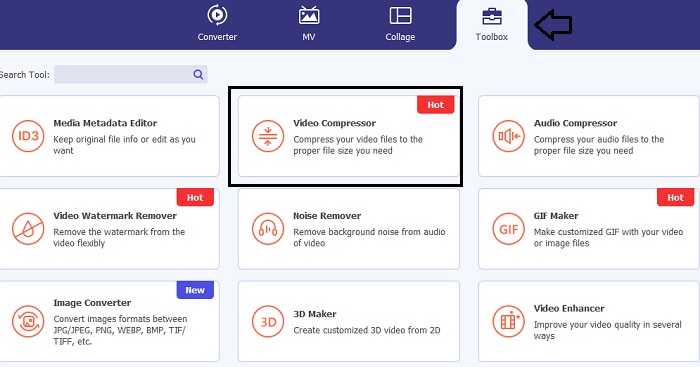
مرحله 2: برای شروع، به بخش Toolbox بروید و روی گزینهی Video Compressor کلیک کنید. پس از آن میتوانید ویدیوی خود را بارگذاری نمایید.
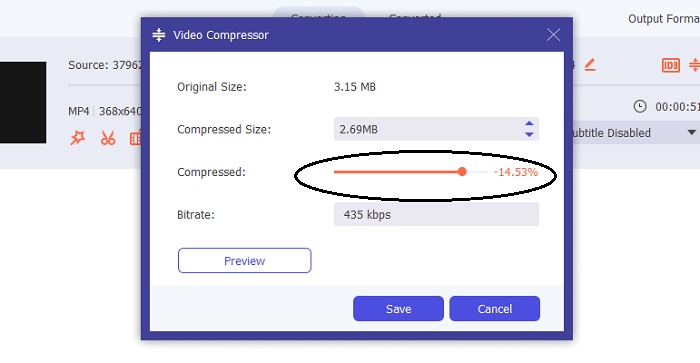
وقتی وارد تنظیمات Video Compressor شدید، نوار Slider را حرکت دهید تا به حجم (سایز) دلخواه برسید. سپس برای اعمال تغییرات روی دکمهی Save کلیک کنید.
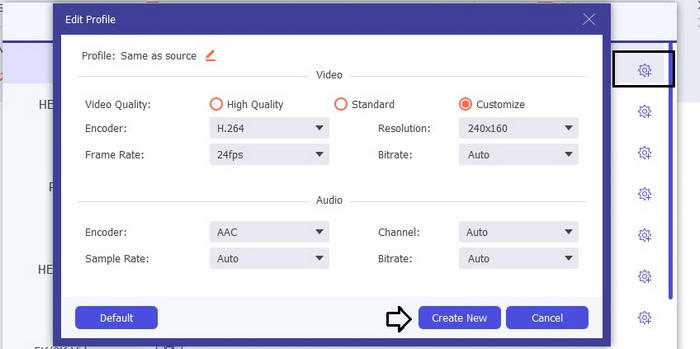
برای انتخاب فرمت مناسب ویدیو، روی گزینهی Profile کلیک کنید و از فهرست کشویی، یکی از فرمتهای موجود را برگزینید. همچنین میتوانید تنظیماتی مانند Encoder، Resolution، Bitrate و تنظیمات مختلف صدا را تغییر دهید. فراموش نکنید برای تأیید این تنظیمات روی دکمهی Create New کلیک کنید.
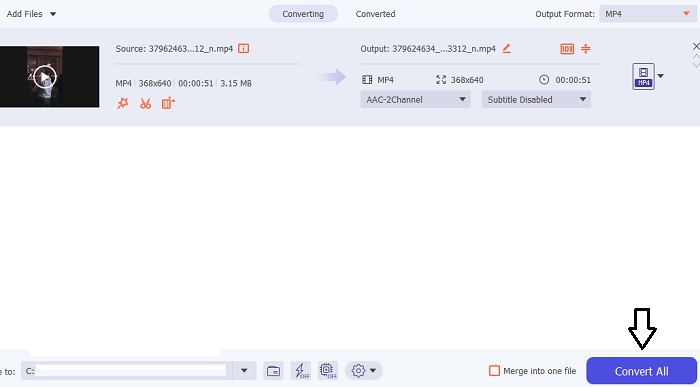
مرحله 3: برای آغاز فشردهسازی ویدیو، روی دکمهی Compress کلیک کنید.
مطالعه بیشتر:
چگونه ویدیو را برای وب بهطور کارآمد و بدون افت کیفیت فشرده کنیم
آیا Google Drive ویدیوها را فشرده میکند؟ اینجا بررسی و کشف کنید
بخش 3. سوالات متداول درباره کمپرسور ویدیوی آنلاین
چگونه می توانم حجم مگابایت یک ویدیو را کاهش دهم؟
رزولوشن تصویر و نرخ فریم را تا حد امکان پایین نگه دارید. برای کاهش حجم مگابایت فایل خود، میزان بیت و وضوح ویدیوی خود را کاهش دهید. اما به خاطر داشته باشید که با کاهش مگابایت، کیفیت نیز به خطر می افتد.
چگونه می توانم حجم یک ویدیو را بدون از دست دادن کیفیت کاهش دهم؟
روش های متعددی برای کاهش حجم یک فایل ویدیویی بدون کاهش کیفیت آن موجود است. میتوانید ویدیوی خود را با استفاده از یک کمپرسور ویدیو، کوتاه کردن طول آن، تنظیم میزان بیت یا تبدیل آن به فرمت مناسب برای وب بهبود بخشید.
آیا کاهش حجم ویدیو کیفیت را کاهش می دهد؟
لطفاً به یاد داشته باشید که فشرده سازی ویدیوی شما بر کیفیت آن تأثیر می گذارد. بنابراین، بسیار مهم است که ابزار مناسب را در اختیار داشته باشید. می توانید از Video Converter Ultimate یا FVC Video Compressor Online استفاده کنید.
نتیجه
روشهای زیادی برای فشردهسازی ویدیوها وجود دارد، از جمله استفاده از فشردهسازهای آنلاینِ حجم ویدیو. اگر میخواهید مطمئن شوید کیفیت فایلهای ویدیویی شما پس از فشردهسازی هم دستنخورده باقی بماند، استفاده از Video Converter Ultimate گزینهای است که حتماً باید امتحان کنید.
-
 نحوه فشرده سازی یک فیلم MP4 به اندازه کوچکتر
 ویدیوی MP4 برای بارگذاری خیلی بزرگ است؟ آیا می خواهید اندازه ویدئو را کاهش دهید؟ در اینجا 3 روش کارآمد برای فشرده سازی فایل MP4 به اندازه کوچکتر و بدون محدودیت آورده شده است.
-
 آموزش فشرده سازی فیلم برای ایمیل در iPhone / Android / آنلاین
 آیا نمی توانید ویدیویی را از طریق ایمیل بیش از حد بزرگ ارسال کنید؟ اگر این مشکل را دارید ، می توانید روش های قابل فشرده سازی یک فیلم برای ایمیل را از اینجا دریافت کنید. این مقاله به شما نشان می دهد که چگونه پرونده های ویدیویی بزرگ را به صورت رایگان با جزئیات کوچک کنید.
-
 2 روش برای فشرده سازی فیلم برای YouTube
 فیلم های YouTube بزرگ هستند و به آرامی بارگذاری می شوند؟ فقط به دو روش آنلاین و رایانه ای ، اندازه فایل ویدیویی را برای YouTube به کوچکتر فشرده کنید.
