


 Video Converter Ultimate
 ضبط صفحه
 تعمیر ویدیو
چگونه می توان فایل های M4V را ادغام کرد؟ در اینجا 2 راه حل سریع وجود دارد
فایلهای M4V که با نام فایلهای ویدئویی MPEG-4 نیز شناخته میشوند، معمولاً از iTunes دانلود میشوند. آنها بسیار شبیه فایلهای MP4 هستند، زیرا هر دو از فرمت ظرف MPEG-4 استفاده میکنند. بسیار محتمل است که شما چند کلیپ ویدئویی ناقص با فرمت M4V از iTunes دانلود کرده باشید و حالا بخواهید این فایلهای M4V را ادغام کنید تا بدون وقفه به یک داستان کامل تبدیل شوند. چگونه باید فایلهای M4V را ترکیب کرد؟ این مقاله قصد دارد دو روش را برای انجام مؤثر این کار و بدون افت کیفیت تصویر به شما معرفی کند.

قسمت 1: سریعترین راه حل - از ادغام آنلاین M4V رایگان استفاده کنید
برای سریعترین راهحل، میتوانید از FVC Free Online Video Merger استفاده کنید که نیاز به صرف زمان زیاد برای یادگیری مراحل و تنظیمات ندارد. فقط ابزار را در مرورگر خود باز کنید، فایلهای M4V را اضافه کنید و سپس با یک کلیک فایلهای M4V را ادغام کنید.
ویژگیهای کلیدی
- • پرونده های M4V از هر مقدار و هر اندازه را در یک فایل به صورت رایگان ادغام کنید.
- • رابط کاربری آسان و فرآیندهای قبل از ادغام بصری.
- • می توانید پرونده های M4V ادغام شده را به عنوان 9 قالب اصلی دیگر ذخیره کنید.
- • در فیلم های ترکیبی M4V هیچ علامتی نگذارید.
- • فقط در 1 ثانیه پرونده های خود را از هر اندازه آپلود کنید.
مراحل پیوستن رایگان فایلهای M4V بهصورت آنلاین
مرحله 1. برای بارگذاری اینجا را کلیک کنید تا FVC Free Online Video Merger باز شود. در صفحه این ابزار آنلاین، روی دکمه Upload Videos to Merge در وسط صفحه کلیک کنید.
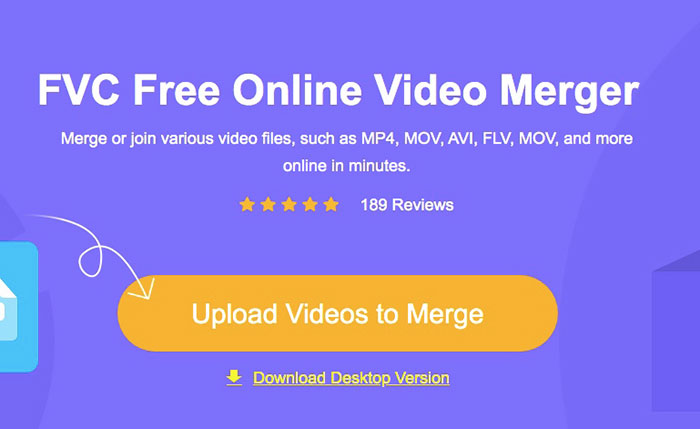
توجه: اگر برای اولین بار از این ابزار استفاده میکنید، برنامه از شما میخواهد یک لانچر دانلود و نصب کنید. پس از نصب لانچر، دوباره روی دکمه Upload Videos to Merge کلیک کنید.
مرحله 2. اکنون پنجره Open باید باز شود. در اینجا باید فایلهای M4V را انتخاب کرده و سپس روی دکمه Open در پایین پنجره کلیک کنید.
مرحله 3. پس از آپلود فایلهای M4V، میتوانید با حذف برخی فایلها و درج فایلهای جدید در جای موردنظر، ترتیب فایلهای M4V را تنظیم کنید.
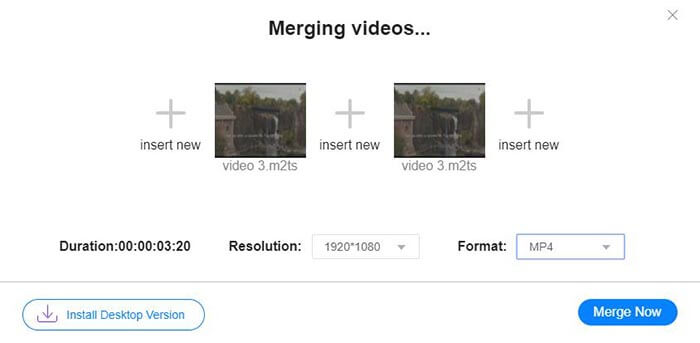
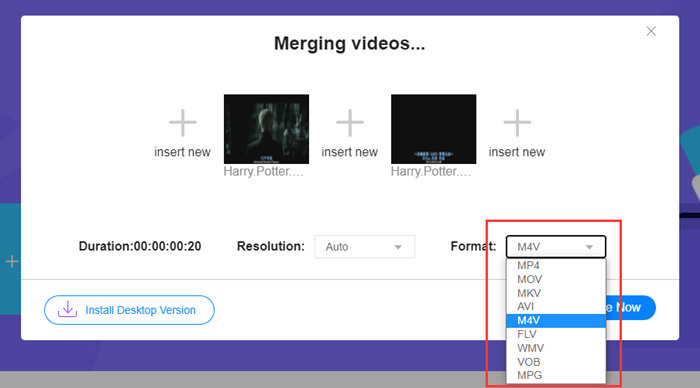
مرحله 4. برای اینکه فایل ادغامشده را در قالب M4V نگه دارید، باید در فهرست Format گزینه M4V را انتخاب کنید. همچنین میتوانید هر یک از فرمتهای موجود را برای تبدیل ویدئوی ادغامشده M4V برگزینید.
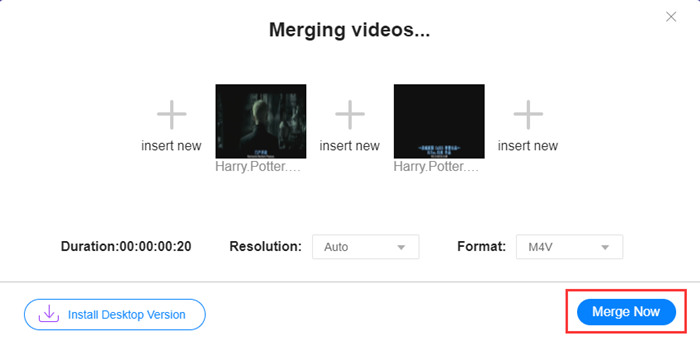
مرحله 5. روی دکمه Merge Now کلیک کنید تا ترکیب فایلهای M4V آغاز شود. سپس ابزار از شما میخواهد مقصد ذخیرهسازی فایل خروجی را مشخص کنید.
وقتی خبر موفقیت را در زیر مشاهده کردید ، ویدیوی ادغام شده در رایانه شما ذخیره می شود.
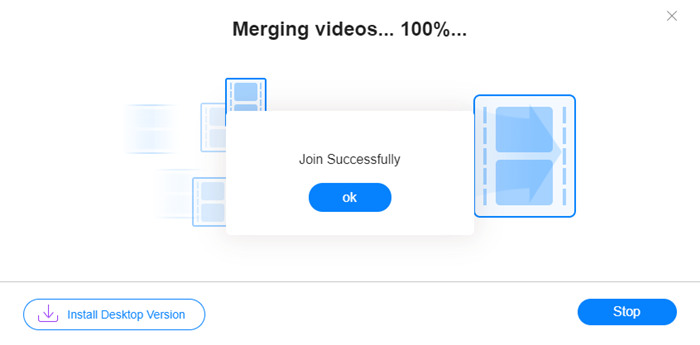
شما اکنون سریعترین روش برای ترکیب فایلهای M4V را آموختهاید. با این حال، این روش فقط امکان متصل کردن ویدئوها را پشتسرهم فراهم میکند و نمیتواند به شما در برش انتهای ناخواسته فایلها کمک کند؛ مسئلهای که ممکن است منجر به نمایش چند ثانیه صفحه سیاه در ویدئو شود. شاید به روش بعدی هم نیاز داشته باشید تا نهتنها فایلهای M4V را به هم بچسبانید، بلکه آنها را بدون هیچ درز و بریدگی اضافی نیز برش دهید. میتوانید از اینجا فایلهای M4V را فشردهسازی کنید.
قسمت 2: روشی برای ادغام یکپارچه فایلهای M4V
برای رسیدن به یک ویدئوی کامل و بدون درز، تنها اتصال سر و ته فایلهای M4V کافی نیست. لازم است بخشهای ناخواسته ابتدای و انتهای کلیپها را نیز برش دهید. بنابراین این کار به یک ابزار ویرایش ویدئو نیاز دارد. گزینههای بسیاری پیش روی شماست، اما ما در اینجا Video Converter Ultimate را پیشنهاد میکنیم. دلیل آن ساده است: کار با آن آسان است و در عین حال امکاناتش بهقدر کافی قدرتمند است.
ویژگیهای کلیدی
- • ادغام ، اصلاح ، چرخش ، برش و افزودن جلوه ها به فیلم های M4V.
- • فناوری تسریع سخت افزار به شما کمک می کند تا سریعتر پیوستن به پرونده های M4V 70 برابر سریعتر انجام شود.
- • فیلترها و جلوه های فراوان مجموعه برای جلوه بخشیدن به فیلم های خود
- • برای بهبود کیفیت فیلم خود از تقویت کننده داخلی فیلم استفاده کنید
- • فیلم های خود را به صورت 3D تبدیل کرده و با عینک های سه بعدی خود از آنها لذت ببرید
دانلود رایگانبرای ویندوز 7 یا بالاتردانلود امن
دانلود رایگانبرای MacOS 10.7 یا بالاتردانلود امن
مراحل ادغام بینقص فایلهای M4V
مرحله 1. برنامه Video Converter Ultimate را نصب و اجرا کنید. روی دکمه Add Files کلیک کنید یا فایلها را برای افزودن ویدئوها به درون رابط برنامه بکشید و رها کنید.
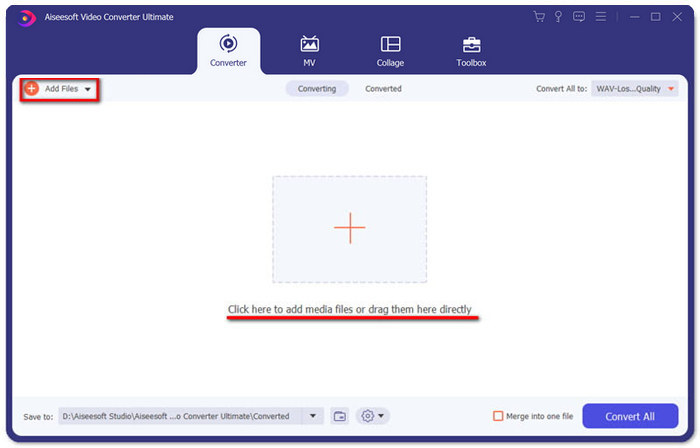
پس از افزودن فایلها، میتوانید آنها را به بالا و پایین بکشید تا ترتیبشان را تنظیم کنید. همچنین لازم است تیک گزینه Merge into one file را بزنید تا برنامه، ویدئوهای اضافهشده را بهصورت جداگانه تبدیل نکند.
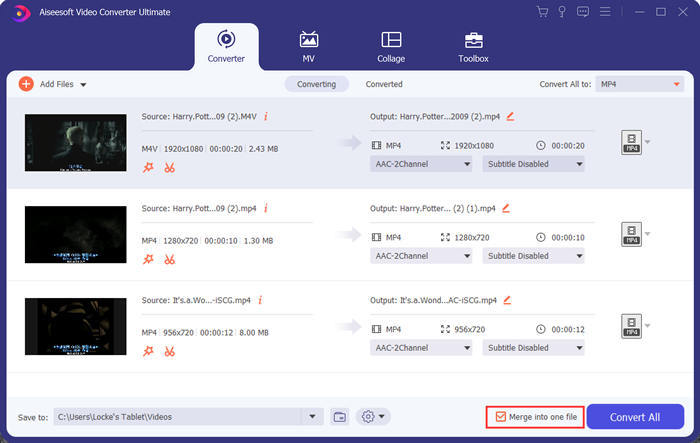
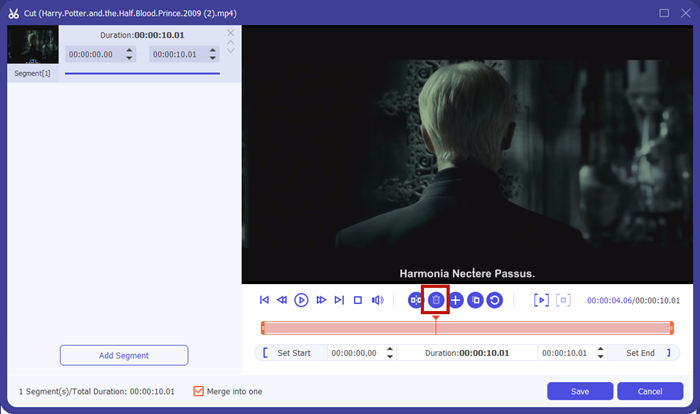
مرحله 2. برای استفاده از قابلیت برش، میتوانید روی آیکون Cut در کنار یک ویدئوی اضافهشده کلیک کنید.
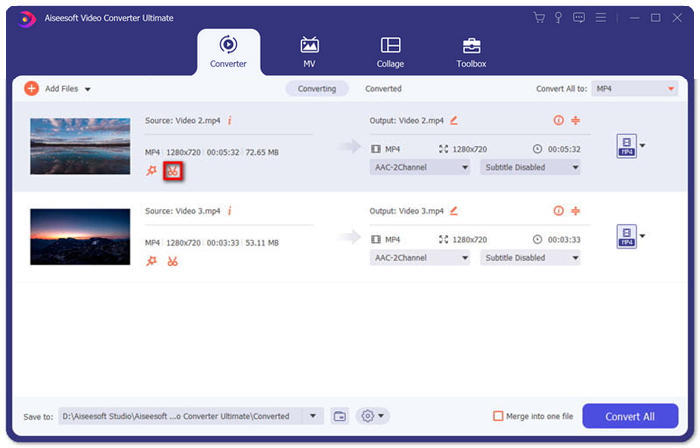
در رابط Cut، میتوانید بهراحتی بخشهای ناخواسته یک ویدئو را حذف کنید. کافی است یک بخش را با تعیین نقطه شروع و پایان انتخاب کرده و سپس روی آیکون سطل زباله کلیک کنید تا حذف شود.
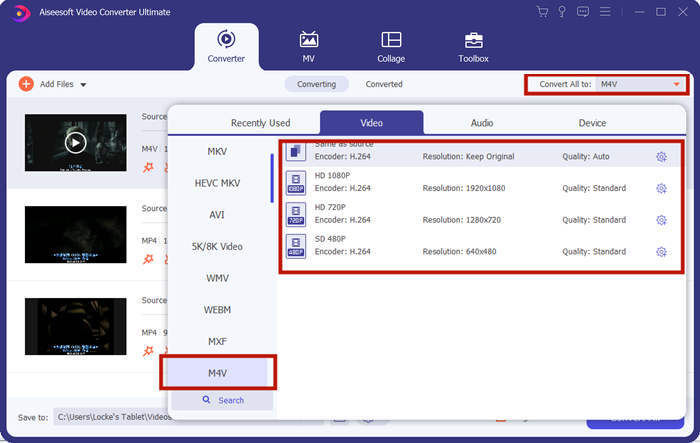
مرحله 3. در بازگشت به رابط اصلی، میتوانید فایل خروجی را انتخاب کنید. روی فلش رو به پایین کنار Convert All to کلیک کنید. سپس میتوانید M4V یا سایر فرمتها را بهعنوان فرمت خروجی برگزینید.
مرحله 4. روی دکمه Convert All در گوشه پایین سمت راست برنامه کلیک کنید و صبر کنید تا برنامه فایلهای M4V را به هم متصل کند.

هنگامی که ادغام به پایان رسید ، یک اعلامیه موفقیت مشاهده خواهید کرد. سپس می توانید فایل M4V ادغام شده را در پوشه مقصد پیدا کنید. در بالا دو روش برای پیوستن به پرونده های ویدیویی M4V وجود دارد. ما همچنین در زیر چندین سوال متداول را به نتیجه رسانده ایم.
قسمت 3: س FAالات متداول درباره پیوستن به پرونده های M4V
پرونده M4V چیست؟
M4V که توسط اپل طراحی می شود ، گاهی اوقات iTunes Video File نیز نامیده می شود. شبیه MP4 است زیرا هر دو مبتنی بر MPEG-4 هستند. خاص ترین ویژگی M4V این است که iTunes می تواند برای جلوگیری از توزیع غیر مجاز فیلم های iTunes ، محافظت DRM را در آن اضافه کند.
چگونه یک پرونده M4V باز کنیم؟
اگر فایل M4V تحت حفاظت DRM نباشد، میتوان آن را با VLC، QuickTime، Windows Media Player و بسیاری از پخشکنندههای دیگر اجرا کرد. گاهی اوقات تغییر پسوند .M4V به .MP4 نیز برای باز کردن آن کارساز است. با این حال، یک فایل M4V دارای محافظت DRM فقط روی دستگاههای مجاز قابل پخش است.
آیا می توانم محافظت DRM را از یک پرونده M4V حذف کنم؟
بله، تو میتونی. شما می توانید بی شمار برنامه حذف DRM را در بازار پیدا کنید. در اینجا برخی از آنها وجود دارد: TunesKit DRM M4V Converter، Aimersoft DRM Media Converter، Requiem DRM Remover، Ondesoft iTunes Convertert، Apple Music Converter.
نتیجه
در این مطلب دو روش کارآمد برای ادغام چند فایل ویدئویی M4V در یک فایل معرفی شد. برای سریعترین راهحل، FVC Free Online Video Merger بهترین انتخاب شماست. میتوانید بدون دانلود هیچ برنامهای از آن استفاده کنید و فرایند آپلود نیز فوراً انجام میشود. اما اگر به کیفیت بالاتری نیاز دارید، یا میخواهید نهتنها فایلهای M4V را ترکیب کنید بلکه آنها را برش دهید، میتوانید از Video Converter Ultimate کمک بگیرید. این برنامه در حالی امکانات ویرایشی قدرتمندی در اختیارتان میگذارد که رابط کاربری آن برای مبتدیان نیز دوستانه است. اگر راهحلهای بهتری پیدا کردهاید، خوشحال میشویم بدانیم؛ فقط نظر خود را در بخش دیدگاهها برای ما بنویسید.
-
 نحوه تبدیل M4V به MP4 با / بدون DRM
 6 راه برای تبدیل رایگان M4V به MP4 (شامل حذف DRM)
-
 5 بهترین بازیکن M4V برای بازی آسان فایل های M4V در رایانه ها / موبایل ها
 5 بازیکن برتر M4V برای ویندوز / مک / اندروید / iOS که باید بدانید
-
 نحوه استخراج MP3 از M4V با 4 روش عالی که باید بدانید
 مبدل M4V به MP3 - 4 بهترین روش برای استخراج MP3 از پرونده های M4V
