


 Video Converter Ultimate
 ضبط صفحه
 تعمیر ویدیو
مراحل نحوه برش بخش هایی از یک ویدیو در آیفون
ممکن است در اوقات فراغت خود با آیفون یا آیپدتان یک ویدئوی زیبا ضبط کرده باشید و بخواهید آن را با دوستانتان به اشتراک بگذارید یا در شبکههای اجتماعی منتشر کنید. اما بهتر است ابتدا بخشهایی از ویدئو را که نمیخواهید ارسال کنید، ویرایش کنید. در چنین شرایطی میتوانید با ابزارهای خود خیلی سریع ویدئوها را با کوتاه کردن یا ویرایش آنها اصلاح کنید. پس چگونه یک ویدئو را در آیفون کوتاه کنیم؟ در این مطلب بهترین روشها را خواهید دید. اگر میخواهید تمام مراحل را یاد بگیرید، همه اطلاعات زیر را بخوانید.

قسمت 1. روش های موثر برای برش ویدیو در آیفون
با استفاده از برنامه Photos
اگر کاربر آیفون هستید و می خواهید مدت زمان ویدیوی خود را کوتاه کنید، برنامه Photos ممکن است به شما کمک کند. اپلیکیشن Photos نه تنها برای نمایش تصاویر و ویدئوها خوب است. با کمک این اپلیکیشن از پیش ساخته شده، می توانید ویدیوی خود را نیز برش داده یا برش دهید. از آنجایی که این یک برنامه ساده در آیفون است، می توانید ویدیو را تنها با چند لمس کوتاه کنید. به این ترتیب همه کاربران به خصوص مبتدیان می توانند از اپلیکیشن استفاده کنند. علاوه بر این، از آنجایی که یک برنامه از پیش ساخته شده است، نیازی به نصب نیست. با این حال، با وجود اینکه یک برنامه کاربردی برای برش ویدیوها است، برنامه Photos محدودیت هایی دارد. اگر بخواهید ابزارهای ویرایش پیشرفته ای را برای بهبود ویدیو علاوه بر کوتاه کردن طول ویدیو بخواهید، این برنامه نامناسب است. برنامه Photos فقط میتواند عملکردهای ویرایش اولیه مانند برش، افزودن فیلترها و موارد دیگر را ارائه دهد. اگر می خواهید بدانید که چگونه یک ویدیو را در آیفون کوتاه کنید، مراحل زیر را دنبال کنید.
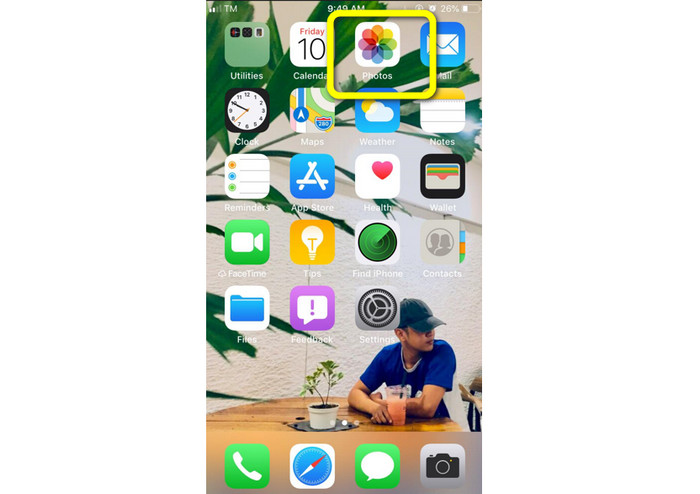
مرحله 1. آیفون خود را باز کرده و برنامه Photos را اجرا کنید.
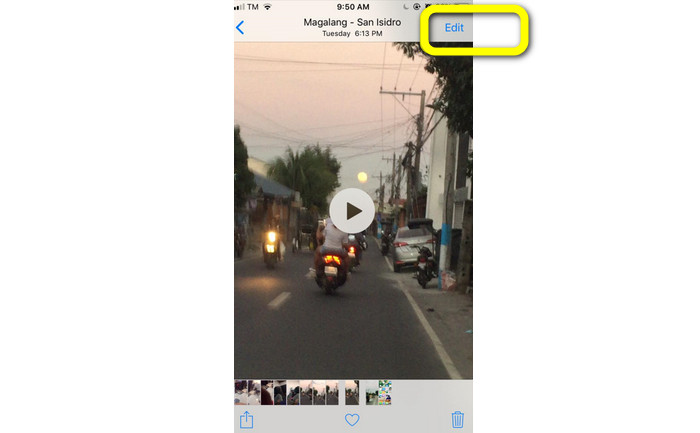
مرحله 2. سپس ویدئویی را که میخواهید کوتاه کنید انتخاب کنید. بعد از آن، دکمه Edit را در گوشه سمت راست صفحه فشار دهید.
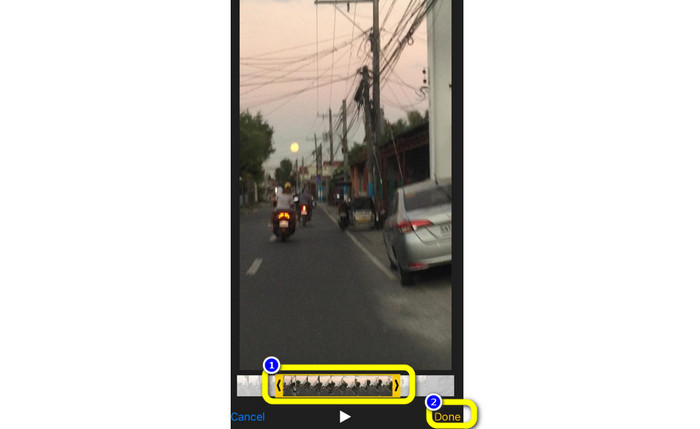
مرحله 3. حالا میتوانید با کشیدن لبههای ویدئو، آن را کوتاه کنید. میتوانید لبههای چپ و راست ویدئو را بکشید. پس از بریدن ویدئو، روی دکمه Done کلیک کنید تا در گوشی شما ذخیره شود.
با استفاده از iMovie
آیا میخواهید بعضی از ویدئوهایی را که با آیفون ضبط کردهاید ویرایش کنید، مثلاً بخشهای اضافی را حذف کنید، آنها را کوتاهتر کنید یا از نظر بصری جذابترشان کنید؟ انجام این کار با استفاده از برنامه iMovie که برای دستگاههای iOS در دسترس است، فرآیندی بسیار ساده و سرراست است. ویرایشگر ویدئوی داخلی در برنامه پیشفرض Photos برای بیشتر کاربران کافی است، اما با آن نمیتوانید به قابلیتهای پیشرفتهتری مانند مشاهده تایملاین، اعمال ترنزیشنها، ادغام چند ویدئو و غیره دسترسی داشته باشید. در این شرایط یک برنامه تخصصی ویرایش ویدئو مانند iMovie بسیار مفید است. iMovie اپل در مقایسه با سایر ابزارهای ویرایش ویدئو در App Store برتر است و میتوانید با آن صوت و تصویر را در iMovie سینک کنید. با این حال، iMovie معایبی هم دارد. iMovie فقط روی دستگاههای آیفون در دسترس است. یعنی اگر کاربر اندروید هستید، باید برای برش ویدئو از برنامه دیگری استفاده کنید.
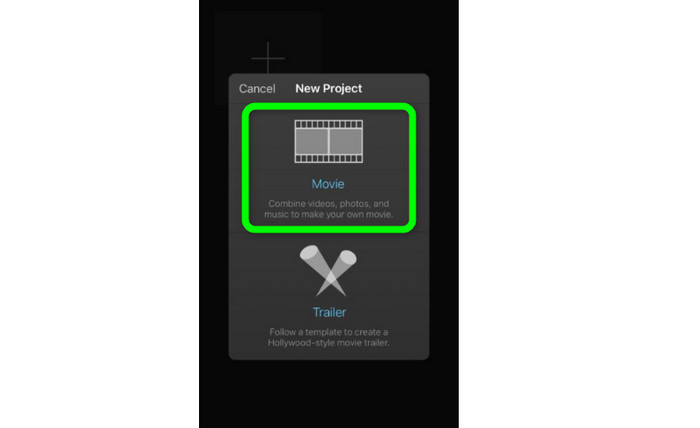
مرحله 1. برنامه iMovie را روی آیفون خود دانلود و نصب کنید. سپس برنامه را اجرا کنید. بعد از آن، وقتی رابط کاربری روی صفحه ظاهر شد، روی گزینه Create Project > Movie کلیک کرده و ویدئو را اضافه کنید.
مرحله 2. حالا ویدئویی که انتخاب کردهاید در تایملاین iMovie قرار میگیرد. بهطور پیشفرض، نشانگر در انتهای کلیپ قرار دارد، اما اگر میخواهید ویدئو را برش دهید، میتوانید آن را بهآرامی به سمت راست بکشید و در آنجا متوقف کنید.
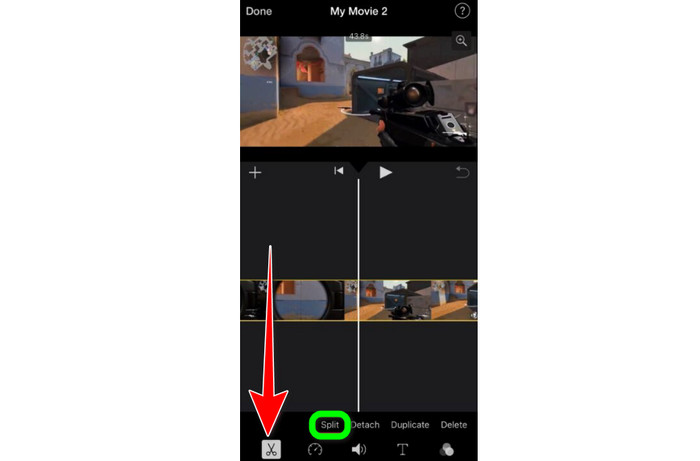
مرحله 3. اکنون میتوانید از چندین قابلیتی که iMovie ارائه میدهد استفاده کنید. همانطور که در زیر نشان داده شده، آیکون Scissor نشاندهنده انتخاب ابزار برش است. برای برش دقیق کلیپ ویدئویی در محل نشانهگذاریشده، از منو ابزار Split را انتخاب کنید.
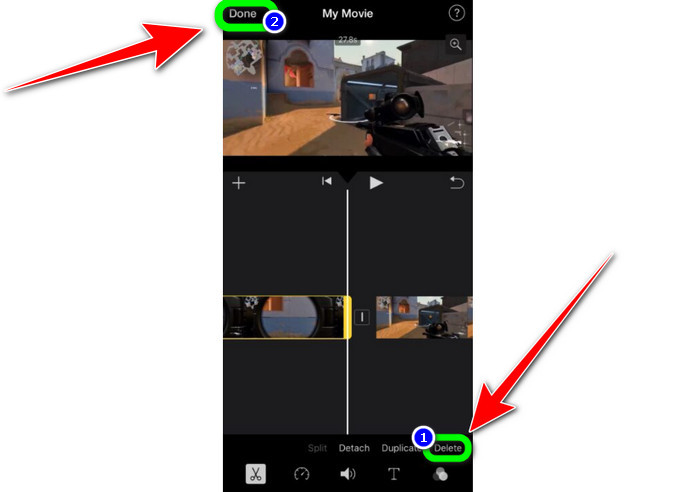
مرحله 4. سپس برای حذف بخشهای اضافی ویدئو، روی گزینه Delete کلیک کنید. وقتی برش ویدئو تمام شد، روی دکمه Done کلیک کنید.
قسمت 2. نحوه برش ویدیوها در iPad
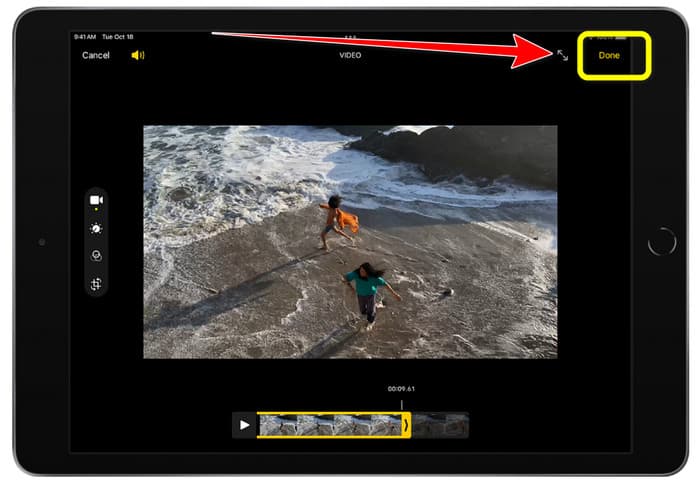
اگر میخواهید با استفاده از آیپد یک ویدئو را برش دهید یا کوتاه کنید، دیگر لازم نیست به دنبال برنامه قابل دانلود باشید. مانند آیفون، میتوانید در آیپد هم با استفاده از برنامه Photos ویدئوی خود را برش دهید یا کوتاه کنید. با این حال، برنامه Photos هنگام استفاده در آیپد هم میتواند محدودیتهایی داشته باشد. اگر هدف شما فقط کوتاه کردن ویدئو است، مناسب است؛ اما اگر بخواهید از ابزارهای ویرایشی پیشرفته استفاده کنید، این برنامه پاسخگو نخواهد بود. برای برش یا کوتاه کردن ویدئو با آیپد، مراحل زیر را دنبال کنید.
مرحله 1. برنامه Photos را روی آیپد اجرا کنید، کلیپ ویدئویی موردنظر برای ویرایش را انتخاب کرده و روی گزینه Edit کلیک کنید.
مرحله 2. لبههای نمایشگر فریم را بکشید تا طول ویدئو را کوتاه کرده و فرآیند برش را آغاز کنید.
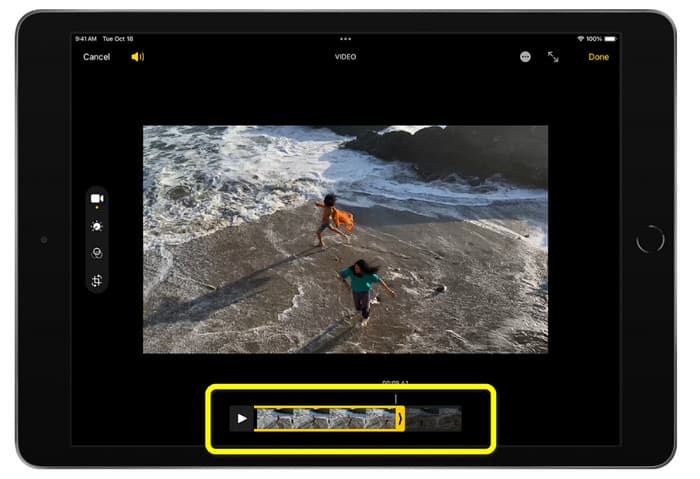
مرحله 3. پس از اتمام برش ویدئو، روی دکمه Done کلیک کنید.
قسمت 3. نحوه برش ویدیوهای آیفون در رایانه
به دنبال بهترین روش برای برش ویدئوهای آیفون در کامپیوتر هستید؟ در این صورت از برنامه Video Converter Ultimate استفاده کنید. با کمک این نرمافزار آفلاین میتوانید ویدئوی آیفون خود را بهراحتی برش دهید. همچنین رابط کاربری ساده با مراحل سرراست در اختیار شما قرار میدهد، بنابراین برای همه کاربران، بهویژه مبتدیان، ایدهآل است. میتوانید با رفتن به تنظیمات خروجی، عناصر مختلفی را نیز تنظیم کنید. رزولوشن، شفافیت و نرخ فریم ویدئو همگی قابل تغییر هستند. همچنین میتوانید بیتریت صدا، نرخ نمونهبرداری و سایر جنبهها را تغییر دهید. امکان ذخیره خروجی نهایی در قالبهای مختلف نیز وجود دارد؛ از جمله MP4، MOV، AVI، MKV و غیره. این موضوع برای کاربران مفید است؛ زیرا Video Converter Ultimate قابل دسترسی است و روی کامپیوترهای ویندوز و مک قابل استفاده میباشد. علاوه بر این، برنامه هیچ واترمارکی روی ویدئوی ویرایششده اضافه نمیکند؛ بنابراین میتوانید بدون مزاحمت آن را تماشا کنید.
دانلود رایگانبرای ویندوز 7 یا بالاتردانلود امن
دانلود رایگانبرای MacOS 10.7 یا بالاتردانلود امن
مرحله 1. برنامه Video Converter Ultimate را روی کامپیوتر خود دانلود کنید. برای دسترسی آسان به برنامه، روی دکمه Download زیر کلیک کنید.
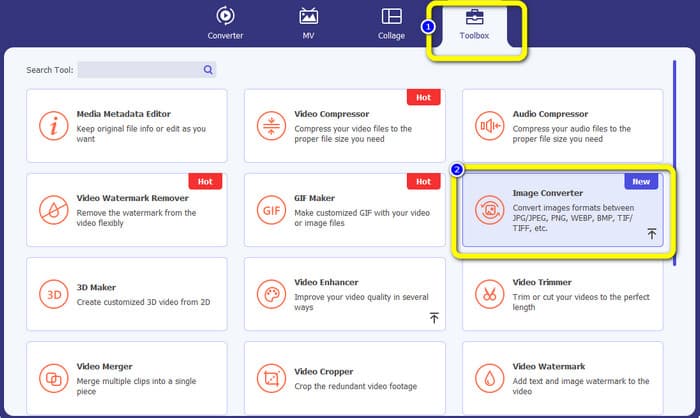
مرحله 2. بعد از دانلود، برنامه را اجرا کنید تا رابط اصلی را ببینید. مطمئن شوید که ویدئوی آیفون از قبل به کامپیوتر منتقل شده است. سپس، وقتی رابط نمایش داده شد، روی Toolbox > Video Trimmer Tool کلیک کنید.
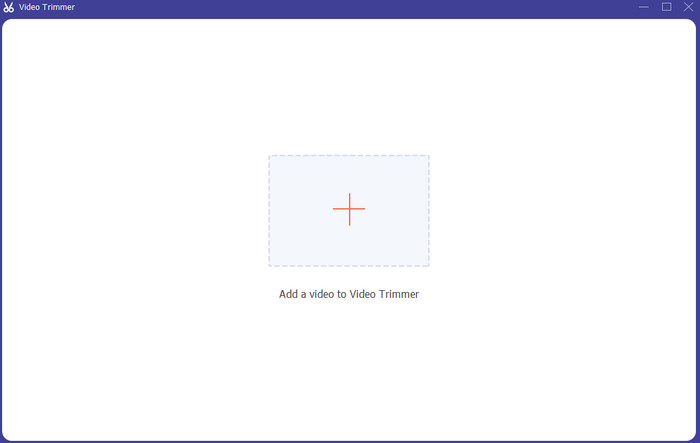
مرحله 3. وقتی رابط جدید روی صفحه ظاهر شد، روی علامت + کلیک کنید تا ویدئوی آیفون را اضافه کنید.
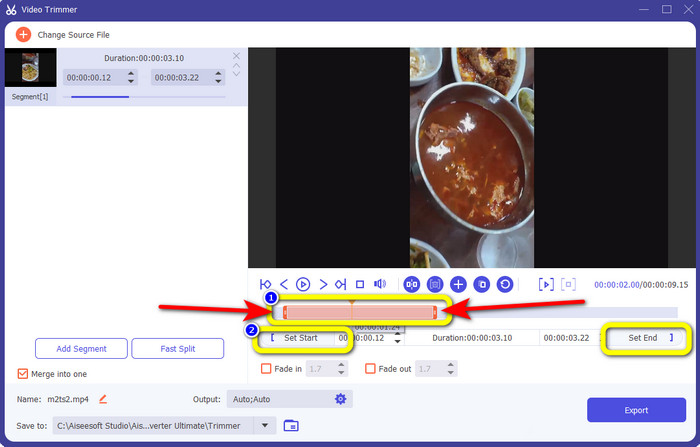
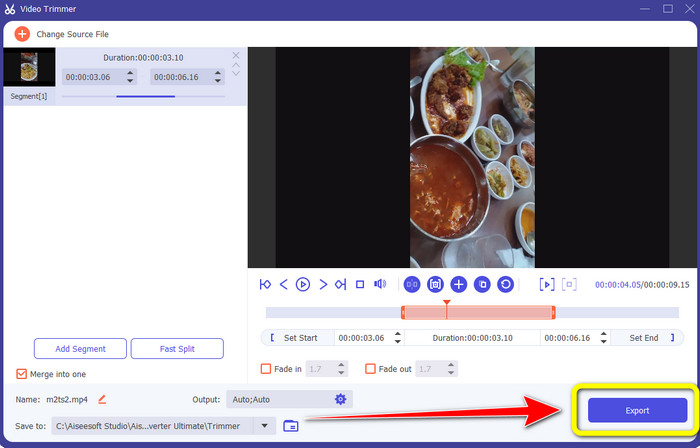
مرحله 4. سپس میتوانید با تنظیم لبههای ویدئو، آن را برش دهید. همچنین میتوانید با استفاده از گزینه Set Start and Set End ویدئو را به صورت دستی برش دهید.
مرحله 5. در نهایت، پس از برش ویدئو، روی دکمه Export کلیک کنید تا ویدئو ذخیره شود.
بخش 4. سوالات متداول در مورد نحوه کوتاه کردن یک ویدیو در آیفون
چگونه می توان وسط ویدیو را در آیفون کوتاه کرد؟
اگر می خواهید قسمت میانی ویدیوی خود را با استفاده از آیفون کوتاه کنید، همچنان می توانید از روش های ذکر شده در بالا استفاده کنید. اپلیکیشن Photos و iMovie همچنین میتوانند قسمت میانی ویدیو را برش دهند.
چگونه ویدیو را در گوشی اندروید کوتاه کنیم؟
می توانید به برنامه گالری خود بروید. سپس ویدیو را باز کرده و روی گزینه Edit کلیک کنید. پس از آن، میتوانید با کشیدن لبههای ویدیو، ویدیو را کوتاه کنید.
چگونه ویدیو را از کامپیوتر به آیفون منتقل کنیم؟
می توانید از ابزارهای زیادی برای انتقال ویدیو از رایانه به آیفون استفاده کنید. می توانید از iPhone Transfer Pro، Dropbox، AirDrop و غیره استفاده کنید.
نتیجه
برش یک ویدئو زمانی مؤثر است که میخواهید یک کلیپ ویدئویی را به اشتراک بگذارید یا آن را آپلود کنید. در این صورت، این مقاله آموزشی درباره چگونه یک ویدئو را در آیفون کوتاه کنیم صحبت میکند. علاوه بر این، اگر میخواهید طول ویدئوی آیفون را با استفاده از کامپیوتر کوتاه کنید، میتوانید از Video Converter Ultimate استفاده کنید. با کمک این برنامه آفلاین، میتوانید ویدئوی آیفون را بهراحتی و بهسرعت با استفاده از یک کامپیوتر برش دهید.
-
 [4 راه حل] چگونه یک ویدیو را در آیفون مانند یک حرفه ای کند کنیم
 آیا در کاهش سرعت ویدیو در آیفون مشکل دارید؟ اگر با این مشکل مواجه شدید، دیگر نگران نباشید، زیرا ما با خواندن این مقاله به شما در حل مشکل کمک می کنیم.
-
 نحوه فوروارد سریع یک ویدیو در آیفون – تنظیم سرعت ویدیو
 چگونه می توانم یک ویدیو را در آیفون خود فوروارد کنم؟ چگونه با استفاده از iMovie یک ویدیو را در آیفون سریع فوروارد کنیم؟ با 3 روش برای افزایش سرعت ویدیو در دستگاه های iPhone و iPad آشنا شوید.
-
 آموزش - 4 روش رایگان برای ادغام فیلم ها در iPhone در یک مورد جدید
 4 روش آسان برای ادغام فیلم ها در iPhone را بخوانید و دریافت کنید. همه مدل های آیفون و نسخه های iOS پشتیبانی می شوند. می توانید به سرعت 2 و فیلم دیگر را در iPhone با یک ویدیوی جدید ترکیب کنید.
