


 Video Converter Ultimate
 Näytön tallennin
 Videon korjaus
 Suojattu lataus
Kuinka tuoda HEIC-tiedosto tehokkaasti Lightroomissa Windowsissa ja Macissa
Suppose you are interested in improving the HEIC image or organizing it. In that case, you can import HEIC to Lightroom and do all of the arranging and editing at ease. You can easily upload it here without downloading an additional codec for HEIC to view or edit with this software. So if you need a guide that will teach you how to import the HEIC file in this software, you can read and follow the Windows and Mac ways we include in this write-up.
Luemme ilman pitkiä puheita seuraavat yksityiskohdat saadaksesi tietää, kuinka se tehdään, ja jos Lightroom ei onnistunut tuomaan HEIC:tä, voimme lisätä sen myös tänne. Mutta ennen kuin mitään muuta, sinun on ladattava ohjelmisto Windows- tai Mac-tietokoneellesi ennen kuin luet seuraavat tiedot.

Osa 1. Kuinka tuoda HEIC Lightroomiin Windows 10/11 tai päivitettyyn käyttöjärjestelmään
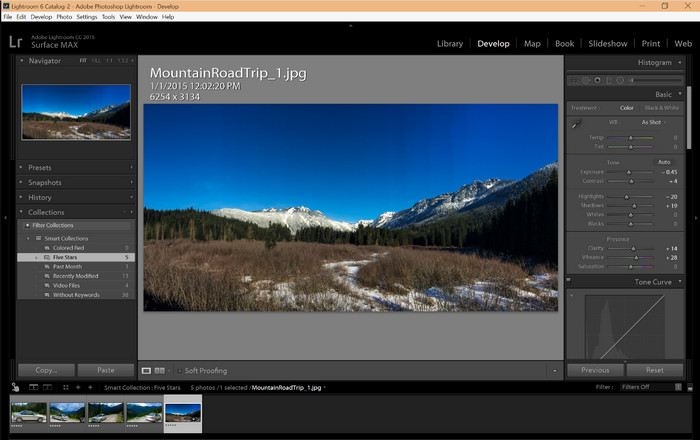
Lightroom tukee päivitettyä Windows-versiota; tämä osa on sinulle, jos lataat ohjelmiston Windows-käyttöjärjestelmääsi. Sinun ei tarvitse huolehtia, koska Lightroom voi avata HEIC-tiedostoja vaivattomasti seuraamalla alla olevaa opetusohjelmaa.
Step 1. Download the software on your Windows 10/11, then install it and open it to proceed.
Step 2. When the software is already running on your system, click the + button, press the Browse, and select the HEIC file you want to import here.
Step 3. After selecting them, you can now view the HEIC files using Lightroom on your Windows 10/11.
Osa 2. HEIC-kuvan avaaminen Lightroomissa Mac 10.13:ssa tai uudemmassa
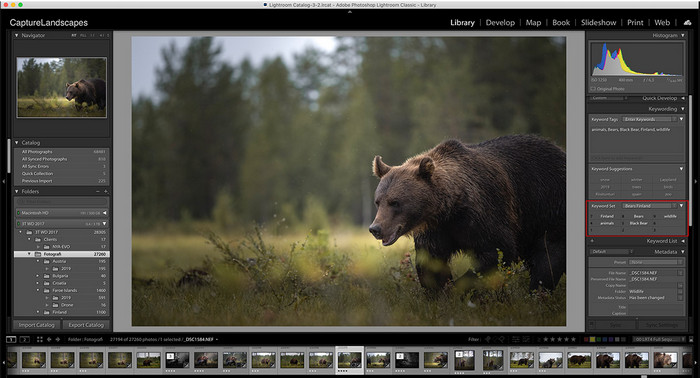
Jopa ilman Lightroomia voit katsella HEIC-tiedostoa vaivattomasti, varsinkin jos Mac-versiosi on High Sierra 10.13 tai uudempi esikatselussa. Vaikka Preview tukee muokkausominaisuuksia, se ei riitä monimutkaiseen muokkaukseen, kuten Lightroomin tarjoamiin toimintoihin. Sinun ei myöskään tarvitse huolestua siitä, koska Lightroom tukee HEIC-tiedostoja niiden muokkaamiseen tai järjestämiseen Macissasi.
Step 1. Install the software on your macOS 10.13 or higher; if the version of your operating is lower, then expect that the software won't open. After you download Lightroom on your desktop, you must now open it.
Step 2. In the upper part section, you will find different menus and the name of Lightroom on the upper-left side, which means the software is already open. Press the File menu and proceed to the Add Photos, or you can use a hotkey on your keyboard instead by pressing Command + Shift + I.
Step 3. A folder will show on your screen; select the image you want to import and click Review for Import.
Osa 3. Lightroom epäonnistui tuomaan HEIC-tiedostoa | Paras ratkaisu tuettoman HEIC-ongelman ratkaisemiseen
Monilla käyttäjillä oli vaikeuksia ladata HEIC-tiedostoa, koska se oli yhteensopiva Windows- ja Mac-tietokoneiden Lightroomin kaltaisten ohjelmistojen kanssa. jopa yllä olevien menetelmien avulla se on silti mahdotonta. Mutta sinun ei tarvitse olla surullinen, sillä HEIC-tiedostot voidaan tuoda Lightroomiin muuntamalla HEIC JPG-muotoon verkon parhaan työkalun avulla.
FVC Free HEIC to JPG Converter is the solution you must use to convert the HEIC file on your Windows and Mac without the software downloaded. A web tool like this can turn your un-supported format into a standard one like the JPEG. You can upload the image efficiently on Lightroom without experiencing an unsupported format. In addition to converting HEIC to JPG, you can also upload multiple HEIC images here and convert them all simultaneously to support batch conversion. Amazing right? Do you want to know what amazes us more? Well, you can do a speed-up conversion for free. If you want to fix the unsupported problem you encounter on HEIC, follow the indicated steps below to know how to convert the format.
Helppoja vaiheita HEIC-muodon muuttamiseen JPG-muotoon Web-työkalun avulla:
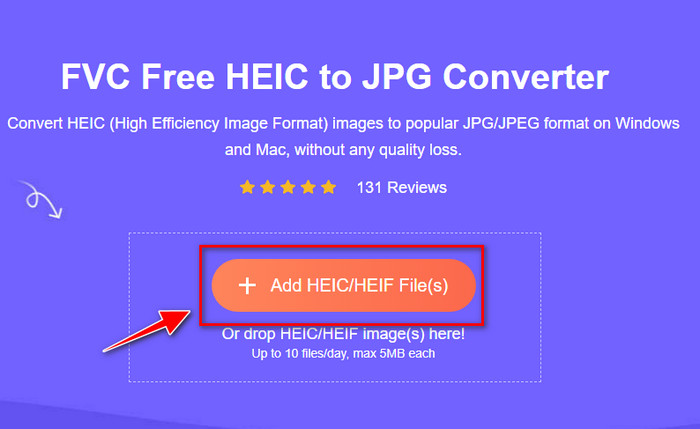
Step 1. FVC Free HEIC to JPG Converter by clicking this link, you can open the main website of the converter on your favorite search engine. No need to worry because it is safe to use, and there aren't any ads that could be pesky on the web interface.
Step 2. Click the Add HEIC/HEIF Files to upload the HEIC image that Lightroom can't open here. Alternatively, you can drag and drop the file here instead of selecting them in the file folder.
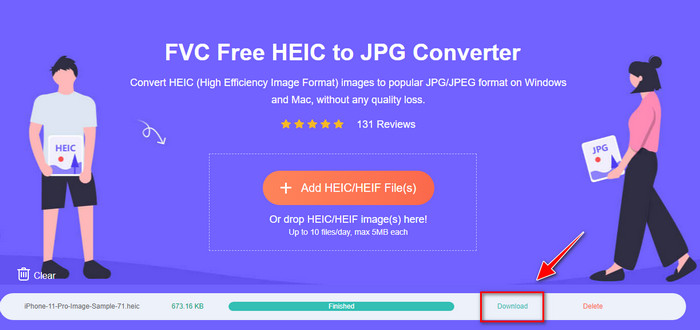
Step 3. A Download button will show up if the progress bar is complete; click it to save the newly converted HEIC file on your desktop. After that, you can now import the file on Lightroom without accepting a dialogue box that says unsupported or corrupted.
Osa 4. Usein kysyttyä HEIC:n tuomisesta Lightroomissa
Onko HEIC-tiedostojen tuonnissa Lightroomissa rajoituksia?
Tähän asti voit tuoda HEIC-tiedostoja Lightroomiin niin monta kuin haluat. Sillä ei ole rajoituksia tämän tyyppisen muodon lataamiselle Lightroomiin.
Onko Lightroom ilmainen Windowsissa ja Macissa?
Valitettavasti Lightroom Windowsissa ja Macissa ei ole ilmainen, mutta voit ladata sen ilmaiseksi Windowsille ja Macille. Vaikka ohjelmisto ei ole ilmainen, voit hyödyntää sen tukemaa ilmaista kokeiluversiota 7 päivän ajan. Jos koet tarvitsevasi ohjelmistoa pitkään, voit tilata sen kokeilujakson jälkeen.
Jättääkö HEIC-tiedoston vieminen Lightroomiin vesileiman?
Luckily, Lightroom doesn't add a watermark to the image you've uploaded here. But you can add a watermark if you want to add one. So, if you are going to post the picture on the internet, then we suggest that you add a watermark on it so that it has protection from the people who will try to steal it.
Kumpi on parempi kuvankäsittelyyn? Photoshop vai Lightroom?
Se riippuu vaatimuksistasi; Adobe Editor Photoshopin ja Lightroomin avulla voit helposti tehdä kuvastasi paremman ulkonäöltään. Oletetaan, että haluat helposti käsiteltävän kuvankäsittelyohjelman. Siinä tapauksessa Lightroom on valinta, joka sinun on valittava, sillä se on paras kuvankäsittelyohjelma kuvan parantamiseen. Mutta jos haluat tehdä yksityiskohtaisempaa kuvankäsittelyä, Photoshop on editori, joka sopii jokaisen ammattieditorin tarpeisiin.
Johtopäätös
Lightroomin avulla voit helposti muokata kuviasi tai järjestää ne vastaavasti, jotta ne näyttävät siistiltä. Joten jos haluat tuoda HEIC-tiedoston Lightroomiin, voit seurata lisäämiämme vaiheita riippumatta siitä, oletko Windows- tai Mac-käyttäjä. Mutta jos kohtaat ongelmia HEIC-tiedoston tuomisessa, lue osa kolmas, kun ratkaisemme sen, jotta se on yhteensopiva Lightroomin kanssa. Voit nyt jatkaa sen muokkaamista. Toivomme, että tämä kirjoitus antaa sinulle käsityksen tiedoston tuomisesta; Jos sinulla on muita ehdotuksia tai suosituksia, voit jättää meille viestin.
-
 iMazing HEIC Converter | Toiminnot, plussat ja miinukset ja kuinka sitä käytetään
 Tässä artikkelissa tarkastellaan iMazing HEIC Converter -kykyä ja sen vaihtoehtoja, joten jos haluat tietää siitä lisää, lue tämä varoen
-
 3 helpointa tapaa muuntaa HEIC JPG:ksi iPhonessa kuin asiantuntija
 Eikö sinulla ole aavistustakaan kuinka muuttaa HEIC JPG-muotoon iPhonessa? Jos olet yksi niistä käyttäjistä, joilla on ongelmia HEIC:n kanssa, lue tämä.
-
 Miksi iPhone-valokuvani ovat HEIC-muodossa [syitä ja kuinka ratkaista]
 Haluatko tietää, miksi iPhone-kuvani ovat HEIC-muodossa? Tämä artikkeli tarjoaa uskottavia todisteita siitä, mikä tekee HEIC:stä parhaan.
