


 Video Converter Ultimate
 Näytön tallennin
 Videon korjaus
 Suojattu lataus
Erinomaisimpia tapoja suurentaa kuvaa tulostusta varten
Kuvan suurentaminen voidaan tehdä kahdella tavalla. Voit suurentaa valokuvan skaalaamalla sitä ylöspäin tai lisäämällä kuvan pikseleitä. Toinen tapa suurentaa kuvaa on muuttamalla valokuvan todellista kokoa eli mittoja. Tässä oppaassa näytämme sinulle nämä kaksi tapaa suurentaa kuva. Tarpeidesi mukaan löydät varmasti vastaukset kysymykseesi. Lue tämä opas oppiaksesi, miten suurentaa kuva tulostusta sekä verkko- ja offline-käyttöä varten.

Osa 1. Suurenna kuvaa menettämättä laatua verkossa tulostusta varten
Se kuulostaa monimutkaiselta, kun kuulet ensimmäisen kerran kuvanlaadun suurentamisesta. Mutta tämän viestin lukemisen jälkeen se on varmasti helppoa sinulle. On olemassa monia sovelluksia, jotka voivat auttaa sinua suurentamaan kuvaasi. Mutta ongelmana on, että niitä on niin paljon, että on vaikea valita yhtä. Onneksi löysimme sovelluksen, jonka avulla voit suurentaa kuvaa helposti ja ilmaiseksi.
FVC Free Image Upscaler on erinomainen verkkopohjainen kuvansuurennustyökalu. Verkossa toimivien sovellusten hyvä puoli on se, että niitä ei tarvitse ladata laitteelle, mikä säästää tallennustilaa. Voit suurentaa kuvaasi tällä työkalulla 2x-, 4x-, 6x- tai 8x-suurennuksella. Lisäksi se käyttää tekoälypohjaista skaalaustekniikkaa, joka tunnistaa automaattisesti kuvan heikkolaatuiset kohdat ja parantaa niitä.
Myös aloittelijat voivat helposti käyttää tätä sovellusta, koska siinä on intuitiivinen käyttöliittymä. Lisäksi siinä on esikatselutehoste, jonka avulla voit tarkistaa tulostesi tulokset ennen sen tallentamista. FVC Free Image Upscaler on ilmainen käyttää kaikissa verkkoselaimissa, kuten Googlessa, Firefoxissa ja Safarissa.
Kuvan suurentaminen tulostamista varten FVC Free Image Upscaler -sovelluksella
Vaihe 1. Avaa verkkoselaimesi ja etsi hakukentässä FVC Free Image Upscaler. Voit myös klikata tätä linkkiä siirtyäksesi suoraan etusivulle.
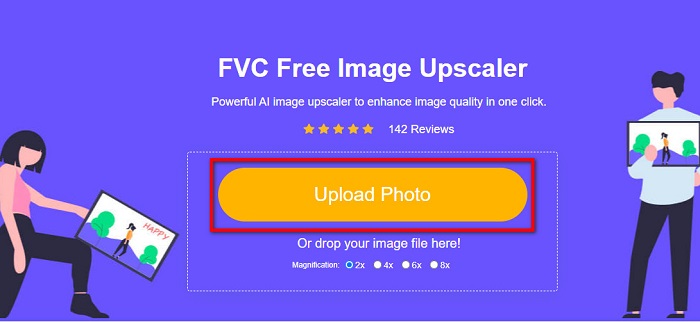
Vaihe 2. Pääkäyttöliittymässä napsauta Upload Photo -painiketta lisätäksesi kuvan, jonka haluat suurentaa. Voit myös ladata kuvan käyttämällä vedä ja pudota -toimintoa.
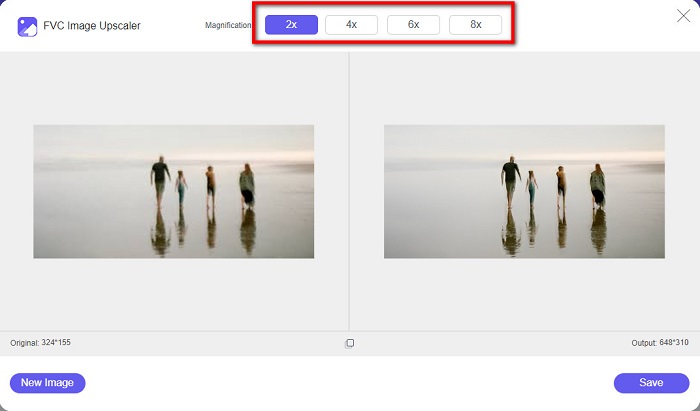
Vaihe 3. Kun tiedostosi on ladattu, sinut ohjataan toiseen näkymään. Valitse kuvalle haluamasi suurennuskerroin. Voit valita vaihtoehdoista 2x, 4x, 6x ja 8x. Mitä heikkolaatuisempi kuva on, sitä suurempi suurennuskerroin kannattaa valita.
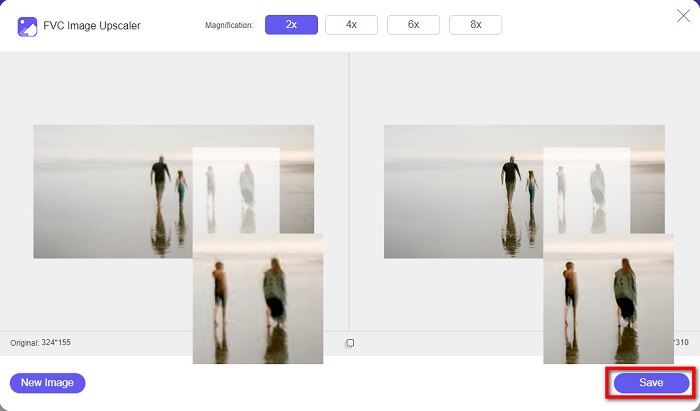
Vaihe 4. Vie hiiren osoitin vasemman puoleisen kuvan päälle nähdäksesi suurennuksen tuloksen. Näetkö muutokset? Tallenna lopputulos laitteellesi napsauttamalla Save-painiketta näkymän oikeassa alakulmassa.
Ja nämä ovat helpot vaiheet kuvan suurentamiseksi verkkotulostusta varten FVC Free Image Upscaler -sovelluksella. Helppoa kuin piirakka, eikö? Mutta jos haluat suurentaa valokuvaa muuttamalla kuvan kokoa, lue seuraava osa.
Osa 2. Kuvan suurentaminen Photoshopissa laatua menettämättä
Olet luultavasti törmännyt tähän sovellukseen, kun etsit kuinka suurentaa valokuvaa. Ja Adobe Photoshop on Internetin merkittävin kuvankäsittelysovellus. Adobe Photoshopia käyttävät pääasiassa ammattilaiset, jotka usein muokkaavat kuvia julkaistavaksi eri alustoilla. Tämän sovelluksen työkalujen ja ominaisuuksien avulla voit varmasti tuottaa uskomattomia tuloksia. Mutta tiesitkö, että voit myös suurentaa kuvan Adobe Photoshopilla? Kyllä, luit oikein. Se on myös sopiva työkalu kuvien laajentamiseen laadun heikkenemättä. Adobe Photoshopilla voit suurentaa kuvaa muuttamalla resoluutiota tai syöttämällä kuvan leveyden ja korkeuden manuaalisesti. Vaikka Adobe Photoshop on ammattisovellus, sen suurentava ominaisuus on helppokäyttöinen. Ilman pitkiä puheita, nämä ovat vaiheet kuvan suurentamiseksi Photoshopilla häviöttömästi.
Vaihe 1. Lataa ensin Adobe Photoshop tietokoneellesi. Se on saatavilla lähes kaikille käyttöjärjestelmille, kuten Windowsille ja macOS:lle. Kun sovellus on asennettu laitteellesi, tuo siihen kuva, jonka haluat suurentaa.
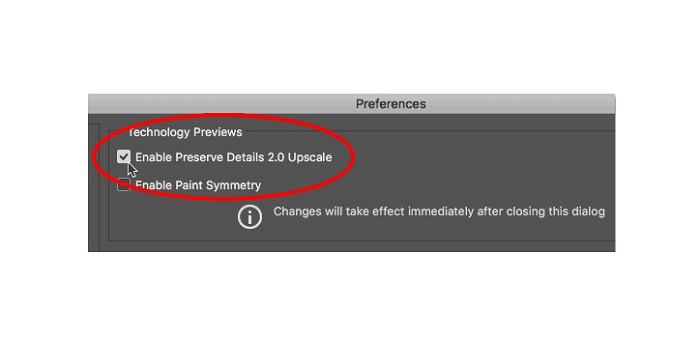
Vaihe 2. Ota seuraavaksi käyttöön Preserve Details 2.0. Jos käytät Windows-tietokonetta, siirry Edit-valikkoon Menu Bar -palkissa. Jos käytät Mac-laitetta, avaa Photoshop CC -valikko, valitse Preferences ja napsauta Technology Previews -painiketta. Tällöin Asetukset-valintaikkunassa avautuu Technology Previews -osio. Valitse ruutu Enable Preserve Details 2.0 Upscale -kohdan vierestä. Sulje valintaikkuna napsauttamalla OK.
Vaihe 3. Avaa sitten Image Size -valintaikkuna siirtymällä Image-valikkoon ja valitsemalla Image Size.
Vaihe 4. Kun suurennamme tai skaalaamme kuvaa Photoshopissa, haluamme muuttaa kuvan fyysisiä mittoja eli lisätä tai poistaa pikseleitä. Varmista siis, että Resample on valittuna.
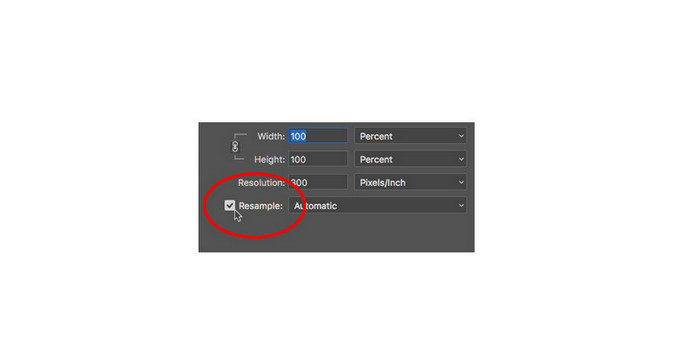
Vaihe 5. Muuta sen jälkeen kuvan korkeutta ja leveyttä syöttämällä haluamasi mitat. Oletusarvoisesti leveys ja korkeus ovat sidottuja toisiinsa, joten kun muutat kuvan leveyttä, korkeus mukautuu vastaavasti.
Vaihe 6. Vaihda lopuksi Resample Method -asetukseksi Preserve Details 2.0. Oletusarvoinen näytteenottomenetelmä on Automatic. Photoshop ei kuitenkaan valitse Preserve Details 2.0 -menetelmää, jos Resample on asetettu tilaan Automatic. Siksi sinun on muutettava Resample-asetusta napsauttamalla Automatic ja valitsemalla sitten Preserve Details 2.0.
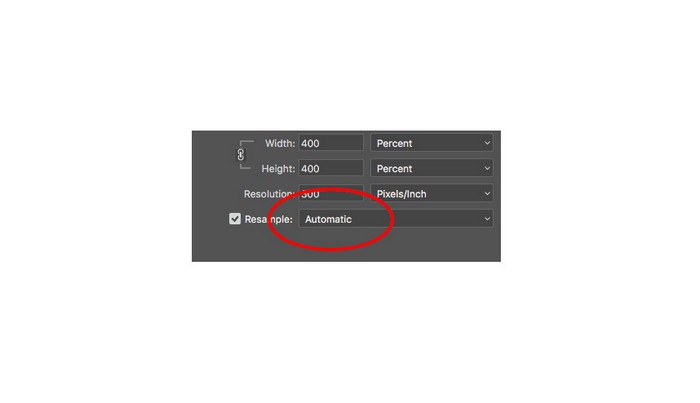
Vaihe 7. Nyt on aika esikatsella tuloksia. Kun olet valinnut Preserve Details 2.0 -asetuksen, vasemmalla oleva esikatseluikkuna päivittyy ja näyttää, miltä suurennettu kuva tulee näyttämään. Vedä kuvaa esikatseluikkunan sisällä hiirellä nähdäksesi kuvan eri alueet.
Seuraamalla näitä ohjeita opit varmasti suurentamaan kuvan tulostusta varten laadun heikkenemättä.
Liittyy aiheeseen:
7 parasta kuvasuurenninta verkko- ja offline-käyttöön
4 parasta GIF-suurenninta, joita et saa ohittaa (online ja offline)
Osa 3. Usein kysyttyä kuvan suurentamisesta laatua menettämättä
Voinko suurentaa JPG-tiedoston kokoa verkossa?
Voit muuttaa JPG-kuvasi tiedostokokoa käyttämällä työkalua FVC Free Image Upscaler. Suurenna vain kerrointa arvoon 6x tai 8x kasvattaaksesi JPG-kuvasi kokoa.
Tukeeko Adobe Photoshop PNG-tiedostoja?
Joo. PNG-tiedostoja tukevat monet alustat, mukaan lukien Adobe Photoshop. Voit tuoda lähes kaikki kuvatiedostomuodot Adobe Photoshopilla, kuten PNG, JPG, JPEG, BMP ja WebP.
Vaikuttaako kuvani suurentaminen sen tiedostokokoon?
Kyllä. Kuvasi tiedostokoko kasvaa, koska säädät kuvan pikselien kokonaismäärää tai pikselien määrää jokaisessa tuumassa. Mutta tiedostokoko on myös pienempi, kun pienennät kuvan leveyttä ja korkeutta.
Johtopäätös
Tässä olivat menetelmät, joilla opit, miten suurentaa kuva menettämättä laatua. Sekä verkossa että offline-tilassa voit suurentaa kuvaasi heikentämättä sen laatua. Jos kuitenkin haluat helpomman tavan suurentaa kuvan, suosittelemme käyttämään sovellusta FVC Free Image Upscaler, joka on käyttäjäystävällinen työkalu.
-
 Kuinka muuttaa kuvan kokoa Illustratorissa kahdella eri tavalla
 Opi parhaita tapoja muuttaa kuvan kokoa Illustratorissa. Aloita lataamalla ja avaamalla Adobe Illustrator -sovellus tietokoneellesi ja seuraamalla näitä yksinkertaisia ohjeita.
-
 6 tapaa muokata kuvaa verkossa ja offline-tilassa [100% Working]
 Tässä lisäämämme opetusohjelman avulla voit nyt helposti muuttaa kuvan kokoa haluamasi koon mukaan. Opi tekemään se täältä!
-
 Parhaat tavat muuttaa valokuvan kokoa iPhonessa ilmaiseksi ja ilman asennusta
 Valokuvan koon muuttaminen iPhonessa voi olla vaikeaa oppia. Onneksi tässä artikkelissa on opetusohjelma kuvien koon muuttamiseen helposti.
