


 Video Converter Ultimate
 Enregistreur d'écran
 Réparation vidéo
4 des meilleurs convertisseurs PNG en GIF disponibles en ligne et hors ligne
Le PNG est un type de format d’image connu comme le successeur du GIF. À l’heure actuelle, cela semble d’ailleurs de plus en plus probable. En effet, le PNG prend en charge un grand nombre de couleurs et offre une bien meilleure qualité visuelle que le GIF ; cependant, les PNG ne peuvent pas faire ce que les GIF permettent. Dans cet article, apprenons donc comment convertir un PNG en GIF à l’aide des outils présentés ci-dessous. Sans plus attendre, passons aux outils.

Partie 1. Comment convertir PNG en GIF avec le Top 3 gratuit en ligne
1. Conversion
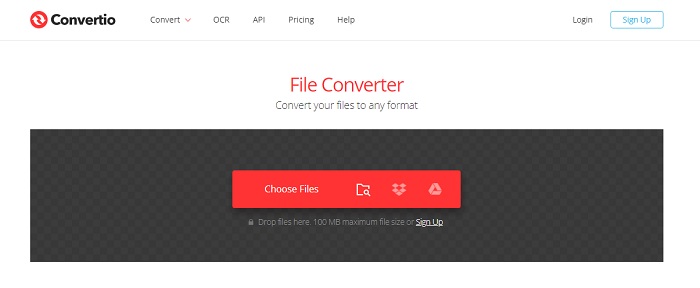
L’un des meilleurs outils en ligne que vous pouvez utiliser gratuitement si vous avez une connexion Internet est Convertio. Cet outil en ligne peut vous aider à transformer un PNG en GIF aussi facilement que un-deux-trois. Toutefois, cet outil ne peut pas convertir votre PNG en une série d’images animées comme un GIF, il ne fait que changer le format. De plus, si vous convertissez un PNG au format GIF, la taille du fichier devient plus petite et plus compressée. Voici donc ci-dessous les étapes pour changer le format de votre image en GIF. Suivez-les au fur et à mesure.
Étape 1. Cherchez Convertio.io dans votre moteur de recherche puis ouvrez le site.
Étape 2. Cliquez sur Choose File, repérez le fichier dans le dossier, puis cliquez sur open pour l’insérer.

Ensuite, cliquez sur le bouton drop-down pour changer le format en GIF.
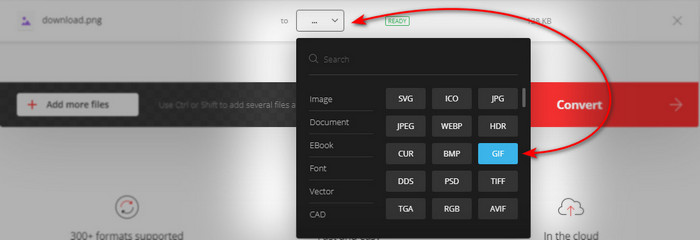
Étape 3. Appuyez sur le bouton Convert pour lancer le processus puis sur download pour l’enregistrer sur votre disque.

2.AnyConv
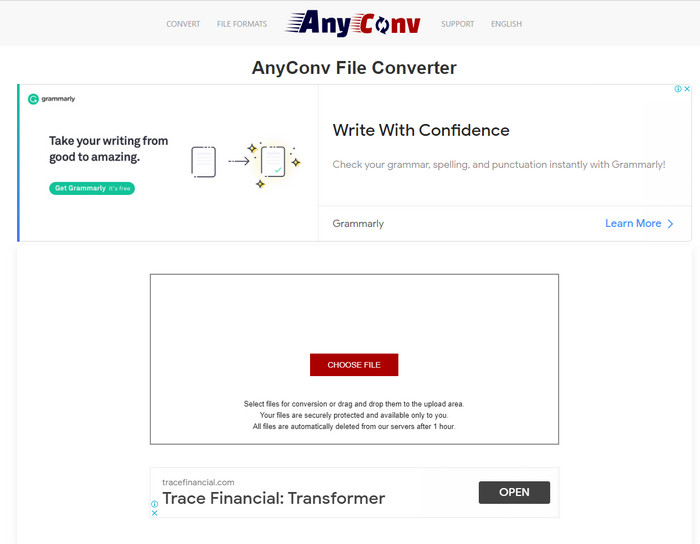
Anyconv est un excellent outil en ligne que vous pouvez utiliser pour convertir facilement et efficacement un PNG animé en GIF. L’interface de cet outil en ligne n’est pas la meilleure, mais elle n’est pas mauvaise non plus. Même si l’outil peut vous aider, il y a beaucoup de publicités envahissantes sur le site, ce qui est agaçant, car les pubs sont plus grandes que l’outil lui‑même. Néanmoins, une fois la conversion terminée, le fichier est supprimé du site, car la confidentialité est respectée. En revanche, cet outil prend en charge un nombre de formats plus limité que Convertio. Donc, si vous voulez essayer cet outil, suivez les étapes ci-dessous.
Étape 1. Ouvrez votre navigateur et recherchez le site Anyconv.
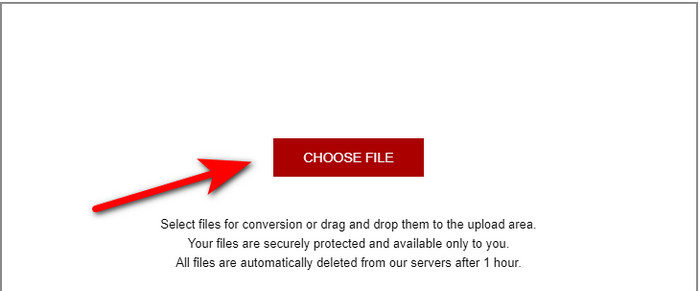
Étape 2. Cliquez sur Choose File, puis repérez le fichier dans le dossier et cliquez sur open.
Étape 3. Changez le format en cliquant sur le bouton drop-down puis en sélectionnant GIF.
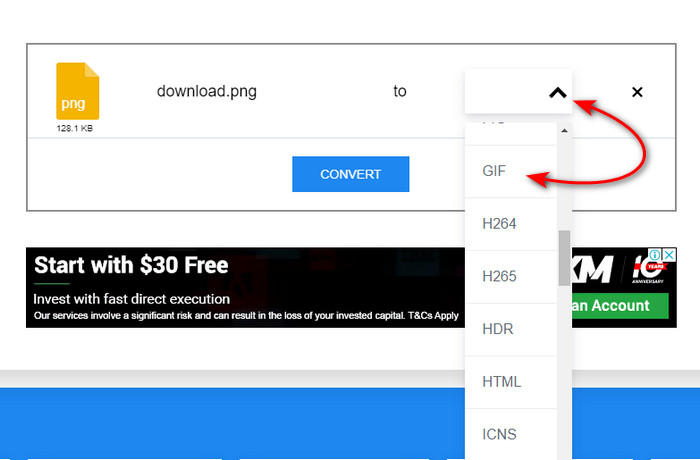
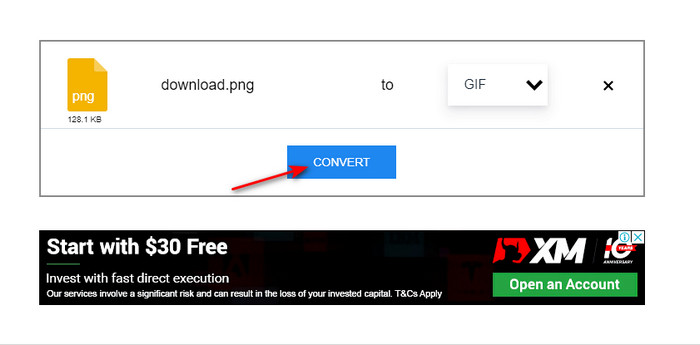
Ensuite, cliquez sur Convert pour lancer l’envoi du fichier, puis cliquez sur download.
3. Conversion gratuite. com
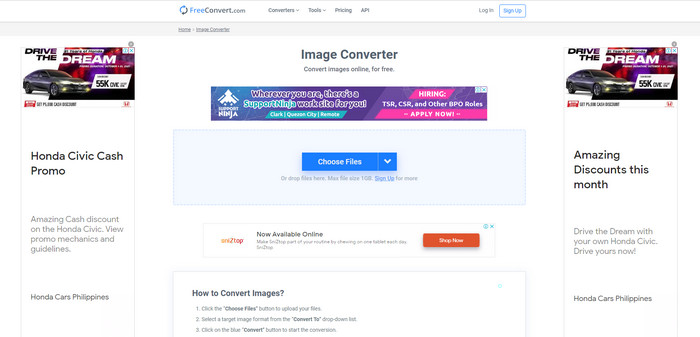
Un autre outil en ligne de cette liste qui pourrait vous impressionner est Free convert.com. Il s’agit d’un outil en ligne intuitif et bien conçu, accessible gratuitement sur le web. Son interface contient toutefois beaucoup de publicités gênantes qui peuvent vous agacer. Cependant, l’outil fournit, en dessous, des instructions expliquant comment convertir avec Free convert.com, ce que n’offrent pas les deux autres outils. De plus, comme les autres outils en ligne, celui-ci ne peut pas créer de séries d’images animées en GIF, car ce n’est pas pris en charge. Si vous voulez savoir comment cet outil fonctionne, suivez les étapes ci-dessous.
Étape 1. Recherchez Free convert.com dans votre moteur de recherche pour ouvrir son site principal.
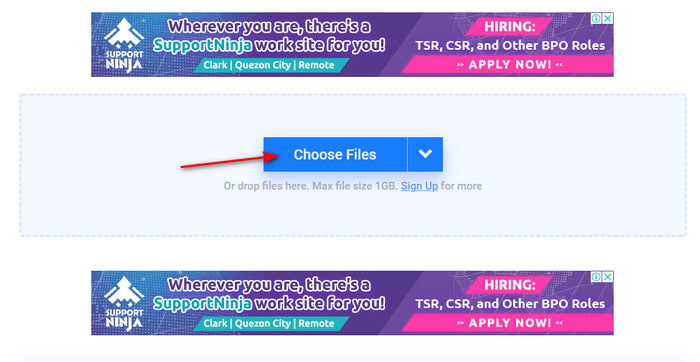
Étape 2. Cliquez sur Choose File ; une fenêtre de dossier s’ouvrira à l’écran. Repérez le fichier PNG, puis cliquez sur open pour l’insérer.
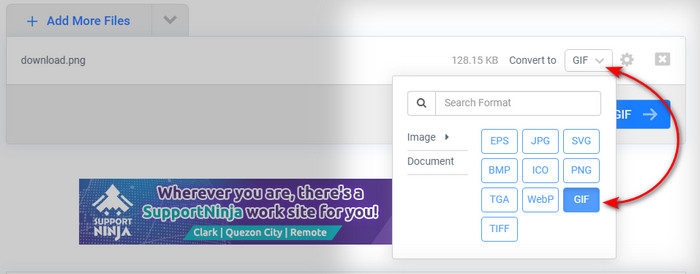
Étape 3. Changez le format en cliquant sur le bouton déroulant Convert to, puis choisissez le format GIF.
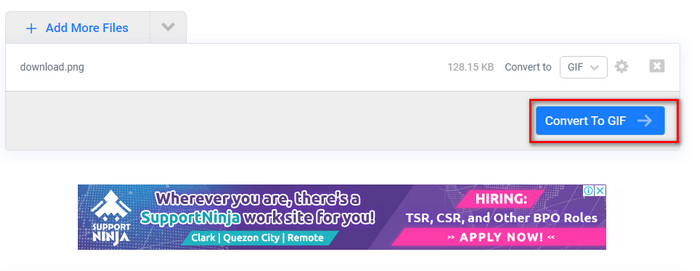
Pour télécharger le fichier, cliquez sur Convert to GIF et attendez quelques minutes : une fois le fichier prêt, cliquez sur Download GIF.
Partie 2. Meilleure façon de convertir plusieurs PNG en GIF
Contrairement aux outils en ligne ci-dessus, ils ne peuvent pas produire d’images animées en mouvement comme Video Converter Ultimate. En effet, l’une des fonctionnalités de ce convertisseur remarquable est le GIF Maker, qui vous aide à transformer des séquences PNG en GIF. De nombreux utilisateurs sont déjà satisfaits du résultat final obtenu avec cet outil. Si vous voulez être pleinement satisfait de votre GIF, essayez donc ce logiciel. Même si vous n’êtes pas un professionnel, vous pouvez tout de même obtenir le GIF spectaculaire que vous souhaitez. Pour continuer, suivez attentivement les étapes ci-dessous.
Étapes pour utiliser le GIF Maker de Video Converter Ultimate
Étape 1. Téléchargez l’outil sur votre disque dur, installez-le, puis lancez-le.
Téléchargement gratuit pour Windows 7 ou version ultérieure Téléchargement sécurisé
Téléchargement gratuit pour macOS 10.7 ou version ultérieure - Téléchargement sécurisé
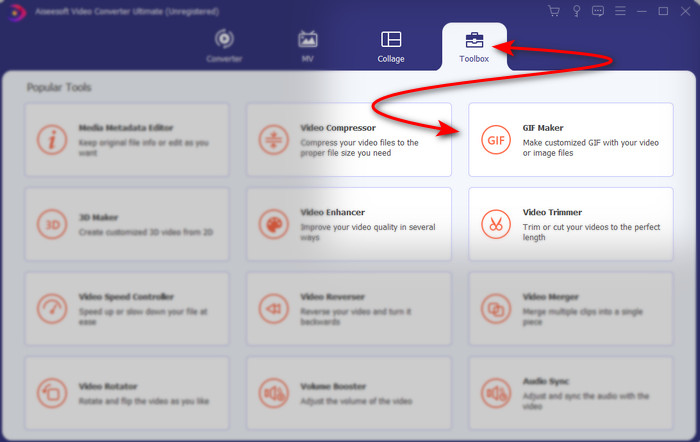
Étape 2. Continuez en cliquant sur Toolbox, puis recherchez GIF Maker.
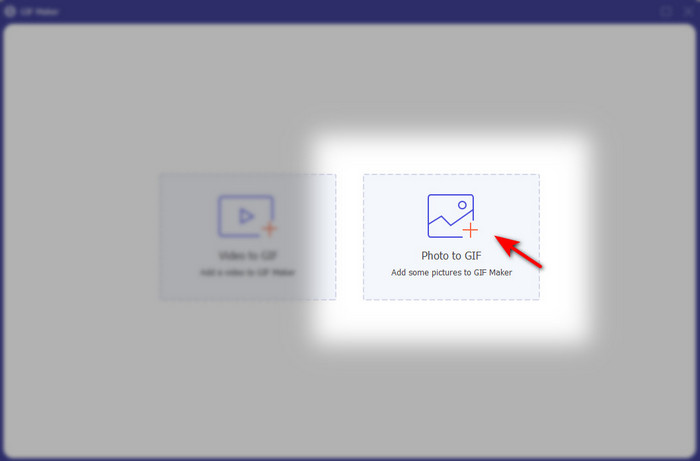
Étape 3. Pour ajouter les fichiers, cliquez sur Photos to GIF, sélectionnez dans le dossier les fichiers PNG que vous voulez convertir, puis cliquez sur open.
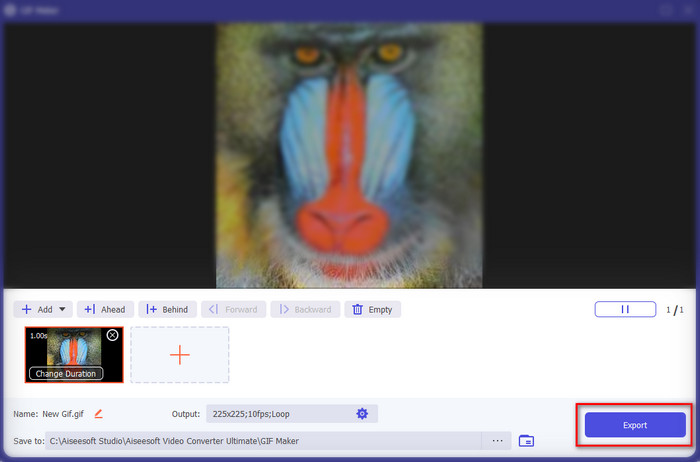
Étape 4. Les Output Settings s’affichent à l’écran ; ajustez le rendu final puis cliquez sur OK. Pour effectuer une conversion par lot de PNG en GIF, cliquez sur le signe + ; rappelez‑vous que le résultat final sera un GIF animé. En revanche, si vous voulez ne convertir qu’un seul PNG, cliquez sur le bouton Export pour enregistrer le résultat final sur votre disque.
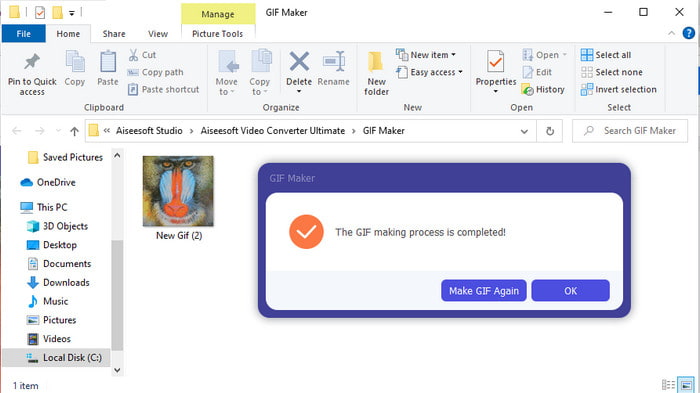
Étape 5. Patientez quelques secondes : un dossier apparaîtra à l’écran. Cliquez sur le fichier dans ce dossier pour le visionner et le partager ensuite.
Partie 3. FAQ sur PNG vers GIF
Pourquoi le PNG a-t-il une meilleure qualité que les GIF ?
C'est simplement parce que PNG prend en charge 16,8 millions de combinaisons de couleurs avec une transparence de 1 bit contrairement au GIF qui ne prend en charge que 256 couleurs sans canaux alpha. Cependant, les couleurs des GIF sont beaucoup plus compressées si nous nous apprêtons à les comparer avec le PNG. De plus, la taille du fichier GIF est beaucoup plus petite que le format PNG.
Puis-je transformer un JPG en GIF ?
Absolument oui. Si vous voulez savoir ce qu'est JPG et comment transformer JPG en GIF, cliquez sur ce lien pour accéder à un nouveau site Web.
Si je convertis PNG en GIF, sa transparence sera-t-elle supprimée ?
Vous n'avez pas à vous inquiéter car PNG et GIF prennent en charge la transparence 1 couleur. Donc, si vous convertissez PNG en GIF, attendez-vous à ce que sa transparence ne change pas quoi qu'il arrive.
Conclusion
Nous voici arrivés à la fin ; nous espérons que cet article vous a aidé à comprendre comment convertir un format d’image en GIF. Toutefois, il existe un outil capable d’enregistrer une série d’images animées comme un GIF : le remarquable Video Converter Ultimate. Cet outil vous sera utile dans de nombreuses situations, surtout pour les GIF. Si vous voulez créer un beau GIF, suivez les étapes ci-dessus et téléchargez ce logiciel dès maintenant.
-
 [Guide] Comment convertir des vidéos M4V en GIF animés sous Windows/Mac
 Si vous souhaitez créer des fichiers GIF animés à partir de vos vidéos M4V préférées, vous pouvez découvrir 2 manières simples et efficaces de convertir des vidéos M4V en GIF avec des paramètres personnalisés.
-
 WebM en GIF - 3 convertisseurs WebM en GIF gratuits pour créer vos propres GIF
 WebM est-il un GIF ? Comment transformer une vidéo en GIF ? Existe-t-il un convertisseur WebM en GIF gratuit ? Cet article partage 3 manières gratuites de vous aider à convertir WebM en GIF.
-
 Comment convertir des vidéos MKV en GIF animés sans Photoshop/FFmpeg
 Après avoir téléchargé et regardé des films MKV sur votre ordinateur, vous voudrez peut-être partager des moments merveilleux avec des amis ou sur Internet sous forme de GIF. Dans cet article, vous pouvez découvrir les 2 manières les plus simples de convertir MKV en GIF.
