


 Video Converter Ultimate
 Enregistreur d'écran
 Réparation vidéo
Meilleur guide sur la façon d'ajouter du texte à une vidéo avec les étapes détaillées chacune
Vous voulez créer un tutoriel vidéo ? En théorie, les utilisateurs ont tendance à se lasser, surtout lorsqu’ils regardent une vidéo de tutoriel difficile à suivre. Même si votre contenu est excellent, un utilisateur peut trouver votre vidéo un peu moins attrayante, et son engagement peut chuter au bout de quelques minutes. Mais saviez-vous que vous pouvez ajouter du texte pour rendre votre vidéo plus captivante pour les utilisateurs ? Alors, pourquoi ne pas essayer ? Et pour vous aider à ajouter du texte à une vidéo, vous devez garder le rythme et lire l’intégralité de cet article.

Partie 1. La manière la plus professionnelle d'ajouter du texte à une vidéo à l'aide de l'outil ultime
La plupart des blogueurs et créateurs de contenu adorent créer une excellente vidéo avec du texte, et avec Video Converter Ultimate, vous pouvez réaliser une vidéo remarquable. Cet outil propose des fonctions de montage que vous allez adorer utiliser après avoir ajouté le texte sur votre vidéo. Il peut également rendre votre vidéo plus engageante et incroyablement belle en quelques clics. N’êtes-vous pas impressionné par cet outil ? Eh bien, nous le sommes aussi. Pour ajouter rapidement le texte, suivez les étapes pour savoir comment ajouter du texte à une vidéo en seulement quelques clics.
Étape Comment ajouter du texte à une vidéo comme filigrane avec l’outil ultime
Étape 1. Téléchargez le programme sur le disque de votre ordinateur Windows ou Mac, puis installez-le rapidement et lancez-le. Le guide que nous écrivons ci-dessous est facile à suivre et à comprendre.
Téléchargement gratuit pour Windows 7 ou version ultérieure Téléchargement sécurisé
Téléchargement gratuit pour macOS 10.7 ou version ultérieure - Téléchargement sécurisé
Étape 2. Dans la section Boîte à outils, repérez Filigrane vidéo et ouvrez-le maintenant.
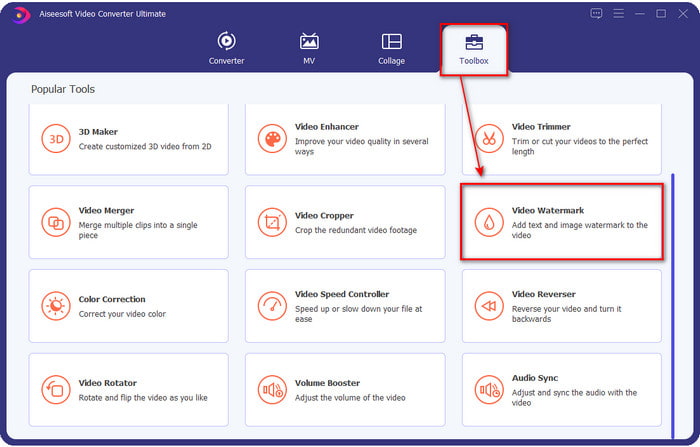
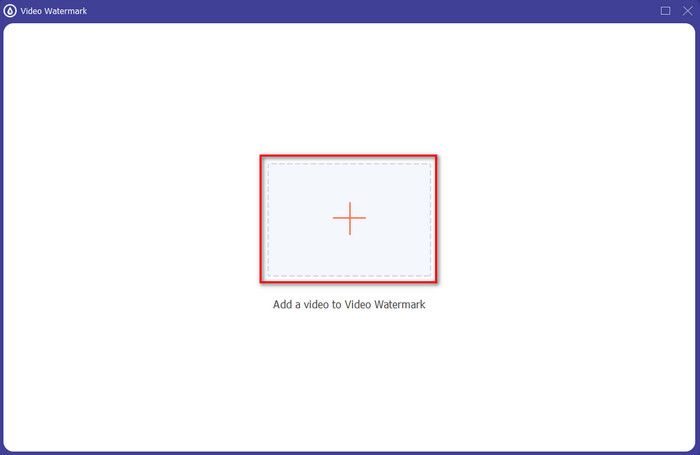
Étape 3. Appuyez sur le bouton +, et le dossier de fichiers de votre disque dur s’ouvrira. Recherchez le fichier dans vos dossiers et cliquez sur Ouvrir pour l’ajouter à la file d’attente de filigranage.
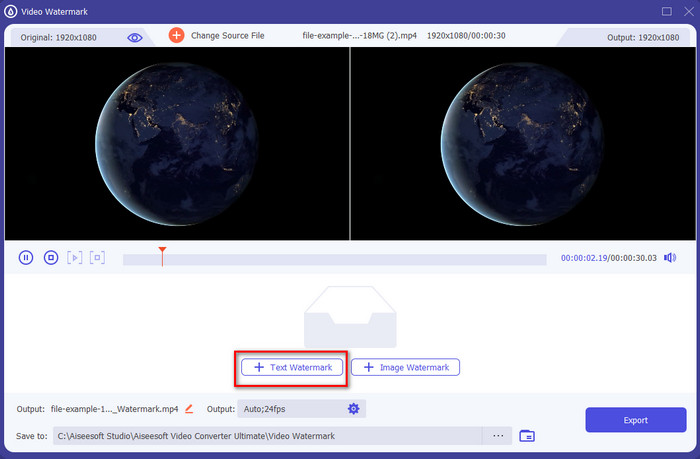
Étape 4. Dans la partie inférieure centrale de la nouvelle fenêtre qui s’ouvre, cliquez sur Filigrane texte pour effectuer une superposition de texte sur la vidéo.
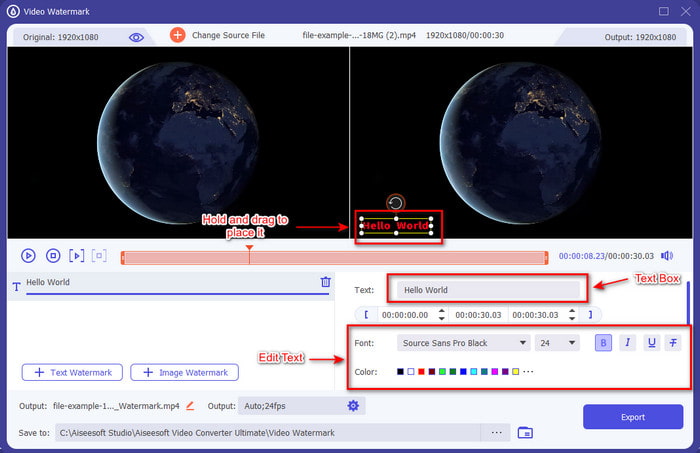
Étape 5. Après avoir cliqué, ajoutez le texte dans la zone de texte, puis modifiez la police, la couleur et la taille selon vos préférences. Maintenez et faites glisser le filigrane texte et placez-le n’importe où dans la vidéo.
Étape 6. Pour enregistrer le fichier sur votre disque, cliquez sur le bouton Exporter. L’exportation ne prendra que moins d’une minute grâce au processus ultra-rapide pris en charge par cet outil, et voilà ! Vous avez maintenant ajouté un filigrane texte sur votre vidéo aussi simplement que cela.
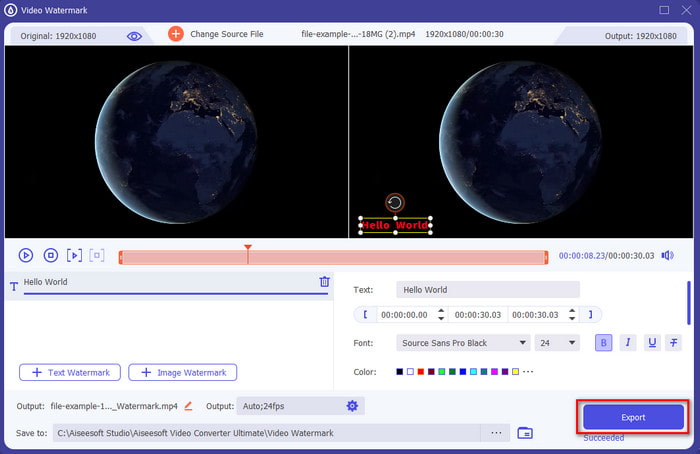
Avantages
- Il prend en charge des fonctionnalités d'édition avancées pour améliorer votre vidéo et ajouter du texte par rapport aux autres outils.
- Adaptable dans toutes les situations et sur une plate-forme, telle que Windows et Mac.
- Il prend en charge plus de 200 formats vidéo dans lesquels vous pouvez télécharger et exporter, tels que MP4, AVI, MOV, MKV, WMV, FLV, etc.
Les inconvénients
- L'achat de l'outil est nécessaire.
En rapport:
Ajouter des sous-titres à la vidéo
Ajouter un filigrane à la vidéo
Partie 2. Un moyen pratique d'ajouter ou de mettre du texte sur une vidéo sur des appareils iOS
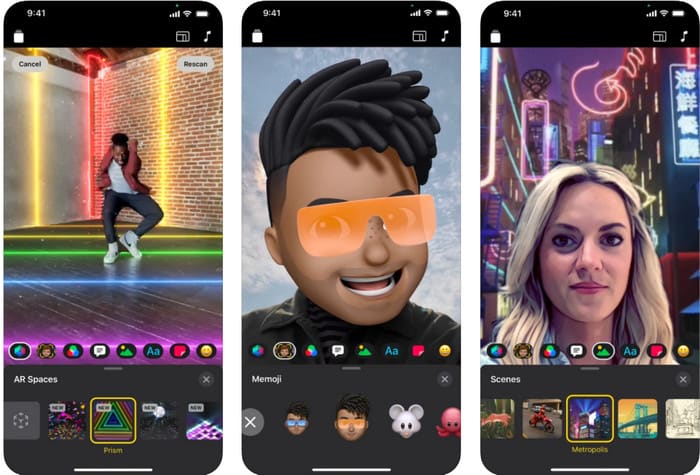
Vous pouvez utiliser Clips pour ajouter du texte à une vidéo sur iPhone ou iPad. Cet outil propose un ensemble de fonctions pour enregistrer et monter une vidéo. De plus, il est disponible gratuitement sur l’App Store si vous en avez besoin. Bien que l’outil soit gratuit, vous ne pouvez pas l’utiliser sur Android car il n’est pas compatible. Les étapes ci-dessous ne concernent donc pas les utilisateurs Android.
Étape 1. Téléchargez Clips sur votre appareil iOS et ouvrez-le.
Étape 2. Cliquez sur l’icône multi‑image, puis sur Photos, trouvez la vidéo dans votre galerie, cliquez sur le fichier, puis sur Ajouter, et enfin sur Ajouter au projet.
Étape 3. Touchez la vidéo et cliquez sur Effets ; dessous, cliquez sur Aa pour sélectionner le texte animé que vous voulez ajouter, puis tapez le texte à insérer. Cliquez sur le bouton Exporter, puis sur Enregistrer la vidéo.
Avantages
- Il prend en charge les fonctionnalités d'édition semi-avancées.
- Téléchargement gratuit sur n'importe quel appareil iOS.
- Il prend en charge non seulement l'édition, mais également l'enregistrement.
Les inconvénients
- Certaines fonctionnalités d'édition qu'il fournit ont encore des bogues et des problèmes.
- La nouvelle version du est devenue plus pire que la précédente.
Partie 3. Méthode gratuite pour ajouter du texte à une vidéo sur le Web
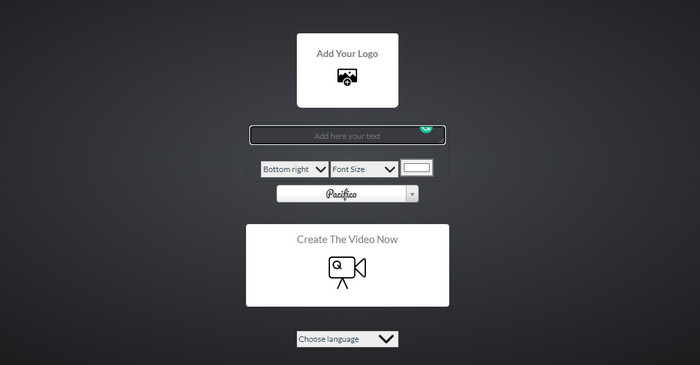
Voulez-vous ajouter du texte à la vidéo en ligne ? Eh bien, vous pouvez l'utiliser gratuitement sur voice2v.com. Cet outil Web prend facilement en charge l'ajout gratuit d'un filigrane de texte sur toutes les vidéos MP4. Bien que l'outil prenne en charge un filigrane d'ajout gratuit, vous ne pouvez pas placer librement le filigrane ailleurs que dans les options présentées. Mais si vous le souhaitez, vous pouvez toujours suivre les étapes ci-dessous.
Étape 1. Ouvrez votre navigateur et recherchez le site officiel voice2v.com.
Étape 2. Cliquez sur Upload Your Video pour insérer la vidéo sur laquelle vous souhaitez ajouter un filigrane.
Étape 3. Dans la zone de texte, tapez le filigrane que vous souhaitez et cliquez sur les menus déroulants pour changer l’emplacement du filigrane, la police, la taille et la couleur. Cliquez sur Create The Video Now, puis sur la ligne à trois points pour le télécharger.
Avantages
- Aucun téléchargement de l'application ou du logiciel n'est nécessaire.
- Libre d'accès dans tous les navigateurs.
- Fonctions d'édition simples mais efficaces.
Les inconvénients
- Il n'a pas de volet de prévisualisation pour voir où se trouve le filigrane.
- Vous ne pouvez pas placer librement le filigrane où vous le souhaitez.
Partie 4. FAQ sur l'ajout de texte à une vidéo
Puis-je ajouter une animation sur le filigrane texte ?
Oui, vous pouvez, mais tous les éditeurs ne prennent pas en charge l'animation sur le filigrane de texte. Ainsi, si vous souhaitez ajouter un filigrane de texte d'animation, utilisez l'outil qui fournit un ensemble professionnel de fonctionnalités prenant en charge le filigrane d'animation.
Quel est le meilleur endroit pour le filigrane de texte ?
Si vous souhaitez des perturbations mineures, vous pouvez placer le filigrane sur les bords de la vidéo. Mais si vous voulez ajouter une sécurité supplémentaire à votre travail, vous pouvez ajouter un filigrane au milieu de la vidéo. Cela fonctionne bien selon vos besoins.
Le filigrane textuel augmente-t-il la taille du fichier d'origine de la vidéo ?
Tout d'abord, la taille du fichier de la vidéo originale de la vidéo en filigrane changera. La taille du fichier augmentera car vous ajoutez un autre élément à la vidéo. Mais cet ajout n'affectera pas la taille du fichier de la vidéo de manière à en doubler la taille. Et si jamais vous rencontrez que la taille du fichier de votre vidéo double, cela signifie que l'outil que vous avez utilisé pour ajouter un filigrane de texte le fait et pas vous.
Conclusion
Pour résumer, ces outils que nous choisissons sont des sélections manuelles, ce qui signifie que nous ne sélectionnons que les meilleurs des meilleurs outils que vous pouvez utiliser pour ajouter un filigrane de texte. Avec les différences, l'outil a un impact remarquable sur l'ajout du texte en filigrane sur votre vidéo.
Bien que ces outils aient différents ensembles de fonctionnalités, nous pensons toujours que Video Converter Ultimate nous a donné la chance de devenir plus qu'un éditeur. Parce que cet outil crée une connexion solide avec les utilisateurs et l'outil lui-même, en regardant les étapes, on peut dire que l'outil engage ses utilisateurs en ajoutant moins de tracas en ajoutant du texte en filigrane mais agréable. Attire-t-il votre attention? Eh bien, si c'est le cas, téléchargez l'outil sur votre bureau et profitez-en !
-
 Comment ajouter de l'audio et de la musique à une vidéo gratuitement sur votre ordinateur / téléphone
 Cet article présente 4 moyens simples d'ajouter gratuitement de l'audio à une vidéo. Quelle que soit la piste audio que vous souhaitez ajouter à votre vidéo, vous pouvez obtenir des résultats satisfaisants ici.
-
 Transformez GIF en format vidéo : convertissez les mèmes GIF en vidéo [2021]
 Déterminez comment transformer GIF en format vidéo à l'aide des outils répertoriés ci-dessous. Choisissez lequel et apprenez comment le faire, car nous recueillons suffisamment de preuves à leur sujet.
-
 Marvelous GIF to Video Apps pour les appareils Android et iOS
 Saviez-vous que vous pouvez convertir des GIF dans n'importe quel format vidéo que vous aimeriez utiliser sur votre téléphone ? Choisissez les meilleures applications sur votre Android ou iOS.
