


 Video Converter Ultimate
 Enregistreur d'écran
 Réparation vidéo
 Téléchargement sécurisé
Guide Comment faire pivoter une vidéo sur un iPhone et un iPad avec les meilleurs outils
En avez-vous assez de plisser les yeux pour regarder, sur votre iPhone, des vidéos filmées de travers ou complètement à l’envers ? Cela nous est arrivé à tous. Mais la bonne nouvelle, c’est que vous n’avez plus à supporter des vidéos bancales. En quelques étapes simples, vous pouvez maîtriser comment faire pivoter des vidéos sur un iPhone et les afficher exactement comme vous le souhaitez. Que vous soyez un cinéaste en herbe, un influenceur sur les réseaux sociaux ou simplement quelqu’un qui aime immortaliser des moments précieux, savoir ajuster l’orientation de vos vidéos est une compétence très utile.
Dans cet article de blog, nous vous montrerons comment faire pivoter des vidéos sur votre iPhone comme un pro, afin que vous puissiez présenter vos images de la meilleure façon possible. Alors, préparez-vous à faire passer votre jeu de montage vidéo au niveau supérieur !

Partie 1. Comment faire pivoter une vidéo sur iPhone
1. Photos
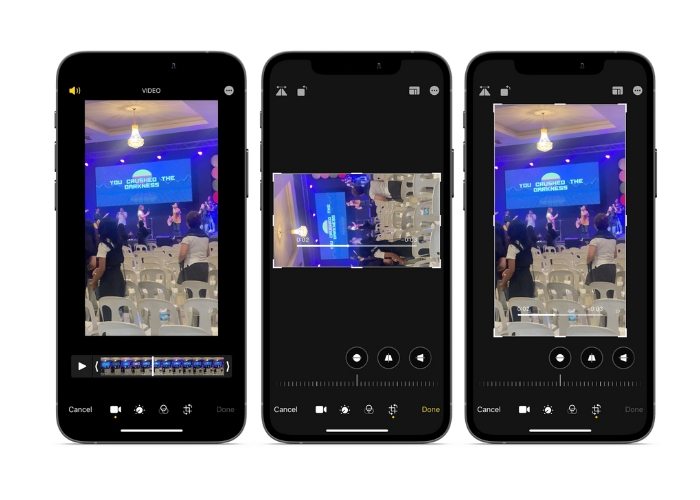
Si vous êtes un utilisateur d'iPhone, il y a de fortes chances que vous connaissiez déjà l'application Photos. C'est l'application incontournable pour organiser et éditer vos photos et vidéos, et elle regorge de fonctionnalités qui facilitent la gestion de votre bibliothèque multimédia. Cette application n'est pas seulement pour organiser et éditer des photos. Une fonctionnalité utile est la possibilité de faire pivoter les vidéos, ce qui peut être une bouée de sauvetage si vous avez accidentellement filmé quelque chose dans la mauvaise orientation. Découvrez les étapes pour savoir comment convertir une vidéo portrait en paysage vidéo iPhone ou vice versa.
Étape 1. Lancez l’app Photos sur votre iPhone et sélectionnez le clip que vous voulez faire pivoter.
Étape 2. Ensuite, touchez le bouton Modifier dans l’angle supérieur droit de l’écran.
Étape 3. Touchez le bouton Recadrer et faire pivoter, qui ressemble à un carré avec une flèche incurvée autour.
Étape 4. Pour faire pivoter votre vidéo, placez deux doigts dessus et faites-les pivoter dans le sens souhaité. Vous pouvez aussi utiliser le curseur au bas de l’écran pour affiner la rotation. Une fois la vidéo orientée comme vous le voulez, touchez OK dans l’angle inférieur droit de l’écran. D’une certaine façon, l’app Photos sert aussi d’application de rotation de vidéo pour les utilisateurs d’iPhone.
2. iMovie
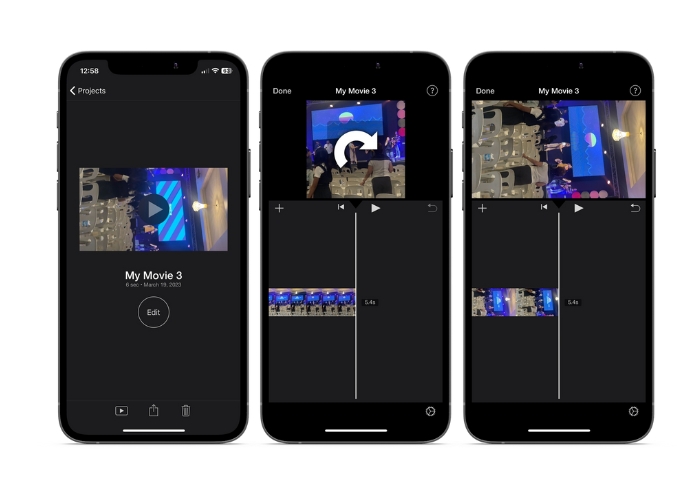
Pour les cinéastes en herbe, les créateurs de contenu ou simplement quelqu'un qui aime capturer des moments spéciaux en vidéo, vous devez consulter iMovie. iMovie est une puissante application de montage vidéo pour les appareils Apple qui vous permet de créer des films époustouflants. Avec iMovie, vous pouvez facilement faire pivoter vos vidéos et vous assurer qu'elles sont parfaites pour n'importe quelle taille d'écran ou angle de vue. Pour effectuer une rotation vidéo iMovie sur un iPhone, suivez les instructions ci-dessous.
Étape 1. Commencez par ouvrir iMovie sur votre iPhone. Puis créez un nouveau projet.
Étape 2. Ensuite, choisissez dans la galerie de votre téléphone la vidéo que vous souhaitez modifier.
Étape 3. Dans le panneau d’aperçu, placez deux doigts sur la vidéo. Puis faites-les pivoter dans le sens horaire ou antihoraire pour faire tourner la vidéo.
Étape 4. Enfin, touchez le bouton OK dans l’angle supérieur gauche de l’écran. Voilà comment faire pivoter une vidéo sur un iPhone avec iMovie.
3. Rotation et retournement de la vidéo
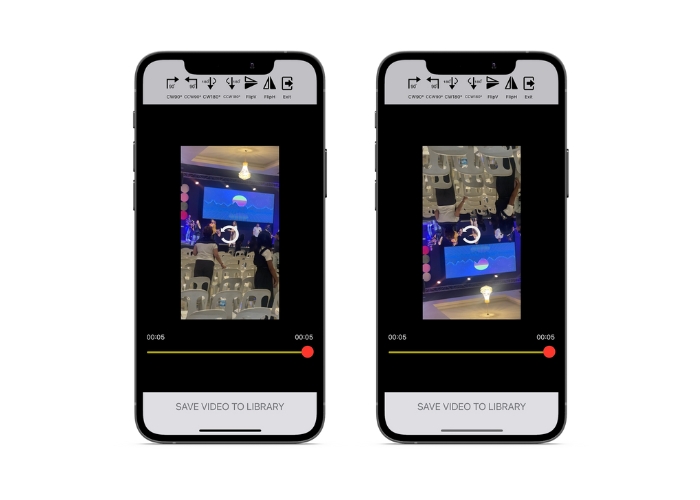
Video Rotate & Flip est une application tierce que vous pouvez télécharger depuis l'App Store. Il vous permet de faire pivoter et de retourner facilement des vidéos. Ouvrez simplement l'application, sélectionnez la vidéo que vous souhaitez faire pivoter et utilisez l'outil de rotation pour régler l'angle de la vidéo. Vous pouvez également utiliser l'outil de retournement pour retourner la vidéo horizontalement ou verticalement. Une fois que vous avez terminé, enregistrez la vidéo sur votre pellicule ou partagez-la directement depuis l'application.
Étape 1. Installez le programme depuis le Play Store. Ouvrez l’app puis touchez le bouton en forme de flèche vers le haut sur l’écran principal pour choisir la vidéo que vous voulez faire pivoter.
Étape 2. Une fois la vidéo sélectionnée, elle s’affiche dans la fenêtre d’aperçu. Vous pouvez utiliser les commandes situées sous la fenêtre d’aperçu pour faire pivoter la vidéo de 90 degrés vers la droite ou vers la gauche, ou la retourner horizontalement ou verticalement.
Étape 3. Une fois que vous avez fait pivoter ou retourné la vidéo dans l’orientation souhaitée, touchez le bouton Enregistrer pour sauvegarder les modifications. Voilà comment obtenir la rotation d’une vidéo sur un iPhone avec ce programme.
Partie 2. Comment faire pivoter une vidéo sur un iPad
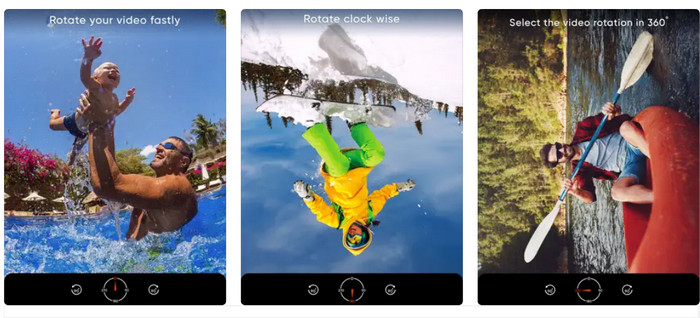
Si vous préférez travailler sur un écran plus grand, comme un iPad, vous pouvez utiliser Video Rotate. Il s’agit d’une application tierce que vous pouvez télécharger sur l’App Store. Elle vous permet de faire pivoter des vidéos facilement et aussi de les retourner horizontalement ou verticalement si nécessaire. Video Rotate ne se contente pas de faire tourner les vidéos. Elle propose également d’autres fonctions pratiques. Vous pouvez couper la vidéo pour supprimer les parties indésirables, ajuster la luminosité et le contraste, ou même ajouter du texte ou des effets.
Étape 1. Téléchargez l’app Video Rotate depuis l’App Store et installez-la sur votre iPad.
Étape 2. Ouvrez l’app et touchez le bouton Sélectionner une vidéo pour choisir la vidéo que vous voulez faire pivoter. Vous verrez la vidéo se lire à l’écran.
Étape 3. Pour faire pivoter la vidéo, utilisez les commandes de rotation situées en bas de l’écran. Vous pouvez faire pivoter la vidéo de 90 degrés vers la gauche ou vers la droite en touchant le bouton correspondant. Vous pouvez aussi retourner la vidéo horizontalement ou verticalement en touchant le bouton Retourner.
Partie 3. Comment faire pivoter des vidéos iPhone sur un ordinateur
Si vous souhaitez apprendre à faire pivoter des vidéos sur un PC, vous pouvez utiliser FVC Video Converter Ultimate. C’est un convertisseur vidéo polyvalent et complet qui peut aussi servir de puissant outil de rotation de vidéos. Il offre une interface conviviale et prend en charge un large éventail de formats vidéo, notamment MP4, AVI, MOV et bien d’autres. Pour en savoir plus sur cet outil, vous pouvez vous référer aux étapes ci-dessous.
Étape 1. Téléchargez l’outil et installez-le.
Tout d'abord, vous devez saisir l'application et installer le programme sur votre ordinateur. Après cela, démarrez-le tout de suite.
Téléchargement gratuitPour Windows 7 ou version ultérieureTéléchargement sécurisé
Téléchargement gratuitPour macOS 10.7 ou version ultérieureTéléchargement sécurisé
Étape 2. Ajoutez un fichier vidéo
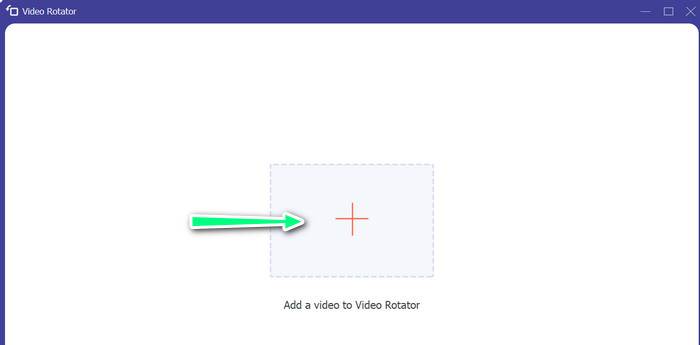
Ensuite, cliquez sur l’onglet Boîte à outils et utilisez la fonction Rotateur vidéo du programme. Après avoir cliqué sur cette option, il vous sera demandé de téléverser votre vidéo. Cliquez alors sur le signe plus pour ajouter la vidéo souhaitée.
Étape 3. Faites pivoter la vidéo
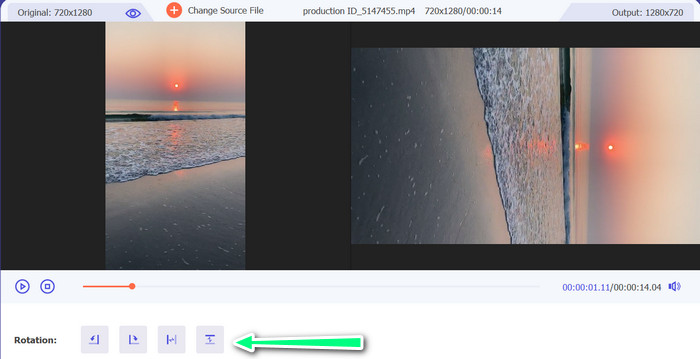
À ce stade, cliquez sur le bouton qui oriente la vidéo comme vous le souhaitez. Étant donné que l'aperçu est en direct, vous pouvez apporter des modifications rapidement.
Étape 4. Récupérez une copie de la vidéo qui a été tournée
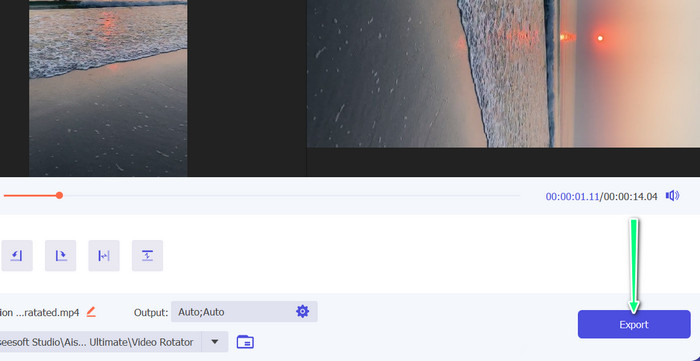
Pour finir, cliquez sur le bouton Exporter pour obtenir une copie de la vidéo que vous venez de modifier. Après cela, une alerte apparaîtra et le dossier contenant la vidéo s’ouvrira.
Partie 4. FAQ sur la rotation de vidéos sur iPhone
Pourquoi la vidéo de l'iPhone ne tourne-t-elle pas ?
Il peut y avoir plusieurs causes pour lesquelles la vidéo de votre iPhone ne tourne pas. Les causes les plus courantes sont le verrouillage de l'orientation, le format vidéo n'est pas compatible et bien d'autres.
Comment prendre une vidéo portrait sur iPhone 12 ?
Pour prendre une vidéo portrait sur votre iPhone 12, commencez par ouvrir l'application Appareil photo et balayez vers la gauche pour passer en mode vidéo. Ensuite, appuyez sur le bouton 1× ou 2× pour choisir l'appareil photo que vous souhaitez utiliser. Ensuite, recherchez l'option Portrait au-dessus du déclencheur et appuyez dessus pour la sélectionner.
La rotation d'une vidéo sur mon iPhone affectera-t-elle sa qualité ?
Faire pivoter une vidéo sur votre iPhone ne devrait pas affecter sa qualité tant que vous ne redimensionnez pas la vidéo et ne la compressez pas pendant le processus.
Conclusion
Faire pivoter des vidéos sur un iPhone est un moyen simple et efficace d’améliorer vos contenus visuels. Avec l’app Photos intégrée ou des applications tierces, vous pouvez faire pivoter des vidéos sur un iPhone dans l’orientation souhaitée et créer de superbes vidéos sans avoir à vous soucier de l’orientation des prises de vue d’origine.
-
 [4 solutions] Comment ralentir une vidéo sur iPhone comme un pro
 Vous rencontrez des difficultés pour ralentir une vidéo sur iPhone ? Si vous rencontrez ce problème, ne vous inquiétez plus, car nous vous aiderons à résoudre le problème en lisant cet article.
-
 Comment raccourcir une vidéo sur iPhone [Tutoriels détaillés]
 Êtes-vous un utilisateur d'iPhone et souhaitez-vous couper vos vidéos ? Ne vous inquiétez plus. Ce guide fournira tous les détails sur la façon de couper une vidéo sur iPhone et iPad.
-
 Modifier comme un pro : comment recadrer vos vidéos iPhone sans effort
 Si vous cherchez à faire passer vos compétences de montage vidéo sur iPhone au niveau supérieur, les applications de recadrage vidéo changent la donne. Nous couvrirons certaines des meilleures applications de recadrage vidéo pour iPhone.
